pdqSMART-STP-Quick-Start-Guide
Open the original PDF document
View PDF

QUICK START GUIDE

1 DOWNLOAD pdqSMART-STP APP
Download and Install pdqSMART-STP App from App Store or Google Play
For iPhone or iPad
- 1: Go to App Store on device
- 2: Search for "pdqSMART-STP"
- 3: Install "pdqSMART-STP" App
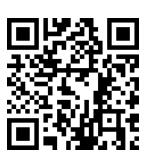
Scan to Download
For Android
- 1: Go to Play Store on device
- 2: Search for "pdqSMART-STP"
- 3: Install "pdqSMART-STP" App

App Icon
2 CREATE ACCOUNT
Open the pdqSMART-STP App and create an account
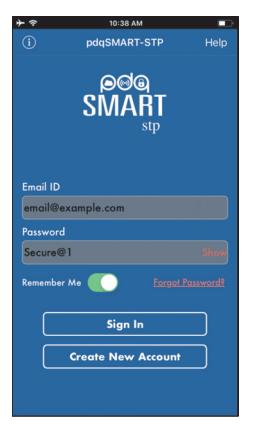
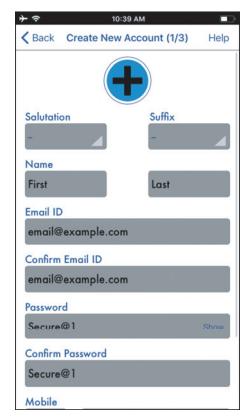
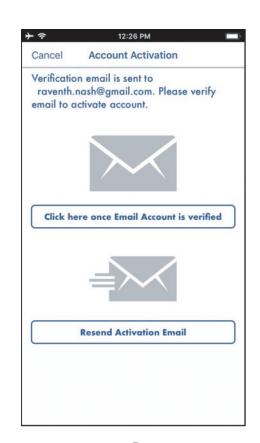

Create an Account
Follow the steps to set up the account. a. b. c.
Click Next to Proceed.
Verify your email to activate your account
.
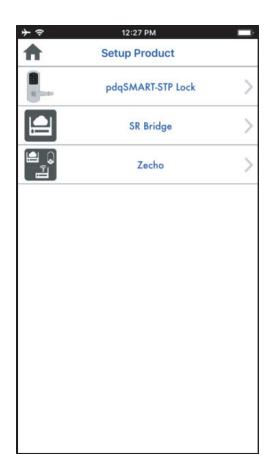
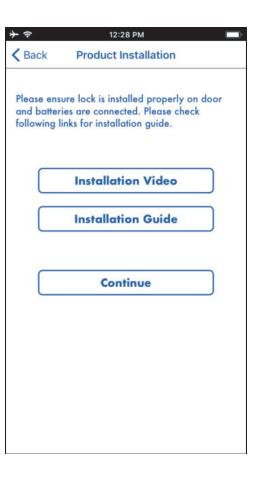
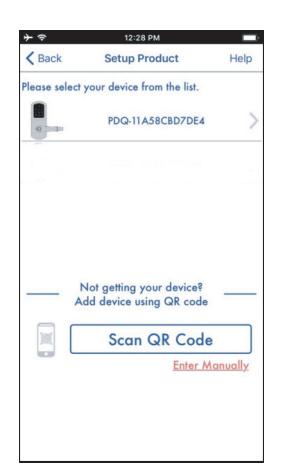
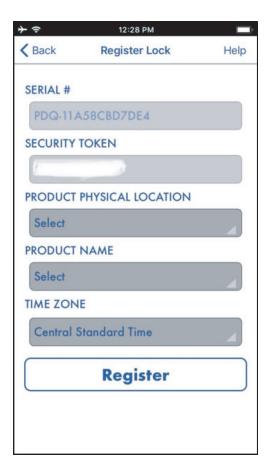
3 SETUP PRODUCT
Click on pdqSMART - STP Lock






4
CONFIGURATION AND USER MANAGEMENT
Choose Configuration option for the device. Set it to default to start with and then customize from the Settings menu. Add user devices for yourself and invite family and friends to access the device.
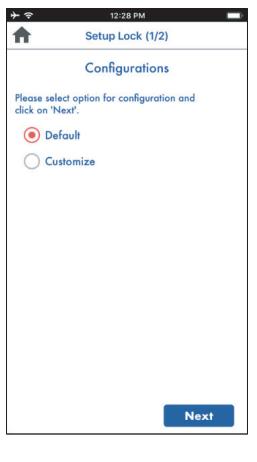
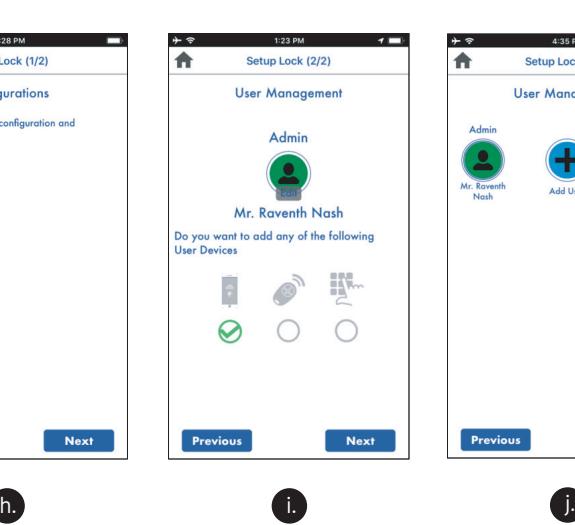
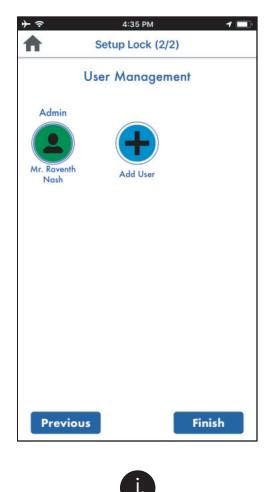


Choose your configuration Choose your user devices
Click Finish or add another user to the product
5 HOME SCREEN
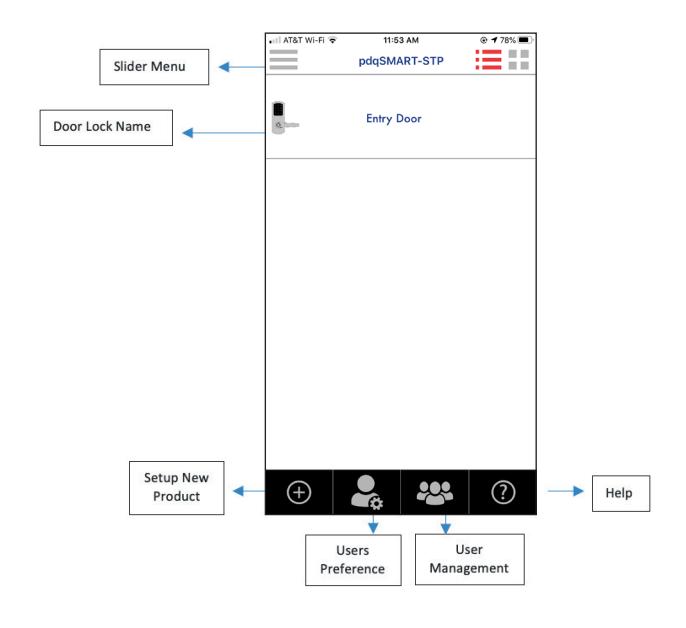
Slider Menu : Menu provides options for third party product integration
(e.g. Amazon Alexa) user preferences and log out
Lock Name : Name is given by the Admin during setup
Setup New Product : Add a new product from your account here
User Preference : Allowing access to other users is easy with
pdqSMART - STP. They can be scheduled for access at
a specific time
User Management : Account Profile, Notifications, Change Password
settings and more
: Questions? Help offers user guides, FAQ's, feedback, Help
Submit an issue and more

pdqSMART tech support : 866-874-3662 or smartsupport@pdqlocks.com
For more information about PDQ: 800-441-9692