iu_dmt_-audit_01_eng
Open the original PDF document
View PDF

Software instructions
Audit software for:
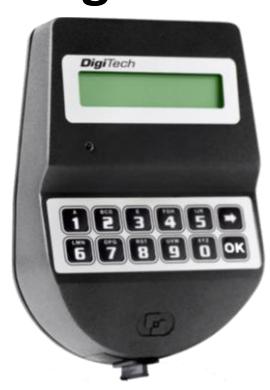
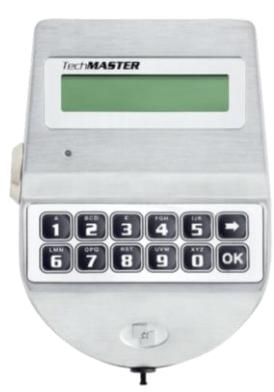
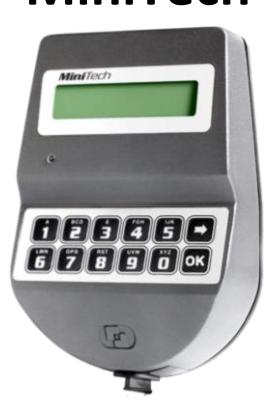
DigiTech TechMaster MiniTech

Company
Founded in 1983 with the aim of providing a complete range of professional products, Tecnosicurezza is now a consolidated reality in the field of locks and security systems for safes.
The experience gained in over 35 years of activity in the security sector has allowed the designing and manufacturing of high technology and reliability systems, which continue to receive the approval of an increasingly demanding clientele.
TECNOSICUREZZA is present directly on the Italian, Spanish and US markets and, through a extensive distribution network, in many European and extra-European countries.
TECNOSICUREZZA is aimed at national and international customers of primary importance, such as banks, safe manufacturers, cash in transit companies, mass market retailers and post offices.
Today TECNOSICUREZZA is a leading company focused on the customers' needs and constantly in step with technology.


| Table of content | |
|---|---|
| COMPANY | 2 |
| TABLE OF CONTENT | 3 |
|
1. DMT®AUDIT -
OVERVIEW |
4 |
| 2. SOFTWARE INSTALLATION | 4 |
|
3. DMT®AUDIT –
MAIN TOOLBAR |
5 |
| 4. USING THE SOFTWARE | 6 |
| 4.1 USING THE DMT AUDIT WITH DIGITECH SAFE LOCK SYSTEMS | 6 |
| 4.2 USING THE DMT AUDIT WITH MINITECH SAFE LOCK SYSTEMS | 12 |
| 4.2 USING THE DMT AUDIT WITH TECHMASTER SAFE LOCK SYSTEMS | 18 |
| CONTACTS | 23 |
Before operating the lock, please read this manual thoroughly, and retain it for future reference.

1. DMT®Audit - overview
The DMT Audit software permits downloading the audit trail with time and date of DigiTech, MiniTech and TechMaster safe lock systems.
The DigiTech and MiniTech locks can store 5500 lock events while the TechMaster can stores 6000 lock events.
Transfer of the audit trail information from the lock to your computer is accomplished by means of a Dallas key (up to 1200 events) or through a direct connection between the keypad and computer (all events can be downloaded).
Furthermore, through a direct connection between the keypad and computer you can download also the Daylight Saving Time dates and the Time Lock dates (only for MiniTech and TechMaster).
2. Software installation
2.1 Minimum system requirements
- Processor: Intel Pentium 4 (or equivalent)
- Memory: 1GB for Windows XP, 2GB for Windows Vista, 4GB for Windows 7/10
- Operating system: Windows 32-bit or 64-bit XP/Vista/7/10
- HD space: 25MB minimum
2.2 Download and install the USB driver
- 1. Access to the "download" page in the Tecnosicurezza website (www.tecnosicurezza.it) and download the USB driver (usb_driver.zip or usb_driver_1.zip or usb_driver_2.zip) in the section "Software" of the DigiTech, MiniTech or TechMaster.
- 2. The zipped file will download to either the Downloads folder or another location depending on the browser.
- 3. Once the file has downloaded, it must be unpacked or unzipped. Locate then right click the file and select "Extract all…".
- 4. If the driver has been provided on CD or USB flash drive, copy the file to your computer and unpack it.
- 5. Once the file has been extracted, locate the application "USBXpressInstaller".
- 6. Double click the application, allow the file to run if prompted, and wait for the driver to finish installing.
2.3 Download, install and use the DMT Audit software
- 1. Access to the "download" page in the Tecnosicurezza website (www.tecnosicurezza.it) and download the installation file of the DMT Audit software (tecnosicurezza_dmt_audit_x-xx.zip) in the section "Software" of the DigiTech, MiniTech or TechMaster.
- 2. The zipped file will download to either the Downloads folder or another location depending on the browser.
- 3. Once the file has downloaded, it must be unpacked or unzipped. Locate then right click the file and select "Extract all…".
- 4. If the software has been provided on CD or USB flash drive, copy the file to your computer and unpack it.

- 5. Once the file has been extracted, locate the application "tecnosicurezza_dmt_audit_x.x.x".
- 6. Double click the application, allow the file to run if prompted, and wait for the software to finish installing.
3. DMT®Audit – main toolbar
The DMT Audit software has a toolbar with the following commands:

New Clean the screen from previously downloaded audit trail.
Save Save the audit trail data.
Open Open an existing audit trail data.
Export audit Export the audit trail data in a PDF or Excel file.
Create Dallas Prepare a N1996 or N1996RM audit Dallas key to be used for downloading the
audit key audit trail from a DigiTech or MiniTech safe lock system.
Read Dallas Download the audit trail data from an audit Dallas key.
audit key
Download Download directly the audit trail data of the DigiTech/MiniTech/TechMaster using the N42170/M magnetic Dallas key connection cable or the T42146/J molex/jack connection cable.
Settings Set the date format (dd/mm/yyyy or mm/dd/yyyy) and hour format (12h or 24h).
Language Select the language for the DMT Audit software.
About Show the version of the DMT Audit software. In this window there is also the "check for updates" button. By clicking on the button it is possible to check for SW updates (if the PC is connected to internet, the DMT Audit software automatically checks for updates).
On the right side of the toolbar there is one further indicator where is indicated the Tecnosicurezza USB interfaces (N42180/T) connected to the computer. In case there are no interfaces plugged in (or in case of a problem with the USB interface driver), there will be no indication. In case there are more interfaces connected, from the drop-down list you have to select which one to use.
4. Using the software
As mentioned previously, the DMT Audit software works with DigiTech, MiniTech and TechMaster safe lock systems.
Depending on the system used, the way of use may vary. The next paragraphs explain how to use the software for each system.
4.1 Using the DMT Audit with DigiTech safe lock systems
Using the DMT Audit software with a DigiTech safe lock system, you can download the audit trail (both for locks and keypad) and download the Daylight Saving Time (DST) dates.
The transfer of the audit trail information can be made in two different ways:
- By means of a Dallas key (only lock audit trail)
- Through a direct connection between the DigiTech keypad and computer (Lock and keypad audit trail, DST dates)
In the first case you can download 1200 events (of the lock), while if you connect the keypad directly to the computer you can download up to 5500 events (of the lock).
Downloading the Audit trail with the Dallas key
In order to download the audit trail information with an audit Dallas Key you have to follow the following steps:
1) Prepare a N1996 or N1996RM audit Dallas key to be used for downloading the audit trail from a DigiTech. In order to do this, first you have to place the audit Dallas key on the reader
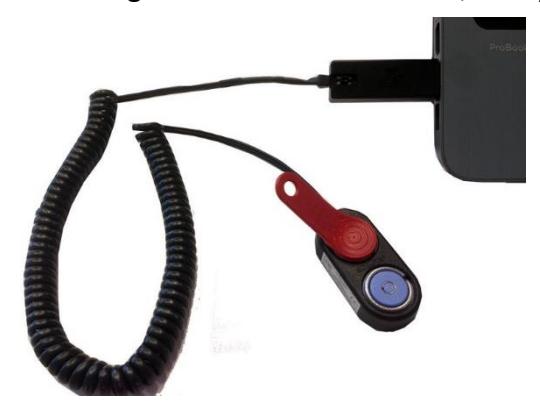
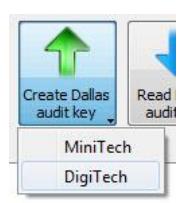
Then you have to click on the "Create Dallas audit key" icon in the DMT Audit sw toolbar (selecting DigiTech from the drop-down list) and wait until the writing of the Dallas key is finished.

2) Power up the DigiTech keypad. Press and hold . LCD will display the message:
LOCK AUDIT 0 1 – X X X X X X
Enter Manager code. LCD will display the message: ENTER DALLAS
…
Place the Dallas key on the reader. If the operation is successfully performed LCD will display the message:
OPERATION DONE
3) Read the audit Dallas key. In order to do this, first you have to place the audit Dallas Key on the Dallas key reader (USB interface N42180/T + Dallas key reader with molex connector N42170/D) connected to the computer, as shown in the picture below.
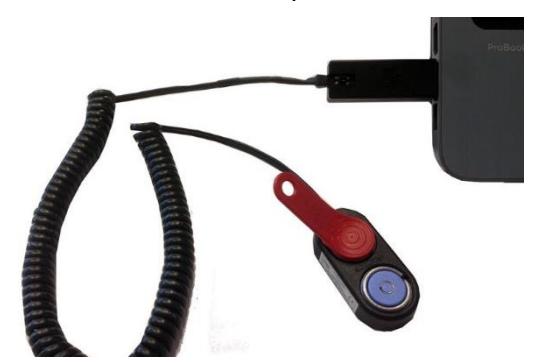
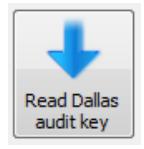
Then you have to click on the "Read Dallas audit key" icon and wait until the download of the audit trail is finished.
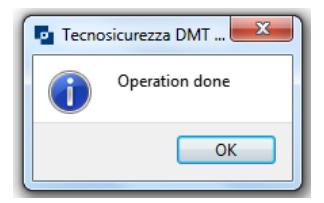
Once the download is finished click on OK.
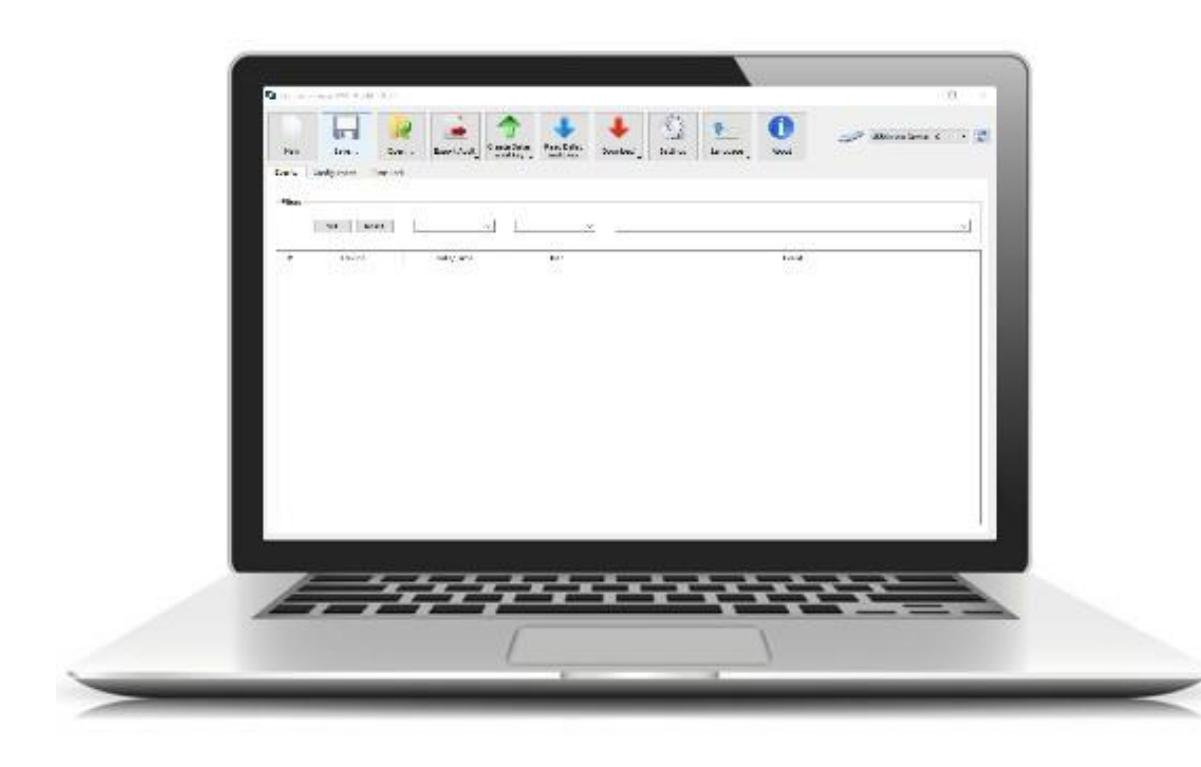
On the screen it will appear the list of events.
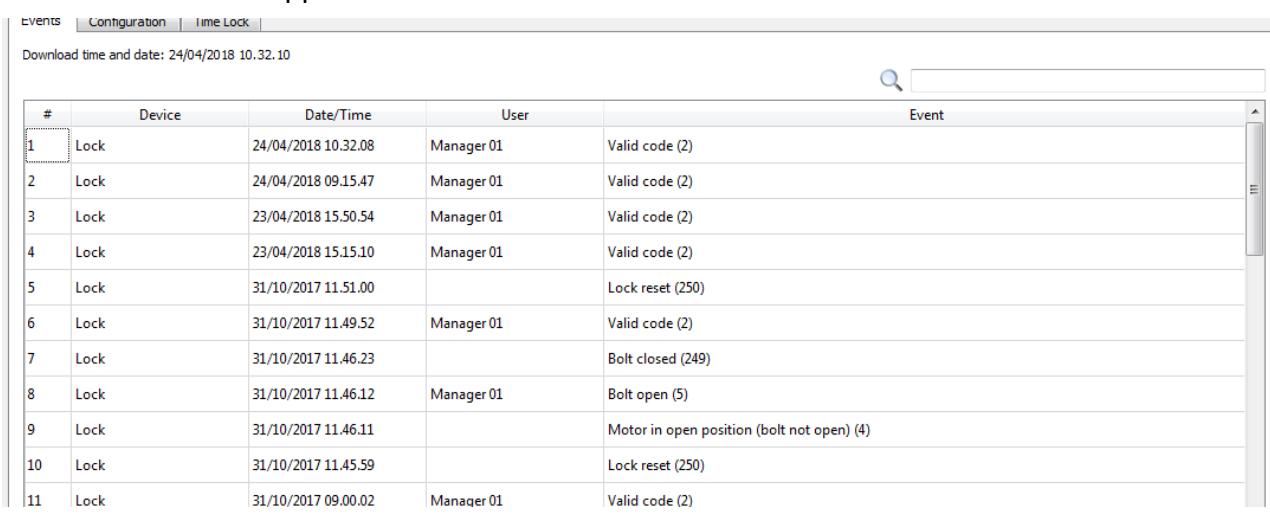

In the first column there is the id of the event, in the second column the device related to the event, in the third column the date and time, in the fourth column the user related to the event and in the fifth column the type of event.
At the top right corner there is a field where you can enter the text you want to filter by (e.g. type manager 01 to see in the screen only the events related to the manager).

Above the list of the events there are 3 different tabs.
The first one, "Events", recall the screen that shows the events.
The second tab, "Configuration", recall a screen that shows information related to the system. In the upper part of the screen there is information related to the keypad: model of keypad, firmware version, firmware date and keypad description (if programmed).
After there is an area with information related to the lock: model of lock, serial number (if programmed), firmware version, firmware date, Time Delay value and Open Window value. Below there is the list of users programmed in the lock with its status.
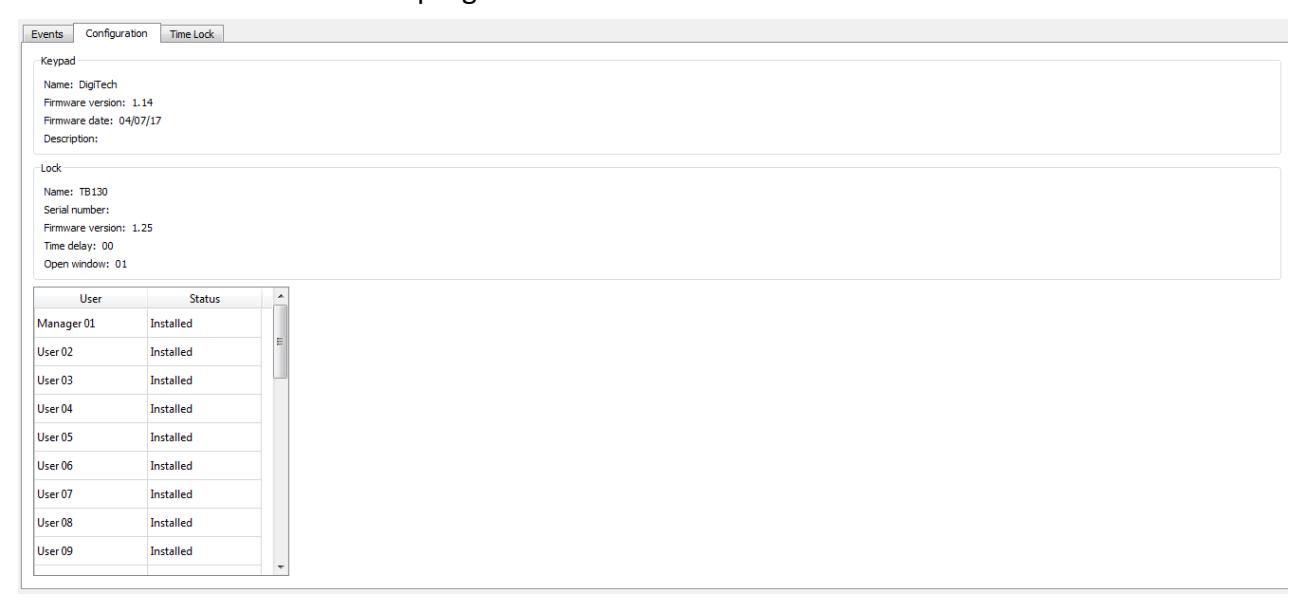
The third tab, "Time Lock", is empty if the download of the audit trail is made by means of a Dallas key.

Downloading the Audit trail through a direct connection
In order to download the audit trail information through a direct connection between the DigiTech keypad and computer you have to follow the following steps:
1) Connect the N42170/M magnetic Dallas key connection cable to the Dallas key reader or the T42146/J molex/jack connection cable to the jack connector as shown in the picture below.
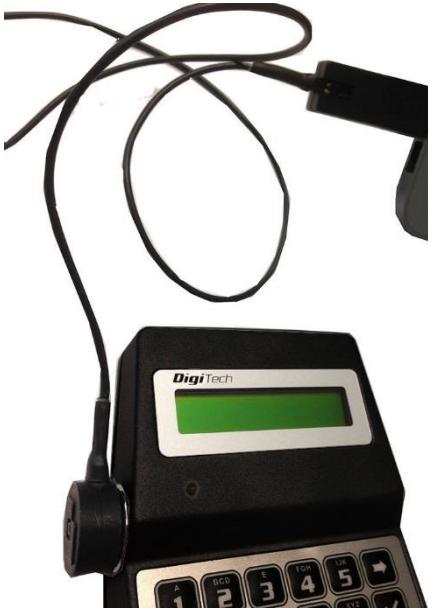
N42170/M magnetic Dallas key connection cable
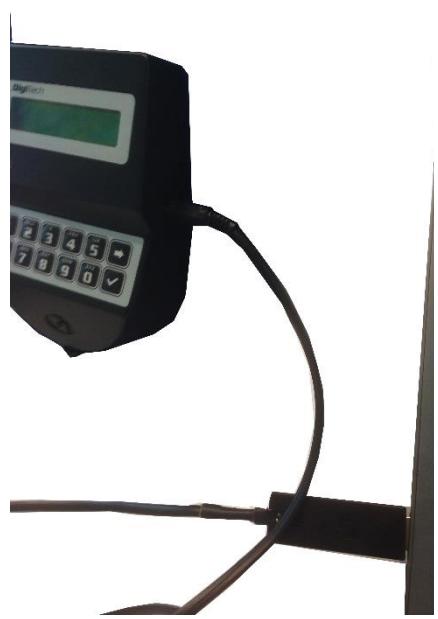
T42146/J molex/jack connection cable
2) Activate the PC link on the DigiTech.
Power up the DigiTech keypad. Press and hold . LCD will display the message:
Enter Manager code. LCD will display the message: ENTER DALLAS
Click twice the key . LCD will display the message: Now the PC link is activated and the red LED flashes. PC LINK…
LOCK AUDIT 0 1 – X X X X X X
…
- 3) Click on the "Download" icon and from the drop-down list to select which information to download:
- DigiTech (2 users) Audit or DigiTech Audit to download the events associated to the lock or to the keypad.
- Time Lock DST to download the Daylight Saving Time (DST) dates programmed in the lock (since DigiTech does not have the Time Lock, the areas related to it are empty).
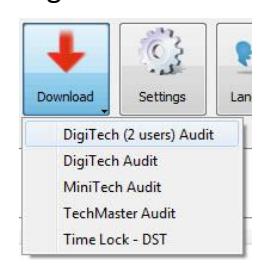

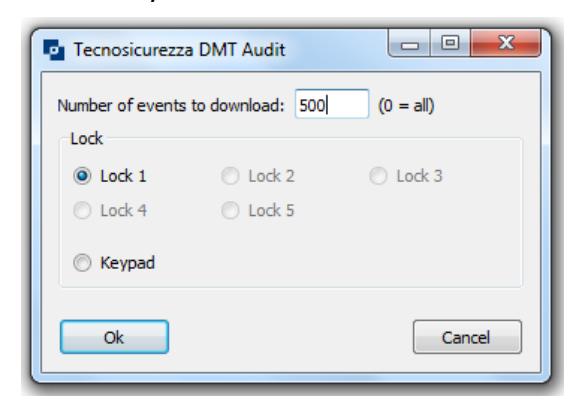
If you select DigiTech (2 users) Audit or DigiTech Audit a new window will open where you can select which events (lock or keypad) and the number of events to download (maximum 5500 events from the lock and maximum 250 events from the keypad).
Enter 0 if you want to download all events stored in the lock.
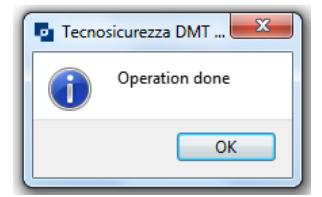
Once the download is finished click on OK.
On the screen it will appear the list of events.
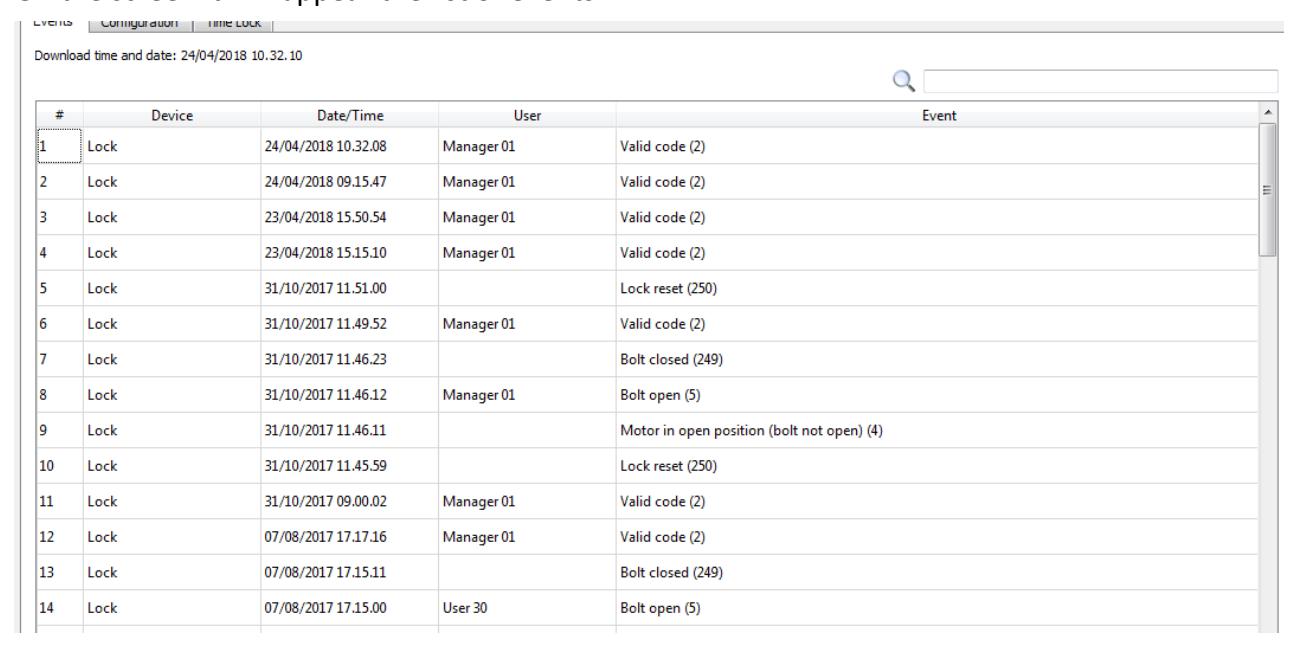
In the first column there is the id of the event, in the second column the device related to the event, in the third column the date and time, in the fourth column the user related to the event and in the fifth column the type of event.
At the top right corner there is a field where you can enter the text you want to filter by (e.g. type manager 01 to see in the screen only the events related to the manager).
| 0.4 | ||
|---|---|---|
| manager 01 |

Above the list of the events there are 3 different tabs.
The first one, "Events", recall the screen that shows the events.
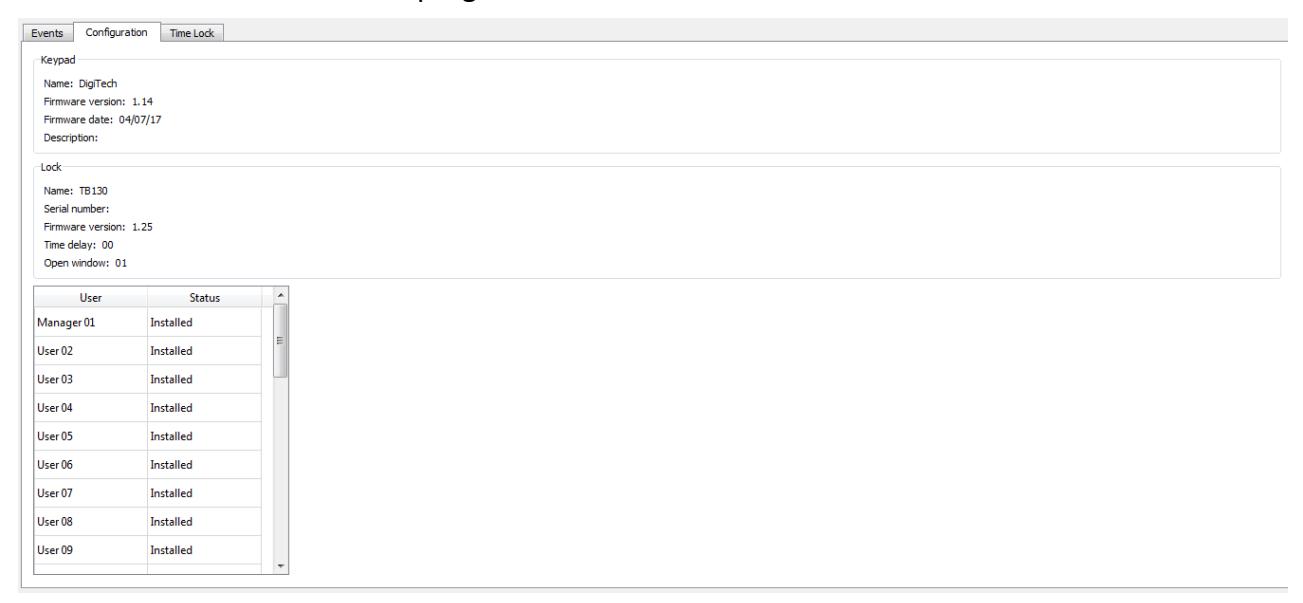
The second tab, "Configuration", recall a screen that shows information related to the system. In the upper part of the screen there is information related to the keypad: model of keypad, firmware version, firmware date and keypad description (if programmed).
After there is an area with information related to the lock: model of lock, serial number (if programmed), firmware version, firmware date, Time Delay value and Open Window value. Below there is the list of users programmed in the lock with its status.
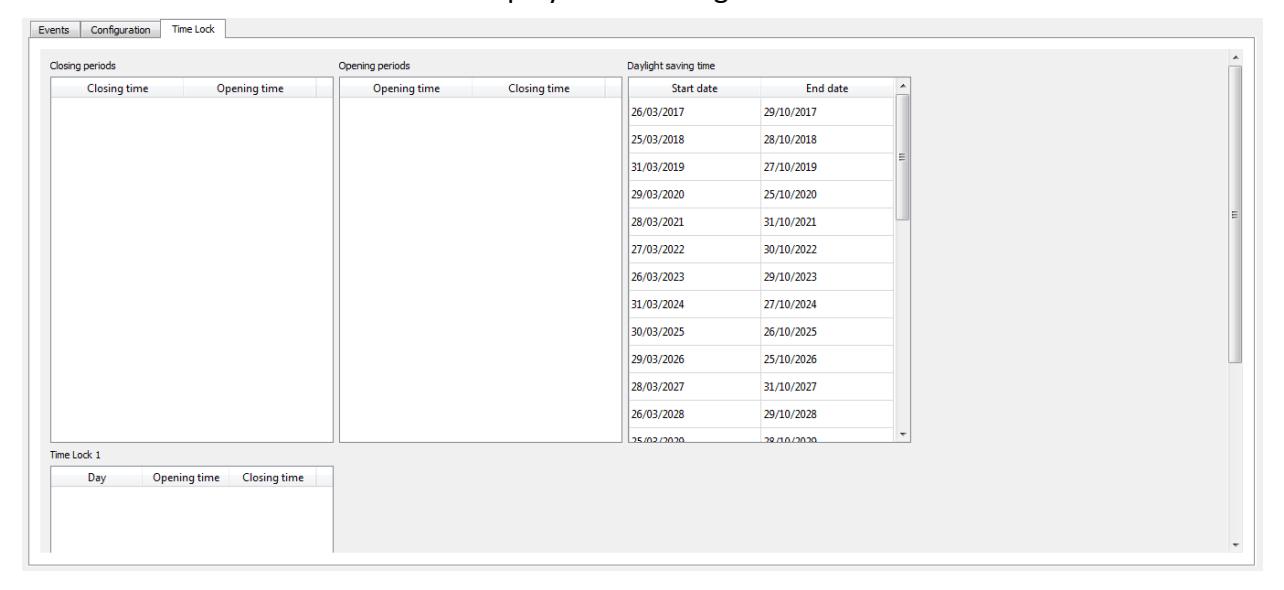
The third tab, "Time Lock", recall a screen that show the daylight saving time start and end dates programmed in the lock. This screen contains information only if you selected Time Lock – DST from the drop down list in the download icon.
No information about Time Lock is displayed as the DigiTech does not have the Time Lock.

4.2 Using the DMT Audit with MiniTech safe lock systems
Using the DMT Audit software with a MiniTech safe lock system, you can download the audit trail (both for locks and keypad), the Time Lock values and the Daylight Saving Time (DST) dates. The transfer of the audit trail information can be made in two different ways:
- By means of a Dallas key (only lock audit trail)
- Through a direct connection between the MiniTech keypad and computer (Lock and keypad audit trail, Time Lock values, DST dates)
In the first case you can download 1200 events (of the lock), while if you connect the keypad directly to the computer you can download up to 5500 events (of the lock).
Downloading the Audit trail with the Dallas key
In order to download the audit trail information with an audit Dallas Key you have to follow the following steps:
1) Prepare a N1996 or N1996RM audit Dallas key to be used for downloading the audit trail from a MiniTech. In order to do this, first you have to place the audit Dallas key on the reader.
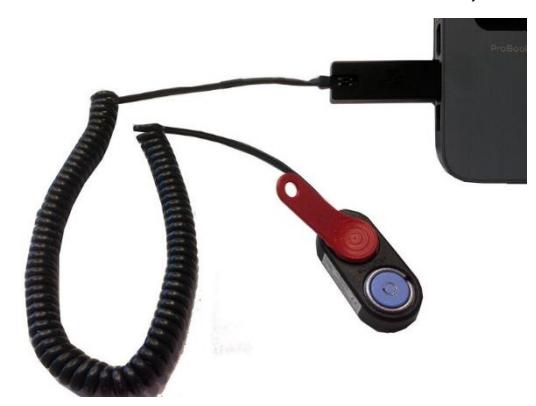
Then you have to click on the "Create Dallas audit key" icon in the DMT Audit sw toolbar (selecting MiniTech from the drop-down list) and wait until the writing of the Dallas key is finished.
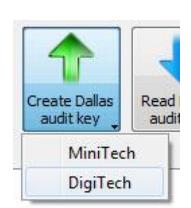
2) Power up the MiniTech keypad. Press and hold . LCD will display the message:
Enter Manager code. LCD will display the message: ENTER DALLAS
Place the Dallas key on the reader. If the operation is successfully performed LCD will display the message:
LOCK AUDIT 0 1 – X X X X X X
…
OPERATION DONE

3) Read the audit Dallas key. In order to do this, first you have to place the audit Dallas Key on the Dallas key reader (USB interface N42180/T + Dallas key reader with molex connector N42170/D) connected to the computer, as shown in the picture below.
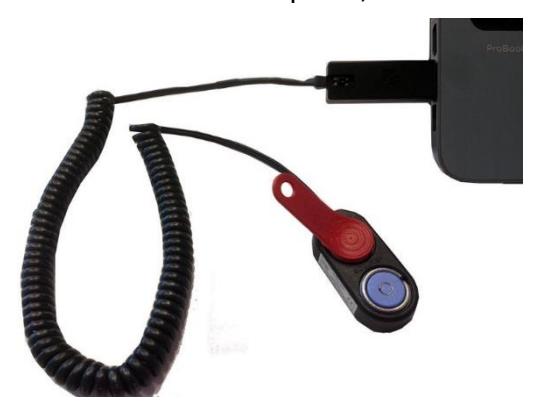
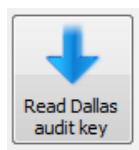
Then you have to click on the "Read Dallas audit key" icon and wait until the download of the audit trail is finished.
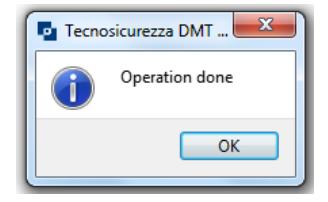
Once the download is finished click on OK.
On the screen it will appear the list of events.
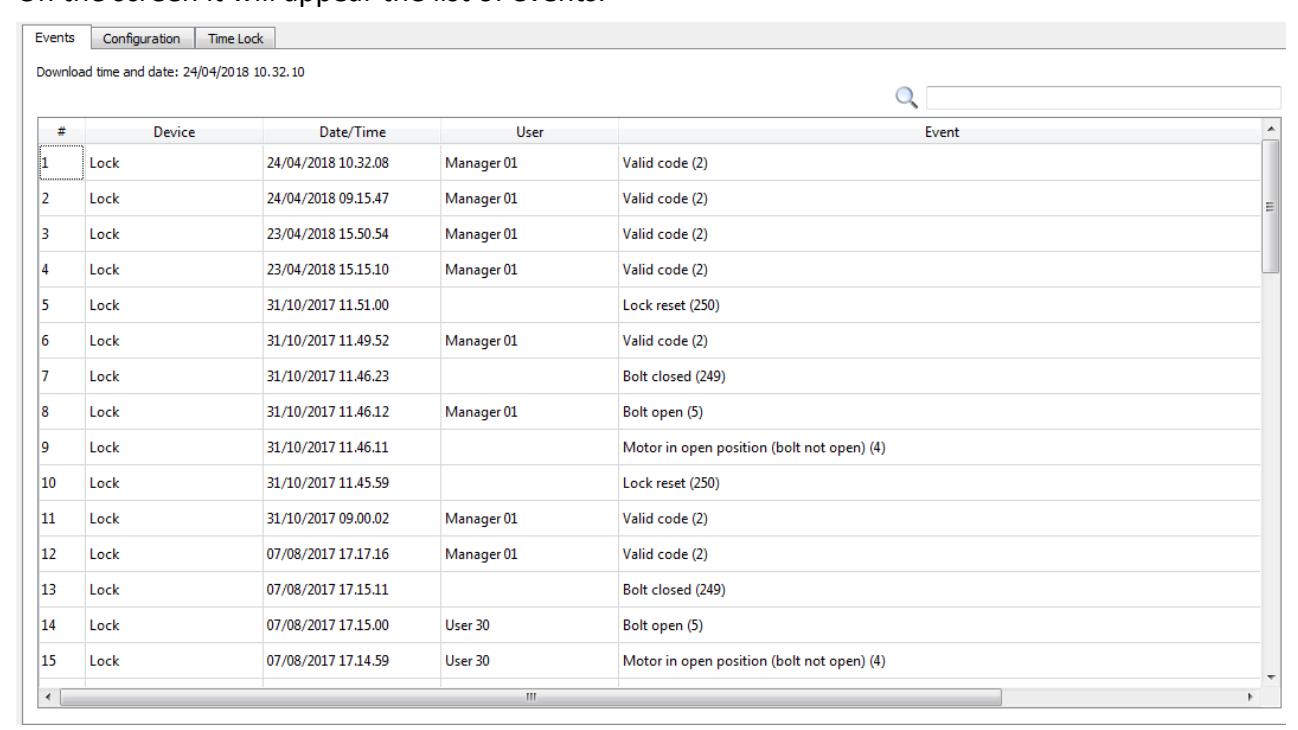

In the first column there is the id of the event, in the second column the device related to the event, in the third column the date and time, in the fourth column the user related to the event and in the fifth column the type of event.
At the top right corner there is a field where you can enter the text you want to filter by (e.g. type manager 01 to see in the screen only the events related to the manager).

Above the list of the events there are 3 different tabs.
The first one, "Events", recall the screen that shows the events.
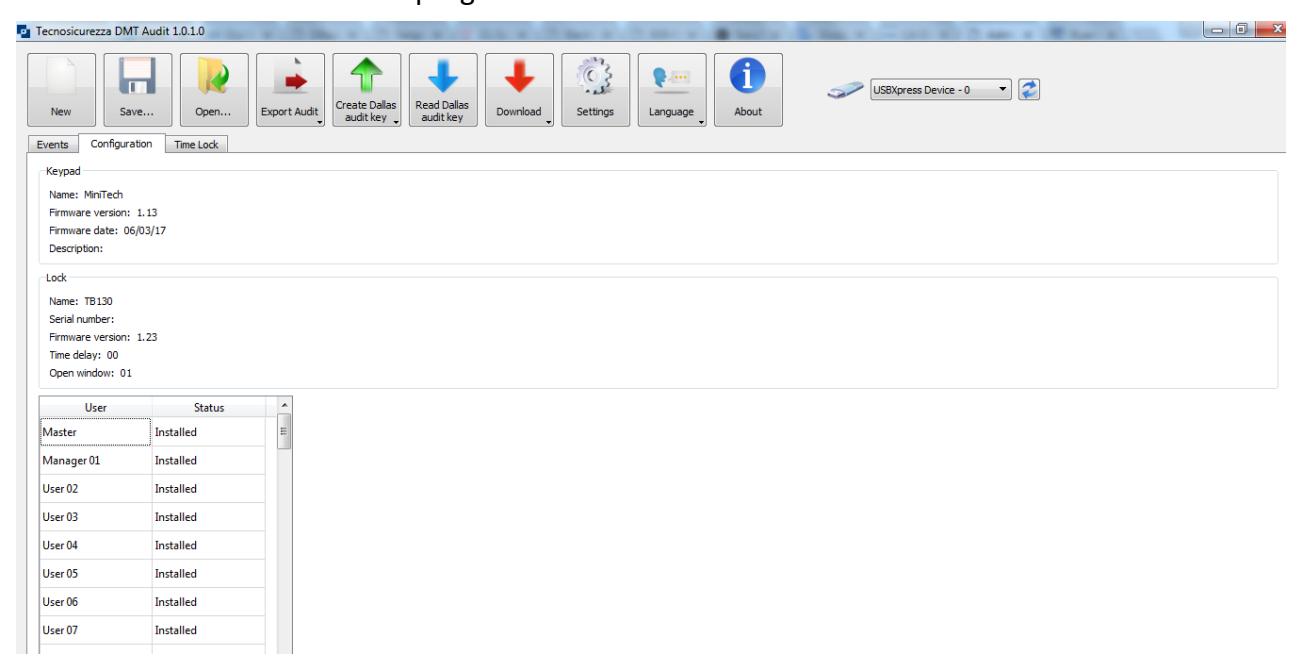
The second tab, "Configuration", recall a screen that shows information related to the system. In the upper part of the screen there is information related to the keypad: model of keypad, firmware version, firmware date and keypad description (if programmed).
After there is an area with information related to the lock: model of lock, serial number (if programmed), firmware version, firmware date, Time Delay value and Open Window value. Below there is the list of users programmed in the lock with its status.
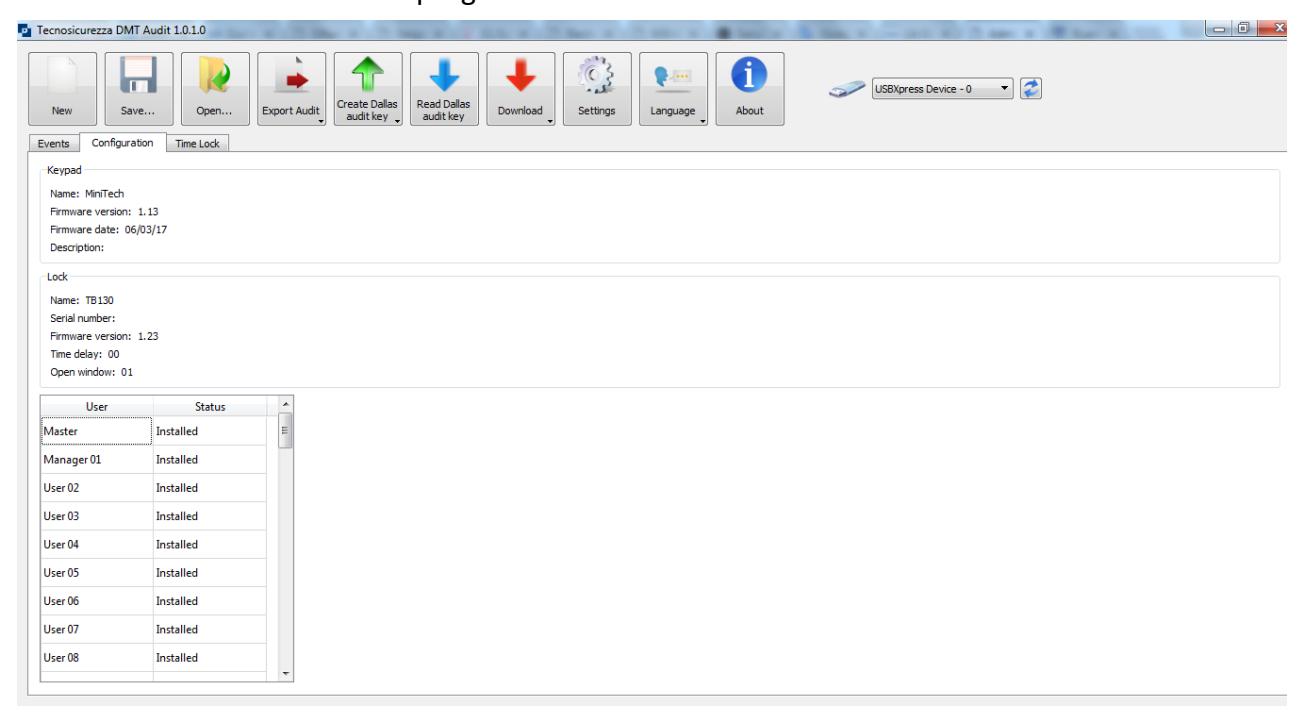
The third tab, "Time Lock", is empty if the download of the audit trail is made by means of a Dallas key.

Downloading the Audit trail through a direct connection
In order to download the audit trail information through a direct connection between the MiniTech keypad and computer you have to follow the following steps:
1) Connect the N42170/M magnetic Dallas key connection cable to the Dallas key reader or the T42146/J molex/jack connection cable to the jack connector as shown in the picture below.
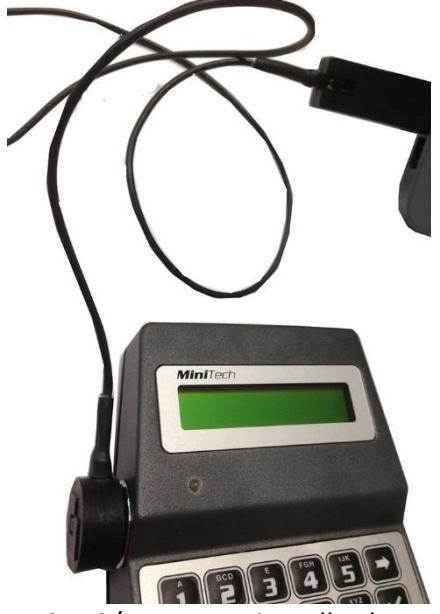
N42170/M magnetic Dallas key connection cable
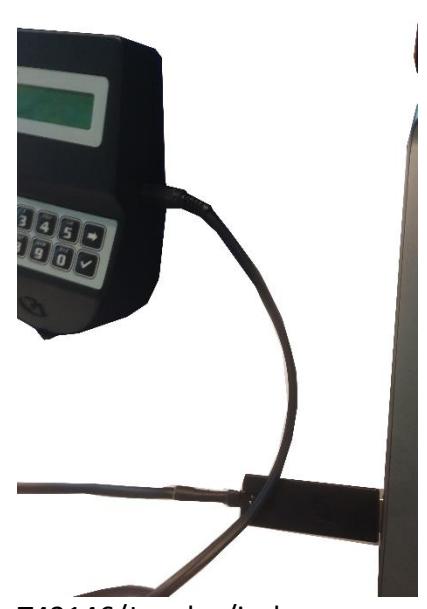
T42146/J molex/jack connection cable
2) Activate the PC link on the MiniTech.
Power up the MiniTech keypad. Press and hold . LCD will display the message:
Enter Manager code. LCD will display the message: ENTER DALLAS
Click twice the key . LCD will display the message: Now the PC link is activated and the red LED flashes. PC LINK…
LOCK AUDIT 0 1 – X X X X X X …
- 3) Click on the "Download" icon and from the drop-down list to select which information to download:
- MiniTech Audit to download the events associated to the locks or to the keypad.
- Time Lock DST to download the Daylight Saving Time (DST) dates and the Time Lock values programmed in the lock.
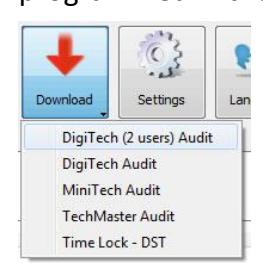

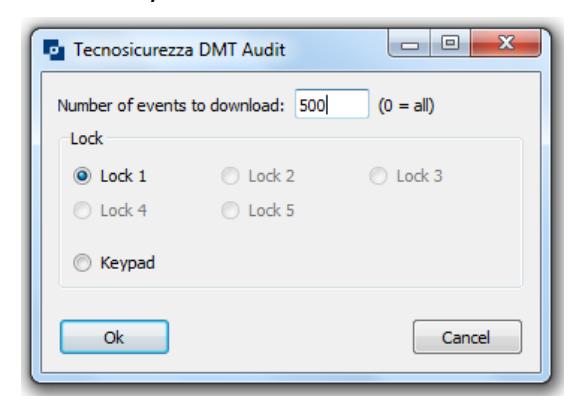
If you select MiniTech Audit a new window will open where you can select which events (lock 1, lock 2 or keypad) and the number of events to download (maximum 5500 events from the lock and maximum 250 events from the keypad).
Enter 0 if you want to download all events stored in the lock.
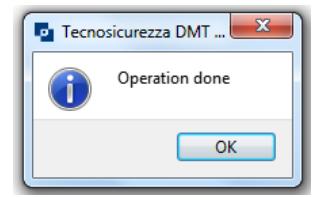
Once the download is finished click on OK.
On the screen it will appear the list of events.
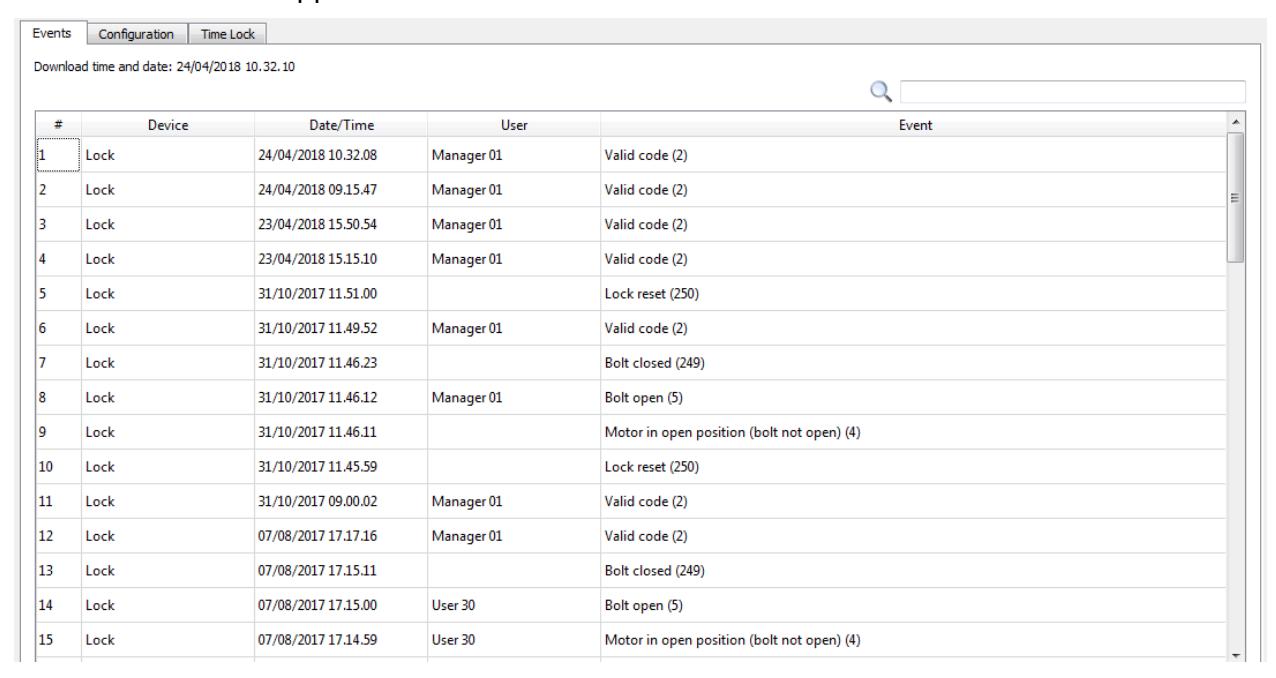
In the first column there is the id of the event, in the second column the device related to the event, in the third column the date and time, in the fourth column the user related to the event and in the fifth column the type of event.
At the top right corner there is a field where you can enter the text you want to filter by (e.g. type manager 01 to see in the screen only the events related the manager).


Above the list of the events there are 3 different tabs.
The first one, "Events", recall the screen that shows the events.
The second tab, "Configuration", recall a screen that shows information related to the system. In the upper part of the screen there is information related to the keypad: model of keypad, firmware version, firmware date and keypad description (if programmed).
After there is an area with information related to the lock: model of lock, serial number (if programmed), firmware version, firmware date, Time Delay value and Open Window value. Below there is the list of users programmed in the lock with its status.
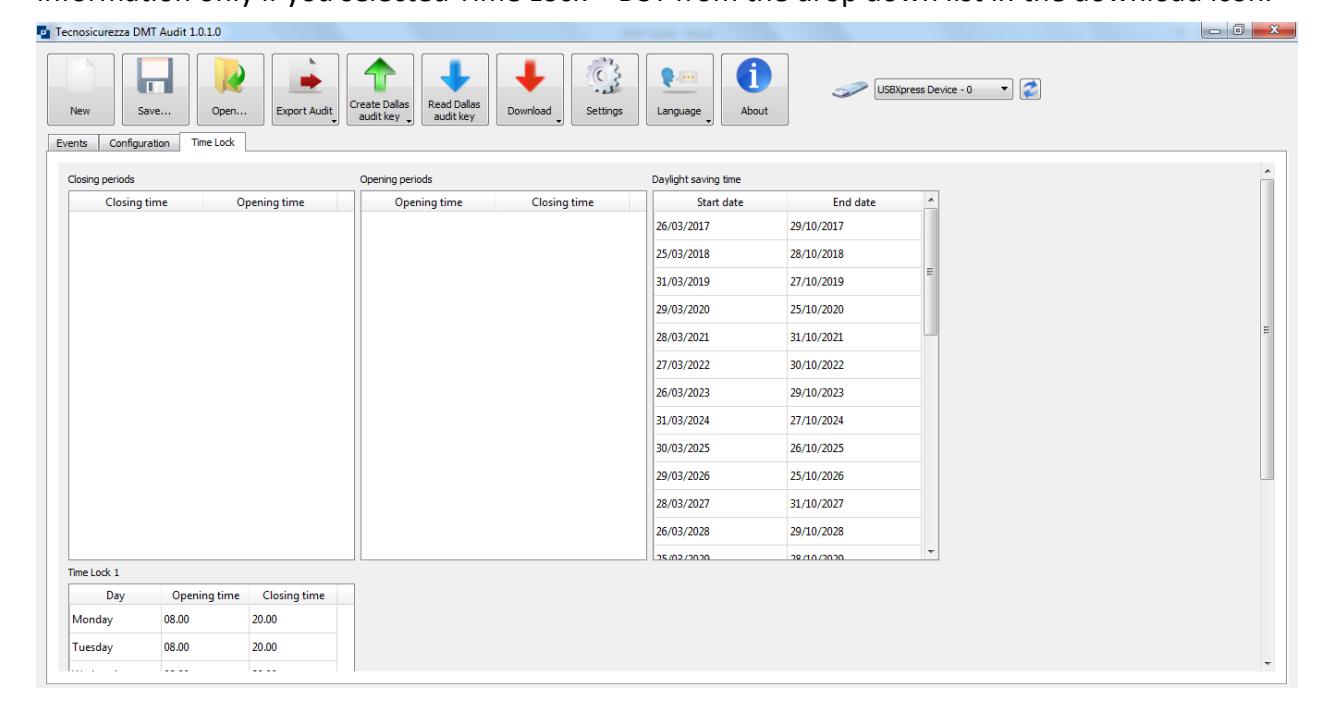
The third tab, "Time Lock", recall a screen that show Time Lock values and the daylight saving time start and end dates programmed in the lock (if programmed). This screen contains information only if you selected Time Lock – DST from the drop down list in the download icon.

4.2 Using the DMT Audit with TechMaster safe lock systems
Using the DMT Audit software with a TechMaster safe lock system, you can download the audit trail (both for locks and keypad), the Time Lock values and the Daylight Saving Time (DST) dates. The transfer of the audit trail information is performed through a direct connection between the TechMaster keypad and computer.
In order to download the audit trail information through a direct connection between the MiniTech keypad and computer you have to follow the following steps:
1) Connect the N42170/M magnetic Dallas key connection cable to the Dallas key reader or the T42146/J molex/jack connection cable to the jack connector as shown in the picture below.
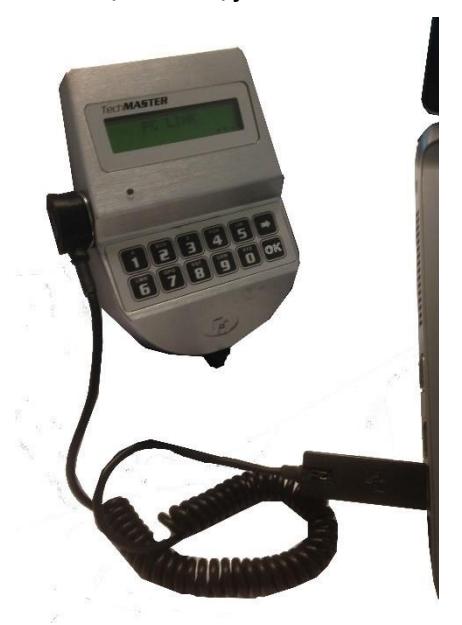
N42170/M magnetic Dallas key connection cable
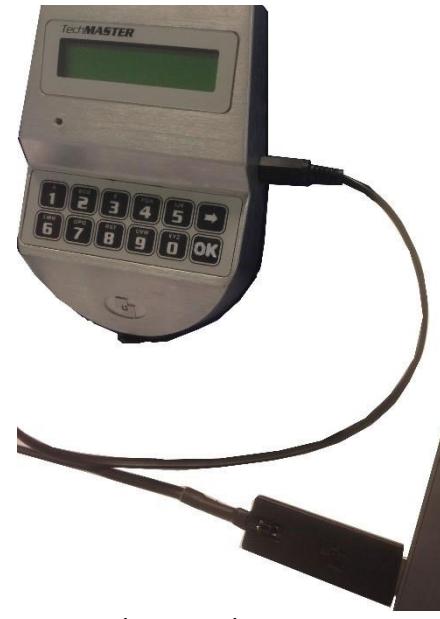
T42146/J molex/jack connection cable
2) Activate the PC link on the TechMaster.
Depending on how the TechMaster is programed, the PC link command can be found in different menu.
If the lock was programmed to have the Audit menu, the PC link will be in the Audit menu. Please follow these steps to activate it:
- If you have more than one lock, select one of the locks.
- Depending on how your TechMaster is programmed, press or press and hold the key OK to enter in the menus.
- Scroll the menu using the button and stop at the entry " AUDIT CODE" .
- Enter the Audit user ID (99) and its 6 digits code.
- At the entry PC LINK press OK
- The LCD display of the keypad will show the message " PC LINK…." . Now the PC link is activated and the red LED flashes.

If the lock was programmed to not have the Audit menu, the PC link will be in the Master menu or Manager menu. Please follow these steps to activate it:
- Depending on how your TechMaster is programmed, press or press and hold the key OK to enter in the menus.
- At the first entry " MENU MASTER" , enter the Master code or at the entry " MENU MANAGER" , enter the manager code.
- At the entry " PC LINK" press OK
- The LCD display of the keypad will show the message " PC LINK….." . Now the PC link is activated and the red LED flashes.
- 3) Click on the "Download" icon and from the drop-down list to select which information to download:
- TechMaster Audit to download the events associated to the locks or to the keypad.
- Time Lock DST to download the Daylight Saving Time (DST) dates and the Time Lock values programmed in the lock.
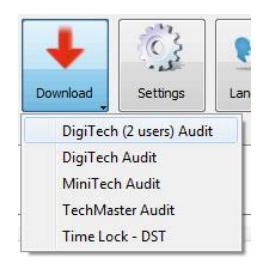
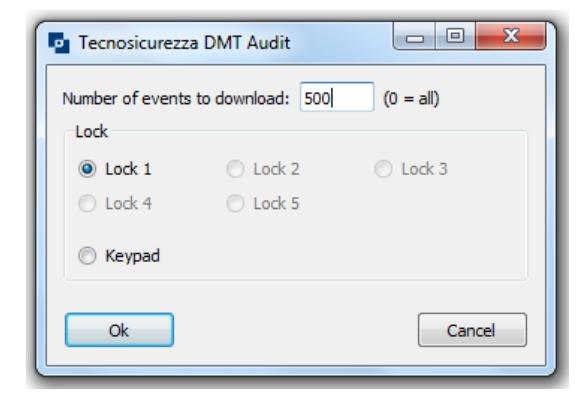
If you select TechMaster Audit a new window will open where you can select which events (lock 1, lock 2, lock 3, lock 4, lock 5 or keypad) and the number of events to download (maximum 6000 events from the lock and maximum 250 events from the keypad).
Enter 0 if you want to download all events stored in the lock.
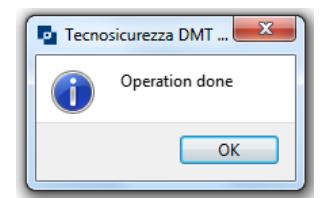
Once the download is finished click on OK.

On the screen it will appear the list of events.
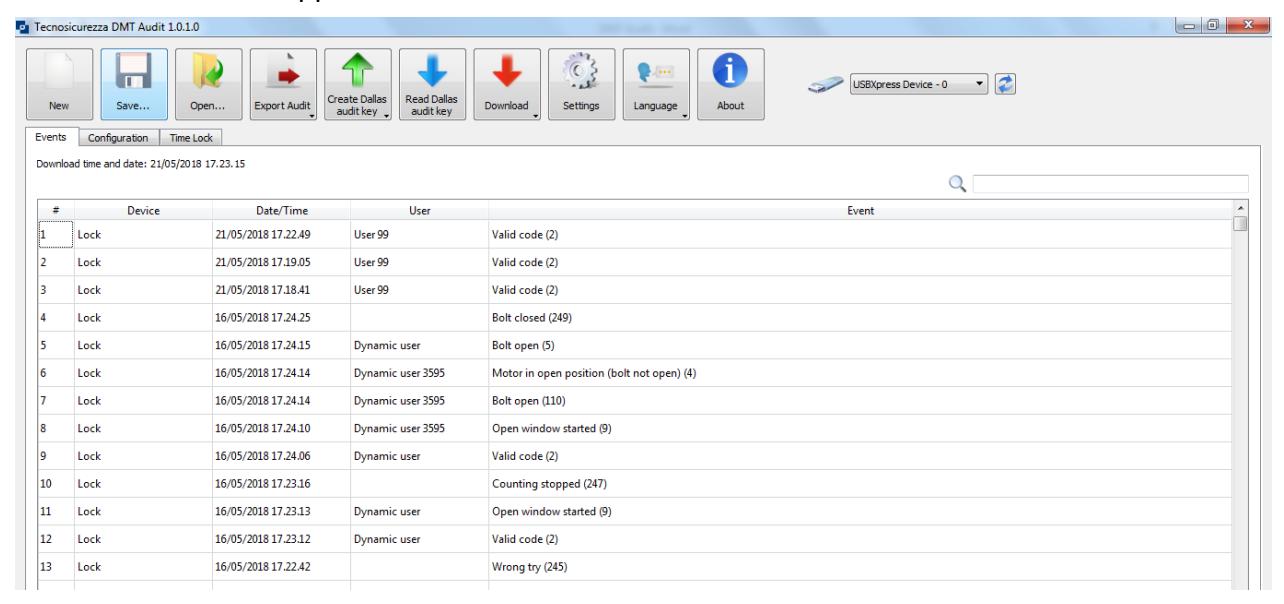
In the first column there is the id of the event, in the second column the device related to the event, in the third column the date and time, in the fourth column the user related to the event and in the fifth column the type of event.
At the top right corner there is a field where you can enter the text you want to filter by (e.g. type manager 01 to see in the screen only the events related the manager).

Above the list of the events there are 3 different tabs.
The first one, "Events", recall the screen that shows the events.
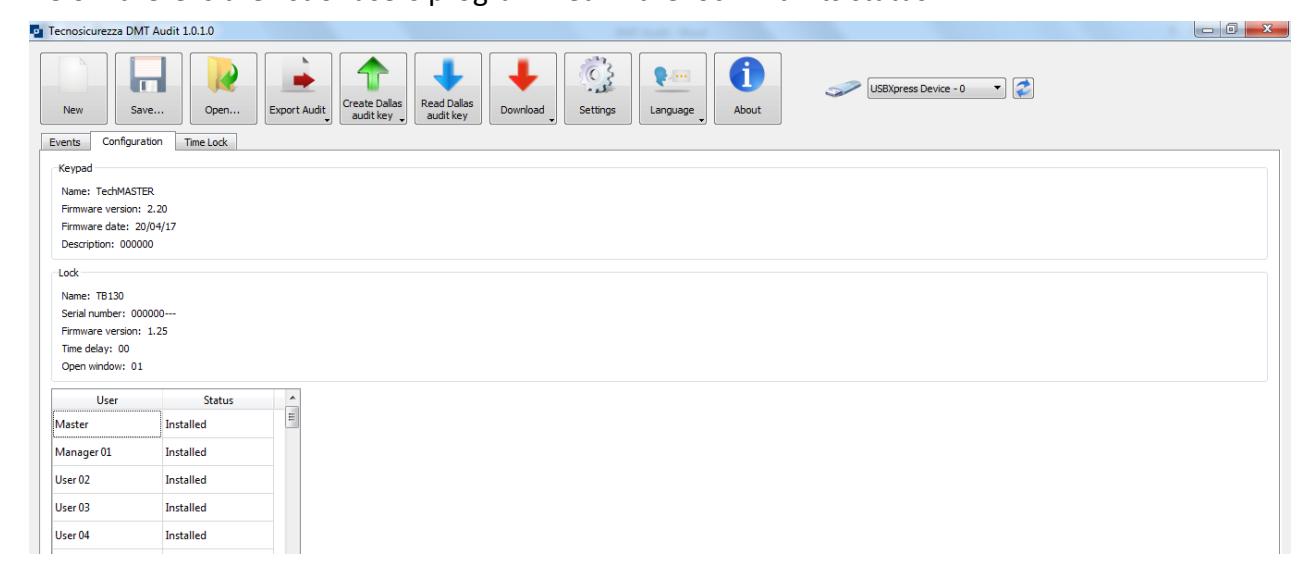
The second tab, "Configuration", recall a screen that shows information related to the system. In the upper part of the screen there is information related to the keypad: model of keypad, firmware version, firmware date and keypad description (if programmed).
After there is an area with information related to the lock: model of lock, serial number (if programmed), firmware version, firmware date, Time Delay value and Open Window value. Below there is the list of users programmed in the lock with its status.

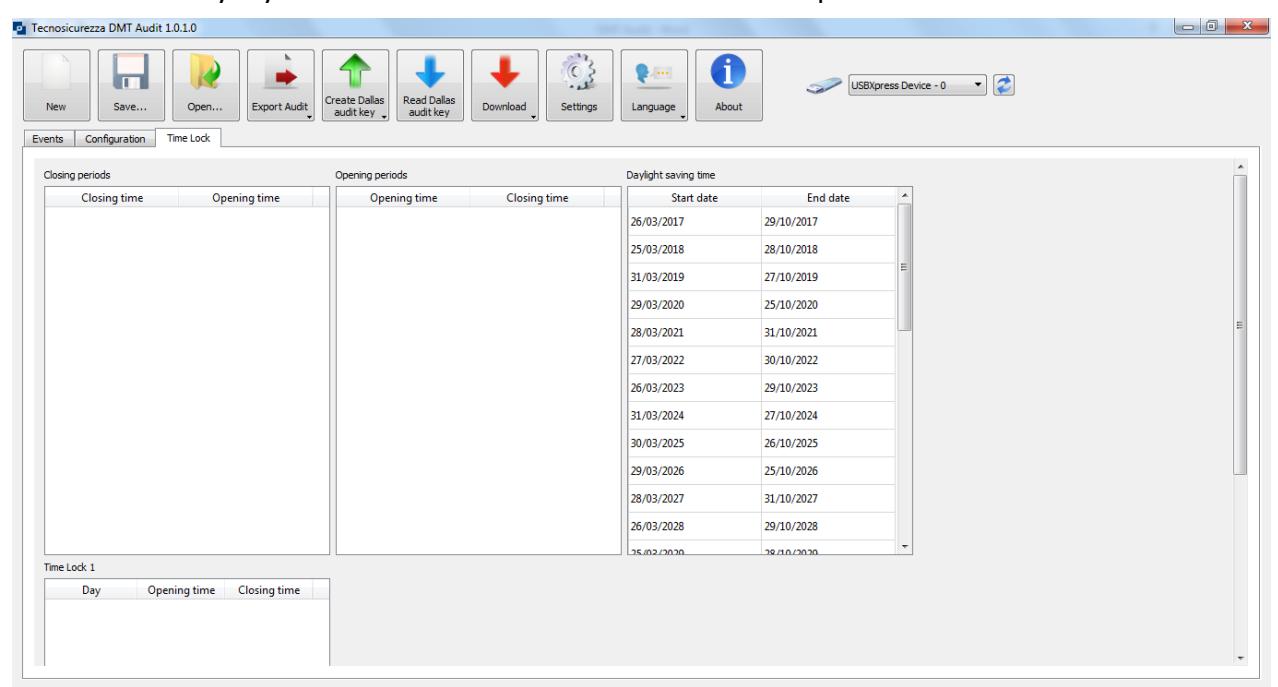
The third tab, "Time Lock", recall a screen that show Time Lock values and the daylight saving time start and end dates programmed in the lock (if programmed). This screen contains information only if you selected Time Lock – DST from the drop down list in the download icon.

| NOTES | |

Correct disposal of this product: (Waste Electrical & Electronic Equipment)
Applicable in the European Union and other European countries with separate collection systems.

This marking displayed on the product or its literature indicates that it should not be disposed with other wastes at the end of its working life.
To prevent possible harm to the environment or human health from uncontrolled waste disposal, please separate this from other types of wastes and recycle it responsibly to promote the sustainable reuse of material resources.
Contacts
GLOBAL HEADQUARTERS USA HEADQUARTERS SPAIN HEADQUARTERS