ZKTeco USA F18- Standalone Reader Controller Installation Guide
Open the original PDF document
View PDF

F18- Standalone Reader Controller
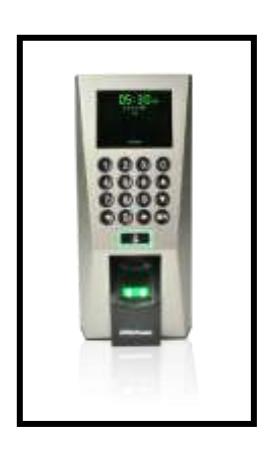
Features:
- 2.4" TFT-LCD color screen
- Standard Wiegand Input and Output interfaces are compatible with most all 3rd party 26-bit Wiegand readers and access control panels.
- USB HOST port makes offline data backup/management fast & easy.
- Relay contacts for alarm, electric lock, exit button, and wired door bell.
- Reads fingerprint, Password and card
Specifications:
| Fingerprint capacity | 3,000 |
|---|---|
| Transaction capacity | 100,000 |
| Hardware Platform | ZEM720 |
| CPU | ZK 6001, 400Mhz |
| Memory | 64M Flash, 32MSDRAM |
| Fingerprint Sensor | ZK optical sensor |
| Display | 2.4" TFT LCD color screen |
| LED Indicator | Red, Green |
| Communication | Ethernet(10/100M), RS485, USB |
| HOST, | |
| Weigand signal | Weigand Input and Weigand Output |
| Identification speed | ≤2 sec |
| FAR | ≤0.0001% |
| FRR | ≤1% |
| Operating Temperature | 0-45℃ |
| Operating Humidity | 20%-80% |
| Language | English and Spanish |
| Power Supply | 12V DC, 3A |
| Access control interfaces | Electric lock, alarm, exit button, wired |
| door bell | |
| Dimensions | 3.15* 7.2* 1.65 inches |
| 80*183*42 mm (L*W*D) |

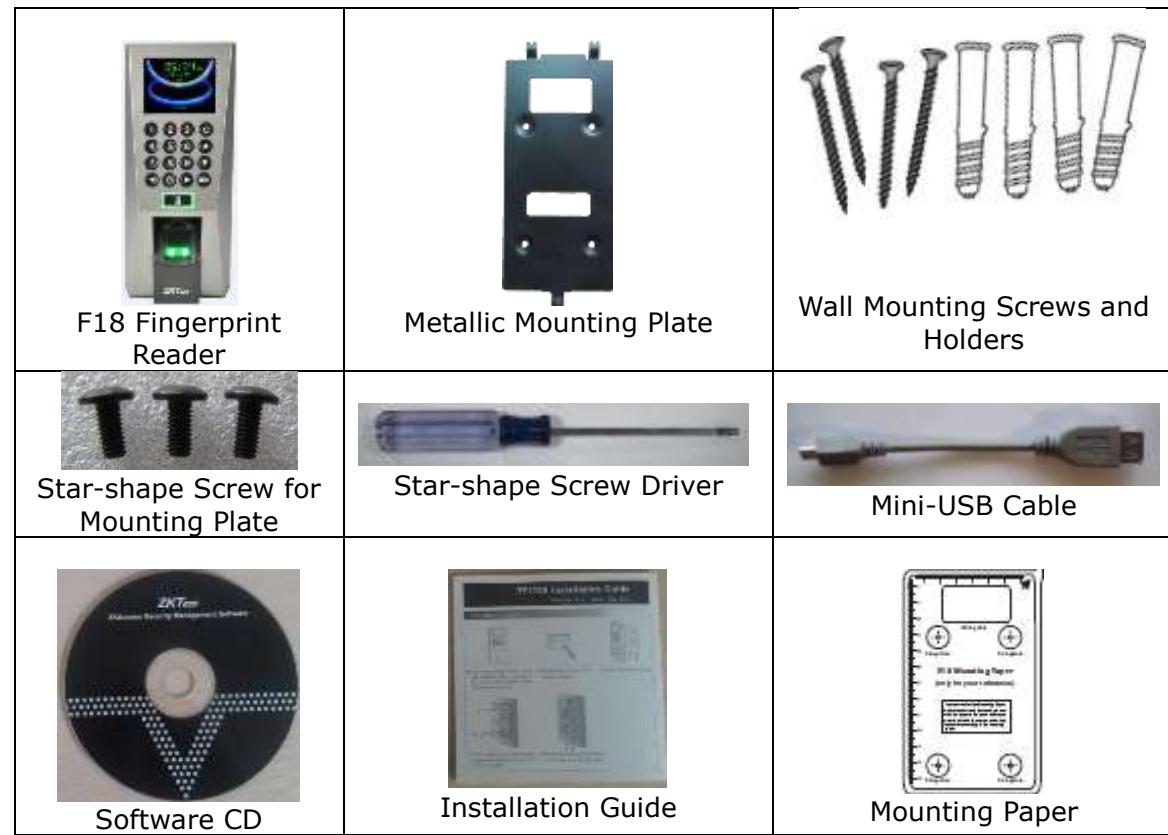
Basic Contents:
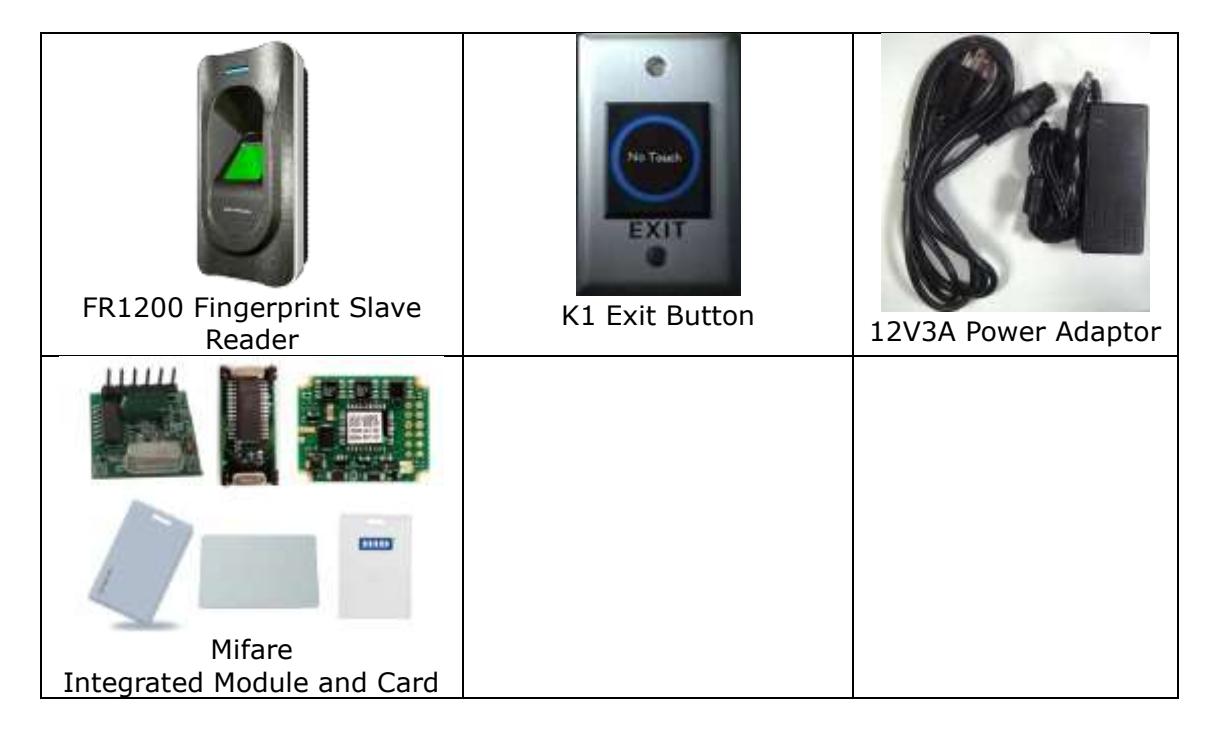
Optional Accessories
Front

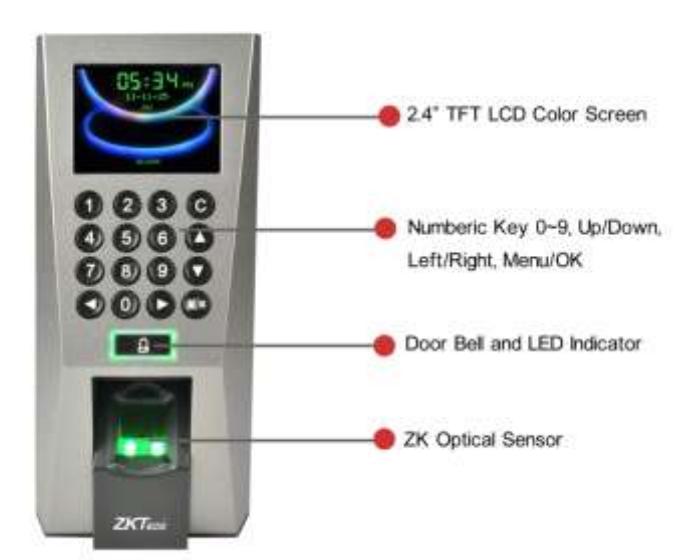
Side
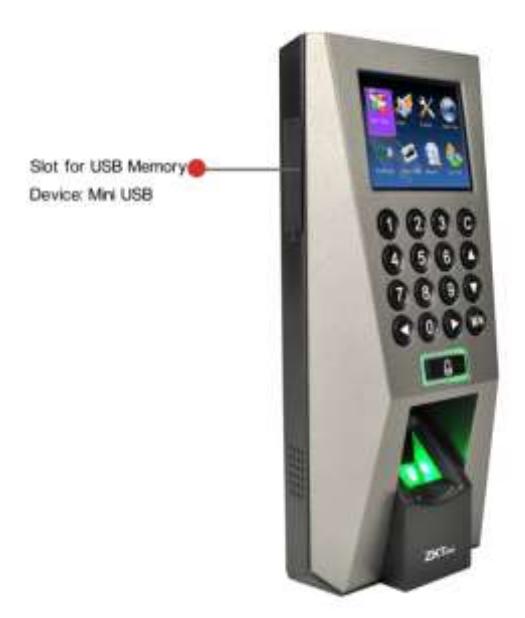
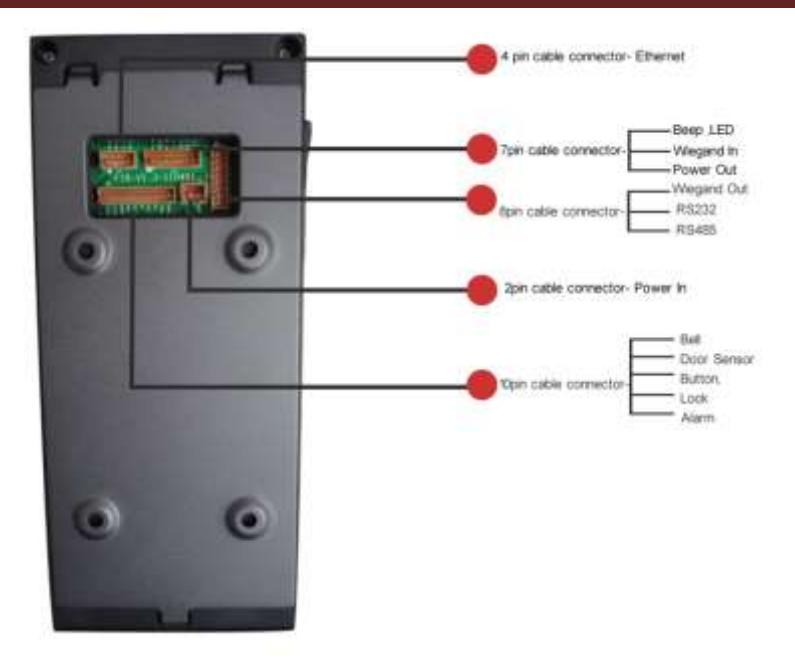
Rear

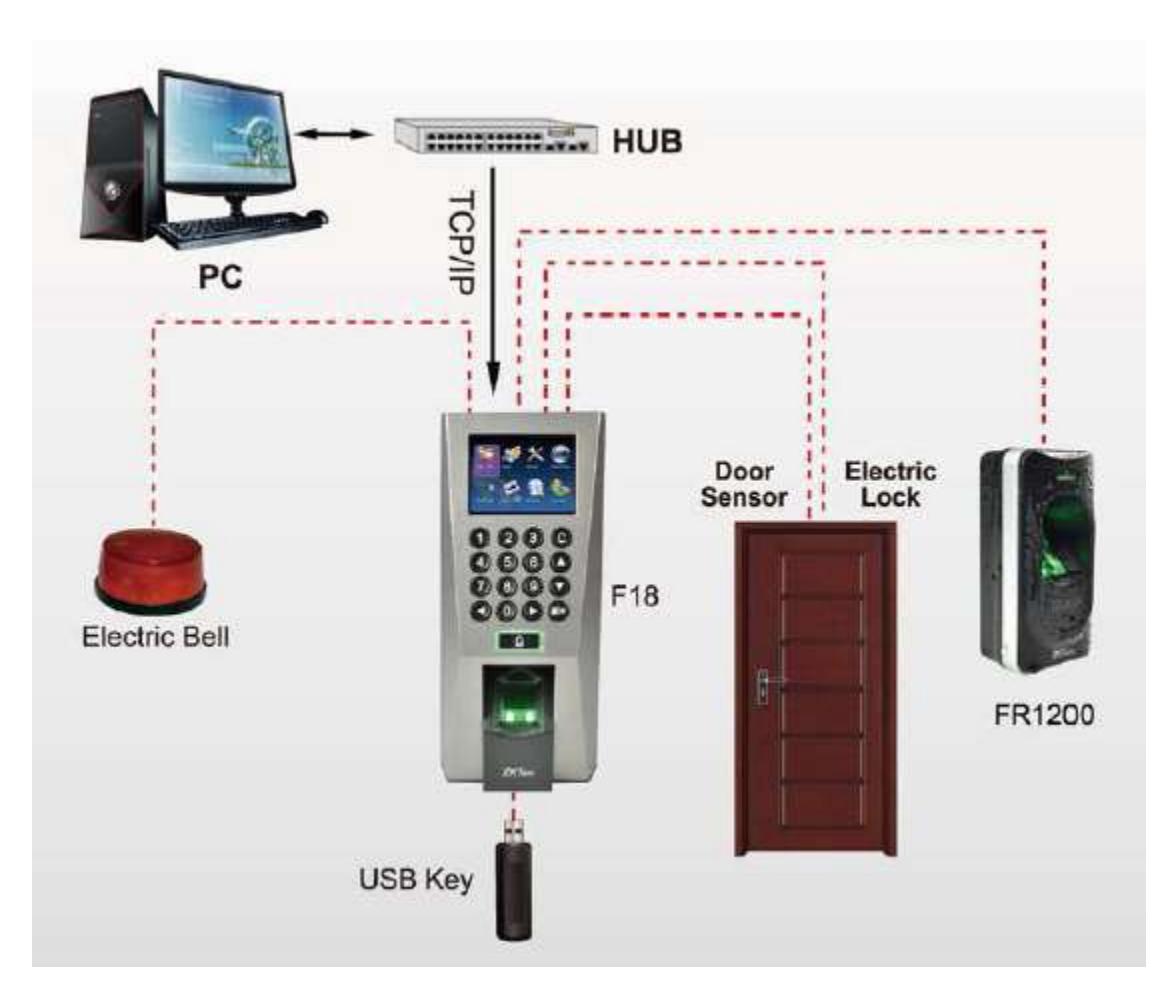
Installation Diagram
Product Dimensions (mm)


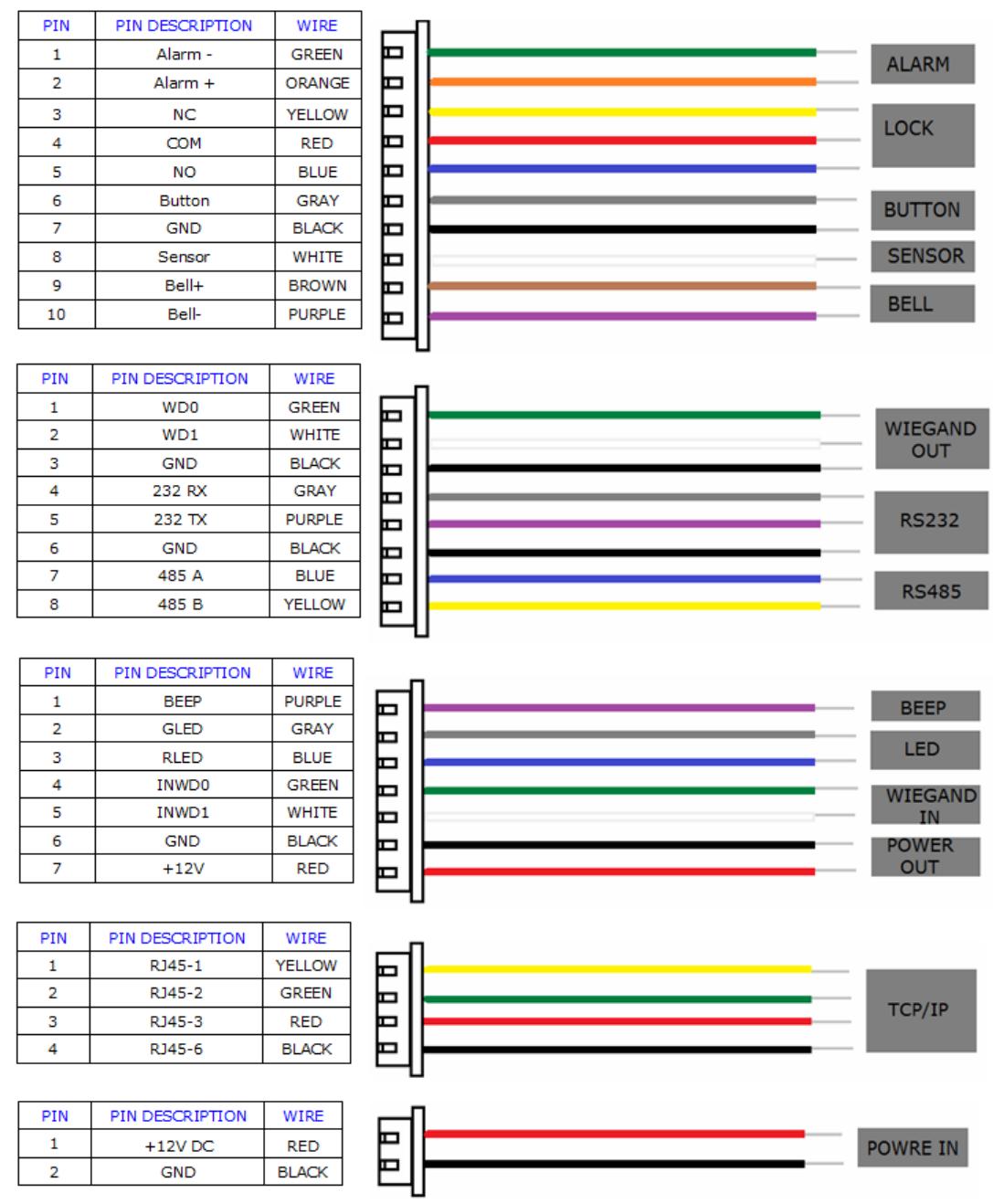
Cable Specifications

Important Notes
- Please do not install F18 in an area where it can come in contact with direct sunlight or any other source of light
- Use regulated 12V DC 3A power supply only
Mounting the Unit
- Place the unit approximately 5 ½ feet above the ground level if permissible so that the users are comfortable in using the reader with least chances of error
- Pull the power and network cables from the back of the wall and connect them to the appropriate pigtail wires supplied with the reader
- Remove the screw at the bottom of the reader to detach the back plate.
- Install the back plate of the unit on to the wall and connect the power, network and other necessary cables on the back of the unit.
- Secure the reader with the back plate by fixing the tamper proof screw at the bottom of the reader.
Hardware Setup
- Power on the reader by supplying 12V DC to the power and GND pins on the back of the reader. The power supply is not supplied with the reader. Please make sure that the power requirements are strictly met to avoid permanent damage to the reader.
- After the reader is powered on, the display will show the date, day and time on the screen.
Date and Time Setup
To change the date and time, press the Menu key;
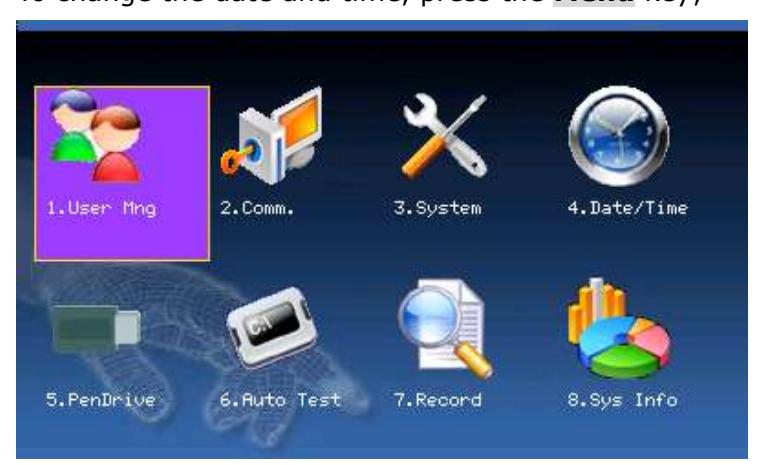
From the Main Menu, scroll with the ◄/► and ▲/▼keys until Date/Time is highlighted and press OK .

Date and Time settings
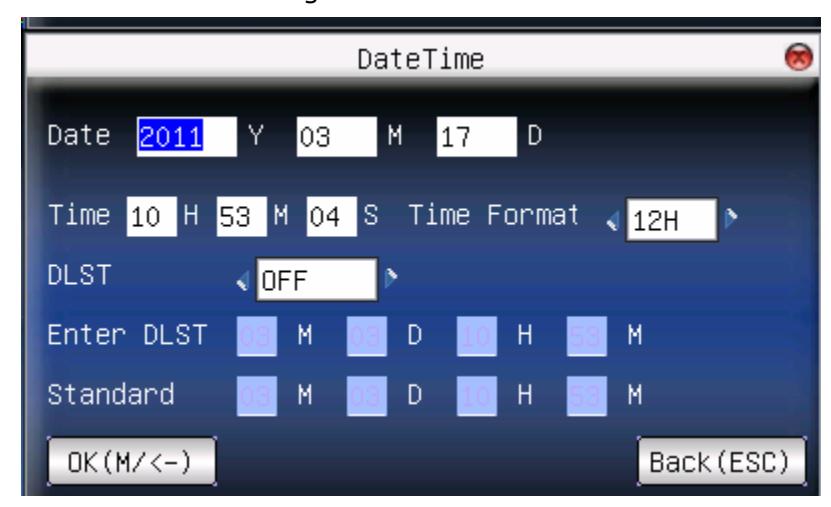
This screen allows you to manually set the date and time.
Use the scroll keys ▲/▼ to position the cursor in the Date or Time fields.
Enter the correct Date and Time.
When finished, press OK or highlight OK (M/<-) and press OK to save.
Press ESC to cancel the operation and return to the previous menu.
User Enrollment
To start user enrollment, press the Menu key on the F18.
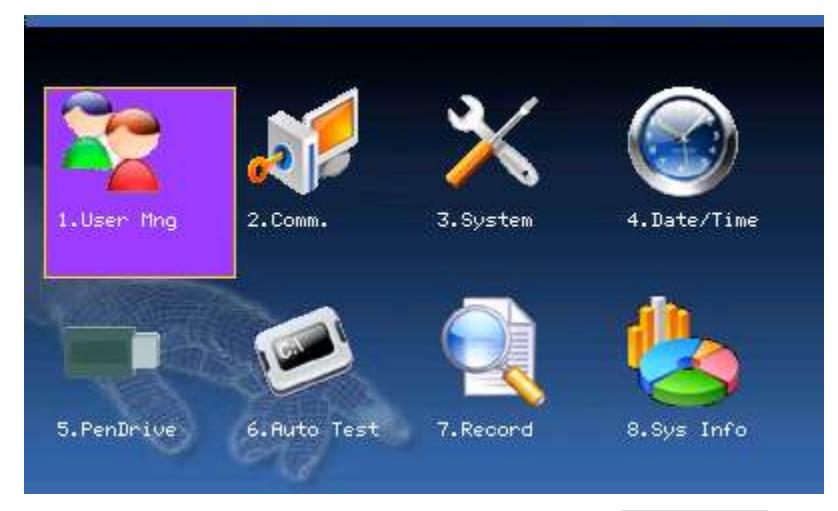
From the Main Menu, highlight and select User Mng to add/change/delete users' fingerprint(s), password or role (Admin or user).

From the User Mng Menu, scroll with the ◄/► ▲/▼ keys until New User is highlighted:
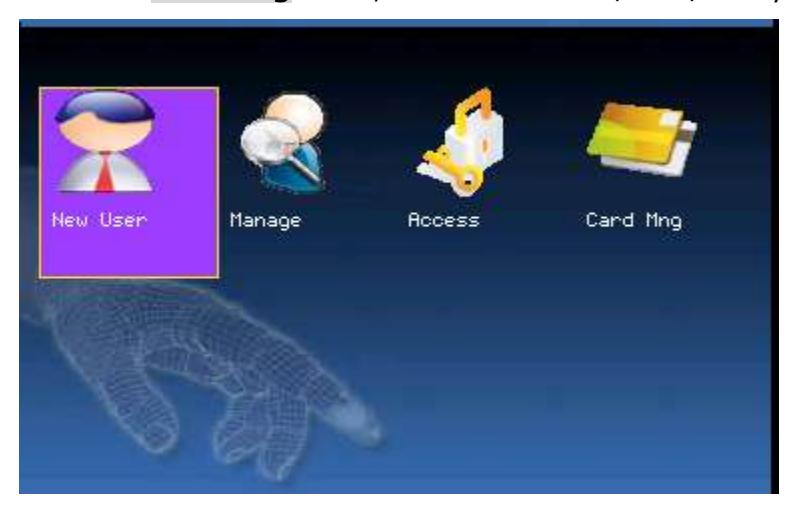
Press OK to accept.
The following " New User " settings are available:
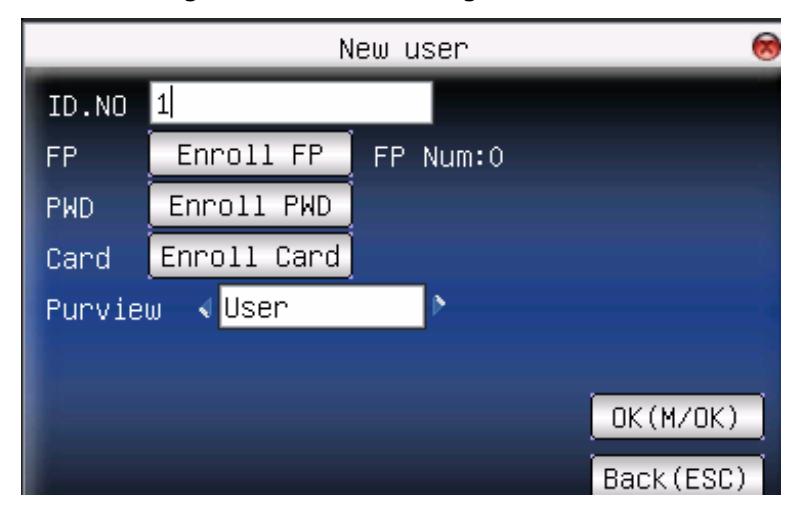
ID. NO (Account Number)
Unique identification number associated with each user.
Fingerprint (FP)
A user can enroll up to 10 fingerprints.
Password (PWD)
A user can enroll a password using 1 to 8 digits.
Security/Role (Purview)
Identifies a user as a normal user or an Administrator.

a) Add New User
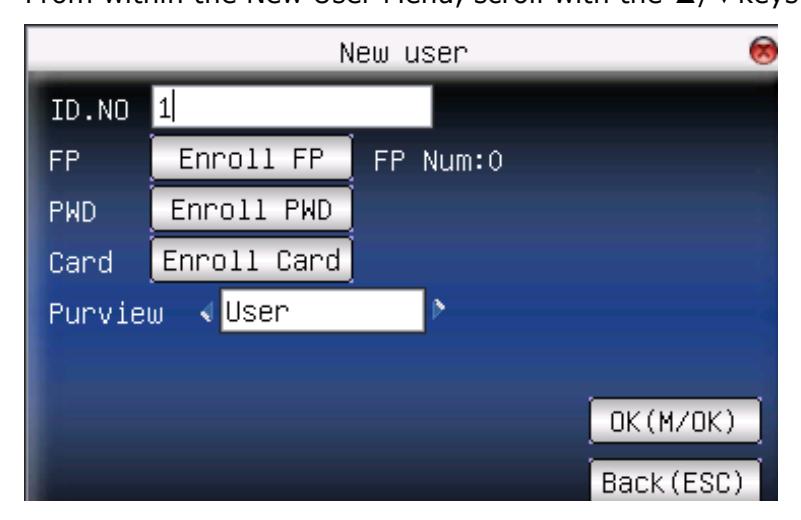
From the New User Menu, scroll with the ▲/▼ keys until the cursor is in the ID. NO field:
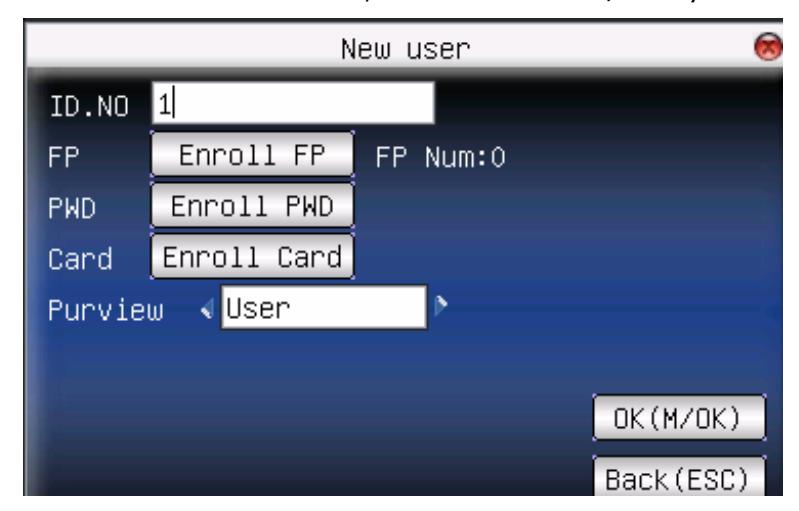
Press OK to accept the default User ID, or manually enter a preferred User ID and press OK .
b) Enroll New User Fingerprint (FP)
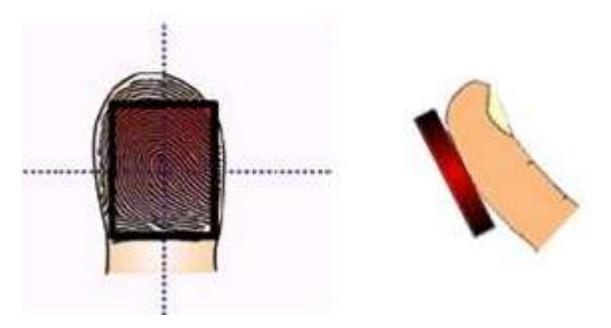
Suggestions for proper finger placement;
c) The user's finger should completely cover the sensor. The finger should be placed flat and in the center of the sensor. The finger should cover at least 80% of the sensor as shown below:
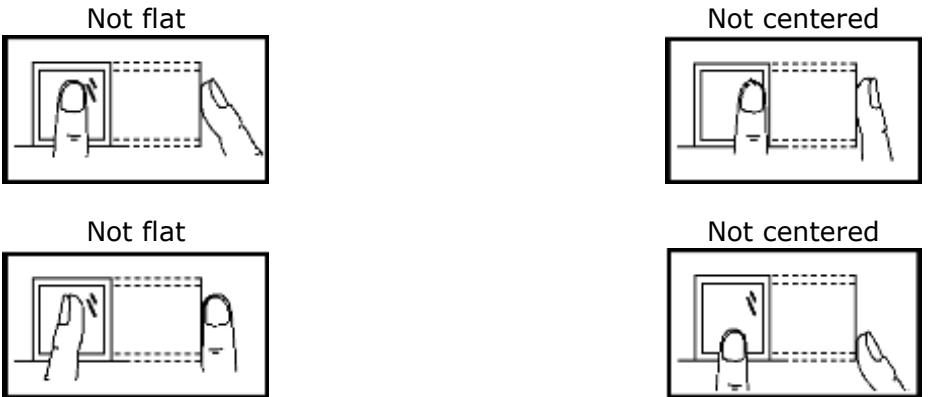
d) The finger should NOT be placed in the following positions:

e) From the New User Menu, scroll with the ▲/▼keys until the cursor is in the FP field.
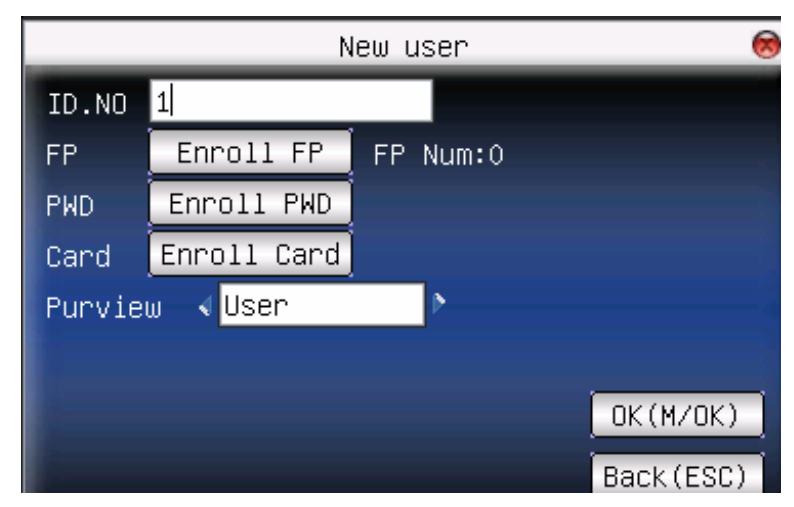
Notice: " Enroll FP " will become highlighted. Press OK to accept selection.
The following screen will be displayed:
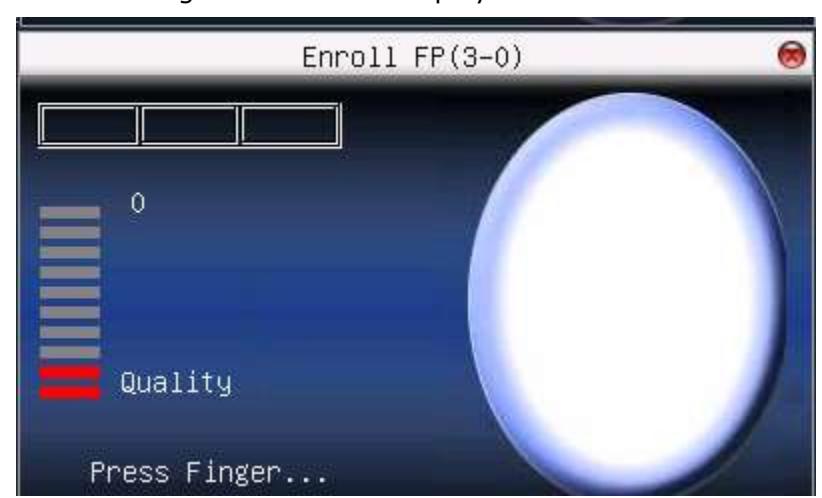
Place the finger you wish to enroll on the sensor, ensuring the finger is placed flat and centered. Hold the finger still for at least two full seconds until the F18 prompts with a beep to remove it. You will then be prompted to repeat the process 2 more times, each time using the very SAME finger.
Notice that every time the F18 successfully records the user's fingerprint, each of the 3 green bars will become highlighted until all 3 bars ____ ____ ____ are eventually highlighted.
After 3 successful fingerprint "recordings", the user's fingerprint template is now successfully registered in the F18 database.
Press OK if you would like to continue recording additional fingerprint/templates.

NOTE: It is highly recommended that users register at least one finger from each hand.
Since the fingerprint sensor may have difficulty reading fingers with cuts or scratches, having a "backup" finger(s) registered ensures that the user will always be recognized by the F18. If one finger is temporarily rendered "unreadable" by recent cuts or scratches, the user can use their backup finger.
After fingerprint registration is completed, press the ESC key to return to the New User menu.
f) Enroll New User Password (PWD)
NOTE: A password is NOT required. However, a password can be used if a user is having difficulty having his/her fingerprint recorded or recognized by the F18.
From the New User Menu, scroll with the ▲/▼keys until the cursor is in the PWD field. Notice Enroll Pwd will become highlighted: Press OK to accept selection.
The following screen appears:
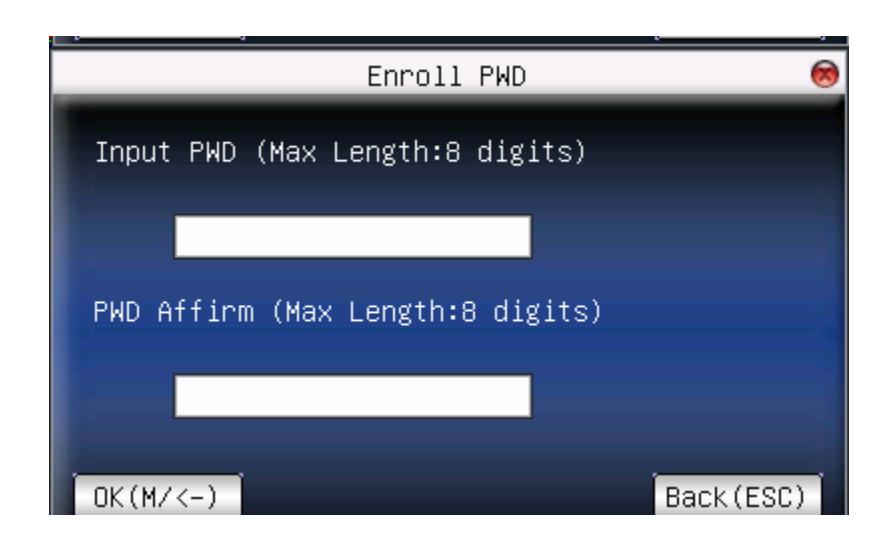
In the " Input Pwd " field, enter a password of 1 to 8 characters.
Then scroll down to the " Pwd Affirm " field and re-enter the same password.
After completed, scroll with the ▲/▼keys until OK (M/<-) is highlighted. Then press the OK key to accept.
After saving the password, the screen will return to the New User menu and the icon will display alongside Enroll Pwd. This indicates a password has been saved and registered to that user.

g) Enroll Card
Scroll ▲/▼ keys to locate the cursor on "enroll card" button, and press "OK" to enter the registration card
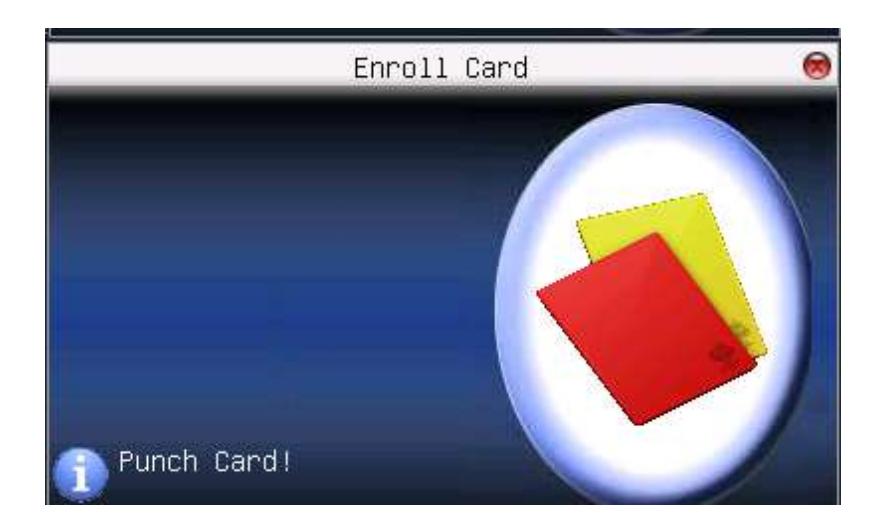
Flash the card near the keypad of F18 reader, press OK key to save after the device reads and displayes the card number.
h) Set New User Authority (Purview)
Users have unrestricted access to the F18 menu settings (i.e. Add/Edit/Delete users). For this reason, we advise enrolling an "administrator" after initial installation to help ensure safeguarding both the F18(s) and the customer door entrance(s).
From within the New User Menu, scroll with the ▲/▼keys until the cursor is in the Purview field.

Delete Users
Enter the User Menu;
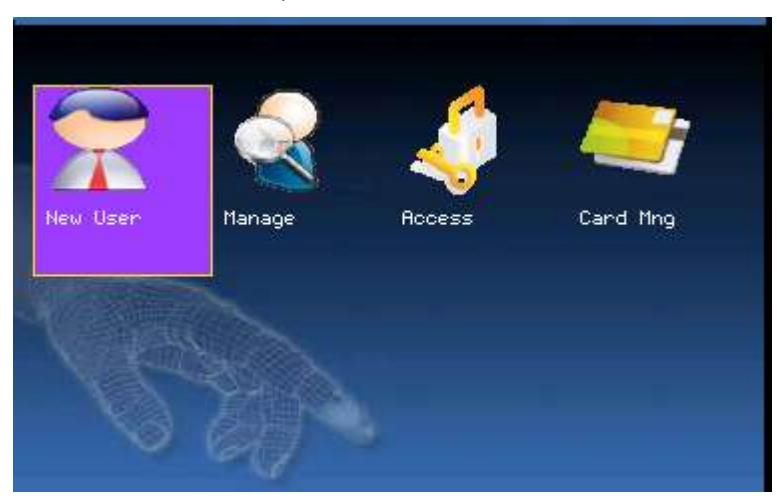
Scroll with the ▲/▼ keys and highlight Manage . Then press the OK key to open the User Manage screen:
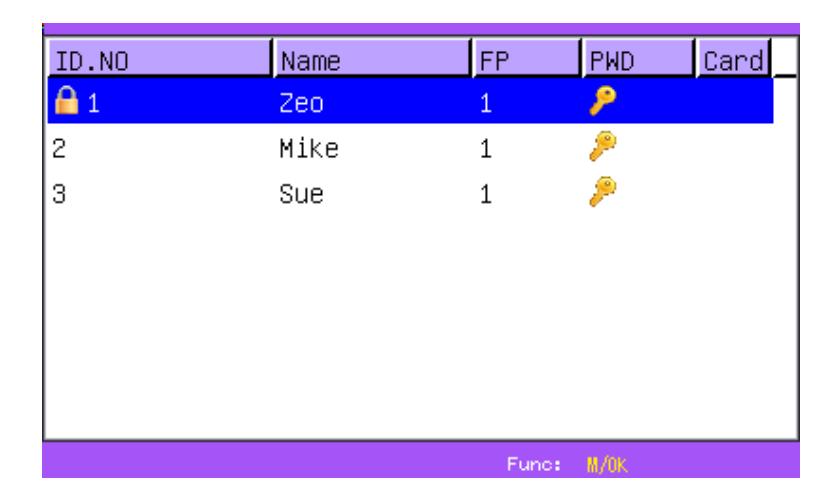
Select the user you'd like to delete by scrolling with the ▲/▼ keys. Then press the Menu key so the drop-down menu appears;


Use the ▲/▼scroll keys and highlight " Del User ". Then press the OK key to select. The following Delete User screen appears;
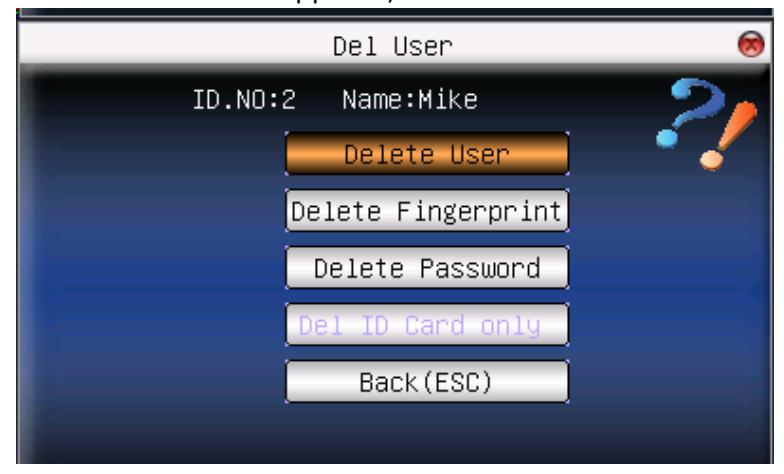
You can delete either the user, fingerprint, password or the ID card.
Scroll with the ▲/▼ keys to highlight your selection. Then press the OK key to delete your selection. The F18 will prompt you " OKDel "? Press the OK again to confirm deletion.
Set Communications Options:
The F18 can communicate via the Network (Ethernet), RS/232 or RS485.
Network (Ethernet)
Press the Menu key to open the Main menu;

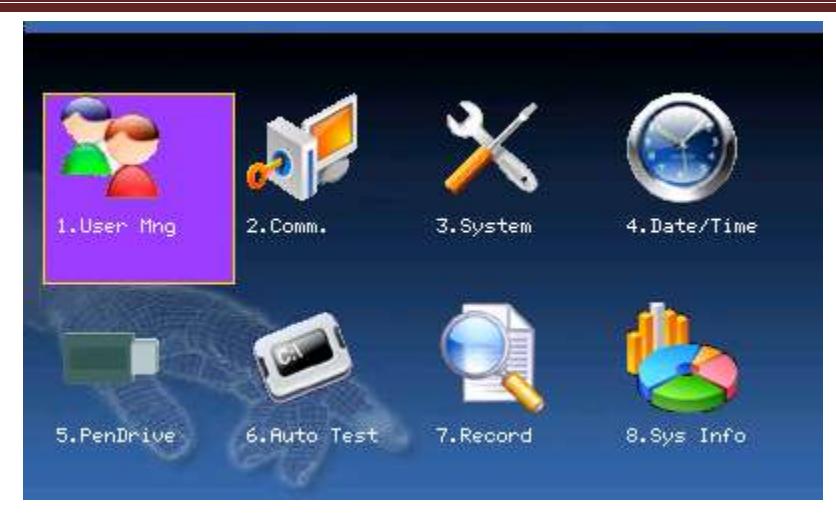
From the Main Menu, highlight and select Comm. to configure Communication Settings. Then press the OK Key to accept
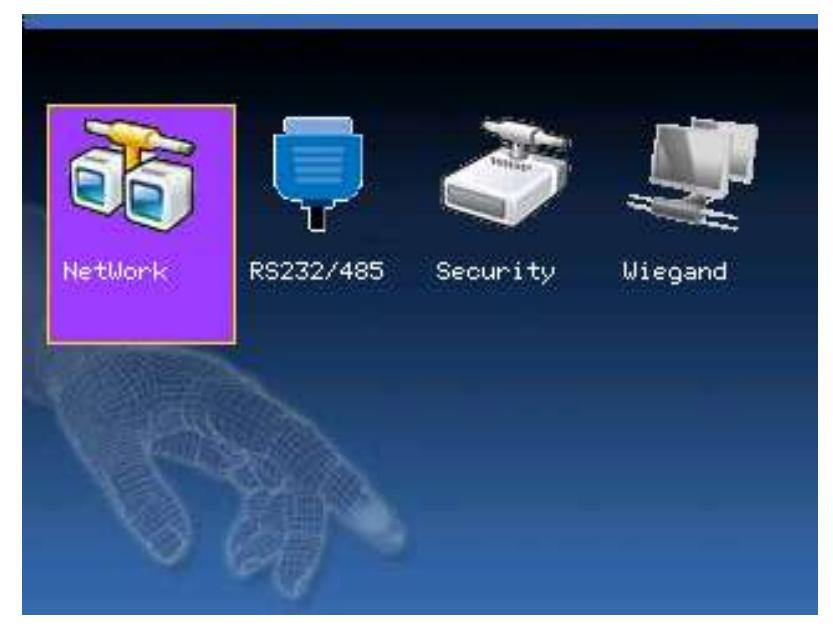
From within the Comm Menu, scroll with the ◄/► keys until Network is highlighted. Press the OK key to accept.

Notice the following " Network " settings are available
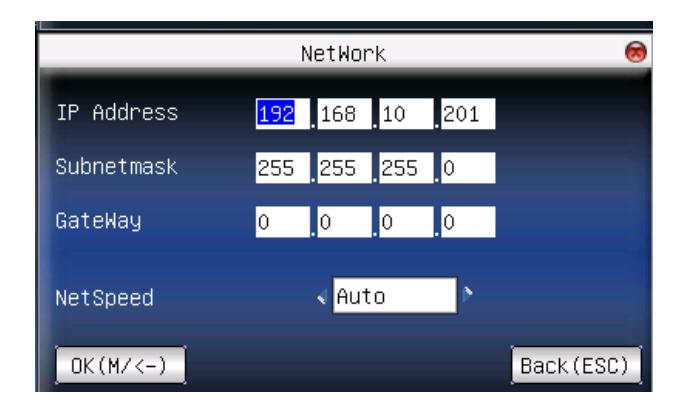
Machine IP address:
Default IP is 192.168.1.239. You can modify it. But do NOT use an IP address already being used by another network device.
Subnet mask:
Default mask 255.255.255.0. You can modify it.
Gateway address:
Default gateway address is 0.0.0.0. You can modify it.
Network speed:
Note 3 Options (Automatic, 10M and 100M)
Scroll with the ▲/▼keys to place the cursor in the desired field. Enter your preferred network communication settings.
After making changes, either press the OK key, or highlight the OK (M/<-) button and then press the OK Key.
After selecting " OK ", you'll be prompted " Change Saved Successfully! OK "; Press OK to continue. The screen will change to the previous menu. Press the ESC key to continue moving backward in the menu system.

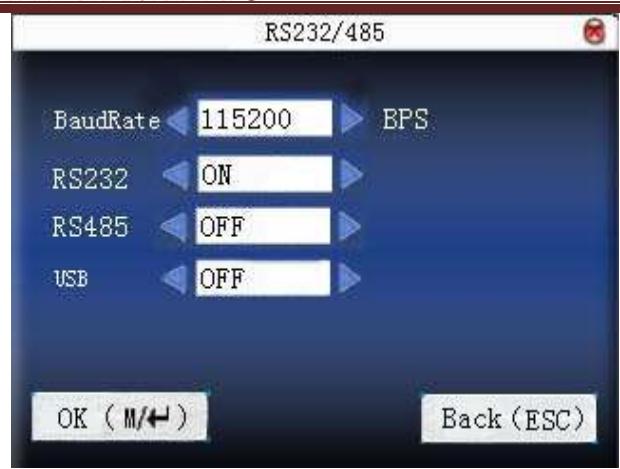
Baud rate : Use the / to change pre-set values.
RS232 : If using RS232 communication, select "On". RS485 : If using RS485 communication, select "On".
Scroll with the ▲/▼ keys to place the cursor in the desired field. Use the scroll keys ◄/► keys to change between pre-defined values.
After making changes, either press the OK key, or highlight the OK (M/) button and then press the OK Key.
After selecting " OK ", you'll be prompted " Change Saved Successfully! OK ";
Press OK to continue, and the screen will change to the previous menu.
Press the ESC key to return to the previous menu.