Techmaster User Instructions I
Open the original PDF document
View PDF

UserInstructions
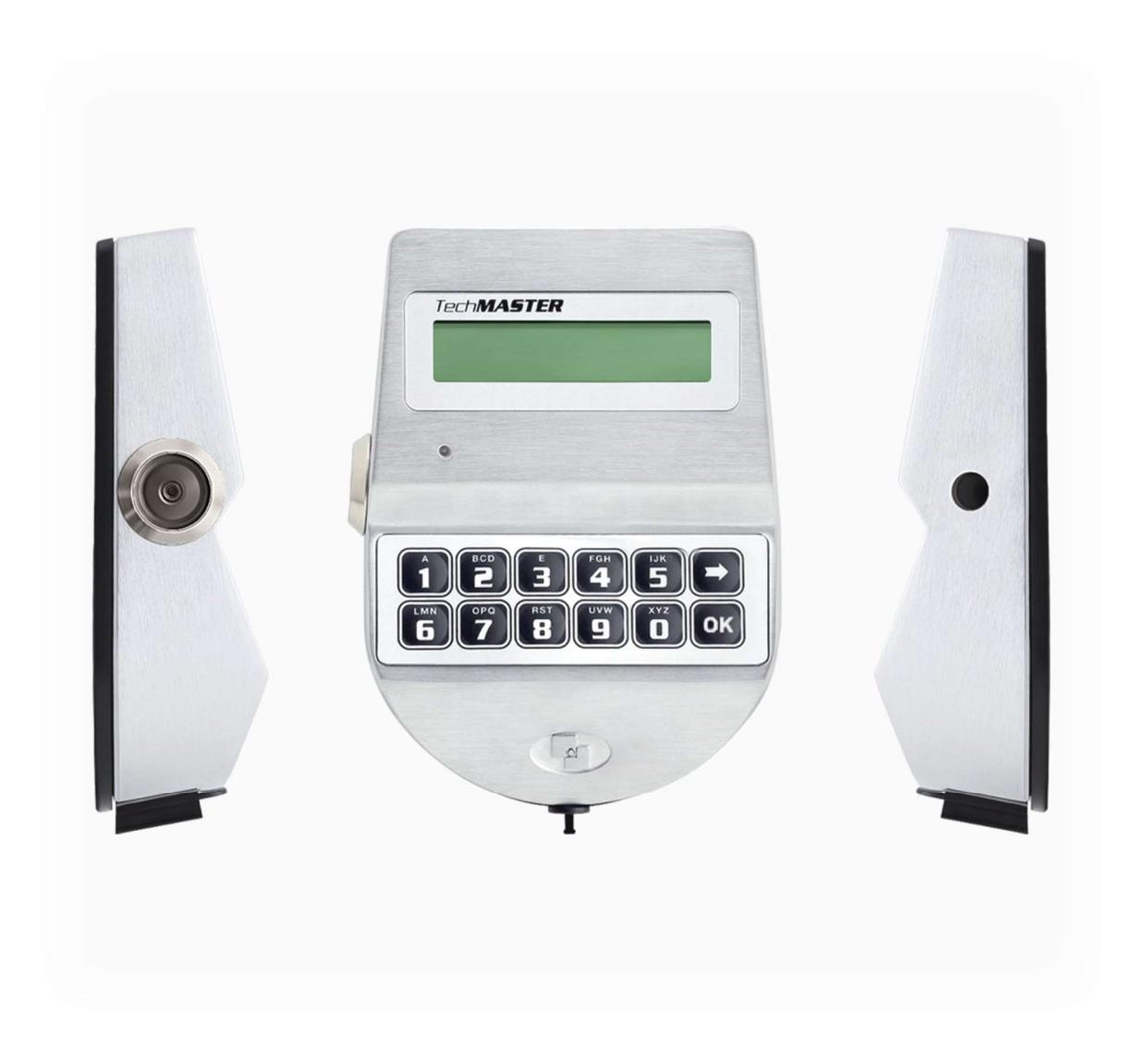

Company
Founded in 1983 with the aim of providing a complete range of professional products, Tecnosicurezza is now a consolidated reality in the field of locks and security systems for safes.
The experience gained in over 35 years of activity in the security sector has allowed the designing and manufacturing of high technology and reliability systems, which continue to receive the approval of an increasingly demanding clientele.
TECNOSICUREZZA is present directly on the Italian, Spanish and US markets and, through an extensive distribution network, in many European and extra-European countries.
TECNOSICUREZZA is aimed at national and international customers of primary importance, such as banks, safe manufacturers, cash in transit companies, mass market retailers and post offices.
Today TECNOSICUREZZA is a leading company focused on the customers' needs and constantly in step with technology.

| Table of contents | |
|---|---|
| COMPANY | 2 |
| TABLE OF CONTENTS | 3 |
| IMPORTANT NOTES! | 5 |
| GENERAL INFORMATION | 6 |
| OVERVIEW FUNCTIONS | 9 |
| OPENING THE LOCKS | 10 |
| USERS (OR OVERRIDE USERS): OPENING WITHOUT TIME DELAY | 10 |
| USERS: OPENING WITH TIME DELAY | 10 |
| MANAGER (OR OVERRIDE MANAGER): OPENING WITHOUT TIME DELAY | 10 |
| MANAGER (OR OVERRIDE MANAGER): OPENING WITH TIME DELAY | 10 |
| OPENING WITH DYNAMIC CODES (DALLAS KEY OPTION) | 11 |
| OPENING WITH DYNAMIC CODES (PIN OPTION) | 11 |
|
DUAL MODE OPENING WITHOUT TIME DELAY
DUAL MODE OPENING WITH TIME DELAY |
12
12 |
| MASTER MENU | 12 |
| TIME & DATE SETTINGS | 12 |
| TIME LOCK SETTINGS | 13 |
|
ADDING NEW VALUES
WEEKLY TIME LOCK SETTINGS – |
13 |
|
WEEKLY TIME LOCK SETTINGS –
VERIFY OR DELETE VALUES |
14 |
|
ADD NEW VALUES
CLOSING PERIODS (OFF DAYS) – |
14 |
|
ADD NEW VALUES
OPENING PERIODS - |
15 |
|
OPENING PERIODS -
VERIFY OR DELETE VALUES |
16 |
| PC CONNECTION | 16 |
| MANAGER MANAGEMENT | 16 |
|
ENABLING/DISABLING
DYNAMIC CODES – |
17 |
| DYNAMIC CODES ACTIVATION WITH STATIC CODES DELETING | 17 |
| MANAGER MENU | 17 |
| USERS MANAGEMENT | 18 |
| TIME DELAY | 18 |
|
ADDING NEW VALUES
VARIABLE TIME DELAY – |
18 |
|
VERIFY OR DELETE VALUES
VARIABLE TIME DELAY – |
19 |
| PC CONNECTION | 19 |
| OVERRIDE MANAGER MENU | 20 |
| OVERRIDE USERS MANAGEMENT | 20 |
| CODE CHANGING | 20 |
| CHANGE CODE FOR STANDARD AND OVERRIDE USERS | 20 |
| CHANGE CODE FOR MANAGER | 21 |
| CHANGE CODE FOR OVERRIDE MANAGER | 21 |

User instructions
| TechMaster | |
|---|---|
| CHANGE CODE FOR MASTER | 21 |
| TIME MENU | 21 |
| OPENING EXTENSION | 22 |
| IMMEDIATE TIME LOCK | 22 |
| CONFIGURATION MENU | 22 |
| INSTALL LOCKS | 22 |
| REMOVE LOCKS | 23 |
| LOCK RECLOSURE MODE | 23 |
|
INTERFACE
CONFIGURE I/O |
24 |
|
INTERFACE
REMOVE I/O |
24 |
| DISPLAY CONTRAST | 24 |
| KEYPAD LANGUAGE | 24 |
| MEMBRANE TEST | 25 |
| SYSTEM INFO | 25 |
| NOTES | 25 |
| CONTACTS | 27 |

Important notes!
- Before installing this product, please read carefully the installation and operating instructions.
- Locks have been designed to correctly operate in a temperature range from -5°C to + 50°C and and in an environment with non-condensing humidity between 25% and 90%.
- The lock must not be oiled/lubricated/greased.
- If installed in normal domestic or office environments, the locks do not require maintenance; in any case, after 10,000 opening/locking cycles, it is recommended to run a test that verifies the correct and complete operation of the product.
- Use only DURACELL™ 9 Volt Alkaline batteries, or battery holders with DURACELL™ 1.5 Volt Alkaline batteries. Alternatively, it is possible to use a 12VDC - 1A power adapter (p.n. N1212) with relative power supply interface (p.n. T6005/W or p.n. T6005).
- A long beep together with the message "LOW BATTERY" on the display, indicate a low battery level which need immediate replacing.
- It is strongly recommended to change the default codes before the usage and to keep safely the new codes.
- Do never use codes easy to be guessed such as 123456, birth dates or others, based on own personal information.
- After changing a code, perform several opening/closing tests before closing the door.
Should the lock label be removed, warranty is void.

General information
Using your keypad
Press any button to power up the keypad. LCD which shows: ENTER CODE
X X – X X X X X X
SELECT LOCK
If more locks are installed, LCD shows: Enter the lock number to select it.
- To enter a code, power up the LCD and enter the corresponding digits.
- LCD automatically switches OFF if no buttons are pressed within 30s.
- To scroll the menu, press .
- To confirm an operation or enter a menu press .
- To leave a menu and come back to the main menu, scroll the functions until "EXIT?" and press OK.
- To enter a code plus Dallas key (if set), enter the code digits and insert the Dallas key in the keypad reader.
- To enter a user provided with Dallas key only (if set), insert the Dallas key in the keypad reader. LCD shows:
DALLAS USER XX
To start a time delay counting (if set), enter a code. LCD shows:
TIME DELAY 00:59
To stop a time delay counting, press and then confirm with
STOP DELAY COUNTING?
After time delay counting, LCD shows open window counting: Press and enter a code for opening.
OPEN WINDOW 00:01
If a wrong code is entered, LCD displays the message: WRONG CODE
If a wrong dynamic/activation code is entered, LCD displays the message:
WRONG DYNAMIC CODE

If a dynamic/activation code is entered more than 30 minutes before its beginning validity time, LCD shows:
WRONG DYNAMIC CODE
If a dynamic/activation code is entered more than 30 minutes later than its beginning validity time, LCD shows:
WRONG DYNAMIC CODE
To open or access the menu in dual mode (if set), enter the first code. LCD shows:
ENTER 2° CODE X X – X X X X X X
Then, enter the second code.
Shortcuts
Press and hold for 2 seconds the button related to the needed function:
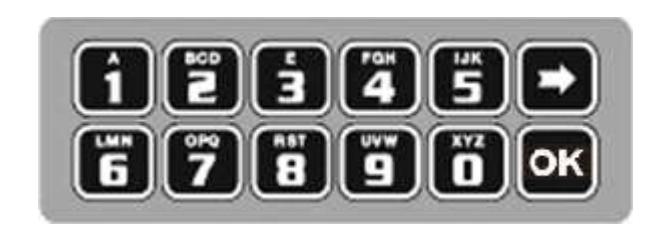
- = Change Manager code (01), users, override users, Master and Manager ovr (if configured)
- = PIN entering for dynamic codes (after dynamic codes activation)
- = Test mode
- = access to Manager menu, Manager ovr menu (if configured) Change code menu, Time menu, Configuration menu and Master menu.
- = System info and time and date info
- = Exit and back to the main menu
- = Master menu
User properties and default codes
Users can be set for opening with code only, code + Dallas key or with Dallas key only. It is also possible to set a dual mode opening: in this case, entering the two users codes is required to open the lock.
Default codes are:
Master: 1-2-3-4-5-6-7-8. Manager: 123456.

Users from 02 to 90: 02-020202, 03-030303, and so on. They always open with time delay if set.
Override users: thanks to the setup software, it is possible to configure users in between 10 and 90 (10-101010, 11-111111, and so on) as override users. They always open without time delay.
The table below reports the main users functions.
| Master | Manager |
|---|---|
|
Access to Master Menu
Set time and date Set Time Lock periods Audit download Manager Management Enable/disable OTCs Change code PC Link |
Access to Manager Menu
Standard users management Override users management Set time delay Set variable time delay PC Link Audit download Opening Code changing Set opening extension Set immediate time lock |
| Override manager | Configuration menu |
|
Access to Ovr. Manager menu
Override users management Code changing |
Install/remove locks
Set display contrast Change language Test mode Check system Informations |
| Override users | Standard users |
This user manual describes the standard programming. According such programming and unless different requests while ordering the product, an opening can be performed by entering single users codes (no dual mode) and without time delay. Thus, the user manual must be adapted according the configuration selected.
It is strongly recommended to change the default codes before using the lock.

Overview functions
Lock opening
After entering an opening code, it is possible to open the lock within 3 seconds. It's no necessary instead with motorized locks: in this case indeed, the motor moves the bolt which remains in opening position for about 8 seconds before returning in closing position. In the manual closing version instead, the bolt can be closed by pressing key for few seconds.
Penalty
Four consecutive wrong codes initiate a four minutes penalty time. During this period, LCD shows the message "PENALTY" and no operation is allowed.
Time Delay
Programmable time delay in between 0 and 99 minutes. Programmable opening window in between 1 and 19 minutes.
Dallas keys
It can be programmed for any lock. Available as option for Manager and users (not for Master).
TechMaster keypad only works with Dallas keys created by TECNOSICUREZZA. Upon express request, the keypad can be set in order to work also with different Dallas keys models.
Power supply
Lock can be powered with:
- an ALKALINE 9V battery located in the battery compartment below the keypad;
- an internal battery box provided by Tecnosicurezza (6 ALKALINE 1.5 batteries);
- A power adapter (ref. N1212) with power supply interface (ref. T6005/W or T6005) both provided by Tecnosicurezza.
Low battery warning
A long beep together with the message "LOW BATTERY" on the display, indicate a low battery level which need immediate replacing.
Silent Alarm
It can be programmed on each lock.
Audit
The lock is able to save the last 6000 operations with time, date, user and operations description. The keypad can save the last 250 operations. It's possible to download the events for locks and keypad by using the Tecnosicurezza DMT Audit software. For further information refer to the IU_DMT_Audit_XX.

IMPORTANT
Some options/characteristics reported in this user manual, can only be used if previously enabled through the setup software. Thus, please refer to the user manual IU_TechMaster_setup_XX.
Please contact Tecnosicurezza for further information.
Opening the locks
Users (or Override users): opening without time delay
Power up the keypad. Enter an opening code and insert the Dallas key, if set-up. LCD shows: OPEN
Open the lock within 3 seconds.
Users: opening with time delay
Power up the keypad. Enter an opening code and insert the Dallas key, if set-up.
LCD shows the time delay counting:
At time elapsed, the LCD shows the open window counting time. OPEN WINDOW
Press , LCD shows: ENTER CODE
Enter an opening code and insert the Dallas key, if set-up. LCD shows: OPEN
TIME DELAY 00:59
00:01
X X – X X X X X X
Open the lock within 3 seconds.
Manager (or Override Manager): opening without time delay
Power up the keypad. Press for opening with Manager code or press it two times for opening with Manager Ovr code. LCD shows:
MANAGER CODE X X X X X X
Enter Manager code and insert the Dallas key, if set-up (or enter Manager Ovr code and insert the Dallas key, if set-up). LCD shows:
OPEN
Open the lock within 3 seconds.
Manager (or Override Manager): opening with time delay
Power up the keypad. Press for opening with Manager code or press it two times for opening with Manager Ovr Code. LCD shows:
MANAGER CODE X X X X X X
Enter Manager code and insert the Dallas key, if set-up (or enter Manager Ovr Code and insert the Dallas key, if set-up). LCD shows the time delay counting:
TIME DELAY 00:59
At time elapsed, the LCD shows the open window counting time. OPEN WINDOW
00:01
Press , LCD shows: ENTER CODE
10 of 27 IU_ TechMaster_04_eng


X X – X X X X X X
MANAGER
X X X X X X
Enter Manager code/Manager Ovr code and insert the Dallas key, if set-up. LCD shows:
Press for opening with Manager code or press it two times for
OPEN
Open the lock within 3 seconds.
Opening with dynamic codes (Dallas key option)
opening with Manager Ovr code. LCD shows:
Power up the keypad. Insert the Dallas dynamic key in the Dallas reader. LCD shows:
DYNAMIC CODE X X X X X X X X X
Enter the dynamic code and press . LCD shows: OPEN
Open the lock within 3 seconds.
If set by the software Dyama or DyamaWeb for dynamic codes creation, LCD shows the closing code when the bolt re-closes. Please refer to the user manuals IU_Dyama_XX or IU_DyamaWeb_XX for further information.
CLOSING CODE 179
WARNING: dynamic codes must be used respecting the sequence of activation time in which they have been created by the software (Dyama or DyamaWeb), otherwise the last created code deletes all the previous ones (i.e. if three codes are created and the third one is used before using the first two ones, those first two codes are deleted). In this case indeed LCD shows:
DYNAMIC CODE DELETED
Opening with dynamic codes (PIN option)
Power up the keypad. Press and hold to enter the dynamic user PIN (optional). LCD shows:
DYNAMIC USER X X X X
Enter the dynamic user PIN. LCD shows: DYNAMIC CODE
X X X X X X X X X
Enter the dynamic code and press . LCD shows: OPEN
Open the lock within 3 seconds.
If set by the software Dyama or DyamaWeb for dynamic codes creation, LCD shows the closing code when the bolt re-closes. Please refer to the user manuals IU_Dyama_XX or IU_DyamaWeb_XX for further information.
CLOSING CODE 179
WARNING: dynamic codes must be used respecting the sequence of activation time in which they have been created by the software (Dyama or DyamaWeb), otherwise the last created code deletes all the previous ones (i.e. if three codes are created and the third one is used before using the first two ones, those first two codes are
DYNAMIC CODE DELETED

deleted). In this case indeed LCD shows:
Dual mode opening without time delay
Power up the keypad. Enter an opening code and insert the Dallas key, if set-up. LCD shows:
2° USER CODE X X – X X X X X X
Enter the second opening code and insert the Dallas key, if set-up. LCD shows:
OPEN
Open the lock within 3 seconds.
Dual mode opening with time delay
Power up the keypad. Enter an opening code and insert the Dallas key, if set-up.
TIME DELAY 00:59
LCD shows the time delay counting:
At time elapsed, the LCD shows the open window counting time. OPEN WINDOW
00:01
Press , LCD shows: ENTER CODE
X X – X X X X X X
Enter an opening code and insert the Dallas key, if set-up. LCD shows:
2° USER CODE X X – X X X X X X
Enter the second opening code and insert the Dallas key, if set-up. LCD shows: OPEN
Open the lock within 3 seconds.
Master menu
Power up the keypad. Press and hold . LCD shows: MASTER MENU
X X X X X X X X
Enter Master code (default value 1-2-3-4-5-6-7-8).
Time & date settings
Enter the Master menu. Press until LCD shows:
TIME AND DATE SETTINGS
Press . LCD shows the current time and date.
08:00 FRI 27/01/2006
Press to change time and date.
hh:mm _ _ _ GG / MM / YYYY
Enter the new time and date values and press to confirm.
DST Settings

WARNING: it is recommended to enter this menu always with the door open. Power up the keypad. Enter the Master menu. Press until LCD shows: AUTOMATIC DST Press one time and then press to select between ON and OFF. Press again to confirm. If the static codes have been deleted, automatic DST can be enabled by using the dynamic user DST. Time Lock settings WARNING: It is recommended to enter this menu always with the door open; Master menu, allows to add/delete the settings for time lock/closing periods/opening periods, only if current time and date values are included in an opening period. Power up the keypad. Enter the Master menu. Press until LCD shows: TIME LOCK SETTING Weekly time lock settings – Adding new values Enter Time Lock menu and press . LCD shows: WEEKLY TIME LOCK T1 SETTING Press once or two times to set a weekly time lock T2 or T3. Then, press . Press . LCD shows: ADD NEW VALUES Press . LCD shows the current day of the week. hh:mm FRI hh:mm The first one is an opening time while the second one is a closing time. Enter the new values. Press to confirm. LCD shows the next day of the week, proposing the same time values. Press to confirm or to select another day without entering new time values or else enter the new time values as previously illustrated. At the end of the week, LCD shows: END OF LIST EXIT AND SAVE? Press to save or for coming back to the first weekday.
All values entered can be saved only by pressing .
Inside Time Lock menu, opening time intervals are indicated: it means the safe can be opened by entering a valid code, but only inside the time interval itself (ex. opening time

interval from 08.00 to 14.00 from Monday to Friday: the safe can be only opened from 08.00 to 14.00 and only in those days, it cannot be opened before 08.00 and after 14.00. Moreover, safe cannot be opened on Saturdays and Sundays).
It is possible to schedule up to 4 time intervals per day (ex. Monday from 07.00 to 10.00, from 12.00 to 13.00, 15.00 to 16.00 and 18.00 to 19.00).
Weekly time lock settings – Verify or delete values
| Enter Time Lock menu and press | WEEKLY TIME LOCK |
|---|---|
| . LCD shows: | T1 SETTING |
|
Press
. LCD shows: |
ADD NEW VALUES |
| Press | VERIFY OR DELETE |
| . LCD shows: | VALUES |
|
Press
. LCD shows the values for the first day. |
hh:mm
FRI hh:mm |
|
Press
to scroll all the schedules list. |
|
| Press | DELETE VALUES? |
| on a schedule. LCD shows: | |
|
Press
to confirm or to exit. |
|
| At the end of the list, press | END OF LIST |
| . LCD shows: | EXIT? |
Closing periods (OFF days) – Add new values
Closing periods are time intervals in which is possible to close the lock even when a time lock is enabled.
It is possible to schedule up to 60 closing periods (they can be opening or closing periods). Each one of them has a maximum time length of 14 days.
WARNING: during closing periods, the safe cannot be opened.
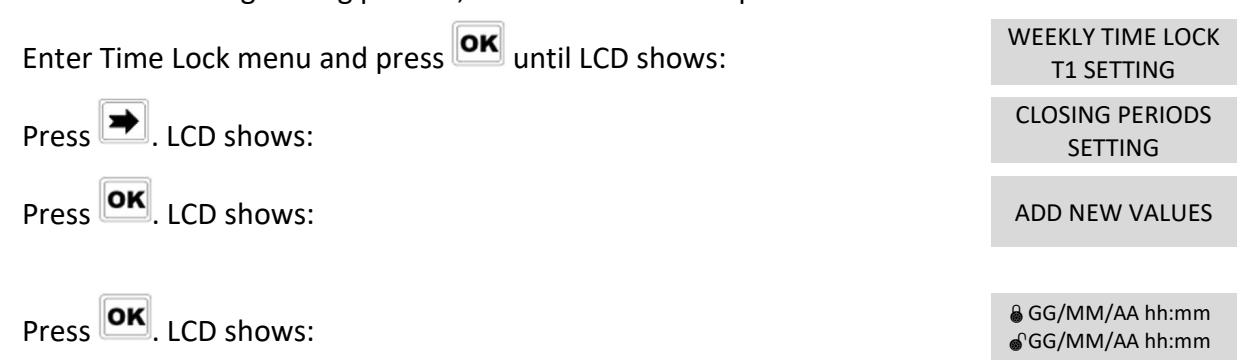
The first one is an closing time while second one is an opening time.
Enter the time of start and the ending time for the closing period,
then press to confirm.
Should the year be set, the closing period is not repeated.
Should not the year be set (press ), the closing period is yearly repeated instead.
CLOSING PERIODS SETTINGS

TechMaster
Press to delete all values entered.
Repeat the steps above for each closing period.
Closing periods (OFF days) – Verify or delete values
Enter Time Lock menu and press . LCD shows: WEEKLY TIME LOCK T1 SETTING
Press until the LCD shows:
Press . LCD shows: ADD NEW VALUES
Press . LCD shows: VERIFY OR DELETE VALUES
Press to check the first closing period scheduled. GG/MM/AA hh:mm GG/MM/AA hh:mm
Press to scroll all the scheduled closing periods.
Press to delete the scheduled closing periods. DELETE VALUES?
Press to confirm or to exit.
At the end of the list, press .
END OF LIST EXIT?
Opening periods - Add new values
Opening periods are time intervals in which is possible to open the lock even when a time lock is enabled.
It is possible to schedule up to 60 closing periods (they can be opening or closing periods). Each one of them has a maximum time length of 14 days.
Enter Time Lock menu and press . LCD shows: WEEKLY TIME LOCK T1 SETTING
Press until the LCD shows: OPENING PERIODS SETTINGS
Press . LCD shows: ADD NEW VALUES
Press . LCD shows: GG/MM/AA hh:mm GG/MM/AA hh:mm
The first one is an opening time while the second one is a closing time.
Enter a date and time for opening and closing, then press to confirm.
Should the year be set, the opening period is not repeated.
Should not the year be set (press ), the opening period is yearly repeated instead.
Press to delete the values entered.

Opening periods - Verify or delete values
Enter Time Lock menu and press . LCD shows:
WEEKLY TIME LOCK T1 SETTING
Press until the LCD shows:
OPENING PERIODS SETTINGS
Press . LCD shows: ADD NEW VALUES
Press . LCD shows:
VERIFY OR DELETE VALUES
Press . LCD shows the first opening period. GG/MM/AA hh:mm
GG/MM/AA hh:mm
Press to scroll all the scheduled opening periods.
Press to delete. LCD shows:
DELETE VALUES?
Press to confirm or to exit.
At the end of the list, press .
END OF LIST EXIT?
PC connection
Use this function to enable the connection between the keypad and PC.
Power up the keypad. Enter the Master menu. Press until LCD shows:
PC LINK
Press to start the connection with PC. PC LINK
…
Press to stop the connection with PC.
If the static codes have been deleted, PC connection can be enabled by using the dynamic user AUDIT.
Manager Management
Power up the keypad. Enter Master menu. Press until the LCD shows:
MANAGER MANAGEMENT
Press . LCD shows: 1 MANAGER
2 AMMINISTRAT.
"" installed, "_" deleted, "X" disabled.
Select Manager by entering its reference number and press . If the Manager is not installed, LCD shows:
01 INSTALL?

Press to confirm. Then enter the new Manager code and confirm it. LCD shows:
OPERATION DONE
If the Manager is already installed, press for disabling/deleting/installing it. Then press to confirm.
Dynamic codes – Enabling/Disabling
WARNING: it is recommended to always perform this operation with door open, to enable/disable the dynamic codes. Later, dynamic codes can be activated through the red Dallas key 1971 previously programmed with the software Dyama or DyamaWeb.
Power up the keypad. Enter Master menu. Press until the LCD shows:
DYNAMIC CODES
Press . LCD shows:
DYNAMIC CODES ENABLED/DISABLED
Press . The LCD shows:
DYNAMIC CODES ENABLE/DISABLE?
Press to confirm. LCD shows: OPERATION DONE
Dynamic codes activation with static codes deleting
WARNING: with this operation, it is possible to delete the static codes for all users and Manager. Moreover, in depending on the configuration selected, Master static code may be deleted as well.
Insert the red Dallas key N1971 in the reader. LCD shows: DYNAMIC CODE
XXX XXX XXX
Enter the activation code generated by the software Dyama or DyamaWeb and press . LCD shows:
DELETE ALL THE STATIC CODES?
Press . LCD shows: OPERATION IN
PROGRESS…
Once terminated, LCD shows: DYNAMIC CODES
ACTIVE
To re-install the static codes (only for Master and Manager) use the dynamic user REMOVAL. Later, it is possible to re-install all the other users from the menu Users management.
Manager menu
Press and then press . LCD shows: MANAGER MENU
X X X X X X
Power up the keypad. Enter Manager code (default code 1-2-3-4-5-6).

Users Management
Power up the keypad. Enter Manager menu and press until LCD shows:
USERS MANAGEMENT 0 1 – X X X X X X
Press and press to scroll users list or enter user ID. 02 03 04 05 06
x _ _
"" user installed, "_" user deleted, "X" user disabled.
Override users 50 ÷ 59 can only be installed when the lock is open.
Press . If the user is not installed LCD shows:
02 INSTALL?
" " Dallas key, " " code, "+" dual mode, "TL" time lock
Press to confirm or to exit or for switching to the next user.
Enter the new user code and confirm it.
If the selected user is already installed, press to choose whether to disable it, to delete it or for leaving and selecting another user. Press to confirm the choice.
Time delay
Power up the keypad. Enter Manager menu and press until LCD shows:
T. DELAY AND O. WINDOW
Press to confirm. LCD shows the current values for time delay and open window.
TIME DELAY 00 OPEN WINDOW 01
Press to exit or to set new values.
TIME DELAY mm OPEN WINDOW mm
Enter the new values and press to confirm. LCD shows: VALUES UPDATED
Time delay can be set in between 0 and 99 minutes, the open window in between 1 and 19 minutes instead.
To set a time delay shorter than the one currently present, lock must be open.
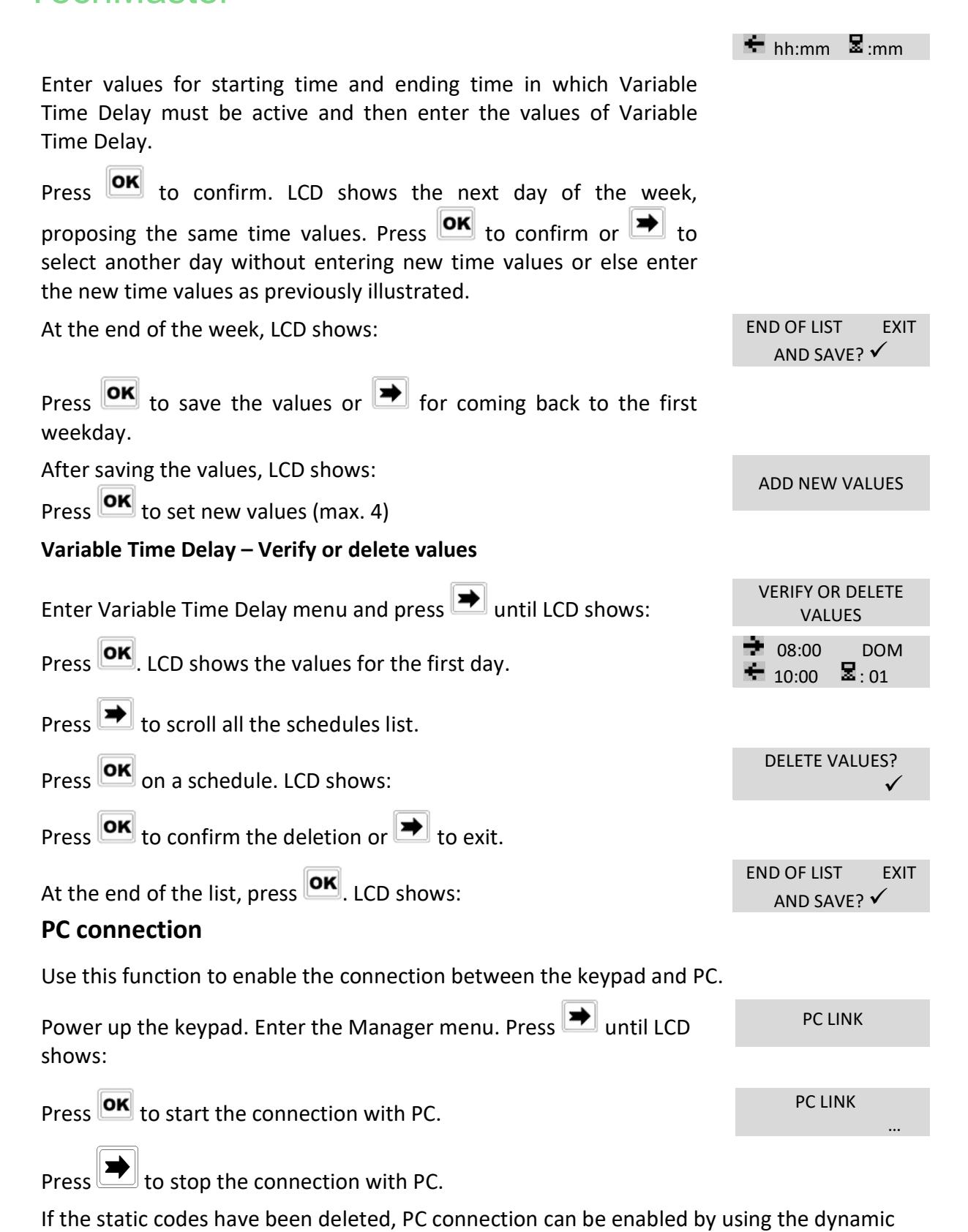
Variable Time Delay
WARNING: lock must always be open to set a variable time delay
Power up the keypad. Enter Manager menu and press until LCD shows:
VARIABLE TIME DELAY
Variable Time Delay – Adding new values
Enter Variable Time Delay menu and press . LCD shows: ADD NEW VALUES
Press . LCD shows the current day of the week. hh:mm VEN

user AUDIT.

OVR MANAGER MENU X X X X X X
Override Manager menu
Power up the keypad.
Press , then press until LCD shows:
Enter OVR Manager code (default code 6-5-4-3-2-1).
Override Users management
WARNING: to install new override users, lock must be open.
Power up the keypad. Enter Override Manager menu and press until LCD shows:
OVR USERS MANAGEMENT
Press and press to scroll users list or enter user ID. 50 51 52 53 54
x _ _
"" user installed, "_" user deleted, "X" user disabled.
Press . If the user is not installed LCD shows:
52 INSTALL?
" " Dallas key, " " code, "+" dual mode, "TL" time lock
Press to confirm or to exit or for switching to the next user.
Enter the new user code and confirm it.
If the selected user is already installed, press to choose whether to disable it, to delete it or for leaving and selecting another user. Press to confirm the choice.
Code changing
WARNING: it is recommended to always perform this operation with door open.
Power up the keypad.
Press , then press until LCD shows:
CHANGE CODE
Change code for standard and override Users
Power up the keypad. Access Change Code menu and press . LCD shows:
CHANGE USER CODE
Press to confirm. LCD shows: ENTER OLD CODE
X X – X X X X X X
Enter the old code e insert the Dallas key (if set up).
Enter the new code e insert the Dallas key (if set up). ENTER NEW CODE
X X X X X X
Confirm the new code e insert the Dallas key (if set up). CONFIRM CODE
X X X X X X

Change code for Manager
Power up the keypad. Access Change Code menu and press .
CHANGE MANAGER CODE
Then, press until LCD shows:
Press to confirm. LCD shows: OLD CODE
X X X X X X
Enter the old code e insert the Dallas key (if set up).
Enter the new code e insert the Dallas key (if set up). ENTER NEW CODE
X X X X X X
Confirm the new code e insert the Dallas key (if set up). CONFIRM CODE
X X X X X X
Change code for Override Manager
Power up the keypad. Access Change Code menu and press .
CHANGE OVR MANAGER CODE
Then, press until LCD shows:
Press to confirm. LCD shows: OLD CODE
X X X X X X
Enter the old code e insert the Dallas key (if set up).
Enter the new code e insert the Dallas key (if set up). ENTER NEW CODE
X X X X X X
Confirm the new code e insert the Dallas key (if set up). CONFIRM CODE
X X X X X X
Change code for Master
Power up the keypad. Access Change Code menu and press .
CHANGE MASTER CODE
Then, press until LCD shows:
Press to confirm. LCD shows: OLD CODE
X X X X X X
Enter the old code.
Enter the new code. ENTER NEW CODE X X X X X X
Confirm the new code. CONFIRM CODE
X X X X X X
Time menu
Power up the keypad.
TIME MENU
Press and then press until LCD shows:

Opening extension
WARNING: before using this function, at least one time lock must be programmed.
Power up the keypad. Access Time Menu and press . LCD shows: MANAGER CODE
X X – X X X X X X
Enter Manager code. LCD shows: OPENING
EXTENSION
Press . If a time lock is already programmed, LCD shows the next activation time for the time lock (automatically calculated adding 30 minutes to the last activation time):
OPEN LOCK UNTIL: 12/09 20:30
Press to confirm.
It is also possible to enter different values. Enter date and time (max.
2h) and press to confirm.
Immediate Time Lock
Power up the keypad and access Time Menu and press . LCD shows:
MANAGER CODE X X – X X X X X X
Enter Manager code. LCD shows: OPENING
EXTENSION
Press until LCD shows:
IMMEDIATE TIME LOCK
Press . LCD shows the next activation time for the time lock: BLOCK UNTIL:
14/09 08:00
Press to confirm.
It is also possible to enter different values. Enter date and time (max.
2 weeks) and press to confirm.
Configuration menu
Power up the keypad.
CONFIGURATION X X X X X X
Press and then press until LCD shows:
Enter configuration code (default code5-0-5-0-5-0).
Install Locks
Power up the keypad. Access Configuration Menu. LCD shows: INSTALL
LOCKS
Press and select the lock to install. SELECT
LOCK

If the lock selected is already installed, LCD shows: LOCK ALREADY
INSTALLED
If the lock selected is not connected with the keypad, LCD shows: LOCK X
DOES NOT ANSWER
If the lock selected is instead connected with the keypad (but not installed), LCD shows:
MASTER CODE X X X X X X X X
Enter Master code and then Manager code. LCD shows: OPERATION DONE
Remove Locks
WARNING: it is recommended to perform this operation always with lock open and connected with the keypad.
Power up the keypad. Access Configuration Menu. LCD shows: INSTALL
LOCKS
Press until LCD shows:
REMOVE LOCKS
Press and select the lock to remove. SELECT
LOCK
If the lock selected is connected with the keypad, LCD shows: REMOVE LOCK X?
Press to confirm. LCD shows: MASTER CODE
X X X X X X X X
Enter Master code, LCD shows: OPERATION DONE
If the lock selected is not installed, LCD shows: LOCK NOT
INSTALLED
If the lock selected is not connected with the keypad, LCD shows: LOCK X
DOES NOT ANSWER
Later, LCD shows: CONTINUE?
Press to confirm. LCD shows: OPERATION DONE
Lock reclosure mode
WARNING: this option is only available for motorized locks. To enable it, lock must be opened.
Power up the keypad. Access Configuration Menu. LCD shows: INSTALL
LOCKS
Press until the LCD shows: LOCK RECLOSURE
MODE
Press . LCD shows:
MODE: AUTOMATIC
Press to select between AUTOMATIC and MANUAL mode.

Press to confirm.
With MANUAL, lock can be closed by pressing and holding for 2 seconds.
With AUTOMATIC instead, lock automatically re-closes after the time set with Setup software.
Configure I/O Interface
Power up the keypad. Access Configuration Menu. LCD shows: INSTALL
LOCKS
Press until the LCD shows:
CONFIGURE I/O INTERFACE
Press . LCD shows: RS485 ID 01
Press to confirm. LCD shows: MASTER CODE
X X X X X X X X
Enter Master code. LCD shows: RS485 ID XX
Enter an ID RS485 and press to confirm. LCD shows: OPERATION DONE
Remove I/O Interface
Power up the keypad. Access Configuration Menu. LCD shows: INSTALL
LOCKS
Press until the LCD shows:
REMOVEE I/O INTERFACE
Press to confirm. LCD shows: MASTER CODE
X X X X X X X X
Enter Master code. LCD shows: OPERATION DONE
Display contrast
Power up the keypad. Access Configuration Menu. LCD shows: INSTALL
LOCKS
Press until the LCD shows: DISPLAY CONTRAST
Press . LCD shows: ADJUST CONTRAST
X
Enter a contrast level (between 1 and 9) and press to confirm. LCD shows:
OPERATION DONE
Keypad Language
Power up the keypad. Access Configuration Menu. LCD shows: INSTALL
LOCKS

|
Press
until the LCD shows: |
LANGUAGE |
|
Press
. LCD shows the current language set up: |
LANGUAGE
ENGLISH |
|
Press
to change the language and press to confirm. |
|
| Membrane test | |
| Power up the keypad. Access Configuration Menu. LCD shows: |
INSTALL
LOCKS |
|
Press
until the LCD shows: |
MEMBRANE TEST |
|
Press
. LCD shows: |
MEMBRANE TEST
1234567890 |
|
Press
to change the language and press to confirm. |
|
| Enter the sequence of buttons shown on the LCD. | |
|
Any working button produces a short beep.
A damaged button produces a long beep and LCD shows: |
WRONG/FAULTY
KEY |
|
Press
to change the language and press to confirm. |
|
|
Two short beeps are produced if the test terminates successfully.
LCD shows: |
OPERATION
DONE |
| System Info | |
| Power up the keypad. Access Configuration Menu. LCD shows: |
INSTALL
LOCKS |
|
Press
until the LCD shows: |
SYSTEM INFO |
|
Press
. LCD shows keypad system information. Press to see |
|
| lock system info. | |
|
Press
to see the current time and date. |
NOTES

User instructions

| TechMaster |
|---|

Correct disposal of this product: (Waste Electrical & Electronic Equipment)
Applicable in the European Union and other European countries with separate collection systems.

This marking displayed on the product or its literature indicates that it should not be disposed with other wastes at the end of its working life.
To prevent possible harm to the environment or human health from uncontrolled waste disposal, please separate this from other types of wastes and recycle it responsibly to promote the sustainable reuse of material resources.
Contacts
| GLOBAL HEADQUARTERS | USA HEADQUARTERS | SPAIN HEADQUARTERS |
|---|---|---|
| Tecnosicurezza SpA | Tecnosicurezza Inc. | Tecnosicurezza Sa |
| Via Cesare Battisti, 276 | 50, Thomas Lane | C/Menor, 4 - Nave 10 |
|
37057 San Giovanni Lupatoto
Verona |
Versailles, KY 40383 |
Pol. Ind La Mina 28770
Colmenar Viejo |
| Tel.+39 045 826 64 70 | Tel.+1 859 490 89 30 | Tel.+34 91 804 33 91 |
| Fax. +39 045 826 64 69 | Fax.+34 91 804 32 63 | |
| info@tecnosicurezza.it | info@usatecno.com | info@tecnosicurezza.es |