Securam Electronic Safe Lock Operations Guide ProLogic L02
Open the original PDF document
View PDF

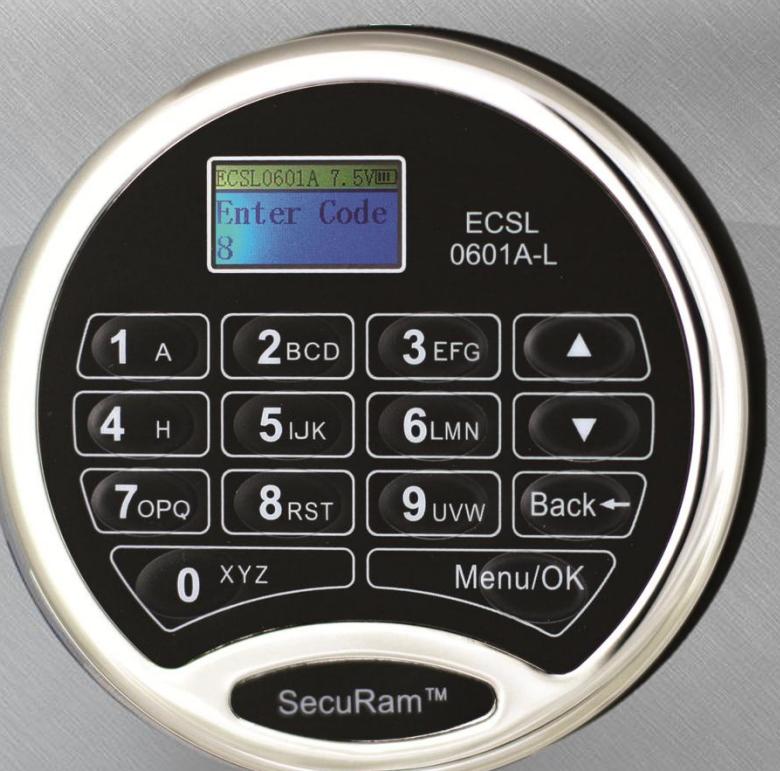
ProLogic L02
Product Overview Features Programming

SecuRam Safe Locks
SafeLogic
Ideal for Home Safes, Gun Safes, Light Commercial Applications
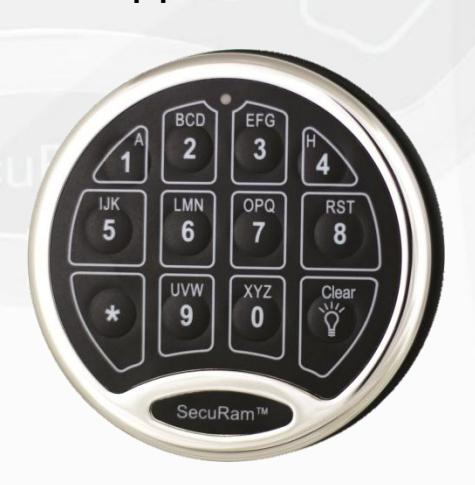
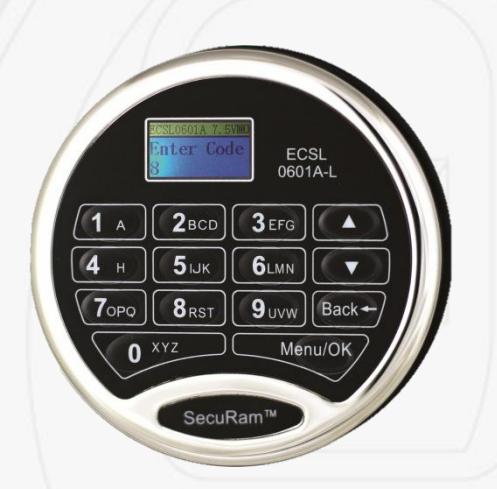
ProLogic
Ideal for Demanding Commercial Applications
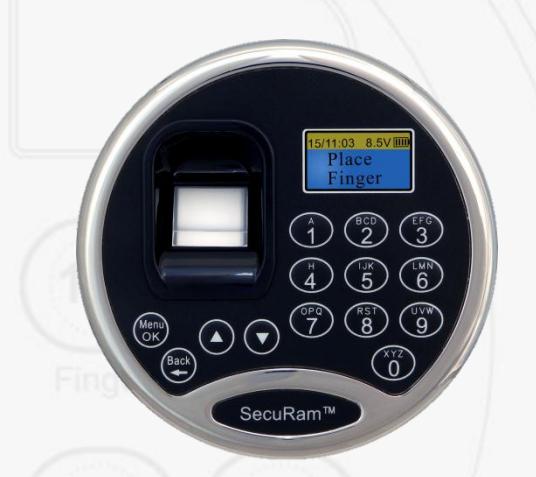
ScanLogic
Designed to provide a high level of security using biometric authentication

The ProLogic Series
- Powerful Commercial grade safe lock systems
- LCD makes programming and use very simple
- The ProLogic series comes in various models to cover features from basic to highly advanced
-
ProLogic Series are powered by 9V batteries
- AC Power is optional
- ProLogic Series systems can control up to 4 locks
- Available with SureLock Battery Management
- Can be paired with any of SecuRam's lock bodies
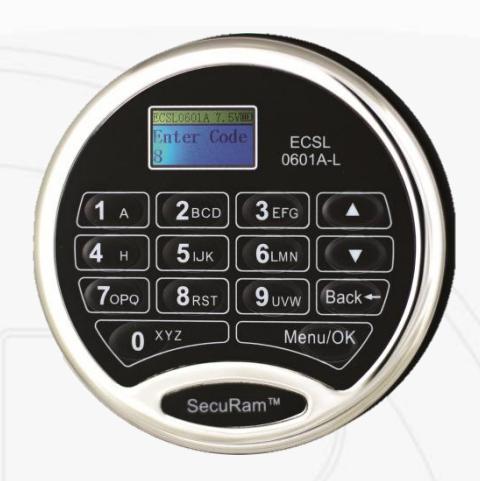
Models
- ProLogic L01
- ProLogic L02
- ProLogic L22
- ProLogic L66
- ProLogic OL66
- ProLogic L68
- ProLogic L68-8
- ProLogic WR
- LCD for easy Use and management
- 30 User Codes
- Single or Dual Control
- Time Delay 0-99min
- Time Window 1-15min
- Time Delay Overide
- Enable / Disable User Codes
- Recovery Code
- Control up to 4 locks
- AC Power optional
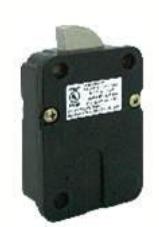
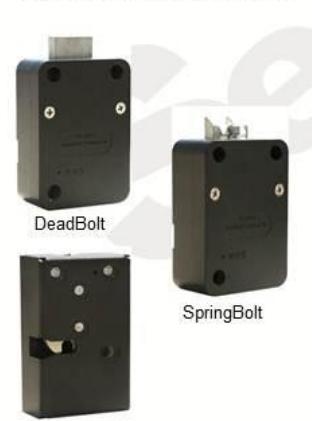
- Control any SecuRam lock:
SwingBolt
DeadBolt
SpringBolt
StrikeBolt

| ProLogic Series - LCD Display | ||||||||
|---|---|---|---|---|---|---|---|---|
| Model | EC-0601A-L01 | EC-0601A-L02 | C-0601A-L22 | EC-0601A-L66 | EC-0601A-OL66 | EC-0601A-L66-WR+ | EC-0601A-L68 | EC-0601A-L80 |
| EntryPad Format | ( | |||||||
| Total No. of Users | 3 | 31 | 31 | 31 | 31 | 31 | 31 | 31 |
| Super Code | 1 | 1 | 1 | 1 | 1 | 1 | 1 | 1 |
| Manager Code | 1 | 1 | 1 | 1 | 1 | 1 | 1 | 1 |
| Supervisor | 1 | 1 | 1 | 1 | 1 | 1 | 1 | |
| User Codes | 1 | 28 | 28 | 28 | 28 | 28 | 28 | 28 |
| Power Source | 9V | 9V | 9V | 9V | 9V | 9V | 9V | 9V |
| AC Power | Optional | Optional | Optional | Optional | Optional | Optional | Optional | Optional |
| Simple Mechanical Reset | • | • | • | • | • | • | • | • |
| Penalty Lockout | • | • | • | • | • | • | • | • |
| Recovery Code | • | • | • | • | • | • | • | |
| Penalty LockOut | • | • | • | • | • | • | • | • |
| EntryPad Lighting | BackLit LCD | BackLit LCD | BackLit LCD | BackLit LCD | BackLit LCD | BackLit LCD | BackLit LCD | BackLit LCD |
| LCD | • | • | • | • | • | OLED | • | • |
| Battery Access | Back | Back | Back | Back | Back | - | Back | Back |
| SureLock (Style II) | Optional | Optional | Optional | Optional | Optional | Optional | Optional | Optional |
| Dual Control | • | • | • | • | • | • | • | |
| Time Delay | 0-99Min | 0-99Min | 0-99Min | 0-99Min | 0-99Min | 0-99Min | 0-99Min | |
| Opening Window | 1-15Min | 1-15Min | 1-15Min | 1-15Min | 1-15Min | 1-15Min | 1-15Min | |
| Time delay Overide Code | • | • | • | • | • | • | • | |
| Enable/Disable | • | • | • | • | • | • | • | • |
| Audit Trail | 200 Events | 500 Events | 50 Events | 500 Events | 500 Events | 1000 Events | ||
| TimeLock | - | • | • | • | • | |||
| Holiday Scheduling | • | • | • | • | • | |||
| Multiple Locks (4) | • | • | • | • | • | |||
| Assignable Lock Access | • | • | • | • | • | • | • | |
| Unlock in Sequence | • | • | • | • | • | • | ||
| Duress Code | • | • | • | |||||
| Wireless Data Download | • | • | • | |||||
| OnLine Mode (Live Data) | - | • | ||||||
| Bolt Position Sensor | Optional with Lock with Status Sensor (EL-0601S - Special Order) | |||||||
| Remote Enable/Disable | - | - | • | |||||
| Remote TimeLock | - | • | ||||||
| Safe Door Alarm (1-30min) | - | w/CB10-B | w/CB10-B | w/CB10-B | w/CB10-B | w/CB10-B | ||
| 3 Alarm Outputs | w/CB10-B | w/CB10-B | w/CB10-B | w/CB10-B | w/CB10-B | w/CB10-B | ||
| Entrypad Finishes | ||||||||
| -Chrome | • | • | • | • | • | • | • | |
| -Brass | • | • | • | • | • | • | • | • |
| -Nickel | • | • | • | • | • | • | • | • |
| -Black Chrome | • | • | • | • | • | • | • | • |
| +Water Resistant | ||||||||

Opening the Lock
- The ProLogic L02 comes with two default codes:
- Super Code 1-1-1-1-1-1
- Manager Code 1-2-3-4-5-6
- To Open the Lock
- Enter a valid code
- The lock automatically relocks after 6 seconds
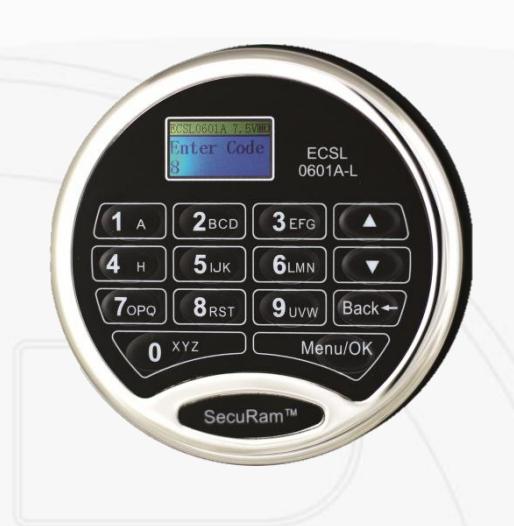

Programming Menu
To Enter the Programming Menu:
- Enter the Super or Manager Code
- Lock will open
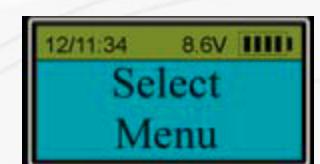
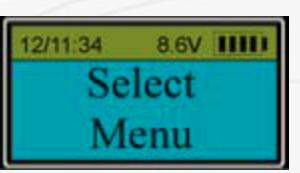
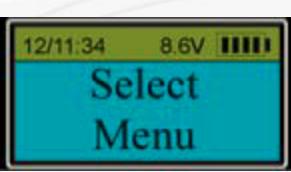
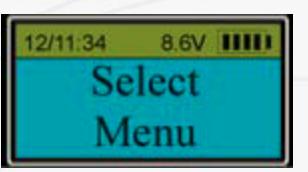
- Select Menu Screen will appear
- Scroll to desired menu selection
- Change Code
- System Info
- Set TDO User ID
- Set/Cancel Time Delay
- Enable Sequence
- Authorize Locks
- Delete All Users
- Set Number of Locks
- Recovery Code
- Recover System
- Encryption Key Set
- Cycle Testing
- Hardware Testing
- Enable Dual Mode
- Disable User
- Enable User
- Delete One User
- Enroll New user
The power of this safe lock system is found in the Programming Menu.

Change Code
- To Enter the Programming Menu
- Enter the Super or Manager Code
- Lock will open
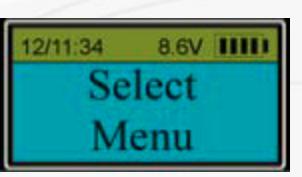
- Select Menu Screen will appear
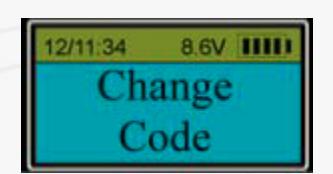
- Scroll to Change Code
Users can change their own code using this process by logging in using their own code
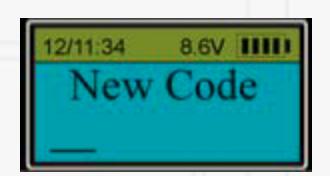
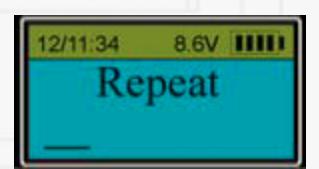
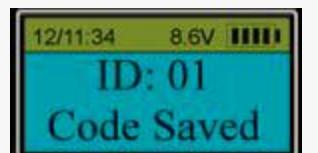
- Change Code
- System Info
- Set TDO User ID
- Set/Cancel Time Delay
- Enable Sequence
- Authorize Locks
- Delete All Users
- Set Number of Locks
- Recovery Code
- Recover System
- Encryption Key Set
- Cycle Testing
- Hardware Testing
- Enable Dual Mode
- Disable User
- Enable User
- Delete One User
- Enroll New user

System Info
- At Select Menu Screen
- Scroll to System Info
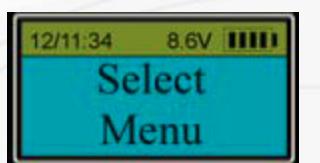
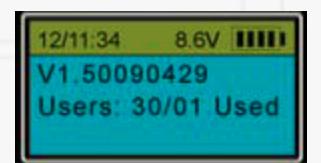
- Model Number
- Version #
- User Data
- Change Code
- System Info
- Set TDO User ID
- Set/Cancel Time Delay
- Enable Sequence
- Authorize Locks
- Delete All Users
- Set Number of Locks
- Recovery Code
- Recover System
- Encryption Key Set
- Cycle Testing
- Hardware Testing
- Enable Dual Mode
- Disable User
- Enable User
- Delete One User
- Enroll New user

Set TDO USER ID
- Enter the Super or Manager Code
- Lock will open
- Select Menu Screen will appear
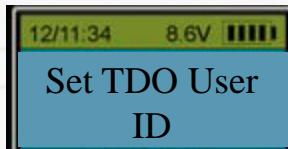
- Scroll to Set TDO User ID
- Press OK
- Use the UP/DN buttons to select the desired User ID
- Once TDO ID is selected a screen will show ID00 ID 01 and the ID you selected have Time Delay Override.
-
Any USER ID can be authorized as a TDO Code
- Allowing this user to bypass Time Delay functionality
- Change Code
- System Info
- Set TDO User ID
- Set/Cancel Time Delay
- Enable Sequence
- Authorize Locks
- Delete All Users
- Set Number of Locks
- Recovery Code
- Recover System
- Encryption Key Set
- Cycle Testing
- Hardware Testing
- Enable Dual Mode
- Disable User
- Enable User
- Delete One User
- Enroll New user

Set Cancel Time Delay
- Enter the Super or Manager Code
- Lock will open
- Select Menu Screen will appear
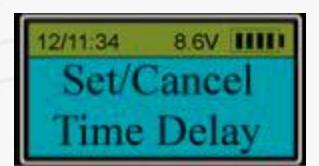
- Scroll to Set/Cancel Time Delay
- Press OK
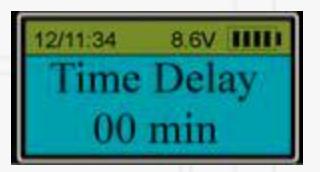
- Use the UP/DN arrows to set the Time Delay value (0-99 min)
- Press OK
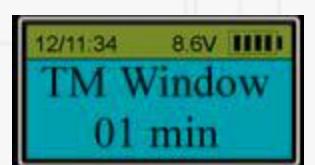
- Use the UP/DN arrows to set the Time Window value (1-15 min)
- Press OK
- Change Code
- System Info
- Set TDO User ID
- Set/Cancel Time Delay
- Enable Sequence
- Authorize Locks
- Delete All Users
- Set Number of Locks
- Recovery Code
- Recover System
- Encryption Key Set
- Cycle Testing
- Hardware Testing
- Enable Dual Mode
- Disable User
- Enable User
- Delete One User
- Enroll New user

Enable Sequence
- Enter the Super or Manager Code
- Lock will open
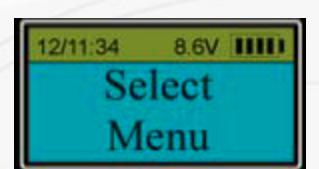
- Select Menu Screen will appear
- Scroll to Enable Sequence, press OK
-
This enables sequence feature
- Lock 1 is exterior door
- Locks 2,3,4 are interior
- If Lock 2,3,4 selected, Lock 1 opens automatically
- Change Code
- System Info
- Set TDO User ID
- Set/Cancel Time Delay
- Enable Sequence
- Authorize Locks
- Delete All Users
- Set Number of Locks
- Recovery Code
- Recover System
- Encryption Key Set
- Cycle Testing
- Hardware Testing
- Enable Dual Mode
- Disable User
- Enable User
- Delete One User
- Enroll New user

Authorize Locks
- Enter the Super or Manager Code
- Lock will open
- Select Menu Screen will appear
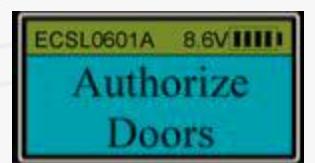
- Scroll to Authorize Locks, press OK
- Now select the range of users to be authorized (From; To)
-
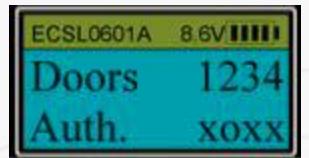
The current authorizations will be displayed
- "o" means the user can open the door
- "x" means the user cannot open the door
-
To authorize users:
- Press 1 to toggle access for door 1
- Press 2 to toggle access for door 2
- Press 3 to toggle for access to door 3
- Press 4 to toggle for access to door 4
- Press OK
- Authorization is complete
- Change Code
- System Info
- Set TDO User ID
- Set/Cancel Time Delay
- Enable Sequence
- Authorize Locks
- Delete All Users
- Set Number of Locks
- Recovery Code
- Recover System
- Encryption Key Set
- Cycle Testing
- Hardware Testing
- Enable Dual Mode
- Disable User
- Enable User
- Delete One User
- Enroll New user

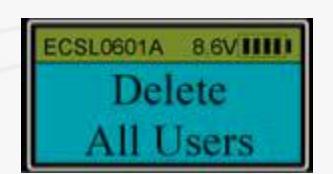
Delete All Users
- Enter the Super or Manager Code
- Lock will open
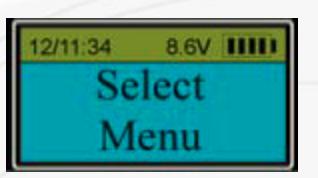
- Select Menu Screen will appear
- Scroll to Delete All Users
-
Press OK
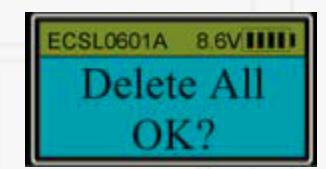
- Press OK again to confirm
- The display will scroll through all enrolled users , deleting all.
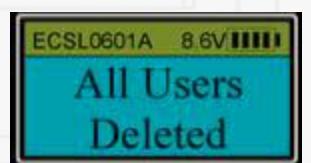
- The display will provide a confirmation message
- Change Code
- System Info
- Set TDO User ID
- Set/Cancel Time Delay
- Enable Sequence
- Authorize Locks
- Delete All Users
- Set Number of Locks
- Recovery Code
- Recover System
- Encryption Key Set
- Cycle Testing
- Hardware Testing
- Enable Dual Mode
- Disable User
- Enable User
- Delete One User
- Enroll New user

Set Number of Locks
- Enter the Super or Manager Code
- Lock will open
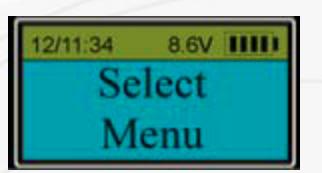
- Select Menu Screen will appear
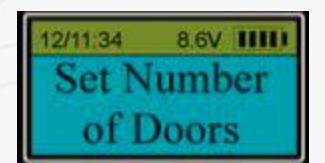
- Scroll to Set Number of Doors
- Press OK
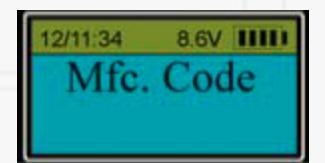
- Enter the Mfc. Code 975246
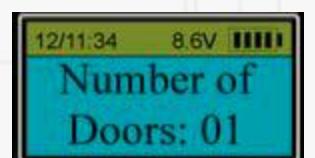
- Use the UP/DN arrows to set the number of doors controlled by this EntryPad
- In order to establish Lock #s connect the locks in desired order. The system will automatically set lock #s sequentially.
- Change Code
- System Info
- Set TDO User ID
- Set/Cancel Time Delay
- Enable Sequence
- Authorize Locks
- Delete All Users
- Set Number of Locks
- Recovery Code
- Recover System
- Encryption Key Set
- Cycle Testing
- Hardware Testing
- Enable Dual Mode
- Disable User
- Enable User
- Delete One User
- Enroll New user

Recovery Code Set
To Enter the Programming Menu:
- Enter the Super or Manager Code
- Lock will open
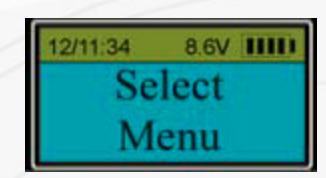
- "Select Menu" screen will appear
- Scroll to Recovery Code Set
- Press OK
- The Display will show "Enter Code"
- Enter the Default 9-9-9-9-9-9
- A Random Key will be displayed
- This Key must be deciphered by the Extreme Password Generator software, which will provide an OTC authorization code
- Enter this Authorization Code
- At "New Code", enter the new Recovery Code, and Repeat.
- Change Code
- System Info
- Set TDO User ID
- Set/Cancel Time Delay
- Enable Sequence
- Authorize Locks
- Delete All Users
- Set Number of Locks
- Recovery Code Set
- Recover System
- Encryption Key Set
- Cycle Testing
- Hardware Testing
- Enable Dual Mode
- Disable User
- Enable User
- Delete One User
• Enroll New user Do NOT lose this code! Without this code the system cannot be recovered.

Recover System
- This is a very unique a secure method to recover the system.
- Each system has a default recovery code. The Default code is 999999. (This code can be changed, refer to the Recovery Code selection.)
- Upon entry of the recovery code, the LCD screen displays an alpha-numeric code.
- This code is deciphered using a SecuRam's Extreme Password Generator Software.
- The alpha-numeric code is entered into the software together with the encryption code.
- Through the software, these codes are deciphered to generate a One Time Code (OTC).
- When entered into the ProLogic safe lock, the lock and EntryPad are reset to factory default and the system is recovered.
- Once used the OTC is no longer valid.
- There is no limit to the number of times a system can be recovered using this process.
- This is a vast improvement over other commonly used reset functions as it offers a very secure recovery method
- Change Code
- System Info
- Set TDO User ID
- Set/Cancel Time Delay
- Enable Sequence
- Authorize Locks
- Delete All Users
- Set Number of Locks
- Recovery Code
- Recover System
- Encryption Key Set
- Cycle Testing
- Hardware Testing
- Enable Dual Mode
- Disable User
- Enable User
- Delete One User
- Enroll New user

Recover System
- Enter the Super or Manager Code
- Lock will open
- Select Menu Screen will appear
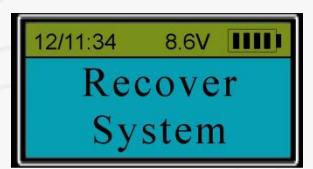
- Scroll to Recover System
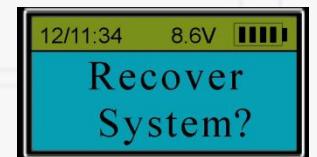
- Enter the Recovery Code. The Default Recovery Code is 999999.
- The system will display an alphanumeric code
- Decipher the code using SecuRam's Extreme Password Generator software
- Enter the OTC recovery code
-
System is reset to default.
- Super Code is reset to 111111
- Manager Code is reset to 123456
- All User codes are deleted
- Time Delay remains active
- Change Code
- System Info
- Set TDO User ID
- Set/Cancel Time Delay
- Enable Sequence
- Authorize Locks
- Delete All Users
- Set Number of Locks
- Recovery Code
- Recover System
- Encryption Key Set
- Cycle Testing
- Hardware Testing
- Enable Dual Mode
- Disable User
- Enable User
- Delete One User
- Enroll New user

Encryption Key Set
- Enter the Super or Manager Code
- Lock will open
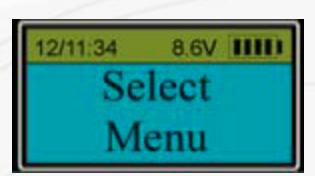
- Select Menu Screen will appear
- Scroll to Encryption Key Set
- Press OK
- Enter the current Encryption Key
- Enter your new encryption key
- Verify your new encryption key
- Change Code
- System Info
- Set TDO User ID
- Set/Cancel Time Delay
- Enable Sequence
- Authorize Locks
- Delete All Users
- Set Number of Locks
- Recovery Code
- Recover System
- Encryption Key Set
- Cycle Testing
- Hardware Testing
- Enable Dual Mode
- Disable User
- Enable User
- Delete One User
- Enroll New user

Cycle Testing
To Enter the Programming Menu:
- Enter the Super or Manager Code
- Lock will open
9V battery.
- Select Menu Screen will appear
- Scroll to Cycle Testing, press OK
- Enter the Mfc. Code 975246
- The lock will begin cycling open/closed continuously
- To exit cycle testing, disconnect power
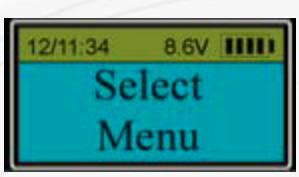
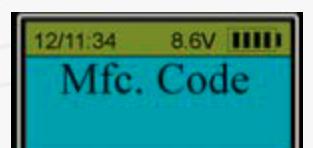
This feature is unique to SecuRam and demonstrates our commitment to quality. Using this feature a user can cycle the lock motor continuously to test its reliability. In a 24 hour period the lock will cycle 15,000 – 20,000 times on a
- Change Code
- System Info
- Set TDO User ID
- Set/Cancel Time Delay
- Enable Sequence
- Authorize Locks
- Delete All Users
- Set Number of Locks
- Recovery Code
- Recover System
- Encryption Key Set
- Cycle Testing
- Hardware Testing
- Enable Dual Mode
- Disable User
- Enable User
- Delete One User
- Enroll New user

Hardware Testing
- Enter the Super or Manager Code
- Lock will open
- Select Menu Screen will appear
- Scroll to Hardware Testing
- Enter the Manufacturer Code
- The screen will display "Press Back to Exit" indicating it started hardware testing.
- Change Code
- System Info
- Set TDO User ID
- Set/Cancel Time Delay
- Enable Sequence
- Authorize Locks
- Delete All Users
- Set Number of Locks
- Recovery Code
- Recover System
- Encryption Key Set
- Cycle Testing
- Hardware Testing
- Enable Dual Mode
- Disable User
- Enable User
- Delete One User
- Enroll New user

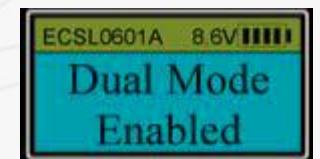
Enable Dual Mode
- Enter the Super or Manager Code
- Lock will open
- Select Menu Screen will appear
- Scroll to Enable Dual Mode
- Press OK
- The system will request a second valid code to be entered??
- Dual Mode has now been enabled
- Only Admin Codes (01,02) can be used to change from Dual back to Single Mode.
- If all codes are deleted, Dual Mode will be disabled automatically
- When changing a code in Dual Mode, only the second code will be changed
- Change Code
- System Info
- Set TDO User ID
- Set/Cancel Time Delay
- Enable Sequence
- Authorize Locks
- Delete All Users
- Set Number of Locks
- Recovery Code
- Recover System
- Encryption Key Set
- Cycle Testing
- Hardware Testing
- Enable Dual Mode
- Disable User
- Enable User
- Delete One User
- Enroll New user

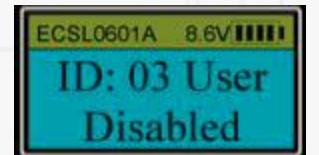
Disable User
- Enter the Super or Manager Code
- Lock will open
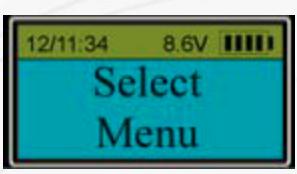
- Select Menu Screen will appear
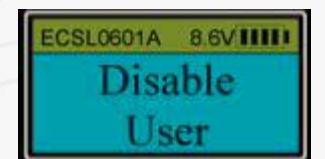
- Scroll to Disable User
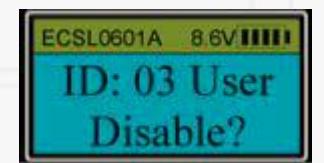
- Use the UP/DN buttons to scroll to the User ID to be disabled
- Press OK
- User is now disabled
- Change Code
- System Info
- Set TDO User ID
- Set/Cancel Time Delay
- Enable Sequence
- Authorize Locks
- Delete All Users
- Set Number of Locks
- Recovery Code
- Recover System
- Encryption Key Set
- Cycle Testing
- Hardware Testing
- Enable Dual Mode
- Disable User
- Enable User
- Delete One User
- Enroll New user

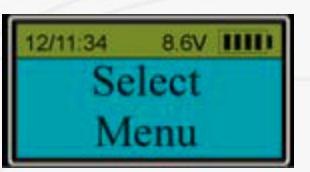
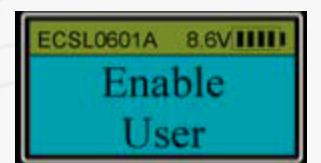
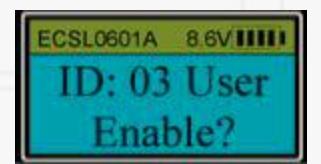
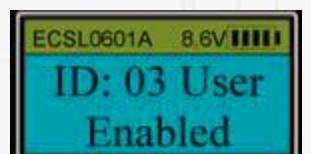
Enable User
- Enter the Super or Manager Code
- Lock will open
- Select Menu Screen will appear
- Scroll to Enable User
- Press OK
- Use the UP/DN buttons to select the User ID to be enabled
- Press OK
- The User is now enabled
- Change Code
- System Info
- Set TDO User ID
- Set/Cancel Time Delay
- Enable Sequence
- Authorize Locks
- Delete All Users
- Set Number of Locks
- Recovery Code
- Recover System
- Encryption Key Set
- Cycle Testing
- Hardware Testing
- Enable Dual Mode
- Disable User
- Enable User
- Delete One User
- Enroll New user

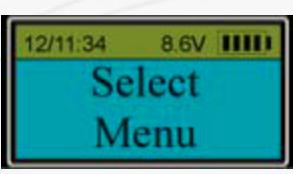
Delete One User
- Enter the Super or Manager Code
- Lock will open
- Select Menu Screen will appear
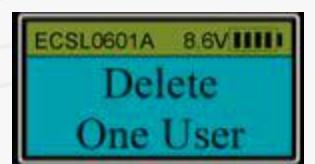
- Scroll to Delete One User
- Press OK
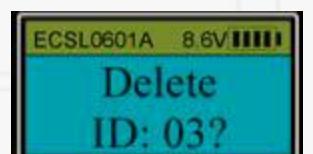
- Scroll to the User ID to be deleted
- Press OK
- User is now deleted
- Change Code
- System Info
- Set TDO User ID
- Set/Cancel Time Delay
- Enable Sequence
- Authorize Locks
- Delete All Users
- Set Number of Locks
- Recovery Code
- Recover System
- Encryption Key Set
- Cycle Testing
- Hardware Testing
- Enable Dual Mode
- Disable User
- Enable User
- Delete One User
- Enroll New user

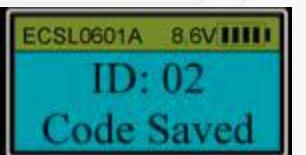
Enroll New User
To Enter the Programming Menu:
- Enter the Super or Manager Code
- Lock will open
- Select Menu Screen will appear
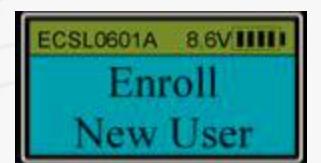
- Scroll to Enroll New User
- Press OK
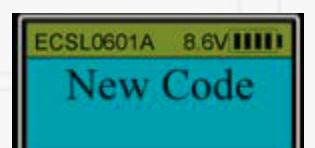
- Enter a 6 digit code
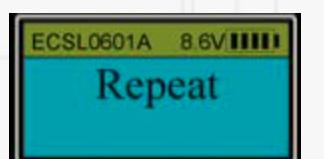
- Repeat
- User Code has been enrolled
• For security purposes, code cannot be set to 123456
- Change Code
- System Info
- Set TDO User ID
- Set/Cancel Time Delay
- Enable Sequence
- Authorize Locks
- Delete All Users
- Set Number of Locks
- Recovery Code
- Recover System
- Encryption Key Set
- Cycle Testing
- Hardware Testing
- Enable Dual Mode
- Disable User
- Enable User
- Delete One User
- Enroll New user

Simple Mechanical Reset
The Simple Mechanical Reset procedure is used to reset a lock that has been previously paired with an different model EntryPad.
This procedures erases the previous pairing and sets the lock back to its original state.
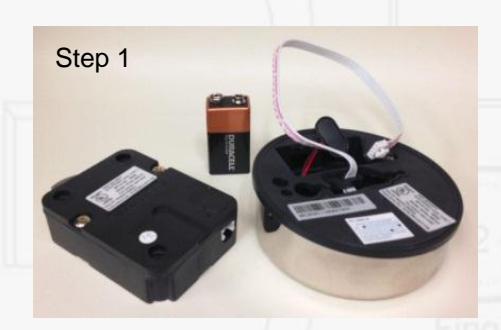
- Step 1: Ensure that the lock, and EntryPad are not connected and that the battery is not connected to the EntryPad.
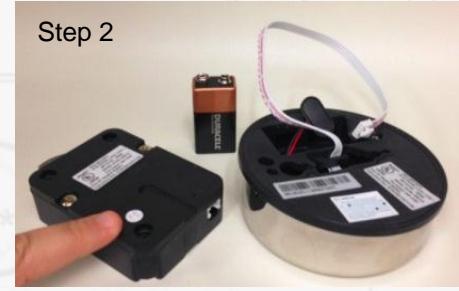
- Step 2: Find the reset hole on the back of the lock (under the QC sticker).
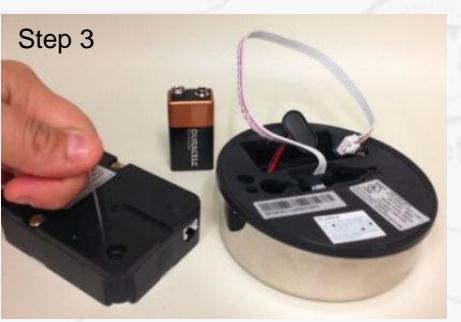
- Step 3: Using a poke tool, depress the reset button on the back of the lock 3 times. This discharges any latent energy within the locks capacitors.
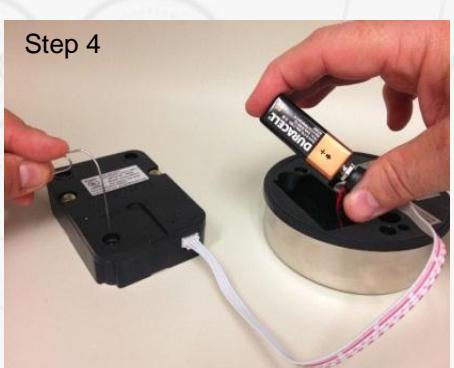
- Step 4: Now the part that requires 3 hands... Depress the reset button and hold it in its depressed position. While the reset button is depressed, connect the lock cable to the lock and then connect the battery to the entrypad.