Securakey Using a U.S. Robotics Modem With SK-ACP or 28SA-PLUS Bulletin #23
Open the original PDF document
View PDF

APPLICATIONS BULLETIN #23
Subject: Using a U.S. Robotics Modem With SK-ACP or 28SA-PLUS
Using a U.S. Robotics Modem With SK-ACP or 28SA-PLUS
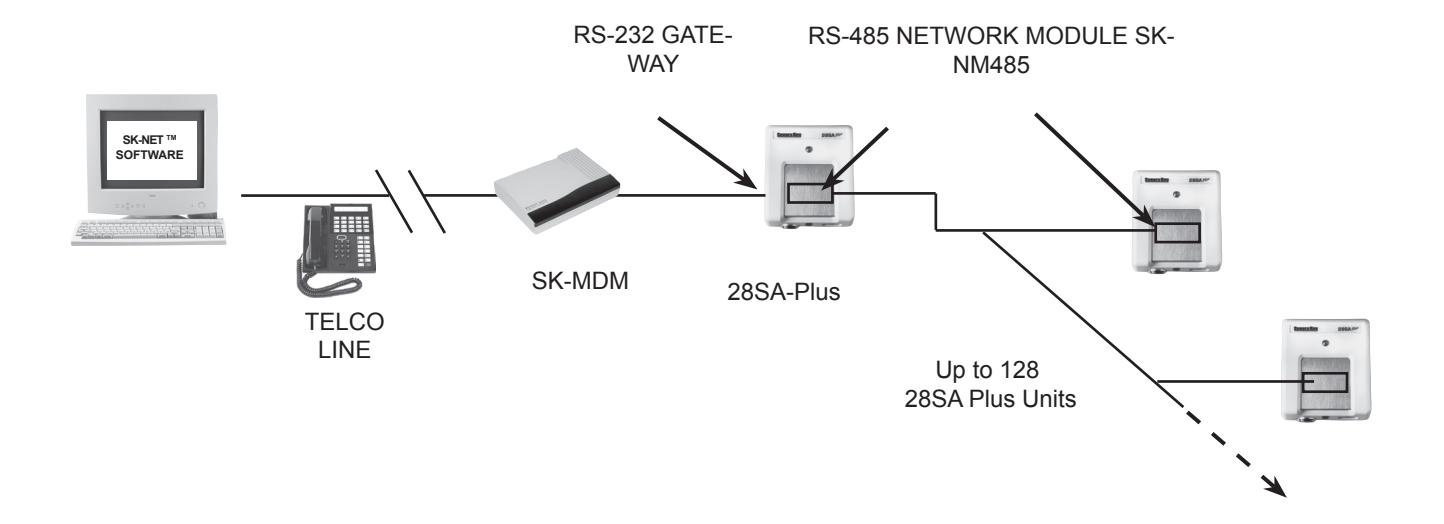
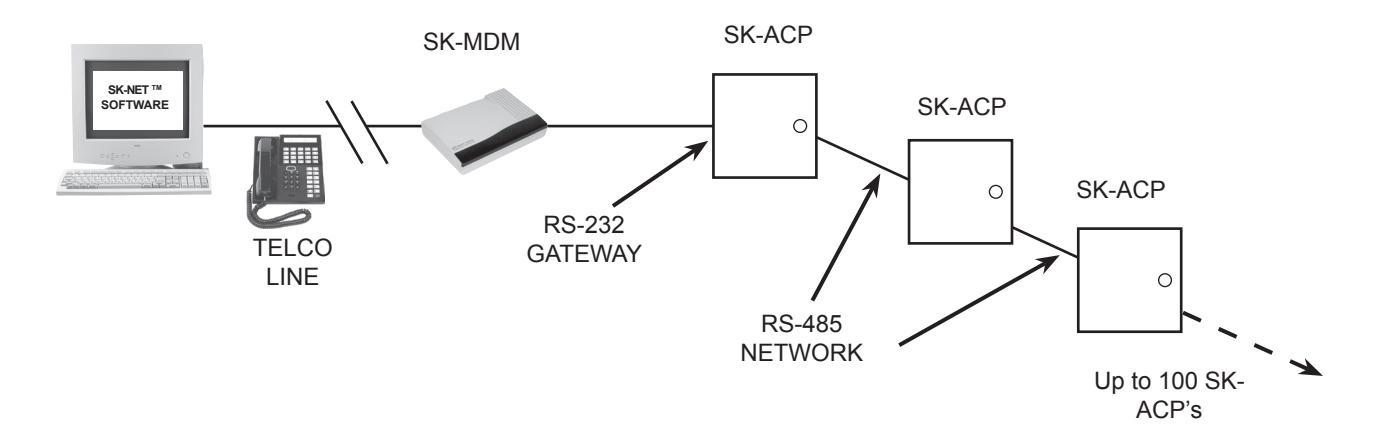
Secura Key SK-ACP access control panels and 28SA-PLUS access control units can be connected to a computer using 56K dial-up modems. This requires the use of SK-NET-MLD software ( the free download version of SK-NET™ does not support modem communications).
Secura Key offers the SK-MDM, a modem that has been pre-configured to work with our equipment out-ofthe-box. SK-MDM also includes a serial cable for connecting the modem to the gateway panel or reader.
If you choose to purchase a modem locally, you will need to configure it to work with our equipment (auto answer, dumb mode) and you will need to construct a suitable serial cable. Secura Key only supports U.S. Robotics Model 5686e modem.
Cable pin-out
| Panel/Reader | DB25 Male pin | DB9 Male pin |
|---|---|---|
| 1 | 7 | 5 |
| 2 | 3 | 2 |
| 3 | 8 | 1 |
| 4 | 4 | 7 |
| 5 | 2 | 3 |
Different modems require different set-up procedures. Most require connection to a PC. Follow the modem manufacturer's instructions for placing the unit in the "auto answer" "dumb mode".
Secura Key recommends and supports the U.S.Robotics 5686 fax modem. NOTE: This modem requires Version 3.0 or later of SK-NET-MLD software . If you purchase this unit the setup procedure is as follows.
- 1. Launch "Hyperterminal" on your computer. Set the baud rate to 38,400. Set 8 data bits. Set 1 stop bit, no parity and flow control is none.
- 2. DIP switches on your new modem are set with 3, 5 and 8 down (on). Leave these in the default position until the setup is complete.
- 3. Connect the modem to your COM port. Plug in the modem power supply.
- 4. Type "AT". You should get a response "OK"
- 5. Type in the setup string "AT&R1&D0&S0&H0S0=1&W0". Hit "ENTER". You should get another response "OK". (NOTE: the setup string contains the number 0, not the letter O.)
- 6. Before you turn off power to the modem, set the DIP switches 1, 4 and 6 down (on) and all other up (off). This is important, it locks in the new settings.
NOTE: If your modem does not have the latest firmware, you can download it from the U.S. Robotics website at www.usr.com/support/product-template.asp?prod=5686e . Select Control Center under the Firmware section.
Connect the modem to the access control unit, to a dedicated phone line and to 110VAC power. Using SK-NET-MLD, follow procedures in the software manual for connecting with the access control system.
DATE: 2-22-08 REV.: #2 AF#: 7003
SECURA KEY 20301 Nordhoff St. • Chatsworth, CA 91311 phone 818-882-0020 • fax 818-882-7052 Toll Free - 800-891-0020
PAGE ____ OF ____ 1 2
REMOTE SITE MODEM CONFIGURATION with 28SA-PLUS
REMOTE SITE MODEM CONFIGURATION WITH SK-ACP
WARRANTY: While Secura Key will be happy to help with modem-related problems, for best results contact a U.S. Robotics Service Center. To locate a convenient Service Center, go to www.usr.com.

20301 Nordhoff St. • Chatsworth, CA 91311 phone 818-882-0020 • fax 818-882-7052 TOLL-FREE: 800-891-0020
E-mail: mail@securakey.com Website: www.securakey.com
DATE: 2-22-08 REV.: #2 AF#: 7003
PAGE ____ OF ____ 2 2