Securakey Using a Digital Keypad with SK-ACPE
Open the original PDF document
View PDFUSING A DIGITAL KEYPAD WITH SK-ACPE
SK-ACPE has been designed to work with card readers, biometric identifiers and keypads that have an industrystandard Wiegand output. The SK-KPM is a weatherproof, narrow style keypad with a 26-bit Wiegand output that works very well with the SK-ACPE. The SK-KPS is a switchplate version that functions identically.
Keypads should only be used in place of card readers in applications where convenience is more important than security. PINs (Personal Identification Numbers) can easily be "stolen" by onlookers. Hackers can sometimes discover or guess at a valid PIN and use it improperly. And when your PIN has been stolen, you usually are not aware of it until it's too late.
KEYPAD SECURITY GUIDELINES
If you decide to use a keypad with the SK-ACPE, here are a few guidelines to follow:
- 1. The SK-ACPE sees card numbers and PINs exactly the same way. If you program your system so that card number "1" will work in every reader (including the keypad) then anyone can type "1" + "Enter" at the keypad and gain entrance. When using keypads and card readers in the same system, do not make anyone a "Master User".
- 2. If a user must have a card for use at some doors and a PIN for use at other doors, do not use his card number as his PIN. Enter the user into the User Manager database twice; the first time assign him to a card, the second time assign him to a PIN. (User Manager doesn't like seeing the same name twice. Use the person's middle initial in one entry but not in the other.)
- 3. Create one or more separate access groups for doors with keypads. Do not mix card readers and keypads in the same access group. If someone needs access to both card readers and keypads, put one of their identities in a card reader access group and their other identity (the one with the middle initial) in a keypad access group.
- 4. Short PINs are easier to guess than long ones. Make all PINs five digits long. (SK-ACPE will accept numbers up to 65,534.)
- 5. When people choose their own PINs they may choose one already in use or a PIN that is identical to a card number already enrolled in the system. It is always better for the system administrator to assign the PINs.
- 6. It is not desirable to have a block of valid PINs. Select PINs randomly. Do not make it easy for anyone who knows one PIN to guess another valid PIN.
- 7. Review the system transactions regularly to identify suspicious use of a PIN. Look for excessive usage (indicating that several people are using the same PIN), usage at odd hours and access violation usages.
- 8. Some applications call for a card reader and a keypad controlling the same opening. This can be configured for Card OR PIN, or configured for Card PLUS PIN. In either case, use a complete SK-ACPE for that opening, connecting the card reader to one side and the keypad to the other side of the panel.
CARD PLUS PIN – DUAL CREDENTIAL SYSTEMS
If you connect a card reader to one side of the SK-ACPE panel and a keypad to the other side of the panel, you can wire the electric lock or gate so that both a valid card and a valid PIN must be entered to gain access. Connect the latch control relays in series or parallel, as indicated below:
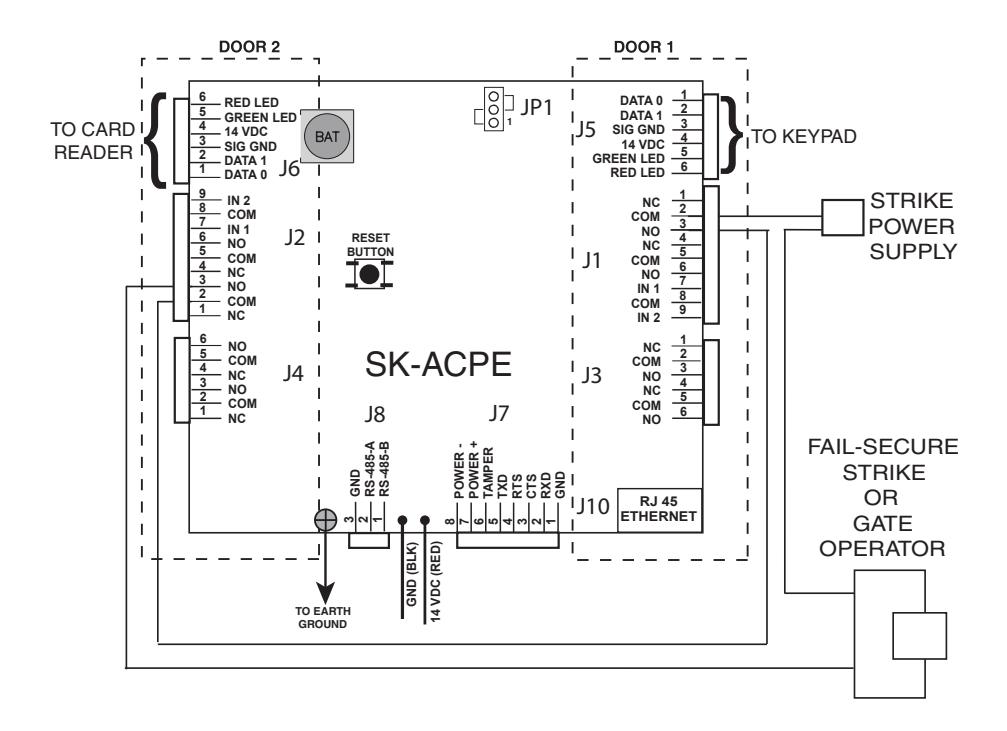
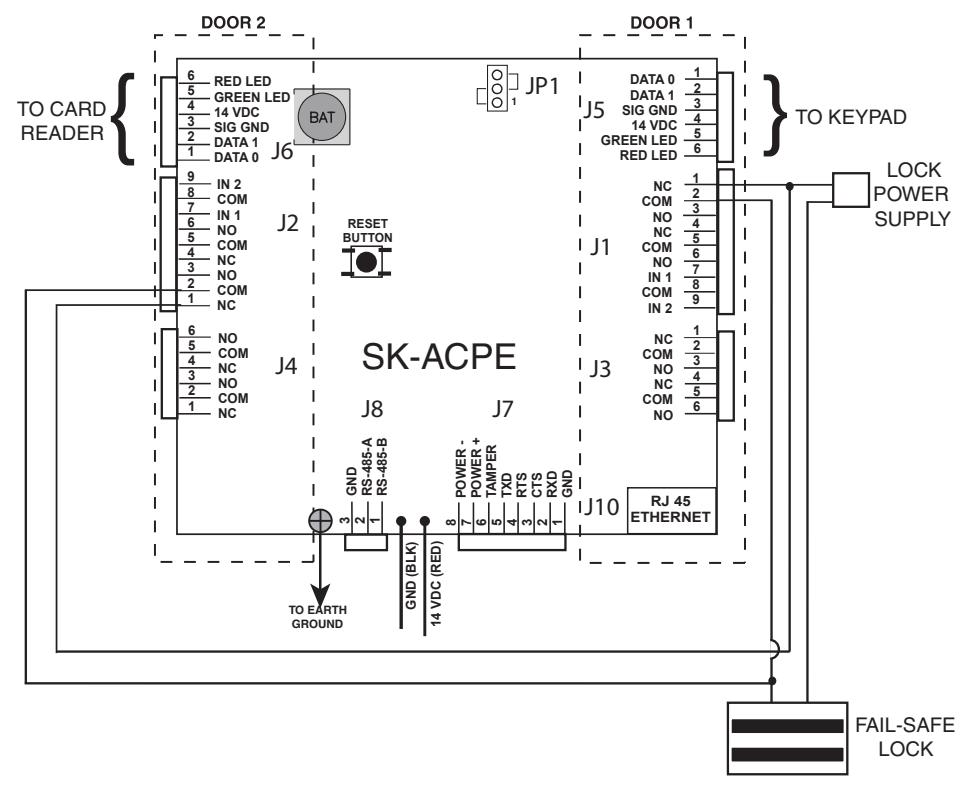
NOTES: Each valid access will appear as two valid access messages in SK-NET. Set the latch timers long enough to allow the user to present his card after entering his PIN and still have time to get the door open.
CARD OR PIN SYSTEMS
For systems where either the card reader or the keypad can be used to unlock the door, connect the panel as indicated below. If door status is to be monitored, note the special Input wiring.
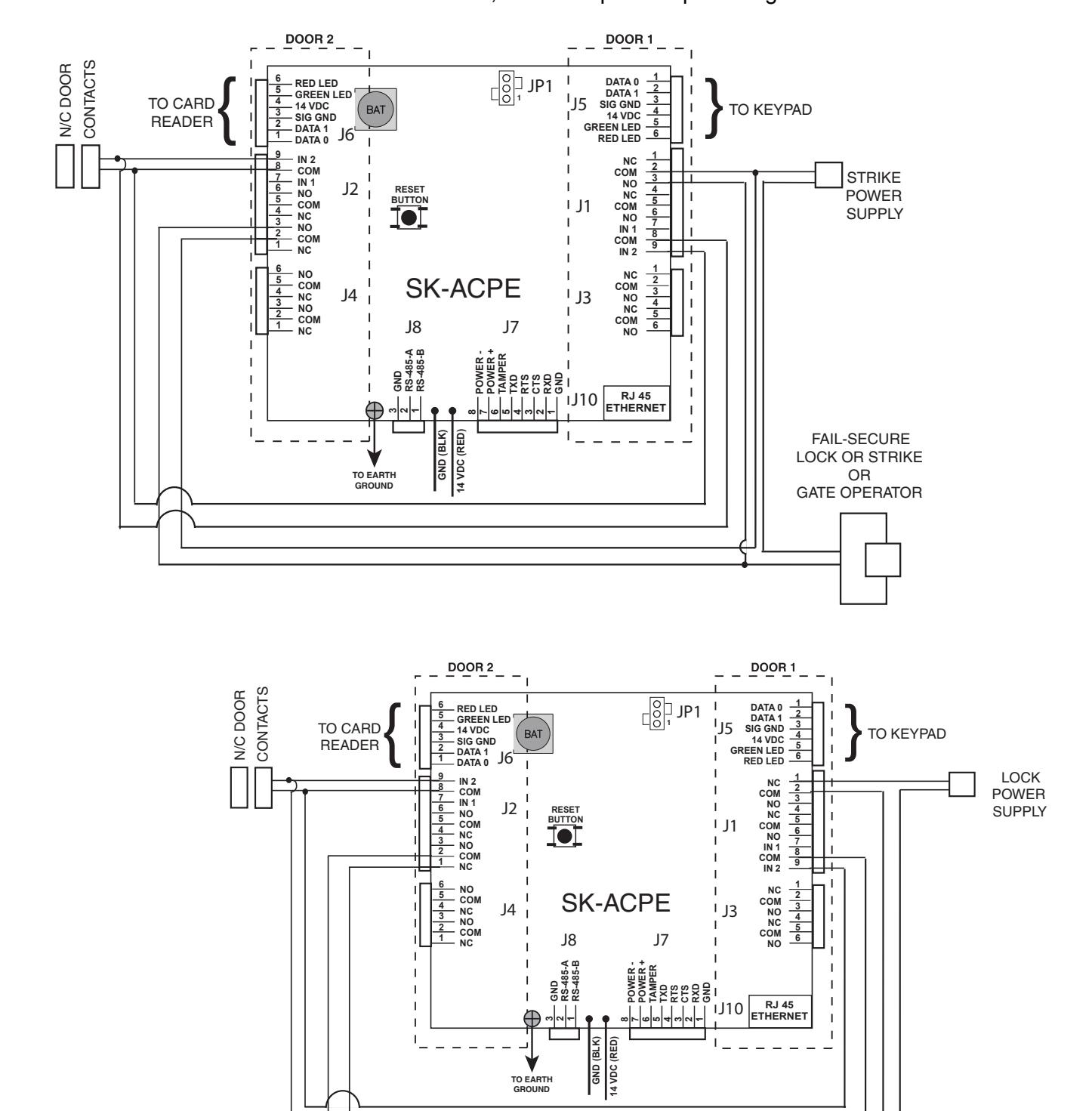
NOTES: Where dual-credential is required during just certain hours or days of the week, you may use the auxiliary output, defined as a "Time Zone" activated, to shunt either the keypad or the card reader during single-credential time periods.
FAIL-SAFE LOCK
CONNECTING SK-KPM or SK-KPS TO THE SK-ACPE
Connect the keypad wires to the following terminals on J5 or J6:
RED to #4 (14VDC +) BLACK to #3 (Signal Ground -)
GREEN to #1 (Data 0)
WHITEto #2 (Data 1)
BROWN to #5 (Green LED)
BLUE not used VIOLET " " ORANGE " " GREY " "
PROGRAMMING THE KEYPAD
SETTING THE FACILITY CODE OF THE KEYPAD
- 1. Press the white reset button on the SK-ACPE. The LED on the keypad will begin to flash.
- 2. Press "1" plus "ENTER" on the keypad. This sends the keypad facility code to the panel. *
- 3. If a card reader is connected to the same panel, present a card to the reader while the LED is flashing to send the card facility code to the panel.
PROGRAMMING PIN CODES
- 1. Go to User Manager in SK-NET.
- 2. Click on the "+" sign. A user detail box will appear.
- 3. Enter the User name. Enter the PIN where it says "Card number". Select an appropriate Access Group. Other fields are optional. Click "OK".
- 4. After adding any users, click on the Green Arrow to "Send" users to the system.
* The keypad's default facility code is "000". To use a different facility code, press * , enter a code from 001-255 and press #. Then follow the steps above.

20301 Nordhoff Street, Chatsworth, CA 91311 PHONE (818) 882-0020 • FAX (818) 882-7052 TOLL-FREE (800) 891-0020 www.securakey.com • mail@securakey.com