Securakey Set-up Instructions for SK-MDM Modem (U.S. Robotics)
Open the original PDF document
View PDFSetup Instructions for Using the SK-MDM Modem with the Secura Key 28SA-Plus Access Control Unit and/or SK-ACP Advanced Control Panel
The new SK-MDM has been preconfigured to work with Secura Key access control systems and SK-NET-MLD software. (NOTE: SK-NET-DM and the free download version of SK-NET do not support modem connections.) NOTE: This modem requires version 3.0 or later of SK-NET-MLD software.
- 1. Plug the telephone cable provided into the SK-MDM and into the jack for a dedicated phone line.
- 2. Plug the serial cable (provided) into the DB25 outlet on the SK-MDM.
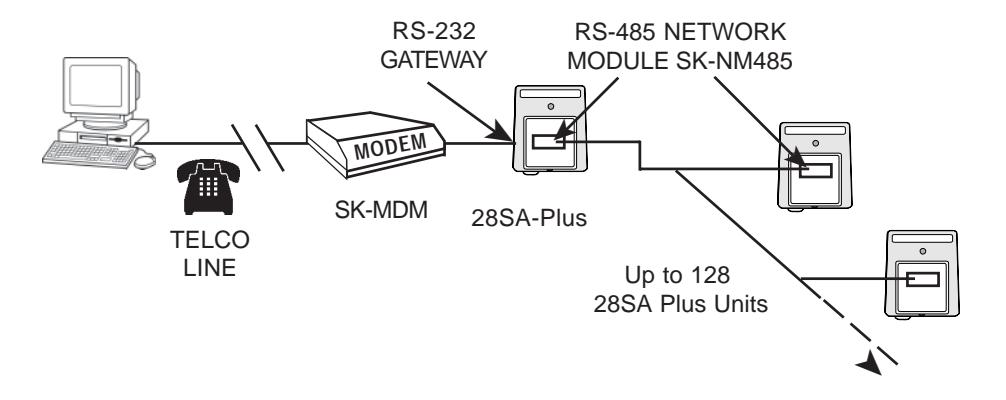
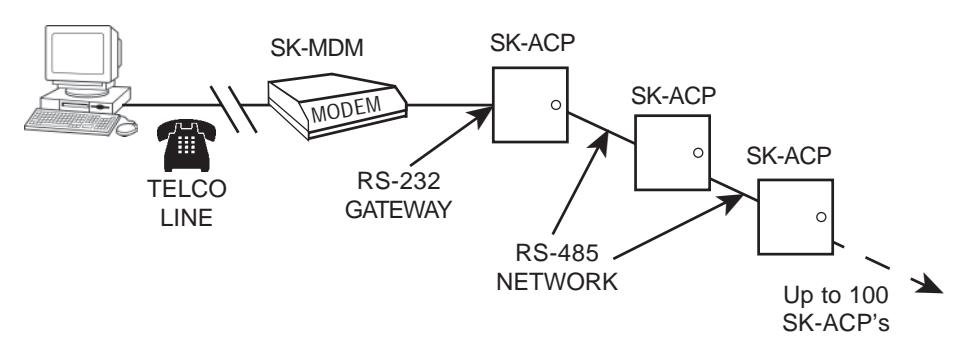
- 3. Connect the serial cable wires to the "Communication" portion of the 28SA-PLUS terminal block or to the J-7 connector on the SK-ACP.
|
PANEL
/ READER |
WIRE
COLOR |
DB25 |
|---|---|---|
| 1 |
B
LAC K |
7 |
| 2 |
W
HIT E |
3 |
| 3 |
R
E D |
8 |
| 4 |
G
REE N |
4 |
| 5 |
O
RANG E |
2 |
- 4. Connect the modem power supply to the SK-MDM and plug into a 110VAC wall outlet.
- 5. For added protection, the modem power lines, the phone line connection and the serial connection may be connected to suitable surge suppressors.
- 6. Establish connection from the computer to the access control system using SK-NET-MLD software. (Follow instructions in the SK-NET manual.)
OVER FOR REMOTE SITE MODEM CONFIGURATION with 28SA-PLUS
REMOTE SITE MODEM CONFIGURATION with 28SA-PLUS
REMOTE SITE MODEM CONFIGURATION WITH SK-ACP
WARRANTY: While Secura Key will be happy to help with modem-related problems, for best results contact a U.S. Robotics Service Center. To locate a convenient Service Center, go to <a href="https://www.usr.com">www.usr.com</a>. U.S. Robotics warrants this product for two years (detailed warranty is enclosed).

20301 NORDHOFF STREET • CHATSWORTH, CA 91311 PHONE: (818) 882-0020 • FAX: (818) 882-7052 TOLL FREE: (800) 891-0020 E-mail: mail@securakey.com
Web site: www.securakev.com