Securakey SKACPE User Installation Manual
Open the original PDF document
View PDFSK-ACPE User/Installation Manual

SK-ACPE TABLE OF CONTENTS
| 1. |
INTRODUCTION
1 |
|---|---|
| Introduction to SK-ACPE | |
|
Card ID Numbers and Facility Codes
Setting the Facility Codes |
|
| 2. |
INSTALLATION
3 |
| Physical Installation | |
|
Wiring
4 |
|
|
Power and Batteries
5 |
|
| Readers | |
| Inputs | |
| Chassis Ground | |
|
Outputs
6 LED Indicators |
|
|
Typical Door Installation Diagram/Cable Types
7 |
|
|
RS-232 Connections
8 |
|
| Tamper Switch | |
|
RS-485 Connections
10 |
|
| Ethernet | |
| Programming the SK-ACPE with SK-NET™ | |
| 3. | FACTORY SETTINGS11 |
| 4. |
READERS AND CARDS
12 |
| Using Secura Key Readers and Cards | |
| Using Non-Secura Key Readers and Cards | |
| Ordering Additional Cards | |
| Setting Facility Codes | |
|
APPENDIX A – Wiring and System Configurations
A-1 |
|
|
APPENDIX B – System Components and Specifications
B-1 |
|
|
APPENDIX C – Connecting a Modem to SK-ACPE
C-1 |
|
|
APPENDIX D – Connecting an SK-ACPE to a Local Area Network
D-1 |
|
|
APPENDIX E – SK-ACPE Troubleshooting Guide
E-1 |
|
|
APPENDIX F – Preventing Lightning Damage
F-1 |
|
| APPENDIX G –What's new, and what has not changed in the SK-ACPE?G-1 |
INTRODUCTION
The SK-ACPE Advanced Control Panel is a highly sophisticated, yet simple to use, two door access control unit with built-in Ethernet communications. The unit accepts readers of almost any technology, with a Wiegand output up to 40 bits, including Proximity, Touch Card, Wiegand, Magnetic Stripe, Bar Code, Optical, and Biometric. Each of the two passageways controlled by the unit is completely independent of the other and is configured, programmed and viewed separately.
Up to 100 SK-ACPE Panels may be linked together on a twisted pair (plus signal ground) RS-485 bus. When used with SK-NET™ software, a highly featured, easy to use, distributed intelligence access control system can be created.
Each of the two passageways controlled by the SK-ACPE has two programmable inputs which may be programmed by the user to function as a Door Monitor, Tamper Monitor, Remote Open, Remote Inactive, Bell, Arming Circuit, or User Defined Input.
Each of the two passageways controlled by the SK-ACPE has two outputs. One output is the "Latch Relay," which operates the door locking or operating device. The other "Auxiliary Output" is programmable by the user to activate under one of several possible alarm or special conditions.
SK-ACPE will control access for up to 65,535 individuals in 15 weekly time schedules (Time Zones) independently for each of the two passageways. Time Zones include a holiday schedule that is followed when one of the 32 user programmable holidays occur.
Any Access Card may be designated as a "Limited Use" card, and its use may be restricted to allow access for a given number of days or weeks or for a given number of times.
The SK-ACPE may be programmed with a PC. Transaction information is stored by the unit and may be downloaded to a PC, or serial printer. Up to 10,000 transactions are stored.
Since the SK-ACPE has nonvolatile memory, reprogramming after a power loss is unnecessary.
CARD ID NUMBERS AND FACILITY CODES
Access cards used with the SK-ACPE have two encoded numbers: the ID number which is different on each card, and the Facility Code, (also called a system or site code) which is normally the same for all cards at a given site. When a card is read, the system first verifies the Facility Code, then it checks the ID Number against its internal "card list" in memory to see if the card is void or valid. It also checks the Time Zone, the card's Antipassback status, and the Limited Use count.
SETTING THE FACILITY (SYSTEM) CODE
IMPORTANT
Before programming or using a new unit, the correct Facility Code must be set.
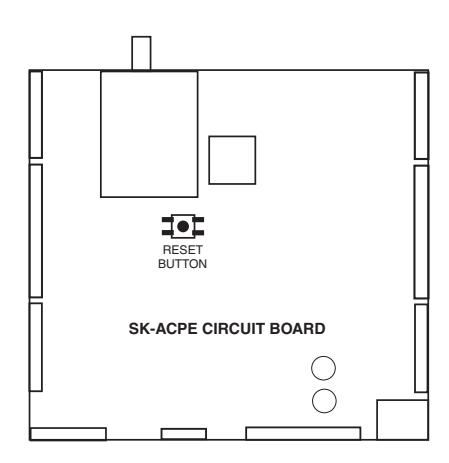
When power is first applied, or when the reset button is pushed (see Figure 3) the LED on each of the two readers will flash red and green alternately. While the LED is flashing, present an Access Card with the proper facility code to one of the readers and remove it (note LED turns solid green for about 1 second and the beeper beeps to indicate that the card has been read). The SK-ACPE will "remember" the facility code and retain it until reprogrammed. It is not necessary to present the access card to the second reader since it is automatically set for both passageways. After setting the facility code, wait for the LED to stop flashing before attempting to use the reader.
To change a facility code (or to set the facility code if the LED is not flashing red/green), momentarily depress the reset button. The LED indicator will flash red and green alternately. If the reset button is pushed, but no card is presented to the reader before the LED indicator times out, the facility code will be unchanged.
In some cases it may be necessary for the unit to recognize more than one facility code. Typical instances are when it is necessary to read cards that work in two independent locations that already have different facility codes or when two different reader technologies are used in the same system, each of which has a different facility code.
The SK-ACPE can be set to recognize up to sixteen different facility codes. To program multiple facility codes, follow the procedure above for programming a single facility code, but present a card with the second facility code (and additional facility codes if necessary) to the reader before the red/green LED indicator times out.
Note that it is not generally recommended to combine sets of cards with different facility codes, because the unit cannot distinguish between access cards having different facility codes and the same ID number. It is also important to distinguish between ID numbers and the facility code when programming. See Figure 1 for examples of the numbering location.
For example, if you have two sets of cards numbered 1-100, with facility codes 12345 and 23456, and you delete cards 1 - 10 from the reader's internal "card list," then cards 1 - 10 with either facility code will be denied entry at the reader.
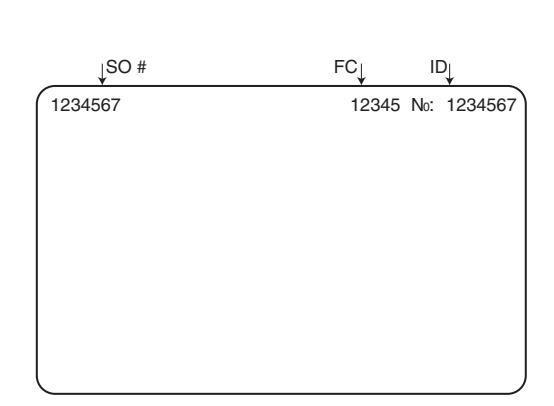
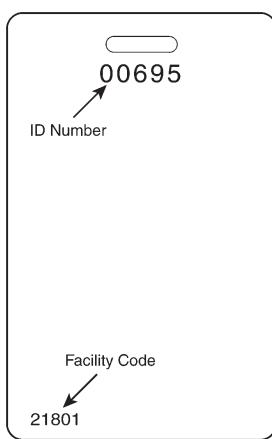
figure 1
INSTALLATION
CAUTION SHOULD BE TAKEN NOT TO TOUCH CIRCUIT BOARD OR ELECTRONIC COMPONENTS PRIOR TO AND DURING INSTALLATION TO AVOID ELECTRO-STATIC DISCHARGE (ESD) DAMAGE.
Installing the SK-ACPE
- 1. Select a location for the SK-ACPE unit that is secure and sheltered from weather and extreme humidity. Choose a location that facilitates access to power and is reasonably close to the doors that are to be controlled (no further than 500 feet).
- 2. Using the unit as a template, mark on the mounting surface the location of the four mounting holes.
- 3. Install appropriate mounting hardware (anchors, retainers, etc.) to the mounting surface if necessary.
- 4. Screw #6 or #8 mounting screws into the top 2 mounting holes of the mounting surface, leaving about 1/4" clearance.
- 5. Place panel top key-way mounting holes over installed mounting screws and slide panel down.
- 6. Tighten top mounting screws.
- 7. Install two bottom mounting screws (see figure 2).
- 8. Route cables into the enclosure through knockouts in sides or back of box, being careful not to nick or scrape insulation on any rough edges.
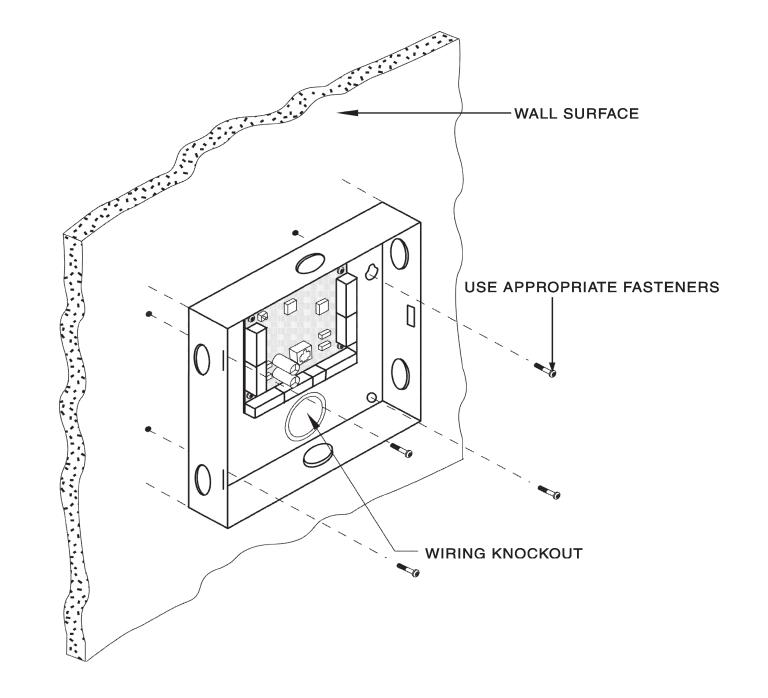
figure 2
Wiring
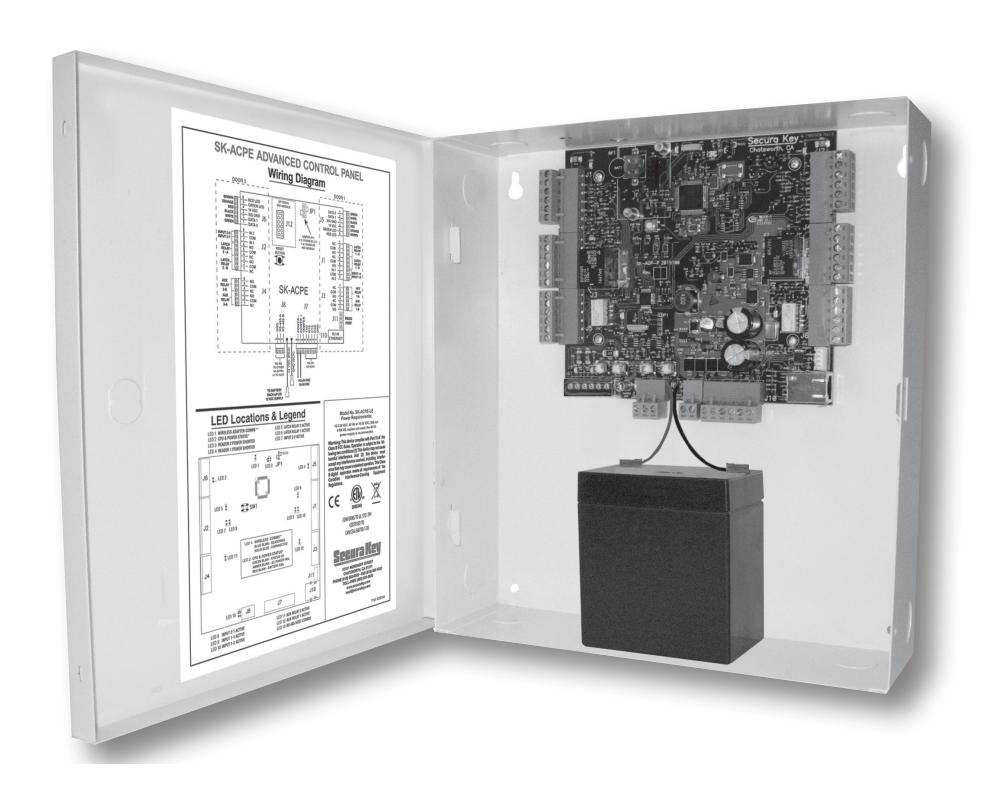
The SK-ACPE unit is organized so that the wiring for door #1 is on the right side of the panel and the wiring for door #2 is on the left side of the panel (see figure 3).
For ease of installation and servicing, plug-in terminal blocks are provided.
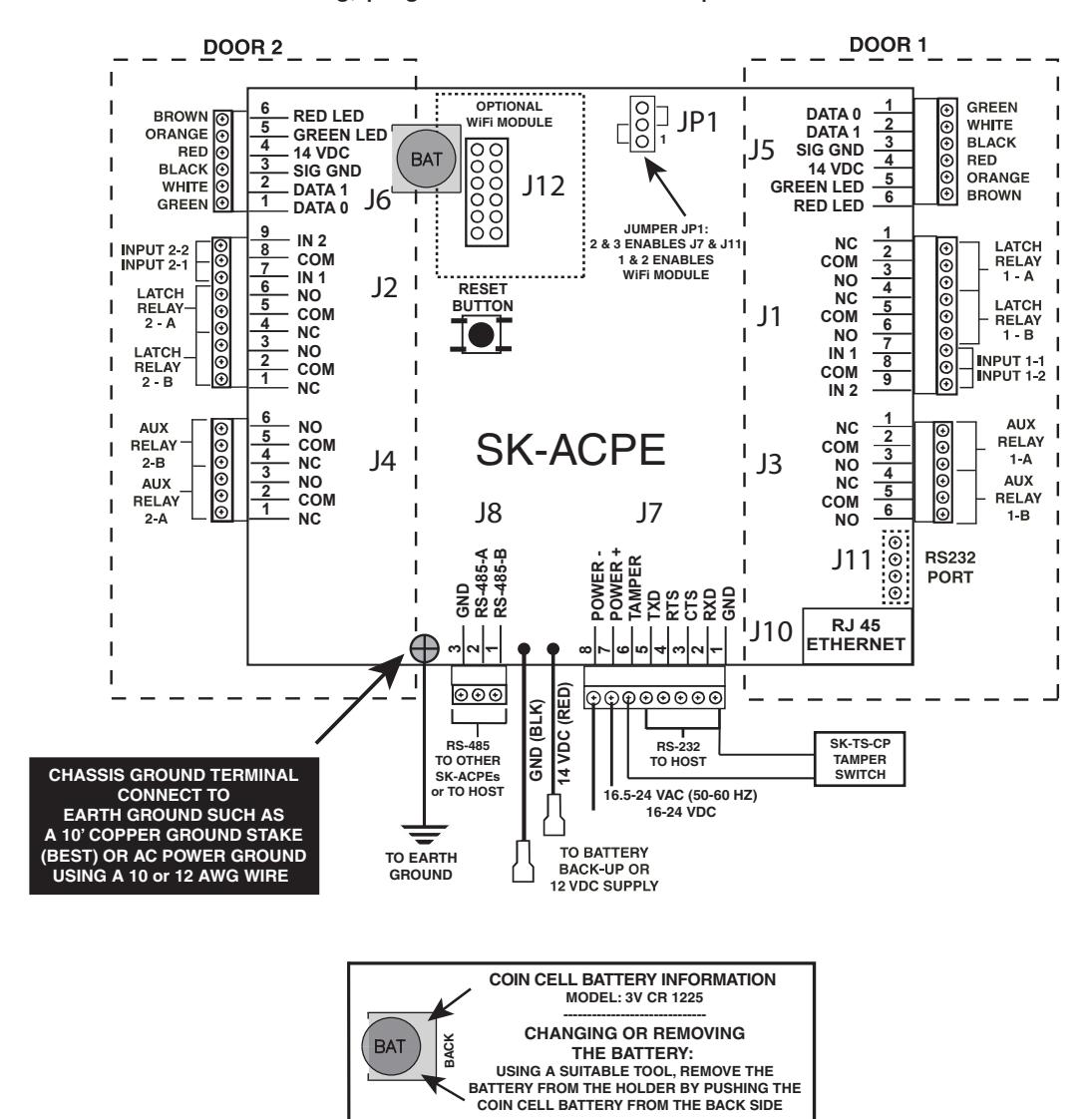
figure 3
POWER & BATTERIES
The SK-ACPE unit must be connected to a source of low voltage power. The SK-ACPE should NOT be connected to the same power supply that is providing power to an electric lock or strike. To power the SK-ACPE, you must use a power supply, which is properly rated for the panel, plus any connected equipment:
SK-ACPE with RK-WM / RK-WS readers 24VDC, 500 mA or 16.5VAC 40VA transformer SK-ACPE with SK-WLSE-MOD 24VDC, 500 mA or 16.5VAC 40VA transformer Add RK-WL readers to either of the above 16.5VAC 40VA transformer
The basic configuration can be powered by the SK-ACP-PS, which includes a 24VDC 1A supply and a 4AH backup battery, or by a 16.5VAC 40VA transformer (SK-XFRMR)
Terminals 7 & 8 on plug "J7" must be connected to 16.5 to 24 volts, AC or DC. You may also connect the SK-ACPE to 12 VDC, but in this case you must connect your power supply to the red (+) and black (-) wire leads on the lower left corner of the panel instead of the "J7" plug. If you use 12 VDC you cannot install a standby battery in the SK-ACPE.
When 16.5 – 24 volts is used to power the SK-ACPE, you may connect the red and black wires to a 12 volt standby battery. Polarity (+/-) must be observed. The, 10" X 11" SK-ACPE-LE can accommodate batteries up to 4.0 Amp-hours
Do not energize the SK-ACPE until all other connections are made.
READERS
SK-ACPE is designed to accept any reader or keypad with a standard Wiegand interface. The reader for door #1 is connected to plug "J5", the reader for door #2 is connected to plug "J6". (See figure 3) SUGGESTED CABLE IS Alpha 1296C. The SK-ACPE will provide up to 400mA to power each reader. If the readers you use require more current, an external power supply must be used.
INPUTS
Each reader may be associated with up to two auxiliary inputs. Inputs might include remote switches, door contact sensors, vehicle presence detectors, etc. If you connect inputs to the SK-ACPE you must define those inputs using SK-NET™ software (see SK-NET™ manual). Note that input 1 (#7) and input 2 (#9) share a common terminal (#8) on plugs "J1" and "J2". All inputs are configured as normally open circuits. However, in many cases a "Door Monitor" input should be a normally closed circuit. To convert any input defined as "Door Monitor" to normally closed, you must reconfigure the inputs as Normally Closed, using the SK-NET™ software (see SK-NET Manual.) For testing and troubleshooting purposes, LED indicators are located on the circuit board near the input terminals, just below the LED Indicator for the Latch Relay (Figure 4). The LED lights when the input is in the alarm (off-normal) state.
CHASSIS GROUND
The SK-ACPE has a chassis ground terminal at the bottom of the PCBA just to the left of J8. This terminal must be connected to a good, reliable Earth ground, to enable the on-board gas tube surge suppressors to work effectively. If this is not done, damage to the controller may result. A crimptype wire lug is supplied with the unit. Secure the lug to the terminal using the provided screw. Crimp the ground wire to 10AWG stranded, insulated wire, and connect the wire to the closest Earth ground available, such as a 10-ft buried copper grounding stake, Building Electrical Ground, or a steel cold water pipe, which must be contiguous, with no PVC or ABS sections.
OUTPUTS
Each door controlled by the SK-ACPE has two double pole, double throw relays associated with it. The "latch relays" are located on "J1" and "J2", terminals 1-6. The "auxiliary relays" are located on "J3" and "J4". One pole of the latch relay is typically used to open or close a circuit to unlock a door or activate a gate operator. The other pole of the latch relay operates simultaneously and may be used to shunt an alarm contact, start a video recorder, etc. The auxiliary relay may operate according to a variety of user-defined conditions. These must be programmed using SK-NET™ software (see SK-NET™ manual). NOTE: Two MOVs (metaloxide varistors) are provided with each SK-ACPE. These must be installed between the "Common" and either the "Normally Open" or the "Normally Closed" terminals where power to the electric lock or strike is being switched (See Figures 7 and 8). For testing and troubleshooting purposes, an LED indicator is located on the circuit board adjacent to each relay. The LED lights when the relay is activated.
COMMUNICATIONS JUMPER
The jumper on pins 2 and 3 of Jumper connector JP1 must be installed to enable RS-232 communications at Jack J11 and J7. If the SK-WLSE-MOD Wireless network module is installed at J12, this jumper must be moved to pins 1 and 2 of JP1 to enable RS-232 communications with the wireless module.
LED INDICATORS
The SK-ACPE features 12 LED indicators, which will assist the installer when connecting, testing and troubleshooting the readers, inputs and outputs, power and communications wiring. These indicators and their functions are described in Figure 4.
LED Locations & Legend
- LED 1 : WIRELESS ADAPTER COMMS BLUE BLINK - SEARCHING SOLID BLUE - CONNECTED
- LED 2 : CPU & POWER STATUS GREEN BLINK - STATUS OK AMBER BLINK - AC POWER FAIL RED BLINK - BATTERY FAIL
- LED 3 : READER 2 POWER SHORTED
- LED 4 : READER 1 POWER SHORTED
- LED5 : LATCH RELAY 2 ACTIVE
- LED 6 : LATCH RELAY 1 ACTIVE
- LED 7 : INPUT 2-2 ACTIVE
- LED 8 : INPUT 2-1 ACTIVE
- LED 9 : INPUT 1-1 ACTIVE
- LED 10 : INPUT 1-2 ACTIVE
- LED 11 : AUX RELAY 2 ACTIVE
- LED 12 : AUX RELAY 1 ACTIVE
- LED 13 : RS-485 HOST COMMS
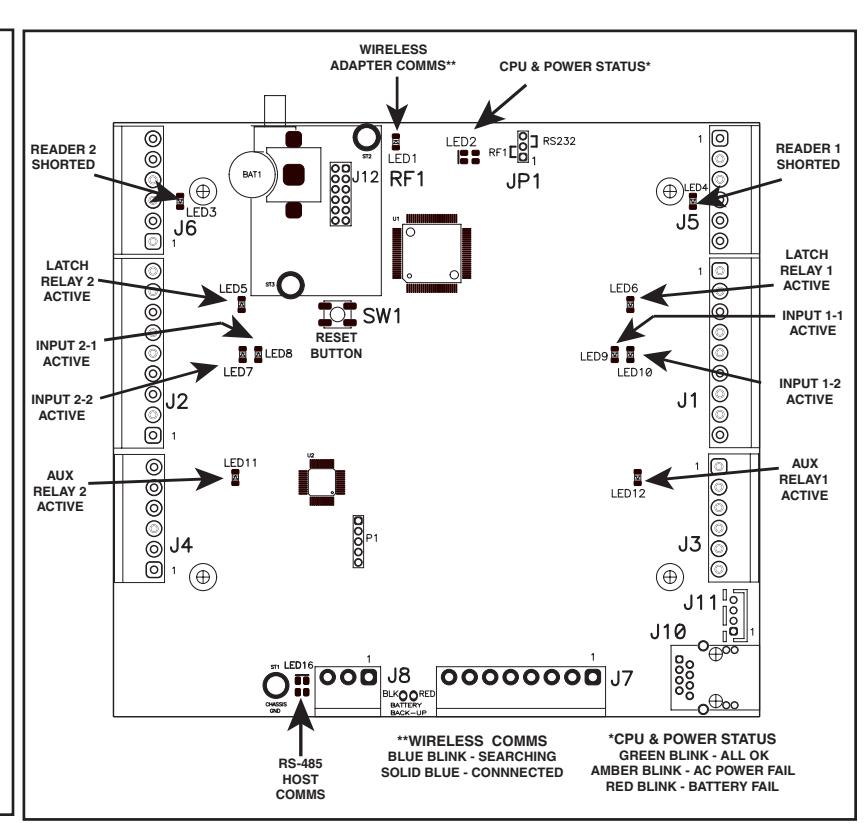
figure 4
TYPICAL DOOR INSTALLATION
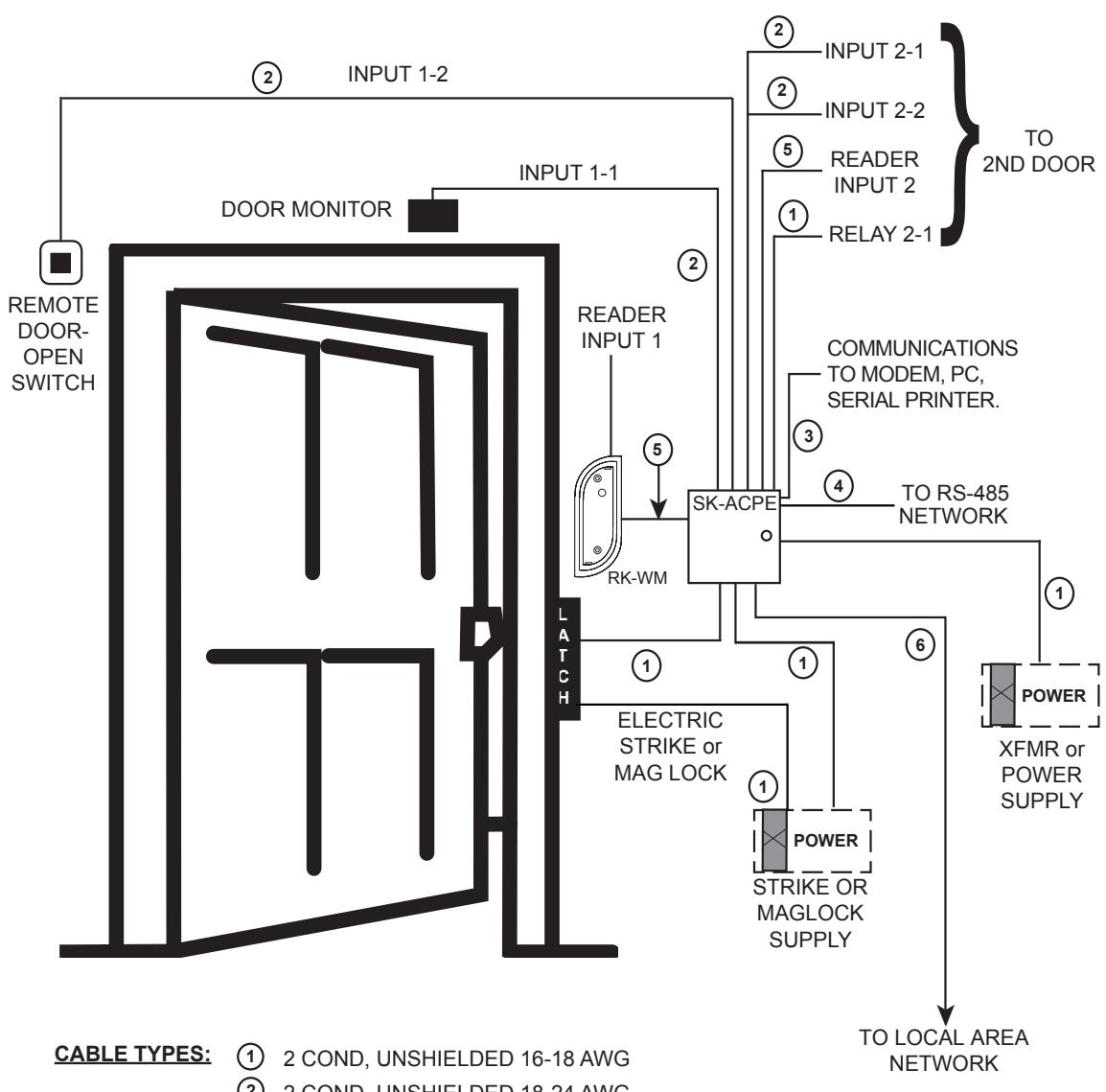
- 2 COND, UNSHIELDED 18-24 AWG 2
- 6 COND, SHIELDED 18-24 AWG 3
- RS-485 CAT 5 NETWORK CABLE OR TWO TWISTED PAIR 4
- 6 CONDUCTOR SHIELDED, WITH NO TWISTED PAIRS 5
- 6 CAT 5e OR 6 ETHERNET CABLE
Figure 5
| PIN NUMBER CONNECTIONS | ||||||
|---|---|---|---|---|---|---|
| SK-ACP ADVANCED CONTROL PANEL | PC OR TERMINAL | PRINTER | MODEM | |||
| SIGNAL DESCRIPTION | J7 |
DB-25S
(FEMALE) PIN # |
DB-9S
(FEMALE) PIN # |
DB-25P
(MALE) PIN # |
DB-25P
(MALE) PIN# |
DB-9
(MALE) PIN# |
| SIGNAL GROUND | 1 | 1 & 7 | 5 | 1 & 7 | 7 | 5 |
| RECEIVE DATA (RXD) | 2 | 2 | 3 | N/C | 3 | 2 |
| CLEAR TO SEND (CTS) | 3 | 4 | 7 | 20 | 8 | 1 |
| REQUEST TO SEND (RTS) | 4 | 5 | 8 | 6 & 8 | 4 | 7 |
| TRANSMIT DATA (TXD) | 5 | 3 | 2 | 3 | 2 | 3 |
FIGURE 6
RS-232
You may connect RS-232 communications to the SK-ACPE either by using plug "J7", terminals 1-5, or by plugging the RS-232E cable into the J11 jack at the lower right hand side of the circuit board (See figure 3). Note that jumper J1 must be installed on pins 2 and 3 to enable RS-232 communications at J7 and J11. RS-232 requires at least 5-conductor cable. SUGGESTED CABLE IS Belden 9535. RS-232 is used to connect the COM port of a PC to a single SK-ACPE, or as a gateway to a network of SK-ACPEs. (COM ports are typically DB9 male or DB25 male jacks on the back of a personal computer.) Newer computers may not have COM ports, in which case, you must purchase the SK-USB USB-to-serial converter, which plugs into a USB port on your computer and provides a DB-9 connector, which can be connected to the SK-ACPE-LE by using an SK-PLUG9 pigtail, extending the cable as long as needed, using Belden 9535 or equivalent cable. When connecting a PC via RS-232 the distance from the panel to the computer should not exceed 100'. (For longer distances, see "RS-485" below.) A serial printer may also be connected to the RS-232 port of any SK-ACPE. This will allow all system transactions to be printed as they occur. (A printer may be connected to one SK-ACPE even if a computer is connected to another SK-ACPE in the same network. The SK-ACPE must be configured for Serial Printer operation-See Appendix D.) An external modem might also be connected to the RS-232 port of an SK-ACPE for dial-up applications using SK-NET-MLD software. While any Hayes compatible 56K modem may be used, we highly recommend that you use the Secura Key SK-MDM. The SK-ACPE contains the configuration data, or "setup string" which allows this modem to be configured in the field without the use of a computer and without setting DIP switches. (See Appendix C for modem instructions.) Figure 5 shows the RS-232 pin connections for a PC, printer, or modem.
TAMPER SWITCH
The SK-ACPE includes an input for an enclosure Tamper Switch, and it also has an onboard beeper, which can provide an audible warning if the SK-ACPE enclosure is opened. The SK-ACPE is provided with a jumper wire across J7, inputs 1 & 6, which should be removed if the tamper switch will be used. The Tamper Switch is available as an accessory, SK-TS-CP, which can be fastened to the enclosure with three screws (included) and wired to J7, inputs 1 & 6. To stop the beeper from sounding during maintenance by authorized technicians, the tamper switch can be held down for about 20 seconds, and the beeping will stop (this will be reset again after the panel is closed.)
Installation of Metal Oxide Varistor with Electric Strike
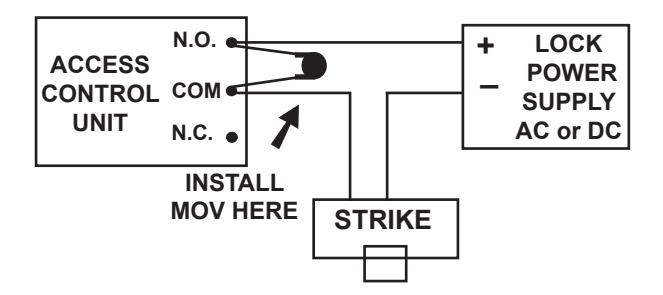
Install the enclosed 40-volt MOV (Metal Oxide Varistor) across the relay contacts in the access control unit, as shown. The Access Control Unit must have its own power supply.
FIGURE 7
Installation of Metal Oxide Varistor with Magnetic Lock
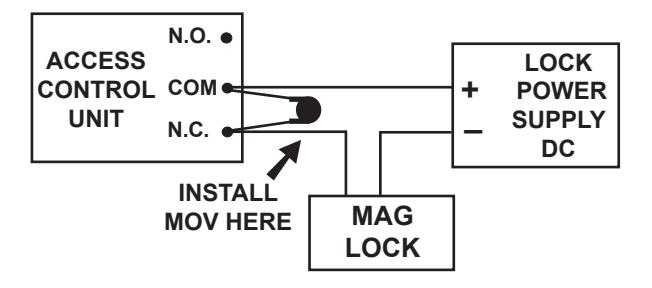
Install the enclosed 40-volt MOV (Metal Oxide Varistor) across the relay contacts in the access control unit, as shown. The Access Control Unit must have its own power supply.
FIGURE 8
RS-485
The RS-485 bus (Connector J8) is used to link multiple SK-ACPE units into a network. Where two or more SK-ACPEs are linked, you must run cable between the "J8" plugs on each panel. Terminals 1 & 2 must be a twisted pair of wires. SUGGESTED CABLE is Belden 1585A (CAT-5e). Terminal 3 is a "signal ground", which should be connected to one conductor of another twisted pair. This must be an insulated conductor and it should NOT be connected to earth ground.
Where the distance from the PC to any one of the SK-ACPE units is greater than 100', you may install an RS-232 to RS-485 converter (Secura Key p/n NET-CONV-P) to the COM port of the computer. If your PC does not have a COM port you will need to purchase a USB-to-serial converter (SK-USB), and then connect the RS-485 converter to the USB converter. From the converter you then run RS-485 cable and connect SK-ACPEs anywhere along the RS-485 bus. The total RS-485 cable distance, including the distance between all SK-ACPEs, may be up to 4000'.
Figure 9 shows how each SK-ACPE is connected to the RS-485 bus.
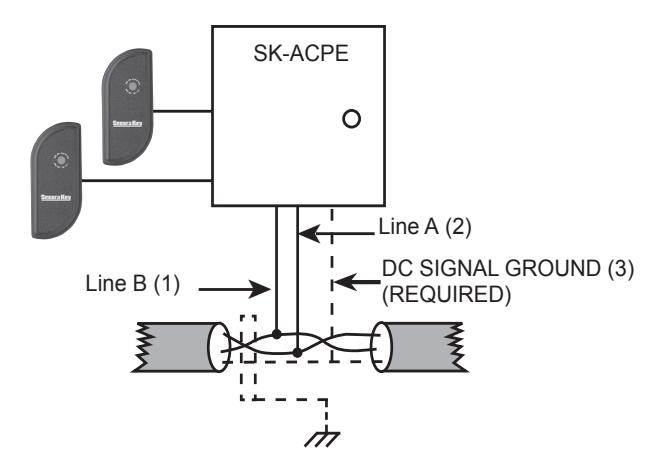
Earth Grounded Shield is highly recommended in environments subject to high voltage electrical discharge (i.e. lightning). Shield should be connected to earth ground only at one end of the cable. DC Signal ground is required. DC Ground wire is NOT to be connected to earth ground.
FIGURE 9
ETHERNET
The RJ45 Ethernet connector, located on the lower right-hand corner of the circuit board, is used to link individual SK-ACPE panels to a Local Area Network. You can use CAT 5e or CAT6 cable terminated with RJ45 jacks to connect each panel to a router, hub, or switch located up to 300 feet away. See Appendix D for information on how to configure the SK-ACPE for use on a LAN.
PROGRAMMING THE SK-ACPE WITH SK-NET™
The SK-ACPE must be programmed with SK-NET™ software. Please refer to the SK-NET™ manual for programming instructions. (The SK-NET™ manual is available at www.securakey.com)
FACTORY SETTINGS
When shipped from the factory, the SK-ACPE has the following settings:
Facility Code None*
All Cards Time Zone 0 (void)
No Limited Use Cards
Settings Latch timer = 1 Second
APB Timer = 0 Minutes (off)
Baud Rate = 38,400* Reader ID = (none) Password = 12345* Date = Undetermined* Time = Undetermined*
Time Zones APB = Timed Hard*
Date Restrictions = None
0 = Always Void
1 = Always Valid (no restriction) 2 = Mon - Fri, 8am - 5:30pm 3 = Mon - Fri, 6am - 6pm 4 = Sat & Sun, 24 hours 5 = Sat & Sun, 6am - 6pm
6 = Always Valid (Timed Antipassback) 7 & Up = Mon-Sun, 6am - 6pm
Door Zone Off For All Time Segments
Holidays None Set
Daylight Savings
Correction Automatic* Inputs 1 Door Monitor 2 Disabled Auxiliary Output Disabled
Anti-Passback Parameters
Reader (In/Out) None Daily APB Forgive Hour 00
* Common to Panel, all other settings are per reader (2 readers per panel)
READERS AND CARDS
USING SK-ACPE WITH SECURA KEY PROXIMITY READERS AND CARDS
Secura Key offers proximity and contactless smart card readers in a variety of sizes for use with the SK-ACPE panel. Secura Key readers read Secura Key cards only, except for the SK-RKDT readers, which read both Secura Key and most HID Proximity cards with non-proprietary pass-through formats, such as H10203 (26-bit) or HN10001 (Northern 34-bit). Secura Key cards have two encoded numbers: the ID Number which is different on each card, and the Facility Code (also called a system or site code) which is normally the same for all cards at a given site. When a card is read, the system first verifies the Facility Code, then it checks the ID Number against its internal "card list" to see if the card is void or valid. It also checks the card's Antipassback Status, Time Zone and Limited Use count.
USING SK-ACPE WITH NON-SECURA KEY CARDS AND READERS
SK-ACPE will accept data from any reader with an SIA Wiegand interface. When using non-Secura Key readers and devices, SIA 26-bit Wiegand format will present the least problems. Formats with ID fields longer than 16 bits will not work properly with the SK-ACPE. Custom formats are setup using the SK-NET™ software (see the SK-NET software manual.) Contact Secura Key technical support with questions about custom format compatibility with SK-ACPE.
ORDERING ADDITIONAL CARDS FOR YOUR SYSTEM
The SK-ACPE can learn up to 16 different facility codes, but it is not generally recommended that you combine sets of cards with different Facility Codes in the same system. The SK-ACPE cannot distinguish between cards which have different Facility Codes and the same ID Number. For example, if you have a card with Facility Code A1 and ID Number 15 and you have a card with Facility Code B2 and ID Number 15, and the SK-ACPE has been programmed to accept both Facility Codes, it will see these as the same card.
When ordering additional cards it is recommended that you place a factory order specifying the existing Facility Code and beginning with the ID Number which is one higher than the highest card already in use.
SETTING THE FACILITY CODE
When power is first applied to the SK-ACPE the LED on each of the connected readers will flash alternately Red and Green. While the LED is flashing, hold an Access Card with the correct Facility Code near a reader for about one second. The LED should show a long Green flash and the reader will beep. If an additional Facility Code is to be entered, present an Access Card with that Facility Code in the same manner. Repeat for each Facility Code to be entered. Let the LED stop flashing Red/Green before attempting to use an Access Card.
To change a Facility Code (or to set a Facility Code if the LED is not flashing Red/Green) momentarily depress the reset button on the SK-ACPE. Depressing the reset button will NOT erase memory or disrupt other programming.
To add an additional Facility Code to a system, while retaining the existing Facility Code, you must depress the reset button and then present a card with each Facility Code to the readers while the Red/Green flashing is occurring. If you only present a card with the "new" Facility Code the system will "forget" the old Facility Code. It is only necessary to present an Access Card to one of the two readers connected to each SK-ACPE in the system.
APPENDIX A
WIRING AND SYSTEM CONFIGURATIONS
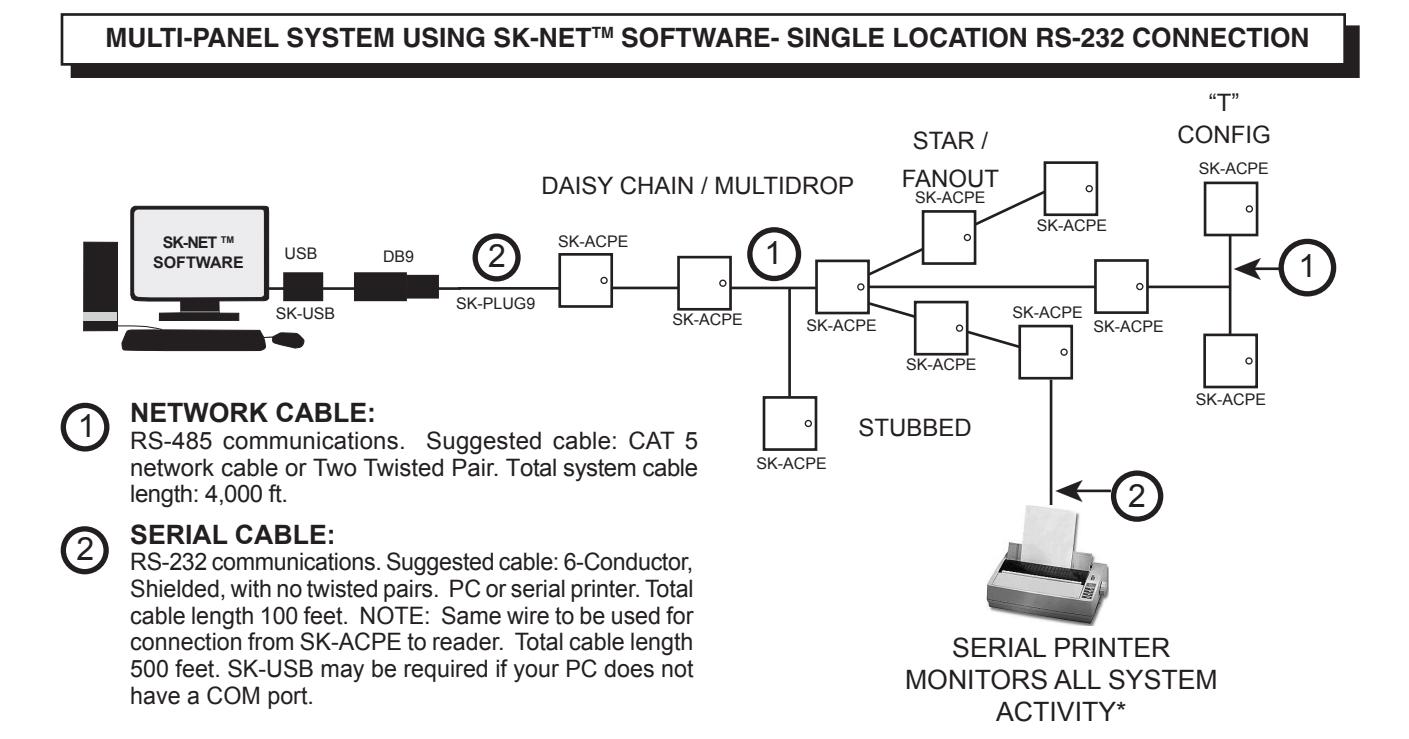
NOTE: Each SK-ACPE above can support 2 Wiegand output card readers.
* See Appendix D for printer configuration.
Figure A-1
MULTI-PANEL SYSTEM USING SK-NET™ SOFTWARE- SINGLE LOCATION RS-485 with CONVERTER
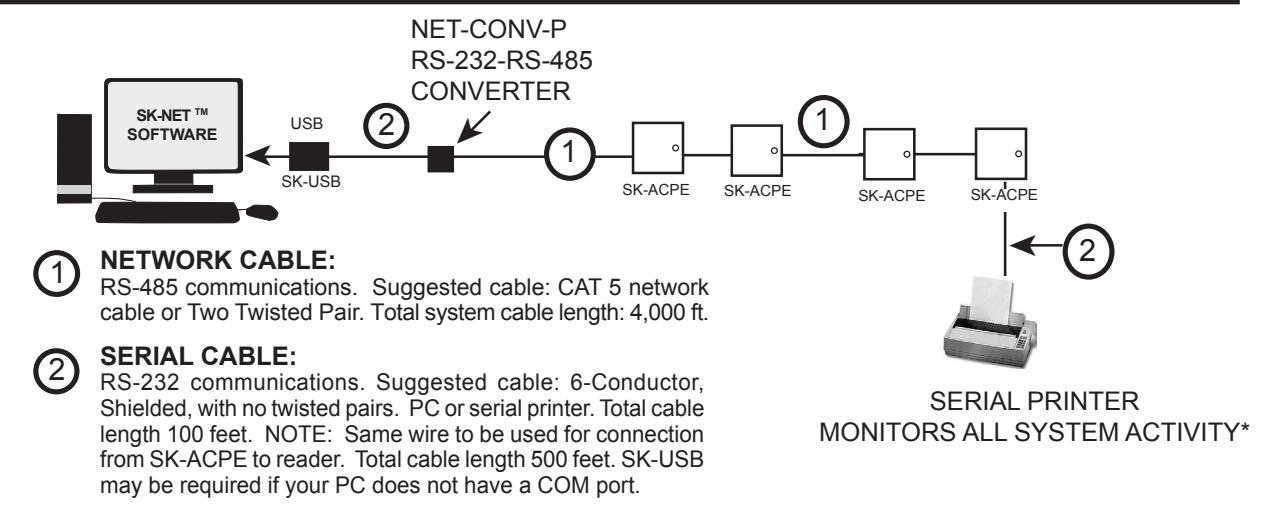
Note: When using the RS-232 to RS-485 converter, you cannot use the stubbed, star fanout or "T" configuration. All network connections from SK-ACPE to the next SK-ACPE must be in parallel with each other. The J8 connector, Pins 1 and 2 must be a twisted pair. Pin 3 (Ground) is not connected.
MULTI LOCATION SYSTEM WITH SK-NET-MLD SOFTWARE RS-232 SK-ACPE GATEWAY SK-ACPE SK-NET™ SOFTWARE SK-ACPE MODEM TELCO LINE MODEM SK-MDM 1 SK-ACPE NET-CONV-P 0 SK-ACPF A virtually unlimited number of remote locations SK-ACPE Up to 100 can be set-up on one PC with SK-NET-MLD Software. SK-ACPE's Up to 100 See Appendix "C" setup instructions SK-ACPE's
Figure A-2
* See Appendix D for printer configuration.
MULTI-PANEL SYSTEM USING SK-NETTM SOFTWARE- SINGLE LOCATION WITH LAN CONNECTION
NOTE: SK-NET-MLD software must be used when connecting more than one Connection Group.
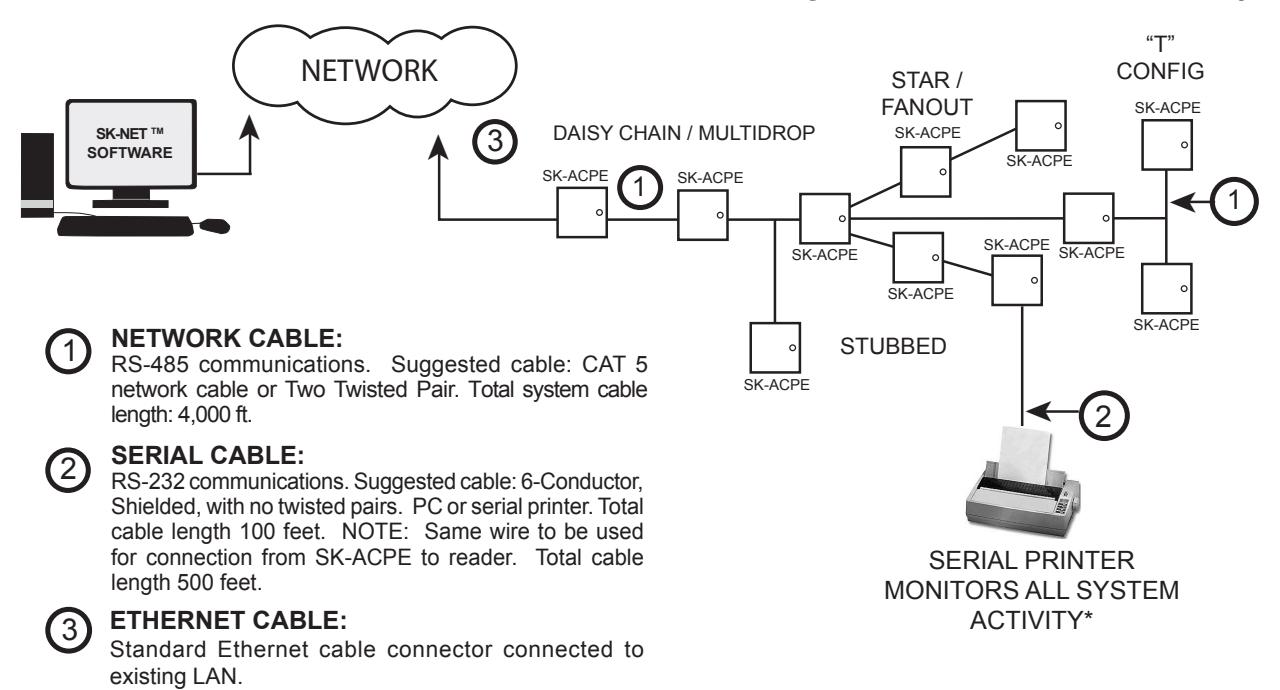
NOTE: Each SK-ACPE above can support 2 Wiegand output card readers.
* See Appendix D for printer configuration.
Figure A-3
APPENDIX B
SYSTEM components
EQUIPMENT:
SK-ACPE:
Two Door Access Control Unit with Ethernet connector
READERS/CARDS:
RK-WM or RK-WS or RK-WL
Proximity Readers (2 per SK-ACPE)
RKCM-02 Molded Proximity Cards Specify Quantity
or RKKT-02 Key Tags
or RKCI-02 ISO Image-able cards
ET4-WXM, ET4-WXS, ET8-RO-W-D, or ET8-RO-W-M
Contactless Smart Card Reader (2 per SK-ACPE)
ETCI ISO Image-able Contactless Smart Cards Specify Quantity
or ETST Key Tags
SOFTWARE:
SK-NET™ — Basic Software
SK-NET™ -MLD — Multi-Location Dial-Up Software
SK-NET™ -MLD — C/S 2, 5,10,15
Client/Server Software for Multiple Workstations
ACCESSORIES:
NET-CONV-P — RS-232 to RS-485 Converter with Power Supply - one required per system (unless using a gateway connection)
RS-232E — Serial Cable Assembly
For Bench Testing or field connection with a laptop
SK-MDM — Modem - 56K Baud External Modem for dial-up connection to any SK-ACPE with MLD software
SK-PLUG9 — Computer connector (DB9) with wire pigtail.
SK-ACPE-PS — Transformer and stand by battery for SK-ACPE.
SK-XFRMR – 16.5VAC 40VA Transformer for SK-ACPE-LE.
SK-USB – Converts USB Port at PC to serial COM Port with DB9 connector
SK-WLSE-MOD – Wireless LAN adapter, 802.11 b/g. Powered by SK-ACPE-LE. Connect at J12 and set jumpers.
SK-TS-CP – Enclosure tamper switch. Connect to tamper input, J7 pin 1 & 6.
SK-24VDC –24 VDC Plug-In Power Supply, 1A
dtk-cr – Surge protection for card readers and keypads
dtk-xr – Surge protection for power, data and phone lines
SPECIFICATIONS
SK-ACPE-LE
| PHYSICAL |
Depth
3.0" Width 10.0" Height 11.0" Weight |
(7.62 cm)
(25.40 cm) (27.94 cm) 68.8 oz. (1.95 kg) Housing Material is All Steel; Color is Beige |
|||
|---|---|---|---|---|---|
| POWER REQUIREMENTS |
16.5-24VAC (50-60 HZ), 40 VA or 16-30 VDC, 500 mA
If RK-WL readers are used, recommend a 16.5-24 VAC 40 VA transformer. A 12 VDC Power Supply may be used if connected to Battery Back-Up Leads. |
||||
| BACK-UP BATTERY | 12 V, 4 Ah (Optional, Sold Separately) | ||||
| CARD READERS |
Connect two card readers with two-line Wiegand output, up to 40 bits. While the Card Data
Format can vary, the Card ID bit length should not exceed 16 bits, which provides a maximum Card ID of 65,535. Provides 14 VDC, 400 mA max. power for each card reader. |
||||
| SOFTWARE | SK-NETTM Software | Version 3x or greater | |||
| OUTPUTS - 2 Per Door (Total of 4) |
Latch & Alarm Shunt
Auxiliary |
DPDT contact, 5A, up to 250 VAC or 30 VDC
DPDT contact, 2A, up to 220 VAC or 30 VDC |
|||
| INPUTS - 2 Per Door (Total of 4) |
Auxiliary 1
Auxiliary 2 |
Requires SPST contact closure
Requires SPST contact closure |
|||
| COMMUNICATION |
RS-232
RS-485 Wiegand Input (2) Modem Printer |
5-Wire Shielded Cable
Single Twisted Pair, shielded cable with a signal ground Programmable up to 40 bits 14 VDC @ 400 mA supplied to each reader, Requires Hayes compatible - 1.2 to 38.4k baud Serial Printer (or Parallel printer with serial converter) |
|||
| ENVIRONMENT |
Ambient Temperature
Humidity |
-40° F to 158° F (-40° C to 70° C)
0% to 95% relative humidity (non-condensing) |
|||
| OPERATIONAL |
Card Capacity
Time Zones |
65,535 (Highest card number = 65,535)
15 for card access, one door unlock; full week plus holiday in one-half hour segments; 32 programmable holidays; selectable automatic daylight saving time. |
|||
|
Facility Code
Latch/Alarm Shunt Timer Antipassback Auxiliary Inputs (2 Per Door) Auxiliary Output (1 Per Door) Limited Use Cards Transaction Storage Memory |
Up to 16 different codes simultaneously (max. # of cards 65,535)
Programmable from 1/4 to 30 seconds Real or Timed (1 to 30 minutes); hard or soft Programmable for door monitor, tamper monitor, remote open, remote inactive, bell, arming circuit or user defined Output is programmable to activate under one of many possible alarm conditions, time zone or card violations. 65,535, programmable from 1-500 uses, days, weeks or number of days after first use. 10,000 events Non-volatile |
||||
This product complies with UL 294 Standards, CE (European Standards), and with Part 15 of Class B FCC Rules.
APPENDIX C CONNECTING A MODEM TO SK-ACPE
The SK-MDM (U.S. Robotics) has been preconfigured to work with Secura Key access control systems and SK-NET-MLD software. (NOTE: SK-NET-DM and the free download version of SK-NET™ do not support modem connections.) NOTE: This modem requires version 3.0 or later of SK-NET-MLD software.
- 1. Plug the telephone cable provided into the SK-MDM and into the jack for a dedicated phone line.
- 2. Plug the serial cable (provided) into the DB25 outlet on the SK-MDM.
- 3. Connect the serial cable wires to the J-7 connector on the SK-ACPE.
| PANEL |
WIRE
COLOR |
DB 25 |
|---|---|---|
| 1 | BLACK | 7 |
| 2 | WHITE | 3 |
| 3 | RED | 8 |
| 4 | GREEN | 4 |
| 5 | ORANGE | 2 |
- 4. Connect the modem power supply to the SK-MDM and plug into a 110VAC wall outlet.
- 5. For added protection, the modem power lines, the phone line connection and the serial connection may be connected to suitable surge suppressors.
- 6. Establish connection from the computer to the access control system using SK-NET-MLD software. (Follow instructions in the SK-NET™ manual.)
REMOTE SITE MODEM CONFIGURATION WITH SK-ACPE
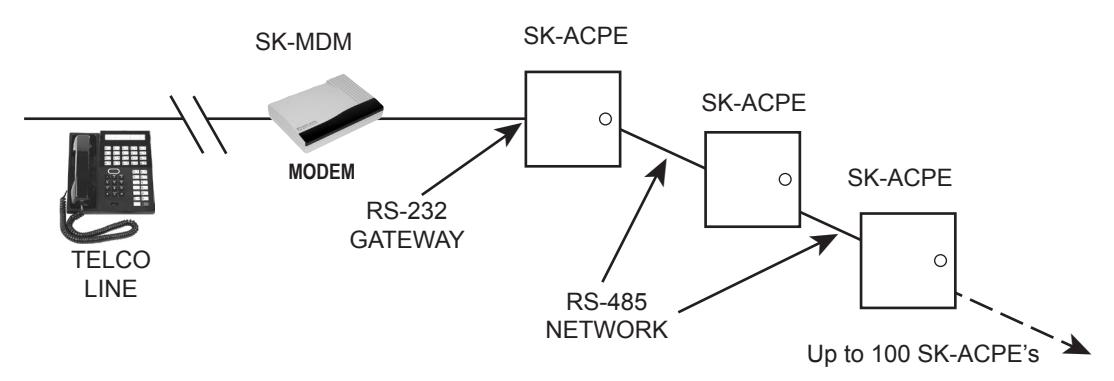
Warranty: While Secura Key will be happy to help with modem-related problems, for best results contact a U.S. Robotics Service Center. To locate a convenient Service Center, go to www.usr.com. U.S. Robotics warrants this product for two years (detailed warranty is enclosed with the modem).
Figure C-1
APPENDIX D
CONNECTING AN SK-ACPE TO A LOCAL AREA NETWORK
The SK-ACPE-LE control panel features a built-in Ethernet connection. The panel may be connected directly to a hub, switch or router on your Local Area Network up to 300 feet away.
Alternately, you can use either the SK-WLSE-MOD Wireless Network Module (which connects with an 802.11 wireless network.) This unit plugs into connector J12 on the SK-ACPE, and it receives its power from the panel. You must move the 2-pin jumper at J1 to pins 1 and 2 before installing the module.
Refer to the Install/Setup documentation provided with the SK-WLSE-MOD for details on connections, IP addressing, setup and testing your network connection.
To configure your system using SK-NET-MLD software, see SK-NET™ Manual for instructions.
NOTES:
- 1) Always close SK-NET™ before closing WINDOWS® to avoid LAN communications failures.
- 2) The manufacturer's instruction manual is included with the SK-WLSE-MOD. Keep this document for additional troubleshooting and setup information.
Configuring IP Addresses in the SK-ACPE
Information you will need
The SK-ACPE now has built-in Ethernet adapter which must be pre-configured with various IP addresses before connection to the LAN. Panels connected via RS232 or RS485 do not need to be configured with IP addresses.
Before starting the setup procedure, contact your IT Manager or Network System Administrator for the following required information:
TCP/IP Address (one for each panel connected with TCP/IP)
Subnet Mask
Default Gateway
DNS Server
Each address will consist of four groups of 3-digit numbers separated by periods (e.g. 111.222.333.444)
Hardware Connection
You must connect a Windows computer COM port to the J11 port on each SK-ACPE, using the RS-232E cable (or to J7 using a wire pigtail, see Figure 3). If your computer does not have a serial COM port, purchase and install the SK-USB USB-to-Serial Converter on your computer, and connect the DB9M connector on the converter to the DB9F connector on the RS-232E cable.
You can configure the Ethernet adapter by either using SK-NET™ Terminal, which is included with the SK-NET™ software or by using HyperTerminal.
Configuring the SK-ACPE Using SK-NET ™ Terminal
Follow these steps to configure your SK-ACPE.
- 1. Connect your computer to the SK-ACPE being configured.
- 2. Start SK-NET™
- 3. Right click on the Connection 1
- 4. Select Properties
- 5. Select the Connection tab
- 6. Select Edit
- 7. Select Test. The SK-ACPE Log On Screen displays (Fig D-1)
- 8. Type in the Default Password 12345 and press Enter. The Device Configuration Screen (Fig D-2) will display: Ignore any IP addresses currently displayed – these are random values.
- 9. At the prompt, you will enter data for items 1, 2, 3, and 4:
- 10.Type 1, then type in the static IP address provided by the system administrator. Press Enter, then press Y to save changes.
- 11.Type 2, then type in the subnet mask provided by the system administrator. Press Enter, then press Y to save changes.
- 12.Type 3, then enter the default Gateway provided by the system administrator. Press Enter, then press Y to save changes.
- 13.Type 4, then enter the DNS server provided by the system administrator.
- 14.Press Enter, then press Y to save changes.
- 15.Press ESC to exit, and the configuration is done. Your control panel is ready to connect to the LAN.
- 16.Enter the IP address settings for each SK-ACPE into the SK-NET™ Properties screen for each Ethernet-connected panel.
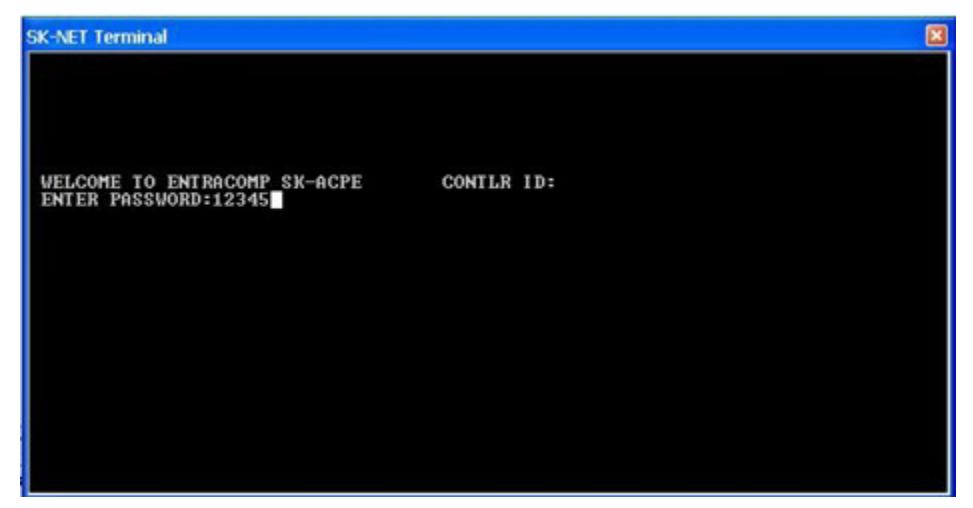
Figure D-1. SK-ACPE Log-on Screen
Figure D-2. SK-NET™ Device Configuration Screen
CONFIGURING THE SK-ACPE FOR A SERIAL PRINTER
A Serial Printer can be connected to any SK-ACPE in the system to monitor (print) all system transactions. The SK-ACPE must be configured for this function, using a terminal program, such as SK-NET Terminal or HyperTerminal.
To configure an SK-ACPE for the serial transaction printer function:
- 1. Follow Steps 1-7 in the previous section to display the SK-ACPE Login Screen (Figure D-1)
- 2. Press CTRL-P (Ctrl key plus P key simultaneously), release, and then quickly press C. (These commands are non-case sensitive.)
The SK-ACPE is now configured to send all system transactions to a serial printer connected at J7.
To disable this function, perform a "single-beep" power reset (See Appendix E, section 1.8).
Using HyperTerminal to configure SK-ACPE
HyperTerminal is available free in Windows XP, but not in later Windows versions. Visit www.hilgreave.com to purchase HyperTerminal for use in Windows Vista, 7 or 8.
Follow this procedure to configure HyperTerminal for the SK-ACPE TCP/IP setup:
- 1. Connect your computer to the SK-ACPE being configured,
- 2. Click on the Windows XP Start Button
- 3. Select All Programs, then Select Accessories, Communications, then HyperTerminal
- 4. The Location Information Screen will display, but it is not necessary for this setup procedure: click Cancel, then Yes to Confirm Cancel, and OK.
- 5. The next screen is titled Connection Description. Enter a name and select any icon, then click OK.
- 6. The Location Information Screen will redisplay, but it is not necessary for this setup procedure: click Cancel, then Yes to Confirm Cancel, and OK.
- 7. The next screen titled Connect To: will have a parameter selection at the bottom titled "Connect Using:" Use the drop down box to select the COM port you are using to connect with SK-ACPE. Click OK
- 8. The next screen which displays is COM x Properties which allows you to make Port Settings. Use the drop down boxes to select the following values: Bits per second = 38400, Data Bits = 8, Parity = None, Stop bits = 1, Flow Control = None, and then click OK
- 9. The HyperTerminal main screen will display with the password prompt
From this point, the configuration procedure is identical to the one used with SK-NET Terminal, described in the previous section.
Consult the HyperTerminal documentation for procedures used with the Windows 7, 8 and Vista versions of HyperTerminal.
APPENDIX E
SK-ACPE TROUBLESHOOTING GUIDE
1.1 Cards do not work when creating a new Access Group
-
1. Did you drag-and-drop readers into the new Access Group?
- a. From the Explorer screen, click on All Readers.
- b. Drag-and-drop readers from the right side of the screen into the new Access Group.
- c. Click on the "+" sign next to the new Access Group to view the readers in the new group.
- d. Perform a Card Send, as described below.
-
2. Did you send the cards to the Location?
- a. Click on "Send Users Full".
1.2 New Transactions are not appearing in the Transaction Screen
-
1. Are transactions being filtered?
- a. From the Transaction screen, click on the Filter icon.
- b. Click on Defaults. Click OK.
-
2. Are you logged in to the Location?
- a. From the Explorer screen, open the All Readers folder to display reader icon(s). Are there Green check marks by each reader icon?
- b. If readers do not have Green check marks (or have red lines through them), is there a Red arrow next to the Location icon?
- c. If there is a Red arrow, but readers are not logged in, click on the Log-In icon on the toolbar.
- d. If there is not a Red arrow or a Green check mark, click on the location name, click on the Connect icon on the toolbar.
-
3. Have you excluded any transactions?
- a. Right click on All Readers.
- b. Click on the Transactions tab.
- c. View Transaction Types. If there is a check mark in the box located next to a Transaction Type, it will not be sent to your Transaction database in SK-NET™.
1.3 "Invalid Facility Code" message when using newly-added cards
-
1. Do the new cards have a different Facility Code than the previous ones?
- a. Go to one of the SK-ACPE panels. Take a sample card with each different facility code. Press the reset button.
- b. Present a sample card with each Facility Code to one of the readers attached to the SK-ACPE while the LED is flashing Red and Green.
- c. Repeat this process for each SK-ACPE. You can also send Facility codes to all panels through SK-NET™, like this:
- d. From the Explorer screen, right click on the name of the reader that has the new Facility Code.
- e. Select Properties.
- f. Click on the Service tab. You should see the quantity of Facility Codes active in that panel.
- g. Under Facility Codes (Panel) click Edit.
- h. Click Close.
- i. Click Send To All.
- j. Click Close.
- k. After all cards are working, right click on All Readers.
- l. Select Backup. Select All Readers.
1.4 Reader does not read-LED is Flashing Red or Green
A slowly flashing Red LED indicates that the reader is in the Inactive mode. A slowly flashing Green LED indicates that the reader is in the Unlocked mode. These conditions exist when someone has activated a Door Control, from SK-NET,™ or when an input is shorted and programmed Remote Inactive or Remote Open. A flashing green LED also indicates the door has been unlocked by the Door Schedule. To check the door status:
- 1. From the Explorer screen, right-click on the name of the reader.
- 2. Select Properties.
- 3. Click on the Door Controls tab.
- 4. What is the Current Door State? This will help identify why the reader is in the Inactive or Unlocked mode.
- 5. Click on Normal if the reader shows Inactive Lock or Inactive Unlocked. This will change the Current Door State to Active Normal.
- 6. Unlock via Door Schedule indicates the door is unlocked by the schedule. To disable the schedule click on Edit, click in the Disabled box and Send.
1.5 Lost Communications between PC and Readers
-
1. Check Com Settings
- a. From the Explorer screen, right click on the Location Name.
- b. Select Properties.
- c. Click on the Connection Tab.
- d. Run the Connection Wizard.
-
e. If the Wizard finds the connection, click OK and then Connect. If not, select your connection below.
- 1. RS-232 direct connect, computer COM port to the SK-ACPE COM port. (See Section 1.6.)
- 2. RS-232 to RS-485 converter, computer to converter to the SK-ACPE. (See Section 1.7.)
- 3. TCP/IP connection via LAN, WAN. Contact the IT department.
- 4. Modem connection, must have Local Connect unchecked and modem phone number provided. Try to repower the modem and SK-ACPE.
2. Login Failure
- a. In the Explorer screen, look for a red arrow next to the Location icon. This indicates you are connected to the Location.
- b. Click on the "+" next to All Readers. If the reader shows a green check mark indicates the reader is logged in. An icon with a red "X" indicates lost communications with that reader. If this occurs, perform a Power Reset. (See Section 1.8)
1.6 Using RS-232 Voltage Measurements to Check Communication Problems
If you cannot connect, it will be necessary to take voltage measurements to identify whether the problem is with the SK-ACPE or with the computer.
RS-232 Direct Connection
- 1. From the Explorer screen, right-click on the Location.
- 2. Select Properties.
- 3. Click on the Connection tab.
- 4. Uncheck the box next to "Gateway (RS-232)"
- 5. Click on the Connect button.
The system will fail to connect, but in the process it will open the computer COM port, making a voltage test possible.
-
1. Voltages: Measure voltages at the gateway reader's terminal block, communications pins 1 to 5. Connect the ground lead to pin 1 (logic ground) for all measurements.
- a) Pin 2 (Receive Data, RXD). The voltage should read between -5 VDC to -12 VDC. This voltage comes from the PC. If the voltage is wrong or missing, disconnect the reader from the PC, and measure the voltages at the reader (should be 0.0 VDC) and at the PC (should be between -5 VDC to -12 VDC).
- b) Pin 3 (Clear to Send, CTS). The voltage should read between +5 VDC to +12 VDC. This voltage comes from the PC. If the voltage is wrong or missing, disconnect the reader from the PC, and measure the voltages at the reader (should be 0.0 VDC) and at the PC (should be between +5 VDC to +12 VDC).
- c) Pin 4 (Request to Send, RTS). The voltage should read between -5 VDC to -12 VDC. This voltage comes from the Card Reader. If the voltage is wrong or missing, disconnect the reader from the PC, and measure the voltages at the reader (should be -9.5 VDC) and at the PC (should be 0.0 VDC).
- d) Pin 5 (Transmit Data, TXD). The voltage should read between -5 VDC to -12 VDC. This voltage comes from the Card Reader. If the voltage is wrong or missing, disconnect the reader from the PC, and measure the voltages at the reader (should be -9.5 VDC) and at the PC (should be 0.0 VDC).
After testing voltages, return to the Location/Properties/Connection box and re-check the box next to "Gateway (RS-232)".
1.7 NET-CONV Converter Connection
If you cannot connect and you are connected using the NET-CONV converter, test voltages as follows:
- 1. Measure input voltage from the converter power supply. It should be between 9 VDC and 16 VDC.
- 2. Measure voltage between Ground (minus side of power supply) and TD (A). It should be 0 VDC.
- 3. Measure voltage between Ground (minus side of power supply) and TD (B). It should be between 2.5 VDC and 5 VDC.
If these voltages are incorrect, contact Secura Key Technical Support.
1.8 Power Reset
Occasionally it may become necessary to perform a power reset on a SK-ACPE panel (for example, after a power surge.) The SK-ACPE has a multi-level power reset procedure, with options depending on how long you hold down the reset button following restoration of power. The Unit will beep, indicating the level of reset which has occurred.
To perform a Power Reset:
- 1. Disconnect power from the reader or panel (including any backup battery)
- 2. Hold down the reset button.
-
3. While holding the reset button, restore power, and continue holding the button until the unit beeps and the desired reset level occurs:
- One (1) beep will default the Baud rate to 38400 for the gateway (RS232), and (RS 485 communications), exit the printer mode, reset password to 12345, and resend the wireless settings if being used.
- Two (2) beeps (3 seconds later) will change the node ID's. This procedure will reset the node address, requiring a recovery procedure in SK-NET™ (see below).
- Three (3) beeps (15 seconds later) will perform a factory default for the panel.
Recovery Procedure:
To clone the readers:
- 1. From the Explorer screen, right click on the Location Name.
- 2. Select New.
- 3. Select Readers.
- 4. Select Quick Find (with less than 20 readers), or Search if (with more than 20 readers).
- 5. SK-NET™ will find the original reader(s) as new ones.
- 6. Click OK to bring them into the system. Do not log in at this time.
- 7. Look under All Readers and you will notice that you now have duplicate reader(s) names. The old one will still have the red X through the icon, and the new one will not.
- 8. Drag and drop the New reader(s) on to the old reader(s) with the same name. You will be asked to Replace the reader, click Yes. This will clone the original reader settings in to the New reader.
- 9. Right click on All Readers and select Login. Now all the readers should have a green check next to each reader.
1.9 Replacing an SK-ACPE
When replacing or adding an SK-ACPE to a system, it is recommended to perform a "2-beep" power reset (See Sec. 1.8).
NOTE: There are no changes required in SK-NET™ when replacing a card reader connected to the SK-ACPE
While replacing the SK-ACPE it is recommended that you note the serial number of the board being replaced along with the new board being used for the replacement. This will simplify the following steps used in this procedure.
Note: DO NOT delete any readers from the Explorer screen!
After completing the replacement of the board you need to start SK-NET™, connect and login. Click on the + next to All Readers and you will notice a red X through the reader(s) icon(s) which have been replaced.
- 1. Left click on All Readers, now it will be highlighted.
- 2. At the top of the Explorer screen click on Explorer.
- 3. Select View.
- 4. Select Details. Notice that on the right hand side of the Explorer screen all of the readers are listed along with the Node ID, Logged In, Serial Number, Version, and Type.
- 5. Right click on All Readers.
- 6. Select New, Readers, Quick Find (for less than 20 readers) or Search (for more than 20 readers).
- 7. After SK-NET™ finds the new readers, click OK to add them to the system (note that under All Readers the new readers found show the serial number as the name of the reader). Do not login.
- 8. Look at the serial number or name of the new reader(s) and drag and drop the new one over the old one with the red X through the icon (be sure to include the "–1" or "–2" as part of the serial number).
- 9. When asked 'Do you wish to replace the reader?' Answer YES. SK-NET™ now will use the data files from the old reader and program them in to the new reader including sending cards.
- 10. Repeat steps 8 and 9 for all readers being replaced.
- 11. Test a card or two, the replacement is now complete.
APPENDIX F
PREVENTING LIGHTNING DAMAGE
SURGE PROTECTION FOR ACCESS CONTROL SYSTEMS
Access Control equipment is susceptible to damage from lightning, especially when installed outdoors. Voltage spikes which travel through buried data cables, telephone lines or AC power lines can damage Access Control equipment indoors, as well.
The SK-ACPE-LE is equipped with Gas Discharge Tube Surge Arrestors on the RS-485 communications lines (J8). For these devices to work properly, the SK-ACPE chassis ground (located on the circuit board, just to the left of J8) must be connected to a good Earth Ground such as a 10' Copper Ground Stake (best) or AC Power Ground.
While nothing can protect equipment from a direct lightning hit, surge protectors can help to minimize the damage caused by nearby lightning strikes. Surge protectors operate by connecting Transorbs or Varistors from data lines to ground. Surge protectors have no effect on normal circuit voltages, but can act quickly to divert large voltage spikes to ground and away from sensitive components.
Although Secura Key equipment includes on-board surge suppression, properly grounded off-board devices will provide the best protection.
Where to Install Surge Protection
- On the AC line voltage input to the PC. (A UPS with surge protection is recommended).
- On the AC line voltage input to any transformer or DC Power Supply connected to an SK-ACPE or Modem.
- On RS-485 data lines connecting an SK-ACPE to a PC, or to other SK-ACPE's.
- On the power supply of a NET-CONV-P RS485 Converter (if used).
- On RS-232 data lines from SK-ACPEs to PCs, Printers or Modems.
- On Telephone lines connected to Modems.
- On Data lines connecting card readers or keypads to the SK-ACPEs.
Surge Protectors
There are many manufacturers of surge protectors. Some are designed to protect a single type of circuit such as high voltage AC, low voltage DC or telephone lines. Secura Key offers two multifunction surge suppressors that are well-suited to protecting access control equipment. The DTK-XR is a good choice for protecting an SK-ACPE panel from power, data and telephone line surges. If the card readers or keypads attached to the SK-ACPE are located outdoors you may also wish to install DTK-CR protectors on each reader circuit. Wiring instructions for these surge protectors appears on pages F4 and F5.
Protect Both Ends of Data Lines
Surge Protectors should be installed at both ends of all Data Lines.
Wire Distance from the Surge Protector
You must locate the protector at least three wire feet away from the device being protected. The additional wire resistance will dissipate the energy from leading edge of the spike. The wire can be coiled; a three-foot physical distance is not required.
Grounding the Surge Protector
Surge protectors must be connected to a verified good, nearby earth ground. This can be a 10' Copper Ground Stake (best) or AC Power Ground. Run 10 AWG or 12 AWG wire as short a distance as possible, and avoid any bends in the wire.
Self-grounding Surge Protectors
Do not use surge protectors unless they are equipped with a separate ground wire or ground screw. Self-grounding Surge Protectors use the connector shell or Pin 1 as a ground path; however, the shell and Pin 1 are not always grounded.
AC Power Surge Protectors
AC Power Surge Protectors must be plugged into a properly grounded 3-wire socket. If a 3-wire socket is not available, have one installed by an electrician; do not use a 2-prong socket by cutting off the 3rd prong on the plug, or by using a 3/2 converter, or the surge protector will be rendered useless.
Terminating Cable Shields
Connect cable shields on data cables at one end only. You may terminate the cable shield to the same ground as the surge protector. Leave the cable shield unconnected at the opposite end.
More Information
For more information on lightning, including additional lightning protection methods and a US lightning density map, see Secura Key Applications Bulletin #28 on our website. (www.securakey.com)
CONNECTING THE DTK-CR (READER PROTECTION)
The DTK-CR is a multi-line surge suppressor that can protect card readers and keypads from damaging power surges. It can be used between an SK-ACPE panel and any wiegand-output reader/keypad. This is especially useful where readers are located on gates and parking control equipment. It may also be used to protect standalone access control units.
Locate the DTK-CR at least three (3) cable-feet away from the unit to be protected.
Connect the green ground wire to a dependable earth ground, using a heavy gauge cable (12 or 14 AWG recommended). Keep the wire run to the grounding location as short as possible.
Wiegand-output Card Readers and Keypads
Connect the Wiegand "0" and Wiegand "1" wires from the control panel to DATA IN. Connect the wiegand "0" and "1" wires from the reader to DATA OUT.
Connect the reader power lines from the control panel to 5-12V IN. Connect the power wires from the reader to 5-12V OUT.
Connect the "red" LED and "green" LED lines from the control panel to LED IN. Connect the "red" and "green" LED lines from the reader to LED OUT.
If you are operating a 24 volt electric lock or strike, you can protect it also by connecting the lock power lines to 24V IN and OUT.
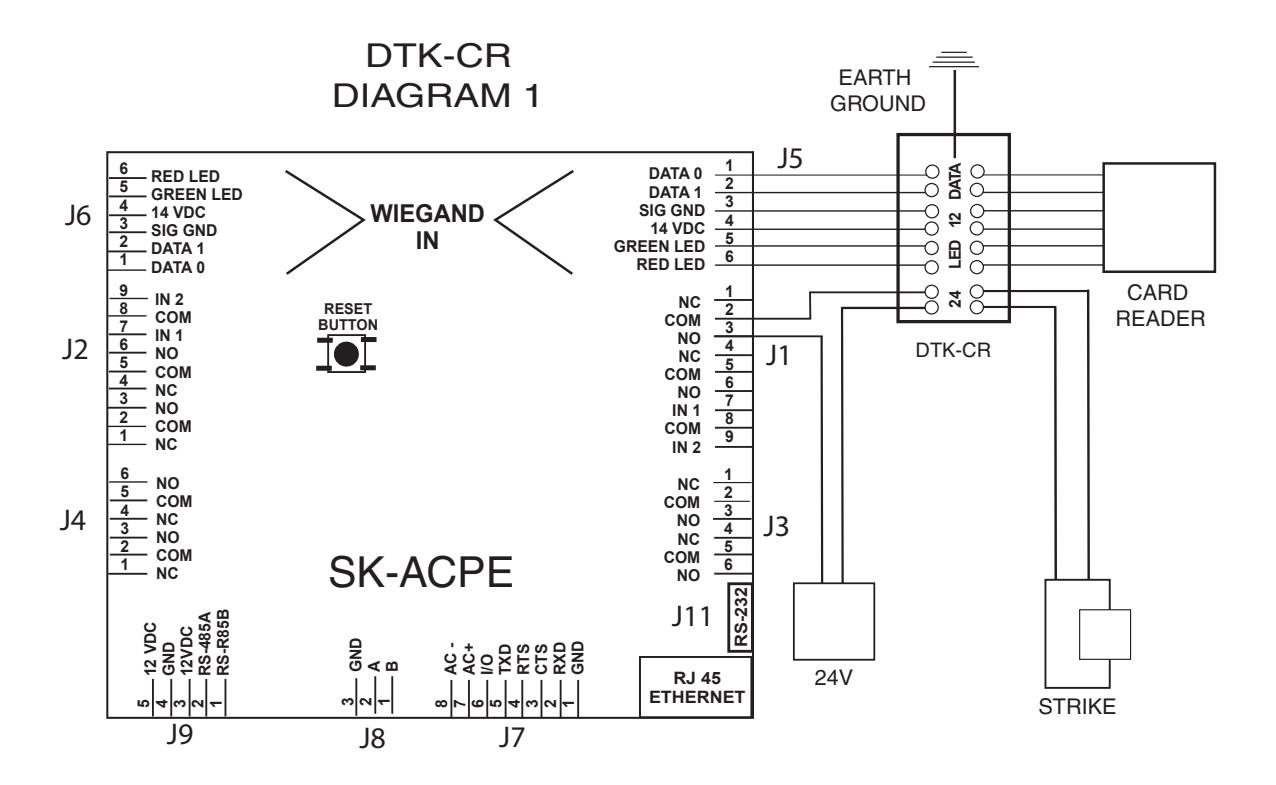
CONNECTING THE DTK-XR (DATA LINE PROTECTION)
The DTK-XR is a multi-line surge suppressor that can protect an SK-ACPE control panel, or other access control unit from damaging power surges.
Locate the DTK-XR at least three (3) wire-feet away from the unit to be protected.
Connect the green ground wire to a dependable earth ground, using a heavy gauge cable (12 or 14 AWG recommended). Keep the wire run to the grounding location as short as possible.
If you are using 24 volts to power the access control unit (recommended) connect the power supply to 24V IN and connect the access control unit to 24V OUT. If you are using 12 volts to power the access control unit, connect the power supply to 12V IN and connect the access control unit to 12V OUT.
If the access control unit is connected to other units via RS-485 you may connect the "A" and "B" lines of the RS-485 twisted pair to 6V IN and 6V OUT.
If you are using a dial-up modem, you may protect the modem by running the "Tip" (usually green) and "Ring" (usually red) phone lines to TELCO IN and connect the phone jack to TELCO OUT.
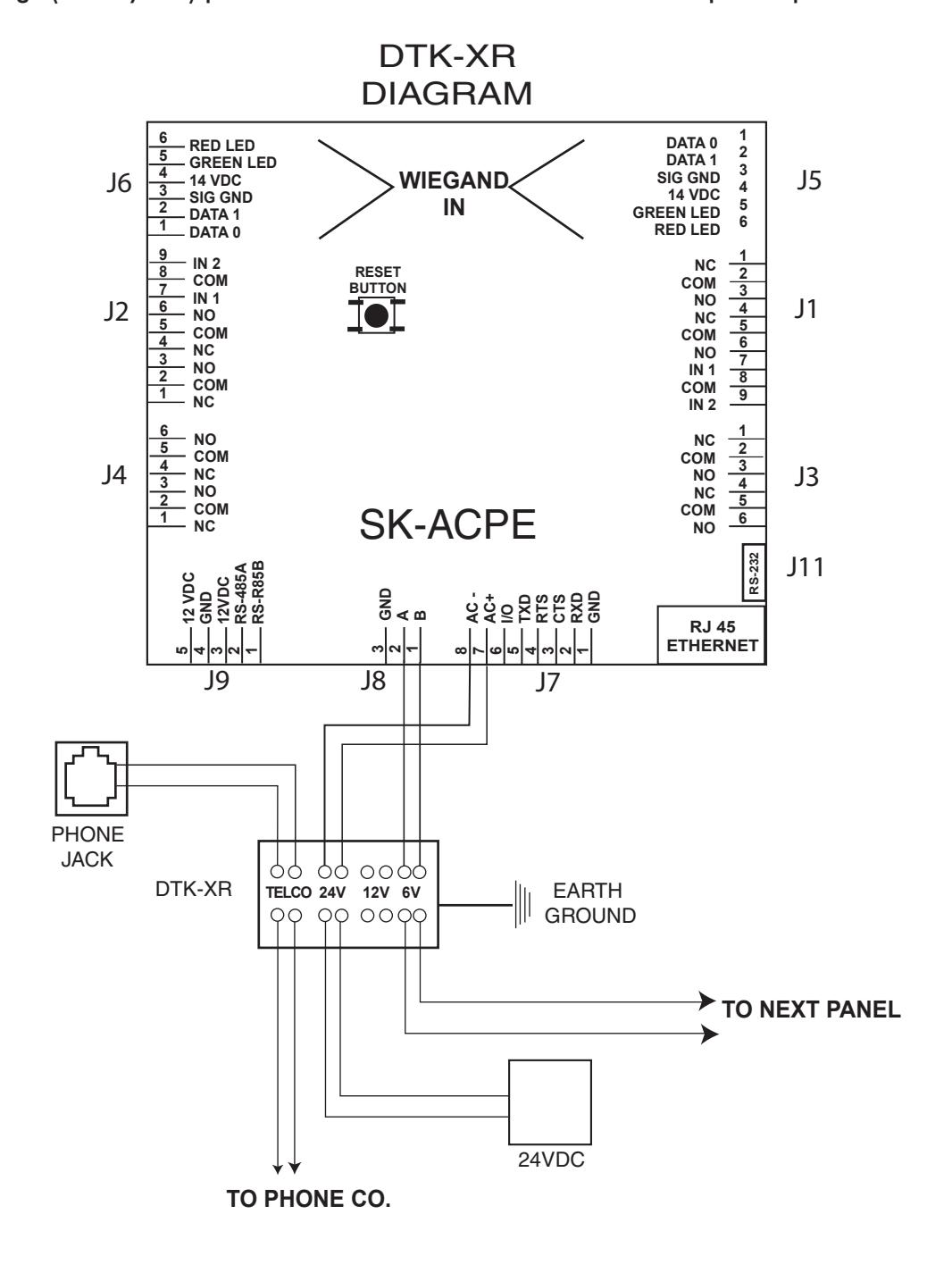
APPENDIX G
What's new, and what has not changed in the SK-ACPE?
The SK-ACPE is Secura Key's replacement for the legendary SK-ACP. The "E" indicates the built-in Ethernet capability. The main reason for this upgrade is the obsoletion of the ACP's 16-bit Hitachi main processor unit. Due to the large number of legacy systems in the field, we have designed the SK-ACPE as a drop-in replacement for the SK-ACP. While the SK-ACPE is almost functionally identical, we have also included some long-needed improvements made possible by the powerful new ARM Cortex M3, 32-bit RISC processor.
- 1. This unit is functionally identical to the SK-ACP. It will work with older versions of SK-NET software, including Versions 3, 4 and 5.
- 2. Connectors and their functions are identical to the SK-ACP. You can replace an older board with a new one without rewiring the connectors. Note that connectors J3 and J4 are now located on the side of the board.
- 3. The Ethernet Adapter is now integrated into the panel. Connect to the LAN via RJ-45 connector J10 at the lower right-hand corner of the board. A separate module is not required. Multiple Ethernet connections in one system require SK-NET-MLD. IP Addresses must be configured using a terminal program (See Appendix D).
- 4. Status LED functions and locations have been changed see Figure 4 for details.
- 5. The jumper that changes input circuits from NC to NO has been removed . On the SK-ACPE, this setting is now changed in the SK-NET software (Version 5.1 is required). If you do not have Version 5, the inputs will default to NC.
- 6. A new Jumper JP1 enables RS-232 signals either at J12 or J11 and J10 (See Figure 3). Enabling RS-232 at J12 allows the use of the optional SK-WLSE-LAN wireless LAN Module. Enabling RS-232 at J11 and J10 allows the connection of a computer at the Field Service Port J11 or wiring of a serial connection to J10. The SK-WLSE-MOD is an entirely new module, and is not compatible with the SK-WLS-MOD module used with the SK-ACP.
- 7. The RJ-11 Jack has been removed. The SK-QUICKCONN and SK-CBLSA cables cannot be used to connect a computer to the panel's RS-232 port. A new cable, RS-232E, is required to connect a computer to the J11 Field Service Port.
- 8. The Reset Button has been moved it is next to connector J2.
- 9. AC Power is now recommended, due to a redesigned power supply. A 16.5VAC 40VA transformer such as SK-XFRMR can be used to power the board. 24VDC power is also recommended, using a DC supply such as SK-DCPWR.
- 10. Gas discharge tube surge protectors are now included on the RS-485 bus (J8) which interconnects multiple panels, and can be used to connect back to the host PC. These devices will greatly improve surge protection of the panel, but external surge protectors are still highly recommended in lightning-prone areas (see Appendix F4, F5).
- 11. A Chassis Ground Terminal has been added to the PCBA (left of J8). To allow the on-board surge suppressors to discharge to ground, you must connect this terminal to Earth Ground, using the supplied ground lug and 10 AWG wire (see Figure 3).
- 12. The panel now includes battery monitoring circuitry which can report low battery or AC failure conditions to SK-NET (Version 5.1 is required). These conditions are also indicated at LED 2.
- 13. On-board memory has been increased , allowing up to 10,000 stored transactions to be buffered instead of 4800, and allowing up to 65,535 cardholders to be limited use cards instead of 4000 (SK-NET Version 5.1 is required).
- 14. The panel now includes an enclosure tamper input (J7, pins 1&6) which can be connected to optional enclosure tamper switch SK-TS. (SK-NET Version 5.1 is required.)
- 15. The Serial Transaction Printer function must now be configured using a Terminal Program. (See Appendix D).
- 16 . The Power Reset function has been enhanced (See Appendix E, section 1.8).
WARRANTY
For warranty terms and conditions, please refer to the Secura Key Website (www.securakey.com) the current Secura Key price list, or contact the Factory.
WARNING:
INSTRUCTION TO THE USER
This equipment has been tested and found to comply with the limits for a class B digital device, pursuant to part 15 of the FCC Rules. These limits are designed to provide reasonable protection against harmful interference in a residential installation. This equipment generates, uses and can radiate radio frequency energy and if not installed and used in accordance with the instructions, may cause harmful interference to radio communications. However, there is no guarantee that interference will not occur in a particular installation. If this equipment does cause harmful interference to radio or television reception, which can be determined by turning the equipment off and on, the use is encouraged to try to correct the interference by one or more or the following measures:
- Reorient or relocate the receiving antenna.
- Increase the separation between the equipment and receiver.
- Connect the equipment into an outlet of a circuit different from that to which the receiver is connected.
- Consult the dealer or an experienced radio/TV technician for help.
This equipment has been certified to comply with the limits for a class B computing device, pursuant to FCC Rules. In order to maintain compliance with FCC regulations, shielded cables must be used with this equipment. Operation with non-approved equipment or unshielded cables is likely to result in interference to radio and TV reception. The user is cautioned that changes and modifications made to the equipment without the approval of the manufacturer could void the user's authority to operate this equipment.

20301 Nordhoff Street • Chatsworth, CA 91311 Phone: 818-882-0020 • Fax: 818-882-7052 TOLL FREE: 800-891-0020
mail@securakey.com • www.securakey.com