Securakey SK-NET 6 Manual Addendum for Lockdown
Open the original PDF document
View PDF

ADDENDUM SK-NET™ v6.0
NEW ADDITIONS TO LOCKDOWN FEATURE

SK-NET 6.0 and above has been upgraded to provide improved speed and functionality with the addition of a:
Programmable lockdown input and output.
In order to get the full benefit of these improvements, it is required that the SK-ACPE panels have at least version 3.25, and the NOVA16 panels have version 1.12 firmware.
If you have more than 2 doors, a panel upgrade may be required.
Please contact tech support if you have any questions.
Additions to SK-NET™ LOCKDOWN feature:
Lockdown Inputs
- Addition of a Lockdown input that can programmed into any reader from SK-NET.
- Multiple lockdown inputs can be programmed within the system
- Activation of the input will lockdown every reader defined in the SK-NET location.
- SK-NET does not have to be on and connected to initiate the lockdown via this input.
- To cancel the lockdown either place the input in the 'off' state or turn off from SK-NET.
- Lockdown can also be initiated via SK-NET and stopped via an input (see SK-NET Manual)
Lockdown Outputs
- Can programmed into any reader from SK-NET.
- Can simply follow the input state, or be;
- Programmed to go on for a period of time after the lockdown input is active.
13.9 Programming Lockdown Inputs/Outputs
-
1.
Lockdown Inputs
can be programmed within SK-NET by selecting a reader to use as a source for the input,
-
1. Select>
reader properties and then,
- i. Click > on the Configuration tab.
-
1. Select>
reader properties and then,
From here an unused input can be configured to be a lockdown input type.
2. Select> EDIT and then, i. Select> the Change button next to the input being used.
3. From the Change button dropdown menu
i. Select> Lockdown .
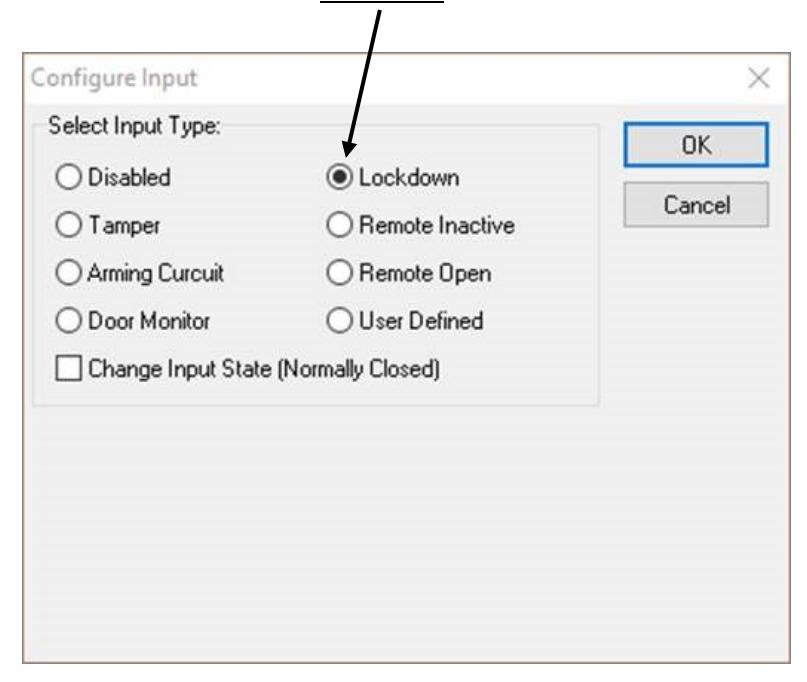
(Note: this requires SK-ACPE v3.25 [ or later ] or Nova.16 v1.12 [or later]).
-
4.
Make sure to
- i. Select> the Send button to send the changes out to the control panel.
-
2.
Lockdown Outputs
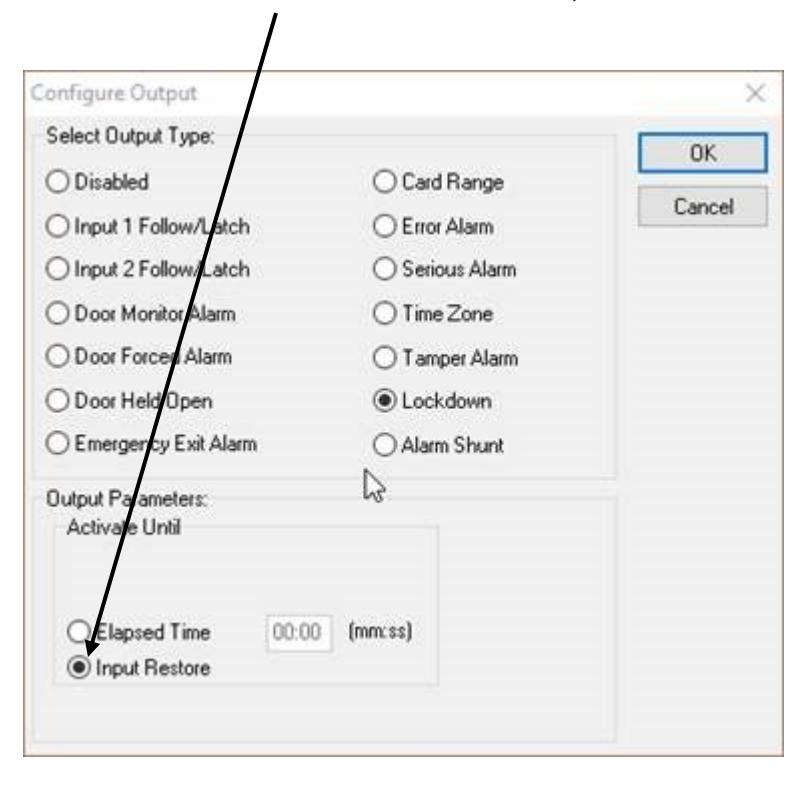
can also be programmed on the same reader that the lockdown input is programmed. The output will be active as long as the lockdown is active.
- 1. Select > Input Restore . It will release once the input has been restored to its normal state,
3. TO INITIATE A LOCKDOWN
There are two ways to initiate a Lockdown.
-
1.
Toggle the Input momentarily
will initiate a system lockdown based on the readers currently in the SK-NET previously setup lockdown group. If all control panels are either in the:
- i. Same connection group , or,
- ii. Connection groups are of type TCP/IP , then:
The lockdown will start with or without SK-NET being connected
iii. If there are separate com-port based connection groups SK-NET will need to be connected in order to transfer the lockdown messages to all of the connection groups.
In this case, make sure SK-NET message routing is turned 'ON' in SK-NET preferences menu.
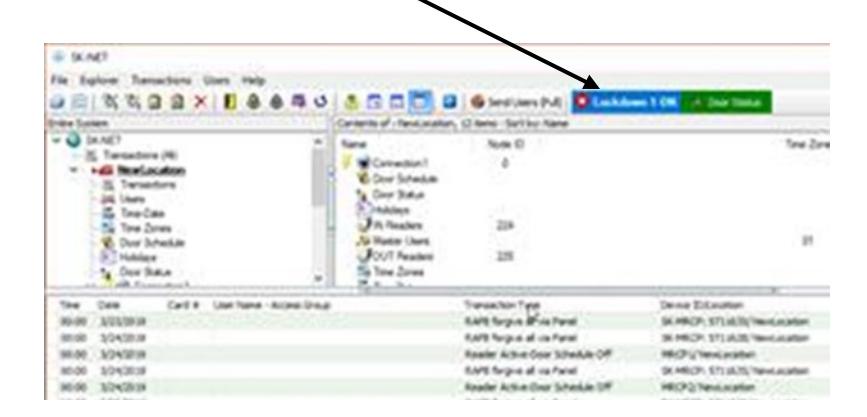
2. Use the Lockdown button from the SK-NET tool bar.
4. TO CANCEL A LOCKDOWN
There are two ways to CANCEL a Lockdown:
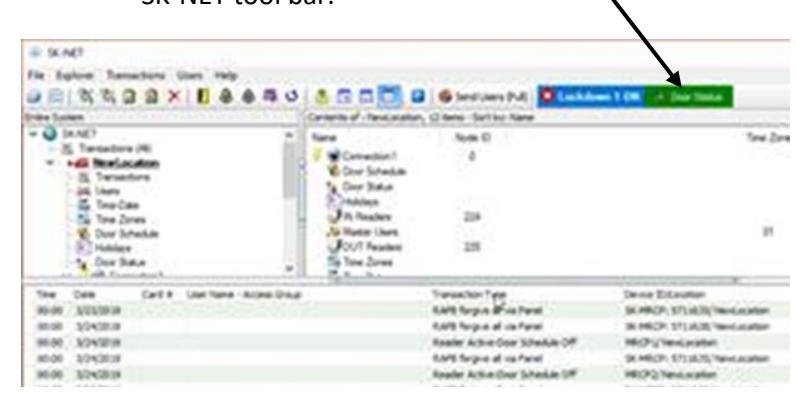
- 1. The same button used to initiate the lockdown can be held down for more than 3 seconds, or;
- 2. Any other reader with the input defined as 'lockdown' can also be canceled via the lockdown button from the SK-NET tool bar.

3.28.19 rev 1.0