Securakey Daylight Saving Time -Update SK-NET Versions Bulletin #25
Open the original PDF document
View PDF

APPLICATIONS BULLETIN #25
Subject: Daylight Saving Time - Update for SK-NET Versions 2.xx, 3.xx and 4.xx
Daylight Saving Time - SK-NET™ Versions 4.xx or Earlier
In 2007 the U.S. Government changed the beginning and ending dates for Daylight Saving Time to the second Sunday in March and the first Sunday in November. To accommodate this change, Secura Key wrote a firmware upgrade for the SK-ACP and 28SA Plus access control systems. This firmware is available on our web site as a free download. The firmware upgrade cannot be done over the network – it will require a direct connection of a PC to each control panel. Contact Secura Key Technical Support for assistance with the firmware upgrade.
An interim (or alternate) solution is to use the SK-NET™ software and the system computer to control Daylight Saving Time. This either requires a continuous connection between the PC and the control panels, or a manual update for standalone and modem-connected panels.
NOTE: If you are running SK-NET™ 5.0, please refer to Bulletin #30)
First, make sure your computer's Windows operating system is updated for the new Daylight Saving Time dates. The update is called "February 2007 Cumulative Time Zone Update for Microsoft Windows Operating Systems". This update can be downloaded from the Microsoft website at http://www.support.Microsoft.com/kb/931836
1. After connecting and logging in to the readers, double click on Holidays in the SK-NET™ Explorer screen.
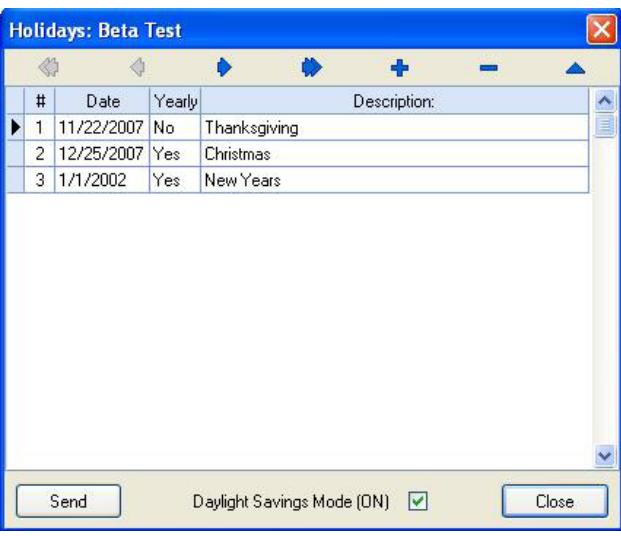
2. Uncheck the box for Daylight Savings Mode [ON]. This must be completed or the time will change again on the original Daylight Saving Time date.
SECURA KEY 20301 Nordhoff St. • Chatsworth, CA 91311 phone 818-882-0020 • fax 818-882-7052 Toll Free - 800-891-0020
www.securakey.com • techsupport@securakey.com
DATE: 1-11-12 REV.: #1 AF#: 6707
PAGE ____ OF ____ 1 2
3. Right click on the Location Name and select Properties. Select the Connection Tab. Make sure the Auto Time Sync box is checked (this is a factory default). This tells SK-NET™ to send the PC's time and date to each reader every minute, which will update the readers properly for Daylight Saving Time.
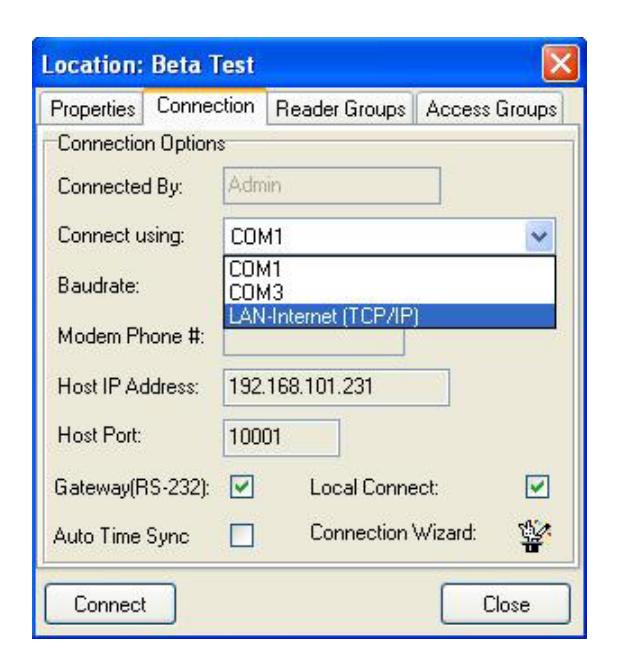
Note: You must connect the PC to the system before the Daylight Saving Time date and remain connected until the new time takes effect.
If you cannot be connected to the readers during the Daylight Saving Time change, then you will need to connect to each location and manually send the date and time ASAP. This can be done over the network.
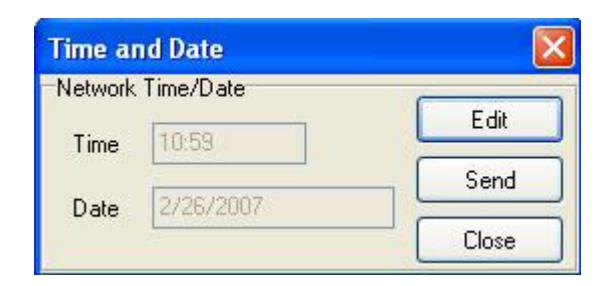
- 1. After connecting and logging into the readers, double click on Time/Date in the SK-NET™ Explorer screen. Click on the Edit button.
- 2. Enter the correct Time and Date, then click on Send, and then Close.

DATE: 1-11-12 REV.: #1 AF#: 6707
20301 Nordhoff St. • Chatsworth, CA 91311 phone 818-882-0020 • fax 818-882-7052 Toll Free - 800-891-0020 www.securakey.com • techsupport@securakey.com
PAGE ____ OF ____ 2 2