Securakey Daylight Saving Time Feature Using SK-NET Version 5.0 Bulletin #30
Open the original PDF document
View PDF

DATE: 1-11-12
REV.: AF#: 7643
APPLICATIONS BULLETIN #30
Subject: Daylight Saving Time -
Update for SK-NET Versions 5.0
Configuring or Overriding U.S. Daylight Saving Time feature using SK-NET Version 5.0
In 2007 the US government changed the beginning and ending dates for Daylight Saving Time to the second Sunday in March and the first Sunday in November. To accommodate this change, Secura Key wrote new firmware for the SK-ACP control panel. If your control panel firmware is version 2.42 or older you can now upgrade to the newest version of 2.43. This is a free upgrade, but you must contact Technical Support for assistance, and you must connect a computer to each SK-ACP to install the firmware.
NOTE: If you are running SK-NET™ 4.xx or earlier, please refer to Bulletin #25)
However, in SK-NET Version 5.0, the system software can now compensate for the older control panel firmware, without requiring a firmware update. If you are using the 28SA+, or have not upgraded the SK-ACP firmware you will need to follow the rest of this procedure to make the daylight savings feature work for your system.
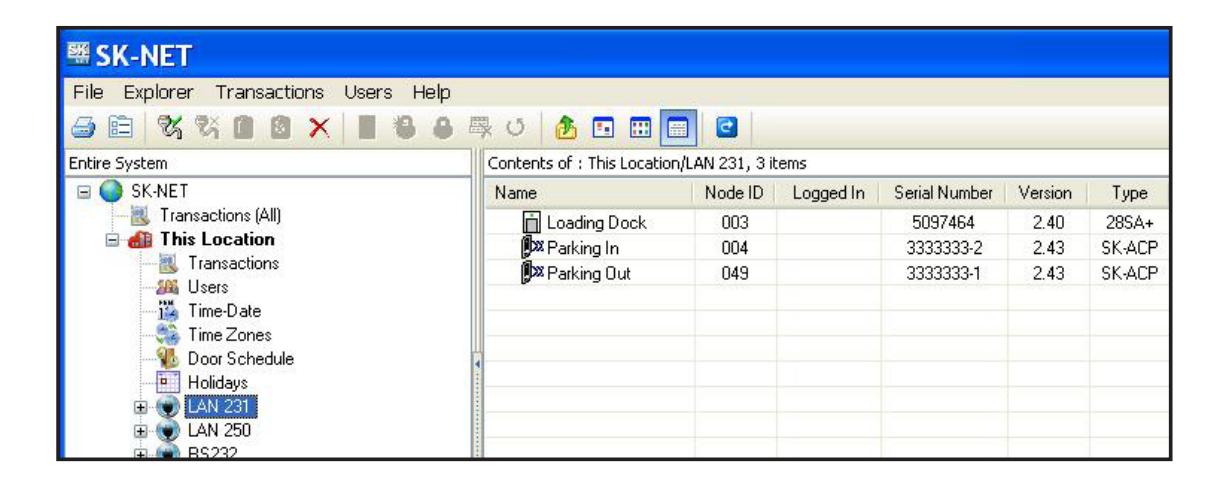
- 1. Check your firmware versions, by left clicking on all connection groups.
- 2. To verify the firmware versions, look at the version column.
- 3. If all firmware versions are 2.43 or higher, and you want to use the current U.S. Daylight Saving Time dates, then stop here.
- 4. The Default operation is to automatically send the current US Daylight Saving Time, Option1.
- 5. If you have any firmware versions 2.42 or lower then go to Option 2.
- 6. If you are located outside the U.S. and use daylight saving time then go to Option 2.
- 7. If your state or territory does not use daylight saving time, skip to Option 3.
SECURA KEY
20301 Nordhoff St. • Chatsworth, CA 91311 phone 818-882-0020 • fax 818-882-7052 Toll Free - 800-891-0020 www.securakey.com • techsupport@securakey.com
PAGE ____ 1 3 OF ____
There are three options for configuring daylight saving time operation.
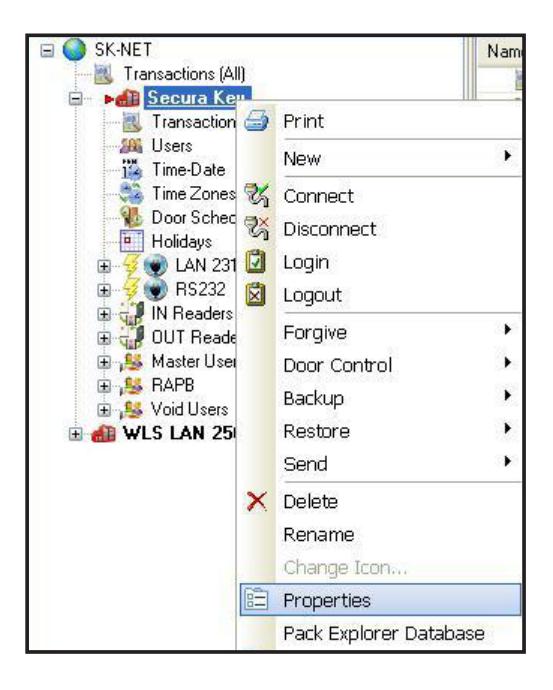
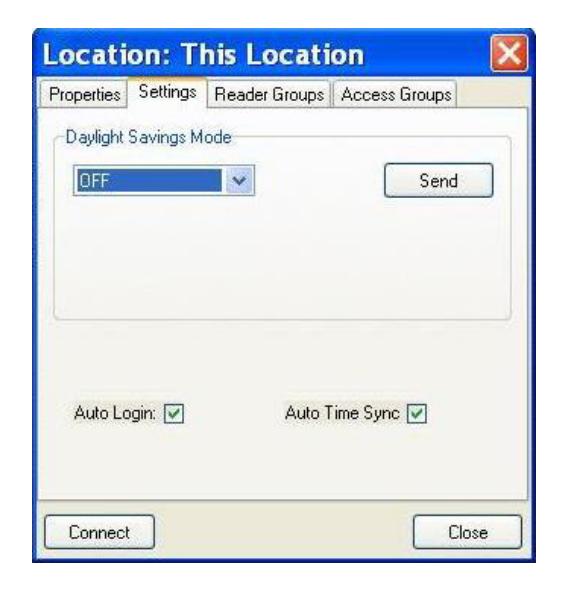
To select the Daylight Saving Menu:
- 1. Right click on the Location Name.
- 2. Select Properties
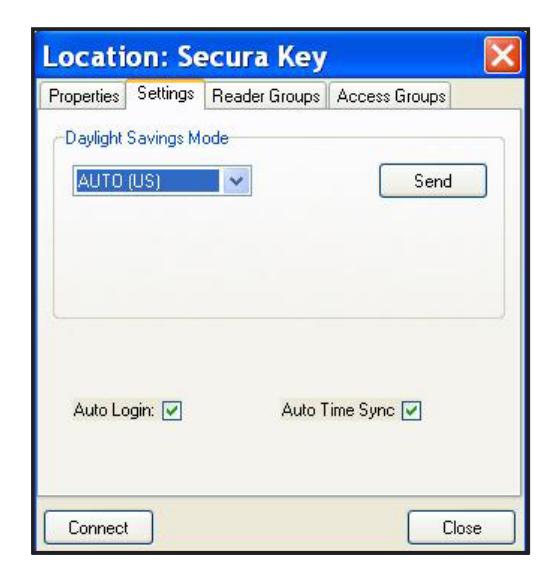
Option 1: Use the current U.S. daylight saving dates
- 1. Select the Settings tab
- Select Auto (US) for the current United States Daylight Saving dates (system default).
- 3. Click Send
This will update all the readers in your system with the current US Daylight Saving dates.
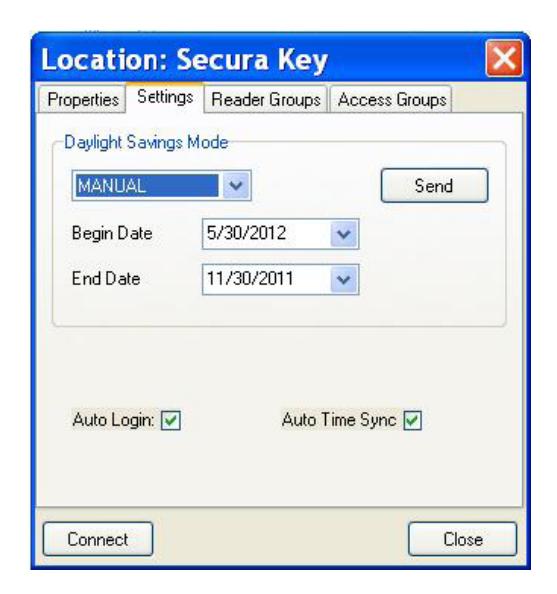
Option 2: To change to custom dates (non-US dates: Europe or Mexico for example)
- 1. Select the Settings tab
- 2. Select Manual, to select custom dates
- 3. Enter Begin Date and End Dates
- 4. Send
This will update all the readers in your system with the selected dates.
Option 3: Turn off Daylight Saving (example, Arizona)
- A. Select the Settings tab
- B. Select Off
- C. Click Send
This will turn off Daylight Saving Time for all readers.

DATE: 1-11-12 REV.: AF#: 7643
20301 Nordhoff St. • Chatsworth, CA 91311 phone 818-882-0020 • fax 818-882-7052 Toll Free - 800-891-0020 www.securakey.com • techsupport@securakey.com
PAGE <u>3</u> OF <u>3</u>