Securakey Connecting an SK-ACP to a Local Area Netwotk Using the SK-WLS-MOD
Open the original PDF document
View PDFCONNECTING AN SK-ACP TO A LOCAL AREA NETWORK USING THE SK-WLS-MOD
The SK-WLS-MOD is a embedded wireless device server that provides a network-enabling solution based on the IEEE 802.11 b/g wireless standard-wireless security with IEEE 802.11i-PSK, WPQ-PSK, TKIP.
To install the unit, complete the following steps in order with the Power Turned Off.
- 1. Remove the SK-ACP board from the enclosure to prevent short circuiting the board.
- 2. Drill a .25 inch hole on the top of the box containing the SK-ACP (right above the module location) to mount the antenna. Clear all metal shavings from the enclosure and re-install the SK-ACP board.
- 3. Remove the 2 pin jumper from the J9 connector (pins 6 & 7) on the SK-ACP.
- 4. Plug the SK-WLS-MOD into J9 on the SK-ACP board. The SK-ACP must be firmware version 2.43, Rev H or newer ONLY!
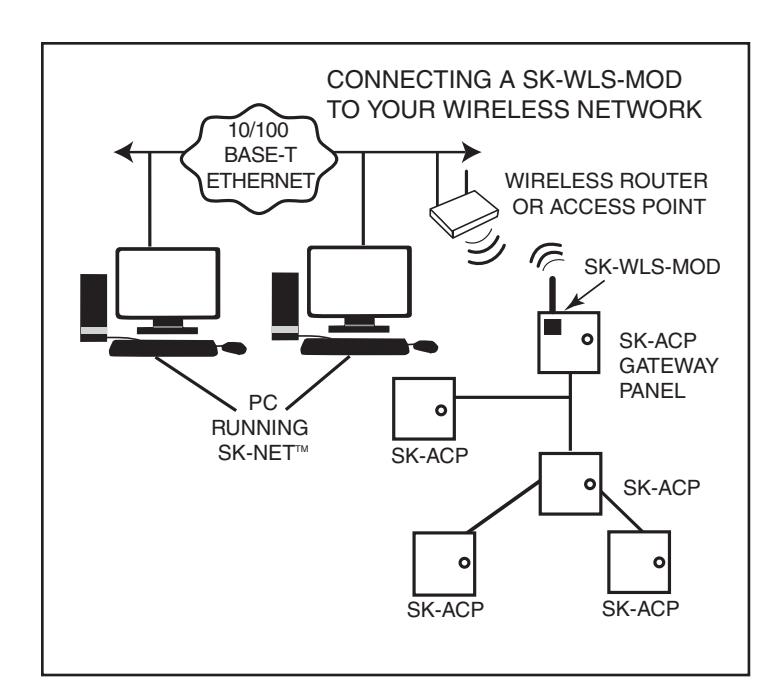
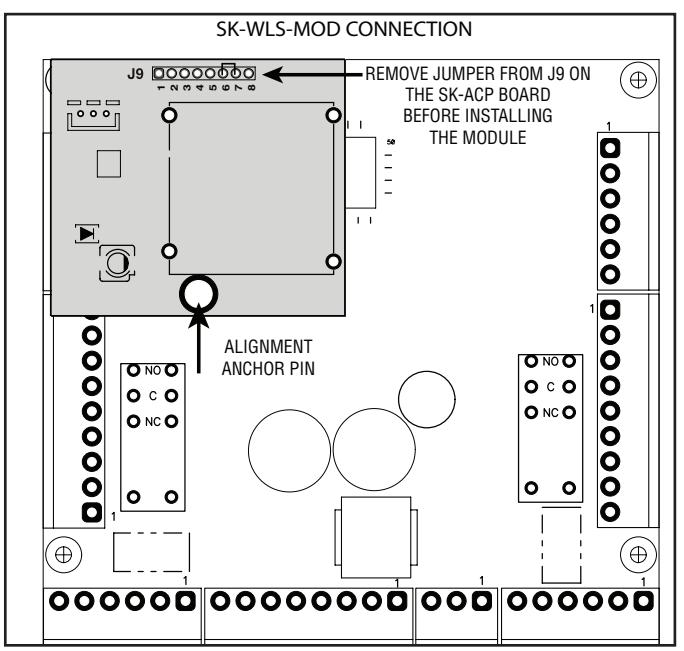
Do Not Turn On the Power to the SK-ACP at this time
NOTE: When using the SK-WLS-MOD, the required input voltage to the SK-ACP is 12-30vdc @ 1 amp or 16 to 24vac @ 40VA (24vdc @ 1 amp is recommended).
(See SK-ACP manual for power connections.)
Required Information
Before configuring the SK-WLS-MOD have the following available:
Hardware (MAC) address: This is on the product label in the format: 00-20-4A - - -
IP address:
The SK-WLS-MOD must have a unique IP address on your network. This address references the specific unit. By default, the unit is DHCP-enabled and automatically assigned an IP address on DHCP-enabled networks. If you are assigning a static IP address, the system administrator generally provides the IP address, subnet mask, gateway, and the SSID.
Note: The factory default IP address is 0.0.0.0 to enable DHCP, BOOTP and AutoIP. When the unit boots, it sends a DHCP broadcast to try and get an IP address. If it receives no reply from a DHCP server, the SK-WLS-MOD tries BOOTP. If the SK-WLS-MOD does not receive a response from BOOTP, it reverts to an AutoIP address.
| IP Address: |
|
||
|---|---|---|---|
| Subnet Mask: |
|
· | |
|
Gateway:
SSID: |
|
Setup Procedure:
- 1. Without applying power to the SK-ACP, connect the SK-WLS-CBL cable to J1 located on the SK-WLS-MOD module. Connect the other end of the cable to an RS-232 (serial) port on a PC.
- 2. Launch 'HyperTerminal' on your computer. Set the baud rate to 9600, 8 data bits, 1 stop bit, no parity, and flow control to none, and then connect. (HyperTerminial is available on Windows® XP. It is not provided with Vista or 7, but can be found for both on the internet and can be installed to your computer.)
- 3. Press and hold the 'x' key (lower case) on the PC keyboard while you connect power to the SK-ACP control board. When prompted, press the Enter key on the PC keyboard to gain access to the internal menu of the SK-WLS-MOD.
NOTE: You must press Enter within 10 seconds after the prompt is displayed or the SK-WLS-MOD will time-out. If this happens, remove power and repeat step 3.
- 4. Select 0 (Server) from the menu: Network mode: enter 1 = wireless only Enter IP address (provided by the IT department) (Setup to match your network)
- 5. 1 (Channel 1) no changes required
- 6. Select 2 (Channel 2) from the menu: Set baud rate to 38400 IF mode to 4C Flow (default) Port number 10002 (default) (Default the remaining choices)
- 7. 3 (Email) no changes required
- 8. Select 4 (WLAN) from the menu: Topology 0 (infrastructure) Network name SSID (wireless name) (Setup to match your network)
- 9. 5 (Expert) no changes required
- 10. 6 (Security) no changes required
- 11. Select 7 for Default (to start over)
- 12. Select 8 Exit without save
- 13. Select 9 Save and exit
WLS-MOD Internal Menu

20301 Nordhoff Street, Chatsworth, CA 91311 Phone: (818) 882-0020 • Fax: (818) 882-7052 TOLL-FREE: (800) 891-0020
7644 Website: www.securakey.com • E-mail: mail@securakey.com 3322118