Securakey Connecting SK-NET™ to Your Control Panel Network Bulletin #32
Open the original PDF document
View PDF

APPLICATIONS BULLETIN # 32
Subject: CONNECTING SK-NET™ TO YOUR CONTROL PANEL NETWORK
CONNECTING SK-NET™ TO YOUR CONTROL PANEL NETWORK
Secura Key's SK-NET™ system consists of four basic components:
- 1. SK-NET Access Control Software
- 2. SK-ACP-LE 2-door Access Control Panels
- 3. Card Readers
- 4. Cards or Keytags
Field hardware, such as readers, door strikes, mag locks, gate operators, REX switches, and door monitor switches are connected to the Control Panels as detailed in the SK-ACP installation manual.
The most frequently asked question is "How do I connect the PC to the access control system?"
In a Secura Key SK-NET™ PC-based access control system, there are four basic ways to connect the PC software to the Control Panels:
- • RS-232
- • TCP/IP (ETHERNET)
- • RS-485
- • Dial-up Modem
• The PC connects to the closest control panel, which becomes the "Gateway" panel. The control panels all have RS-485 communications, so once you connect the first panel to the PC, any additional panels can be "daisychained" to one another using RS-485 (J8) communications over twisted pair cable, such as CAT5 (which is not connected to the Local Area Network).
The following paragraphs explain each connection method:
RS-232 Serial Communications
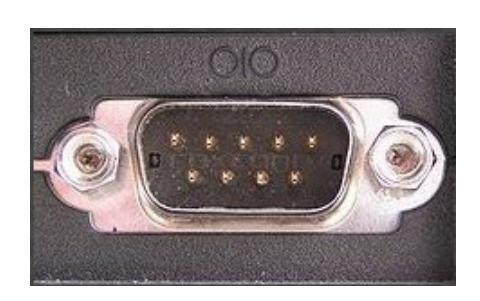

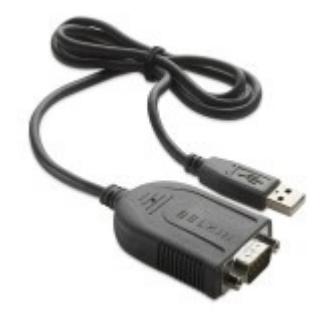
Until recently, all PCs had RS-232 serial ports called COM1 and COM2, which were used to connect serial devices such as modems and scanners. At the SK-ACP, the J7 connector has an RS-232 connection, making RS-232 very easy to use – you just take 6-conductor non-twisted, shielded wire, solder a DB9 type connector to the PC end, strip the wires at the panel end and insert them into the J7 connector.
SECURA KEY 20301 Nordhoff St. • Chatsworth, CA 91311 phone 818-882-0020 • fax 818-882-7052 Toll Free - 800-891-0020
www.securakey.com • techsupport@securakey.com
DATE: 6-17-13 REV.: AF#: 7884
PAGE ____ OF ____ 1 3
New PC's have replaced COM1 and COM2 with USB ports, so you will need to purchase a model SK-USB, USB-to-Serial Converter, which plugs into a USB port and provides a DB9 connector, then assemble and connect the serial cable (DB-9 at one end, stripped wires at the other). Secura Key offers SK-PLUG9, which is a short pigtail with a DB-9 connector and stripped conductors, which will save you the trouble of soldering the DB9 connector – you can use this pigtail to start your cable. RS-232 communications is susceptible to noise, so avoid running the cable near sources of electromagnetic interference, such as fluorescent ballasts or large motors, and limit the total length to 100 feet.
You will need:
- • SK-USB
- • 6-conductor, shielded non-twisted cable, 20-24 AWG, up to 100'
- • SK-PLUG9 or a solder-type DB-9 connector
TCP/IP (ETHERNET)
ROUTER
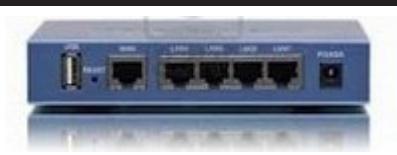
This method allows you to take advantage of your existing network infrastructure. The PC running SK-NET software must be connected to the local area network. The next step is to connect the control panel to the network, by installing an SK-LAN-MOD network adapter into the SK-ACP-LE control panel, and then plugging a network cable into the adapter and running it to a nearby hub, switch or router.
Once the first panel (or Gateway panel) is connected to the network, you then have the option of daisy chaining additional panels from the first panel using RS-485 over twisted pair cable (such as CAT5 which is not connected to the LAN) or if you cannot daisy-chain the additional panels, then you may purchase an SK-LAN-MOD adapter for every panel in the system and connect them all to your local area network. To use more than one TCP/IP connection in the system, you will have to upgrade your SK-NET software from the basic version to the SK-NET-MLD (multi-location version). As long as the LAN adapters are located on the same local area network, SK-NET will be able to find and communicate with them.
To communicate with remote locations over the internet, you can install an SK-LAN-MOD adapter into the gateway panel at each remote location, defining that panel as a "Location" or "Connection Group" in the software. You will have to request the Internet Service Provider to set up each remote location with its own fixed IP address, which is entered into the Location setup screen in the SK-NET software. If you have an older SK-ACP, use the SK-LAN network adapter. If you have the newer SK-ACPE, no adapter is required.
You can also connect SK-ACP-LE panels to the PC by using installing SK-WLS-MOD wireless network adapters into the SK-ACP-LE control panels, and by using an 802.11b/g wireless router or hub to communicate with the control panels. SK-NET-MLD software will be required if more than one adapter is used in your system.
You will need
- • SK-LAN-MOD (for each networked panel) or SK-WLS-MOD (for wireless LAN)
- • SK-NET-MLD software (for more than one TCP/IP connection)
- • Wireless Router or Hub (if using SK-WLS-MOD)
RS-485 Serial Communications
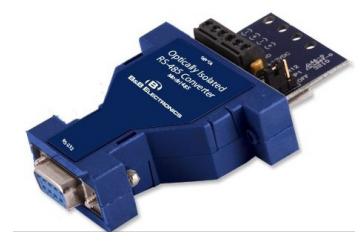
While RS-485 is built into the SK-ACP-LE panels, it is only used to connect the PC to the system if the PC is located over 100 feet from the first control panel, and there is no LAN connection available near the panel. RS-485 communications provides built-in noise cancellation, which allows long cable distances to be used (up to 4000 total cable feet for the whole system). For RS-485, you will need to purchase a model NETCONV-P, RS232-to-RS485 converter with power supply. On newer PCs without a COM port, you will ALSO need to purchase a model SK-USB, USB-to- serial converter. Plug the SK-USB into the computer's USB port and then
NET-CONV-P
plug the NETCONV-P into the SK-USB, and then connect twisted pair wire to the first panel. Additional panels can then be daisy-chained from the first panel, using twisted pair cable, such as CAT5, which is not connected to your local area network.
You will need:
- • NETCONV-P RS-232-to-RS-485 converter,
- • SK-USB USB-to-serial converter
Dial-up Modem
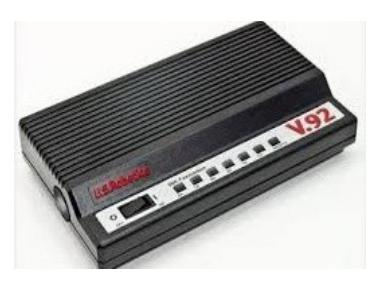
SK-MDM
Dial-up modem is typically used to communicate with locations that are remote from where the PC is installed, where a network connection is not available or economically feasible. To use a modem, you must upgrade from the basic software to the SK-NET-MLD (multi-location version). You may need to install a modem card in your PC, if it does not have a modem. (You can purchase an external modem for your PC, such as US Robotics 5686e, but you will need a serial COM port or a USB-to-Serial Converter.)
At the panel location, you will connect a dialup modem to the Gateway panel. A dedicated ANALOG phone line is required at the remote site. Purchase an SK-MDM modem, which is preconfigured for the SK-ACP-LE panel. You can also purchase your own US Robotics 5686e modem and configure it yourself (see www.securakey.com/ SUPPORT/TECHNICAL/Bulletins for modem configuration instructions). Connect the modem to the RS-232 inputs on the SK-ACP-LE control panel using 6-conductor non-twisted, shielded 20-24AWG cable with the appropriate D-type connectors.
A modem connection is not highly recommended for sites where real-time system status or up-to-date transaction data is required, because the remotely located panel cannot initiate any communications with SK-NET. You can set up SK-NET to do an automated daily "Card Send" to the remote sites, at which time, the SK-ACP will upload its transaction buffer to SK-NET. Transaction data from these remote sites could be as much as 24 hours old. If you are considering using dial-up communications, we suggest that you also consider installing DSL with a fixed IP address at the remote site, if the phone lines will support it, which would enable real-time TCP/IP communications.
You will need:
- • SK-MDM Modem (at panel location)
- • Internal or External Modem (at PC location)
- • SK-NET-MLD Software

DATE: 6-17-13 REV.: AF#: 7884
20301 Nordhoff St. • Chatsworth, CA 91311 phone 818-882-0020 • fax 818-882-7052 Toll Free - 800-891-0020 www.securakey.com • techsupport@securakey.com
PAGE ____ OF ____ 3 3