Securakey Combining Locations Feature SK-NET™ Software Bulletin #27
Open the original PDF document
View PDF

APPLICATIONS BULLETIN #27
Subject: Combining Locations Feature SK-NET™ Software
"Combining Locations" Feature In SK-NET™ Software Version 4.0 or Higher
Prior to Version 4.0, SK-NET™ created a "Location" with a separate user database for each control panel or group of panels connected to the system software by an RS232, RS485, or TCP/IP connection.
In Version 4.0 or higher a new entity called a Connection Group is used. The Connection Group is similar to a Location, except that it does not have a separate user database. In Version 4.0 or higher, a Location is now a higher-level entity with a user database which can have multiple Connection Groups assigned to it.
The Combining Locations Feature allows users with multiple Locations who are upgrading from previous versions of SK-NET™ to combine those Locations into a single location with a single user database.
Here is the procedure for combining Locations:
- 1. Backup all database files.
- 2. Make sure all Access Groups and Connection Groups that you want to copy into the master (target) Location have unique names. This means that if you want it to copy 'Connection1' to the master Location you should not have a 'Connection1' already in the master Location. Make sure any new Connection Groups do not use the same COM Ports, or TCP/IP addresses as those already resident in the master Location.
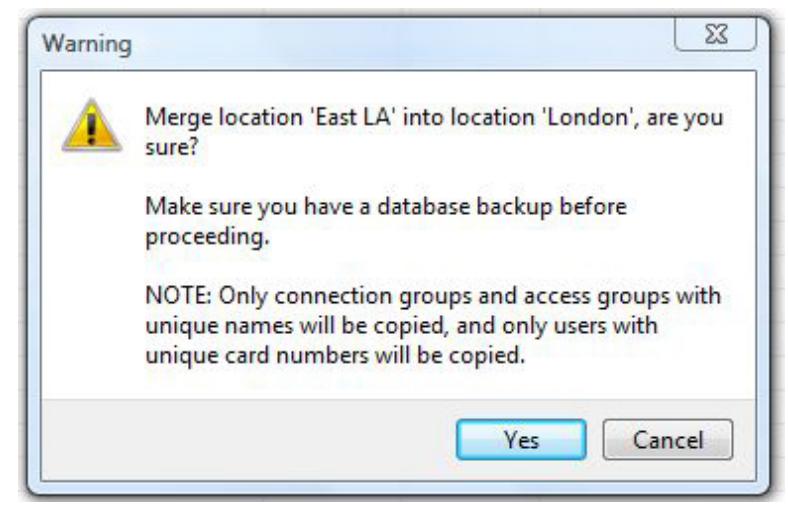
- 3. Any users with card numbers that are already in the master Location will NOT be copied over. Duplicate card numbers are not allowed.
- 4. Drag the source Location in the SK-NET™ Explorer tree over the target Location, the following prompt will appear:
SECURA KEY
20301 Nordhoff St. • Chatsworth, CA 91311 phone 818-882-0020 • fax 818-882-7052 Toll Free - 800-891-0020 www.securakey.com • techsupport@securakey.com
PAGE ____ OF ____ 1 2
DATE: 1/11/12 REV.: #1 AF#: 7236
- 5. When the merge is complete it will ask you if you want to delete the source Location. It is recommended that you choose 'Yes'. If you don't delete the now unused Location you may have difficulty finding the same readers in the updated master Location.
- 6. View the new SK-NET™ Explorer tree to ensure all Access Groups, Connection Groups and Users have been copied over.
- 7. Right click on any Connection Groups that have been copied and select 'Properties', select the 'Connection' tab, click edit and make sure 'Connection Enabled' is checked.
- 8. Click 'Apply' and "Close', then right click the Connection Group again and select 'Connect'.
- 9. Right click the Connection Group and select 'New->Readers->Quick Find', if there are less than 20 readers at that connection, otherwise choose "New->Readers->Search'.
- 10. Bring in all readers that were found into the system, drag and drop them into the desired access groups.
- 11. Repeat steps 7-10 for any additional new Connection Groups.
- 12. When all Connection Groups are connected, click on 'Send Users (Full) to send card information to each reader in the system.

DATE: 1/11/12 REV.: #1 AF#: 7236
20301 Nordhoff St. • Chatsworth, CA 91311 phone 818-882-0020 • fax 818-882-7052 Toll Free - 800-891-0020 www.securakey.com • techsupport@securakey.com
PAGE ____ OF ____ 2 2