Schlage_CO-200_Offline_Lock_User_Guide_-_English_104209
Open the original PDF document
View PDF


P516-271
CO-200
Offline lock user guide Instructions for CO-Series offline locks

Para el idioma español, navegue hacia www.allegion.com/us. Pour la portion française, veuillez consulter le site www.allegion.com/us.
Contents
| Overview | 3 |
|---|---|
| Lock functions | 4 |
| Getting started | 4 |
| Schlage Utility Software (SUS) | 4 |
| Construction access mode |
5
5 |
| Credential types and functions | |
| Manual programming instructions PROGRAMMING credentials NORMAL USE credentials TOGGLE credentials FREEZE credentials PASS THROUGH credentials OTHER programming |
7
9 10 11 |
| Error codes | 13 |
| Test lock operation |
14
14 |
| Normal lock operation | 14 |
| Reset to factory defaults Level 1 factory default reset Level 2 factory default reset | 15 |
| Batteries Low battery indications. Battery failure modes | 17 |
| LED reference | 18 |
| Troubleshooting | 19 |
| FCC Statements | 20 |
This product is compliant of UL 294 and ULC S319 standard. This product's compliance would be invalidated through the use of any add-on, expansion, memory or other module that has not yet been evaluated for compatibility for use with this UL Listed product, in accordance with the requirements of the Standards UL 294 and ULC S319. This product has been evaluated for ULC-S319 Class I.
UL294 Access Control Levels tested to: Destructive Attack - Level 1; Line Security - Level 1; Endurance - Level 4; Standby Power - Level 1.
Overview
The Schlage CO-200 is an off-line electronic lock in the CO-Series product line.
- This product is listed for UL294 and ULCS319.
- The lock is configured to operate as Classroom/Storeroom function. Optional Office or Privacy functions are available.
- The lock is powered by four (4) AA batteries. See Batteries on page 16 for more information.
- Outside lever is normally locked.
- Inside lever always allows egress.
- The lock maintains an audit trail of events in the normal operating mode.
- The lock is configured using the Schlage Utility Software (SUS). See Schlage Utility Software (SUS) on page 4 for more information.

Lock functions
The CO-200 is available in one of three functions:
Privacy (40): Lockset is normally secure. Pressing the Inside Push Button or extending the deadbolt will disable normal electronic access from the outside. Opening the door, retracting the deadbolt or pressing the Inside Push Button a second time deactivates the privacy status.
Office (50): Lockset is normally secure. Inside Push Button may be used to select passage or secured status.
Classroom/Storeroom (70): Lockset is normally secure. Valid toggle credentials may be used to change to a passage or secure status.
Getting started
Follow these steps when setting up a new lock.
- 1. Install the lock. See the installation guide that came with the lock or visit www.allegion.com/us (see Support>Schlage Electronics>Electronic Locks Technical Library) for more information.
- 2. Make sure the batteries are installed properly. See Batteries on page 16 for more information.
- 3. Before programming, the lock may be used in construction access mode. See Construction access mode on page 5 for more information. The lock should remain in construction access mode until you are ready to set up the rest of the system.
- 4. Test the lock for proper mechanical and electronic operation. See Test lock operation on page 14 for more information.
- 5. When ready to set up for normal use, remove factory default security settings, then program the user credentials. See Manual programming instructions on page 7 for more information.
- 6. Consult the Schlage Utility Software (SUS) user guide for information about configuring the lock.
- 7. Familiarize yourself with the information in this guide.
Save this user guide for future reference.
Schlage Utility Software (SUS)
The Schlage Utility Software is used for programming and setup only.
The Schlage Utility Software (SUS) is used to configure locks. The SUS configures lock functions that cannot be configured with manual programming, and is used to transfer data files between the access control software and locks.
For more information about the SUS, see the SUS user guide.
Construction access mode
Construction access mode is used to allow access before the lock has been programmed, and for testing purposes.
- Enabled by default.
- The lock will remain in construction access mode until the mode is cancelled as described below.
- No audits are captured while lock is in construction access mode.
Create the master construction credential - locks with card readers
- 1. Press and hold the Schlage button while presenting a credential.
- 2. This credential becomes the master construction credential, and is used to program construction access.
- 3. The Schlage button will blink green on the left and right as confirmation.
After you have created the master construction credential, you can then use that card to add construction access mode user credentials.
L The master construction credential will not grant access. It is used only to add additional credentials.
TIP
Use the same master construction credential for all the locks in the facility.
If you present the first card to a new lock to create the master construction credential and the card is not accepted, the lock has either been programmed or already has a master construction credential.
If the master construction credential cannot be located, or to put the lock back into construction access mode, reset the lock to factory settings. See Reset to factory defaults on page 15 for more information.
Locks with card readers – Add construction access mode user credentials
|
Construction
access mode credential type |
Steps to add construction access mode user credentials | ||||
|---|---|---|---|---|---|
| Normal use | 1 | 2 | 3 | 4 | 5 |
|
construction
credential Unlocks the lock for relock delay period |
Present
master construction credential to reader |
Green LEDs
blink |
Present user
credential within 20 seconds |
Green LEDs
blink and credential is added |
Repeat steps
3 and 4 for additional credentials. |
|
Toggle
construction credential Changes the state of lock from locked to unlocked or vice versa |
Present
master construction credential to reader |
Green LEDs
blink |
Press and
hold Schlage button while presenting user credential within 20 seconds |
Green LEDs
blink, 2 beeps will sound and credential is added |
Credentials
added with the master construction credential will have 24/7 access. |
Cancel construction access mode
Construction access mode may be cancelled by one of the following methods:
- load a door file using the SUS
- reset the lock to factory settings (see Reset to factory defaults on page 15 for more information).
When construction mode is cancelled, the master construction credential and all other credentials added using the master construction credential will no longer function.
Locks with keypads
In the factory default reset state, offline locks with keypads, with or without additional credentials, have a default PIN of 13579 and "#", which can be used for installation, testing and construction access. To test, enter 13579 and "#". The Schlage button will blink and the lock will unlock. The default PIN is automatically deleted when a new programming credential is created, construction credentials are created, or the lock is programmed with the Schlage Utility Software (SUS).
Credential types and functions
Programming credential: A card or 5 digit code used only for lock programming.
Card or PIN credentials: A card that is presented, or a 3-6 digit code entered on the keypad.
Card ID number: When adding any new card credential, a 3-6 digit code is entered prior to presenting the card. This code becomes the Card ID Number. This number can be used to delete a card credential without physically having the card. Keep a log of all Card ID Numbers for future reference.
Note: A unique credential must be used for each credential type described below (for example, a single credential may not be used for both normal use and toggle functions).
| Credential type | Function |
|---|---|
| Programming PIN or card | Used only to program the lock. Does not unlock the lock. |
| Normal use credential |
Unlocks the lock momentarily after a credential is presented or
entered. |
| Toggle credential |
Changes the state of the lock from locked (secured) to
unlocked (unsecured), or vice versa, unless in a Freeze state. |
| Freeze credential |
Freezes the lock in the current state. The lock remains frozen
until any Freeze credential is presented again. (A pass-through credential will override a lock in frozen state as described below). |
| Unlocks a lock momentarily, regardless of state. | |
| Pass-through credential |
A valid Pass-through credential can unlock a door set to any
secured lockout mode (e.g., Freeze, Privacy, Time Zones, Door Auto-Locks and Holidays). The door will relock after the specified relock time. |
Credential forms
Normal, toggle, freeze and pass-through credential types are used in one of three forms:
PIN credential – a 3-6 digit code entered on the keypad.
CARD credential – a card presented to the lock.
CARD + Card ID Number credential – a card (with a unique Card ID number) presented to the lock. (See a description of Card ID number above for more information.)
Steps for designating each form are in the Manual programming instructions on the following pages.
Manual programming instructions
Important notes:
- L Wait for the Schlage button LEDs to stop flashing before continuing to the next step.
- L Programming mode will time out if no entry is made in 20-25 seconds. Time out is indicated by three left and nine right red blinks of the Schlage button.
- L An incorrect entry is indicated by a solid red left and blinking green right LED on the Schlage button. Refer to Error codes on page 13 to interpret error code patterns.
- L A unique credential must be used for each credential type (for example, a single credential may not be used for both normal use and toggle functions).
PROGRAMMING credentials
|
To complete this
action: |
Perform the following steps:
Wait for to stop flashing between each step! |
||||
|---|---|---|---|---|---|
| 1 | 2 | 3 | 4 | ||
| Create new | Enter | Enter | Enter new 5 digit | Reenter the new 5 | |
| Programming | Programming | digit Programming | |||
| Code (PIN) |
(This is the default
programming PIN) |
code and
Wait for right green light. |
code and
Wait for confirmation: 2 right green blinks. |
||
|
Create new
Programming Card |
Enter | Enter |
Present new
programming card. |
Wait for confirmation:
2 right green blinks. |
|
Note: Programming codes such as 1-1-1-1-1 or 1-2-3-4-5 can be easily selected by non-authorized users and should not be used.
NORMAL USE credentials
Note: Until a new Normal Use PIN is created, the default PIN is
|
To complete
this action: |
Perform the following steps:
Wait for to stop flashing between each step! |
|||||
|---|---|---|---|---|---|---|
| 1 | 2 | 3 | 4 | 5 | 6 | |
|
Create a
Normal Use PIN |
Enter
Programming PIN and OR Present Programming card |
Enter |
Enter
new 3-6 digit PIN and |
For another
PIN, go back to step 3 |
Press
again to finish |
Wait for
confirmation: 2 right green blinks. |
|
Create a
Normal Use CARD |
Enter
Programming PIN and OR Present Programming card |
Enter |
Enter
new 3-6 digit Card ID Number and |
Wait for
right green light. Present new CARD to lock. |
For
another CARD, go back to step 3 OR press again |
Wait for
confirmation: 2 right green blinks. |
|
Create a
Normal Use CARD + Card ID Number |
Enter
Programming PIN and OR Present Programming card |
Enter | Enter |
Enter new
3-6 digit Card ID Number and Wait for right green light. |
Present
new CARD to lock. |
For another
CARD+Card ID credential, go back to step 4 OR press again to finish Wait for confirmation: 2 right green blinks. |
TOGGLE credentials
|
To complete
this action: |
Perform the following steps:
Wait for to stop flashing between each step! |
|||||
|---|---|---|---|---|---|---|
| 1 | 2 | 3 | 4 | 5 | 6 | |
|
Create a
Toggle PIN |
Enter
Programming PIN and OR Present Programming card |
Enter | Enter |
Enter new
3-6 digit PIN and Wait for right green light. |
For
another PIN, go back to step 3 OR press again to finish |
Wait for
confirmation: 2 right green blinks. |
|
Create a
Toggle CARD |
Enter
Programming PIN and OR Present Programming card |
Enter | Enter |
Enter new
3-6 digit Card ID Number and Wait for right green light. |
Present
new CARD to lock. |
For another
CARD, go back to step 3 OR press again to finish Wait for confirmation: 2 right green blinks. |
|
Create
a Toggle CARD + Card ID Number |
Enter
Programming PIN and OR Present Programming card |
Enter | Enter |
Enter new
3-6 digit Card ID Number and Wait for right green light. |
Present
new CARD to lock. |
For another
CARD+Card ID credential, go back to step 4 OR press again to finish Wait for confirmation: 2 right green blinks. |
FREEZE credentials
| To complete | Perform the following steps: | ||||||
|---|---|---|---|---|---|---|---|
| this action: |
Wait for
to stop flashing between each step! |
||||||
| 1 | 2 | 3 | 4 | 5 | 6 | ||
|
Create a
Freeze PIN |
Enter
Programming PIN and OR Present Programming card |
Enter | Enter |
Enter new
3-6 digit PIN and Wait for right green light. |
For
another PIN, go back to step 3 OR press again to finish |
Wait for
confirmation: 2 right green blinks. |
|
|
Create a
Freeze CARD |
Enter
Programming PIN and OR Present Programming card |
Enter | Enter |
Enter new
3-6 digit Card ID Number and Wait for right green light. |
Present
new CARD to lock. |
For another
CARD, go back to step 3 OR press again to finish Wait for confirmation: 2 right green blinks. |
|
|
Create a
Freeze CARD + Card ID Number |
Enter
Programming PIN and OR Present Programming card |
Enter | Enter |
Enter new
3-6 digit Card ID Number and Wait for right green light. |
Present
new CARD to lock. |
For another
CARD+Card ID credential, go back to step 4 OR press again to finish Wait for confirmation: 2 right green blinks. |
|
PASS THROUGH credentials
|
To complete
this action: |
Perform the following steps:
Wait for to stop flashing between each step! |
|||||
|---|---|---|---|---|---|---|
| 1 | 2 | 3 | 4 | 5 | 6 | |
|
Create a
Pass Through PIN |
Enter
Programming PIN and OR Present Programming card |
Enter | Enter |
Enter new
3-6 digit PIN and Wait for right green light. |
For
another PIN, go back to step 3 OR press again to finish |
Wait for
confirmation: 2 right green blinks. |
|
Create a
Pass Through CARD |
Enter
Programming PIN and OR Present Programming card |
Enter | Enter |
Enter new
3-6 digit Card ID Number and Wait for right green light. |
Present
new CARD to lock. |
For another
CARD, go back to step 3 OR press again to finish Wait for confirmation: 2 right green blinks. |
|
Create a
Pass Through CARD + Card ID Number |
Enter
Programming PIN and OR Present Programming card |
Enter | Enter |
Enter new
3-6 digit Card ID Number and Wait for right green light. |
Present
new CARD to lock. |
For another
CARD+Card ID credential, go back to step 4 OR press again to finish Wait for confirmation: 2 right green blinks. |
OTHER programming
| To complete | Perform the following steps: | ||||
|---|---|---|---|---|---|
| this action: | Wait for | to stop flashing between each step! | |||
|
Delete a
credential |
1
Enter Programming PIN and OR Present Programming card |
2
Enter |
3
Enter the PIN or Card ID Number to be deleted and |
4
To delete another Card credential, go back to step 3 OR press again to finish |
5
Wait for confirmation: 2 right green blinks. |
|
Change PIN
length |
Enter
Programming PIN and OR Present Programming card |
Enter | Enter |
Enter
, , , OR for desired PIN length |
Press
again to finish Wait for confirmation: 2 right green blinks. |
|
Change
relock delay period |
Enter
Programming PIN and OR Present Programming card |
Enter | Enter |
Each button
press adds to the total delay time Example: + adds a 10 second delay |
Press
again to finish Wait for confirmation: 2 right green blinks. |
|
Disable/
Enable Beeper |
Enter
Programming PIN and OR Present Programming card |
Enter | Enter |
Enter
to disable beeper OR to enable beeper |
Press
again to finish Wait for confirmation: 2 right green blinks. |
|
Disable/
Enable occupancy indicator feature |
Enter
Programming PIN and |
Enter | Enter |
Enter
to disable occupancy indicator blinks OR to enable occupancy indicator fast blinks OR to enable occupancy indicator slow blinks |
Press
again to finish Wait for confirmation: 2 right green blinks |
|
To complete
this action: |
Perform the following steps:
Wait for to stop flashing between each step! |
||||
|---|---|---|---|---|---|
| 1 | 2 | 3 | 4 | 5 | |
|
Disable/
Enable offline lockdown configuration |
Enter
Programming PIN and |
Enter | Enter |
Enter
to disable the offline lockdown configurations OR to configure the offline lockdown functionality for use |
Press
again to finish Wait for confirmation: 2 right green blinks. |
Error codes
L All error codes are indicated on the Schlage button by a solid red left LED, and a blinking green right LED. The number of green blinks indicates the error code.

|
Number of
green blinks |
Error code description |
|---|---|
| 1 | Computer programming error (not complete). |
| 2 |
Too long programming/user code entered.
Programming code must be five (5) digits. User code length cannot exceed six (6) digits. |
| 3 | Memory full, too many codes. Delete some codes. |
| 4 | Programming code cannot be deleted, only changed. |
| 5 |
Programming code entries do not match.
Programming code not changed. |
| 6 | Invalid command. Invalid function code entered. |
| 7 | Code not found. |
| 8 |
Code too short. Programming code length must be five
(5) digits. User code minimum length is three (3) digits. |
| 9 | Not a unique code. |
| 10 | Manual programming not allowed. |
Error code functions have not been verified by Underwriters Laboratories Inc.
Test lock operation
If you encounter problems while performing any of the following tests, review the installation guide and correct any problems.
Mechanical test
- 1. Rotate the inside lever or depress the push bar to open the door. Operation should be smooth, and the latch should retract.
- 2. Insert the key into the keyway and rotate the key and the outside lever to open the door. Operation should be smooth, and the latch should retract. The Schlage button will light solid green until the key is released and the latch is extended.
Test in factory default mode
- 1. For locks with a keypad, press any number key. The lock will beep and the Schlage button will blink red.
- 2. The Schlage button will blink red twice when a credential is presented and the lock is in factory default mode, and has no access programming.
- 3. For locks with keypads, enter the default PIN (13579 and "#") to verify access. The Schlage button will blink green, a beep will sound, and the door will unlock for the preset relock delay period. After the relock delay period, the lock will relock and the Schlage button will blink red. If the lever retracts and holds the latch through the relock delay period, then the Schlage button will light green until the lever is released.
Test in normal operation mode
- 1. Present a valid credential. The Schlage button will blink green, a beep will sound and the door will unlock for the preset lock delay period. The lock will re-lock after the lock delay period and the Schlage button will then blink red. If the lever retracts and holds the latch through the relock delay period, then the Schlage button will light green until the lever is released.
- 2. If an invalid credential is presented, the Schlage button will blink red, a beep will sound and the door will not unlock.
Normal lock operation
After credentials have been programmed, present credentials to operate the lock as follows:
|
Credential
type |
Action | |||
|---|---|---|---|---|
| PIN or Card | Present or enter credential to reader | Green blink and access granted | ||
|
Card+Card
ID Number |
Present credential
to reader |
Press Card ID
Number 1 |
Within 5 seconds,
2 Press |
Green blink and
access granted |
1 If the Card ID is entered incorrectly, press "*" to start over.
2 The default PIN/Card ID length is six (6) digits. The "#" key must be used as an ENTER key for PINs/Card IDs with fewer than six digits. PIN length can be configured using the SUS, so users do not have to press "#" key.
Reset to factory defaults
All information in the lock will be deleted and reset to factory defaults!
The door must be locked (not toggled open or in the middle of normal access) before resetting to factory defaults.
Level 1 factory default reset
- L Level 1 factory default reset will delete configurations and settings in the main controller in the lock.
- L Main controller configurations that will reset to factory default include: programming and user codes.
- L Level 1 factory default reset will not reset configurations and settings in the reader.
- 1. Press and hold the Schlage button. Wait for the lock to beep twice and two green blinks of the Schlage button, indicating confirmation.
- 2. After confirmation signals, release the Schlage button.
- 3. Rotate the mechanical key within 10 seconds and hold. The Schlage button will light green. Continue holding the key until confirmation signals are observed (the Schlage button light will turn off one second and a one second beep will sound). After confirmation signals, release the mechanical key.
- 4. The Schlage button will light green for one second and a one-second beep will sound to confirm reset to factory defaults.
- L If the mechanical key is not rotated within 10 seconds, two beeps and two red blinks indicate timeout.
Level 2 factory default reset
- L Level 2 factory default reset will delete all configurations and settings in the lock and the reader.
- L Reader configurations that will reset to factory default include: keypad format, magstripe reader track, beeper on/off, and contactless card.
- L Days in Use counter and lock type configurations will not reset.
To complete Level 2 factory default reset, repeat steps 2 through 4 within 10 seconds of the confirmation signals of level 1 factory default reset.
If more than 10 seconds pass after the confirmation signals of level 1 reset, then level 1 reset must be repeated prior to performing level 2 reset.
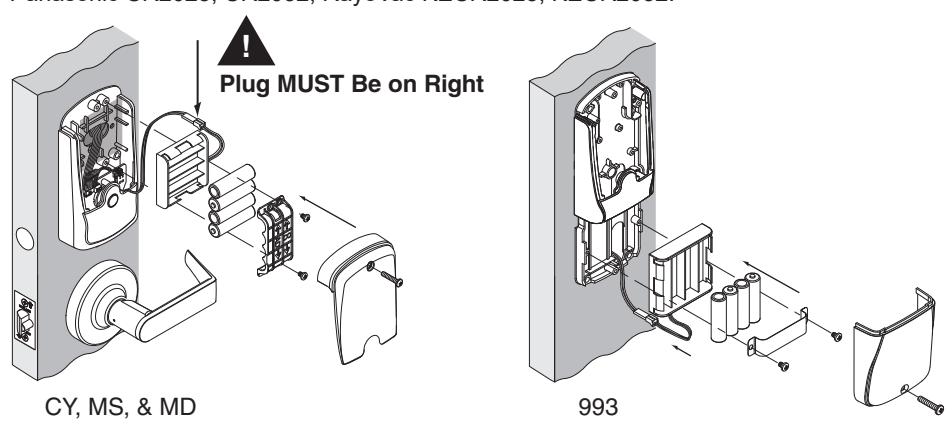
Batteries
Battery voltage can be checked with the SUS. Changing batteries does not affect any programmed data.
To install or replace alkaline batteries:
- 1. Remove the battery cover.
- 2. Remove the battery bracket. Do not allow the battery pack to hang from the wires.
- 3. Install the new batteries (install only new AA Alkaline batteries). Make sure the batteries are installed in the correct orientation.
- 4. Reinstall the battery pack and battery bracket.
- 5. Reinstall the battery cover, making sure the plug is to the right of the battery pack (CY, MS and MD locks). Be careful not to pinch the battery wires when installing the battery cover.
- L For coin cell battery installation or replacement, refer to instructions at www.allegion.com/us.
CAUTION! Danger of explosion if batteries are incorrectly replaced! Replace only with the same or equivalent type. Dispose of used batteries according to the manufacturer's instructions.
This product has been evaluated for ULC-S319 compliance with AA and coin cell batteries listed below. For installations requiring ULC-S319, these battery models should be used.
AA batteries: Duracell PC1500, MN1500; Energizer E91, EN91, AX91, XR91; RayoVac 815, 815-HE
Coin cell batteries: Energizer CR2025, CR2032; Maxell CR2025, CR2032, Panasonic CR2025, CR2032; RayoVac KECR2025, KECR2032.
Low battery indications
| Condition | Indicator | Solution |
|---|---|---|
| Batteries low | After credential is presented– | Replace batteries immediately to |
| 9 red blinks of Schlage button | avoid battery failure. Lock is intended | |
| (Left = AA batteries | to operate for 500 cycles in low | |
| Right = Coin Cell battery) | battery condition. | |
| then normal indicator | ||
| Battery Failure | No LED or beeps and valid | Replace batteries immediately. |
| (configured by | credentials do not grant access | Mechanical override key must be used |
| SUS) | to unlock the lock. |
Battery failure modes
L The battery failure mode is set using the SUS. See the SUS user guide for more information.
| Mode | Description |
|---|---|
| Fail As-Is (default) | Lock remains in current state until batteries are replaced. |
| Fail Unlocked | Lock unlocks and remains unlocked until batteries are replaced. |
| Fail Locked | Lock locks and remains locked until batteries are replaced. |
LED reference
Most LED indicators are configured with the SUS. See SUS user guide for more information.
Schlage button
| Condition | Lights |
|---|---|
| Access denied | 2 red blinks |
| Access denied, user outside time zone | 4 red blinks |
| Factory default reset | One-second solid green with one-second beep |
| Waiting for PIN | 5 left red with right green blinks, then solid right |
| green | |
| Low battery indicator, AA batteries | 9 left red blinks |
| Low battery indicator, coin cell battery | 9 right red blinks |
| Momentary unsecured access | 1 green blink, then one red blink on relock |
| USB active with no physical connection | Left green blinking |
| An incompatible reader is on the lock | 2 red blinks and 2 beeps with each card or key |
| press, or 5 red blinks and 5 beeps on power-up | |
| Occupancy indicator fast blinks are | 1 red blink every 1.5 seconds* |
| enabled | |
| Occupancy indicator slow blinks are | Sequential 1 red blink on both left and right every |
| enabled | 1.5 seconds* |
* The red blinks will turn amber if the lock's battery is low.
Optional Inside Push Button (IPB)
| Action | Lights | ||
|---|---|---|---|
| Office Mode –Allows lock to toggle between locked (normal) and unlocked state | |||
| Press IPB to lock | 1 red blink | ||
| Press IPB to unlock1 | 1 green blink | ||
| Privacy Mode – Allows the lock to toggle between normal access and a state in which | |||
| normal credentials are ignored | |||
| With door closed, press IPB to engage privacy2 | 4 green blinks | ||
| With door closed, press IPB to release privacy3 | 4 red blinks | ||
| With offline lockdown configuration enabled, | 2 amber and 2 red blinks | ||
| press IPB for 4 seconds to activate lockdown4 | |||
| With offline lockdown configuration enabled, | 2 amber and 2 green blinks | ||
| press IPB for 4 seconds to deactivate lockdown | |||
- 1 Unlocking the lock with the IPB will cause the lock to remain unlocked until the IPB is depressed again.
- 2 On locks configured with a mortise-deadbolt, throwing the deadbolt will also engage privacy.
- 3 If DPS is used, then opening door will also release privacy. If a mortise-deadbolt is used, then retracting the deadbolt will also release privacy.
- 4 Opening of door or deadbolt retraction will not deactivate the offline lockdown mode when it is active.
Optional Inside Push Button (IPB)
| Condition | Lights |
|---|---|
| Occupancy indicator blinks fast mode/ | 1 red blink every 3 seconds* |
| slow mode | |
| Offline lockdown active | 1 red blink every 10 seconds |
* The red blinks will turn amber for the occupancy indicator blinks when the lock's battery is low.
Troubleshooting
| Problem | Possible cause | Solution |
|---|---|---|
|
The lock beeper does
not sound and the keypad does not light when the Schlage button is pressed. |
The beeper may be
turned off. The battery or wired power may be improperly connected. The batteries may be inserted with incorrect polarity. The reader may not be properly seated into the front escutcheon. The reader connector may have bent pins. The through-door cable may not be properly plugged in. |
Use manual programming or the SUS to
enable the beeper (see Disable/Enable Beeper on page 12 or the SUS user guide for more information) Check that the battery or wired power is connected correctly. Check that the batteries are inserted in the correct polarity. Check that the reader is fully seated into the front escutcheon. Check that there are no bent pins in the reader connector. Check that the through-door cable is plugged in correctly. The red wire should be on the left and not pinched in the door. Refer to the installation instructions that came with the CO-200 lock, or this user guide for details on the above mentioned |
|
The connection
with the SUS is not successful. |
The triangles on the
outside lock assembly (cylindrical and mortise locks only) may not be properly aligned. |
procedures.
Check the outside lock assembly (cylindrical and mortise locks only). The triangles on the back of the lock assembly must be properly aligned. Refer to the installation instructions that |
|
The Schlage button
is always on solid green. |
The triangles on the
outside lock assembly may not be properly aligned (cylindrical and mortise locks only). |
came with the CO-200 lock for details.
Check the outside lock assembly (cylindrical and mortise locks only). The triangles on the back of the lock assembly must be properly aligned. Refer to the installation instructions that came with the CO-200 lock |
|
The reader is not
working. The Smart card is not reading. The magnetic swipe card is not reading correctly (no beeps or blinks). |
The through door cable
may be pinched. The Smart card default of the card reader may not be correct for the Smart card. The "Mag Track in Use" default for all magnetic card credential readers is "Track2". The magnetic swipe card data may be on Track1 or Track3. |
Check that the through door cable is not
pinched. Change the Smart card format using the SUS. Select CO-200 "Lock Properties", "Reader" tab, and "Smart cards in use". Use the SUS to change "Mag Track in Use". Select CO-200 "Lock Properties", "Reader" tab, and "MAG Card Track selection". Refer to the installation instructions that came with the CO-200 lock, or the SUS user guide for details on the above mentioned procedures. |
| Problem | Possible cause | Solution |
|---|---|---|
| The LEDs and | The reader is not the | The lock must be installed with the |
| beeper indicate an | original reader matched | original reader that came with the lock. |
| incompatible reader | with the lock at the | |
| (2 red blinks and 2 | factory. | |
| beeps with each card | ||
| or key press, or 5 red | ||
| blinks and 5 beeps | ||
| on power-up). |
FCC Statements
Allegion Agency Statements
Compliance Statement (Part 15.19)
This device complies with Part 15 of the FCC Rules.
Operation is subject to the following two conditions:
- 1. This device may not cause harmful interference, and
- 2. This device must accept any interference received, including interference that may cause undesired operation.
Warning (Part 15.21)
Changes or modifications not expressly approved by the party responsible for compliance could void the user's authority to operate the equipment.
FCC Interference Statement (Part 15.105 (b))
This equipment has been tested and found to comply with the limits for a Class B digital device, pursuant to Part 15 of the FCC Rules. These limits are designed to provide reasonable protection against harmful interference in a residential installation. This equipment generates uses and can radiate radio frequency energy and, if not installed and used in accordance with the instructions, may cause harmful interference to radio communications. However, there is no guarantee that interference will not occur in a particular installation. If this equipment does cause harmful interference to radio or television reception, which can be determined by turning the equipment off and on, the user is encouraged to try to correct the interference by one of the following measures:
- Reorient or relocate the receiving antenna.
- Increase the separation between the equipment and receiver.
- Connect the equipment into an outlet on a circuit different from that to which the receiver is connected.
- Consult the dealer or an experienced radio/TV technician for help.
RF Exposure Statement
To comply with FCC/IC RF exposure requirements for mobile transmitting devices, this transmitter should only be used or installed at locations where there is at least 20 cm separation distance between the antenna and all persons.
Section 7.1.5 of RSS-GEN
Operation is subject to the following two conditions:
- 1. This device may not cause interference, and
- 2. This device must accept any interference, including interference that may cause undesired operation of the device.