Sargent & Greenleaf Electronic Safe Lock Series Biometric KP QuickStart
Open the original PDF document
View PDFBiometric Keypad QuickStart Guide

Note: This QuickStart Guide is designed to show you how to begin using your Biometric Keypad immediately. There are many additional features, which can be found in the full operating instruction document. It can be obtained in the Product
Instruction Section, at www.sargentandgreenleaf.com. Use this QuickStart Guide ONLY if your Biometric Keypad has already been synchronized with the lock according to the procedure on page 6 of the full operating instructions.
➥ Installing Batteries
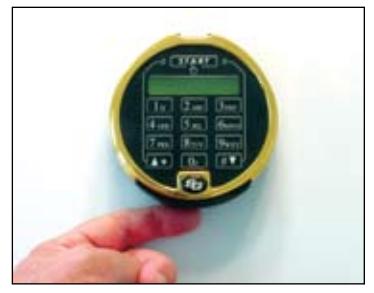
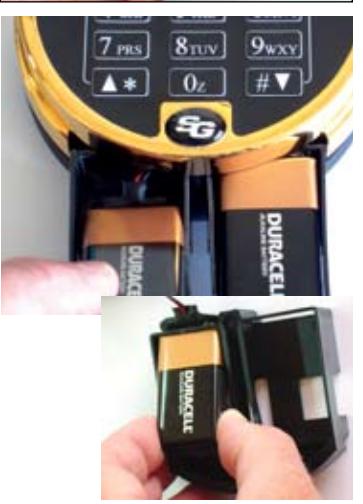
Underneath the bottom of the keypad, you'll find a raised ridge. Place your finger behind it, pull slightly forward and down to open the battery compartment.
Snap the connectors onto a pair of fresh Duracell® brand (for best performance) alkaline batteries. The batteries must be alkaline. Orient the batteries in the tray with the connector wires facing up.
The smaller photo shows proper positioning of the battery cable clip under the cross bar of the battery drawer. The drawer will slide into the keypad much easier if you position the battery cable clip as shown. For clarity, the photo shows the drawer removed from the keypad. However, it is not removable once the keypad is installed on its base.
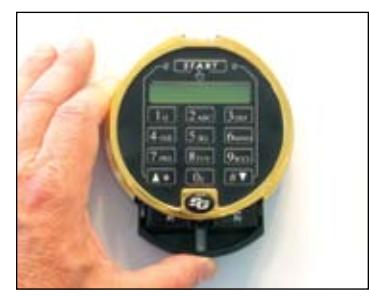
Once the batteries are in place, push the tray back up into the keypad until it snaps into place.
➥ Turning the LCD Backlight On and Off
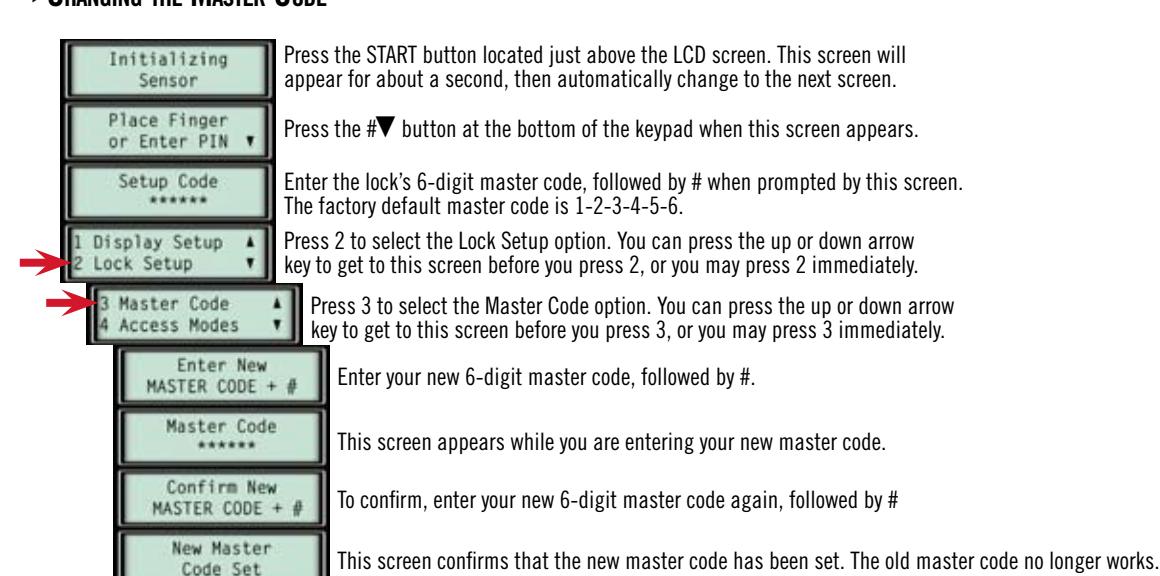
Press the START button located just above the LCD screen. This screen will appear for about a second, then automatically change to the next screen.
Press the #▼ button at the bottom of the keypad when this screen appears.
Enter the lock's 6-digit master code, followed by # when prompted by this screen. The factory default master code is 1-2-3-4-5-6.
Press 1 to select the Display Setup option. You can press the up or down arrow key to get to this screen before you press 1, or you may press 1 immediately.
Press 2 to select the LCD Backlight option. You can press the up or down arrow key to get to this screen before you press 2, or you may press 2 immediately.
Press 1 to select the Enable option. This turns on the LCD backlight whenever the lock is in use.
To turn the backlight off, you would press 2.
Don't press any more buttons until the display goes blank.
Document 630-729 Revised 12/1/05 Copyright ©2005, Sargent & Greenleaf, Inc. A Wholly Owned Subsidiary of Stanley Security Solutions, Inc. www.sargentandgreenleaf.com
➥ Changing the Master Code
Don't press any more buttons until the display goes blank.
➥ Enrolling and Deleting the First Fingerprint
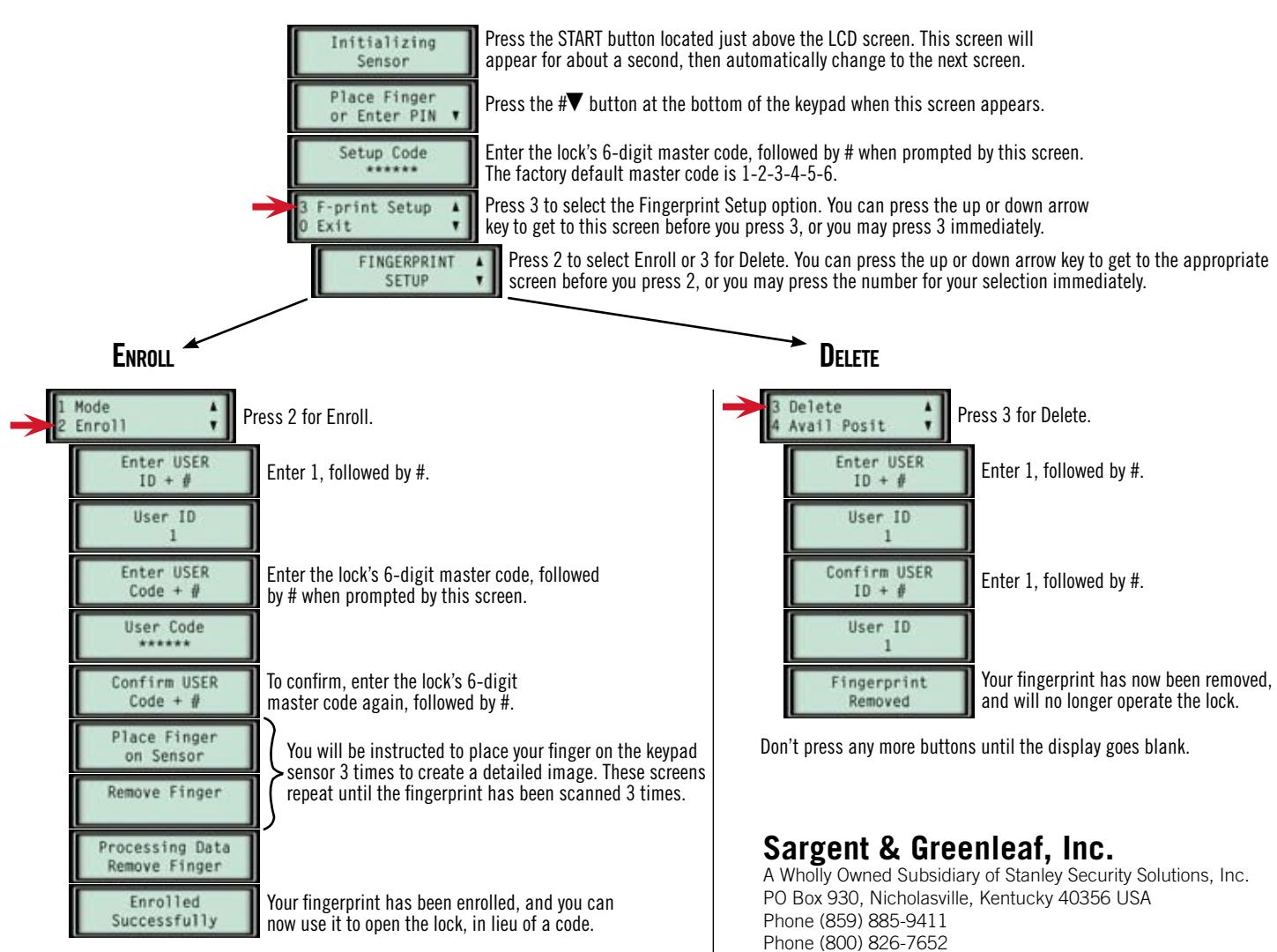
Don't press any more buttons until the display goes blank.
Phone (800) 826-7652 FAX (859) 887-2057 FAX (800) 634-4843
www.sargentandgreenleaf.com