ROFU BC-5900B Bluetooth Access Control Proximity Reader Instructions
Open the original PDF document
View PDF

ROFU BC-5900B Bluetooth Access Control Proximity Reader Instructions
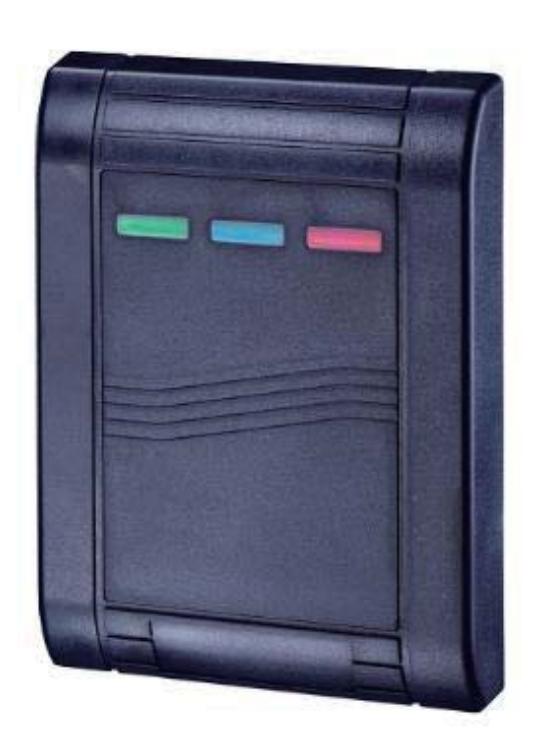
Features:
- Applicable card mode: EM Card / Key Fob •
- 1 Administrator and 200 Users •
- 200 Proximity Cards / Key fobs •
- Access Modes:Use Bluetooth smartphone or Card / Key fob to access •
- Built-in Tamper alarm and Buzzer (85dB) •
- User Management:Add / Delete / View user data, Grant user access for specific dates or time periods, Change user passcode •
- Audit Trail logs for last 1000 events •
- Alarm output to notify that Tamper alarm has been triggered •
- Overhead LEDs for easy use in the dark •
Specifications:
Operating Voltage:12 to 24 VDC •
Bluetooth Module:BLE 4.2 Bluetooth Low Energy •
Current Draw: •
Standby current:
36mA@12VDC, 10mA@24VDC Working current (Relay active): 42mA@12VDC, 17mA@24VDC
Read Range:5cm •
Frequency:EM 125KHz •
Operating Distance:Up to 50 meters (164 ft) without blocking by metal or concrete wall / door frames •
Smartphone Compatibility:Android 5.0 and up, iOS 9.0 and up •
Finish:ABS •
Temperature:-20 °C ~ 70 °C (-4 °F ~158 °F) •
Dimension / Color: •
Easiprox+:114 (L) x 80 (W) x 18 (D) mm / Navy Blue Easiprox+ Slim:88 (L) x 44 (W) x 23 (D) mm / Black
BC-5900B Pre-Installation
Please check Parts List :
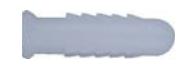

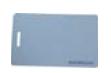
Anchor bolts x4 Crimp connectors x12 Key fob x1 Cards x2

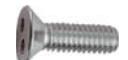
Security Screw (Spanner flat head screw) x1 4x13mm
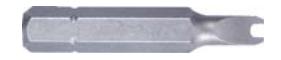
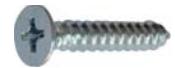
Spanner screw driver x1 Flat head phillips screws, Cone point 4x25mm x4
LED & Audible Indicators
| LED | Status |
|---|---|
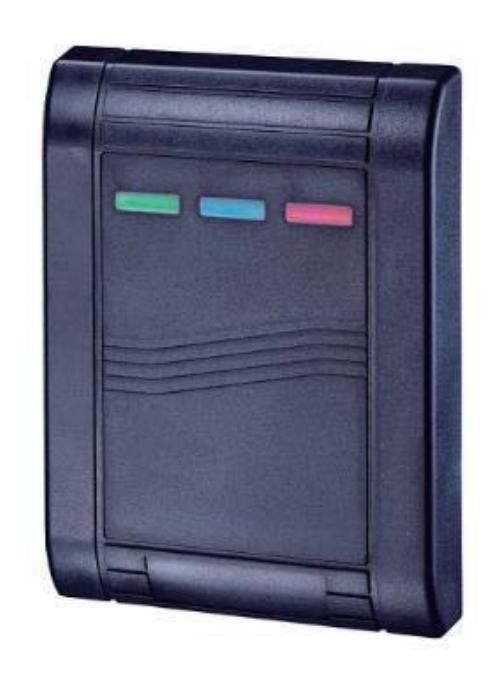
| Blue | Power on, Standby mode |
| Green | Unlocked, Door always unlocked |
| Red | Invalid access, Door always locked |
| Audible Beeps | Status |
|---|---|
| 1 Long beep | Valid access, Reset is completed |
| 2 Short beeps | Login completed |
| 3 Short beeps | Invalid access |
| Constant beeping |
Bluetooth device vandalized,
Door sensor is on |
BC-5900B Wiring Diagram
(BC-5900B have same wiring and pin setting)
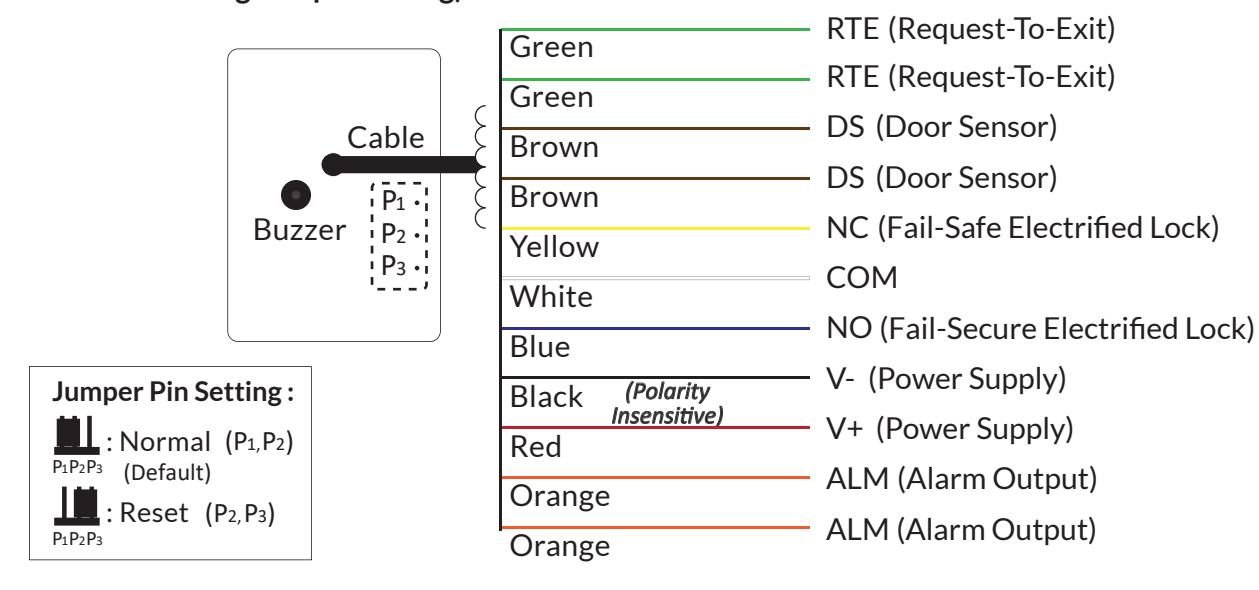
Reset Procedures
- 1. Power off Access Control Reader.
- 2. Move the Pin Jumper to P2 and P3, then power on.
- 3. Hear a long beep to complete resetting procedures.
- 4. Move the Pin Jumper back to P1 and P2 to Normal setting.
- 5. Login as Admin and check all users, audit trail events are all cleared and everything is reset to factory default setting, except device name.
Crimp connectors Crimp connectors included:
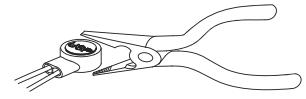

Use a pair of crimping pliers designed to crimp insulated connectors. Place the crimp connector into the compression slot. Be sure the crimping jaws are positioned over the stripped portion of the wire. Squeeze the handles together with enough force to crush the end of the butt splice.
BC-5900B Reader Installation:
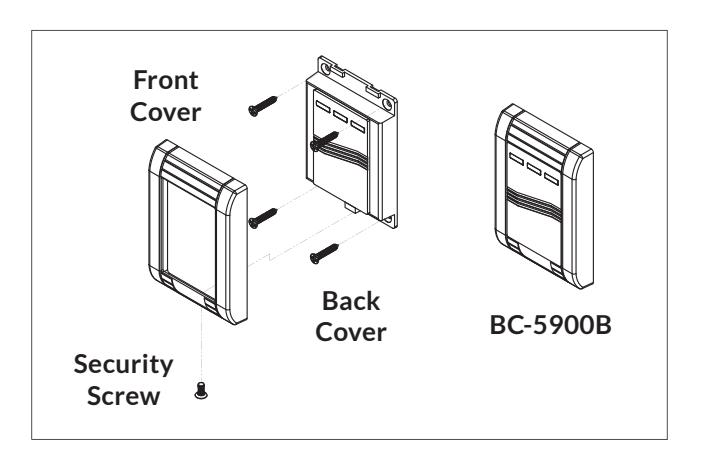
- 1. Check and measure dimensions.
- 2. Connect the wires and mount the back cover by using 4pcs of anchor screws into the wall.
- 3. Install the front cover then install the bottom security screw. Finish installation.
BC-5900B Operation Instructions
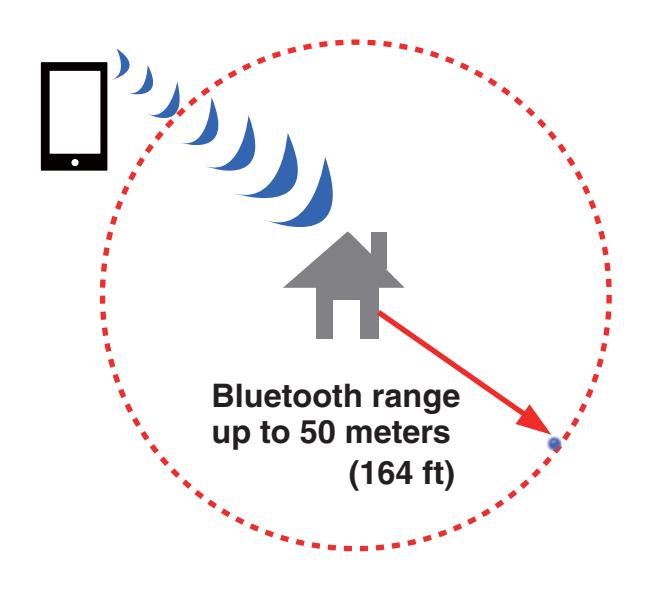
ROFU BC-5000B Bluetooth and card/fob reader can be accessed either to unlocked or logged in with your Smartphone when the devices are within 50 meters (164 ft) distance. The response time of Bluetooth signal may vary depending on mobile device.
(a) Download BC-5900B APP
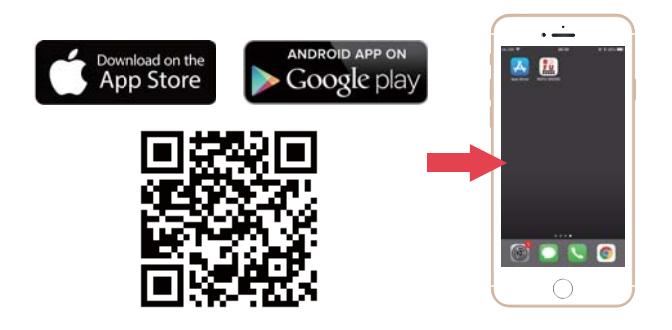
Download the BC-5900B APP to set up. Scan QR code on the left or go to Apple Store or Google Play depending on what kind of smartphone you use.
(b) BC-5900B App for Administrator and Users
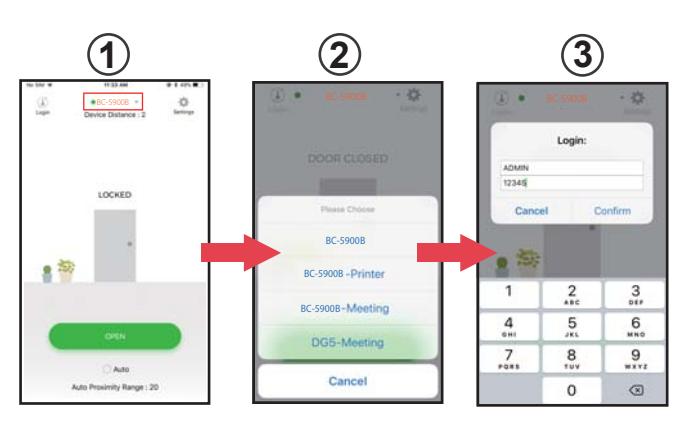
Press 1 to go to Devices page. Select the designated Bluetooth device as shown on 2.
Login first (3)
- •Administrator : Enter Admin ID and Admin Passcode to login.
- Default Admin ID: ADMIN
- Default Admin Passcode: 12345
- •User : Enter User ID and User Passcode to login.
- User ID and User Passcode are given by the Administrator.
[Note]
1. Administrator ID"ADMIN" can not be changed. We recommend changing Admin's default passcode "12345" right after you login as the Admin. Go to settings page, tap Admin Passcode to edit Admin Passcode.
(c) Administrator Settings Page
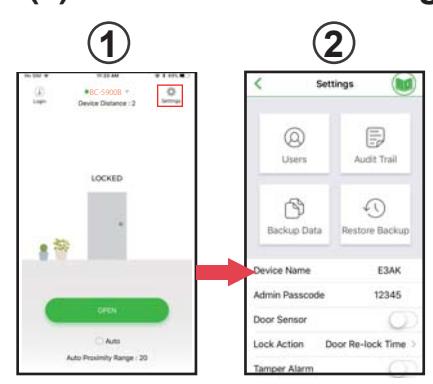
Press Settings 10 to go to "Settings" page as shown 2
Click to select the device name and press the OPEN button or the door icon to unlock"
(d) Administrator Settings Page Users Management Add / Delete / Edit User Information
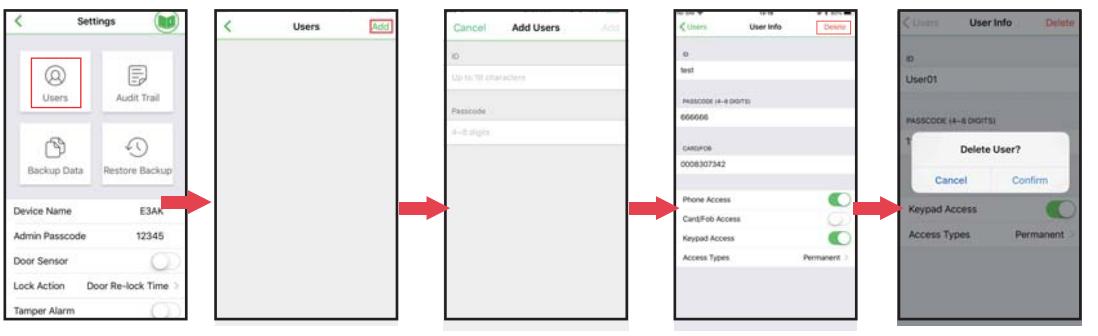
Press "Users" to edit individual user's information. You can add a user, delete a user, and select individual user to adjust an specific setting.
Note: Access type is set to permanent by default.
Administrator Settings Page Introductions:
Users
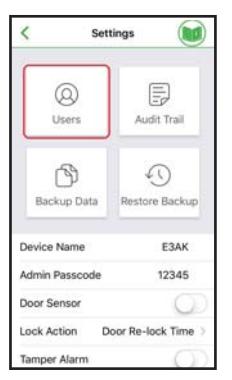
You can Add / Delete / Edit user information
Audit Trail
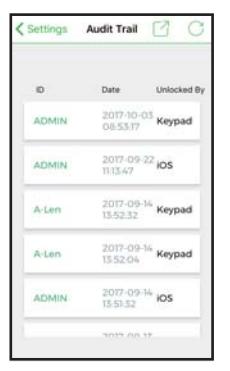
Audit Trail is tracking last 1000 event logs, including Tamper Alarm. Audit Trail can be exported in an excel file.
Tap to export all events to excel file tap to refresh all events.
Backup Data
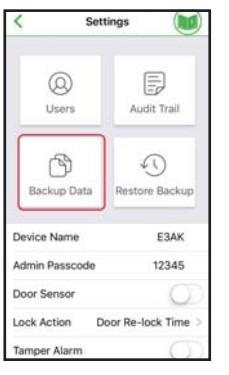
Backup Data is to backup all data to Administrator's phone and can be restored except Device Name, Audit Trail logs and Device Time.
Restore Backup
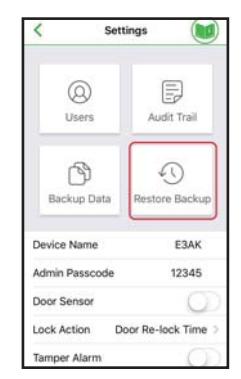
You can restore the last backup data to a new Access Control Reader.
Device Name
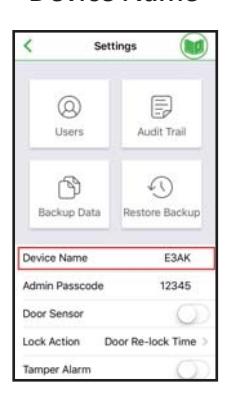
Device name can be edited as a model number, Office, Front door, Gate, etc.
Admin Passcode
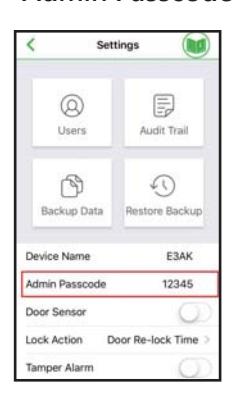
12345 is Admin default passcode. It's important to change your Admin passcode immediately.
Door Sensor
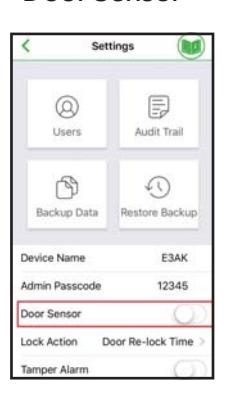
You can enable Door Sensor when you connect to a closed-circuit magnetic sensors or a monitored door lock that has door sensor (or lock sensor) outputs to monitor the open or closed state of a door.
Lock Action
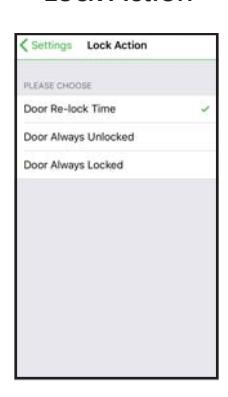
3 options. You can choose Door Re-lock Time, Door Always Unlocked and Door Always Locked.
Tamper Alarm
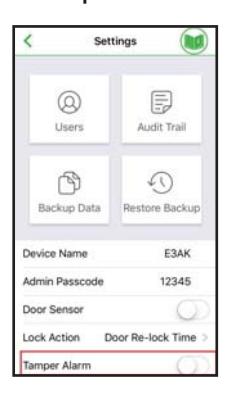
You can activate Tamper Alarm. If the device is vandalized, the tamper alarm will howl immediately and won't go off until it's switched off by Administrator.
Tamper Alarm is deactivated by default.
Door Re-lock Time
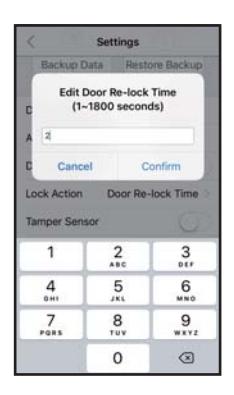
You can set the door re-lock time interval between 1 to 1800 seconds.
Device Time / Firmware Version
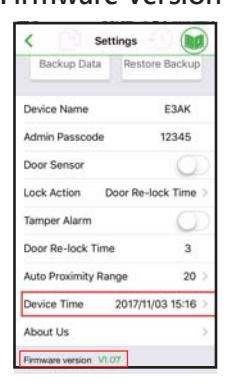
Make sure to set up Device Time precisely as your current time zone of where you are. It helps having correct and precise access data and information.
See firmware version of Bluetooth access and control reader.
About Us
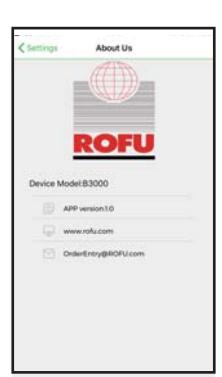
Tap " About Us" to show Device Model, APP version, website and E-Mail information.
Administrator Settings Pages – Users Management Edit User Information

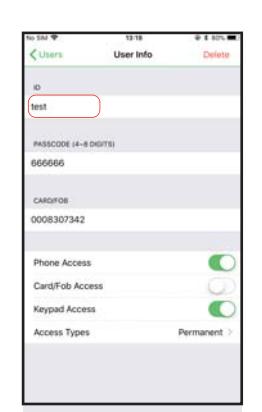
Tap user " ID" to Edit ID (up to 16 character).
ID PASSCODE
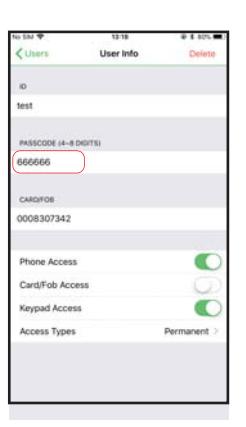
Tap user "PASSCODE" to Edit PASSCODE (4 to 8 digits).
CARD/FOB
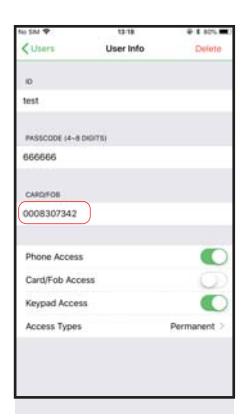
Tap user "CARDFOB" to enter assigned 10 digit code printed in card/fob.
Card/Fob Access
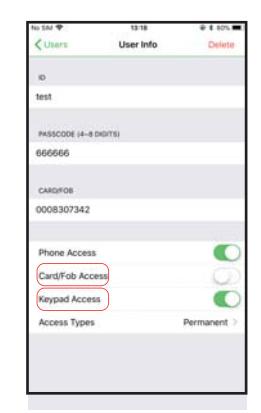
Card/Fob access can be enabled/disabled for each user Note: Keypad option not included in this model.
Access Types
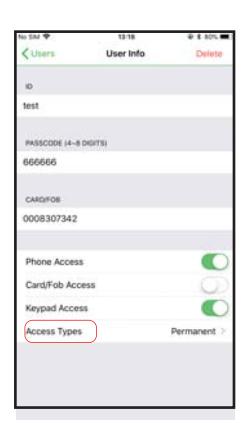

Temporary
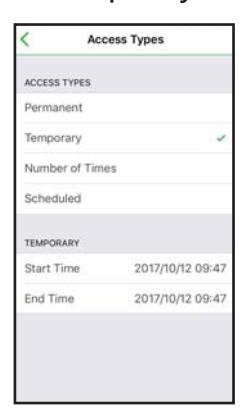
Tap " Temporary" to set specific access time periods.
Number of Times Scheduled
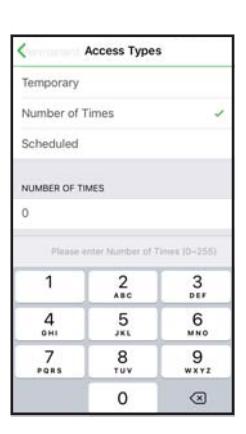
Tap "Number of Times" to set number of access granted to user.
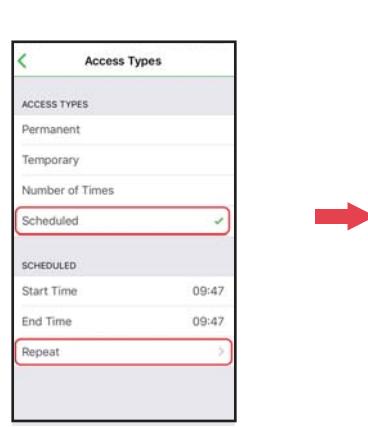
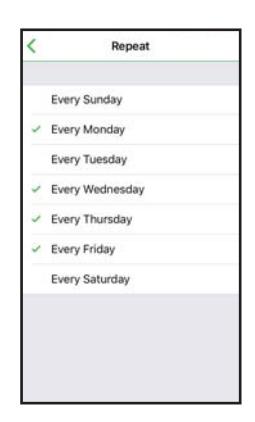
Tap "Scheduled" to assign repeatedly access on specific days and hours for a certain period of time. This setting is useful when temporary access on a regular basis is needed.
Auto Proximity Range Adjustment and Auto unlock Function Administrator Interface:
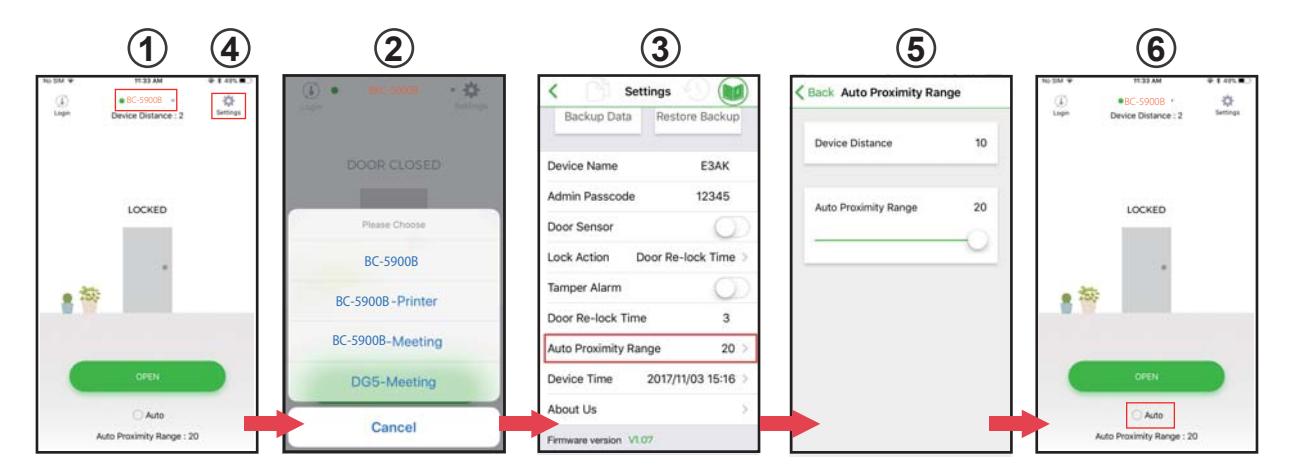
figure ① Tap ① to go to Device list page as ② .
figure ② Select the desired Bluetooth Access Control Keypads/Readers around you.
Tap ④ Settings button to go into Settings page as figure ③ to select "Proximity Read Range"
figure ⑤ Adjust "Auto Proximity Range" for Auto unlock function between 0 to 20.
figure ⑥ Back to the main page. Tap "Auto"to enable Auto unlock function to access.
Auto Proximity Range Adjustment and Auto unlock Function User Interface:
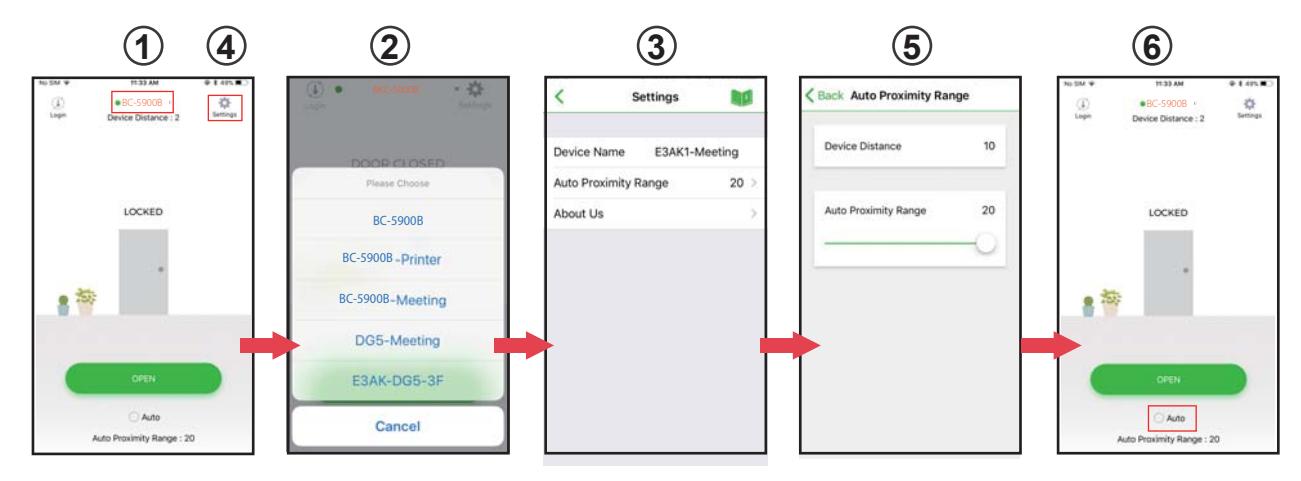
figure ① Tap ① to go to Device list page as ②.
figure ② Select the desired Bluetooth Access Control Keypads/Readers around you.
Tap ④ Settings button to go into Settings page as figure ③ to select "Proximity Read Range"
figure ⑤ Adjust "Auto Proximity Range" for Auto unlock function between 0 to 20.
figure ⑥ Back to the main page. Tap "Auto"to enable Auto unlock function to access.
Note:
Make sure to disable Auto before pressing to enter Settings page.
Auto proximity range indicates approximate distance between mobile app and Bluetooth keypad/reader. Scale is arbitrary.