Pulse Pro Audit Software Instructions
Open the original PDF document
View PDFPulse PRO
Audit software
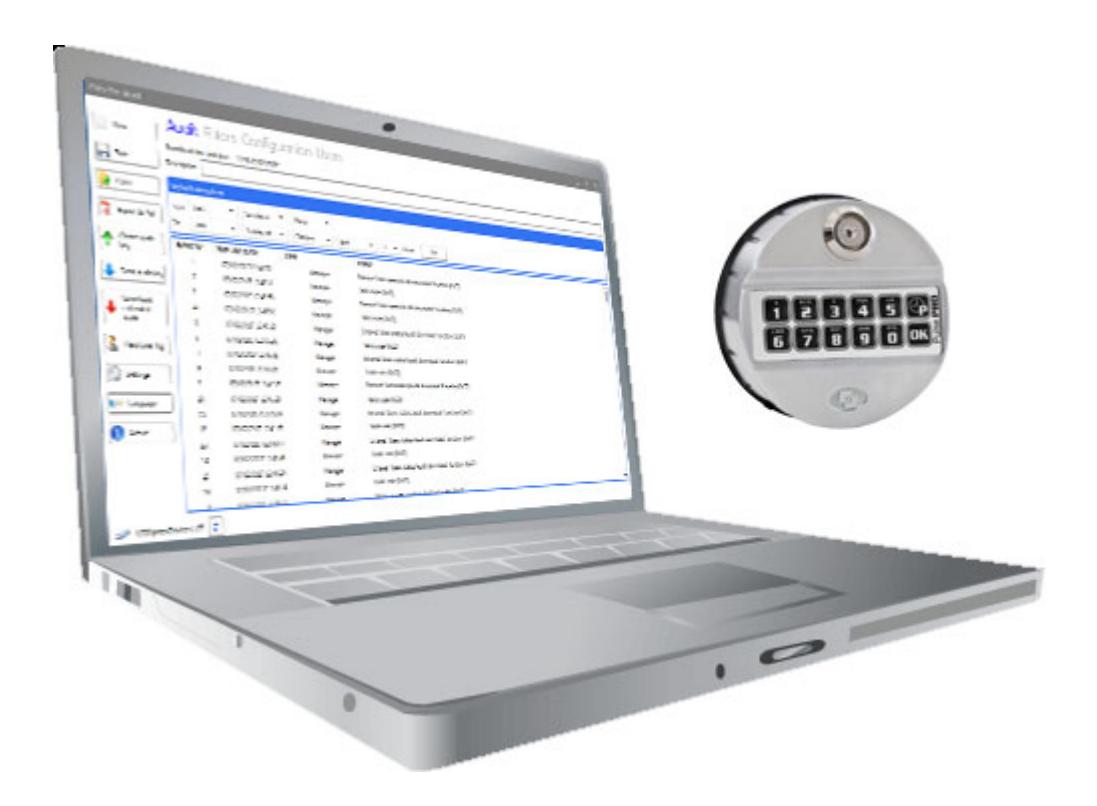
USER INSTRUCTIONS


Contents
| Pulse PRO Audit software installation and take audit instructions | 3 |
|---|---|
| Download and install the USB driver | 3 |
|
Download, install and use the Pulse PRO Audit software
|
3 |
| Keypads with Dallas key reader | 4 |
|
Download the audit to a Dallas key for audit (max 1.200 events)
|
4 |
|
Download the audit to a PC (all available events)
|
5 |
| Keypads without Dallas key reader | 6 |
|
Download the audit to a Dallas key for audit (max 1.200 events)
|
6 |
|
Download the audit to a PC (all available events)
|
7 |

Pulse PRO Audit software installation and take audit instructions
Download and install the USB driver
- 1. Access to the "download" page in the Tecnosicurezza website and download the USB driver (usb_driver_x.zip) in the section "Software" of the Pulse PRO lock.
- 2. The zipped file will download to either the Downloads folder or another location depending on the browser.
- 3. Once the file has downloaded, it must be unpacked or unzipped. Locate then right click the file and select "Extract all…".
- 4. If the driver has been provided on CD or USB flash drive, copy the file to your computer and unpack it.
- 5. Once the file has been extracted, locate the application "USBXpressInstaller".
- 6. Double click the application, allow the file to run if prompted, and wait for the driver to finish installing.
Download, install and use the Pulse PRO Audit software
- 1. Access to the "download" page in the Tecnosicurezza website and download the installation file of the Pulse PRO Audit software (pulseproaudit_x-x-x.zip) in the section "Software" of the Pulse PRO lock.
- 2. The zipped file will download to either the Downloads folder or another location depending on the browser.
- 3. Once the file has downloaded, it must be unpacked or unzipped. Locate then right click the file and select "Extract all…".
- 4. If the software has been provided on CD or USB flash drive, copy the file to your computer and unpack it.
- 5. Once the file has been extracted, locate the application "PulseProAudit_x.x.x".
- 6. Double click the application, allow the file to run if prompted, and wait for the driver to finish installing.

Keypads with Dallas key reader
Download the audit to a Dallas key for audit (max 1.200 events)
| Equipment: |
Pulse PRO keypad with
Dallas key reader |
Magnetic Dallas key
for audit and setup |
Dallas keys reader
with molex connector. |
USB
interface |
|
|---|---|---|---|---|---|
| Reference | T6630/DL | N1996RM | N42170/D | N42180/T | |
How to configure an audit Dallas key through Pulse PRO Audit software:
- 1. Launch the Pulse PRO Audit software.
- 2. Connect the USB interface to a USB port of the PC.
- 3. Connect the Dallas keys reader with molex connector to the USB interface.
- 4. Click on the "Create audit key" icon.
- 5. Connect the Dallas key on the reader and follow the software instructions.
- 1. Press and hold key "7" until a double beep. Led remains ON.
- 2. Enter a Manager or a Master code. Double beep.
- 3. Press key "OK". Led flashing.
- 4. Connect the magnetic Dallas key for audit to the keypad Dallas key reader. Double beep.
- 5. When download in progress a single beep every 3 seconds is heard.
- 6. When download is finished a double beep is heard.
- 7. When the Dallas key is removed from the reader, a double beep is heard as a confirm of the operation successfully completed.
- 8. Launch the Pulse PRO Audit software.
- 9. Connect the USB interface to a USB port of the PC.
- 10.Connect the Dallas keys reader with molex connector to the USB interface.
- 11.Click on the "Read audit key" icon.
- 12.Connect the Dallas key on the reader and follow the software instructions.

Download the audit to a PC (all available events)
| Equipment: |
Pulse PRO keypad with
Dallas key reader |
Magnetic Dallas
key connection cable |
USB
interface |
|
|---|---|---|---|---|
| Reference | T6630/DL | N42170/M | N42180/T | |
- 1. Start the Pulse PRO Audit software.
- 2. Connect the USB interface to a USB port of the PC.
- 3. Connect the magnetic Dallas key connection cable to the USB interface.
- 4. Press and hold key "7" until a double beep. Led remains ON.
- 5. Enter a Manager or a Master code. Double beep.
- 6. Press key "P". Led flashing.
- 7. Connect magnetic Dallas key connection cable to the keypad Dallas key reader.
- 8. Click on the "Download extended audit" icon.
- 9. Choose the number of events you want to download and click on the icon "Download".
- 10.When download is finished led goes off and a single beep is heard.

Keypads without Dallas key reader
Download the audit to a Dallas key for audit (max 1.200 events)
| Equipment: |
Pulse PRO keypad
without Dallas key reader |
Magnetic
Dallas key for audit and setup |
Cabling
interface |
Dallas keys
reader with molex connector. |
USB
interface |
|---|---|---|---|---|---|
| Reference: | T6630 | N1996RM | T20016/T | N42170/D | N42180/T |
Connections:
- 1. Disconnect the cable linking the keypad to the lock and connect it to one of the two input of the cabling interface.
- 2. Connect the Dallas keys reader with molex connector to the other input of the cabling interface.
- 3. Connect the cabling interface output to the ENT port of the lock.
How to configure an audit Dallas key through Pulse PRO Audit software:
- 1. Launch the Pulse PRO Audit software.
- 2. Connect the USB interface to a USB port of the PC.
- 3. Connect the Dallas keys reader with molex connector to the USB interface.
- 4. Click on the "Create audit key" icon.
- 5. Connect the Dallas key on the reader and follow the software instructions.
- 1. Press and hold key "7" until a double beep. Led remains ON.
- 2. Enter a Manager or a Master code. Double beep.
- 3. Press key "OK". Led flashing.
- 4. Connect the magnetic Dallas key for audit to the Dallas keys reader with molex connector. Double beep.
- 5. When download in progress a single beep every 3 seconds is heard.
- 6. When download is finished a double beep is heard.
- 7. When the Dallas key is removed from the reader, a double beep is heard as a confirm of the operation successfully completed.
- 8. Launch the Pulse PRO Audit software.
- 9. Connect the USB interface to a USB port of the PC.
- 10.Connect the Dallas keys reader with molex connector to the USB interface.
- 11.Click on the "Read audit key" icon.
- 12.Connect the Dallas key on the reader and follow the software instructions.

Download the audit to a PC (all available events)
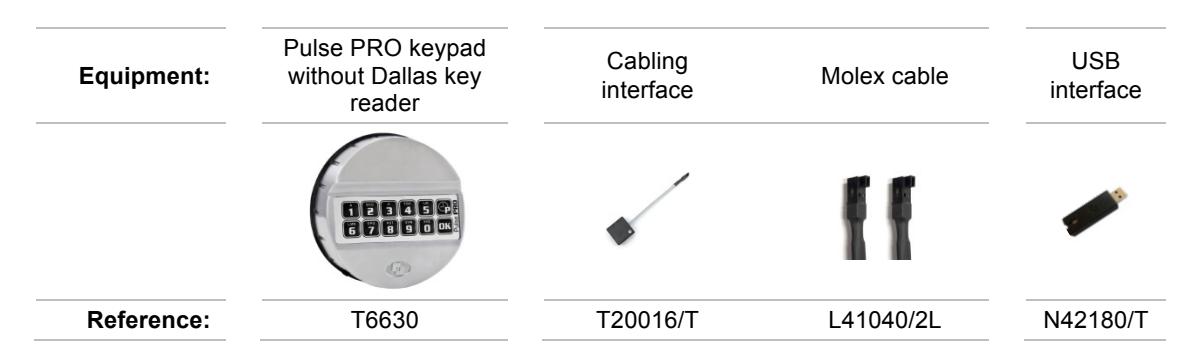
Connections:
- 1. Disconnect the cable linking the keypad to the lock and connect it to one of the two input of the cabling interface.
- 2. Connect the molex cable to the other input of the cabling interface and to the USB interface.
- 3. Connect the cabling interface output to the ENT port of the lock.
- 1. Start the Pulse PRO Audit software.
- 2. Connect the USB interface to a USB port of the PC.
- 3. Press and hold key "7" until a double beep. Led remains ON.
- 4. Enter a Manager or a Master code. Double beep.
- 5. Press key "P". Led flashing.
- 6. Click on the "Download extended audit" icon.
- 7. Choose the number of events you want to download and click on the icon "Download".
- 8. When download is finished led goes off and a single beep is heard.
Before operating the lock, please read this manual thoroughly, and retain it for future reference.
Correct disposal of this product: (Waste Electrical & Electronic Equipment)
Applicable in the European Union and other European countries with separate collection systems.
This marking displayed on the product or its literature indicates that it should not be disposed with other wastes at the end of its working life. To prevent possible harm to the environment or human health from uncontrolled waste disposal, please separate this from other types of wastes and recycle it responsibly to promote the sustainable reuse of material resources.


Certified ISO 9001 : 2008
TECNOSICUREZZA s.r.l.
Via Cesare Battisti, 276 – 37057 S. Giovanni Lupatoto (VR) – Italy Tel. +39 045 826 64 70 - Fax +39 045 826 64 69
mail: info@tecnosicurezza.it - web: www.tecnosicurezza.it