Proximity Card Enrollment Station Installation Instructions
Open the original PDF document
View PDFProximity Card Enrollment Station Installation Instructions

Catalog Number: ES-G1
Specifications/Requirements
Mechanical: Electrical:
Environmental: Software:
Temperature Tolerance: -20º to 130º F (or higher)
2.74" W x 4.6" L x 1.4" H Operating Voltage: 12VDC
Current Draw: 20mA
For indoor use only SofLink Plus version 5
PC:
Serial COM port (required)
Description
The Enrollment Station is used to enroll HID 125 kHz Wiegand format (up to 40 bit) proximity cards directly into the SofLink Plus PC software by presentation. This provides a convenient way to enroll cards whether you know the card format or not. The raw card data is read from the card and then stored in the SofLink Plus database.
Packing List
- 1 Enrollment Station
- 1 Installation Instructions
- 1 12VDC, 300mA Transformer
- 1 6-foot straight cord
- 1 DB-9 Serial Connector
1 DB-25 Serial Connector 15.21 Information to User
Any changes or modifications not expressly approved by the party responsible for compliance could void the user's authority to operate the equipment.
Connecting the Enrollment Station to a PC COM port:
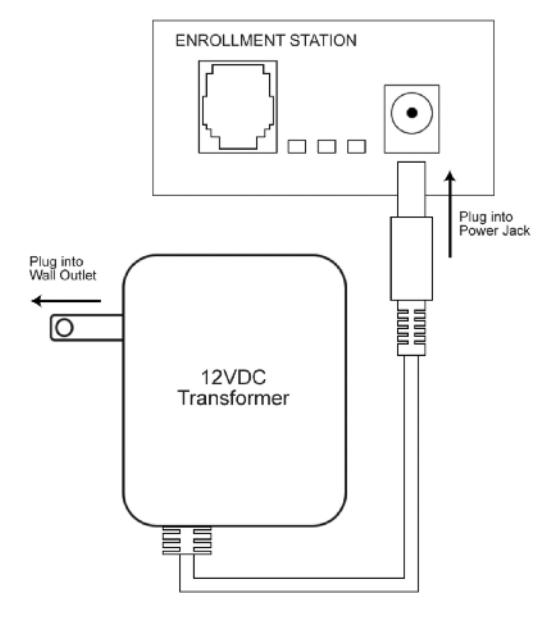
- Plug the connector from the transformer into the power jack on the Enrollment Station.
- Plug the transformer into a 120VAC wall outlet.
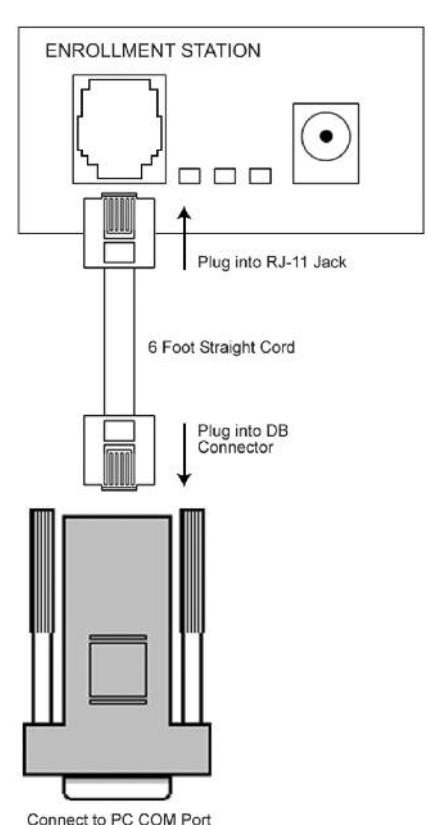
- Plug the 6-foot straight cord into the RJ-11 jack on the front.
- Plug the straight cord into the DB connector.
- Connect the DB connector to your COM port.
You can use either the DB-9 or DB-25 connector, depending on your COM port.
Operation
- Connect Enrollment Station to your PC
- Open SofLink Plus 5 software and go to the "Add User" screen
- Assign card data to the user
- Under Card Format, choose: "Enrollment Station"
- Click the "Get Card Data From Enrollment Station" button
- Enroll the card by presenting it over the labeled area on the top of the Enrollment Station
- "Enrollment Successful" displayed, the Enrollment Station responds with an audible beep and the Raw Data field in the software is populated with the card data.
- Click "Save" on User Screen
Perform these same steps for each user.
Please refer to the SofLink Plus documentation for further details regarding the software operation.
For installation assistance, contact SARGENT at 800-810-WIRE (9473)