ProAccess Space Software – ProAccess_Software_Reg_Guide
Open the original PDF document
View PDF

Software Registration
REFERENCE GUIDE


Minimum Hardware and Software Requirements For the SALTO Server
| Component | Requirement |
|---|---|
| RAM | 8 GB or higher for large installations |
| Processor | 2 GHz or higher for large installations |
| Display | 1024 x 768 high-colour 32-bit display |
| Hard Disk Space |
10 GB
This is the recommended required space to operate a database in a large organization |
| Operating System |
Windows 7 SP1, Windows 8, Windows
8.1, Windows 10, Windows Server 2008 R2 SP1, or Windows Server 2012R2 (32- bit and 64-bit) |
| MS SQL Server |
Versions 2005, 2008R2, 2012, 2014,
2016, or LocalDB (all editions, including MS-SQL Express). Note that if the SALTO database was originally created with MS SQL Server 2000 and later migrated to a higher version, you must ensure that the database is in compatibility level 90 (version 2005) or higher. |
| Machine Name Resolver | Domain Name System (DNS) |
| Domain Environment |
A shared network is required and the
domain or work group must be set up by the organization's IT administrator. This is strongly recommended as it simplifies security and permission issues. |
| .NET Framework |
Version 4.6.2 (included within the
ProAccess SPACE installer) |
Minimum Hardware and Software Requirements
For ProAccess SPACE
| Component | Requirement |
|---|---|
| RAM | 1GB |
| Processor | 1.6 GHz or higher (x 86 or x 64) |
| Operating System |
Microsoft Windows 10, Windows 8.1,
Windows 7 SP1, Server 2012 R2 (32-bit and 64-bit) |
| .NET Framework |
Version 4.6.2 (included within the
ProAccess SPACE installer) |
| Plugin | Silverlight 5 |
| Web Browser |
Microsoft Internet Explorer (11 or higher)
Due to its compatibility with Silverlight, Microsoft Internet Explorer is the only browser recommended for use with ProAccess SPACE. |
Installation Instructions
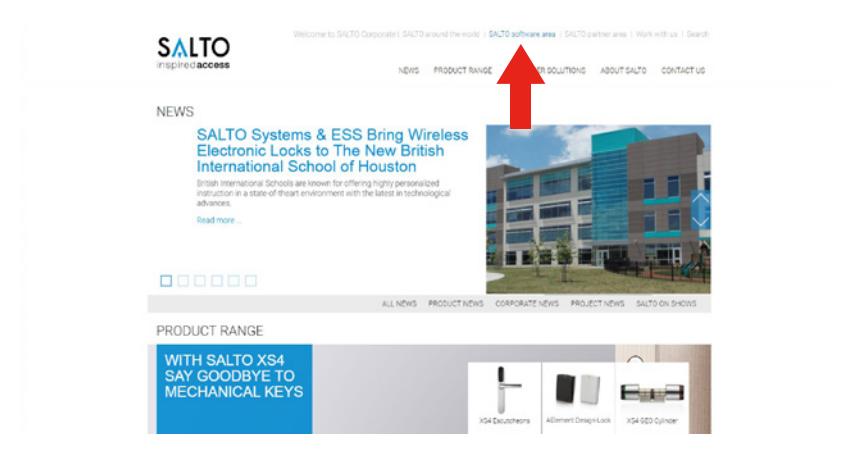
STEP 1: Visit www.SaltoSystems.com and click on SALTO Software Area at the top of the page.
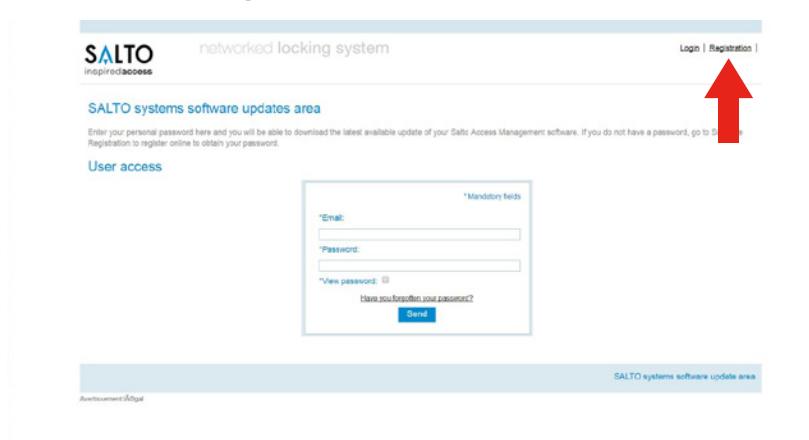
STEP 2: Click on Registration and register the software.

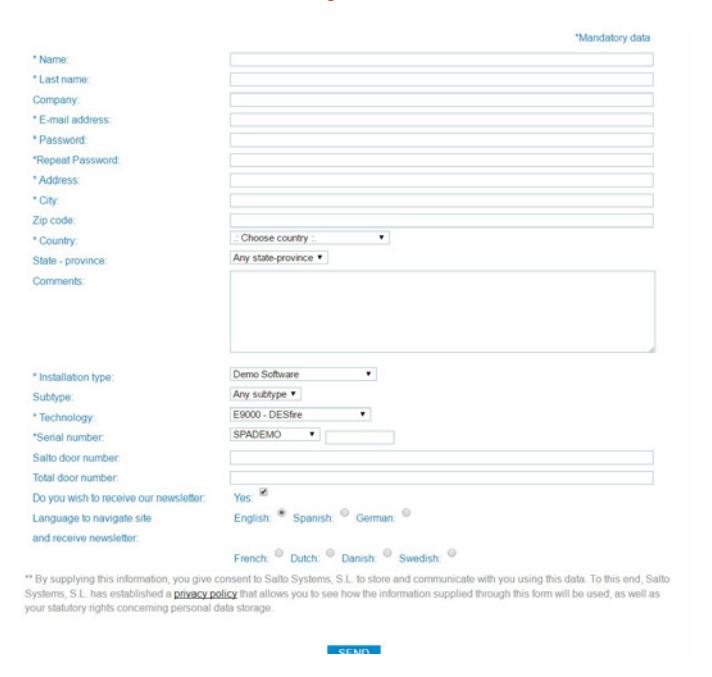
STEP 3: Input the following:
- Technology=E9000 DESfire
- Installation type=SPADEMO followed by the serial number
NOTE: User name and password are case sensitive!
STEP 4: Click send .
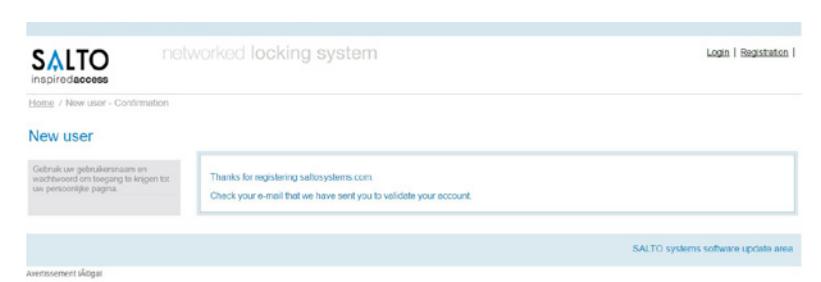
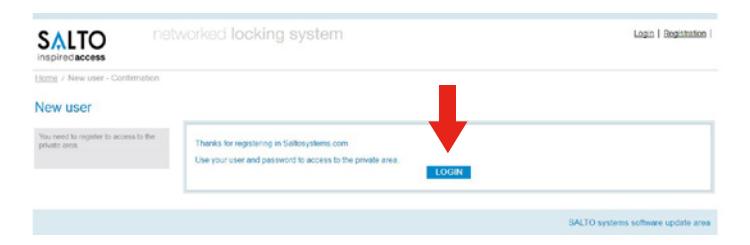
STEP 5: Finish registration by clicking the link in your email. You will be taken to the following page. When there, click login .
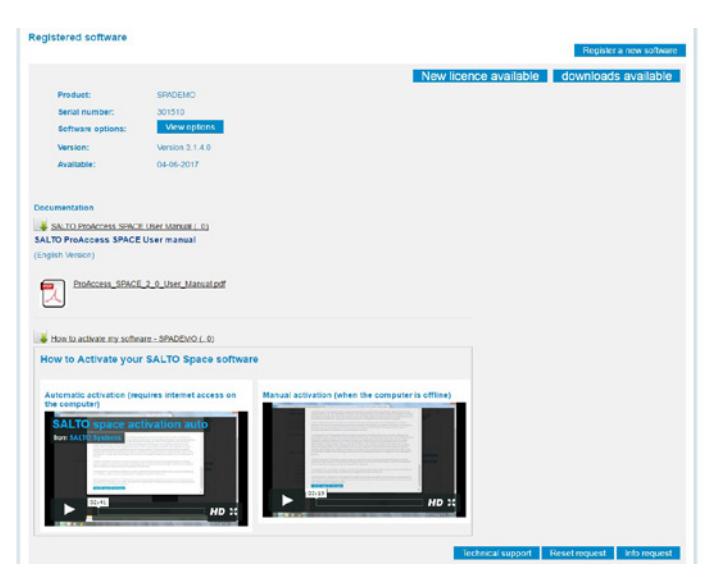
STEP 6: In the software area, scroll down to the software associated with the account. Here you will find the resources to download the software , the user manual for ProAccess SPACE , and videos on how to complete the installation of the demo software .


©2017 Hager Companies.All rights reserved.
www.hageraccesscontrol.com