Norton Rixson 5200 Low Energy Operator Programming Instructions_80-9352-0022-020
Open the original PDF document
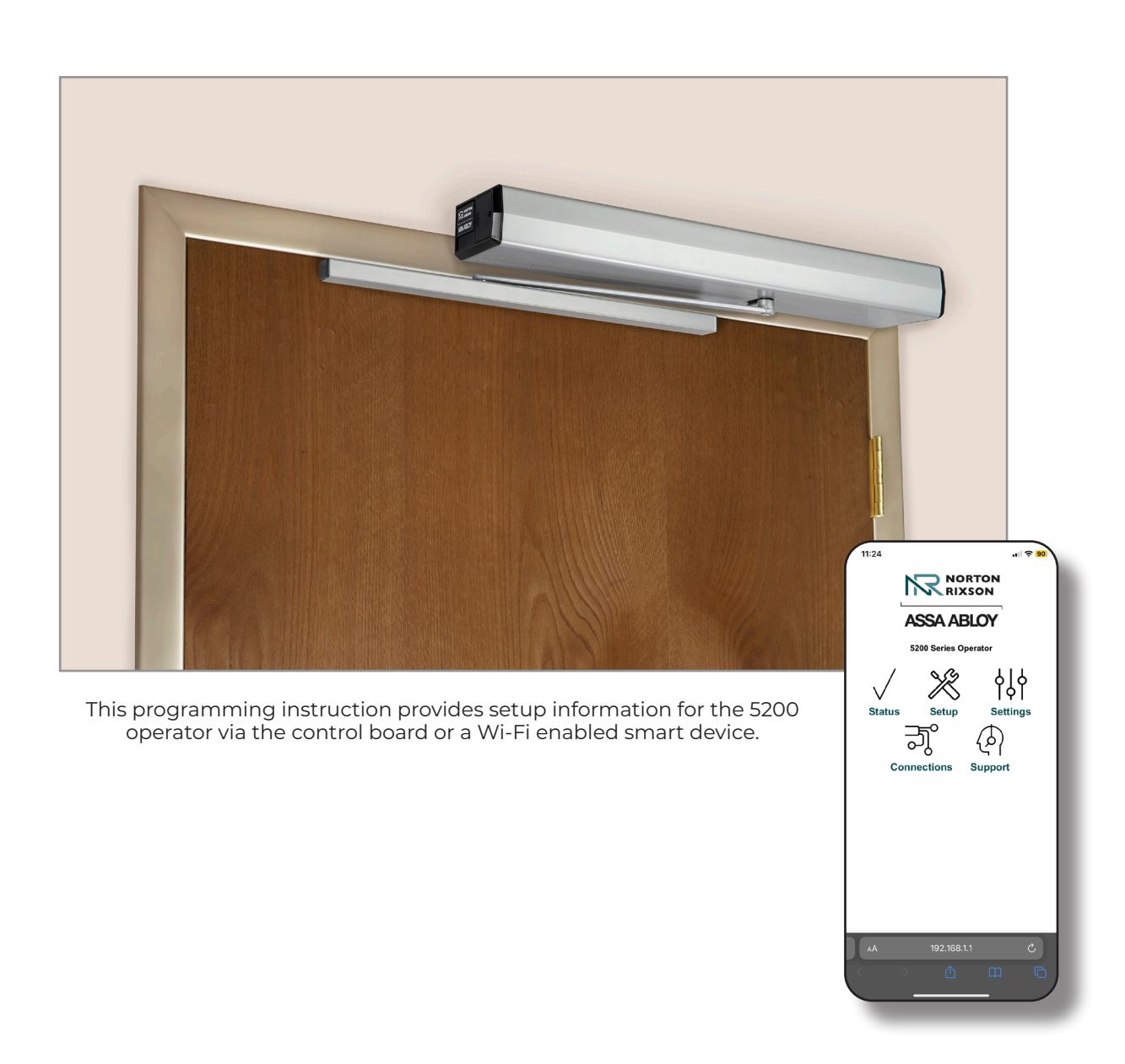
View PDF5200 Series Full Feature Low Energy Operator
Programming Instructions Onboard or Wi-Fi Smart Device



WARNING
This product can expose you to lead which is known to the state of California to cause cancer and birth defects or other reproductive harm. For more information go to www.P65warnings.ca.gov.
Pour la version francaise voir www.nortonrixson.com. READ AND FOLLOW ALL INSTRUCTIONS. SAVE THESE INSTRUCTIONS.

Contents
| Initial Operator Setup 3 | |
|---|---|
|
Operator Setup via the Control Board
|
4 |
| Operator Setup via Wi-Fi | 6 |
| Connections | 10 |
| Input Connections11 | |
| Output Connections . | 11 |
| Troubleshooting and Support . | 12 |
| Support | 12 |
| Power LED Error Codes | 12 |
| Wiring Diagrams | 13 |
| Single-Use Restroom Wiring Diagram | |
|
Configuration Overview
|
13 |
| Single-Use Restroom Wiring Diagram (cont.) | |
| Example 1: 5200 Bathroom Kit . | 14 |
| Single-Use Restroom Wiring Diagram (cont.) | |
| Example 2: Mortise Lock | 15 |
|
Single-Use Restroom Wiring Diagram (cont.)
Example 3: Push/Pull |
16 |
| Wave to Open Wiring Diagram | 17 |
| Standard Activation Wiring Diagram . | 18 |
| 24VDC Fail Secure Electric Strike Wiring Diagram | 19 |
| RF Wiring Diagram | 20 |
FCC:
Class B Equipment
This equipment has been tested and found to comply with the limits for a Class B digital device, pursuant to Part 15 of the FCC Rules. These limits are designed to provide reasonable protection against harmful interference in a residential installation. This equipment generates, uses and can radiate radio frequency energy and, if not installed and used in accordance with the instructions, may cause harmful interference to radio communications. However, there is no guarantee that interference will not occur in a particular installation. If this equipment does cause harmful interference to radio or television reception, which can be determined by turning the equipment off and on, the use is encouraged to try to correct the interference by one or more of the following measures:
- Reorient or relocate the receiving antenna.
- Increase the separation between the equipment and receiver.
- Connect the equipment into an outlet on a circuit different from that to which the receiver is connected.
- Consult the dealer or an experienced radio/TV technician for help.
This device complies with Part 15 of the FCC Rules. Operation is subject to the following two conditions: (1) This device may not cause harmful interference, and (2) this device must accept any interference received, including interference that may cause undesired operation.
Warning:
Changes or modifications to this device may void the user's authority to operate the equipment.
Industry Canada:
This Class A digital apparatus meets all requirements of the Canadian Interference Causing Equipment Regulations.
Cet appareillage numérique de la classe A répond à toutes les exigences de l'interférence canadienne causant des règlements d'équipement.
Declaración de México:
La operación de este equipo está sujeta a las siguientes dos condiciones: (1) es posible que este equipo o dispositivo no cause interferencia perjudicial y (2) este equipo o dispositivo debe aceptar cualquier interferencia, incluyendo la que pueda causar su operación no deseada.

For direct power connections (without AC Power Plug bracket installed):
- 1. With the building power feed turned off , route 120VAC wiring through the conduit hole in backplate. (Figure 1)
-
2. Connect 120VAC power to the power supply (Figure 1):
- ‒ HOT to "L"
- ‒ NEUTRAL to"N"
- ‒ GROUND to Ground.
- 3. Wire any additional devices, such as electric strikes, to the green Input and Relay terminal block connections. (Figure 3) Refer to Input Connections and Output Connections on page 11 for additional information.
With Optional AC Power Plug bracket installed:
- 1. Plug the female end of the provided AC Power cord into the plug of the AC Power Bracket. (Figure 2). Do not plug the male end of the cable into a power source at this time.
- 2. Wire any additional devices, such as electric strikes, to the green Input and Relay terminal block connections (Figure 3). Refer to Input Connections and Output Connections on page 11 for additional information.
Once initial power has been wired:
- 1. Turn on the building's power feed, or if using the AC Power Plug bracket, plug in the male end of the power cable into a power source.
-
2. Press and hold the Factory Reset button until all LEDs are lit, then release. (Refer to Figure 3 for LED and Setup Button location.)
-
‒ The POWER LED on the control board will be illuminated solid red.
- NOTE : If red POWER LED is flashing, refer to the Error Codes chart on page 12 or contact Technical Product Support.
- ‒ The STATUS LED on the control board will flash white every 2 seconds.
- ‒ The CLOSE button LED (located in the bank of Setup Buttons) will flash orange steadily.
-
‒ The POWER LED on the control board will be illuminated solid red.
- 3. Confirm the ON/OFF/HO switch is in the ON position. (Figure 4)
- 4. Program the operator using one of the following two methods:
"Operator Setup via the Control Board" on page 4
"Operator Setup via Wi-Fi" on page 6
NOTE: Basic setup and programming can be performed using either programming method. Additional programming options are available through Wi-Fi programming only.
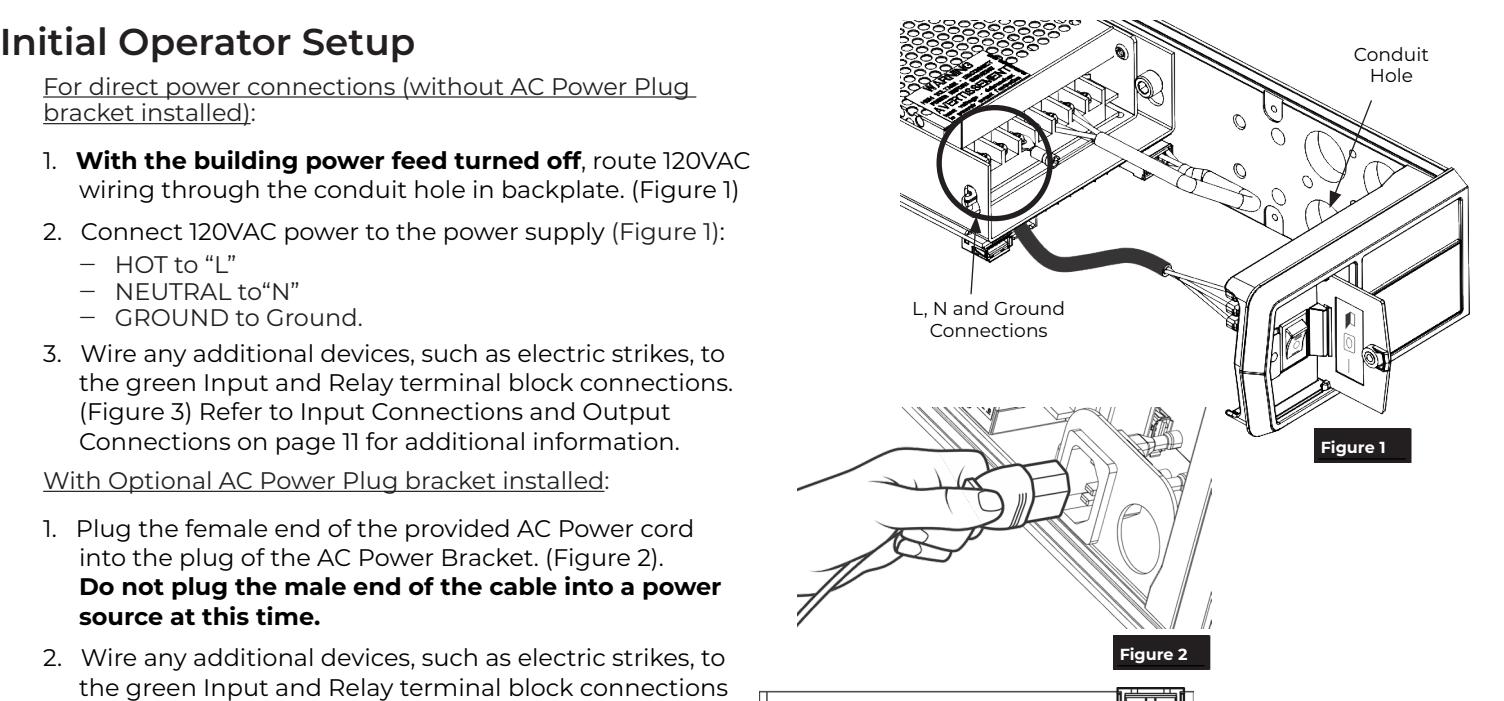
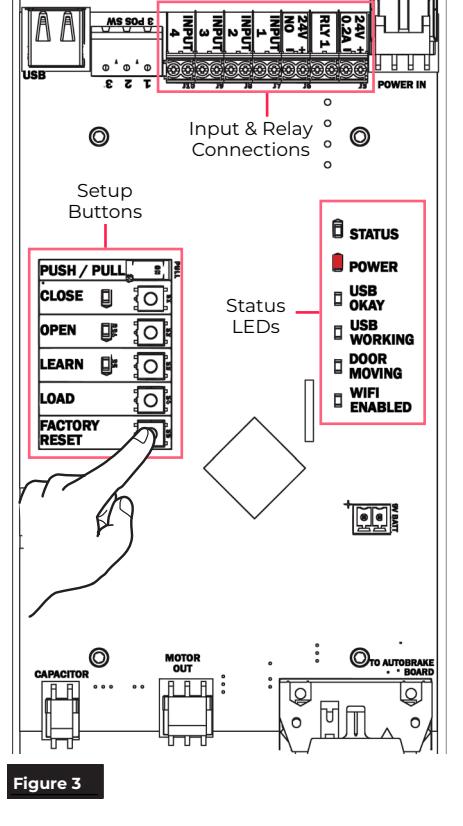

Figure 4
Shown in the ON Position
Operator Setup via the Control Board
After the operator has been successfully installed and power has been applied (refer to "Initial Operator Setup" on page 3), follow these steps to program the operator via the control board.
A. Select the arm mode:
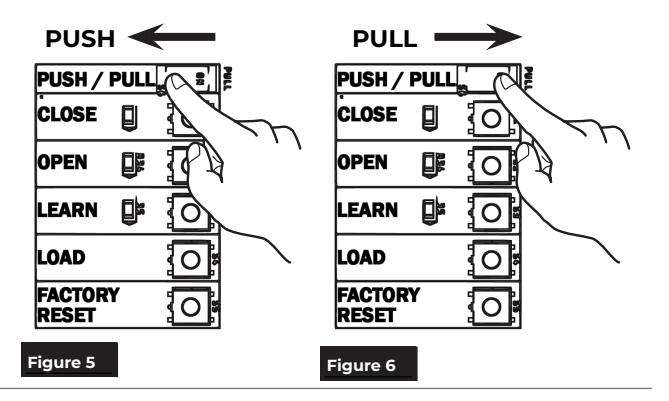
1. To select the operator's arm mode, move the toggle switch of the PUSH/PULL setup button on the control board to the left for PUSH (Figure 5) or right for PULL (Figure 6).
B. Set the door open and close positions:
NOTE: Once this operation is complete, any hardware added that increases the weight of the door will require this process be repeated. The open and close positions will need to be adjusted to accommodate the weight difference.
To set closed position:
- 1. Fully close door.
-
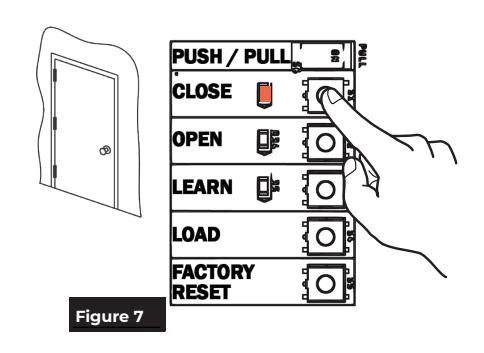
2. Press and release the CLOSE button on the control board.
- ‒ The orange CLOSE LED will change from flashing to solid. (Figure 7)
NOTE: When the door is in the closed position, the orange LED will illuminate solid.
To set the open position:
-
1. Manually open door.
- ‒ The green OPEN LED will begin flashing.
NOTE: If there is a wall or door stop at the fully open position, hold the door slightly away from wall or stop.
-
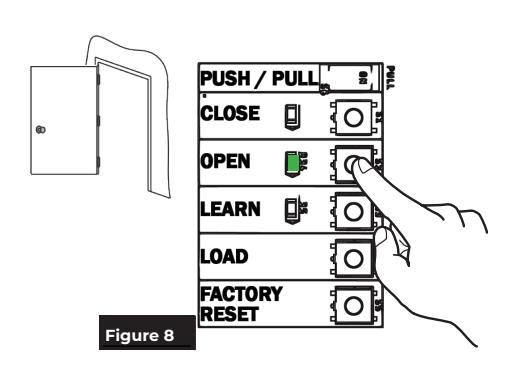
2. With the door in the open position, press and release the OPEN button on the control board.
- ‒ The flashing green OPEN LED will turn solid. (Figure 8)
NOTE: If the open position is not set within 30 seconds of setting the closed position, the closed position must be set again.
-
3. Manually close the door. Once fully closed, confirm there are no obstructions that could prevent the door from opening.
- ‒ The LEARN LED will flash, indicating the operator is ready to set up door parameters.
-
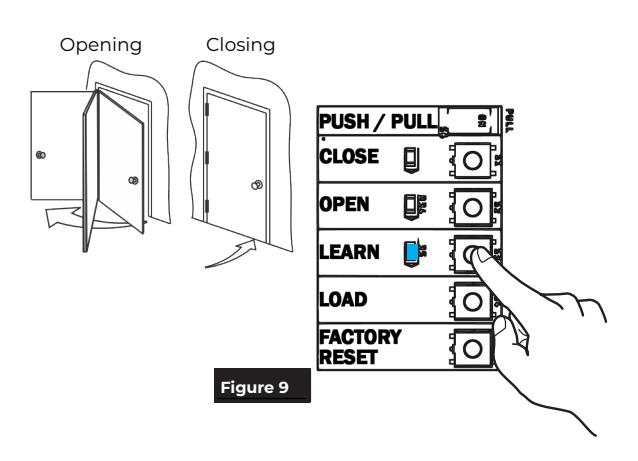
4. Confirm that the latching hardware doesn't prevent the door from opening. Press and release the LEARN button on the control board.
- ‒ The blue LEARN LED will illuminate solid and the door will open in small increments.
Allow door to open and close without interference. (Figure 9)

Setup Using Control Board (cont.) :
C. Adjust open and close settings:
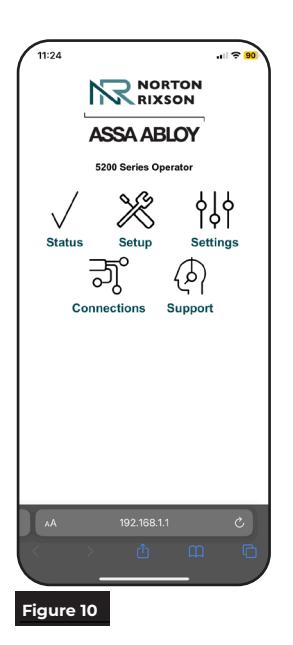
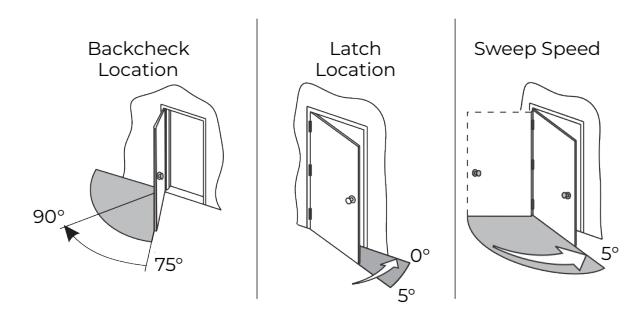
Use the 5200 Series Operator Wi-Fi programming to adjust backcheck location, latch location, and sweep speed. (Figure 10)
NOTE: Additional programming options are available through Wi-Fi programming only.
Refer to the following sections for additional information:
"Operator Setup via Wi-Fi" on page 6
"Adjust the Operator Settings." on page 8
"Connections" on page 10

Speed/Force and Timing/Location settings must be adjusted to meet ANSI BHMA A156.19 (American National Standard for Power Assist and Low Energy Power Operated Doors) requirements for opening and closing based on door weight and width.
Continue with "Connections" on page 10
Operator Setup via Wi-Fi
After the operator has been successfully installed and power has been applied (refer to "Initial Operator Setup" on page 3), follow these steps to program the operator via the Wi-Fi application.
A. Connect a mobile device to the operator:
1. Turn on the operator Wi-Fi by toggling the 3-Position switch on end cap three (3) times. (Figure 11)
To confirm that Wi-Fi has been turned on:
- y The red WIFI ENABLED LED on the operator's control board will indicate that Wi-Fi has been successfully turned on. (This will only be visible if the operator cover has been removed.)
- y The operator SSID will be displayed in the mobile device's list of available Wi-Fi connections, confirming that Wi-Fi has successfully been turned on. (Refer to Step 2 and 3 below)

- ‒ Wi-Fi automatically turns off after 20 minutes of inactivity.
- ‒ For further security, Wi-Fi can be turned off immediately by toggling 3 Position switch again.
- ‒ The operator serial number and password are located next to the Network QR code on the operator end cap. (Figure 12)
- 2. Connect to the operator's Wi-Fi network.
To manually connect:
- ‒ Open the Wi-Fi or Networks application on the smart device and find the associated operator network (beginning with NDC5200_, followed by the operator's SSID).
- ‒ Once found, connect to the network. (Figure 13)
- ‒ Enter the operator's password and click "Join". (Figure 14)
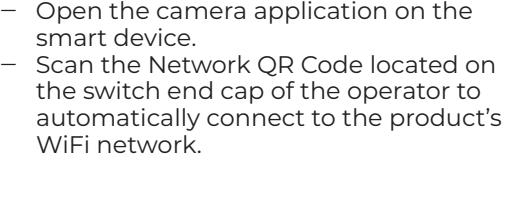
To connect using the Smart Device's camera:
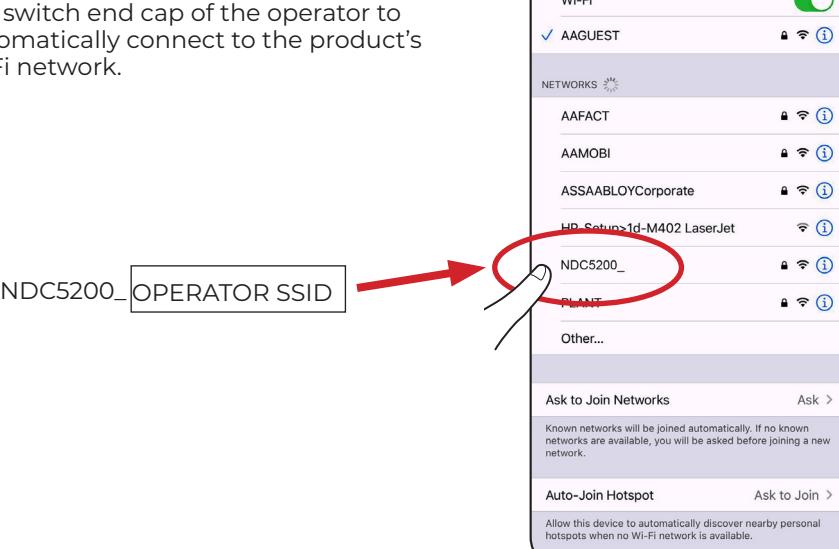
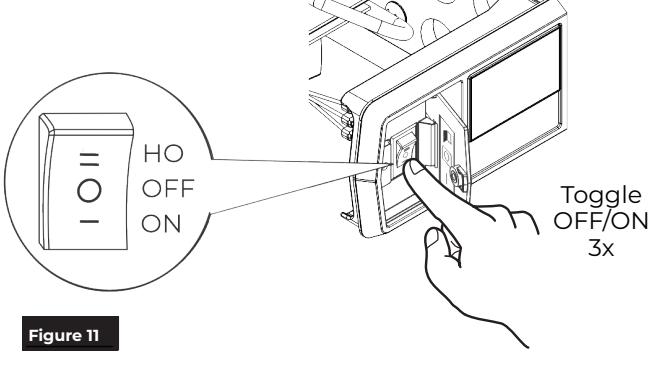
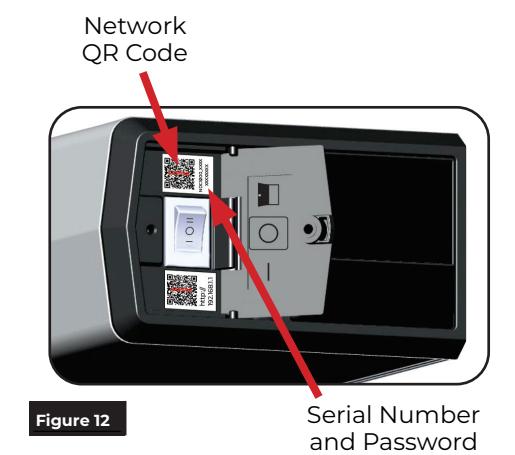
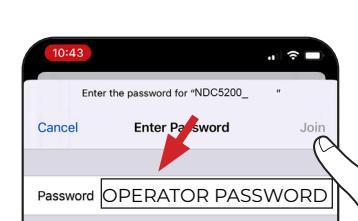
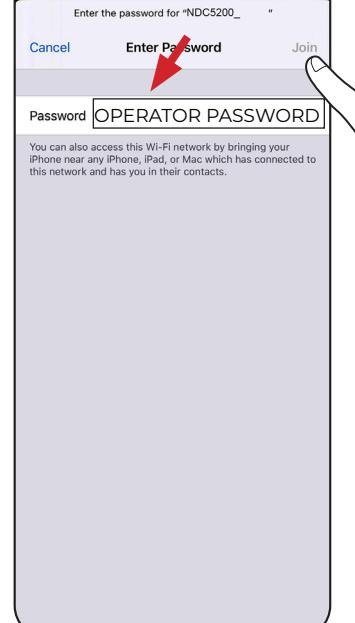
Figure 14
Figure 13

Operator Setup via Wi-Fi (cont.) :
3. Access the Product Website.
To access the website manually:
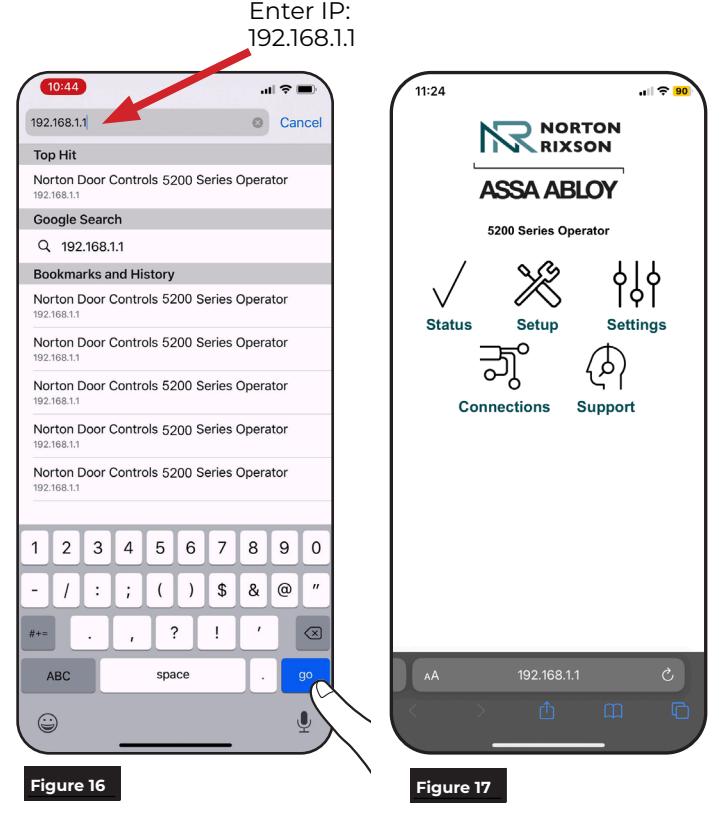
‒ From the smart device's web browser, enter 192.168.1.1 into address bar. (Figure 16)
To access the website using the Smart Device's camera:
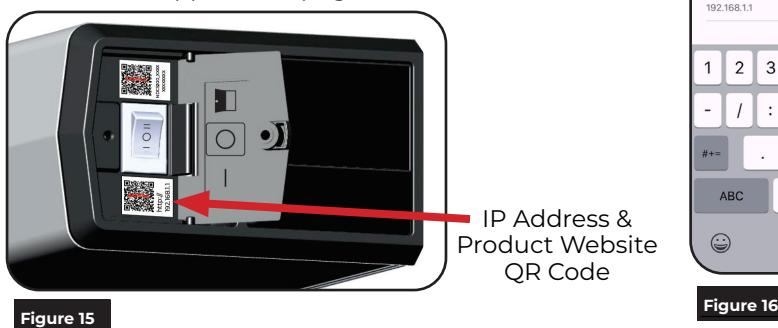
‒ Use the camera application on your smart device to scan the Product Website QR Code located on the switch end cap of the operator. (Figure 15)
The 5200 Series Operator homepage will be displayed. (Figure 17)
Once the 5200 Series Operator homepage is displayed, the connection has been successfully established.
On the Operator homepage, icons are available for quick access to each application page.
B. View Operator Status.
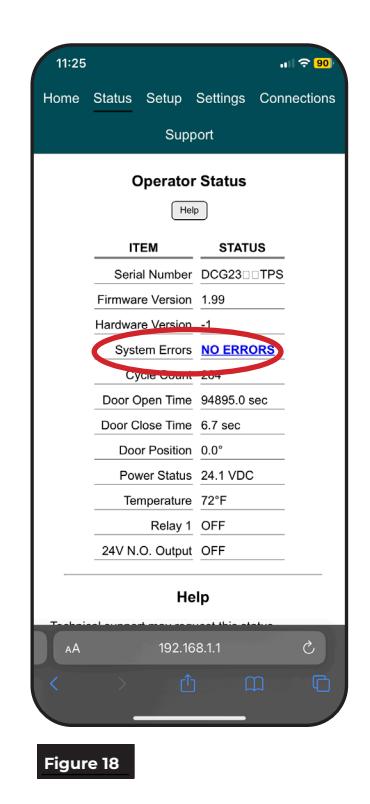
Click the Status icon on the 5200 Series Operator homepage to quickly access important information about the operator. (Figure 18)
NOTE: If door setup has not been completed, "Door Setup Needed" will be displayed next to System Errors on the Operator Status screen.
Setup Using Wi-Fi (cont.) :
C. Set the door open and closed positions.
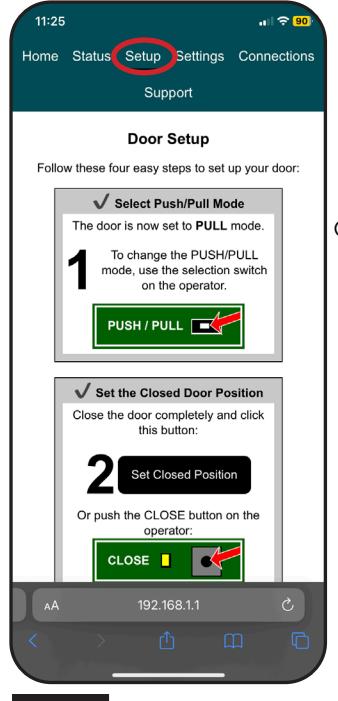
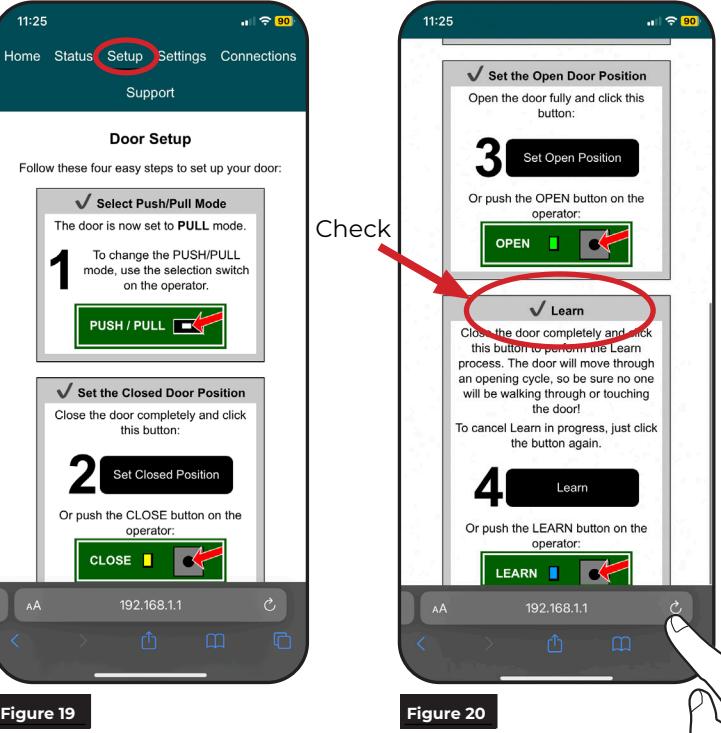
To set the door open and closed positions for the operator, select the Setup application page (Figure 19) and perform the following steps.
1. Select the operator's mode by moving the toggle switch of the PUSH/PULL setup button (located on the operator control board) to the left for PUSH or right for PULL.
(Refer to "Select the arm mode:" on page 4)
- 2. Manually close the door and select "Set Closed Position".
- 3. Open the door to the fully open position. While holding door open, select "Set Open Position".
NOTE: If there is a wall or door stop at the fully open position, hold the door slightly away from wall or stop.
4. Close the door completely and select "Learn" to start the Learn process.
NOTES:
- ‒ The monitor board is preset for typical applications. If a red LED is illuminated on the monitor board after the Learn Cycle has been completed, contact Technical Product Support for assistance.
- ‒ Door will automatically move through an opening cycle. Be sure there are no obstructions.
Once the steps have been completed, refresh the browser page to confirm all steps have a ✓, indicating setup has been successful. (Figure 20)

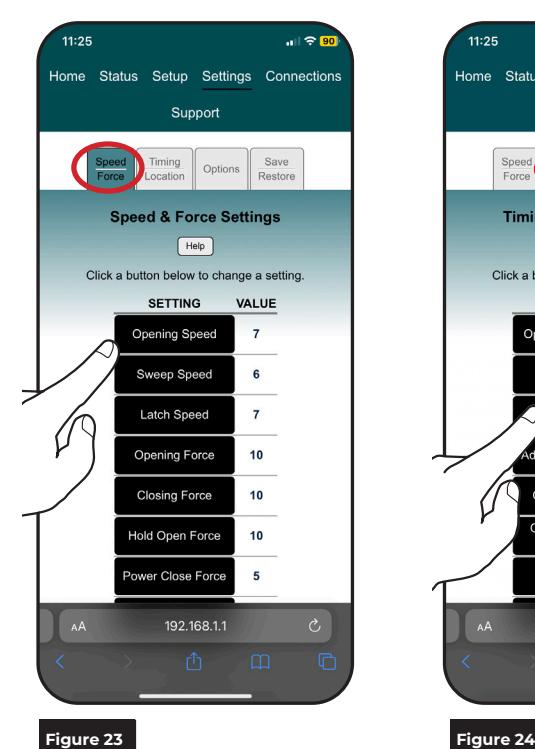
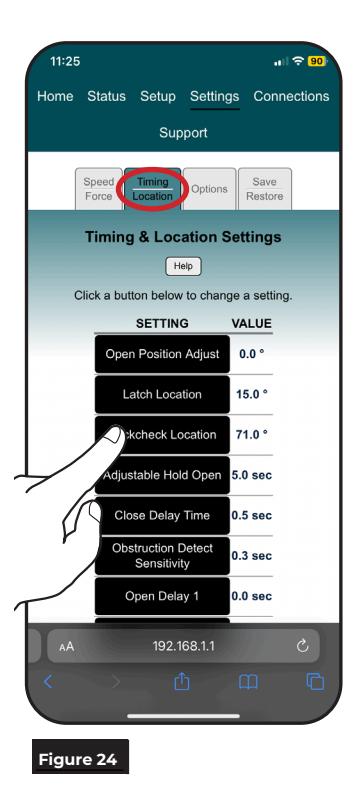
Select the Settings application page to adjust the operator's settings. Click on each tab to access settings for Speed/Force, Timing/Location, additional Options, and Save/Restore.
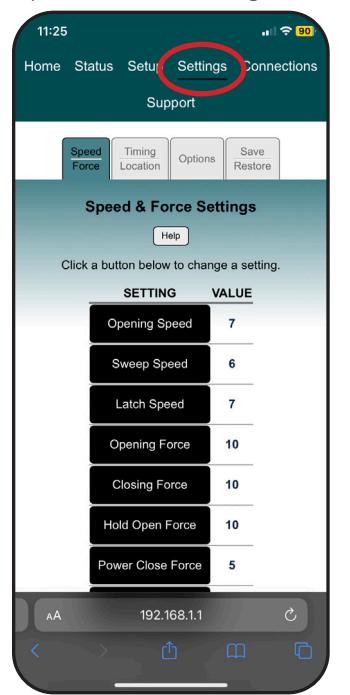
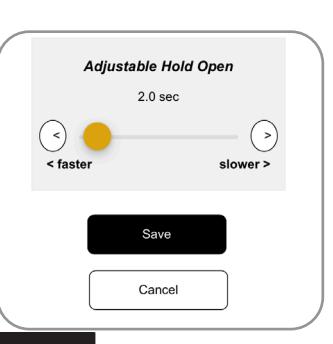
For options that have a value range, a slider will be displayed allowing the desired range to be selected, as shown in Figure 21.
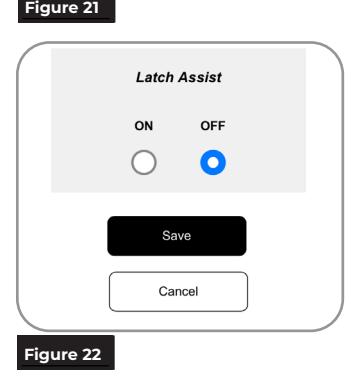
For options that have a selectable setting, such as On or Off, buttons will be displayed, as shown in Figure 22.
Click on the setting to adjust the value. After an adjustment has been made, click Save to set the new setting or Cancel to revert to the operator's current setting.

D. Adjust the Operator Settings. (cont.)
Speed/Force & Timing/Location Settings
Select the Speed/Force Settings tab (Figure 23) and Timing/Location Settings tab (Figure 24) to adjust the operator to meet BHMA requirements.
Select each option and choose the setting or adjust slider to the desired value.

Speed/Force and Timing/Location settings must be adjusted to meet ANSI BHMA A156.19 (American National Standard for Power Assist and Low Energy Power Operated Doors) requirements for opening and closing based on door weight and width.
Options Settings
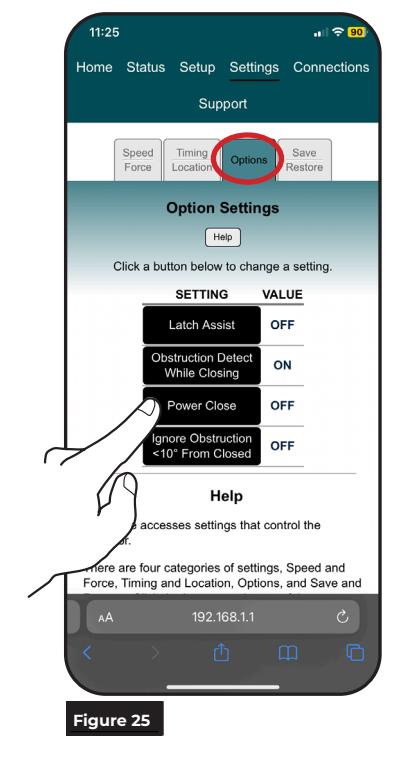
Select setting and change value then save. (Figure 25)
Option definitions:
y Latch Assist:
At closed position, after an activation, the door is pulled in.
After the door has closed, the door is pulled in to assist with latch release/engagement.
y Obstruction Detect While Closing:
Door will reverse to open position if it hits an obstruction while closing.
y Power Close:
closing.
Additional force is applied to assist the door closing between 7° and 2°.
y Ignore Obstruction <10° From Closed: Used with a door mounted presence sensor. The operator will ignore the obstruction input from the sensor in the last 10 degrees of
Save/Restore D. Adjust the Operator Settings. (cont.)
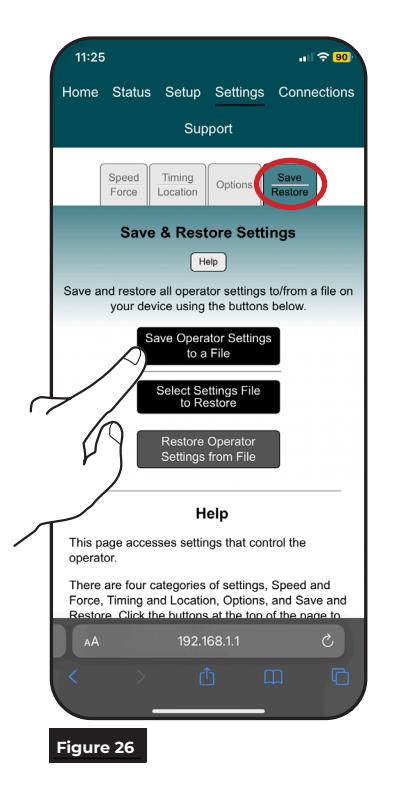
Use this tab to transfer settings from one operator to another or restore an operator to a saved setup. (Figure 26)
- y Save Operator Settings to a File: Click this button to save the operator's current settings to a file.
- y Select Setting Files to Restore: Click this button to choose a saved file to load to the operator.
- y Restore Operator Settings from File: This option will be grayed out and unavailable until a connection to the receiving operator has been established (refer to "Operator Setup via Wi-Fi" on page 6) and a file is selected to load. Once available, click this button to load the file selected for the receiving operator.
Connections
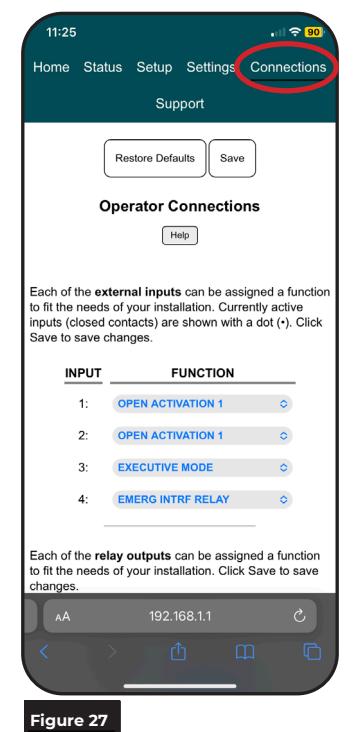
Operator inputs and outputs can be customized from Connections application page. (Figure 27)
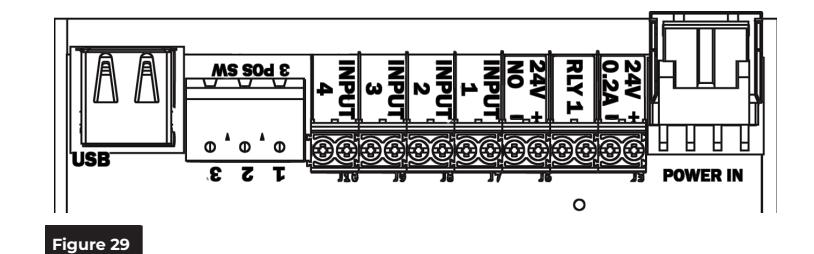
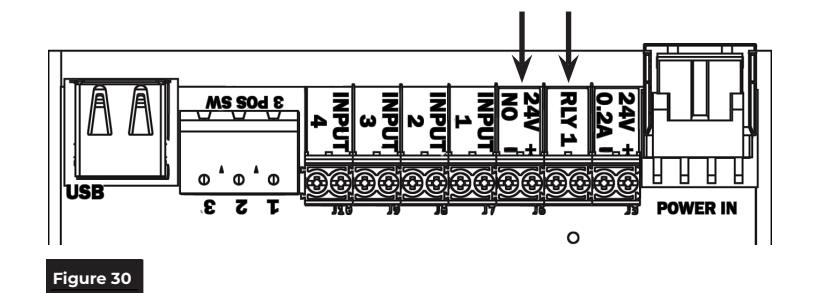
NOTE: Input and Output numbers are labeled on the control board. (Refer to Figure 29 for Input Connections and Figure 30 for Output Connections)
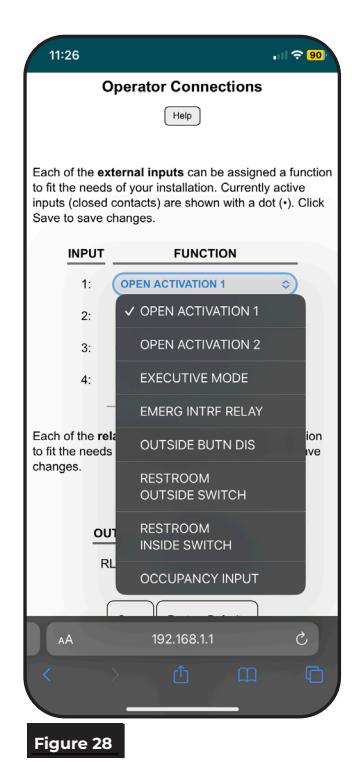
To change the function, select the input or output and scroll through the drop-down menu to select the desired function. (Figure 28)
Approved 2024-05-09
NOTE: For definitions, refer to Input and Output Connections. (page 11)

Connections (cont.)
Input Connections
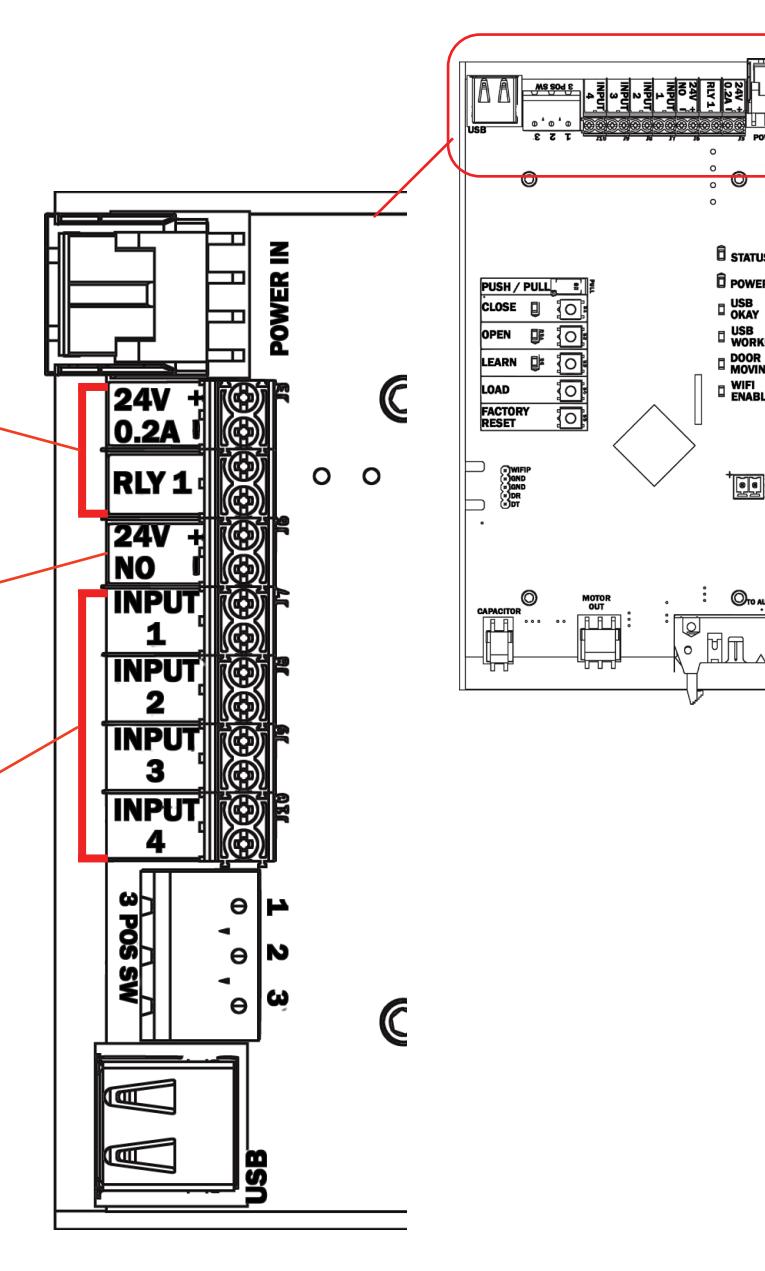
Use the green 2-position terminal block connectors on the control board to add any necessary inputs. (Figure 29)
Default Inputs
Input 1: Activation 1
Momentary contact closure of this input cycles the door through an automatic open / close cycle. (Tied to Open Delay 1.)
Input 2: Activation 2
Momentary contact closure of this input cycles the door through an automatic open / close cycle. (Tied to Open Delay 2.)
Input 3: Toggle / Executive Mode †
Momentary contact closure of this input sends a closed door to open position or an open door to closed position.
Input 4: Emergency Interface Relay
Continuous contact closure of this input puts operator in a passive closer mode, where door functions as a typical door closer and accepts no activations. Once contact is removed, unit goes back to operator mode
† 5211EX and 5231EX come pre-wired with the Norton Rixson 707 Executive Function kit. No additional programming is required. Once installation and setup of the closer is complete, the center button on each remote will activate Executive Mode. Refer to the information sheet (document # 80-9352-0024-020) for additional information. Refer to the User Guide provided with the kit for additional information on reprogramming the remotes.
Selectable Inputs
Outside Button Disable
Continuous contact closure of this input triggers the operator to disable Input 2 / Activation 2. This is typically used for switching off an outside wall plate.
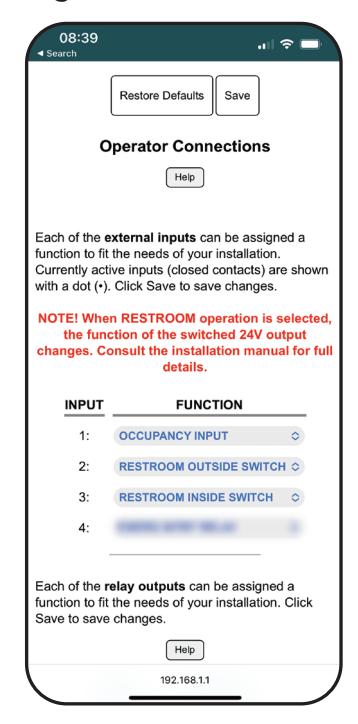
Restroom Outside Switch*
The switch outside the restroom connects to this input, which can be a wall plate switch or wave-to-open device.
Restroom Inside Switch*
The switch inside the restroom connects to this input, which can be a wall plate switch or wave-to-open device.
Occupancy Input*
Connect a deadbolt lock switch or user activated occupancy switch to this input. Used for fail safe applications only.
*Refer to page 13 or go to www.nortonrixson.com for additional information and restroom application wiring.
Output Connections
Use the green 2-position terminal block connectors on the control board to add any necessary outputs, such as electric strikes. (Figure 30)
NOTE: Relay outputs can be customized.
Relay 1 : Normally open relay that closes for 3 seconds after an activation to open.
Normally Open : 24VDC output up to .4 Amp draw that closes after an activation to open.

Troubleshooting and Support
This section provides information to assist in troubleshooting the 5200 Series operator. If additional assistance is needed beyond the information provided here, contact Technical Support.
Support
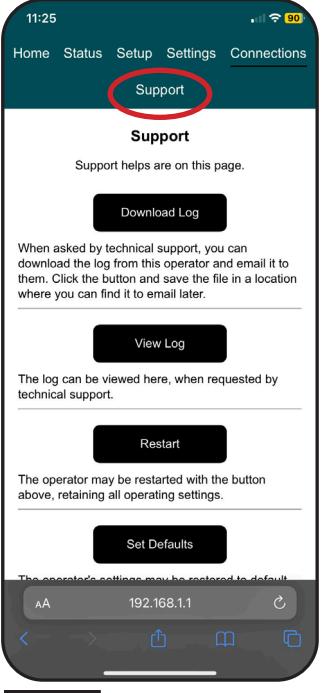
The Support page can be used to restart the operator or restore operator settings to factory defaults. (Figure 31)
Download Log
The Download Log button allows the user to download a copy of the operator's log file. This file can be used by Technical Support for Troubleshooting assistance.
Click the Download Log button and save the file to a location where it can be easily accessed for email.
View Log
The View Log button allows the user to view the operator's log file within the application.
Restart
The Restart button allows the user to restart the operator without changing any existing operator settings.
Set Defaults
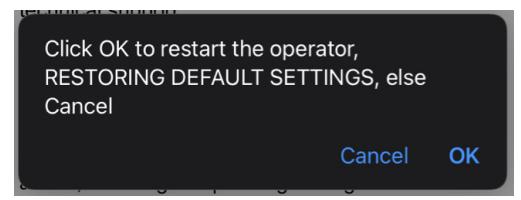
Pressing the Set Defaults button will return the operator to factory settings and initiate a restart. Once pressed, a popup is displayed confirming that a restore will be completed. Press OK to continue or Cancel to keep the current settings. Figure 31
Power LED Error Codes
| Error Codes for RED POWER LED Flashes | ||
|---|---|---|
|
Number
of Flashes |
Cause | Solution |
| 1 | — |
Reset the operator to factory defaults by pressing and holding FACTORY RESET button until all
LEDs light up, then release. The unit will reset and the CLOSE button will flash. Repeat the Open/ Closed Positions and Learn processes. |
| 2 |
24VDC power error
too high or too low. |
Check the incoming voltage to the power supply and from the power supply to control board. |
|
Error occurred
3 during Learning process. |
If the door hit obstruction, reset the operator to factory defaults by pressing and holding
FACTORY RESET button until all LEDs light up, then release. Repeat the Open/Closed Positions and Learn processes. |
|
|
If the door did not hit obstruction, inspect hinges or door / frame for excessive wear,
misalignment, etc. Replace worn components. Repeat steps to set Open and Closed Positions and Learn. |
||
| 4 | — | Ensure all harnesses are plugged in and secure - focus on motor wires. |
| 5 | — | Ensure all harnesses are plugged in and secure - focus on harnesses attached to backplate. |
| 6 | — | Ensure all harnesses are plugged in and secure - focus on main board harnesses. |
| 7 | Motor overheating. | — |
| 8 | — | Ensure all harnesses are plugged in and secure - focus on harnesses attached to backplate. |
| 9 |
TEMP connector
not plugged in. |
Plug in the TEMP connector on backplate. |

Wiring Diagrams
Single-Use Restroom Wiring Diagram Configuration Overview
This operator is capable of supporting many single-use restroom configurations through its powered outputs and user-configurable inputs.
Some examples of Single-Use Restroom configurations are available on pages 14, 15, and 16.
Below is a detailed description of each variable that can be used for these configurations.
24V & RLY 1:
24VDC powered (wet) output, supports locks and accessories up to 200mA. These outputs must be used to configure a restroom application with a fail-secure locking device.
y Sends power to connected devices after restroom switch activation .
24V NO:
24VDC powered output, supports locks and accessories up to 400mA.
y Sends power to connected devices after occupancy input activation.
Available Input functions:
-
y Occupancy Input (NO, momentary/pulse):
- ‒ Disables inside and outside restroom switches.
-
y Restroom Outside Switch:
- ‒ In unlocked state, activates operator.
- ‒ Disabled by occupancy input; resets to unlocked state when door is opened.
-
y Restroom Inside Switch:
- ‒ Activates operator.
- ‒ Disabled by occupancy input, while occupancy input switch is closed.
Single-Use Restroom Wiring Diagram (cont.) Example 1: 5200 Bathroom Kit
Hardware Components
- y One (1) Storeroom function lockset
- y One (1) Fail-safe Electric strike
- y One (1) 5200 Series Low Energy Operator
- y One (1) Inside Restroom Plate*
- y One (1) Outside Restroom Plate*
Description of Operation:
- y Door normally closed and unlocked.
- y Outside door switch activates operator.
- y "Push to Lock" button on inside restroom plate locks electric strike, disables outside door switch, illuminates LEDs on inside and outside restroom plates.
- y Inside door switch unlocks electric strike, activates operator, resets outside door switch, turns off LEDs.
- y Exiting room via inside lever unlocks electric strike, re-enables outside door switch and LEDs.
- y In case of power loss, door is unlocked. Operator is inactive.
Input Configuration:
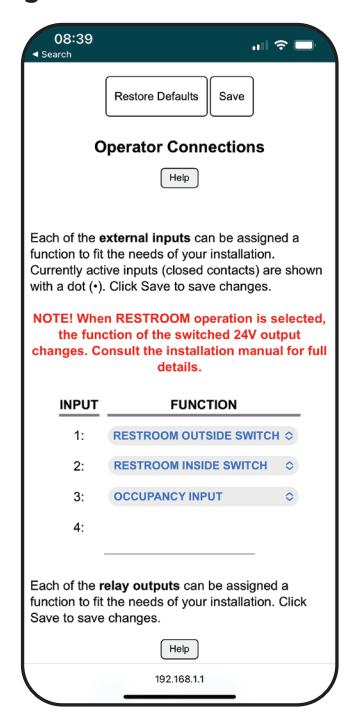
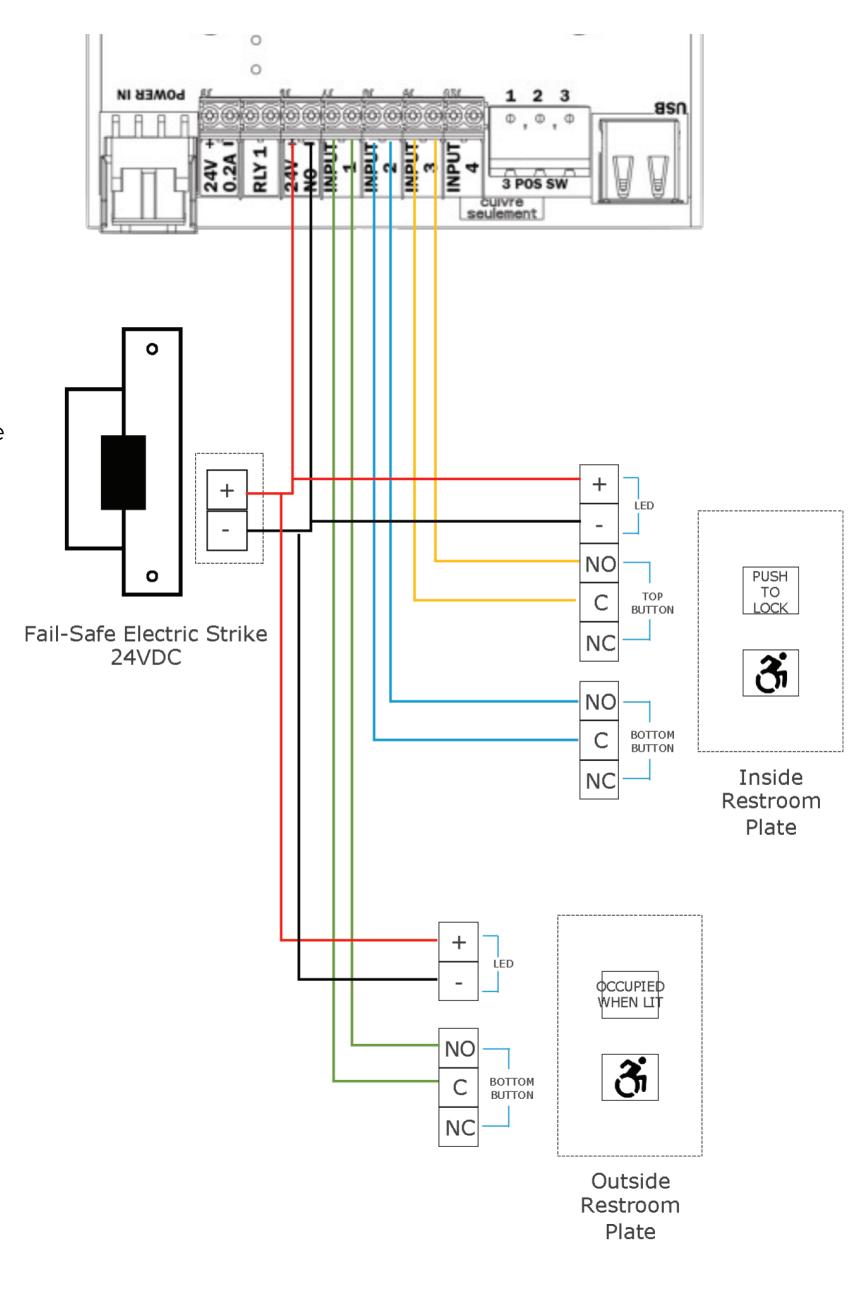
*included with 5200 models with R1 or R2 suffix

Single-Use Restroom Wiring Diagram (cont.) Example 2: Mortise Lock
Hardware Components
- y One (1) Privacy function mortise lock w/ deadbolt and privacy indicator
- y One (1) Electric strike w/ deadbolt monitor*
- y One (1) 5200 Series Low Energy Operator
- y Two (2) Activation switches
Description of Operation:
- y Door normally closed and unlocked.
- y Outside door switch activates operator.
- y Projecting deadbolt disables inside and outside door switch, changes occupancy indicator status.
- y Retracting deadbolt re-enables inside door switch.
- y Exiting room re-enables outside door switch.
Input Configuration:
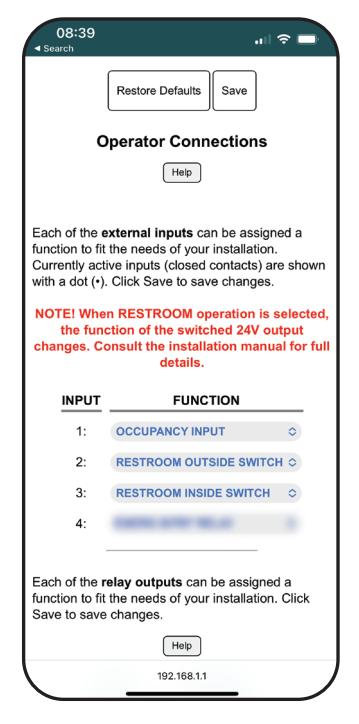
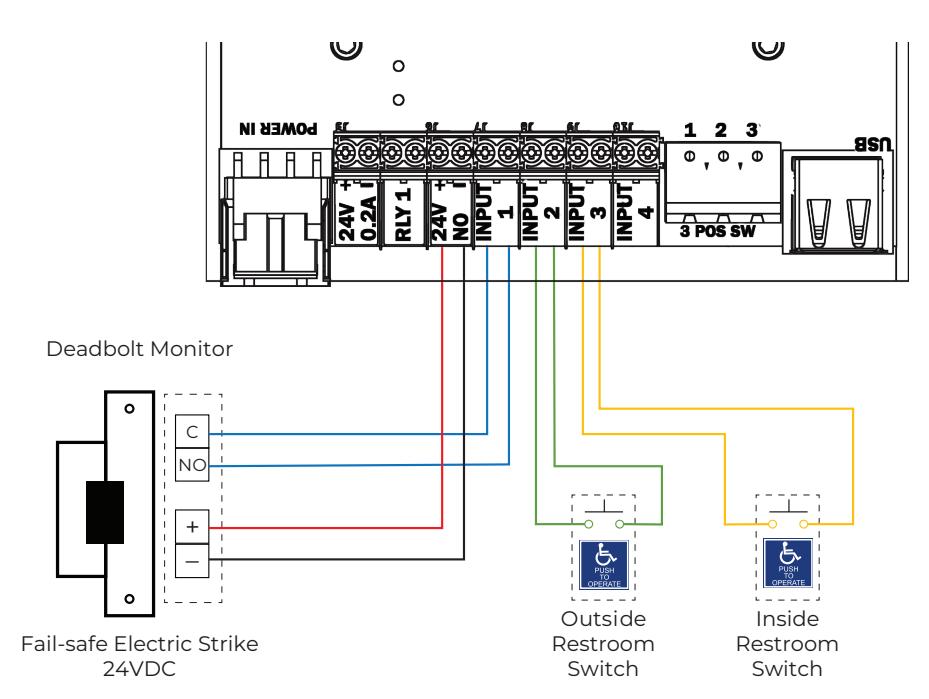
Fail-safe Configuration
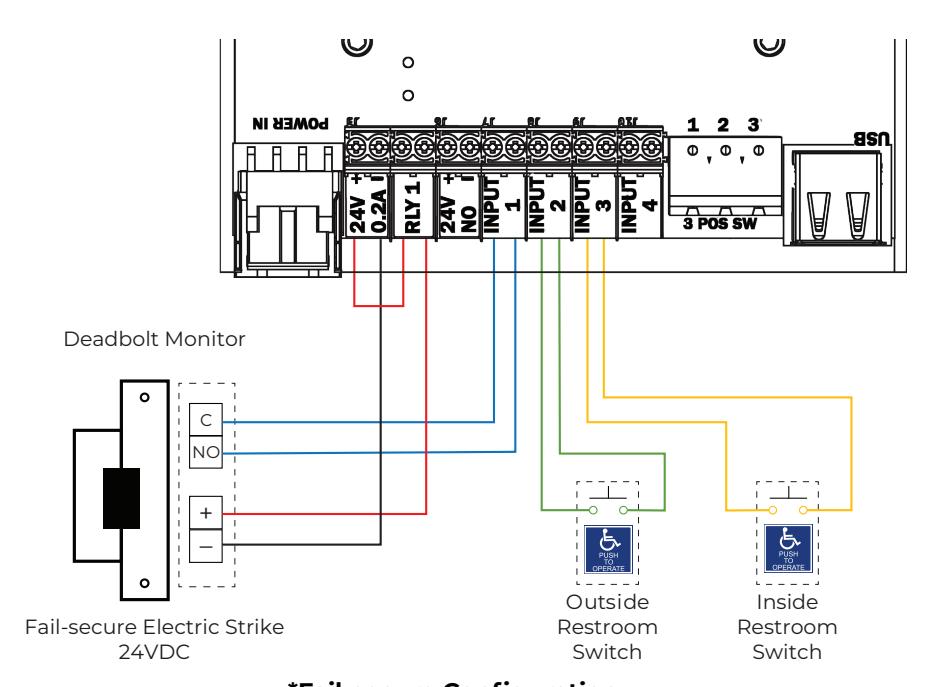
*Fail-secure Configuration
*Output to configure fail-secure electric strike for restroom function provides up to 200mA

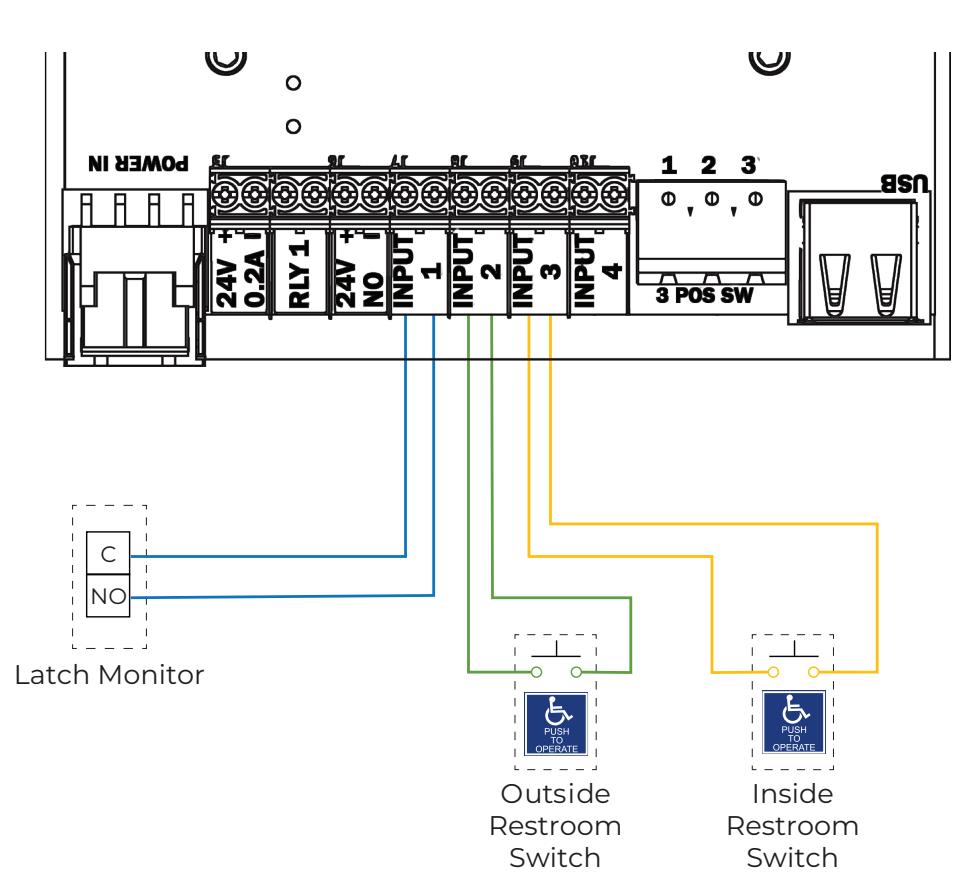
Single-Use Restroom Wiring Diagram (cont.) Example 3: Push/Pull
Hardware Components
- y One (1) Deadbolt w/ privacy indicator
- y One (1) Latch Monitor
- y One (1) Push/Pull set
- y One (1) 5200 Series Low Energy Operator
- y Two (2) Activation switches
Description of Operation:
- y Door normally closed and unlocked.
- y Outside door switch activates operator.
- y Projecting deadbolt disables inside and outside door switch, changes occupancy indicator status.
- y Retracting deadbolt re-enables inside door switch.
- y Exiting room re-enables outside door switch.
Input Configuration:

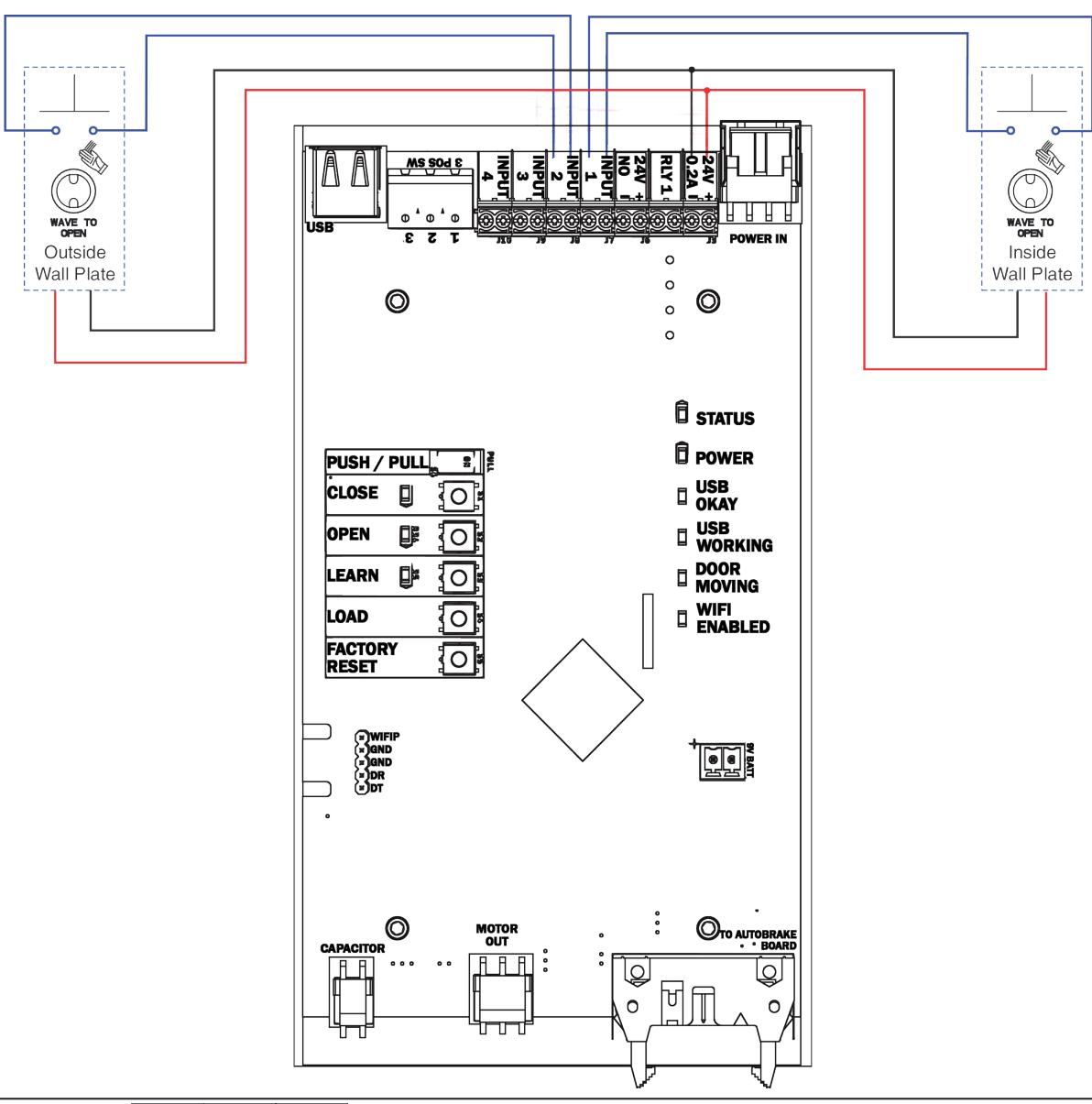
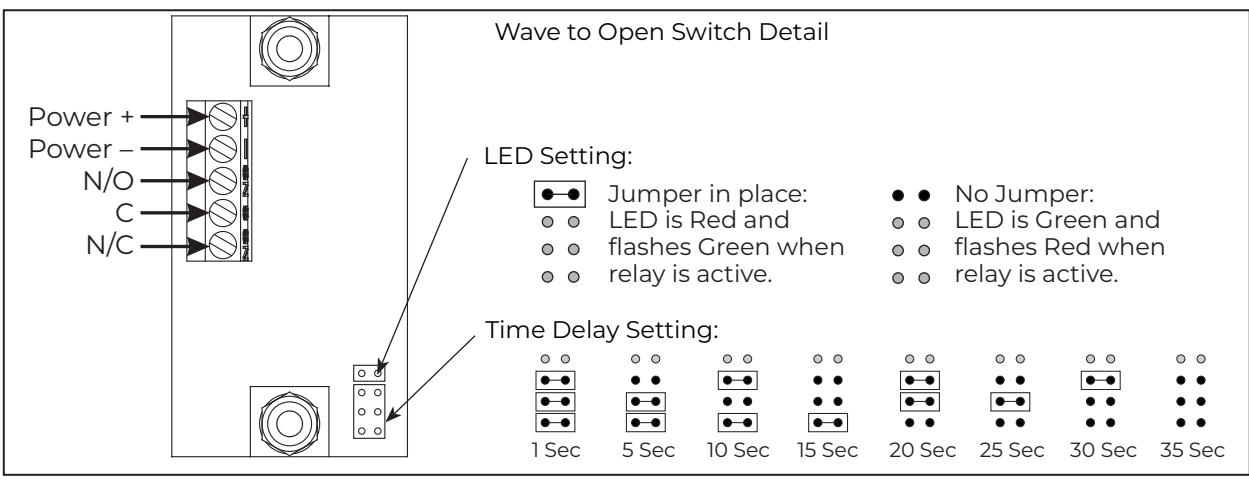
Wave to Open Wiring Diagram

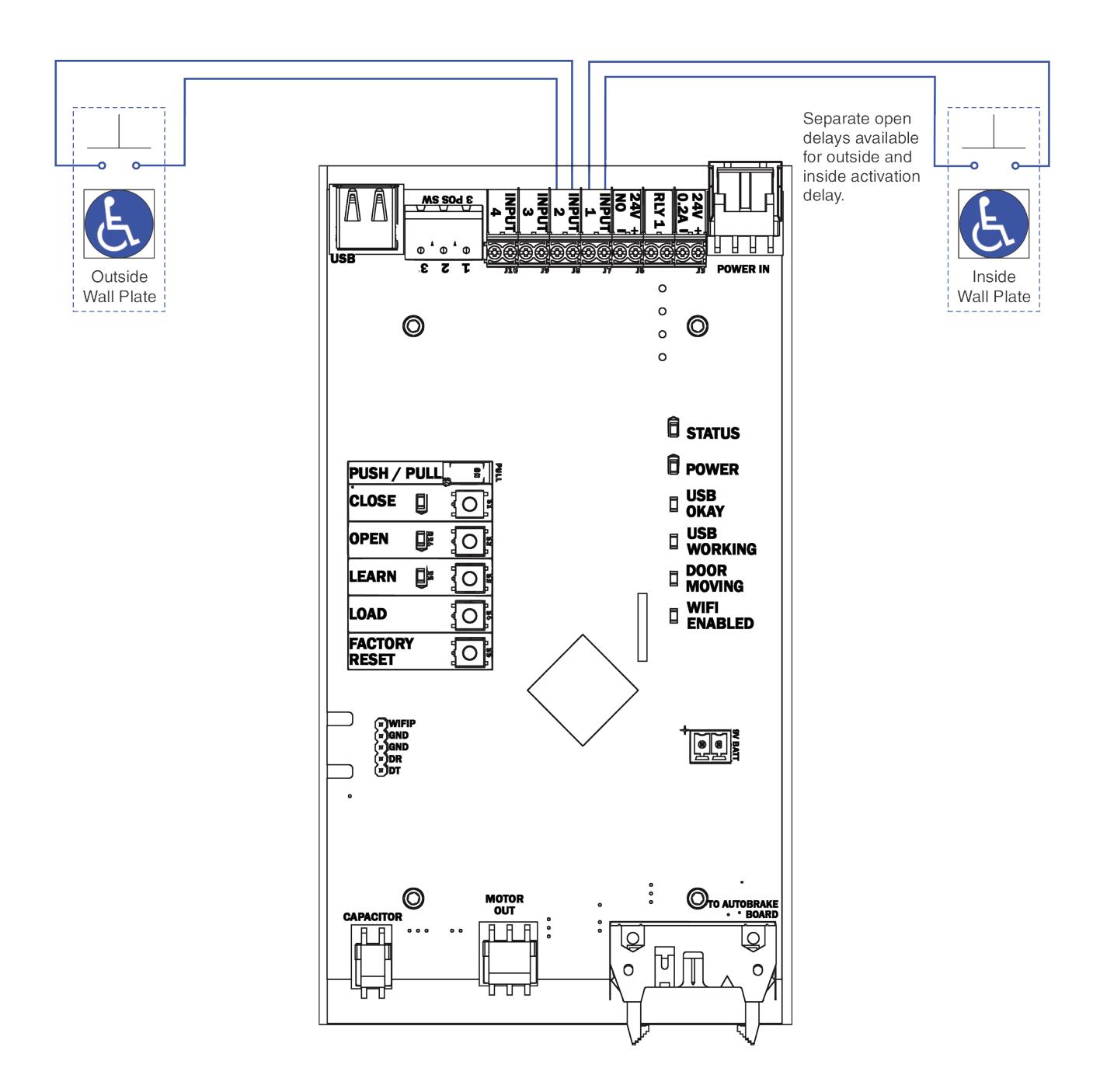
Standard Activation Wiring Diagram

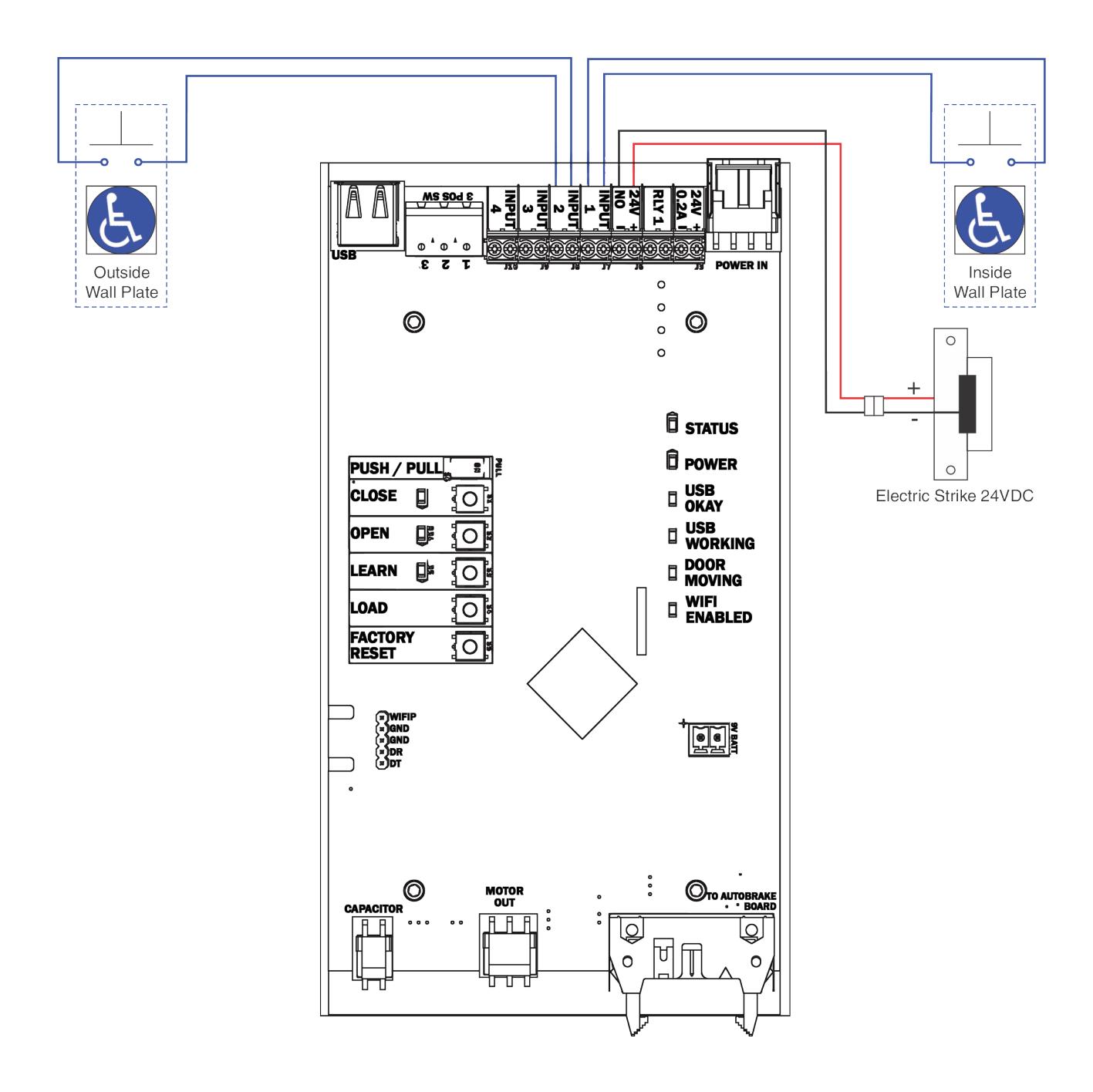
24VDC Fail Secure Electric Strike Wiring Diagram
The ASSA ABLOY Group is the global leader in access solutions. Every day we help people feel safe, secure and experience a more open world.

RF Wiring Diagram
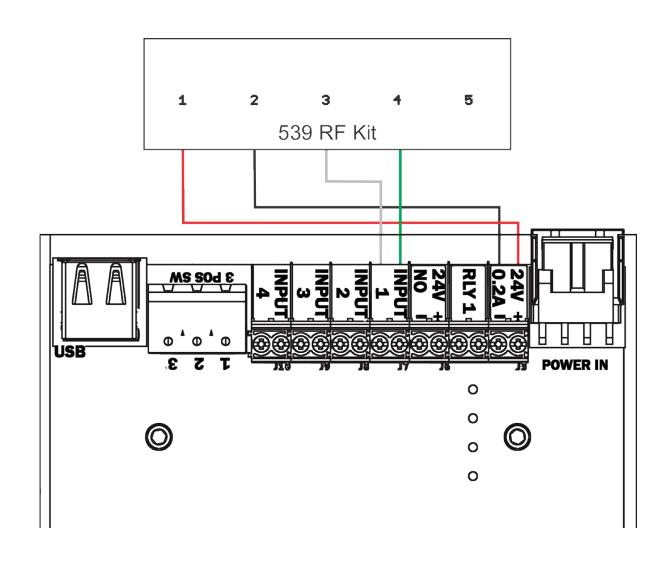
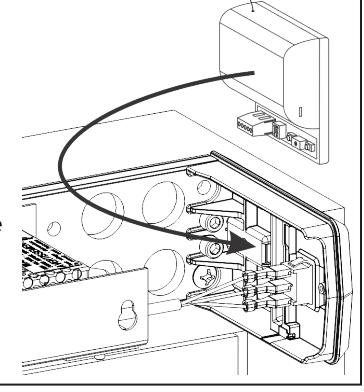
To install RF receiver:
- Position supplied hook and loop fastener onto back of receiver. Remove protective film.
- Press receiver onto inside of end cap with green wire toward conduit hole.
- 3. Wire as shown above.