LaGard Electronic Safe Lock SmartLinc Software Installation Instruction
Open the original PDF document
View PDF

Multiple Lock System
SOFTWARE INSTALLATION INSTRUCTIONS
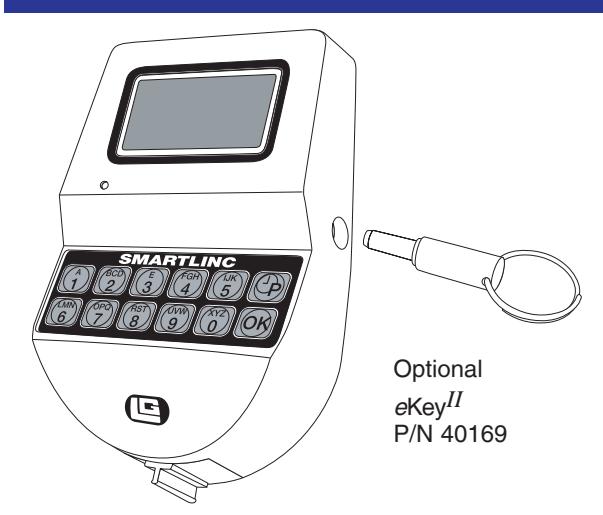
CURRENT SOFTWARE
The current version of SMARTLINC SOFTWARE is V2.13. The current version of TOTAL AUDIT is V1.3.1. All instructions marked 12- 250v1 are relevant to these versions of the software.
SOFTWARE INSTALLATION
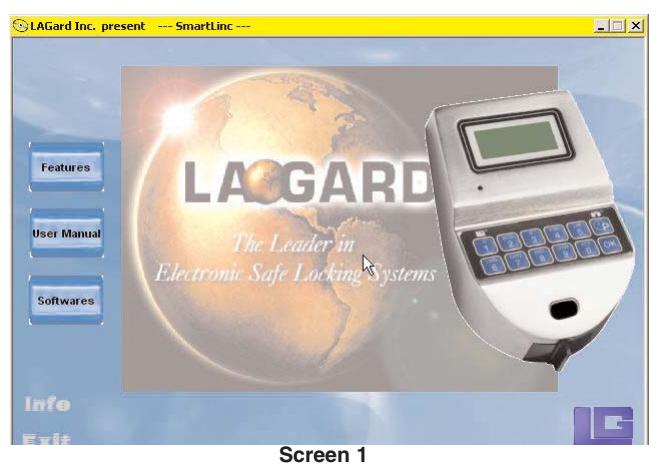
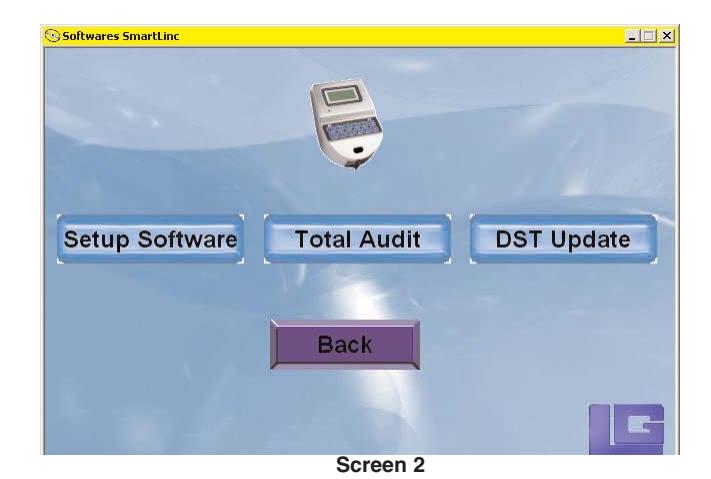
The SMARTLINC programming and audit CD is set to autorun when placed in your computers CD drive. If the autorun feature does not initiate, select the START button in the lower left hand corner of your window and then choose RUN. Select browse and then select your CD drive from the options available. Select the AUTORUN file on that CD and press RUN. Once the AUTORUN feature begins the first screen you will see will look like Screen 1 below. Select the SOFTWARES button and you will be taken to Screen 2. You have the option of installing the Set-up Software, the Total Audit Software and the DST Update Software. You should install them in this order.
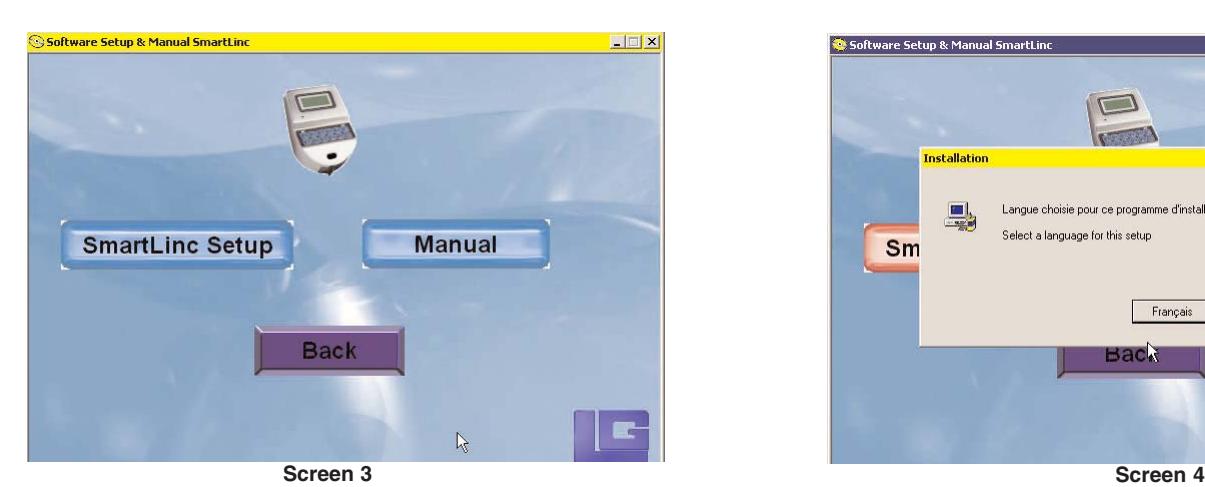
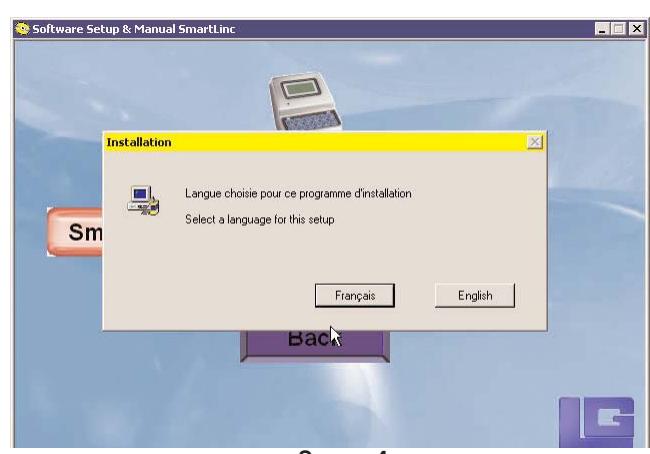
Once you select Set-up Software from Screen 2, you will have the option of Installing the Software itself or opening the Manual. The Manual is a PDF document that contains the User, Manager and Master Instructions. You must download the manual at this time. Once you select the SMARTLINC Set-up to install the software you will have the option of performing the installation in French or English, see Screen 4.
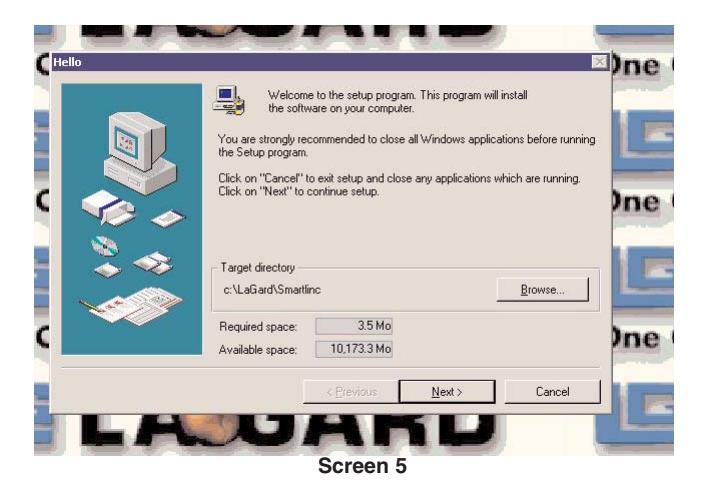
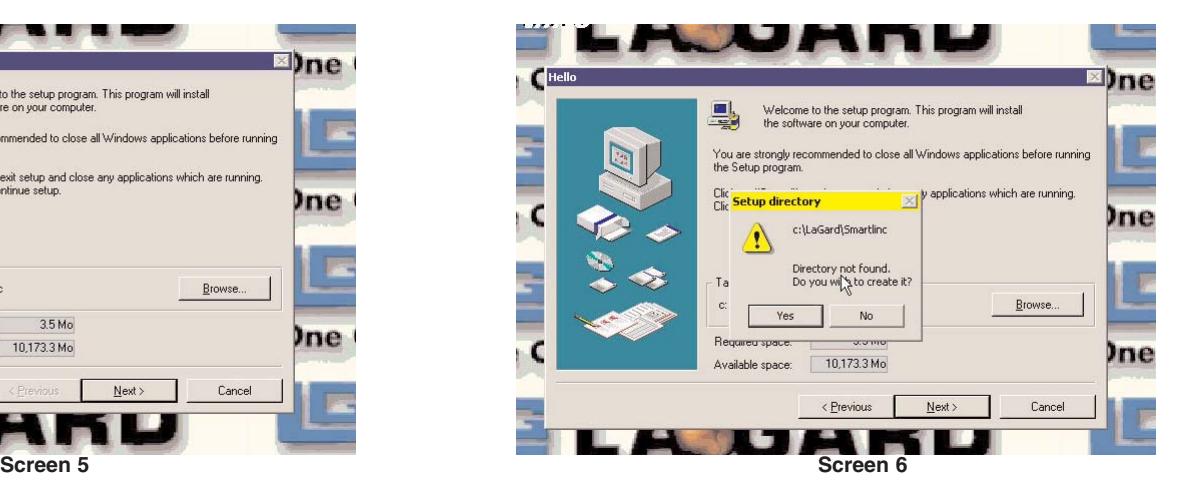
Following the screen prompts until the installation is complete. The Set-up procedure will create a folder on the C drive and add the SMARTLINC files to the LA GARD program Group.
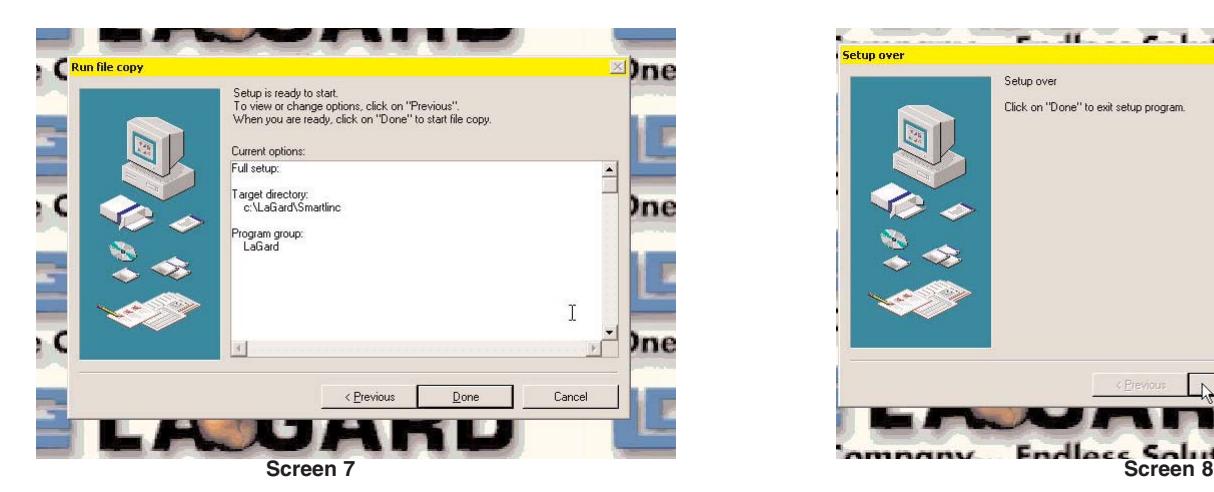
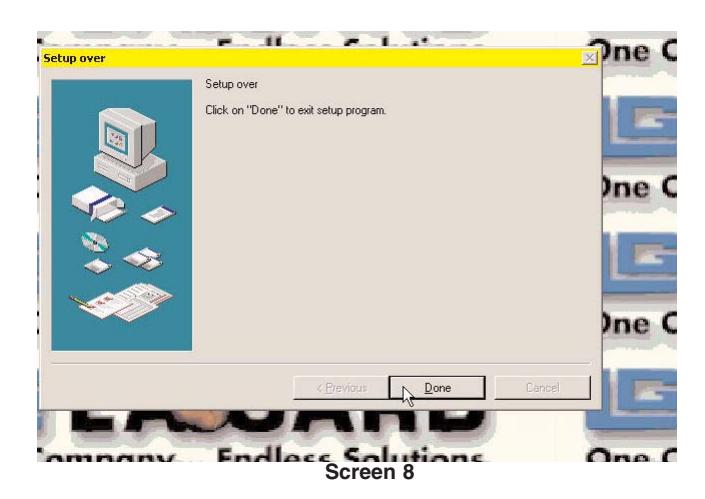
Once you have completed the installation of the programming software, you will need to install the Total Audit software on to your computer. This software allows you to download and read audits from your locks. It should be installed on any machine that will be taking audits. LA GARD also offers this software on a sperate CD all by itself. Select the Total Audit button from the Softwares Menu. The Total Audit Menu will appear, see Screen 9. You have the option of installing the software by selecting the Audit Software button or downloading the Manual. The Manual is a PDF document and must be downloaded at this time.
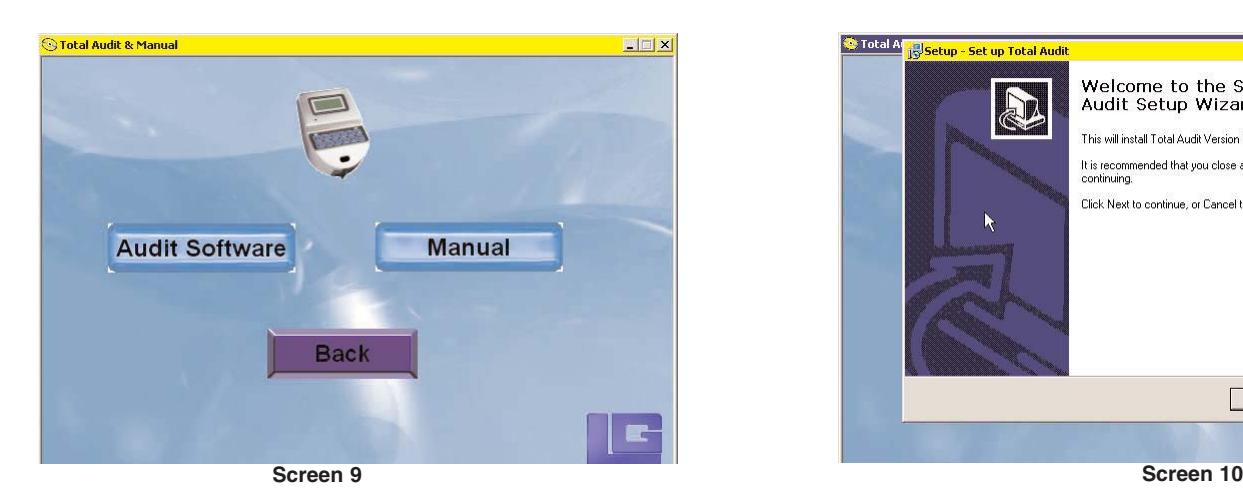
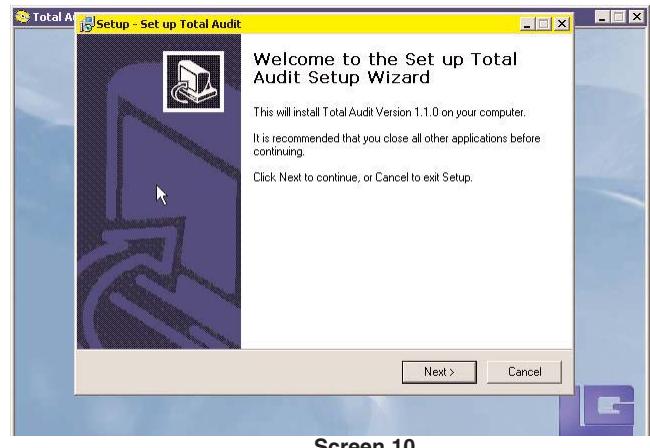
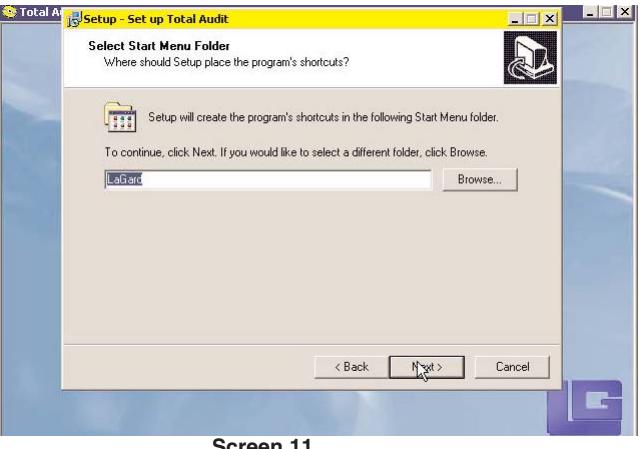
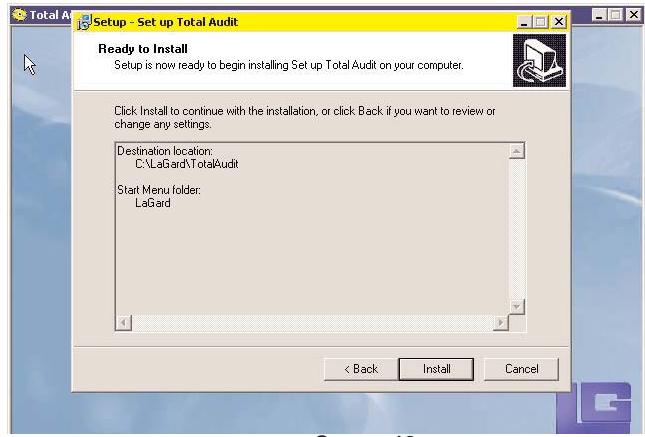
Screen 11 Screen 12
Follow the screen prompts until this installation is complete. Just like the Set-up Software, the Total Audit software will install in the LA GARD program group, see Screen 11. A shortcut icon will be automatically created on your desktop.
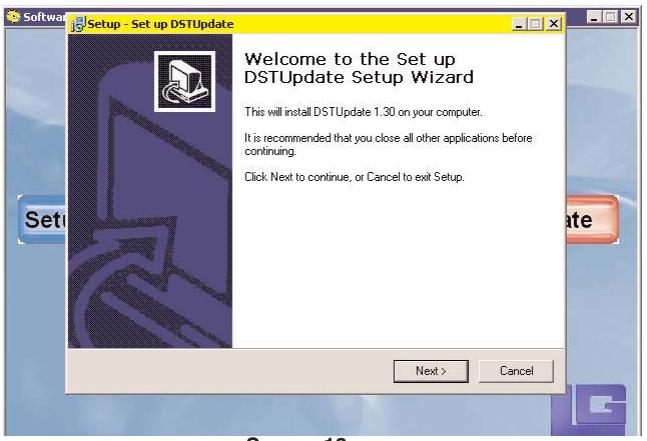
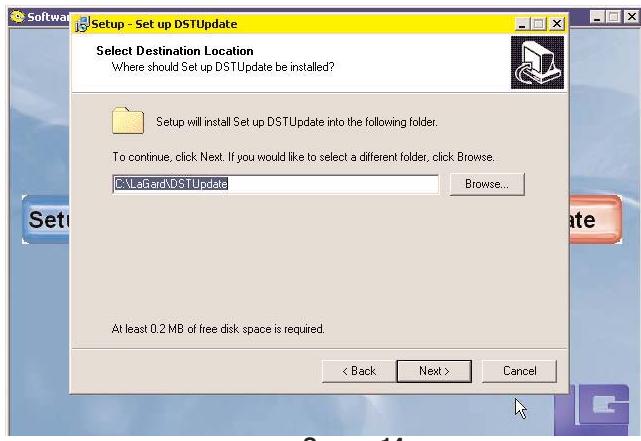
Screen 13 Screen 14
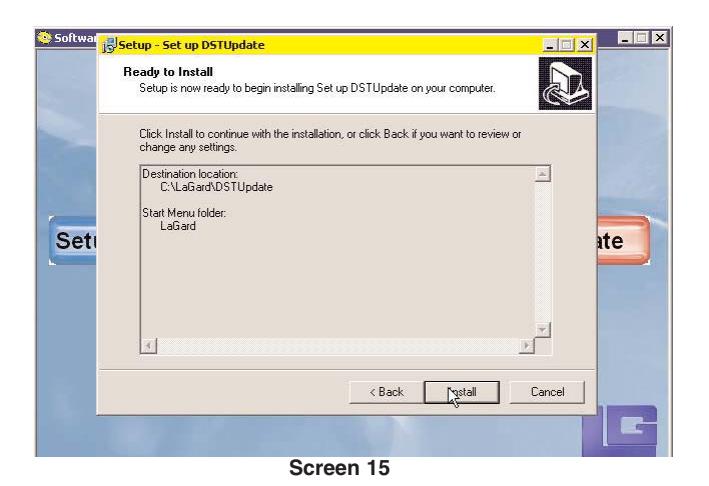
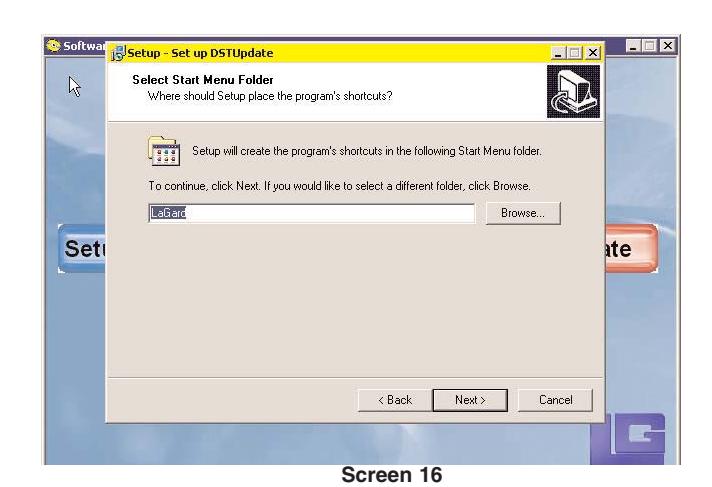
The final software installation is the DST Update (Daylight Savings Time). This software allows you to manage Daylight Savings Time on your locks. Select the DST Update button from the Softwares Menu. The DST Update will begin it's installation process. Follow the screen prompts until this installation is complete. Just like the Set-up Software, the Total Audit software will install in the LA GARD program group, see Screen 16.