Keypad Programming Instructions for the Profile Series LK and v.G1.5 Locks
Open the original PDF document
View PDF


This product can expose you to lead which is known to the state of California to cause cancer and birth defects or other reproductive harm. For more information go to www.P65warnings.ca.gov.
Installation Instructions
| TOC | Table of Contents | |
|---|---|---|
| 1 | LK Programming | 4 |
| 2 | Transaction Log for LK | 7 |
| 3 | G1-LU, G1-PK, G1-TU, G1-TP Programming | 8 |
| 4 | G1-PA and G1-TA Programming | 13 |
| 5 | Chain Programming | 14 |
| 6 | Log Sheet for Keypad Programming 15 |
Important
- Profile Series v.G1.5 controllers have replace v.G1 controllers (v.G1 is no longer available).
- The Profile Series Products are still ordered as "G1-", but the controllers supplied are labeled "G1.5".
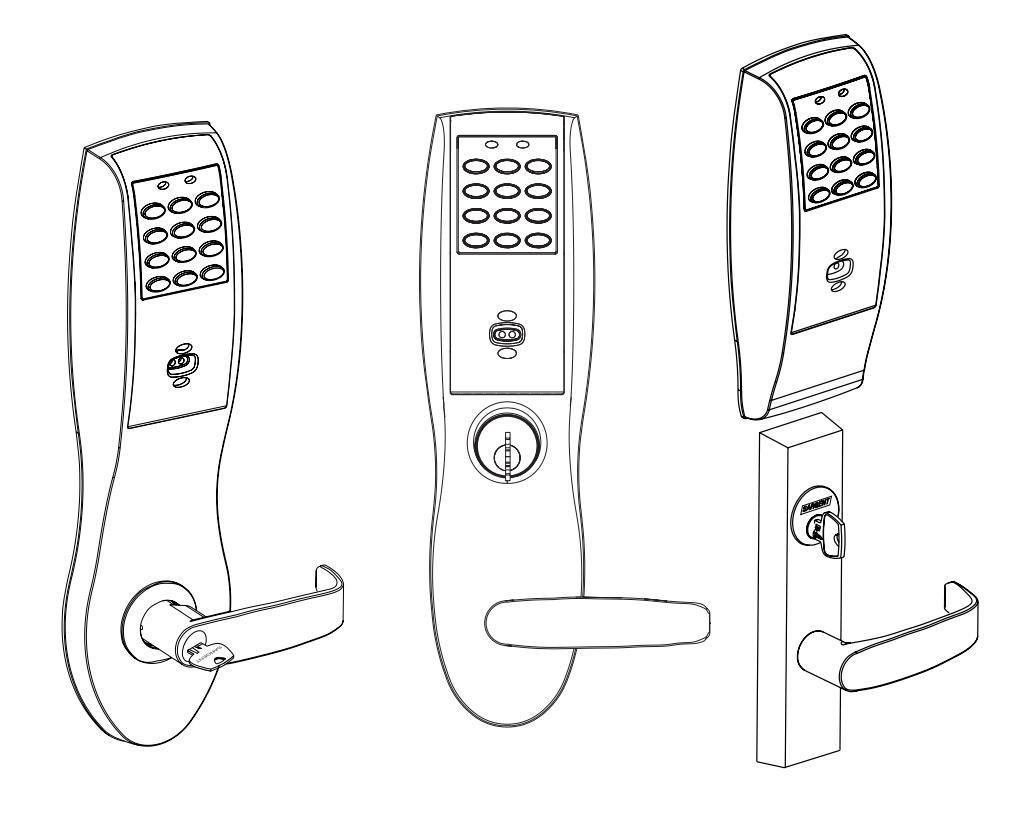
- If your controller has an LK label, see Section 1 for programming.
- If your controller has a "G1.5" label and a keypad, see Section 3 for programming.
- If your controller has a "G1.5" label and no keypad, see Section 4 for programming.
- If your label has a G1-LU, G1-PK, G1-PA, G1-TU, G1-TP or G1-TA; refer to Keypad Programming Instructions A7716 at www.sargentlock.com
- Programming differs between v.G1 and v.G1.5 controllers, verify controller type.

Installation Instructions
The LK Keypad Lock can support 100 users.
Each user is assigned a User Number in addition to the code used for entry.
- SofLink™ Plus applications software must be used with (G1-PA & G1-TA) controller for programming
-
The Master Code is
always
User "01". The Master Code assigns the Emergency and Supervisory Codes.
- It is also used for programming. Users are deleted through the Master Programming Code only
- Emergency code is a 10 second unlock time and will override a thrown deadbolt on a mortise lock
- Emergency Code is at User number (location) "02" The Supervisory Code is at User number "03"
- The Supervisory Code allows temporary lock out of selected users, changes duration of unlock time, requests infrared interrogation output, and may add additional User Codes
- The User Codes are entered at user number "04" or higher. User numbers do not have to be used or entered sequentially
Note: All User Codes must be followed by an asterisk ( * ).
• The "Lock Out" user is location dependent - all users above the chosen user number location are locked out of the keypad. To ensure that all users except Master, Emergency and Supervisor are locked out, program this user at user number location "04".
To Begin Programming:
The Lock Controller is preset at the factory with Master Code 1234. Entering 1234 * will unlock the lock allowing the lever handle to retract the latchbolt.
Note: The Master Code must be changed (i.e., "Forced Change") prior to adding users.
Initial Set-Up Procedures
- The following are typical procedures to be used when setting up your Profile Series LK lock:
- If a mistake is made during any of the procedures, depress the "*" key several times until the yellow LED goes out
- If no keystroke is made in a 30 sec. timeframe, the programming up to that point will default and you will have to start over
LK Programming (100 Users)
To determine programming steps for your lock:
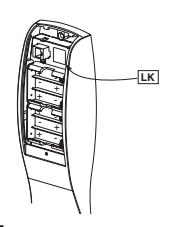
- If your controller has an LK label,, use the programming below.
- If your controller has a "G1.5" label and a keypad, refer to Section 3;
- If your controller has a "G1.5" label and no keypad refer to Section 4.
- If your label has a G1-LU, G1-PK, G1-PA, G1-TU, G1-TP or G1-TA; refer to Keypad Programming Instructions A7716 at www.sargentlock.com
Change the Master Code
99# 1234* Yellow LED blinks 50# 1# Yellow LED blinks Yellow LED blinks quickly New Master Code* New Master Code* Yellow LED blinks slowly
Yellow LED goes out (If solid, see note)
This example uses the Factory Default 1234*
It is recommended not to use the factory default master code.
To Enter the Emergency Code
99# Master Code* Yellow LED blinks 50# 02# Yellow LED blinks
Emergency (1-6 digits)* Yellow LED blinks quickly
Yellow LED blinks slowly (If solid, see note) Emergency (1-6 digits)*
Yellow LED goes out
Emergency Code defaults to a 10 second unlock time and will override a thrown deadbolt on a mortise lock.
To Enter or Change the Supervisor Code
Yellow LED blinks 99# Master Code*
50# 1# 03# Yellow LED blinks Supervisory (1-6 digits)* Yellow LED blinks quickly
Supervisory (1-6 digits)* Yellow LED blinks slowly (If solid, see note)
Yellow LED goes out
Yellow LED blinks
Yellow LED goes out
Enter A User Code
99# Master Code* or Supervisory Code*
50# 1# (User Number 04-100)# User Code (1-6 digits)*
User Code (1-6 digits)*
Enter A Passage (Maintained) Code
99# Master Code*
50# 0# (User Number 04-100)#
User Code (1-6 digits)*
User Code (1-6 digits)*
Yellow LED blinks
Yellow LED blinks
Yellow LED blinks
Yellow LED blinks quickly
Yellow LED blinks quickly
Yellow LED blinks slowly (If solid, see note)
Yellow LED blinks slowly (If solid, see note)
Yellow LED goes out
Enter a Lock Out User Code
99# Master Code* Yellow LED blinks
50# 3# (User Number 04-100)# Yellow LED blinks
User Code* Yellow LED blinks quickly
User Code* Yellow LED blinks slowly (If solid, see note)
Yellow LED goes out
The "Lock Out" user is location dependent—all users above the chosen user number location are locked out of the keypad. To ensure that all users except Master, Supervisor and Emergency are locked out, program this user at user number location "04".
LK Programming (100 Users) (cont.)
Enter A One Time User Code
99# Master Code* or Supervisory Code* 50# 5# (User Number 04-100)# User Code (1-6 digits)*
User Code (1-6 digits)*
Yellow LED blinks
Yellow LED blinks Yellow LED blinks quickly Yellow LED blinks slowly (If solid, see note) Yellow LED goes out
To Deactivate/Reactivate "Beep" With Key Stroke
99# Supervisory or Master Code* Yellow LED blinks 30# 0# 0# (Off) (1# = On)Yellow LED blinks
Yellow LED blinks quickly Yellow LED blinks slowly (If solid, see note)
Yellow LED goes out
Note: If turning beep off, not audible on last two steps.
Reset Master Code back to factory default (1234) and retains all other User codes
Yellow LED blinks 99# Master Code*
40# 00000# 00000# Yellow LED blinks Yellow LED blinks quickly
Yellow LED blinks very fast for 10 sec., then slow
Yellow LED goes out
If the Master Code is not known, factory assistance will be required. Call 1-800-810-9473.
To Clear the Entire Memory
99# Master Code* Yellow LED blinks 46# 00000# 00000# Yellow LED blinks Yellow LED blinks quickly
Yellow LED goes solid and begins to blink Yellow LED goes out (If solid, see note)
This deletes ALL Codes, including Master, Emergency and Supervisory. The Master Code is set back to 1234*, Sets Unlock Time to 5 seconds. If the Master Code is not known, factory assistance will be required to clear the memory. Call 1-800-810-9473.
To Program Door Name into Keypad
Yellow LED blinks 99# Master Code* 43# Door Name (up to 5 digits)# Yellow LED blinks
Yellow LED blinks quickly 0#
Yellow LED blinks slowly (If solid, see note) Yellow LED goes out
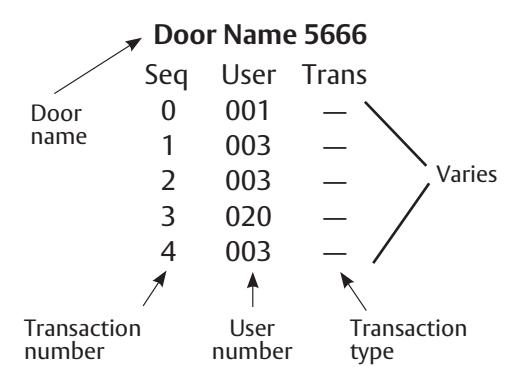
To Interrogate Transaction Log 99# Supervisory or Master Code*
70# 0# 0#
Yellow LED blinks
Yellow LED blinks Yellow LED blinks quickly
Yellow LED goes out (If solid, see note)
For additional information, see "Transaction Log". ✓ Door Name 5666
Door Seq User Trans 0 001 1 003 Varies 2 003 3 020 4 003
Hold an infrared printer up to the infrared LED (as shown). An HP82240B Infrared Printer can be used to download information from the keypad to a printout.
When done printing, the green LED will turn off and the yellow LED will blink slowly. Yellow LED goes out
A7857B Experience a safer and more open world
Infrared
printer (52-2069)
To LED

Installation Instructions
1 LK Programming (100 Users) (cont.)
To Reset/Clear Transaction Log
99# Master Code* Yellow LED blinks
76# 00000# 00000# Yellow LED blinks
* Yellow LED blinks quickly * Yellow LED blinks slowly
* Yellow LED goes out (If solid, see note)
To Delete A User
99# Master Code* Yellow LED blinks
50# 1# (User Number 04-100)# Yellow LED blinks
* Yellow LED blinks quickly
* Yellow LED blinks slowly (If solid, see note)
* Yellow LED goes out
To Enable/Disable A User
99# Master Code* Yellow LED blinks
56# 0# (Enable) or 1# (Disable)
(User No. 04-100)# Yellow LED blinks
* Yellow LED blinks quickly
* Yellow LED blinks slowly (If solid, see note)
* Yellow LED goes out
To Set Unlock Time
11# (1-99 sec)# 0# Yellow LED blinks
99# Master Code* Yellow LED blinks
* Yellow LED blinks quickly
* Yellow LED blinks slowly (If solid, see note)
* Yellow LED goes out
The Unlock Time is adjustable for Momentary Operation. A 5 second unlock time is recommended to extend battery life. Once the unlock time is entered, it is the same for ALL users except 02.
Status Indicators
No Green LED after code is entered once, but flashes after 3 consecutive entries- Invalid Code 4 Long beeps after code is entered - Low Battery.
4 long beeps after code is entered, 4 more long beeps - Voltage (batteries) too low to operate Enter Emergency Code to gain 1 entry.

2
Transaction Log (LK Only)
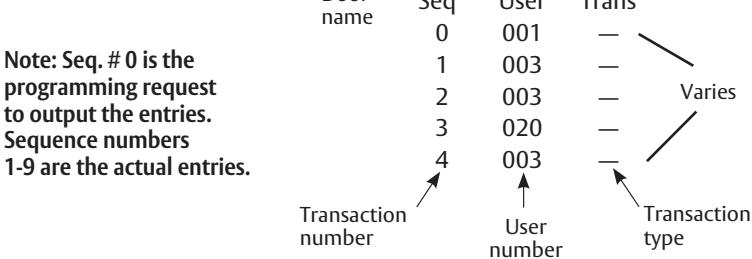
To output the last 15 transactions, enter 99# Supervisory or Master Code * 70 # 0 # 0 # **.
• Examples on this page are for the 100 user, 15 transaction unit
Note: Seq. # 0 is the programming request to output the entries. Sequence numbers 1-9 are the actual entries.
Sequence Number
- Single digit 0-9
- Latest transaction 0
- Oldest transaction 9
User Number
- Three digits 001 through 099
- User numbers assigned at time of programming
Transaction Descriptions
Will vary
Optional Equipment
- Printer Paper (6 Rolls) 52-0034 used for infrared printers
- Infrared Printer 52-2069 used to download the user and transaction type.
- Remote Unlocking 52-3010 used for remote unlocking of Profile mortise lock. When the deadbolt is thrown and the remote unlocking feature is used, both the latchbolt and deadbolt can be retracted by turning the lever handle.
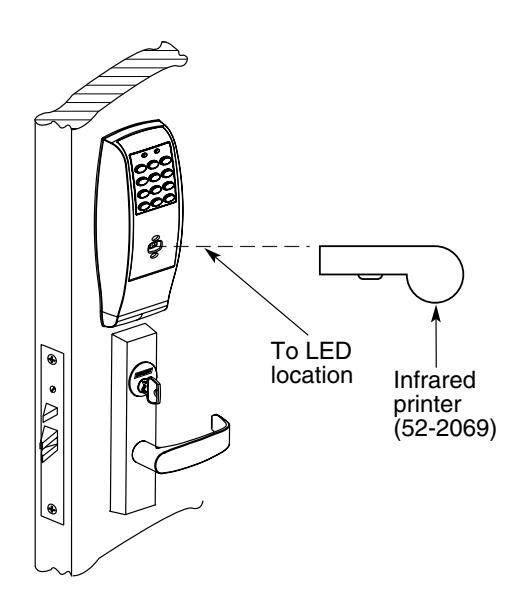
Hold an infrared printer up to the infrared LED (as shown). An HP82240B Infrared Printer can be used to download information from the keypad to a printout.

Installation Instructions
3 G1-LU, G1-PK, G1-TU and G1-TP Programming (2000 Users)
Important
Profile Series v.G1.5 controllers replace v.G1 controllers. Product is still ordered as "G1-" prefix. Controllers are labeled "G1.5".
- The Keypad Lock can support 2000 users. Each user is assigned a User Number in addition to the code used for entry.
- SofLink™ Plus applications software must be used with PA & TA (no keypad) controller for programming
- The Master Code is always User "01". The Master Code assigns the Emergency and Supervisory Codes and is also used for programming. Users are deleted through the Master Programming Code only.
- Emergency code is a 10 second unlock time and will override a thrown deadbolt on a mortise lock
- v.G1.5 locks allow multiple Supervisory users, the *default Supervisory Code is User "02". Additional Supervisory users can be entered starting with User Number "03". The Supervisory Code allows temporary lock out of selected users, changes duration of unlock time, requests infrared interrogation output, and may add additional User Codes
- The User Codes are entered at user number "03" or higher. User numbers do not have to be used or entered sequentially.
Note: All User Codes must be followed by an asterisk ( * )
- The "Lock Out" user is location dependent all users above the chosen user number location are locked out of the keypad. To ensure that all users except Master, Supervisor, Emergency and Panic are locked out, program this user at user number location "03".
- The "Passage" user has precedence over all users except the "Panic" user. The lock must be toggled back into a locked state for other users to function.
To Begin Programming
The Lock Controller is preset at the factory with Master Code "1234".
Entering 1234 * will unlock the lock allowing the lever handle to retract the latchbolt.
Note: The Master Code must be changed (i.e., "Forced Change") from the factory default "1234" prior to adding users.
Initial Set-Up Procedures
The following are typical procedures to be used when setting up your Profile Series v. G1.5 lock:
- If a mistake is made during any of the procedures, depress the "*" key several times until the yellow LED goes out
- If no keystroke is made in a 30 sec. timeframe, the programming up to that point will default and you will have to start over

3
G1-LU, G1-PK, G1-TU and G1-TP Programming (2000 Users) (cont.)
To determine programming steps for your lock:
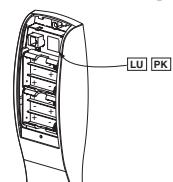
If your controller has a "G1.5" label with keypad, use the programming below; if no keypad, refer to Section 4. If your controller has an LK label, turn to LK programming in Section 1.
For RF Technology products (G1-TU, G1-TP, G1-TA), please take note of the following advisories:
Advisory 1: There is a time delay period between initially depressing the RF FOB button and the actuation of the lock. In some cases, the RF FOB will have to be depressed (and held for 3 seconds) multiple times to successfully actuate the lock.
Advisory 2: In the event that there are co-located RF Technology locks using individual RF FOBs that are depressed simultaneously, the locks may not actuate due to cross interference between the locks and the RF FOBs. The "User" should repeatedly depress (and hold for 3 seconds) the RF FOB button until actuation of the lock occurs.
Change the Master Code
99# 1234* 50# 1# 1# New Master Code* New Master Code* Yellow LED blinks Yellow LED blinks quickly Yellow LED blinks slowly (1) Yellow LED blinks slowly (1)
lew Master Code* Yellow LED blinks slowly (If solid, see note) Yellow LED goes out
This example uses the Factory Default 1234*
Note: The Master Code must be changed (i.e., "Forced Change") prior to adding any other users.
Change the Supervisor Code
99# Master Code* 50# 1# 2# Supervisor Code (1-6 Digits)* Supervisor Code (1-6 Digits)* Yellow LED blinks Yellow LED blinks Yellow LED blinks quickly Yellow LED blinks slowly (If solid, see note) Yellow LED blinks quickly Yellow LED blinks slowly (If solid, see note)
Add a Supervisory Code
99# Master Code* 50# 10 # User Number 03-2000)# User Code (1-6 digits)* User Code (1-6 digits)* Yellow LED blinks Yellow LED blinks Yellow LED blinks Yellow LED blinks
Enter A User Code
99# Master Code* 50# 1# (User Number 03-2000)# User Code (1-6 digits)* User Code (1-6 digits)*
Enter A Panic User Code
99# Master Code* 50# 9# (User Number 03-2000)# User Code (1-6 digits)* User Code (1-6 digits)*
*
Enter A Passage (Maintained) Code 99# Master Code* 50# 0# (User Number 03-2000) # User Code (1-6 digits)* User Code (1-6 digits)*
Yellow LED goes out Yellow LED blinks Yellow LED blinks
Yellow LED blinks quickly
Yellow LED blinks quickly Yellow LED blinks slowly (If solid, see note) Yellow LED goes out
Yellow LED blinks slowly (If solid, see note)
Yellow LED blinks Yellow LED blinks Yellow LED blinks quickly Yellow LED blinks slowly (If solid, see note)
Yellow LED goes out
Yellow LED blinks Yellow LED blinks Yellow LED blinks quickly Yellow LED blinks slowly (If solid, see note) Yellow LED goes out
Note: The "Passage" user has precedence over all users except the "Panic" user. The lock must toggle back into a locked state for other users to function.
1-800-727-5477 • www.sargentlock.com A7857B

3 G1-LU, G1-PK, G1-TU and G1-TP Programming (2000 Users) (cont.)
To Enter the Emergency Code
99# Master Code* Yellow LED blinks 50# 7# (User Number 03-2000)# Yellow LED blinks User Code (1-6 digits)* Yellow LED blinks quickly
User Code (1-6 digits)* Yellow LED blinks slowly (If solid, see note)
* Yellow LED goes out
Enter a Lock Out User Code
99# Master Code* Yellow LED blinks 50# 3# (User Number 03-2000)# Yellow LED blinks User Code* Yellow LED blinks quickly
User Code* Yellow LED blinks slowly (If solid, see note)
* Yellow LED goes out
Note: The "lock out" user is location dependent. To ensure that all users are locked out of the keypad, program this user at "user location" #4.
Enter A One Time User Code
99# Master Code* Yellow LED blinks 50# 5# (User Number 03-2000)# Yellow LED blinks User Code (1-6 Digits)* Yellow LED blinks quickly
User Code (1-6 Digits)* Yellow LED blinks slowly (If solid, see note)
* Yellow LED goes out
Enter An Extended Unlock User Code
99# Master Code* Yellow LED blinks 50# 4# (User Number 03-2000)# Yellow LED blinks User Code (1-6 digits)* Yellow LED blinks quickly
User Code (1-6 digits)* Yellow LED blinks slowly (If solid, see note)
* Yellow LED goes out
Enter a Card, Tag, Fob and RF Fob User
99# Master Code* Yellow LED blinks 50# Yellow LED blinks
(Select only one number below, end it with a #, ie 4#)
0= Passage Code; 1= Standard User; 3= Lockout Code; 4= Extended Unlock User; 5= One Time User; 7= Emergency Code; 8=
Communications Enable; 9= Panic User (Yellow LED blinks) (User Number 03-2000)# Yellow LED blinks * Yellow LED blinks Quickly
* Yellow LED blinks Slowly (if Solid See Note)
Present Card, Tag or RF Fob Beep / Yellow LED blinks * Yellow LED blinks Slowly
* Yellow LED Goes Out
Enter a User Code + Card, Tag, FOB and RF Fob
99# Master Code* Yellow LED blinks 50# 1# (User Number 03-2000)# Yellow LED blinks User Code (1-6 digits)* Yellow LED blinks quickly
Yellow LED blinks slowly (If solid, see note) Present Card, Tag, Fob or RF Fob BEEP / Yellow LED blinks * Yellow LED blinks slowly * Yellow LED goes out
To Activate The RF FOB Function
1-800-727-5477 • www.sargentlock.com
Note: Press the button on the RF FOB. If the controller beeps and LEDs flash, this procedure does not have to be done. RF enabled will shorten the battery life of the unit.
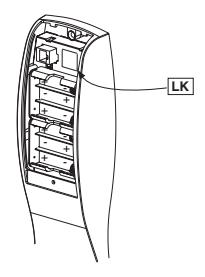
Press the reset button located in the battery compartment and any front key at the same time for 1 second, then release buttons.
Yellow LED blinks slowly
Enter code 1030# Yellow LED blinks slowly 1# Yellow LED blinks slowly 1# Or (0# to disable The RF Function) Yellow LED blinks slowly * Yellow LED blinks faster * Yellow LED blinks slowly
* Yellow LED out
A7857B

3 G1-LU, G1-PK, G1-TU and G1-TP Programming (2000 Users) (cont.)
Reset Master Code back to factory default (1234) and retain all other User codes
99# Master Code* Yellow LED blinks
40# 00000# 00000# Yellow LED blinks
* Yellow LED blinks quickly
* Yellow LED blinks very fast for 10 sec., then slow
* Yellow LED goes out
Note: The factory default Master Code (1234) must be changed (i.e., "Forced Change") prior to adding any other users.
To Clear the Entire Memory (Master Code defaults to 1234)
99# Master Code* Yellow LED blinks
46# 00000# 00000# Yellow LED blinks * Yellow LED blinks quickly
* Yellow LED blinks very fast for 10 sec., then slow
* Yellow LED goes out
This deletes ALL Codes, including Master, Emergency and Supervisory. The Master Code is set back to 1234*
Sets Unlock Time to 5 seconds. If the Master Code is not known, factory assistance will be required to clear the memory. Call 1-800- 810-9473.
Note: The factory default Master Code (1234) must be changed (i.e., "Forced Change") prior to adding any other users.
Turn OFF Audio Beep verification on every Key Depression
99# Master Code* Yellow LED blinks 30# 0# 0# (Off) (1# = On) Yellow LED blinks
* Yellow LED blinks quickly
* Yellow LED blinks slowly (If solid, see note) * Yellow LED goes out
Turn ON Yellow LED verification on every Key Depression
99# Master Code* Yellow LED blinks
30# 1# 1# (On) (0# = Off) Yellow LED blinks
* Yellow LED blinks quickly * Yellow LED blinks slowly (If solid, see note)
* Yellow LED goes out
Set Time
99# Master Code* Yellow LED blinks
41# hh:mm# (24hr Format) 0# Yellow LED blinks * Yellow LED blinks quickly
* Yellow LED blinks slowly (If solid, see note)
* Yellow LED goes out
24Hr Format = 1PM = 13, 2PM = 14.......10PM = 22, Midnight = 00 Example 13:15 = 1:15PM
Daylight Savings Time
99# Master Code* Yellow LED blinks 30# 13# 1# (On) (0# = Off) Yellow LED blinks
* Yellow LED blinks quickly
* Yellow LED blinks slowly (If solid, see note) * Yellow LED goes out
Set Date (Today's Date)
99# Master Code* Yellow LED blinks 42# mmddyy# D.O.W.# (Sunday=1) Yellow LED blinks
* Yellow LED blinks quickly
* Yellow LED blinks slowly (If solid, see note)
* Yellow LED goes out
D.O.W. = Day of week Set Unlock Time
99# Master Code* Yellow LED blinks
11# (1-99 sec.)# 0# Yellow LED blinks * Yellow LED blinks quickly
* Yellow LED blinks slowly (If solid, see note)
* Yellow LED goes out
The Unlock Time is adjustable for momentary operation. A 5 second unlock time is recommended to extend battery life. Once the unlock time is entered, it is the same for ALL users except 02.

Installation Instructions
3 G1-LU, G1-PK, G1-TU and G1-TP Programming (2000 Users) (cont.)
To Enable/Disable A User
99# Master Code* Yellow LED blinks
56# 0# (Enable) or 1# (Disable)
(User Number 03-2000)# Yellow LED blinks
To Delete A User 99# Master Code* Yellow LED blinks
50# 1# (User Number 04-2000)# Yellow LED blinks
* Yellow LED blinks quickly
* Yellow LED blinks slowly (If solid, see note)
* Yellow LED goes out
* Yellow LED blinks quickly
* Yellow LED blinks slowly (If solid, see note)
* Yellow LED goes out
Status Indicators
3 very rapid beeps after User Code entered - Invalid User Code
4 long beeps after User Code entered - Low Battery Indication
4 long beeps after User Code entered, 4 more long beeps - Voltage too low to operate. Enter Master or Emergency Code to gain 1 entry
1 beep after User Code entered - Disabled user
4 beeps after User Code entered - Deadbolt thrown
3 beeps after User Code entered - User lockout
Alternating red/green LED — Awaiting second entry of Code/Card, Tag or Fob user

4
G1-PA & G1-TA Programming
Important
Profile Series v.G1.5 controllers replace v.G1 controllers. Product is still ordered as "G1-" prefix. Controllers are labeled "G1.5".
To determine programming steps for your lock:
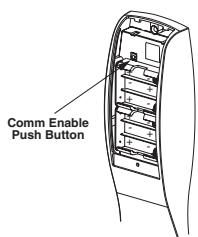
If your controller has a G1.5 label and no keypad (proximity only), then use the programming below.
In a Prox Only (PA) or RF Technology & Prox (TA) configuration, all programming must be completed using SofLink™ Plus Software. The Software includes a convenient Software User's Manual (A7771), to be used as a programming guide.
To program the lock for the first time (only), the following steps are required.
- 1. Using SofLink Plus software, Hotsync door information to PDA.
- 2. On PDA select "Imp/Exp" "Do NOT click OK at this point"
- 3. Wake up the PA or TA lock by presenting an HID Credential (or by depressing an RF Fob).
- 4. Within a <u>couple of seconds</u>, press and hold the PA or TA controller CommEnable push button (below batteries) for 2 seconds, then release the button.
- 5. On the PDA, click "OK".
- 6. If there was an error, check connections and repeat process starting at Step 2.
Note: *The Card will <u>NOT</u> actuate the lock for <u>45 seconds</u> from the start of the downloading process. After this time expires, the card will function as defined by its User Type.
Reprogramming
Note 1: With a proximity card, fob, tag or RF Fob Card selected as a "CommEnable" User, presenting the "CommEnable" card to the lock will initiate communications after performing Step 2 (above) without the need to press the CommEnable button.
Note 2: After performing "first time programming" procedure, create a CommEnable card to facilitate communications from then on.
PDA Response: "Please enter your communications code at the door" Lock Response: Audible beep
The PDA will begin transferring (0-100%) of the door data to the lock.

Installation Instructions
5
Chain Programming
When programming multiple User Numbers and Codes into the LK or G1.5 with keypad, it is not necessary to leave and re-enter the programming Mode (50) for each entry. Multiple entries may be chained together and the three different types of user codes (Standard, Passage and One Time) may be mixed.
The format to be used is as follows:
"T" is the Type of user code with "1" Standard, "2" Passage and "3" One Time.
"UN " is U ser N umber (04-99)
"UC" is User Code (2 to 6 digits) which correlates with the User Number
99# Master or Supervisor Code* 50# Type# User Number a# User Code a* User Code a* T# UNb# UCb* UCb* T# UNc# UCc* UCc* ...... T# UN_# UC_* UC_**
An example with four user codes is shown below:
| Туре | User Number | User Code | |
|---|---|---|---|
| 1 | 05 | 875 | |
| 3 | 12 | 2226 | |
| 2 | 08 | 5444 | |
| 1 | 50 | 3367 | |
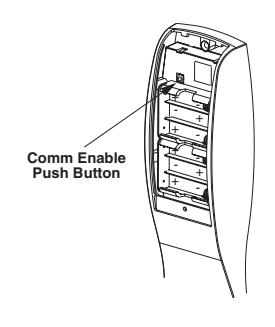
Label indicates version of electronics
Using Master Code 4732 and above information, the lock would be programmed as follows:
99# 4732* 50# 1# 05# 875* 875* 3# 12# 2226* 2226* 2# 08# 5444* 5444* 1# 50# 3367* 3367*
If all user codes are type 1, it is not necessary to enter the type number with each entry.
The format now simplifies to:
99# Master or Supervisor Code* User Number a# User code a* User Code a* UNb# UCb* UCc* UCc*...... UN_# UC * UC **
An example with three user codes is shown below:
| Туре | User Number | User Code | |
|---|---|---|---|
| 1 | 07 | 77 | |
| 1 | 15 | 67832 | |
| 1 | 91 | 7568 | |
Using Master Code 45988 and above information, the lock would be programmed as follows:
99# 45988* 07# 77* 77* 15# 67832* 67832* 91# 7568* 7568**
To chain the User Number delete procedure:
99# Master Code* User Number a#** UNb#** UNc#**...... UN #****
Using the information from the above example:
99# 45988* 07#** 15#** 91#****

Installation Instructions
| 6 | Supplemental – Individual "Door" Log Sheet for keypad programming | ||
|---|---|---|---|
|
Lock Model:
Door Name: Location: |
|||
| Table 1: Main Codes - User Programmed "Door" Log | |||
| Function | User Number | Default Code | User Programmed Code |
| Master Code | 01 | 1234* | |
| Supervisory Code |
Note: The factory default Master Code (1234) must be changed (i.e., "Forced Change") prior to adding any other users.
| Table 2: User Programmed "Door" Log | ||||||
|---|---|---|---|---|---|---|
| User Name | User Type | User Number | User Code | Card/Fob#, Notes | ||

SARGENT Manufacturing Company 100 Sargent Drive New Haven, CT 06511 USA 800-727-5477 www.sargentlock.com
Founded in the early 1800s, SARGENT® is a market leader in locksets, cylinders, door closers, exit devices, electromechanical products and access control systems for new construction, renovation, and replacement applications. The company's customer base includes commercial construction, institutional, and industrial markets.