Isonas New Feature Activate and Deactivate Rules FAQ
Open the original PDF document
View PDF

How to Activate and Deactivate Rules
ISONAS Pure Access has added the ability to deactivate and re-activate weekly rules to help you get ready for future schedule or access changes. By default, inactive rules are now shown at the bottom of your weekly rules list with a gray background.
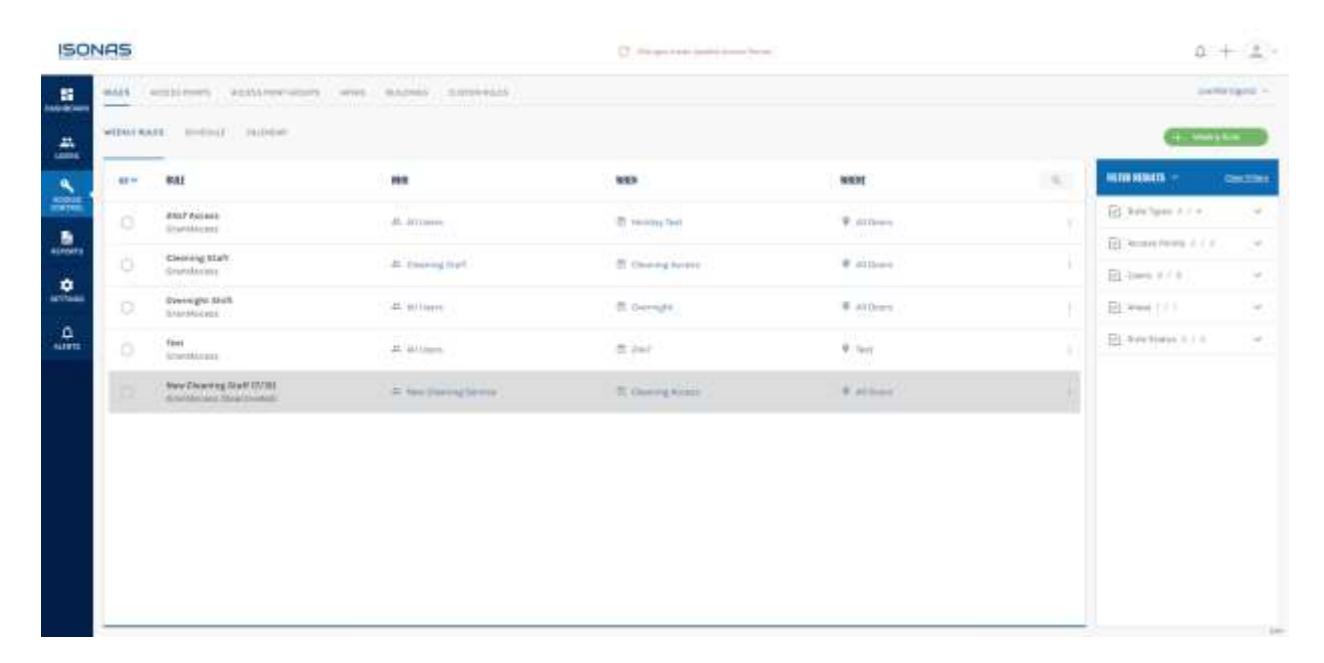
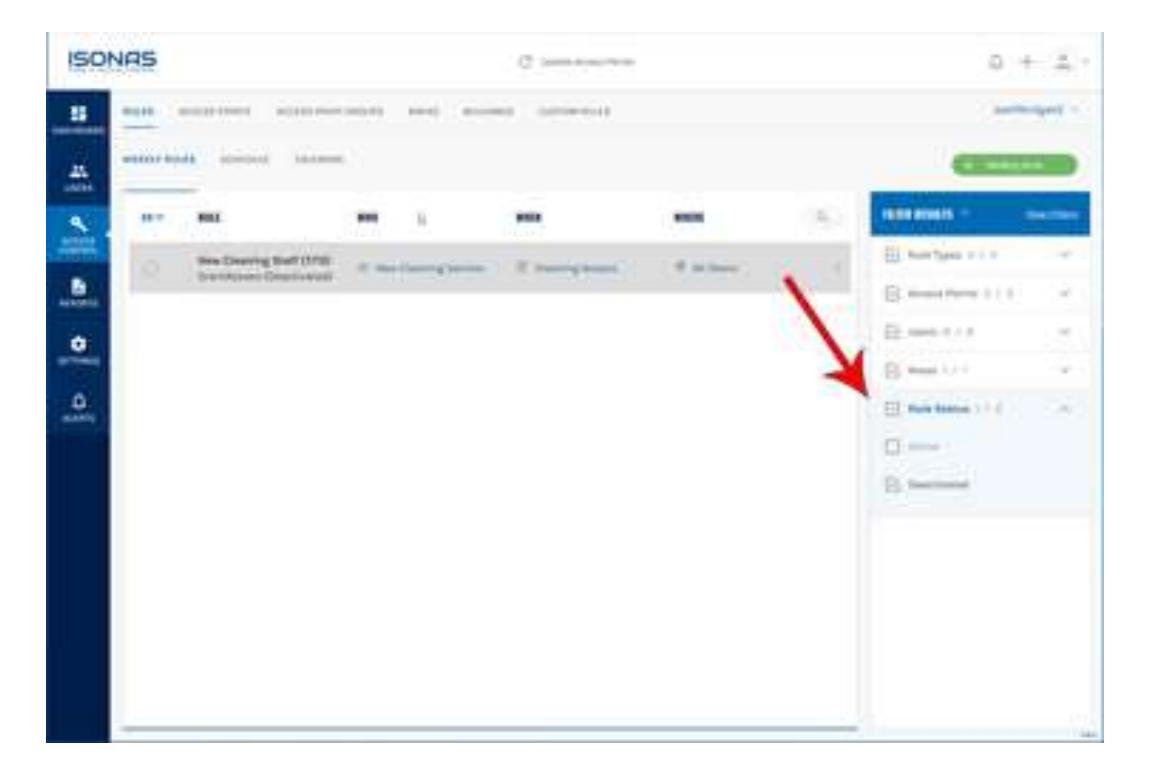
By default, both active and inactive rules are shown on the weekly rules page. You can filter this list to show rules in a certain status by selecting options in the "Rule Status" filter group.

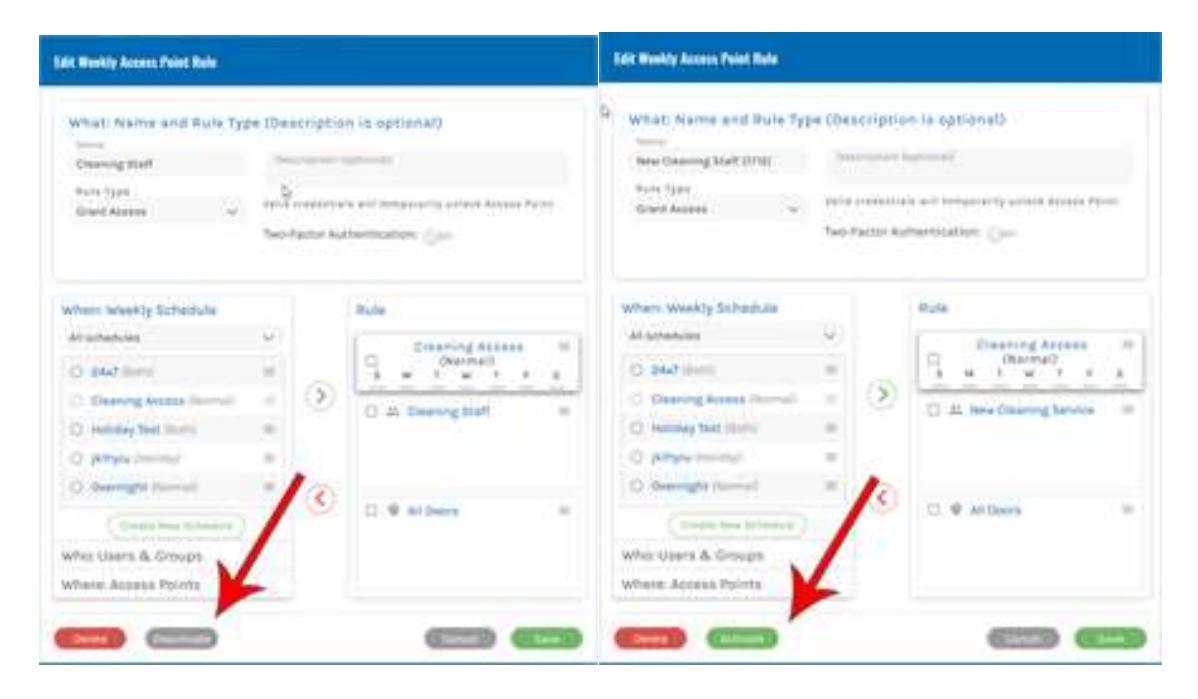
You can activate or deactivate single rules by clicking the triple dots to the right of the rule entry to bring up the Edit Rule modal. From here, you will see options to either activate or deactivate on the bottom left of the screen.
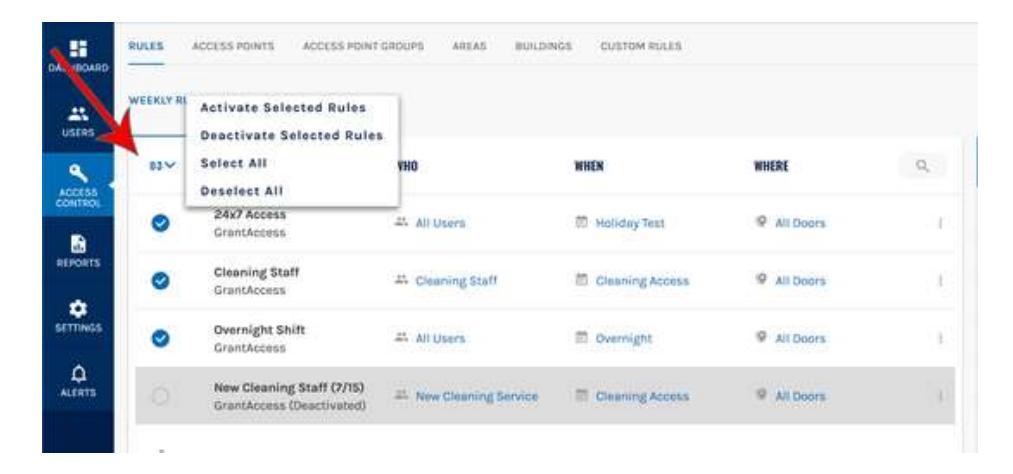
You can also activate or deactivate multiple rules by using the checkbox multi select to select the rules whose status you would like to change, then selecting whether you would like to active or deactivate the selected rules.
After activating or deactivating any rules, you'll need to update your access points for the changes to take effect.