Isonas How to Enroll a Mobile Credential in Pure Access FAQ
Open the original PDF document
View PDF

How to Enroll a Mobile Credential in Pure Access
- 1. To add a pin code, badge or a mobile credential for a user, navigate to the Users page, Add or edit a User and then click the add icon next to "Credentials" on the left side of the screen.
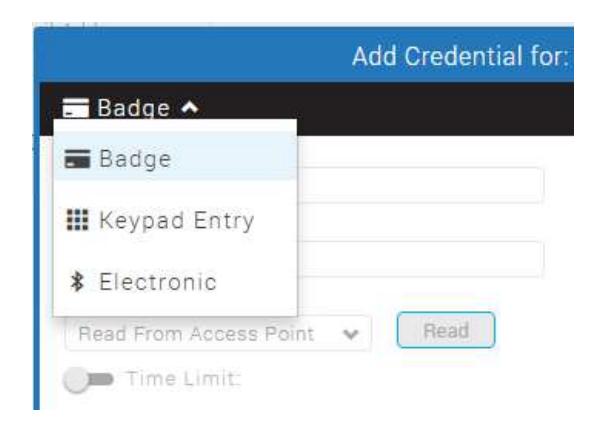
- 2. A window will pop up prompting you to add a credential. There are multiple options: Badge, Keypad Entry (PIN) or Electronic (Mobile Credential). Select Electronic to enroll a mobile credential. This will allow them to use their mobile device to open the door. The process for this is the same as adding a badge to a user.
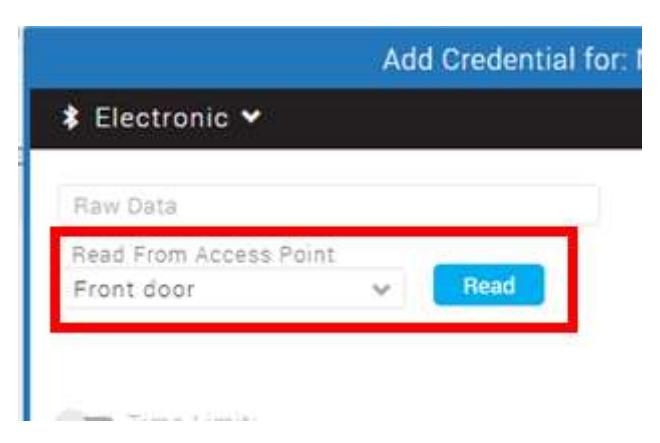
3. Mobile Credentials require an enrollment of the device at a reader, simply select which access point you want to read the credential information from.
4. On the mobile device your user should navigate to the App Store on their mobile device, search for ISONAS Pure Mobile and then download the app to their phone.

5. Next they should present their phone to the reader you selected in Step 3. This will read the appropriate information from the phone to assign that device to this user.
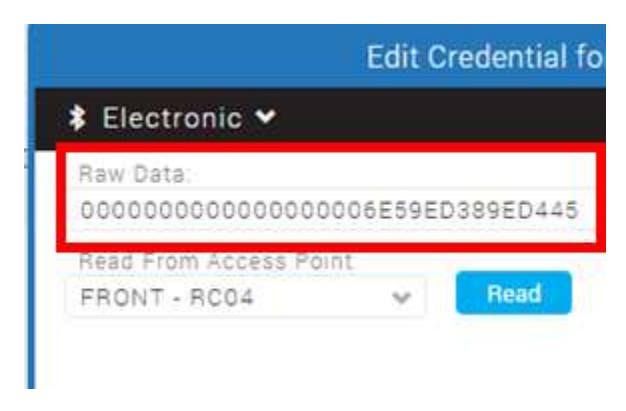
- 6. The Raw Data field will populate automatically (see above). Click the button at the bottom right corner of that popup window. You'll see the credential listed in the "Credentials" portion of the User page.
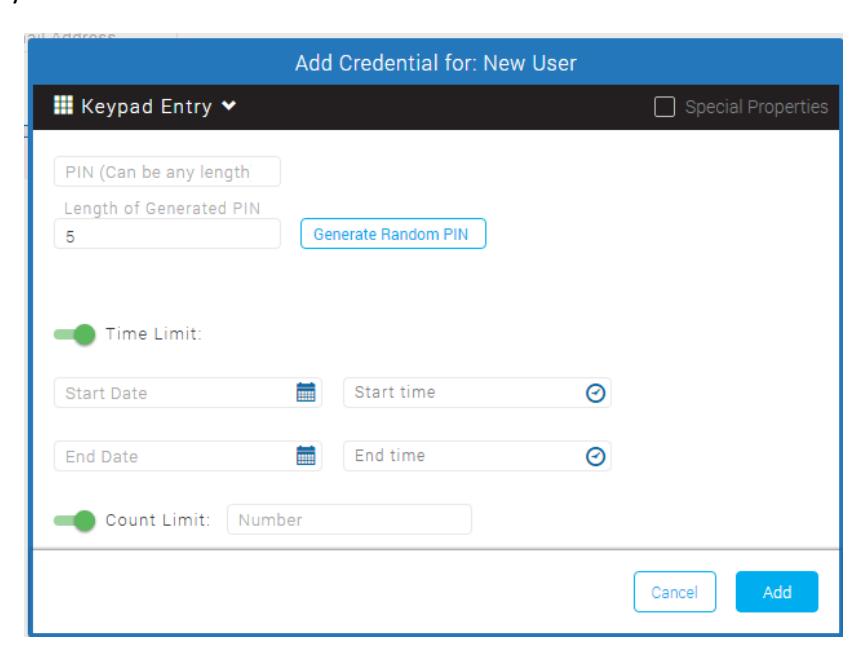
- 7. In addition, you are also able to set a start and end date and time to these credentials and a count limit. If you have a visitor or temporary employee you can limit their badge upon the initial creation. Simply set the start and end date and time in the appropriate boxes and/or the number of times you want this credential to be used.

8. The final step to adding a user is to update the access points with this new information. In the top right of the screen is the Update Access point Button. Select this button and the system will show updating as it sends this new information to the ISONAS hardware.
Using the Mobile Credential to unlock the Door:
Once you have enrolled your user into the Pure Access platform and given them the appropriate access, se e adding a user for more details, they are able to use their mobile phone just like they would have used their badge.
- 1. When a user approaches an ISONAS hardware device, they must have Bluetooth® Low Energy (BLE) turned on, on their device in order for the phone to communicate with the ISONAS hardware.
- 2. Open the app on the mobile device, the user can simply present their phone to the reader. The mobile app will show that the reader is in range if they are in close proximity, then it will show connecting as the reader and phone try to connect, and the LED should go amber(yellow) at this point.
- 3. The mobile app will show that the credential has been sent and if the user has been granted access in Pure Access to enter that door the LED will turn green and unlock the door, if they do not have access the LED will go to red.