Isonas Adding Special Badges FAQ
Open the original PDF document
View PDF

Setting up Special Credentials:
Adding a Toggle Credential
A toggle badge will allow a specific credential to "toggle" a door from an unlock state and then back to a locked state. For example: if a door is locked, it will set the door to unlocked and can then reset a toggle unlock to a locked state. If you have an existing schedule, auto-unlock or badge unlock, the toggle function does not override these unlock states. A toggle lock can only reset a toggle unlock.
**Please note this is a function that requires the ISONAS hardware to be online and will not toggle the state of the device if it is offline.
These steps will guide you on setting up Toggle badge for credentials assigned to user IDs in Pure Access.
- 1. Log into your Pure Access account at isonaspureaccesscloud.com.
- 2. Click on the "Users" tab on the left hand side.
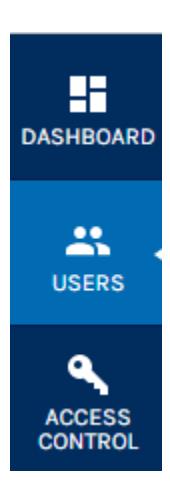
- 3. Select the user from the list of people that you want to be able to toggle the door(s) to locked/unlocked status.
- 4. If you are adding a new credential to a user as the toggle unlock badge, you can click the Green + next to Credentials to add the credential. If you plan to edit an existing credential, click the gear icon for an existing credential that is assigned for that User.

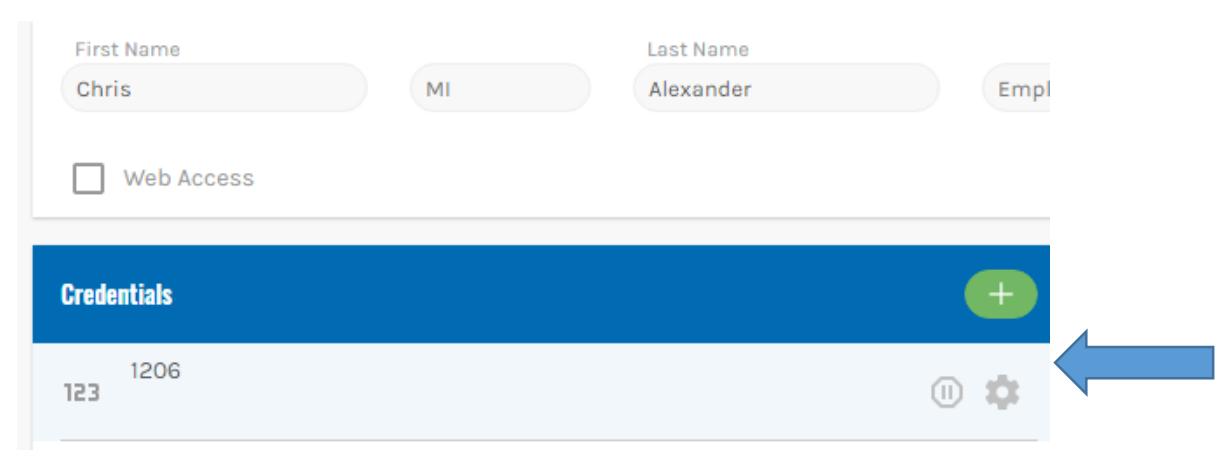
- 5. To enroll a new credential simply enter the badge ID, present the badge to a reader to enroll by presentation or add a pin code.
- 6. The Credential information will populate. The next step is the key for setting unlock toggle badges.
- 7. At the top right corner of the badge enrollment is a checkbox labeled 'Special Properties', Check that box
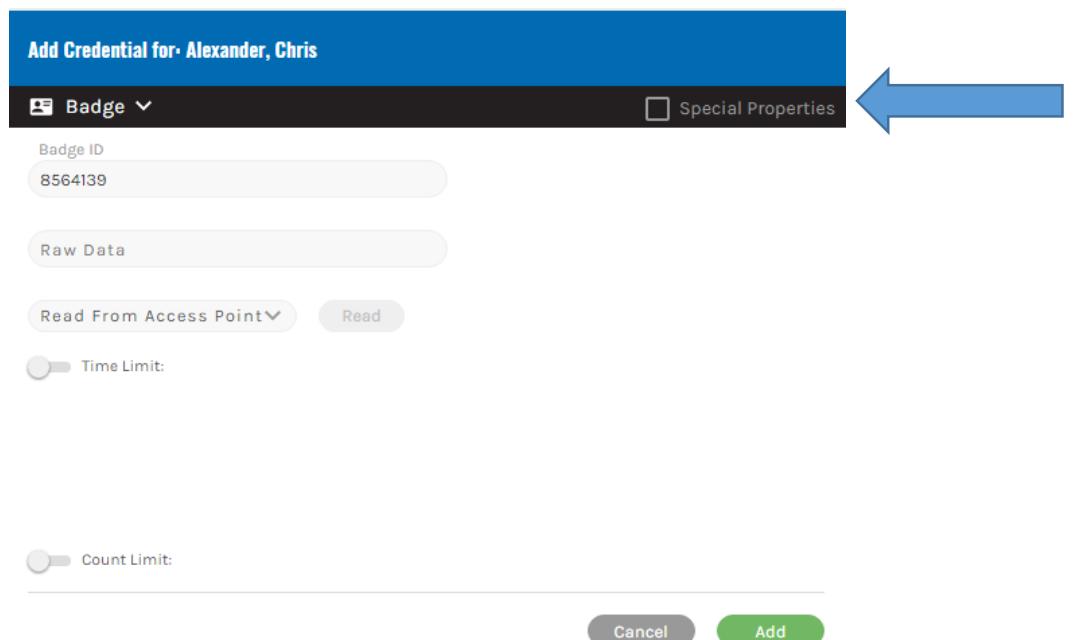
8. You'll then see more check boxes appear: Check the 'Toggle Unlock' Checkbox

9. You'll then see a drop down populate on the window to select an Access Point.


10. Click the drop down and specify either the door or door group you want to toggle state when this specific credential is presented.
Note: If you select a door group, all the doors in the door group will be able to be toggled individually when the toggle credential is presented to that door. Only the individual door that reads the credential will toggle unlock, not the entire door group.
- 11. Click the Add button at the lower right corner of the window.
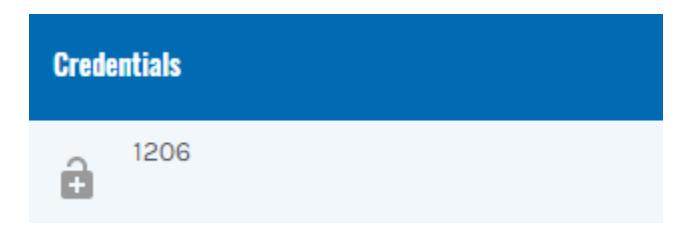
- 12. Credentials that are set with the toggle feature will show a padlock icon next to them.
13. Run a compile by clicking the 'Update Access Points' button to inform the readers involved with the unlock toggle setting you have just set up.

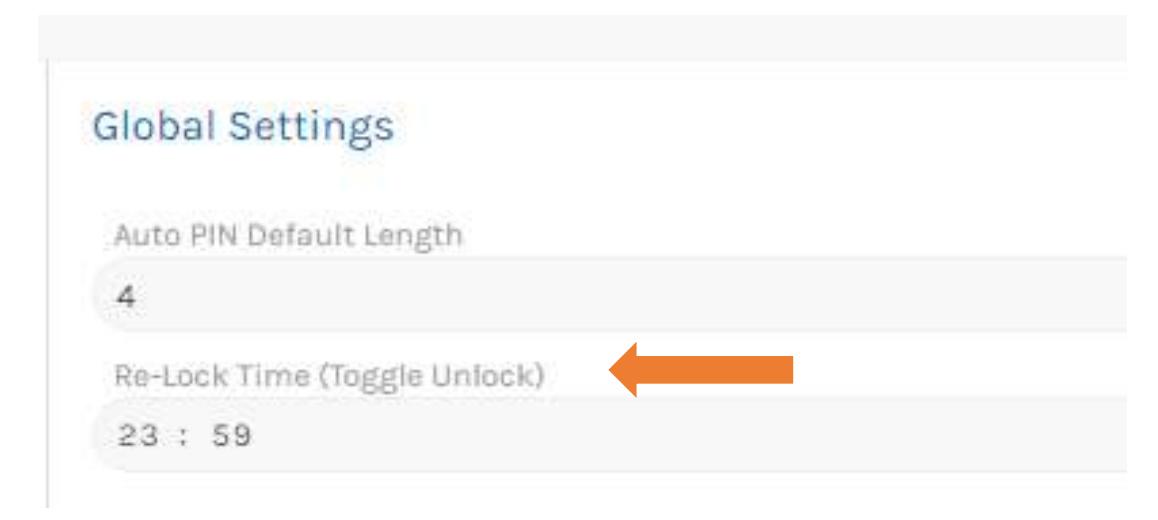
- 14. In order to ensure your doors are not left in a toggle unlock state, you have the ability to set a "Re-lock" time for your toggle.
- 15. Navigate to the Settings page and then under Global Settings you will see a Re-lock time for the toggle unlock. Simply set the time to your preferred relock time and if the door is in an unlock state at this time, the door will relock automatically.

Adding a Master Credential
A master credential simply overrides all rules and schedules and permits access in all doors at all times. This credential can be a pin code, badge or mobile credential.
- 1. Log into your Pure Access account at isonaspureaccesscloud.com.
- 2. Click on the "Users" tab on the left hand side.
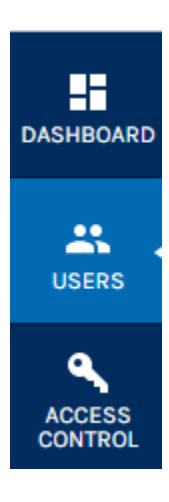
- 3. Select the user from the list of people that you want to be assigned a master credential.
- 4. If you are adding a new credential to a user as the master credential, you can click the Green + next to Credentials to add the credential. If you plan to edit an existing credential, click the gear icon for an existing credential that is assigned for that User.
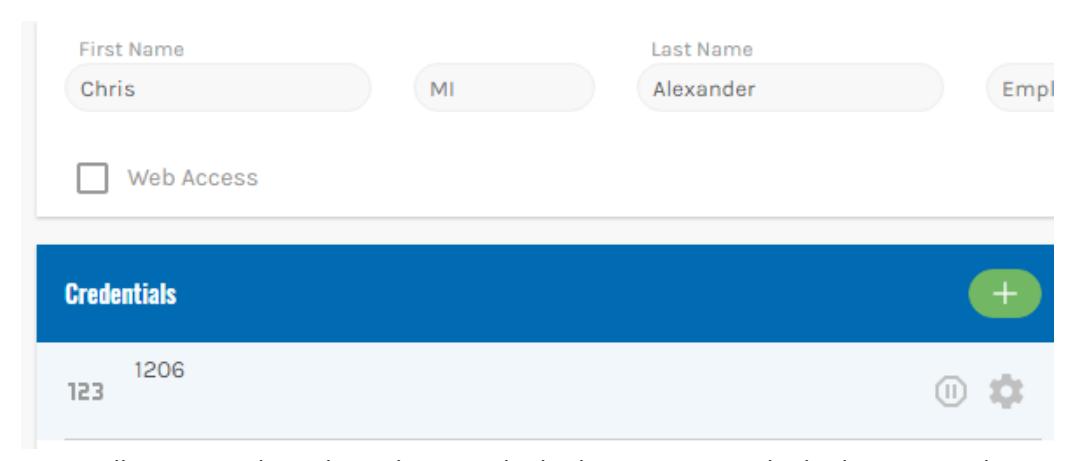
- 5. To enroll a new credential simply enter the badge ID, present the badge to a reader to enroll by presentation or add a pin code.
- 6. The Credential information will populate. The next step is the key for setting unlock toggle badges.
- 7. At the top right corner of the badge enrollment is a checkbox labeled 'Special Properties', Check that box

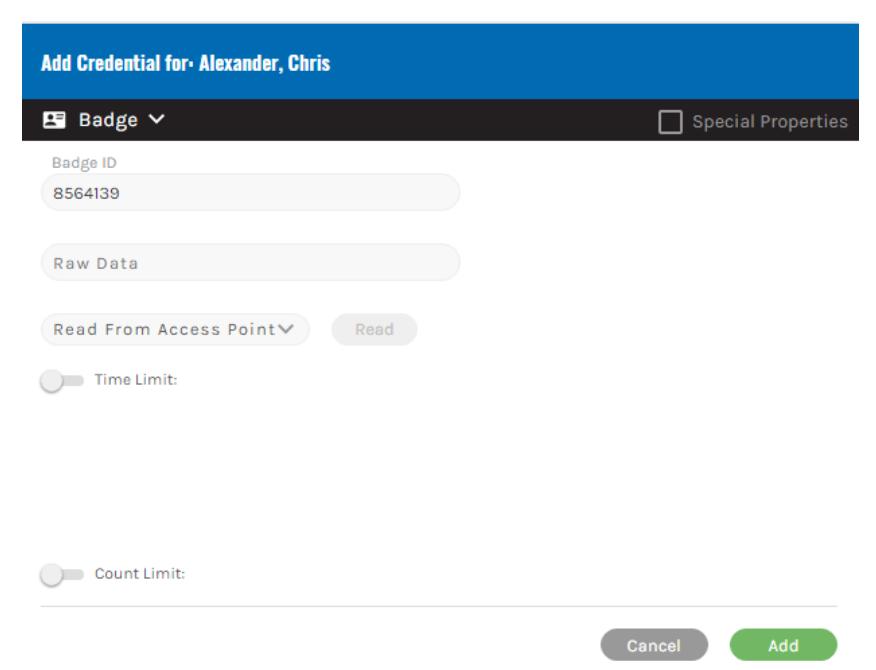
8. You'll then see more check boxes appear: Check the 'Master Credential Checkbox

- 9. Click the Add button at the lower right corner of the window.
- 10. Run a compile by clicking the 'Update Access Points' button to inform the devices this credential now has unlimited access.