HS4 Pro Access Space Software – HS4_ProAccessSpace_v5.1
Open the original PDF document
View PDF

The "Pro-Access SPACE" access control software (version 5.1)
Release notes
Document name: Readme.pdf
Document version: 5.1.0
Last updated date: 18 July 2018
Historic of changes
| Version | Status | Date | Change description |
|---|---|---|---|
| 5.0.0 | Stable | 8/3/2018 |
New consideration to bear in mind regarding virtual machines:
VMQ (Virtual Machine Queue) feature on NICs. |
|
New hardware requirements depending on the amount of IP
devices to manage by the Space software. |
|||
| 5.0.1 | Stable | 27/4/2018 |
New requirement added: server machine must have time/date
correctly configured. |
| 5.1.0 | Stable | 19/7/2018 | Minor mention about web servers. |

Table of contents
| 1. | Introduction 3 | |
|---|---|---|
| 2. | Overview 3 | |
| 3. | Salto server 5 | |
| 3.1 | Hardware and system requirements 5 | |
| 3.2 | Virtual machine considerations 6 | |
| 3.3 | Communication ports and connectivity considerations 6 | |
| 3.4 | Permission considerations 9 | |
| 3.5 | Database considerations10 | |
| 3.6 | Decalogue of good security practices11 | |
| 4. | Client machines 12 | |
| 4.1 | The Space webapp12 | |
| 4.2 | The "bridge" program between the Space service and USB devices13 | |
|
Appendix A.
Security protocols and cipher suites for HTTPS 15 |
||
|
Appendix B.
Provision of certification for HTTPS 17 |

1. Introduction
This release notes document contains technical information regarding installation aspects of the " Pro-Access SPACE " software ("Space" hereafter), such as system requirements, connectivity considerations, etc. It is intended for advanced users (such as Salto distributors) that have to deal with the software installation process.
This document assumes that the version of the Space software is 5.0.
2. Overview
The Space software is an access control software designed and produced by Salto for managing Salto-manufactured electronic access points, such as standalone electronic escutcheons, cylinders and online IP and RF locks.
In the picture below, a basic scheme of the Salto access control system is depicted, in which the following main components can be appreciated: the Salto server machine, the client machines and the Salto peripherals and access point devices.
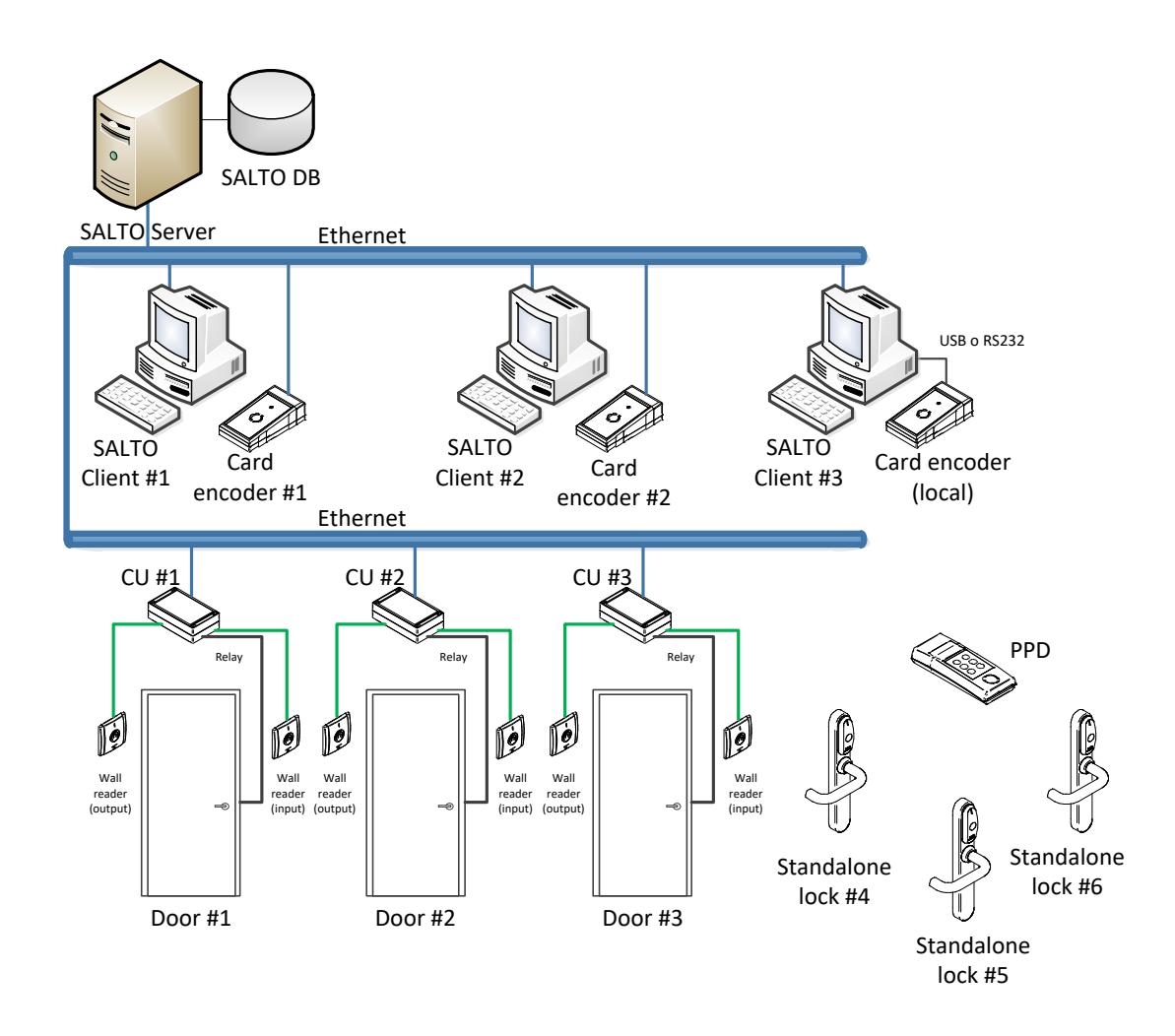
Figure 1: simplified scheme of the Salto access control system


Salto server : this is the heart of the system, where both the Salto service and Salto DB are located. The Salto service is mainly responsible for managing and controlling all the SALTO online devices in real time, such as IP and RF doors, and card encoders. It also attends and processes requests coming from Salto clients and integrators.

- Salto clients : these machines run client applications, normally in the form of a web application called " ProAccess Space " by means of an internet browser.
- Card encoder : this peripheral is used for writing access permissions on cards. Two technologies are supported: IP and USB.
- Standalone electronic escutcheons and cylinders : these are offline battery-powered access point devices that allow or deny access based on permissions written on the presented card. If required, these locks may be equipped with RF or BLE communication components, thus allowing online capabilities.
- Portable Programmer Device (PPD) : this USB device represents the nexus between the Salto software and the offline locks. It is mainly used for programming, retrieving audit trail information and diagnosing offline locks.
- Online Control Unit (CU) : this device works both as an online IP door and card updater. It is continuously being monitored by the Salto server, thus providing real-time access control.
Important note: all the IP devices (i.e., control units and card encoders) open a UDP port at 1100 to communicate with the Salto server (see section 3.3 in page 6) .
The following sections explain in more detail the hardware requirements and security issues to consider when installing the Salto software in both the Salto server and client machines.

3. Salto server
The Salto server represents the heart of the system since it hosts both the Salto database and the Space service.
The Salto DB contains data concerning the site's access control system, such as cardholder permissions, lock audit trail, locking plan, etc. Currently supported backend DB systems are MS-SQL Server and MS-LocalDB (more on this later).
The Space service, on the other hand, is a Windows NT service developed for the .NET platform. It basically provides the following two functionalities: 1) performs real-time access control by managing and monitoring the online Salto devices (both access points and SVN updaters); 2) attends and processes requests from Salto clients and integrators.
The Salto service is configured through a setup tool named " ProAccess SPACE Configurator ".
3.1 Hardware and system requirements
The hardware and system requirements for the Salto server are as follows:
- Supported operative systems: Microsoft Windows 7 SP1, 8.1 1 , 10, Windows Server 2008 R2 SP1, 2012 R2 2 , 2016. Both 32-bit and 64-bit versions.
- Database 3 : Microsoft SQL Server 2005, 2008 R2, 2012, 2014, 2016, 2017 and LocalDB. All editions supported, "Express" included.
- Microsoft SQL Native Client 11.0 (installed by default when you install MS-SQL Server 2012 or later).
-
Minimum hardware: it mostly depends on the amount of IP devices (such as ethernet encoders, gateways and CU5000) to manage by the Space software. As a rule of thumb:
- Installations with less than 300 IP devices: a dedicated machine with at least 1 CPU 2.5GHz and 4GB RAM is required.
- Installations with more than or equal to 300 IP devices: a dedicated machine with at least 2 CPU 2.5GHz and 8GB RAM is required.
On the other hand, 1024x768 high-colour 32-bit display (for working with the GUI webapp via browsers) is recommended.
- .NET framework 4.6.2 or later (included within the installer).
- Required hard disk space depends on the size of the locking plan and the purgation policy. A minimum of 5 GB is recommended.
1 Both "Windows 8.1" and "Windows Server 2012 R2" must have the following Windows updates: KB2919442 (see https://support.microsoft.com/kb/2919442) and KB2919355 (see https://support.microsoft.com/kb/2919355).
2 See footnote #2 above.
3 As of this writing, and according to Microsoft, MS SQL Server cannot be installed on a Windows Server domain controller (see https://support.microsoft.com/en-us/kb/2032911).

- Machine name resolver (DNS): the Salto software DOES use machine names (rather than fixed IP addresses) for inter-machine communications. In this regards, a machine name resolver (such as a Domain Name System or DNS) is required to correctly resolve machine names into the corresponding IP address.
- The date and time of the server machine must be correctly configured before the Space software is started. Otherwise, the performance of the online devices (such as RF locks) might be negatively affected.
3.2 Virtual machine considerations
In principle, the Space service (and its DB) may be installed and executed in virtual machines. What follows are the most important considerations to bear in mind:
- Make sure that enough CPU and RAM resources are dedicated. Any latency due to insufficient resources will negatively affect the interactions between the Space service and the online access control devices and end users.
- In case your host machine is equipped with more than one physical NIC (network interface controller), make sure that all the IP traffic from/to the Space software flows through the same physical NIC (otherwise you may have communication issues with online devices, such as CU5000).
- If you have communication issues between the Space server and the Salto IP devices, consider disabling the VMQ (Virtual Machine Queue) feature on NICs. See the following link for further details: http://www.dell.com/support/article/us/en/19/sln132131/windows-server- slow-network-performance-on-hyper-v-virtual-machines-with-virtual machine-queue--vmq--enabled?lang=en
3.3 Communication ports and connectivity considerations
The Salto service is not an isolated piece of software. On the contrary, the Salto service opens several listening ports for those third-party systems interested in requesting access control resources and services (for example, hotel PMS). At the same time, the Salto service establishes connections to other systems since it requires certain data or services from them (for example, MS-SQL Server or the Salto cloud).
The diagram below shows all the communication ports managed by the Salto service. For tcp/ip ports, the arrow symbol indicates the listening port to which connection is established.
Important: please note that all the port numbers for the tcp/ip ports specified in the below diagram are not fixed values but default ones and can be changed to any other value as desired. On the contrary, the UDP port 1100 opened by Salto peripherals is fixed and cannot be modified.

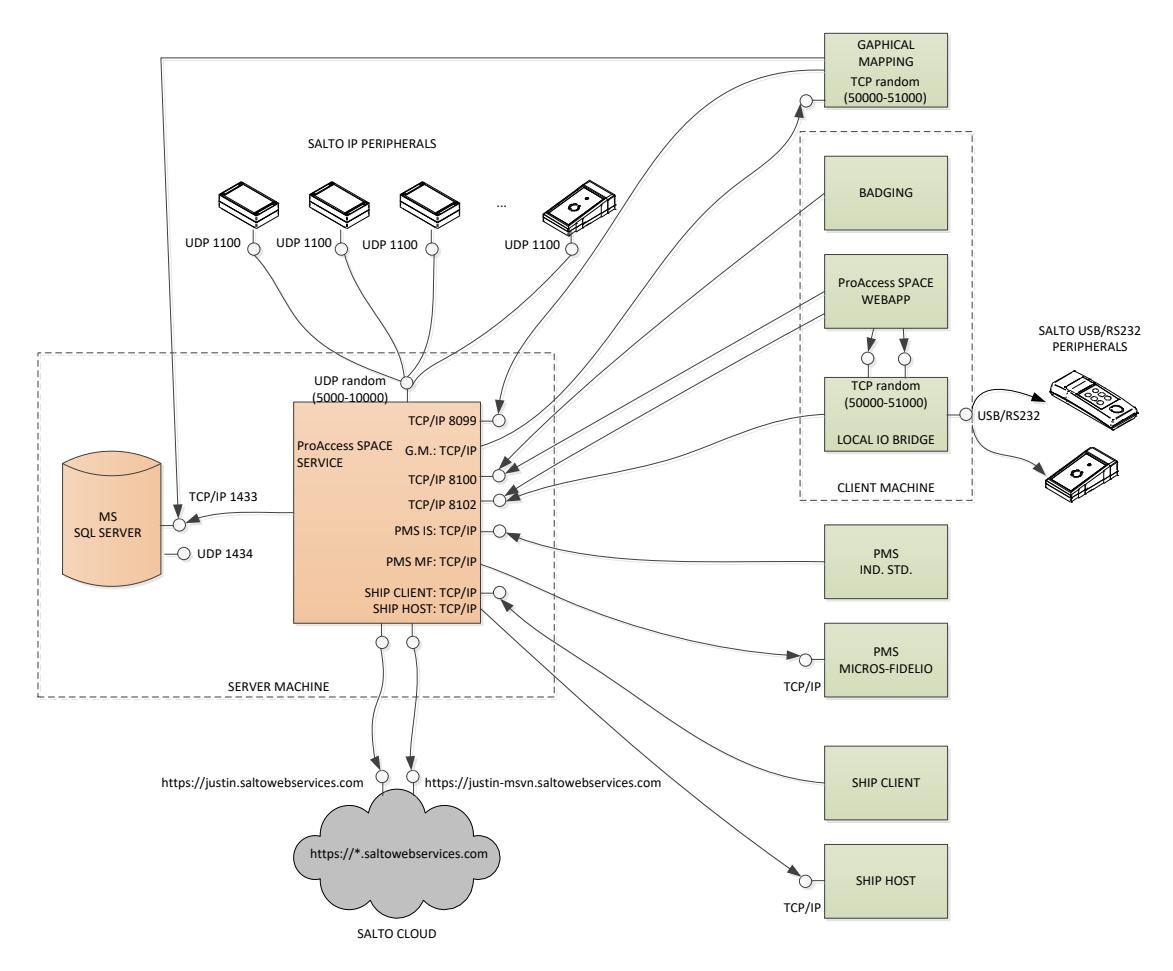
Figure 2 : connectivity scheme for the Space service. All the provided values for the tcp/ip ports are SW configurable (see Table 1).
The table below enumerates all the possible communication ports (and their default value) that may be used by the Salto service.
|
Type of system to
communicate with |
Port type, protocol and
configuration |
Description |
|---|---|---|
|
Database
management system (MS SQLServer) |
-TCP/IP.
-Configurable from the MS SQLServer softw. -Defaults to 1433 by Microsoft. |
MS-SQL Server® allows different types of
connection: TCP/IP, named-pipes or through memory. TCP/IP is the recommended one. Normally, its port number defaults to 1433. Additionally, the SQLServer software (more specifically, the "SQLServer Browser") may open a UDP port for allowing discovery of SQL Server instances (normally it defaults to 1434). |
|
SALTO IP devices
(card encoders, control units, gateways, etc.) |
-UDP port.
-Proprietary protocol. -Configurable from the softw. -Defaults to a random value between 5000-10000. |
The software opens a single UDP port to
communicate with all the Salto IP devices. The Salto IP devices, in turn, open a UDP port in 1100 (fixed). |
|
SALTO front-end
(browsers using the Space webapp) |
-TCP/IP port in listening mode.
-HTTP(S) protocol. -Configurable from the softw. -Defaults to 8100. |
This is the endpoint of the embedded web
server. Browsers must connect to this port in order to access to the Space web pages. The default URL is: http://(machine_name):8100 (note: https strongly recommended). |

| SALTO clients |
-TCP/IP port in listening mode.
-HTTP(S) protocol. -Configurable from the softw. -Defaults to 8102. |
Certain SALTO clients, such as the Space
webapp or the LocalIOBridge utility, connects to this port for getting real-time notifications. |
|---|---|---|
|
SALTO front-end
clients (graphical mapping) |
-TCP/IP port in listening mode.
-SOAP protocol. -Configurable from the softw. -Defaults to 8099. |
This port is only used by the graphical
mapping software. |
|
Hotel PMS:
Micros-Fidelio® protocol |
-TCP/IP.
-Micros-Fidelio protocol. -Configurable from the softw. |
The SALTO software establishes a TCP/IP
connection to this type of PMS. |
|
Hotel PMS:
Industry Standard protocol |
-TCP/IP port in listening mode.
-Industry Standard protocol. -Configurable from the softw. |
The SALTO software opens a listening TCP/IP
port to which the PMS is connected. Serial RS232 connection is also supported instead of TCP/IP. |
|
SHIP clients
(SHIP protocol) |
-TCP/IP port in listening mode.
-SHIP protocol (propietary) -Configurable from the softw. |
The SALTO software opens a listening TCP/port
to which SHIP clients connects for requesting access control services. |
|
SHIP host
(SHIP protocol) |
-TCP/IP.
-SHIP protocol (propietary). -Configurable from the softw. |
The SALTO software establishes a TCP/IP
connection to the SHIP Host to request access permissions. |
| SALTO cloud |
-TCP/IP (https).
-REST protocol. |
The SALTO service establishes connections to
the SALTO cloud located in the following URL: - https://justin.saltowebservices.com - https://justin-msvn.saltowebservices.com - In general: https://*.saltowebservices.com |
Table 1 : ports and connections from and to the Space service.
Some important considerations to bear in mind regarding connectivity:
- Make sure that the MS-Windows Firewall (or any other similar program with blocking capability, such as anti-virus) does not block the Salto service. If necessary, add a new exception entry in the Windows Firewall to avoid blocking the Salto service.
- Some firewalls are configured to automatically shut down tcp/ip connections that have a long period of inactivity, resulting in communication problems within the system.
In order to avoid communication problems, make sure the firewall in place does not automatically shut down tcp/ip connections when the inactivity is shorter than:
- o 5 minutes for websocket connections.
- o 105 seconds for the Micros-Fidelio (PMS) protocol.
Warning:
the Space software has been designed for LAN environments, where endpoints are not publicly exposed to the Internet. Although you could make it work in cloud-based environments, you should avoid exposing the Space endpoints directly to the Internet, the reason being that the Space software is not actually prepared for it in terms of security and performance considerations. For example, the software is not yet robust enough against DoS (denial of service) attacks. If you need the Space web pages to be accessible from remote points, VPN is the way to go.
The Salto software embeds its own web server. No external web server (such as MS-IIS or Tomcat) is required.

3.4 Permission considerations
The setup program performs all the necessary settings to make the software work out-of-the-box. The only requirement is to have administrator permissions at installation-time.
By default, the setup program will install the Salto service with the following configuration:
- 1) use of the built-in "Local System" account for running the Salto service;
- 2) automatic start mode, which means that the Salto service will automatically be started when the machine is started;
- 3) use of Windows authentication for accessing the SQL DB;
- 4) additionally, and for security reasons, the setup program will protect all the SALTO folders in such a way that only administrator users will be allowed to access them. This is why the Salto service must run under an administrator account (such as "Local System").
This default configuration and other settings may be modified at any time by means of the service configuration tool named " ProAccess SPACE" configurator (use the shortcut located in the installation folder). Note, however, that you will need to restart the service for the modifications to take effect. Note also that you need to have administrator privileges in order to change the configuration of the service.
At run-time, there are some security issues to bear in mind:
- In case the Salto service is not running under a built-in system account (like " Local System ") but under a normal Windows user account, you would want the password of the user account to never expire. In this way, you will prevent the Salto service from stopping every time the password expires.
- As stated above, the SALTO folders are protected for security reasons in such a way that only administrator users can read from and/or write on them. This is why the Salto service must run under an administrator account. If this is not the case, then the SALTO service will not work properly. In summary, make sure that the account under which the SALTO service is running has administrator privileges (like the built-in "Local system").
- The Salto service requires total access to the Salto DB within the MS-SQL Server (more on this later).
- What follows are the considerations to bear in mind only when the Salto " Graphical Mapping " is used: the Space service will accept connections from the graphical mapping software only if it is working under trusted user sessions. In the case of a Windows domain environment, trusted users are members of the same Windows domain as that of the Salto server: if the user is not regarded as a valid member by the domain controller, the client (i.e., graphical mapping) will not be able to connect to the service.
If you do not have a Windows domain environment but a workgroup environment, you will need to create the corresponding user within both the Salto server and the client station to have trusted connections.

In order to use the secure version of HTTP (that is, HTTPS), you will first need to specify a valid certificate (use the " Space Configurator " to select one among the registered certificates within the server machine). Note that the selected certificate must also be valid in the client machines in order to: 1) avoid the " untrusted connection " warning message shown by the browser; 2) browsers to receive real-time notifications (such as door openings) from the server.
3.5 Database considerations
For the sake of performance, it is strongly recommended that both the Space DB and service be installed in the same server machine. Otherwise, any latency between both components will have negative impact on all the interactions with peripherals and front-end sessions.
The Space service may work with two types of DB systems: MS-SQL Server or MS-LocalDB . In the following paragraphs some considerations are explained concerning both DB types.
LocalDB
Actually, LocalDB is a minified version of MS SQL Server that offers a fast, zeroconfiguration installation. It is suitable for small installations (mostly where a single machine is used).
One restriction regarding LocalDB is that only connections from the local machine are accepted. This is not actually an issue since browsers in the client machines do not connect directly to the DB but to the Space service 4 .
If you choose to create a new LocalDB database in the setup program, you should know that the "owner" of the new database will be set to the " Local System " account. This requires the Space service as well to run under the " Local System " account. You should not take any special action in this regards since the setup program performs all the necessary settings for you.
MS SQL Server
When a MS-SQL Server database is used, there are several ways of configuring its permissions. One simple way is as follows:
- Firstly, make sure that both the Space service and the Salto DB are located within the same machine.
- Make sure the Space is running under the built-in " Local System " account (also known as " NT AUTHORITY\SYSTEM ").
- Within the SQL Server instance, make sure that the " Local System " logging user (i.e., " NT AUTHORITY\SYSTEM ") is granted access to the Salto DB. This DB user must be a member of the db_owner role.
- Make sure that the compatibility level of the DB is SQL2005 or higher.
4 As of this writing, the Graphical Mapping software does establish a direct connection to the Salto DB. Thus, it is no good installing the Graphical Mapping software in a machine other than the server. Otherwise, use a MS-SQL Server database instead.

In principle, the setup programs performs all the above settings for you out-of-thebox.
3.6 Decalogue of good security practices
What follows is a decalogue of good practices for a secure system:
-
1. Use secure HTTP (i.e., HTTPS) when connecting client browsers to the Space web server. Note that configuration of HTTPS is not easy and requires support from IT staff.
- o Use a Certificate Authority (CA) signed certificate. Self-signed certificates should be used for testing purpose only, never for production environments.
- o HTTPS uses SSL/TLS protocols under the hood to provide privacy and data integrity between two parties. There exists several SSL/TLS versions. As of this writing, the recommended one is TLS 1.2. See Appendix A in page 15 for further details.
- 2. Isolate the Space DB by not granting any user access permission to it. Only the Space service (aside the system admin) should have access to the Space DB
- 3. For the sake of performance as well as security, it is strongly recommended that both the Space DB and service be installed in the same server machine.
- 4. Make sure the password policy is enabled within the Space software. Make sure also that the auto-logoff feature is enabled so that the user session is automatically logged off after inactivity is detected for the specified amount of seconds.

4. Client machines
Client machines just need a web browser to start interacting with the Space service. There is no need of any extra software except when you need to work with USB devices. The following subsections explain in more detail all the considerations regarding client machines.
4.1 The Space webapp
Web browsers are the window from which to interact with the Salto Space software. The default url to connect to is:
http://(host machine name):8100
where " (host machine name) " is the name of server (in which the Space service is running).
Note that you may customise at any time (by means of the configurator utility) this url and change it, for example, to another port number or make it more secure by selecting https 5 .
What follows are the system requirements for the Space front-end:
- Web browser: any browser that complies with HTML5. For example: Chrome, Firefox, Edge, Safari, etc. IE is also supported though not recommended due to its low performance. No Silverlight required.
- Hardware: 1-GHz (or higher) CPU and 4 GB of RAM.
- Operative systems:
if your client machine is to manage USB devices (such as PPD or card encoders), then Windows is required since the Bridge program (explained in the next section) only supports Windows machines (Windows 7, 8, 8.1, 10, Server 2008, Server 2012, Server 2016 or higher).
Otherwise, if no USB device is to be connected, then any operative system can be used.
Adobe Flash Player plugin for the webcam:
if you are to use the webcam for making photos to cardholders, chances are you may need to have the Adobe Flash Player plugin installed within your browser. The following table indicates whether you will need the mentioned plugin depending on both the type of browser and the type of http connection.
5 Make sure that the certificate used by the Salto service is also valid in the client machine. Otherwise, the browser will show you a warning message (" untrusted connection "). What is worse, the client machine will not be able to receive real-time notifications from the server (such as door openings in the monitoring window).

| Browser (Windows) | HTTP connection | HTTPS connection |
|---|---|---|
| IE | FLASH plugin required | FLASH plugin required |
| Safari | FLASH plugin required | FLASH plugin required |
| Firefox | No FLASH plugin required | No FLASH plugin required |
| Edge | No FLASH plugin required | No FLASH plugin required |
| Chrome | Not supported | No FLASH plugin required |
Table 2 : the webcam may require the Adobe Flash Player plugin depending on the type of browser and HTTP connection.
One final consideration to bear in mind is that the Space front-end has been designed for desktop machines. Although it may perfectly work in iOS or Android mobile devices, the UX experience in this type of devices is far from optimal.
4.2 The "bridge" program between the Space service and USB devices
Web browsers impose many restrictions (due to security reasons) to web applications when it comes to use local system resources, such as USB ports. This is why the Space webapp cannot get access to USB ports, and thus, to the Salto USB devices attached to them (like PPD or card encoders).
Salto provides a solution for this problem: the so-called " local IO bridge " program. This is a tiny Windows NT service that must be installed in only those client machines to which Salto USB devices must be connected.
The " local IO bridge " program can be easily installed from the Space webapp (that is, from the browser). Alternatively, you may find a copy of this program under the " ..\dist " folder in the server.
The " local IO bridge " program, as its name implies, works as a "communication bridge" between the Space service and the USB device. This is accomplished firstly by establishing a tcp/ip connection to the Space service and secondly by opening the USB port to which the Salto device is connected. Once both endpoints are open, the " local IO bridge " does nothing more than retransmit messages from one endpoint to the other. The final result is that USB devices are being remotely controlled by the Space service in the server.
In summary, what follows are the main considerations for the " local IO bridge " program:
- The installer of the " Local IO Bridge " program can be easily downloaded from the Space webapp (i.e., from the web browser). Alternatively, a copy of this program can be found in the "..\dist" folder in the server. Installation is very simple and straightforward.
- The " Local IO Bridge " requires .NET 4.0 (the installer will automatically install it for you if it is missing). The operative system must be Windows 7, 8, 8.1, 10, Server 2008, Server 2012, Server 2016 or higher.
- The " Local IO Bridge " can be installed from the command line in silent mode, that is, in an unattended mode 6 . This helps the automatized deployment of the program in client machines. For this purpose, you must use both the
6 The "InstallDir" switch (used to specify the destination folder) is supported in Space version 4.0.3.11 or earlier.

" quiet " and the " installDir " switches, as shown in the example below:
C:\setup_saltolocaliobridge.exe -quiet -InstallDir="C:\SALTO\ Local IO Bridge"
where the " installDir " switch must be followed by the path of the destination folder.
- Every time a communication process is needed between the local USB device and the Space service in the server (for example, for reading a card at a Salto card encoder), a tcp/ip connection is established from the " Local IO Bridge " program to the server. The default target tcp/ip port is 8102 though it can be configured to another value if desired (see also Table 1).
- Additionally, the " Local IO Bridge " program opens two listening ports to which the Space webapp (running within the browser) is connected. Their port numbers can be any value within the range 50000-51000.
- Make sure that the " Local IO Bridge " program is running (as a Windows NT service) before working with USB Salto devices. The Space webapp will show you a warning message if it detects that the " Local IO Bridge " program is not available.
|
Type of system to
communicate with |
Port type, protocol and
configuration |
Description |
|---|---|---|
|
SALTO devices:
USB or RS232 |
-USB, RS232.
-Configurable from the softw. |
The "Local IO Bridge" service opens the
required USB (or RS232) port in order to communicate with the attached SALTO device. |
| Salto Space service |
-TCP/IP.
-HTTP(S) protocol. -Defaults to 8102. -Configurable from the softw. |
The "Local IO Bridge" service establishes a
connection to the Space service every time a communication process with an USB device is needed (e.g., read a card in the encoder). |
|
Salto Space
webapp |
-Two TCP/IP ports in listening
mode. -HTTP and HTTPS protocol. |
The Space webapp (within the browser)
connects to these two ports. This allows the webapp to ask the "Local IO Bridge" for port information and status, and for actions on the USB devices. |
Table 3 : ports and connections from and to the " Local IO Bridge " service.

Appendix A. Security protocols and cipher suites for HTTPS
HTTPS uses SSL (Secure Socket Layer) or its new version TLS (Transport Layer Security) under the hood to provide privacy and data integrity between two parties. The Space software supports SSL/TLS by means of a Microsoft library called Schannel.dll , which is part of the Windows platform (including Windows 7, 10, Server 2003, Server 2008, Server 2008 R2, Server 2012 R2, Server 2016, etc).
The Schannel library supports several versions of SSL/TLS (including SSL v2.0, SSL v3.0, TLS v1.0, TLS v1.1 and TLS v1.2) as well as several cryptographic algorithms. In principle, the Schannel library will automatically choose the best protocol and cryptographic algorithm depending on the capabilities of the client and server. However, you can configure Schannel.dll to control the use of specific version of the SSL/TLS protocol and cipher suites. This configuration is done by setting certain registry keys in the Windows registry as explained in the following Microsoft article:
https://support.microsoft.com/en-us/help/245030/how-to-restrict-the-use-of certain-cryptographic-algorithms-and-protocols-in-schannel.dll
Note that this security configuration is machine-wide in scope and cannot be configured on a per-application basis. Thus, changes in the Schannel configuration will affect all the applications using the Schannel library.
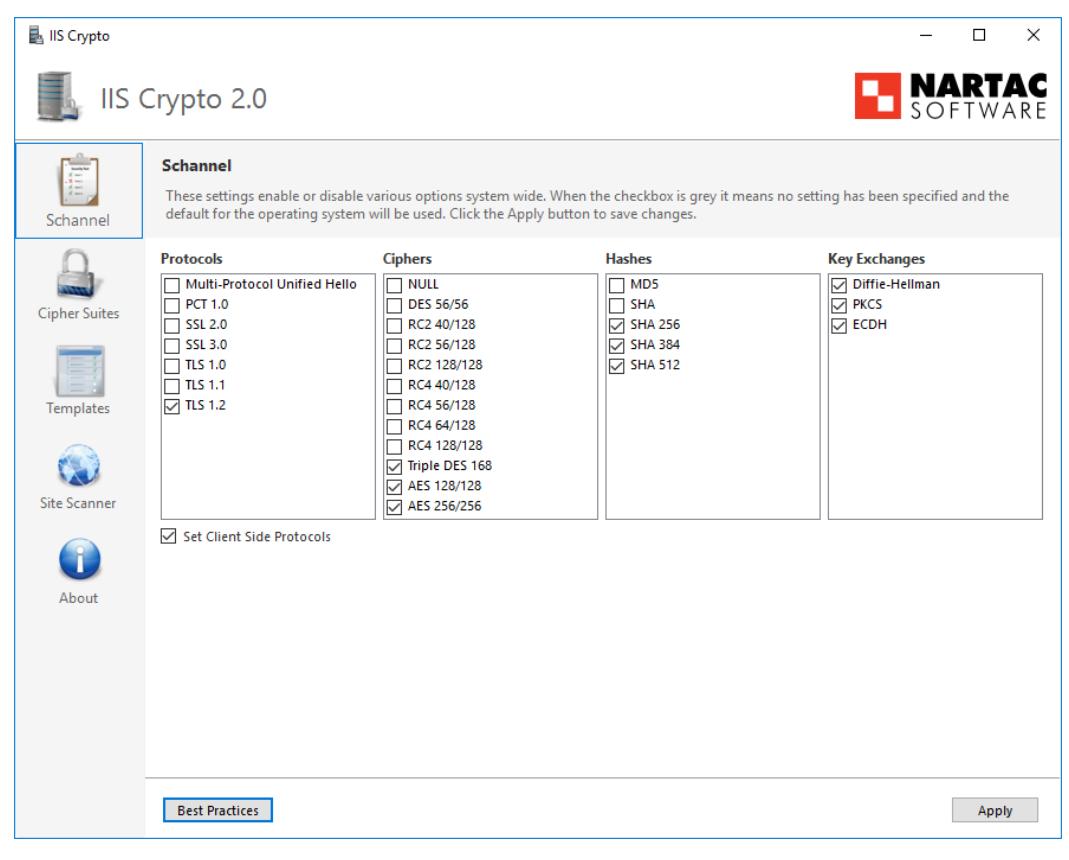
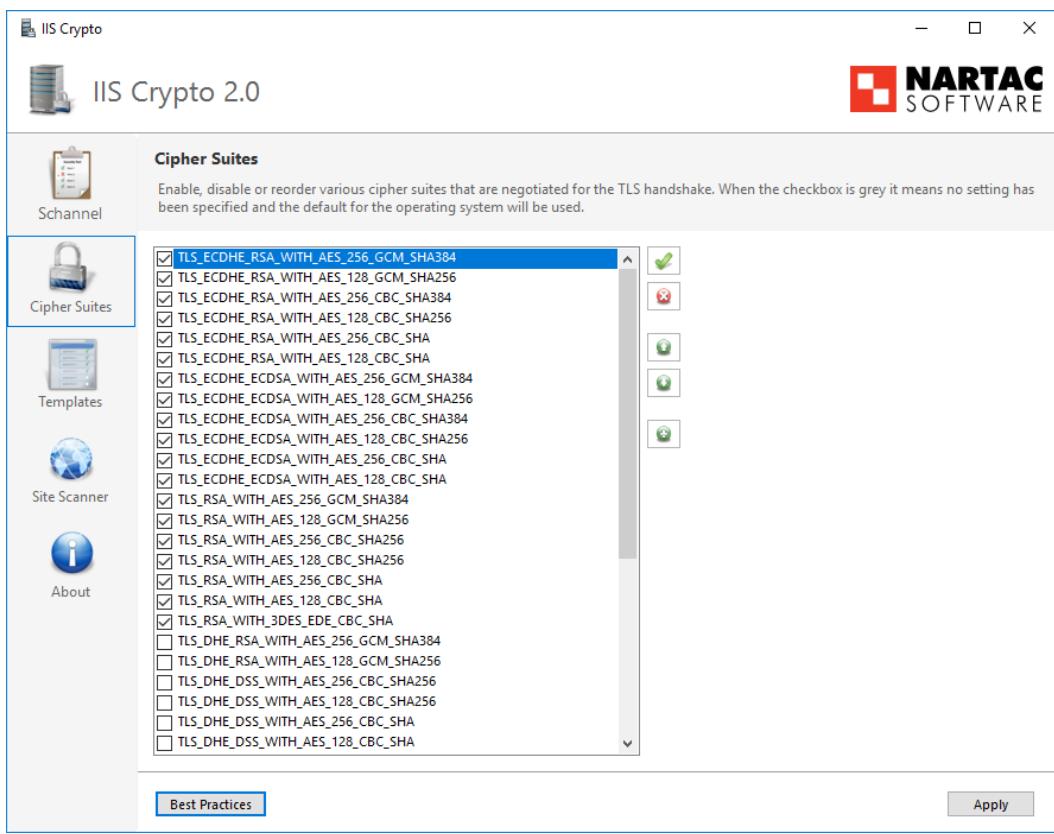
Direct manipulation of the registry keys is not easy. A more comfortable way to configure the security options is to use a tool from the "Nartac Software" company called IISCrypto :
https://www.nartac.com/Products/IISCrypto
https://www.nartac.com/Blog/post/2013/04/19/IIS-Crypto-Explained.aspx
IISCrypto is a free GUI tool (see snapshots below) created to simplify enabling and disabling various protocols and cipher suites.


Appendix B. Provision of certification for HTTPS
Provision of HTTPS certifications in LAN environments is not an easy work and should be performed by trained IT staff. This section is by no means an exhaustive manual for creating and installing certificates for the Space HTTPS endpoint but rather a simplistic guide. The picture below shows the main steps:
- 1. Create a corporate certificate authority (CA). If you do not have any, start by creating your "root" CA (it will be a selfsigned certificate). Specify the values for fields like expiration, keys, hashing algorithm, etc.
- 2. Distribute the created corporate CA among client machines. The certificate must be added to the trusted root certification authorities store.
- 3. Create the Space certificate and sign it with the corporate CA. The field that matters most within the Space certificate is the " Common Name ". That is where you supply the hostname of the Space server (" Server01 " in the example)
- 4. Install the Space certificate in the Space server.
Create corporate CA
- 5. Configure the Space software (with the configurator tool) to use the Space certificate.
- Public Key Private Key Public Key Private Key Corporate CA SPACE certificate Client machine Client machine SPACE server Server01 CN=Server01 5 1 2 3 4 HTTPS endpoint Add corporate CA to the trusted root certification authorities store Install SPACE certificate Sign SPACE certificate with corporate CA Configure SPACE to use SPACE certificate