HID OMNIKEY 5027 User Guide
Open the original PDF document
View PDF

OMNIKEY® 5027 USER GUIDE
PLT-03827, Rev. A.0 May 2018

Copyright
© 2018 HID Global Corporation/ASSA ABLOY AB. All rights reserved.
HID Global Technical Support: www.hidglobal.com/support
This document may not be reproduced, disseminated or republished in any form without the prior written permission of HID Global Corporation.
Trademarks
HID GLOBAL, HID, the HID Brick logo, the Chain Design, ICLASS, ICLASS SE, SEOS and OMNIKEY are trademarks or registered trademarks of HID Global, ASSA ABLOY AB, or its affiliate(s) in the US and other countries and may not be used without permission. All other trademarks, service marks, and product or service names are trademarks or registered trademarks of their respective owners.
MIFARE, MIFARE Classic, MIFARE DESFire, MIFARE DESFire EV1, MIFARE PLUS and MIFARE Ultralight are registered trademarks of NXP B.V. and are used under license.
Revision history
| Date | Description | Revision |
|---|---|---|
| May 2018 | Initial release. | A.0 |
Contacts
For additional offices around the world, see www.hidglobal.com/contact/corporate-offices
| Americas and Corporate | Asia Pacific |
|---|---|
| 611 Center Ridge Drive | 19/F 625 King's Road |
| Austin, TX 78753 | North Point, Island East |
| USA | Hong Kong |
| Phone: 866 607 7339 | Phone: 852 3160 9833 |
| Fax: | Fax: |
| 949 732 2120 | 852 3160 4809 |
| Europe, Middle East and Africa (EMEA) | Brazil |
| Haverhill Business Park Phoenix Road | Condomínio Business Center |
| Haverhill, Suffolk CB9 7AE | Av. Ermano Marchetti, 1435 |
| England | Galpão A2 - CEP 05038-001 |
| Phone: 44 (0) 1440 711 822 | Lapa - São Paulo / SP |
| Fax: | Brazil |
| 44 (0) 1440 714 840 | Phone: +55 11 5514-7100 |
Contents
| Section 1: | Intr | odu | ction | . 5 |
|---|---|---|---|---|
| 1.1 | Ove | erview | 5 | |
| 1.2 | ОМ | NIKEY 5027 reader | 5 | |
| 1.3 | ОМ | NIKEY Workbench | 5 | |
| 1.4 | Abl | oreviations and definitions | 5 | |
| Section 2: | ОМ | NIKE | EY Workbench interface | . 7 |
| 2.1 | Ger | neral information | 8 | |
| 2.2 | Dia | gnosis | 9 | |
| 2.3 | Rea | ader Settings | 10 | |
| 2.4 | OS | Settings | 11 | |
| 2. | 4.1 | Smart Card PnP Service | 11 | |
| 2. | 4.2 | EscapeCommandEnable | 11 | |
| Section 3: | Key | /boa | rd wedge configuration | . 13 |
| 3.1 | Dev | vice discovery | 13 | |
| 3.2 | Rea | ader settings | 14 | |
| 3. | 2.1 | Applying settings | 14 | |
| 3. | 2.2 | Restoring default settings | 14 | |
| 3. | 2.3 | Reloading settings | 15 | |
| 3.3 | Ger | neral configuration tab | 15 | |
| 3. | 3.1 | LED Idle State | 15 | |
| 3. | 3.2 | Configuration Card Support | 15 | |
| 3. | 3.3 | Extended Character Support | 15 | |
| 3. | 3.4 | Keyboard Layout | 15 | |
| 3. | 3.5 | Card Configuration | 17 | |
| 3.4 | Key | board Wedge configuration tab | 17 | |
| 3. | 4.1 | Credential | 18 | |
| 3. | 4.2 | Output format | 18 | |
| 3. | 4.3 | Letter case | 18 | |
| 3. | 4.4 | Data type | 19 | |
| 3. | 4.5 | Data manipulation | 20 | |
| 3. | 4.6 | Pre strokes / Post strokes | 21 |
PLT-03827, Rev. A.0

| 3.4.7 | Preview 22 | |
|---|---|---|
| 3.5 | Configuration files 23 | |
| 3.5.1 | Save a configuration file 23 | |
| 3.5.2 | Load a configuration file 23 | |
| 3.6 | Configuration cards 24 | |
| 3.6.1 | Configuration card encryption key update 24 | |
| 3.6.2 | Create a configuration card 25 | |
| Appendix A: | Default settings | 27 |
1 Introduction
1.1 Overview
This document explains how to configure an OMNIKEY® 5027 reader using the HID OMNIKEY Workbench application.
1.2 OMNIKEY 5027 reader
HID Global's OMNIKEY 5027 is an easy to use, keyboard wedge interface card reader. With the keyboard wedge functionality, the OMNIKEY 5027 reader can retrieve data from the presented card and directly input the card data into an application using keystroke emulation. This eliminates the need for you to manually enter the card data into an application. The reader is configured using the OMNIKEY Workbench application.
1.3 OMNIKEY Workbench
OMNIKEY Workbench is a standalone application that allows you to diagnose and configure HID Global's readers. The tool fully supports the OMNIKEY 5027 reader and allows you to examine and modify every aspect of its configuration. OMNIKEY Workbench can be downloaded from www.hidglobal.com .
1.4 Abbreviations and definitions
| Abbreviation | Definition |
|---|---|
| PC/SC |
Personal Computer/Smart Card - a specification for smart-card integration into computing
environments. |
| CCID |
Chip Card Interface Device - a USB protocol that allows a smart card to be connected to a computer
via a card reader using a standard USB interface. |
| ASCII |
American Standard Code for Information Interchange - a character encoding standard for electronic
communication. |
| USB HID | USB Human Interface Device - a part of the USB specification for computer peripherals. |
| UID | User ID |
| CSN | Card Serial Number |
| PACS | Physical Access Control System |

This page is intentionally left blank.
2 OMNIKEY Workbench interface
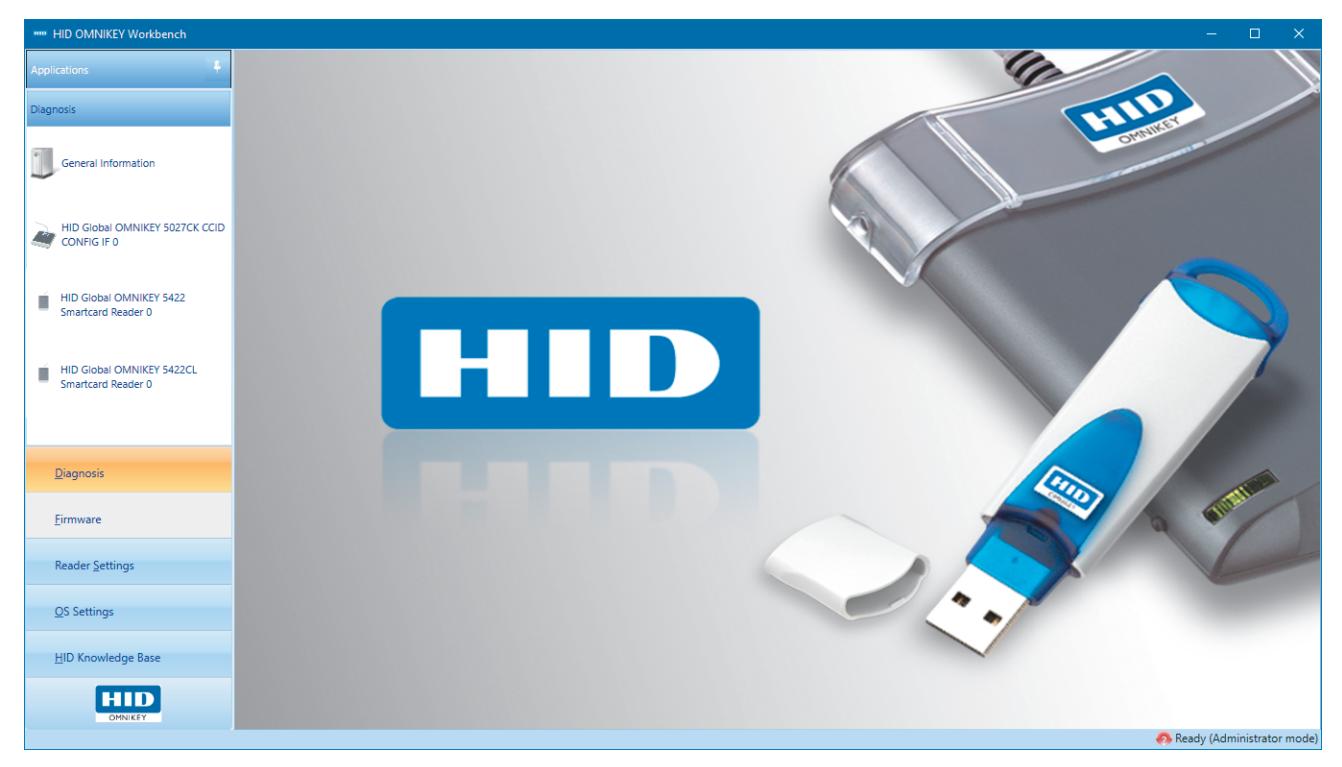
The main window consists of a control menu located on the left side of the window, and the content presenter which occupies the remaining space. The control menu serves as a dashboard and allows you to navigate through the application.

2.1 General information
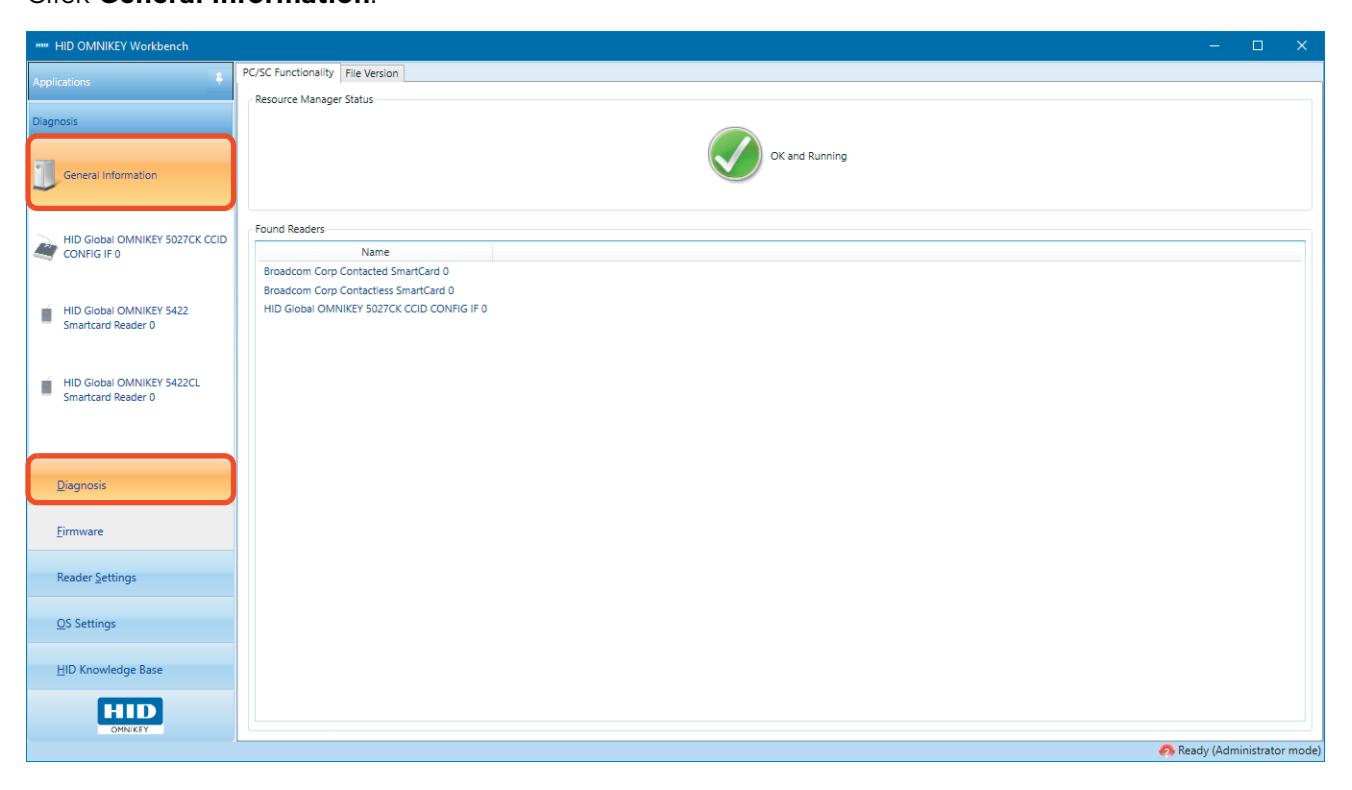
This section allows you to check basic information about third party components that the application relies on. Additionally, the PC/SC Functionality tab contains a list of all supported OMNIKEY® smart card readers that are connected to the PC.
- Click Diagnosis on the side menu.
- Click General Information .

2.2 Diagnosis
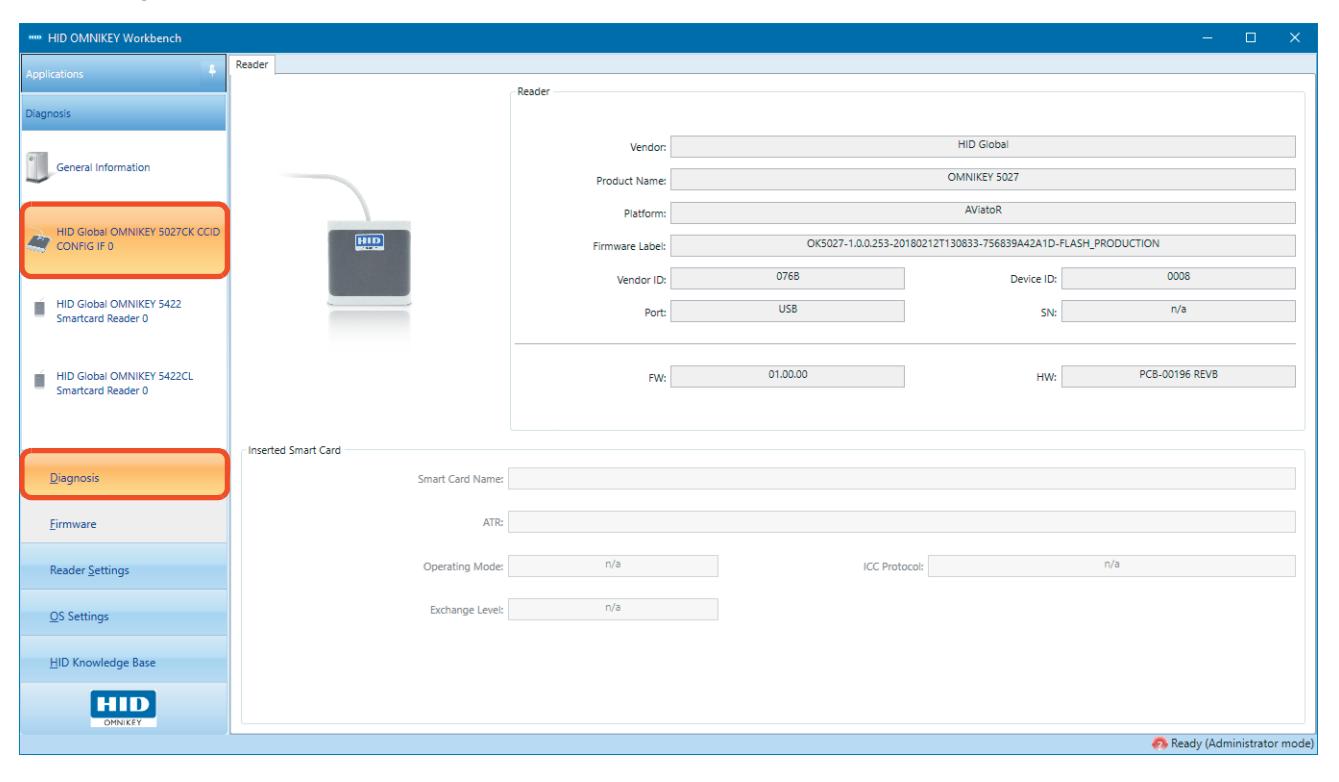
This pane allows you to view basic information about connected readers and smart cards. All the information presented in this section is fixed and cannot be altered by OMNIKEY Workbench.
■ Click Diagnosis and select a reader from the sub-menu.

2.3 Reader Settings
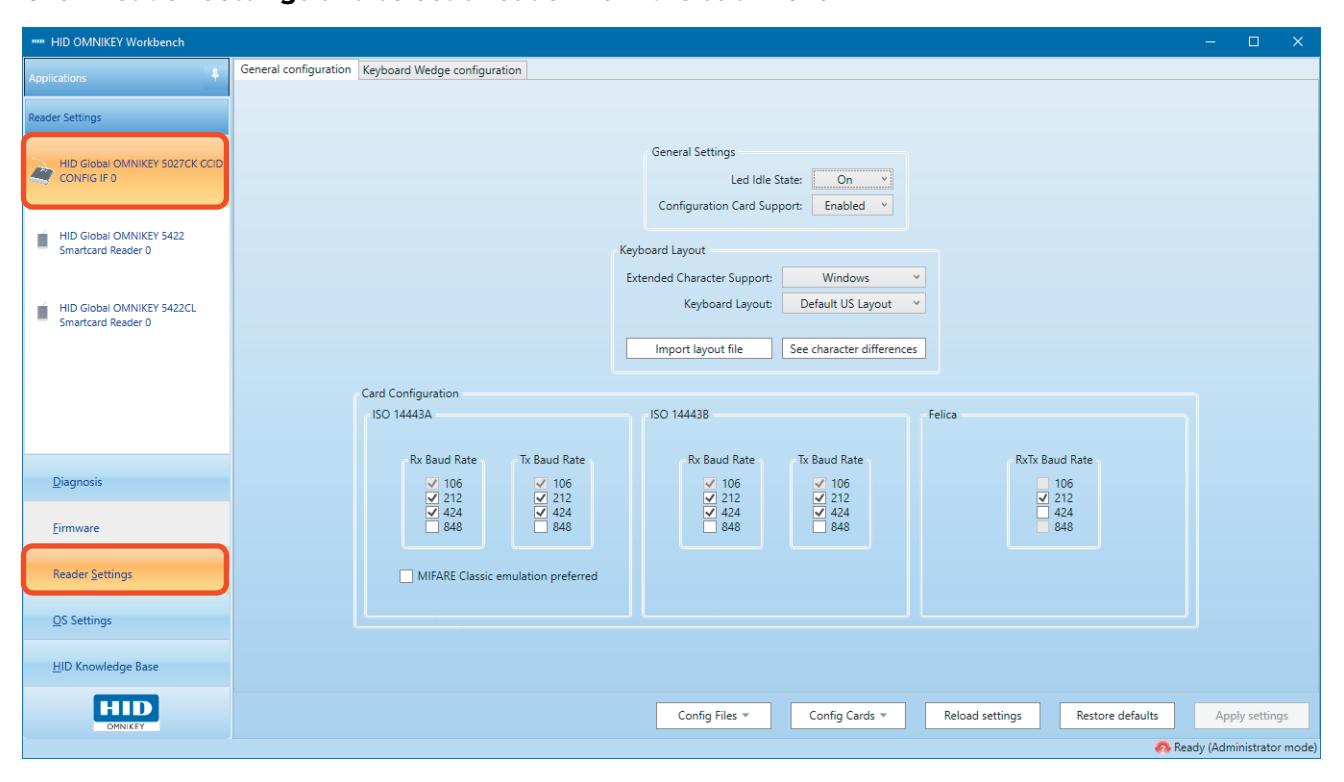
This pane allows you to configure the reader. The appearance of the configuration pane varies according to the particular features of the selected reader.
■ Click Reader Settings and select a reader from the sub-menu.

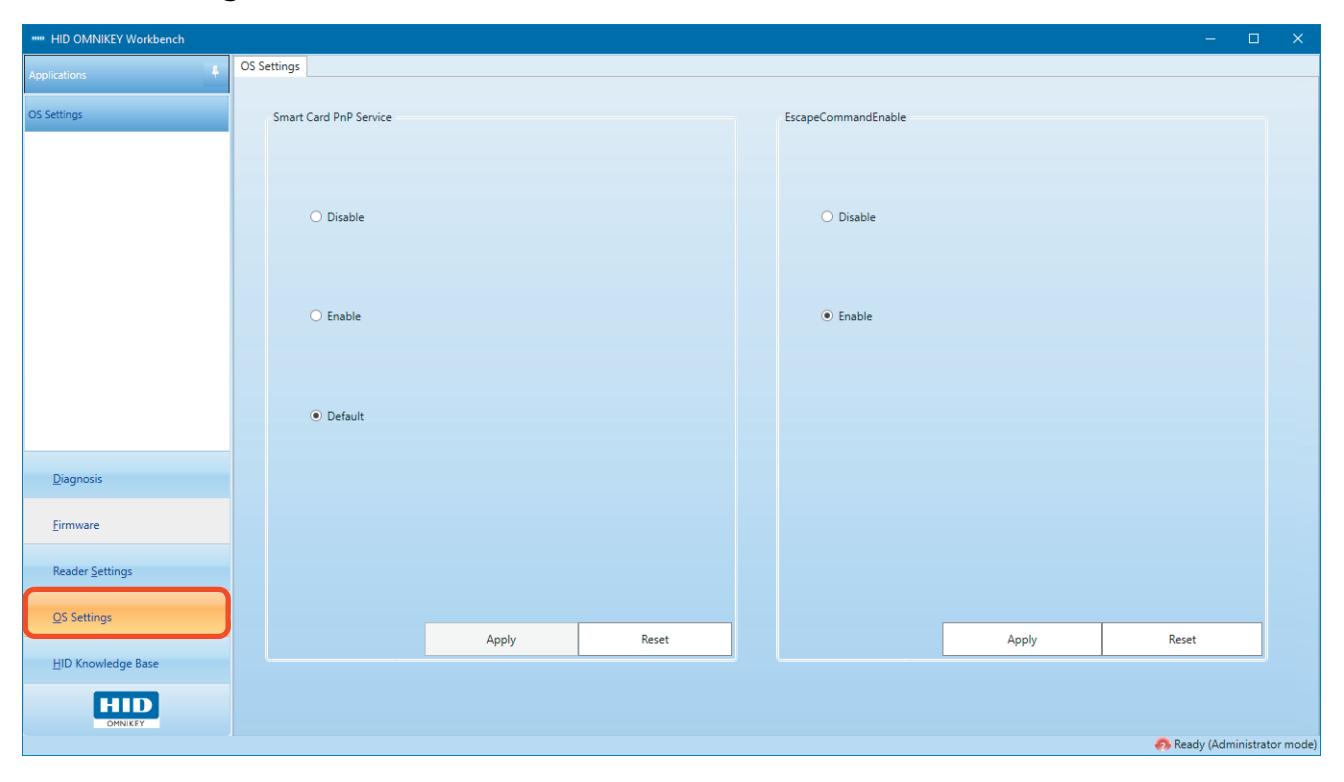
2.4 OS Settings
This pane displays additional operating system dependent settings.
■ Click OS Settings .
2.4.1 Smart Card PnP Service
This policy setting allows you to control whether the Smart Card Plug and Play service is enabled. When enabled, Windows will attempt to install a Smart Card device driver each time a new card is presented to the reader for the first time.
2.4.2 EscapeCommandEnable
For many readers, no extra driver installation is necessary and every CCID compliant driver should work with them. However, in Microsoft's CCID driver, execution of CCID escape commands is prevented by default, so support for them must be manually enabled.
Note: In order to be configured using OMNIKEY Workbench, all OMNIKEY 5027 readers require either an HID CCID driver or support for escape commands to be enabled.

This page is intentionally left blank.
3 Keyboard wedge configuration
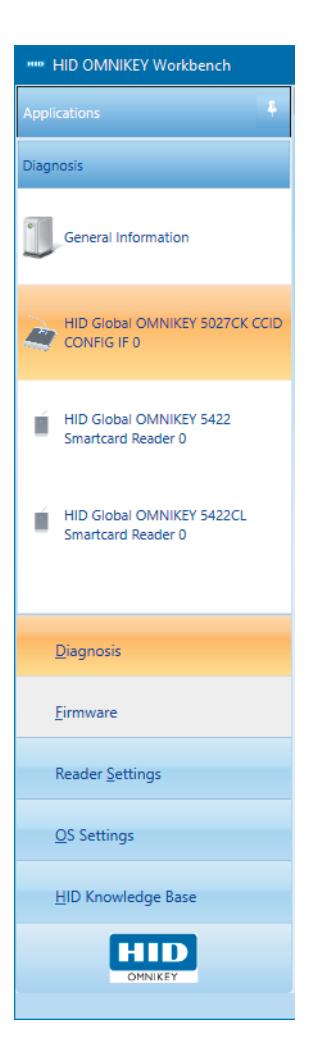
3.1 Device discovery
The OMNIKEY® 5027 reader operates in keyboard wedge mode by default. However, in order to be configured, the reader first needs to be switched to CCID mode. This action is performed automatically by OMNIKEY Workbench. The reader is switched to CCID mode once discovered, and set back to keyboard wedge mode when the application closes.
Note: When the operating mode of the reader is switched, its LEDs will turn off for a moment.
Once the reader has been successfully discovered and initialized, a new item appears in the control bar.

3.2 Reader settings
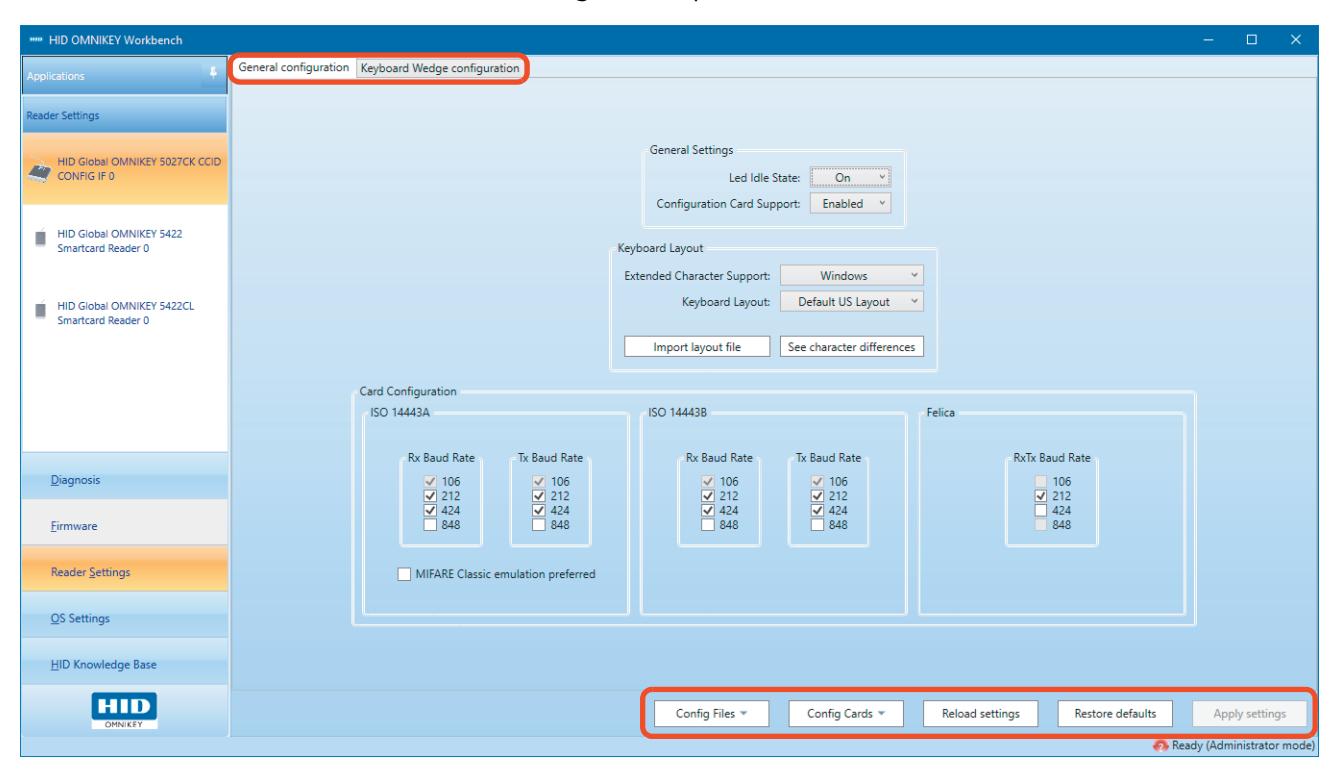
The OMNIKEY 5027 reader configuration options have been split into two logical groups:
- The General configuration tab contains settings that define the overall behavior of the reader.
- The Keyboard Wedge configuration tab allows you to define additional actions that will be taken depending on the credential type.
The control bar at the bottom of the configuration pane is accessible from both tabs.
3.2.1 Applying settings
Making changes to the configuration pane does not immediately affect the reader's settings.
■ Click Apply settings to physically update the configuration.

Note: The Apply settings button is disabled until you have modified the configuration pane. A physical reset is required to apply settings, so the reader will disappear for a moment from the list of supported devices.
3.2.2 Restoring default settings
■ Click Restore defaults to restore the reader's factory settings.


3.2.3 Reloading settings
This option can be used to revert uncommitted changes.
■ Click Reload settings to restore the reader's settings.

3.3 General configuration tab
3.3.1 LED Idle State
This option determines how the LEDs should behave when a reader is in the idle state (when no commands are processed).
3.3.2 Configuration Card Support
The OMNIKEY 5027 reader can be automatically configured using configuration cards. If support for this feature is enabled, and a valid configuration card is presented to the reader, settings stored on the card will be automatically applied to the reader. If this option is disabled, configuration cards will be ignored by the reader.
3.3.3 Extended Character Support
Extended ASCII characters are handled differently by each operating system, since they are generated using different keystrokes. With this option, you can set the way in which extended characters will be produced by the reader. Three major operating systems are supported:
- Windows
- Linux
- macOS
3.3.4 Keyboard Layout
Support for custom keyboard layouts is provided to compensate for differences in regional keyboard arrangements. For example, the Y key is interpreted differently on US and German keyboards. The keyboard layout can be seen as a map of character differences, which tells you how to translate particular ASCII characters into appropriate keystrokes on a host PC.
OMNIKEY Workbench supports four predefined keyboard layouts:
- Default US Layout
- UK Layout
- German Layout
- French Layout
In addition, OMNIKEY Workbench allows you to import Microsoft Keyboard Layout (.klc) files. Many pre-made layouts can be found on the internet. It is also possible to create your own layouts using the Microsoft Keyboard Layout Creator application, which can be downloaded from www.microsoft.com .

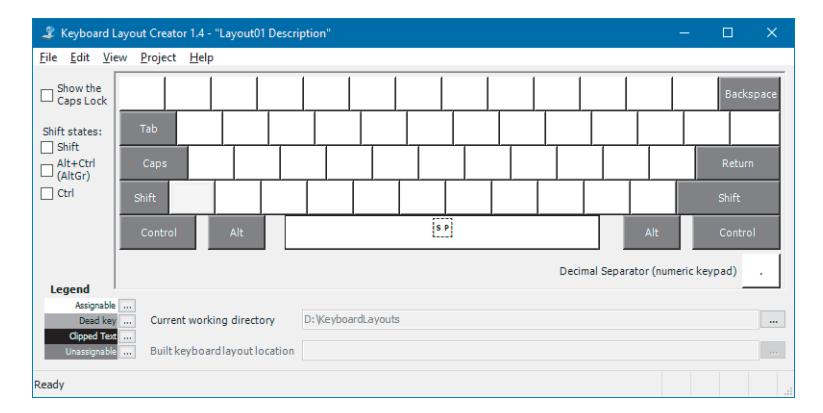
- Click Import layout file to import a custom .klc layout file.
-
Click
See character differences
to display a map of character differences that correspond to a particular keyboard layout.
- ASCII Char displays the character that needs to be translated.
- Keyboard Modifiers displays the combination of keyboard modifiers.
- HID Keyboard Value lists the scan code that, when combined with the keyboard modifier from the second column, will produce the same character on a host PC.
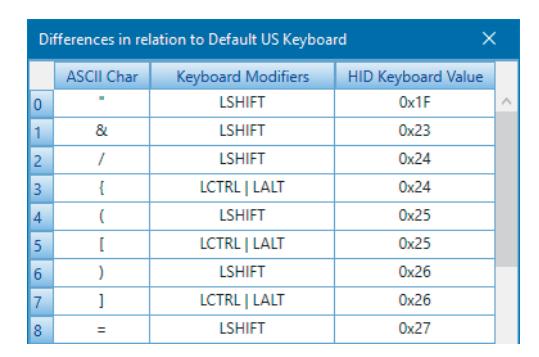
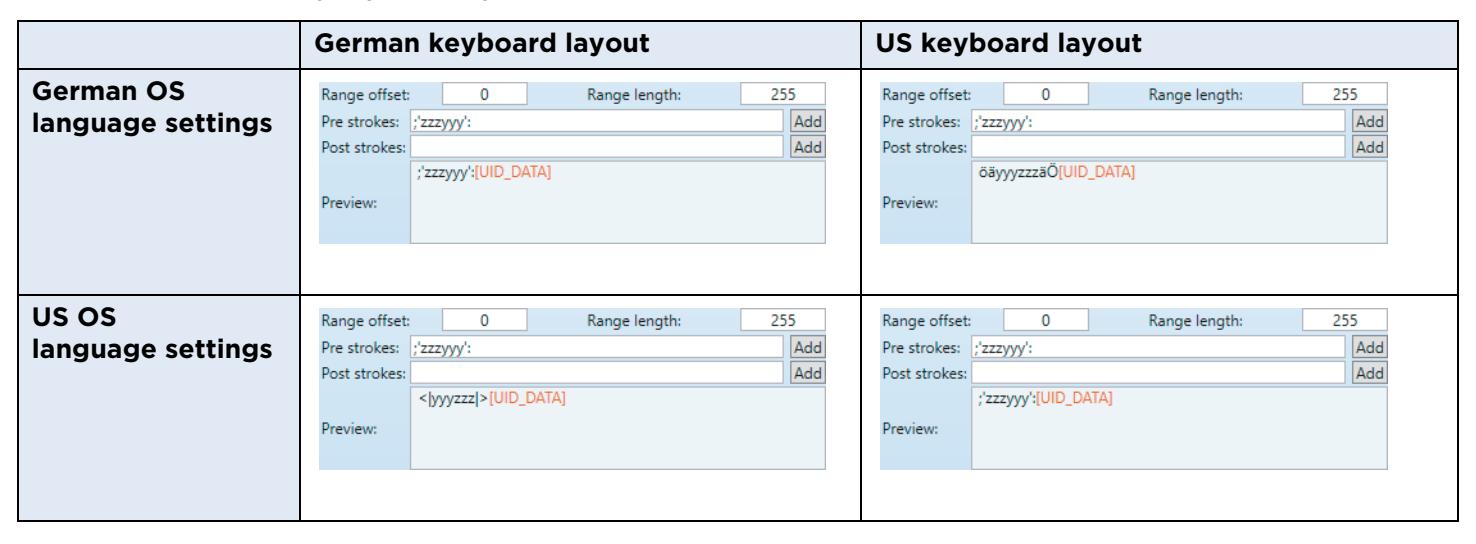
For example, if a reader has been configured to display YYY in pre strokes, the actual outcome when connected to a PC with a German keyboard will be ZZZ. This is caused by the difference in key arrangement between US and German keyboards. To resolve this problem, the German keyboard layout needs to be applied.

3.3.5 Card Configuration
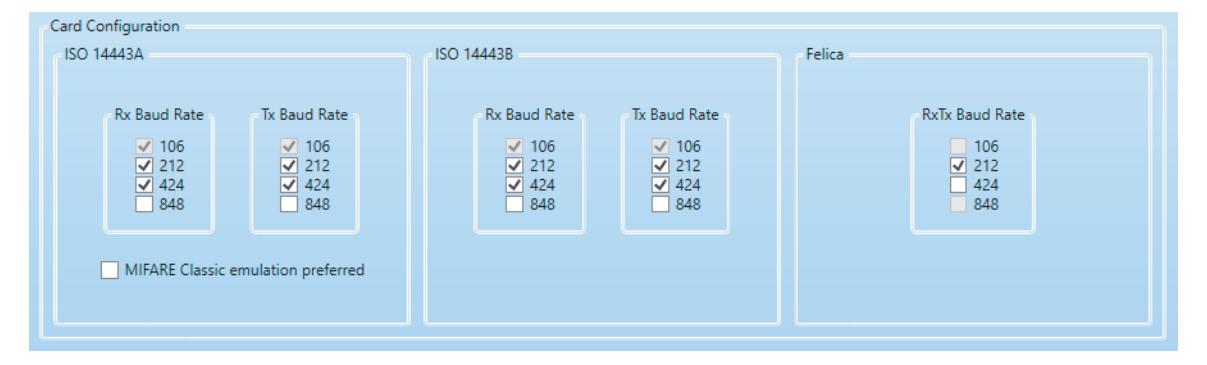
You can adjust the speed of communication between the reader and a smart card for different transmission protocols. In the case of dual-interface smart cards compliant with ISO14443A, the priority of MIFARE interfaces can be ensured by selecting MIFARE Classic emulation preferred .
3.4 Keyboard Wedge configuration tab
The OMNIKEY 5027 reader allows you to configure three independent output specifications. Each specification is bound to a particular credential type, and defines how data from the card will be processed before it is sent to the PC in the form of keystrokes.
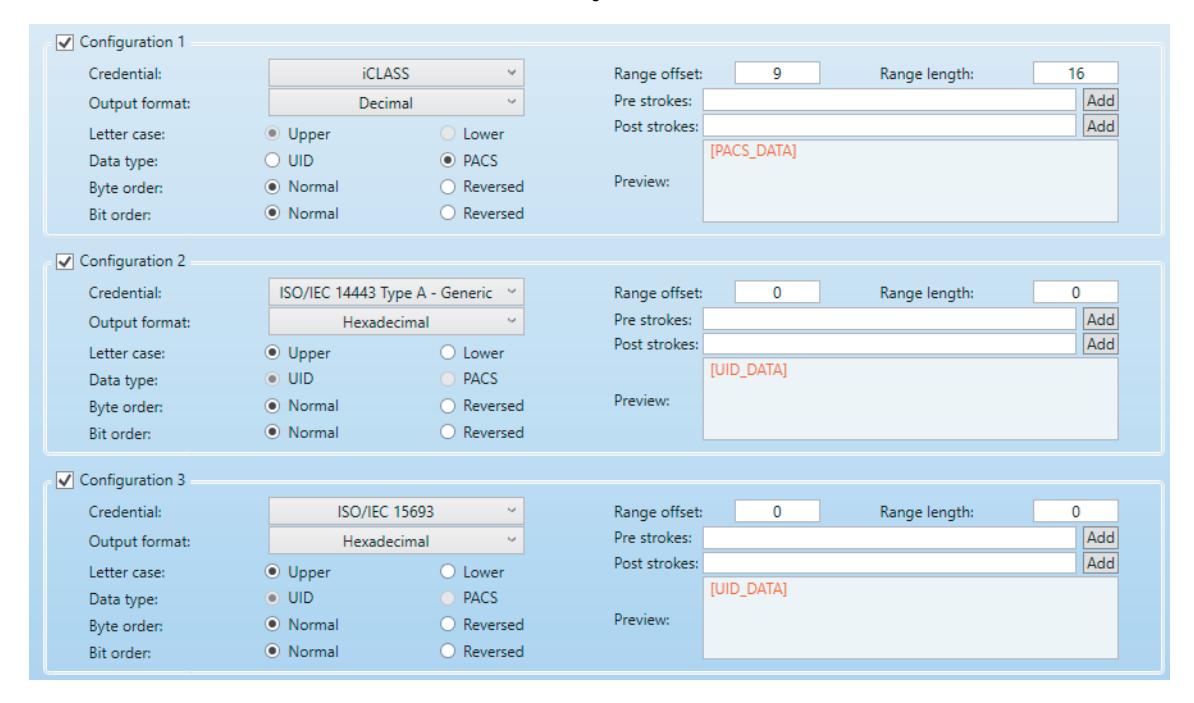
Each configuration slot can be disabled by clearing the check box in the top left corner of a group. If a configuration has been disabled, it will be ignored by the reader during the process of output generation.

3.4.1 Credential
The Credential drop-down defines the card type to which the output configuration should be applied. This binds an output configuration to a particular card type. The following card types are supported by the OMNIKEY 5027 reader:
- MIFARE Classic
- MIFARE Ultralight
- MIFARE DESFire
- iCLASS® Seos®
- iCLASS
- FeliCa
- ISO/IEC 15693
- ISO/IEC 14443 Type B
- ISO/IEC 14443 Type A Generic
Note: If multiple output configurations have been bound to the same card type, they will be processed in sequence according to their priority, where Configuration 1 has the highest priority.
3.4.2 Output format
This field determines the format used to send the data obtained from a card to a connected PC.
- ASCII: Bytes are interpreted as ASCII characters.
- Binary-Coded Decimal: Bytes are interpreted as a decimal number. Each decimal digit is presented in binary notation.
- Binary: Bytes are presented in binary notation.
- Hexadecimal: Bytes are presented using hex notation.
- Decimal: Bytes are interpreted as a decimal number.
Example:
The following table shows the result of applying different formats to UID data obtained from an iCLASS card:
| Output format | Keyboard wedge output | |
|---|---|---|
| ASCII | ╕■ô∙α | |
| Binary-Coded Decimal | 00010011001100110000001001010011010101111001010001100110011101110011001000010110 | |
| Binary | 1011100011111110100100110000000011111001111111110001001011100000 | |
| Hexadecimal | B8FE9300F9FF12E0 | |
| Decimal | 13330253579466773216 | |
3.4.3 Letter case
This option applies only to the hexadecimal output format, and determines whether upper or lower case letters should be used in hex notation.

3.4.4 Data type
This option determines what kind of data should be obtained from a card when the keyboard wedge output is produced. Both UID/CSN and PACS data are supported, provided it is available on the card.
Data types supported by individual card types:
| Card type | UID/CSN | PACS |
|---|---|---|
| MIFARE Classic | Yes | Yes |
| MIFARE Ultralight | Yes | No |
| MIFARE DESFire | Yes | Yes (only DESFire 0.6 and DESFire EV1) |
| iCLASS Seos | Yes | Yes |
| iCLASS | Yes | Yes |
| FeliCa | Yes | No |
| ISO/IEC 15693 | Yes | No |
| ISO/IEC 14443 Type B | Yes | No |
| ISO/IEC 14443 Type A - Generic | Yes | No |

3.4.5 Data manipulation
Data obtained from the card (either CSN/UID or PACS data) can be manipulated before being sent to the PC by the keyboard wedge. The following operations can be applied:
- Byte order : Select Reversed to reverse the order of all bytes in the data. This option is applied after range limit and offset. It may occur that the number of PACS data bits is not a multiple of 8. In that case, data is padded with zeros on the left.
- Bit order : Select Reversed to reverse the order of all bits in the data. This operation is applied before range limit and offset.
Note: Byte and bit reverse operations are mutually exclusive.
- Range offset allows you to skip a certain amount of data. When requesting PACS information, this parameter is interpreted as the number of bits, whereas for CSN/UID it is interpreted as bytes.
- Range length limits the length of the output data. When requesting PACS information, this parameter is interpreted as the number of bits, whereas for CSN/UID it is interpreted as bytes.
Example of PACS data manipulation:
| Data after manipulation | Comment | |
|---|---|---|
| PACS raw data | 001 11111111 11111011 10010101 11011111 | All PACS data. |
| Bit reverse | 11111011 10101001 11011111 11111111 100 | Bits output in reverse order. |
| Byte reverse | 11011111 10010101 11111011 11111111 00000001 |
Bits padded with zeros, and then reversed
order of bytes (groups of 8 bits). |
| Offset 5 | 111111 11111011 10010101 11011111 | First 5 bits skipped. |
|
Offset 5,
range 15 |
111111 11111011 1 |
First 5 bits skipped and length limited to 15
bits. |
|
Offset 5,
range 15, bit reverse |
011 10101001 1101 | Offset and range applied after bit reverse. |
|
Offset 5,
range 15, byte reverse |
11110111 01111111 |
Offset and range applied before byte
reversing. Note that before reversing, data was padded with 0. |

3.4.6 Pre strokes / Post strokes
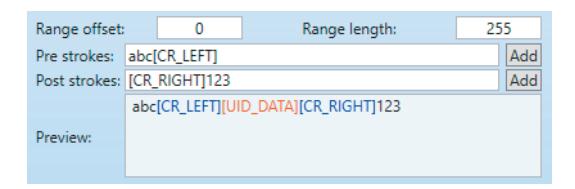
The Pre strokes and Post strokes text boxes allow you to define additional custom keystrokes that will be combined with the PACS/UID data from a card when the output is generated. Pre strokes will be added in front of the data, while post strokes will be placed at the end of the output.
If a custom keyboard layout has been set, all overridden characters will be translated by the reader to the corresponding keystrokes while generating the output.
The pre strokes and post strokes combined cannot exceed 32 characters. Longer strings will be trimmed by the reader starting from the last character of post strokes.
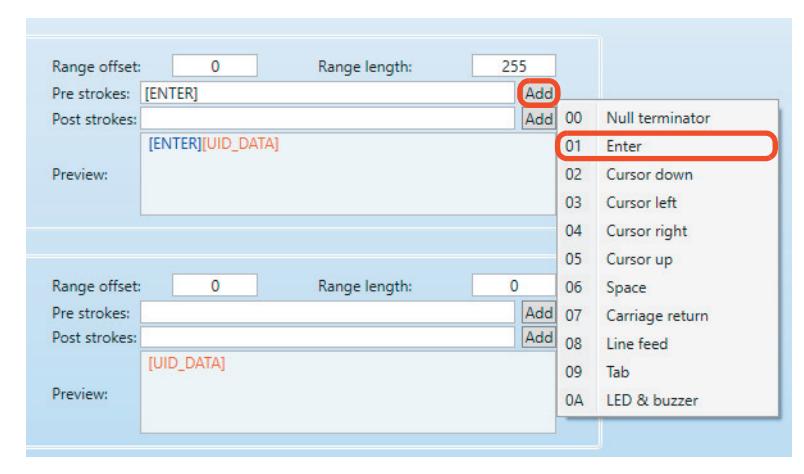
Pre strokes and post strokes can contain all printable ASCII characters (including extended symbols). Additionally, the OMNIKEY 5027 reader supports the following special characters:
Null terminator Cursor down Carriage return Enter Cursor left Line feed Space Cursor right LED & buzzer Tab Cursor up
■ Click Add to display a menu that allows special characters to be added.
Note: Extended ASCII characters can be generated by holding the Alt key and entering its decimal ASCII code on the numeric keyboard. The list of ASCII codes is widely available on the internet.

3.4.7 Preview
The Preview text box displays the simulated output that will be generated by the reader if the current settings are applied. Special characters are highlighted in blue. Parts of the output that contain data from the card are displayed in red.
When generating the preview, OMNIKEY Workbench takes into account the currently selected keyboard layout and OS language settings. This feature allows you to simulate the reader's behavior when connected to a PC with different language settings.

3.5 Configuration files
The OMNIKEY 5027 reader configuration settings can be exported to a .cfg file for later use. The data contained in the exported configuration file is encrypted and protected by a hashing algorithm. A configuration file can be opened in other instances of OMNIKEY Workbench, allowing it to be used as a standardized configuration schema.
3.5.1 Save a configuration file
1. Click Config Files > Save config file .

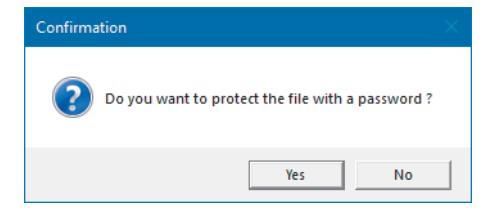
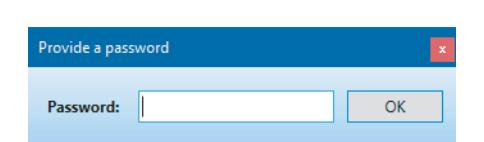
2. Once you have picked a name and save location, you must decide if the file should be password-protected. The file format is already encrypted, but password-protected files are even more secure. Passwords can consist of any characters and have arbitrary length.
Note: The configuration file captures the current state of the settings from OMNIKEY Workbench, regardless of whether they have been applied or not.
3.5.2 Load a configuration file
■ Click Config Files > Load config file and select the required file.

If the file has been password-protected, the same password needs to be provided before it can be loaded.
Note: Settings loaded from a file are not sent to the reader immediately. If you wish to apply the settings, click Apply settings .

3.6 Configuration cards
A configuration card is a special type of card that stores information needed to configure a reader. When a configuration card is presented to a reader, the reader automatically reconfigures itself according to the settings on the card.
The OMNIKEY 5027 reader supports two types of configuration cards; Keyboard-Wedge Configuration Card and SE Processor Keys Loading Card. This section refers to the keyboard wedge configuration card, as it is the only type of card that can be created using OMNIKEY Workbench.
Note: If a configuration card is presented to a reader that is currently being configured by OMNIKEY Workbench, changes will not automatically appear in the OMNIKEY Workbench interface. To see the updates, click Reload settings on the bottom control bar.
3.6.1 Configuration card encryption key update
The OMNIKEY 5027 reader uses a separate encryption key only for the purpose of configuration card handling. The key is used to encrypt the data when a configuration card is being created. The same token is also needed to decipher the data when a card is presented to a reader. Consequently, a particular configuration card can be read only by the reader that created it (assuming the key hasn't changed) or by any other reader equipped with the matching encryption token.
1. To update the encryption key, click Config Cards > Update encryption key .

2. To update the encryption key, enter a 16 byte long octet string (32 character string of hexadecimal characters) then click OK . A message box appears to confirm the result of the operation.
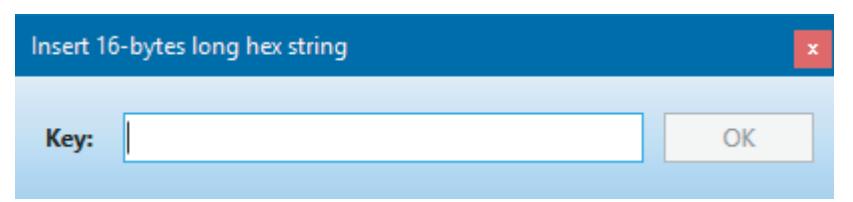
Note: The OMNIKEY 5027 reader is able to read only configuration cards which have been encrypted with the same key as the one loaded to its memory. Once the key has been updated, previously created configuration cards will become unreadable.

3.6.2 Create a configuration card
OMNIKEY Workbench allows you to prepare a configuration card for the OMNIKEY 5027 reader, using any MIFARE DESFire EV1 credential.
- 1. Place an appropriate card in range of the reader.
- 2. Click Config Cards > Create configuration card .

Note: The configuration card captures the current state of the settings from OMNIKEY Workbench regardless of whether they have been applied or not.
Note: The option which controls support for configuration cards is included in the configuration settings recorded to the card. Therefore, it is possible to create a configuration card which will turn off support for configuration cards.

This page is intentionally left blank.
A Default settings
| Parameter | Value | |
|---|---|---|
| General | Led Idle State | On |
| configuration | Configuration Card Support | Enabled |
| Extended Character Support | Windows | |
| Keyboard Layout | Default US Layout | |
| ISO 14443A Rx Baud Rate | 106, 212, 424, 848 | |
| ISO 14443A Tx Baud Rate | 106, 212, 424, 848 | |
| MIFARE Classic emulation preferred | no | |
| ISO 14443B Rx Baud Rate | 106, 212, 424, 848 | |
| ISO 14443B Tx Baud Rate | 106, 212, 424, 848 | |
| FeliCa RxTx Baud Rate | 212 | |
| Configuration 1 | Credential | iCLASS |
| Output format | Decimal | |
| Letter case | Upper | |
| Data type | PACS | |
| Byte order | Normal | |
| Bit order | Normal | |
| Range offset | 9 | |
| Range length | 16 | |
| Pre strokes | ||
| Post strokes |

| Parameter | Value | |
|---|---|---|
| Configuration 2 | Credential | ISO/IEC 14443 Type A - Generic |
| Output format | Hexadecimal | |
| Letter case | Upper | |
| Data type | UID | |
| Byte order | Normal | |
| Bit order | Normal | |
| Range offset | 0 | |
| Range length | 0 | |
| Pre strokes | ||
| Post strokes | ||
| Configuration 3 | Credential | ISO/IEC 15693 |
| Output format | Hexadecimal | |
| Letter case | Upper | |
| Data type | UID | |
| Byte order | Normal | |
| Bit order | Normal | |
| Range offset | 0 | |
| Range length | 0 | |
| Pre strokes | ||
| Post strokes |

This page is intentionally left blank.