HID-EASYLOBBY-SVM-10.4-FAQS
Open the original PDF document
View PDF

EASYLOBBY SVM 10.4 FAQS
PLT-03392, Rev. A.1 January 2018

Copyright
© 2018 HID Global Corporation/ASSA ABLOY AB. All rights reserved.
This document may not be reproduced, disseminated or republished in any form without the prior written permission of HID Global Corporation.
Trademarks
HID GLOBAL, HID, the HID Brick logo, the Chain Design, EASYLOBBY, EADVANCE, EKIOSK, FARGO and SVM are the trademarks or registered trademarks of HID Global, ASSA ABLOY AB, or its affiliate(s) in the US and other countries and may not be used without permission. All other trademarks, service marks, and product or service names are trademarks or registered trademarks of their respective owners.
Revision History
| Date | Description | Revision |
|---|---|---|
| January 2018 | Various updates, including new proxy printing section. | A.1 |
| January 2018 | Initial release. | A.0 |
Contacts
For additional offices around the world, see www.hidglobal.com/contact/corporate-offices
| Americas and Corporate | Asia Pacific | |||
|---|---|---|---|---|
|
611 Center Ridge Drive
Austin, TX 78753 USA Phone: 866 607 7339 Fax: 949 732 2120 |
19/F 625 King's Road
North Point, Island East Hong Kong Phone: 852 3160 9833 Fax: 852 3160 4809 |
|||
| Europe, Middle East and Africa (EMEA) | Brazil | |||
|
Haverhill Business Park Phoenix Road
Haverhill, Suffolk CB9 7AE England Phone: 44 (0) 1440 711 822 Fax: 44 (0) 1440 714 840 |
Condomínio Business Center
Av. Ermano Marchetti, 1435 Galpão A2 - CEP 05038-001 Lapa - São Paulo / SP Brazil Phone: +55 11 5514-7100 |
|||
| HID Global Technical Support: www.hidglobal.com/support | ||||
Contents
| 1 |
Overview
5 |
|
|---|---|---|
| 2 |
Requirements and installation
6 |
|
| 3 |
Language support
8 |
|
| 4 | Email and alerts 8 | |
| 5 | Hardware 9 | |
| 6 |
Visitor badges
10 |
|
| 7 |
eAdvance
10 |
|
| 8 |
Check-in process
13 |
|
| 9 |
Self-registration
14 |
|
| 10 | Watch lists and screening services15 | |
| 10.1 Consulted authorities EL-CUST 17 | ||
| 10.2 Consulted authorities EL-SOS-K12/EL-SOS-NONK12 22 | ||
| 11 | Kiosks 28 | |
| 12 | Access Control Integrations (ACI) 29 | |
| 13 |
Maintenance and warranties
29 |
|
| 14 | Security and privacy concerns 30 | |
| 15 | Proxy printing 32 |

This page is intentionally left blank.

1 Overview
Q: What is the difference between EasyLobby® SVM® and EasyLobby Solo?
A: EasyLobby Solo is a single workstation solution aimed at customers moving away from a paper and pen log book. EasyLobby SVM is an enterprise level solution that can scale to meet a large customer base, and offers preregistration, Access Control Integrations, and advanced security features. A full feature comparison matrix is available on the HID Global website (https://www.hidglobal.com/sites/default/files/resource_files/hid-easylobby-vm-cc-en.pdf ).
Q: Where can I find more information about EasyLobby?
A: The HID Global website provides detailed information about EasyLobby SVM and EasyLobby Solo. The visitor management solutions page is a good place to start learning more about EasyLobby (https://www.hidglobal.com/solutions/visitor-management) .
Additionally, there are videos available on the HID Academy YouTube channel which provide a product overview and demonstration (https://www.youtube.com/watch?v=hXu1bBunAAE ).
Q: Are there training resources available for EasyLobby?
A: The HID Academy offers EasyLobby training videos provided you have registered for an account. Go to https://hidglobal.csod.com/selfreg/register.aspx?p=hidglobal&c=srap.
Custom training may also be available through the HID Professional Services group. Contact your sales person for more details on custom training.

2 Requirements and installation
Q: Is it possible to upgrade from an older version of EasyLobby SVM (v8 or v9) to SVM 10?
A: Yes, you can upgrade from v8 or v9 to v10 by:
- Installing a new v10 database schema
- Using HID's DB Migration utility to upgrade and migrate the database from 8 to 10
- Installing v10 client software on all necessary machines and pointing them to the new database.
Q: Why should I upgrade from v8 or v9 to v10?
A: HID no longer supports v8 or v9, so we cannot offer full assistance through tech support. Using the newest version will ensure all the latest hardware options from HID are fully supported, and that driver software for any hardware is compatible with EasyLobby.
Q: What new features are included in v10?
A: Below are some of the new features that were not found in v8 or v9:
- Redesigned eAdvance™, including barcodes in confirmation emails, and the ability to specify rules-based approval
- Employee time and attendance
- Parking inventory and management
- Conference room assignment
- Categories and Reasons by site
- Password change rules
- Barcode nomenclature rules
- Lost and Found form
- Additional user-defined fields
- Check-in and check-out alerts (programmable)
- Created new functionality to allow assigning employees and users to multiple sites
- Allow site filtering when using multiple site-selection.
- Enabled selection of multiple sites per user / per employee within Administrator.
- Enabled selection of multiple sites per employee within eAdvance Group Upload, eAdvance Pre-Register Group and eAdvance Pre-Register Visitor.
- Created shortcut key to search for Visitor by Last Name (Ctrl+F8).
Q: Where can I find a list of all the updates made for EasyLobby SVM releases?
A: A change log is included on the EasyLobby SVM DVD. Additionally, you can view the change log at: http://www.easylobby.com/downloads/EasyLobbyChangeLog.htm .
Q: Will EasyLobby run in a virtual environment? If so, what is the RAM requirement?
A: Yes, EasyLobby can run in a virtual environment. There is no specific virtual RAM requirement; however for the server side it should meet the recommended requirements for the version of the database back end you're using (e.g. SQL Server 2012). Please note that while the server-side works with virtual machines, it is not recommended to run virtual EasyLobby client machines (thin client), since the peripheral devices can be a challenge to deal with in that environment.

Q: Can I move the EasyLobby software from an old workstation (PC) to a new one? Will I need to buy a new license?
A: Customers can reuse an EasyLobby license on a new workstation as long as you uninstall the software from the old machine before logging in to the software on the new machine. Failure to uninstall will cause a licensing issue.
Q: Is EasyLobby a 32-bit or 64-bit application?
A: EasyLobby will work on either a 32-bit or 64-bit OS. However, there are some small items regarding peripheral support that require assistance when installing on a 64-bit system. The support team can help you if you choose to run EasyLobby on a 64-bit system.
Q: In what programming language is EasyLobby written?
A: Desktop applications (SVM/Administrator/Satellite) are VB6, all other products are VB.Net, C# or JavaScript.
Q: What are the minimum system requirements to run EasyLobby?
A: We recommend the following as minimum requirements:
- Microsoft Windows Server operating system
- 4 GB RAM
- Sufficient disk space. Average record size is 10 KB without photo, 20 KB with photo.
Q: What operating systems do you support?
A: With the release of EasyLobby SVM 10.4, supported operating systems include:
EasyLobby SVM, Administrator, Satellite:
- Microsoft Windows 7, 8.1, 10
- Microsoft Windows Server 2008, 2012, 2016
eAdvance:
Microsoft SQL Server 2008, 2012, 2014, 2016 with Microsoft IIS 5.0 or higher
Database Server:
Microsoft SQL Server 2008, 2012, 2014, 2016 Express.
Q: What SQL versions do you support?
A: With the release of EasyLobby SVM 10.4, the following SQL versions are supported:
- Microsoft SQL Server 2008, 2012, 2014, 2016 Express
- Microsoft SQL Server 2008, 2012, 2014, 2016
Q: Can I run EasyLobby on a tablet?
A: Yes, EasyLobby will run on selected Windows tablets. The Microsoft Surface Pro tablet with a full version of Windows is the recommended tablet solution.

3 Language support
Q: In what languages is EasyLobby SVM available?
A: EasyLobby SVM is available in the following languages:
- English
- French
- Spanish
- German
- Portuguese
- Italian (self-registration mode only)
- Norwegian (self-registration mode only)
- Danish (self-registration mode only).
Q: Can I use EasyLobby in an unsupported language such as Japanese or Chinese? Could I print my badges in this language?
A: Only the languages listed above are officially supported by HID. Generally, EasyLobby SVM should accept data inputs in whatever characters the PC's regional settings support, although there may be downstream impacts. Users are able to set it up within their test environment to try out unsupported languages, but there will be only minimal technical support for unsupported languages.
4 Email and alerts
Q: Does EasyLobby's email notification feature support SSL?
A: Yes. SSL (Secure Sockets Layer) is the standard security technology for establishing an encrypted link between a web server and a browser. This link ensures that all data passed between the web server and browser remains private.
Q: Is it possible to send a text message notification to the host employee when their visitor checks in?
A: Visitor notifications can be sent via email automatically by SMTP (Simple Mail Transfer Protocol), allowing smartphones to receive the notification. EasyLobby cannot send direct SMS (Short Message Service) text messages. However, text messages can be generated by combining the employee's phone number and the carrier's SMS gateway address to create an email address for the employee's record, for example 7012345678@txt.att.net . This is simplified if all employees use company-supplied phones from the same service provider. The SMS gateway addresses for various carriers can be found online, although some carriers may not publicize or provide this service.

5 Hardware
Q: What ID scanners does EasyLobby SVM support?
A: EasyLobby SVM works with a number of driver's license and passport scanners. These include:
|
EasyLobby part
number |
Scanner name | Scanner description |
|---|---|---|
| EL-CSS-R2 | Acuant R2/ SnapShell |
CSS SnapShell R2 license/card scanner
(OCR with photo capture) |
| EL-CSS-1000 | ScanShell 1000 |
CSS 1000 Passport/License/Card Scan
(OCR with photo capture) |
| EL-AST-COMBO-A | Assure Tec ARH Combo Smart A |
AssureTec ComboSmart A (driver's license and
passport scanner, data and photo capture + authentication) |
| EL-AST-COMBO | Assure Tec ARH Combo Smart |
AssureTec ComboSmart (driver's license and
passport scanner, data and photo capture) |
| EL-AST-ID150 | Assure Tec ID-150 |
AssureTec ID-150 (reads both sides of driver's
license, data and photo capture) |
| EL-AST-ID150A | Assure Tec ID-150A |
AssureTec ID-150A (reads/authenticates driver's
license, data and photo capture) |
| EL-ITC-DCM | Intellicheck IM-2000 |
ICI DCM License Reader (Magstripe and 2D
barcode, US Driver's Licenses, data only, no photo) |
More details on compatible ID scanners can be found by searching for the EasyLobby How To Order Guide at https://www.hidglobal.com/documents .
Q: Is there a list of IDs that each scanner can read?
A: The supported ID scanners can read driver's licenses and passports from around the globe. If you have questions about a specific ID, please contact insidesales@hidglobal.com .
Q: What barcode scanners does EasyLobby SVM support?
A: HID officially supports and sells the Honeywell (Metrologic) Voyager MS9520 (EL-METRO-9520). Details about the Honeywell Voyager MS9520 can be found in the EasyLobby How To Order Guide, available at https://www.hidglobal.com/documents. EasyLobby has also been tested with the Honeywell Xenon 1902 Cordless Area-Imaging Scanner.
Q: I have a different barcode scanner that I would like to use. Will it work with EasyLobby?
A: Technically, almost any USB barcode scanner can work with EasyLobby for automated check in/out. One of the following two requirements have to be met for the scanner to function properly:
- The manufacturer has to provide serial/COM port emulation drivers and/or barcodes to program the device in that mode.
- The manufacturer has to provide drivers or barcodes to program the device in 'keyboard wedge mode'.
Without either of those requirements, scanning a barcode will just populate the currently highlighted field in EasyLobby with the value in the barcode. Please note that these devices are considered 'unsupported', even if they function properly.

Q: What printers does EasyLobby SVM support?
A: We officially support and sell the DYMO 450 Turbo thermal label printer as well as all HID FARGO badge printers. Details on the DYMO 450 Turbo thermal label printer can be found in the EasyLobby How To Order Guide, available at https://www.hidglobal.com/documents.
Q: I have a different printer that I would like to use. Will it work with EasyLobby?
A: Almost any printer can be made to work with EasyLobby. Support for badge design and printing is limited on devices other than the DYMO 450 Turbo and HID FARGO® printers.
6 Visitor badges
Q: What type of badges can I print using EasyLobby?
A: EasyLobby allows you to print visitor badges in multiple formats including adhesive labels, paper badges, and plastic/PVC cards. Additionally, EasyLobby allows you to specify the badge design and badge format for different visitor types, so a personal visitor and a long term contractor can automatically receive different styles of badge.
Q: What is the difference between selecting 'Print Badge' and 'Pre-print'?
A: Selecting 'Print Badge' will print the badge and cause EasyLobby to check in the visitor. Selecting 'Pre-print' will print the badge without checking in the visitor. This is helpful if you want to print badges for a large group of visitors before they arrive.
7 eAdvance
Q: In what languages is eAdvance available?
A: eAdvance is available only in English. Users can modify the text to be language specific by clicking Admin > Resource Strings .
Q: Can I use eAdvance in multiple languages, e.g. French and English within French-Canadian offices?
A: Yes, you can use multiple languages within the same company. However, you would need two copies of eAdvance in order to do so. Language translations are done manually within the software at installation, so the customer would need to choose language A on the first copy, and language B on the second copy.
Q: Is it possible to use single sign-on?
A: Yes, users can elect to use Single Sign On to allow employees access to eAdvance.
Q: Can I use Active Directory to automate the process of setting up all employees within eAdvance?
A: You can use the employee import tool to bulk import all the employees from Active Directory, but individual security rights within eAdvance must be assigned manually. The employee import tool (EmployeeImport.exe) is found in the EasyLobby installation's Utilities subfolder.
Q: Can other users of eAdvance see my registered guests?
A: No, by default the software will only allow users to see their own registrations. Users with gatekeeper permissions may see other user's registered guests.

Q: What are the different levels of security rights I can grant to eAdvance users?
A: There are seven permission levels that can be assigned to eAdvance users:
- No Login: Cannot log in to eAdvance, but gatekeepers and administrators may register visitors on their behalf.
- Individual: Can log in and register visitors only for themselves.
-
Gatekeeper: Can register visitors for themselves or for any other active employee in either their department or company. To change this setting, choose
Admin
>
Product Config
, select the
Security
tab, and adjust the
Gatekeeper Filter
setting.
- Employees with this permission can also use the Manage > Employees screen.
- Site Gatekeeper: Can register visitors for themselves and for any other employee in their site.
- Registration Gatekeeper: Similar to gatekeeper permission, but without access to the Manage > Employees screen.
- Administrator: Can register visitors for any active employee in the database.
- No Guests: Cannot log into eAdvance and cannot have visitors registered on their behalf.
To edit the permission level for an employee, choose Manage > Employees from the menu. Select the employee and click Edit .
Q: What is a gatekeeper? How does this functionality work?
A: Gatekeepers are users that are able to register on behalf of other users. Restrictions around the scope (same department, same company, etc.) are defined within the eAdvance security options. See the previous question, What are the different levels of security rights I can grant to eAdvance users?
Q: As a gatekeeper, can I preregister visitors on behalf of someone else (i.e. like an executive team member)?
A: Yes, a gatekeeper can register visitors for themselves or for any active employee in their department/company. This is a helpful tool for executive administrators or team coordinators.
Q: Is it possible to limit the people for whom the gatekeeper can preregister?
A: Yes, you can assign the Site Gatekeeper security level. This level will allow the gatekeeper to register visitors only for themselves and for any other employee on their site.
Q: Can I customize the email message that is sent out after a visitor is preregistered?
A: Yes, all eAdvance and EasyLobby email notifications can be customized. Please note that the email cannot be customized at an individual level, only at the enterprise or site level.
Q: Can my visitor accept or decline a meeting through the eAdvance confirmation email?
A: No, the confirmation email is for notification purposes only and does not provide an accept/decline function.
Q: Is it possible to have different confirmation emails for preregistered visitors according to their category?
A: No, currently the confirmation email is global for all visitors.

Q: Is it possible to include attachments with the confirmation email?
A: No, the current email configuration does not allow for attachments.
Q: What does the standard confirmation email look like?
A:
Dear Test,
Your visit to on 1/18/2018 has been entered into our visitor preregistration system by Sally Aston.
Visit Date: 1/18/2018 Category: Visitor Reason: Sales Call Host: Sally Aston Site: New Site
Your registration Id is V1102010.
Print out this email and bring it with you when you visit us at Autodesk, you will be able to scan the barcode below for rapid check in.

V1102010
Q: Is it possible to screen potential visitors using watch lists during the preregistration step, or do they need to be on-site?
A: During preregistration names can be compared to an internal (user-defined) watch list. In order for external watch lists (national database, etc.) to be queried, the visitor must be checking in at an EasyLobby SVM station. This allows your front desk staff to confirm whether the external screening has identified a true match or not.
*** Message automatically generated by EasyLobby eAdvance ***
*** Please do not reply ***

8 Check-in process
Q: Can I require that my visitor reviews and acknowledges a document as part of check in?
A: Yes, you can set up a document to be displayed on screen as part of the check-in workflow. Refer to the EasyLobby User's Manual EasyLobby SVM 10.4 Installation, Administration and User Guide (PLT-03258), for details of the Edit > Program Options , Self Registration tab, Behavior Options tab.
Q: Can I make my visitor view a video as part of check in?
A: No, EasyLobby does not have the ability to display videos.
Q: Can I set a manual alert to require that a document such as a non-disclosure agreement (NDA) be re-signed after one year?
A: Yes, this is possible with a few caveats:
- You must first create a user-defined field with the Date control type ( Edit > Program Options , Customize Fields tab, Visitor User Defined tab).
- Create a Time/Value-Based alert for the desired time frame using your user-defined field as the trigger for the alert ( Edit > Alerts , Time/Value-Based tab).
- When a visitor record is created, your user-defined date field automatically defaults to the current day. An alert will appear after the number of days defined in the alert (e.g. 365), to indicate the document needs to be reviewed and acknowledged again.
Please note that there are some limitations with this process. If there are multiple document types for signatures, users cannot specify a date per document type. Even if there are multiple userdefined date fields to handle multiple document types, all dates default to the current date, even if the visitor did not sign one of the documents on that day. This could cause confusion when alerts appear for documents the visitor never signed. In general, the recommendation is to use this process only for a single document type.
Additionally, if the guest was preregistered, the date populated in the user-defined field will be the preregistered date. The operator must manually adjust the date to the date the visitor actually signs the agreement, if that is different to the initial preregistered date.
More details about setting up Time/Value-based alerts can be found in the EasyLobby SVM 10.4 Installation, Administration and User Guide (PLT-03258).

9 Self-registration
Q: Can I customize the screens for self-registration?
A: Yes, customers can modify the screens that are shown when running EasyLobby in self-registration mode. You can add your own background images, logo, and edit the messages that appear on screen. Refer to the EasyLobby SVM 10.4 Installation, Administration and User Guide (PLT-03258).
Q: Can you configure EasyLobby to allow employees to check in via self-registration mode using active directory validation?
A: EasyLobby has an employee self-service mode which allows you to authenticate yourself using active directory ID/password to unlock the kiosk. That mode is only for printing a temporary employee badge and is normally used when an employee works at the facility and needs a temporary badge. If the employee normally works at another location, they should be treated as a visitor and you should use the normal visitor registration mode. In that case, all employees will need to be imported into the visitor database (i.e. they would have a visitor record). Refer to EasyLobby SVM 10.4 Installation, Administration and User Guide (PLT-03258) for details.
Q: Can you use the same workstation to allow employees to print temporary badges and allow visitors to check in?
A: No, if the workstation is running as an employee temporary badge station it will not allow visitors to check in.
Q: Can I check in packages via self-registration mode?
A: No, the EasyLobby software does not have the capability to check in packages in self-registration mode. Package management is designed to be used primarily by employees who are operating EasyLobby in an attendant/administrator mode rather than in self-registration mode.

10 Watch lists and screening services
Q: What is the difference between the internal watch list and an external screening service?
A: You create the internal watch list for your company. You can add names of people or companies that should not be admitted to your buildings, and people who should be treated as a VIP. You can enter names manually or retrieve them from a Microsoft Excel file or database. Refer to the EasyLobby SVM 10.4 Installation, Administration and User Guide (PLT-03258) for more information about watch lists.
External screening services compare the visitor details against selected authoritative lists created by government and state agencies. Using external screening services requires an additional purchase for a one year subscription.
Q: What are the different external screening service options?
A: As of August 2017, EasyLobby SVM offers subscriptions for the following screening services:
- EL-CUST: Government screening service provided by Visual Compliance®. Checks against numerous global authorities.
- EL-CUST-BASIC: Government screening service provided by Visual Compliance. Checks against numerous US authorities.
- EL-SOS-K12: Sex offender screening service provided by DataDiver Technologies. K12 education focused sex-offender screening.
- EL-SOS-NONK12: Sex offender screening service provided by DataDiver Technologies; for use by non-education customers.
A complete list of the consulted authorities is provided later in this section.
Q: How long is the subscription period for a screening service?
A: One year. The external screening services (EL-CUST, EL-CUST-Basic, EL-SOS-K12, and EL-SOS-NONK12) all require an annual subscription per EasyLobby SVM station.
Q: Can I vet visitors against the screening service when I preregister them?
A: No, verification and notification occur at the time of check-in, not during preregistration. This is because an operator is needed to review potential matches to eliminate false positives. However, the internal watch list can be queried as part of preregistration since you are the manager of this list.
Q: What happens when someone is found on an external screening service list?
A: If using a screening service, the visitor's first and last name (and date of birth for SOS screening) are queried against all the state or government agencies. If a match or partial match is found, you are notified of the possible match. You should then verify if the match is accurate. You can either cancel the visit, or allow it to proceed if the suggested match is a different person. For example, there are many people named Mike Smith, so verifying all the data is crucial. HID recommends that you prepare a procedure for dealing with occasions when an external screening service identifies a positive match.

Q: What happens when someone matches a screening list while using a kiosk for self check-in?
A: If a visitor is using self-registration to check in, and their name appears on the internal watch list or a screening service, EasyLobby sends you an alert advising you of the match and prompting you to confirm/deny. The visitor will see a pop-up on the screen that can be edited to display any message you want, for example "Please see receptionist." HID recommends that you prepare a procedure for dealing with occasions when an external screening service identifies a positive match.
Q: What information is provided for operator review when a match is found?
A: When a match is found, a window appears with possible matches.
Information provided when using EL-CUST includes:
• Level • City
• Full Name • State
• Reference # • Country
• Address • Source
Information provided when using the EL-SOS-K12/EL-SOS-NONK12 sex offender screening includes:
• Full Name • Height
• Address • Weight
• Date of Birth • Race
• Hair Color
• Photo • Eye Color
• Age • Gender
There is also a More Info button which opens a window with a description and notes.
Q: How often are external screening services updated? Are they updated in real time?
A: While the visitor name is queried against a live database, the names listed on that database are not updated in real time. Names are added by each state or government agency according to their own schedule. The EL-CUST watch list is updated weekly with any new or removed names, and the EL-SOS-K12 list is updated on a monthly or weekly basis depending upon the state list.
Q: What is the difference between the watch list options EL-CUST and EL-CUST-BASIC?
A: The EL-CUST-BASIC watch list does not include international checks and is limited to only North America.
Q: Are sex offender registries included in EL-CUST and EL-CUST-BASIC?
A: No. Sex offender registries are excluded from the standard watch list queries, but a sex offender's name could still appear on other queried lists, such as FBI Top Ten.
Q: What is the difference between EL-SOS-K12 and EL-SOS-NONK12?
A: The EL-SOS-K12 is specially priced for K-12 schools. Please contact your HID sales representative to find out if you qualify.

Q: In the settings for the EL-CUST screening service I can select the type of search to perform: Exact, Phonic, Fuzzy 1, Fuzzy 2. What are the differences between these types of searches?
A: By going to Edit > Program Options > Security > Denied Party you can configure the settings for the screening service. This allows you to define how specific you want the search to be, based on the security concerns of your location and the time allowed for reviewing possible matches. Here are definitions of the different search types within the EL-CUST solution:
Exact: An exact search finds the keywords supplied either together or in close proximity to one another. The exact search screens for the keywords exactly as you have entered them.
Fuzzy: A fuzzy search finds words that are similar, to include misspellings such as "John Smith" for "Jon Smythe". Search fuzziness can be adjusted from 1 to 4, where 1 is a narrow search allowing for few misspellings and typos, and 4 is a very broad search accounting for a wide range of misspellings. Typically, Fuzzy 2 is recommended as a good balance. Fuzzy search does not substitute the first letter of the name, otherwise results could be unlimited.
Phonic: Phonic search finds phonetic matches that sound like the keywords supplied, for example "Smythe" in a search for "Smith". Phonetic search uses the Soundex algorithm and returns any results that sound phonetically similar to the keywords that were supplied.
The minimum amount of information required to perform a screening is either an individual name or company name. It is always the name that will generate a result. All other location information is supplementary and serves to elevate the alert level associated with a result. An alert level corresponds directly to the number of search criteria matched by Visual Compliance. Results with an elevated alert level indicate a stronger match.
10.1 Consulted authorities EL-CUST
Q: What's included in the government denied part screening functionality (EL-CUST)? What authorities are consulted?
A: EL-CUST screening service consults the following authority lists (updated 01/2016). Data is generally updated on a weekly basis.
Export-related Restricted, Denied, and Blocked Persons Lists, including:
- Department of Commerce Denied Persons [BIS]
- Department of Commerce Entity List [BIS]
- Department of Commerce "Unverified" List [BIS]
- Department of State Arms Export Control Act Debarred Parties [DDTC]
-
Department of State Nonproliferation Orders
- Executive Order 13382
- Iran and Syria Nonproliferation Act
- Executive Order 12938, as amended
- Missile Sanctions Laws
- Chemical and Biological Weapons Sanctions Laws
- Sanctions for the Transfer of Lethal Military Equipment
- Iran, North Korea, and Syria Nonproliferation Act Sanctions (INKSNA)

- Department of State Munitions Export Control Orders [DDTC]
- Weapons of Mass Destruction Trade Control Designations [OFAC]
- Department of State Designated Terrorist Organizations
- Department of State Terrorist Exclusion List
- U.S. Treasury Department Palestinian Legislative Council List [OFAC]
- U.S. Federal Register General Orders
Sanction Programs-related Blocked Persons Lists, including:
-
U.S. Treasury Department Specially Designated Nationals and Blocked Persons, including Cuba and Merchant Vessels, Iran, Iraq and Merchant Vessels, Sudan Blocked Vessels [OFAC]
- Department of Treasury Specially Designated Terrorist Organizations and Individuals
- Department of Treasury Specially Designated Narcotic Traffickers and Narcotics Kingpins
- Department of Treasury Foreign Narcotics Kingpins
- List of Foreign Financial Institutions Subject to Part 561
-
United Nations Consolidated List
- U.N. sanctions measures (assets freeze, travel ban, or arms embargo) imposed by the Security Council on individuals and entities under Security Council Resolutions 751 (1992) and 1907 (2009) concerning Somalia and Eritrea, 1267 (1999) and 1989 (2011) concerning Al-Qaida and associated individuals and entities, 1518 (2003), 1521 (2003) concerning Liberia, 1533 (2004) concerning The Democratic Republic of the Congo, 1572 (2004) concerning Côte d'Ivoire, 1591 (2005) concerning The Sudan, 1718 (2006), 1737 (2006), 1970 (2011) concerning Libya, 1988 (2011), and 2048 (2012) concerning Guinea-Bissau.
General Services Administration, including:
- U.S. General Services Administration List of Parties Excluded from Federal Procurement Programs [SAM/EPLS]
- U.S. General Services Administration List of Parties Excluded from Federal Nonprocurement Programs [SAM/EPLS]
- U.S. General Services Administration List of Parties Excluded from Federal Reciprocal Programs [SAM/EPLS]
Law Enforcement-related Wanted Persons Lists, including:
- Air Force Office of Special Investigations Top Ten Fugitives Focuses on four priorities: to exploit counterintelligence activities for force protection, to resolve violent crime impacting the Air Force, to combat threats to Air Force information systems and technologies, and to defeat and deter acquisition fraud.
- Bureau of Alcohol, Tobacco, Firearms and Explosives Most Wanted Enforces U.S. federal laws and regulations relating to alcohol, tobacco products, firearms, explosives, and arson.
- FBI Ten Most Wanted Fugitives Investigative functions fall into the categories of applicant matters, civil rights, counterterrorism, foreign counterintelligence, organized crime/drugs, violent crimes and major offenders, and financial crime.

- FBI Most Wanted Terrorists Lists alleged terrorists that have been indicted by sitting Federal Grand Juries in various jurisdictions in the United States for the crimes reflected on their wanted posters.
- FBI Wanted Fugitives
- FBI Crime Alert
- FBI Seeking Information
- Food and Drug Administration Clinical Investigators
- Food and Drug Administration Disqualified and Restricted
- Food and Drug Administration Debarment List Individuals that have had various restrictions placed against them by the Food and Drug Administration (FDA) for scientific misconduct.
- Department of Homeland Security Investigations Most Wanted Terrorism, Drug Smuggling, Money Laundering, Human Trafficking/Smuggling, Import/Export Violations, Child Pornography/Exploitation, Document and Benefit Fraud, Gang-related Crimes, Intellectual Property Rights Violations, Work Site Enforcement.
- Naval Criminal Investigative Service Wanted Fugitives Conducts felony criminal investigations and counterintelligence for the Department of the Navy, and managing Navy security programs.
- U.S. Immigration and Customs Enforcement and Removal Operations Most Wanted ICE ERO prioritizes the apprehension, arrest and removal of convicted criminals, those who pose a threat to national security, fugitives, and recent border entrants.
- U.S. Drug Enforcement Administration Major International Fugitives Enforces controlled substances laws and regulations of the United States and brings to the criminal and civil justice system of the United States those entities and individuals involved in the growing, manufacture, or distribution of controlled substances appearing in or destined for illicit traffic in the United States.
- U.S. Marshals Service Top 15 Most Wanted
- U.S. Marshals Service Major Fugitive Cases Involved in most every federal law enforcement initiative. U.S. Marshals major cases and top 15 most wanted consist of individuals with a history of violent crimes who may be considered armed and dangerous.
- Office of Research Integrity Administrative Actions The names of individuals that have had administrative actions imposed against them by the Office of Research Integrity (ORI), maintained by the Public Health Service (PHS). The Assistant Secretary for Health (ASH) makes the final PHS decision on findings of research misconduct and the imposition of administration actions after reviewing the recommendations made by ORI.
- U.S. Postal Inspection Service Most Wanted Important areas of jurisdictions include: assaults, bombs, controlled substances, electronic crimes, mail fraud, and money laundering.
- U.S. Secret Service Most Wanted The United States Secret Service is mandated to carry out two missions: protection and criminal investigations. In criminal investigation, the Secret Service is responsible for the enforcement of laws relating to counterfeiting of obligations and securities of the United States, investigation of financial crimes including, but not limited to access device fraud, financial

institution fraud, identity theft, computer fraud, telecommunications fraud, and computer based attacks on our nation's financial, banking, and telecommunications infrastructure.
Politically Exposed Persons and Office of Inspector General, including:
- Chiefs of State and Cabinet Members of Foreign Governments [Central Intelligence Agency]
- Office of Inspector General List of Individuals/Entities Excluded from Federal Health and Medicare Programs
International Terrorist, Blocked Person, Wanted, and Entity Lists, including:
- European Union Consolidated List
- Interpol Recently Wanted Lists persons that are wanted by national jurisdictions.
- Japan Foreign End-Users of Concern
- Kingdom of Saudi Arabia Wanted Militants
- Canada Public Safety and Emergency Preparedness Listed Entities
- Australia Foreign Affairs Consolidated List
- HM Treasury Consolidated List [England]
- Canadian Border Services Agency Wanted List Violations of human or international rights under the Crimes Against Humanity and War Crimes Act or under international law.
- RCMP Wanted Fugitives Enforces laws made by, or under, the authority of the Parliament of Canada.
- World Bank Listing of Ineligible Firms Lists names of firms and individuals that are ineligible to be awarded a World Bank-financed contract for the periods indicated because they were found to have violated the fraud and corruption provisions of the Procurement Guidelines or the Consultants Guidelines.
- OSFI Consolidated List Entities
- OSFI Consolidated List Individuals Office of the Superintendent of Financial Institutions (OSFI) issues names subject to the regulations establishing a list of entities made under the Canada Criminal Code or the United Nations suppression of terrorism regulations. OSFI is the sole regulator of banks, and the primary regulator of insurance companies, trust companies, loan companies and pension plans in Canada.
- OSFI Warning List Issues entity names that may be of concern to the business community and the public.
Sanctions and Embargoes:
Visual Compliance contains a comprehensive list of sanction and embargo information, including but not limited to:
- OFFICE OF FOREIGN ASSETS CONTROL (OFAC) SANCTIONS
- EAR PART 746, EMBARGOES Comprehensive controls
- EAR PART 746, EMBARGOES Sanctions on selected categories of items to specific destinations.
- EAR PART 736, GENERAL PROHIBITION THREE Foreign-produced direct product re-exports

- EAR PART 736, GENERAL PROHIBITION EIGHT In transit shipments and items to be unladen from vessels or aircraft
- EAR PART 736, GENERAL ORDER NO. 2
- EAR SUPPLEMENT NO. 1 TO PART 740, TERRORIST SUPPORTING COUNTRIES (Country Group E:1)
- EAR PART 744.21, RESTRICTIONS ON CERTAIN 'MILITARY END USES' IN THE PEOPLE'S REPUBLIC OF CHINA OR FOR A 'MILITARY END USE' OR 'MILITARY END USER' IN RUSSIA OR VENEZUELA
- SUPPLEMENT NO. 3 TO PART 744, COUNTRIES NOT SUBJECT TO CERTAIN NUCLEAR END-USE RESTRICTIONS IN §744.2(a)
- UNITED NATIONS SANCTIONS AND EMBARGOES
- DEPARTMENT OF STATE ARMS EMBARGOES (ITAR 126.1 PROHIBITED EXPORT DESTINATIONS)
- DEPARTMENT OF STATE EXPORT RESTRICTIONS ON TECHNOLOGIES AND SERVICES REGULATED UNDER THE USML
- DEPARTMENT OF STATE NONPROLIFERATION SANCTIONS
- U.S. DEPARTMENT OF STATE, STATE SPONSORS OF TERRORISM
- U.S. DEPARTMENT OF STATE, COUNTRIES NOT COOPERATING FULLY WITH UNITED STATES ANTITERRORISM EFFORTS
- COUNTRIES WHICH REQUIRE OR MAY REQUIRE PARTICIPATION IN, OR COOPERATION WITH, AN INTERNATIONAL BOYCOTT (WITHIN THE MEANING OF SECTION 999(B)(3) OF THE INTERNAL REVENUE CODE OF 1986)
- CANADA ECONOMIC SANCTIONS
- EUROPEAN UNION ARMS EMBARGOES

10.2 Consulted authorities EL-SOS-K12/EL-SOS-NONK12
Q: What's included in the sex offender screening functionality (EL-SOS-K12)? What authorities are consulted?
A: EL-SOS-K12/EL-SOS-NONK12 sex offender screening is a compilation of all US-based sex offender registries. This service is provided by DataDiver Technologies. Data is generally updated weekly or monthly.
Alabama
Alabama Sex Offender Registry: Weekly
Alabama Sex Offender Registry II: Weekly
The Poarch Band of Creek Indians Sex Offender Registry: Monthly
Alaska
Alaska Sex Offender Registry: Weekly
Arizona
Ak-Chin Indian Community Sex Offender Registry: Monthly
Arizona Sex Offender Registry: Weekly
Fort McDowell Yavapai Nation Sex Offender Registry: Monthly
Gila River Indian Community Sex Offender Registry Monthly
Pascua Yaqui Indian Tribe Sex Offender Registry: Monthly
Salt River Pima-Maricopa Indian Community Sex Offender Registry: Monthly
Tohono O'odham Nation Sex Offender Registry: Monthly
Tonto Apache Tribe Sex Offender Registry: Monthly
White Mountain Apache Tribe Sex Offender Registry: Monthly
Yavapai-Prescott Indian Tribal Police Department Sex Offender Registry: Monthly
Arkansas
Arkansas Sex Offender Registry: Weekly
Arkansas Sex Offender Registry II: Not Updating
California
California Sex Offender Registry: Weekly
Washoe Tribe of Nevada and California Sex Offender Registry: Monthly
Colorado
Colorado Sex Offender Registry: Weekly
Colorado Sex Offender Southern Ute Indian Tribe: Not Updating
Connecticut
Connecticut Sex Offender Registry: Weekly

Delaware
Delaware Sex Offender Registry: Weekly
District of Columbia
District of Columbia Sex Offender Registry: Weekly
Florida
Florida Sex Offender Registry: Weekly
Florida Sex Offender Registry - FLDE: Bi-Weekly
Miccosukee Tribe of Indians of Florida Sex Offender Registry: Monthly
Georgia
Georgia Sex Offender Registry: Weekly
Guam
Guam Sex Offender Registry: Weekly
Hawaii
Hawaii Sex Offender Registry: Weekly
Idaho
Idaho Sex Offender Registry: Weekly
Shoshone-Bannock Tribes Sex Offender Registry: Monthly
Illinois
Illinois Sex Offender Registry: Weekly
Illinois Sex Offender Registry 2: Bi-Weekly
Indiana
Indiana Sex Offender Registry: Weekly
Iowa
Iowa Sex Offender Registry: Weekly
Kansas
Kansas Sex Offender Registry: Weekly
Kansas Sex Offender Registry 2: Bi-Weekly
Kickapoo Tribe in Kansas Sex Offender Registry: Monthly
Prairie Band Potawatomi Nation Sex Offender Registry: Monthly
Sac and Fox Nation of Missouri in Kansas and Nebraska Sex Offender Registry: Monthly
Kentucky
Kentucky Sex Offender Registry: Weekly

Louisiana
Chitimacha Tribe of Louisiana Sex Offender Registry: Monthly
Louisiana Sex Offender Registry: Weekly
Maine
Maine Sex Offender Registry: Weekly
Maryland
Maryland Sex Offender Registry: Weekly
Massachusetts
Massachusetts Sex Offender Registry: Weekly
Michigan
Grand Traverse Band of Ottawa and Chippewa Indians: Not Updating
Keweenaw Bay Indian Community Sex Offender Registry: Monthly
Michigan Sex Offender Ottawa Chippewa Indian Tribe: Weekly
Michigan Sex Offender Registry: Weekly
Nottawaseppi Huron Band of the Potawatomi Sex Offender Registry: Monthly
Minnesota
Bois Forte Band of Chippewa Sex Offender Registry: Monthly
Minnesota Sex Offender Registry: Weekly
Red Lake Nation Sex Offender Registry: Monthly
Mississippi
Mississippi Band of Choctaw Indians Sex Offender Registry: Monthly
Mississippi Sex Offender Registry: Not Updating
Missouri
Missouri Sex Offender Registry: Weekly
Missouri State Highway Patrol Sex Offender Registry: Bi-Weekly
Montana
Fort Belknap Indian Community Sex Offender Registry: Monthly
Fort Peck Tribes Sex Offender Registry: Monthly
Montana Sex Offender Registry: Weekly
Nebraska
Nebraska Sex Offender Registry: Weekly
Omaha Tribe of Nebraska Sex Offender Registry: Monthly

Nevada
Las Vegas Nevada Sex Offender Registry: Weekly
Nevada Sex Offender Registry: Weekly
Pyramid Lake Paiute Tribe of Nevada Sex Offender Registry: Monthly
Summit Lake Paiute Tribe Sex Offender Registry: Monthly
Washoe Tribe of Nevada and California Sex Offender Registry: Monthly
New Hampshire
New Hampshire Sex Offender Registry: Weekly
New Jersey
New Jersey Sex Offender Registry: Weekly
New Mexico
New Mexico Sex Offender Registry: Weekly
Pueblo of Isleta Sex Offender Registry: Monthly
Santa Clara Pueblo Sex Offender Registry: Monthly
New York
New York Sex Offender Registry: Weekly
Oneida Indian Nation Sex Offender Registry: Monthly
Saint Regis Mohawk Tribe Sex Offender Registry: Monthly
North Carolina
Eastern Band of Cherokee Indians Sex Offender Registry: Monthly
North Carolina Sex Offender Registry: Weekly
North Dakota
North Dakota Sex Offender Registry: Weekly
North Dakota Sex Offender Registry 2: Monthly
Spirit Lake Nation Sex Offender Registry: Monthly
Turtle Mountain Band of Chippewa Indians Sex Offender Registry: Monthly
Ohio
Ohio Sex Offender Registry: Weekly
Oklahoma
Absentee Shawnee Tribe of Oklahoma: Not Updating
Cherokee Nation: Not Updating Chickasaw Nation: Not Updating Comanche Nation: Not Updating

Iowa Tribe of Oklahoma Sex Offender Registry: Monthly
Kaw Nation Sex Offender Registry: Monthly
Kickapoo Tribe of Oklahoma: Not Updating
Miami Nation of Oklahoma Sex Offender Registry: Monthly
OK Sex Offender Kickapoo Indian Tribe: Weekly
Oklahoma Sex Offender Chickasaw Indian Tribe: Weekly
Oklahoma Sex Offender Kickapoo Indian Tribe: Weekly
Oklahoma Sex Offender Registry: Weekly
Osage Nation Sex Offender Registry: Monthly
Seminole Nation of Oklahoma Sex Offender Registry: Monthly
United Keetoowah Band of Cherokee Indians Sex Offender Registry: Monthly
Wyandotte Nation Sex Offender Registry: Monthly
Oregon
Confederated Tribes of the Warm Springs Reservation Sex Offender Registry: Monthly
Oregon Sex Offender Registry: Weekly
Oregon Sex Offender Registry: Not Updating
Oregon Sex Offender Umatilla Indian Tribe: Weekly
Pennsylvania
Pennsylvania Sex Offender Registry: Weekly
Puerto Rico
Puerto Rico Sex Offender Registry: Weekly
Rhode Island
Rhode Island Sex Offender Registry: Weekly
South Carolina
South Carolina Sex Offender Registry: Weekly
South Carolina York County Sex Offender Registry: Weekly
South Dakota
Rosebud Sioux Tribe Sex Offender Registry: Monthly
Sisseton Wahpeton Oyate Sex Offender Registry: Monthly
South Dakota Sex Offender Registry: Weekly
Tennessee
Tennessee Sex Offender Registry: Weekly

Texas
Texas Sex Offender Registry: Weekly
Utah
Utah Sex Offender Registry: Weekly
Vermont
Vermont Sex Offender Registry: Weekly
Virgin Islands
US Virgin Islands Sex Offender Registry: Bi-Weekly
Virginia
Virginia Sex Offender Registry: Weekly
Washington
Confederated Tribes of the Colville Reservation Sex Offender Registry: Monthly
Nooksack Indian Tribe Sex Offender Registry: Monthly
Shoalwater Bay Indian Tribe Sex Offender Registry: Monthly
Upper Skagit Indian Tribe Sex Offender Registry: Monthly
Washington Sex Offender Registry: Weekly
Washington Sex Offender Registry Skagit County: Not Updating
Washington Sex Offender Yakama Indian Tribe: Weekly
Washington State Police Sex Offender and Kidnapping Registry: Quarterly
Yakama Tribe: Not Updating
West Virginia
West Virginia Sex Offender Registry: Weekly
Wisconsin
Wisconsin Sex Offender Registry: Weekly
Wisconsin Sex Offender Registry Menominee Indian Tribe: Weekly
Wyoming
Wyoming Sex Offender Registry: Weekly
Terrorist/Patriot
Australia Sex Offender Registry: Not Updating
Northern Mariana Island Sex Offender Registry: Tri-Annually

11 Kiosks
Q: What options are available for running EasyLobby as a self service kiosk?
A: You can run the EasyLobby application in self-registration mode, or use the eKiosk™ application.
Q: What are the differences between using EasyLobby SVM in self-registration mode or eKiosk?
A: The eKiosk application is web-based and can be used on any web-enable device including tablet. The check-in workflow for eKiosk is limited to enable a fast check-in process with minimal steps. eKiosk is primarily to issue visitor badges for walk in guests without checking against a watch list, reviewing a document, scanning an ID, or capturing a photo.
Using EasyLobby SVM in self-registration mode allows for all of the check-in features from EasyLobby SVM to be managed at a self-service station.
Q: What peripherals work with the eKiosk solution?
A: Peripheral compatibility with eKiosk is very limited. Badge printing works with eKiosk, but only if a copy of EasyLobby SVM/Administrator software is running on a PC which has a direct connection to the badge printer. You will need to enable the proxy badge printing option for the station connected to the printer and for the eKiosk registration station. See Section 15: Proxy printing .
Q: Will eKiosk allow the visitor to watch a video and then sign off that they have seen it?
A: No, eKiosk does not have the ability to display videos. It can display a document which the visitor must agree to by acknowledging on screen, but it cannot accept a signature at this time either.
Q: Can you check in delivery packages or track assets though the kiosk?
A: No. eKiosk does not support the package module, and EasyLobby SVM's self-registration kiosk mode will not allow for package or asset functionality. These functions must be completed through EasyLobby SVM.
Q: Can visitors self check out using eKiosk?
A: No, users cannot check out using eKiosk. If EasyLobby SVM is being used in kiosk mode, you can go to Edit > Program Options , Self Registration tab, Behavior Options tab and check the Allow visitor self check out option.

12 Access Control Integrations (ACI)
Q: Where can I find a list of all access control systems that can be integrated?
A: A list of access control systems with which EasyLobby can integrate is available on the HID Global end-user site.
Q: How is an access control integration licensed?
A: For an EasyLobby SVM system with a PACS integration, only one ACI license is required, no matter how many readers or doors the PACS system has (as long as they are all on one server).
Q: How is drop box access control integration licensed?
A: The drop box integration is not licensed per workstation but per server/PACS instance. You only need one instance and it can handle multiple drop boxes as long as they are all managed by a single PACS system. The only reason you might need multiple drop box integration licenses is if you have multiple PACS systems.
Q: What information is sent from EasyLobby to the access control system?
A: This varies from application to application, but generally the visitor name and select details are sent to the PACS system. For a specific PACS integration, contact Inside Sales at insidesales@hidglobal.com .
13 Maintenance and warranties
Q: Can I purchase a single maintenance plan for multiple workstations?
A: No, individual maintenance plans must be purchased for all software. If you select ACI maintenance, and have eAdvance and 5 EasyLobby SVMs, you must purchase maintenance on the EasyLobby SVMs, eAdvance, and the ACI.
Q: What are the different maintenance service options for EasyLobby? What does it cover?
-
A:
All maintenance agreements offer free phone support, web training and software updates. They are sold on a per workstation basis. The annual software maintenance options include:
- EL-SSA-SVMS: SVM annual maintenance per copy (includes all updates for SVM v10)
- EL-SSA-EADVS: eAdvance annual maintenance per copy (includes all updates for v10)
- EL-SSA-ACIS: Access Control Integration annual maintenance per copy (includes all updates for v10)
Q: Is there any warranty for the EasyLobby software? What does it cover?
A: No, outside of the maintenance plans there is no specific warranty available for the EasyLobby software.

14 Security and privacy concerns
Q: How is the information gathered from ID scanners protected from unauthorized access?
A: Information captured in the application is protected through the use of application logins. A login and password must be provided to each user to access the software and view any data. On the backend, the information is also protected by accounts and can only be accessed by users who have the right to access it.
Q: Can I limit the amount and type of data that I gather from IDs?
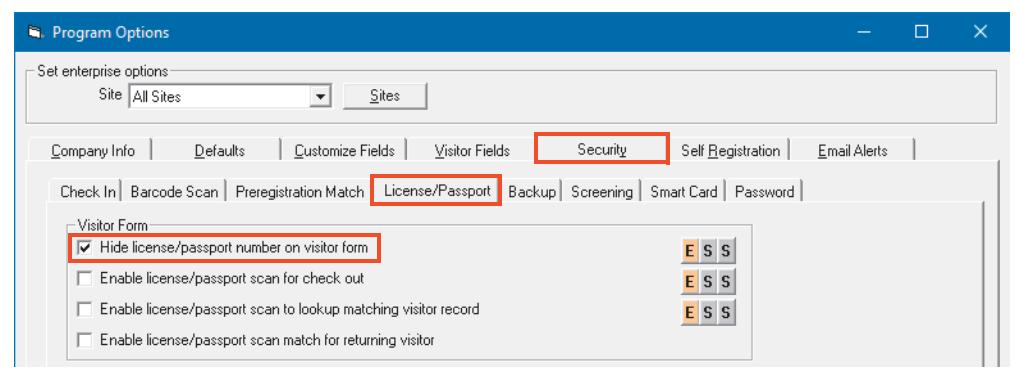
A: Yes, you can configure EasyLobby SVM software to retain/discard specific data fields by choosing Edit > Program Options , Security tab, License/Passport tab. Here you can check the option Hide license/passport number on the visitor form . Please note that when applying these changes you must first select the correct Site / Station if you have more than one site/workstation.
Q: Is the information gathered from ID scanners saved? For how long?
A: Yes, information gathered from a scanned ID will be saved. By default the system will save this data indefinitely, but an administrator can use the File > Visitor Log > Maintenance window in EasyLobby SVM to purge data as often as required, based upon your company's data retention rules.
Q: Where is the information gathered from ID scanners saved?
A: Data is stored in a Microsoft Access, SQL Server, or Oracle database depending upon the original configuration.
Q: If I restrict certain data from being scanned, could it still be saved?
A: Fields that are disabled from scanning will not be saved in the database. However, after each scan a temporary image file is saved in the EasyLobby installation folder, which contains an image of the full ID. This temporary image is replaced by the next scanned ID, so it is possible for someone to gain access to the most recently scanned ID.
Q: Is the data collected in EasyLobby connected to a network or is it a kept within a standalone system?
A: This depends on the number of client (workstation) licenses you purchase. One client could be a standalone system. Additional clients will require a network connection as they will share the same centralized database. All of this is housed within the customer's network.

Q: Are there any security hardening processes/standards used to secure EasyLobby?
A: Yes, the system comes with user login security with the option for single sign on or active directory authentication. Sensitive information like passwords, social security numbers and license numbers are encrypted natively. Further encryption can be enabled on the database side via third party options.
Q: What type of logging/monitoring occurs within EasyLobby?
A: EasyLobby performs error logging and event logging. Event logging is very comprehensive and is collected for the following actions:
| Login | Package Check In | No Fly List Allow |
|---|---|---|
| Logout | Package Check Out | No Fly List Deny |
| Check In | Check Out All | Watch List Match |
| Check Out | Denied Party Allow | User Create |
| Checkpoint Arrival | Denied Party Deny | User Delete |
| Checkpoint Departure | Sex Offender Allow | User Modify |
| Preregister | Sex Offender Deny | Check Out All Emp |
| Delete Visitor | Asset Checked In | Add Vis To Watch List |
| Delete Employee | Asset Checked Out | Add Emp To Watch List |
| Delete Package | Failed Login | Import |
| Delete Asset | Smart Card Read | Export |
| Watch List Rejection | Employee Entry | Maintenance |
| Watch List Approval | Employee Exit | Satellite Deny Entry |
| Watch List Cancel | Lost and Found Check In | Employee Self Reg Unlock |
| Delete Asset Loan | Lost & Found Check Out | API Operation |
| Asset Loaned | Delete Package | |
| Asset Returned | Self Reg No Prereg Match |

15 Proxy printing
EasyLobby has the ability to print badges via proxy. This is normally used with the SVM Mobile and eKiosk applications since they cannot accept USB printers. There are a few options you need to configure to allow this to happen.
- 1. You need to have a SVM or Administrator client installed.
- 2. A printer must be installed and configured for that SVM or Administrator station and setup under Edit > Badge Options to print a badge.
- 3. On the SVM/Administrator station you will be printing from, go to Edit > Program Options > Security tab > Check In tab.
- 4. At the top of the Program Options window, select the Site and Station for the computer you want to print to.

5. Select the Enable administrator proxy badge printing option.
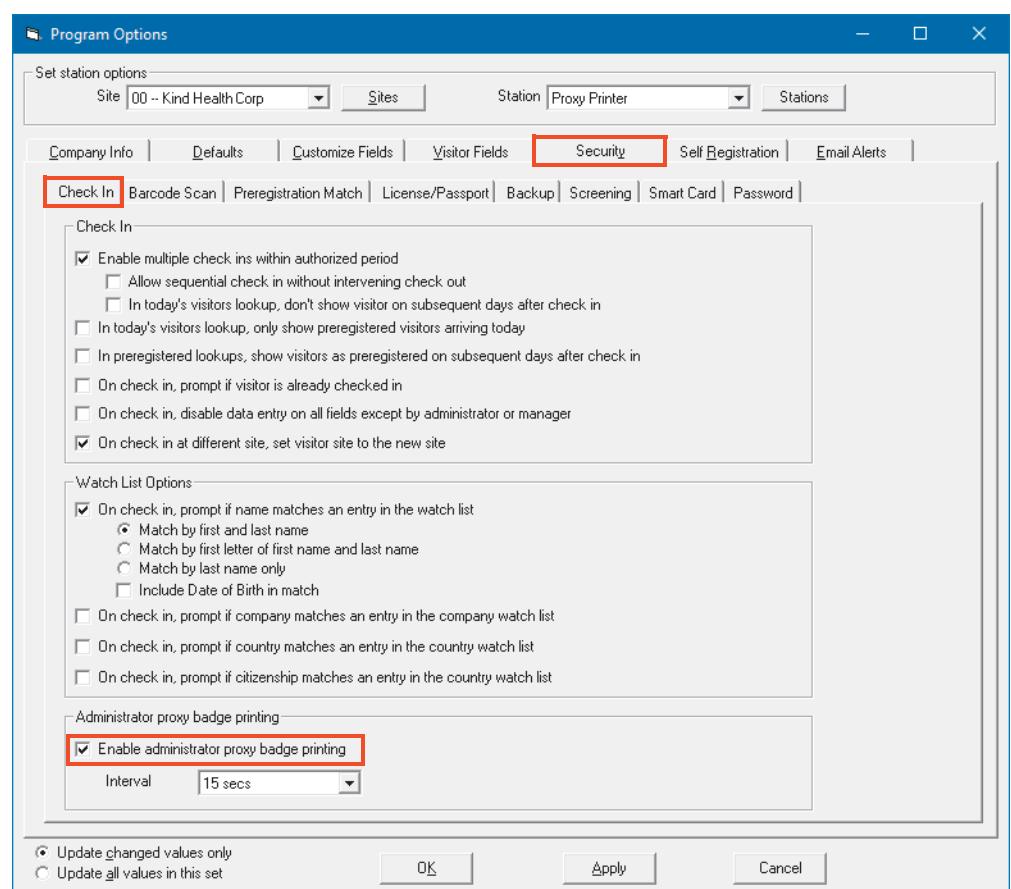
6. The Interval sets how often the feature will check for badges to print, so choose a value appropriate for you.

7. You also need to verify the printing settings for the registration station. In this example eKiosk is used, but the same concepts apply to SVM Mobile or any registration source you might be using.
While still in Program Options > Security tab > Check In tab, select the eKiosk station from the Site and Station drop-downs at the top of the Program Options window.

Make sure that you select the Enable administrator proxy badge printing option here as well.
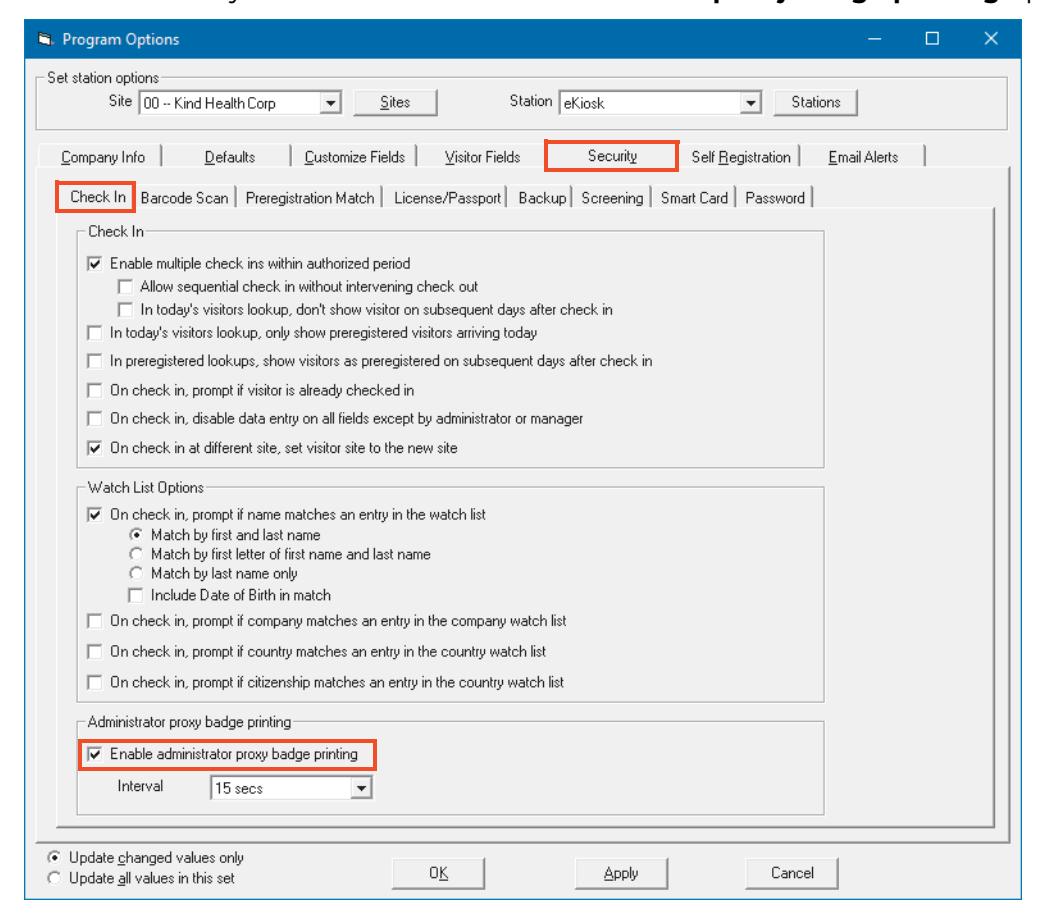
You're now ready to proxy print badges. Any time you register a visitor via the eKiosk application, it will print to the designated SVM/Administrator computer's printer.