HID-DigitalPersona-SSO-for-Office-365-AD-Solution-Deployment-Guide
Open the original PDF document
View PDF


AD Solution Deployment Guide
November 5, 2019


Table of Contents
| INTRODUCTION | 4 |
|---|---|
| SCOPE | |
| Prerequisites | |
| CONFIGURE FEDERATION FOR OFFICE 365 TENANT | 5 |
| TO TURN OFF FEDERATION | 6 |
| TROUBLESHOOTING | 7 |
| Identity Provider login page doesn't display | 7 |
| Uninstalling Web Management Components |
Introduction 1
Scope
This document covers deployment and configuration of DigitalPersona STS with an Office 365 Federated Domain, and connection to an on-premise DigitalPersona AD Server. Active Directory users will be synchronized to Azure AD via Azure AD Connect, and users will gain access to the enterprise's SaaS applications.
Prerequisites
The following prerequisites should be satisfied prior to continuing with deployment.
- Public domain name This must be the same domain name registered with Office 365 tenant.
- SSL certificate Either a wildcard certificate for the public domain name, or one for the specific host name that will be used for STS.
- Office 365 Tenant An Office 365 subscription with at least the Pro Plus plan.
- Administrator Account An Office 365 Global Administrator account is required in order to change the tenant from Manage mode to Federation mode.
- Azure Active Directory Sync tool The AAD Sync tool must be configured to use UPN as the On premise attribute to Azure AD username, and the source Anchor should be objectGUID.
- DigitalPersona Server A DigitalPersona AD Server must be installed and licensed.
- Users Users need to be enrolled with the DigitalPersona Server.
- STS Preconfigured DigitalPersona STS and all required components for STS. Ensure that you can open the STS Metadata page by navigating to the following URL:
https://<External_Host_Name>/dpsts/wsfed/metadata
• Add PolicyByPassGroups content to the web.config file for Active STS.
The purpose of the policyBypassGroups setting is to provide a whitelist of active logons (service accounts with no UI) AD groups that can bypass the MFA policy currently in force when accessing various federated third-party applications (such as Office 365) that would otherwise require Multi-Factor Authentication. Passive logons (users that are presented with the Identity Server UI) will still be under enforcement of the authentication policy in force.
To create a BypassGroups policy
- a. Open the web.config file from the following default location.
-
C:\Program Files\DigitalPersona\Web Management Components\DP STS\DPActiveSTS
- b. Create a new key/value pair in the appSettings section using the following format, where the value consists of the desired comma-delimited AD groups.
 <appSettings>
 ...
 <add key="policyBypassGroups" value="SomeADGroup1, SomeADGroup2" />
 </appSettings>
Configure Federation for Office 365 tenant 2
WARNING: Federation generally takes between 15 and 90 minutes. During this time access to all Office 365 apps will be unavailable.
On the system which has AAD Sync installed, install the Azure AD PowerShell Module . You can download the Azure Active Directory Module for Windows PowerShell (64-bit ) from (http://go.microsoft.com/fwlink/p/?linkid=236297), and click Run to launch the installer package.
- 1. In a PowerShell session, perform the following steps to configure your Azure AD domain as a Federated domain:
- 2. Start a Windows PowerShell session.
- 3. Import the MSOnline mode by entering the following cmdlet.
Import-Module MSOnline
4. Connect to the online service by executing the following cmdlet.
Connect-MSolService
- 5. Enter the Office 365 administrator username and password.
- 6. Verify that the domain name is listed by executing the following cmdlet.
Get-MsolDomain -domain <domainname>
You should be able to see the name of the domain that you will be federating.

7. Convert the domain to a federated domain by executing the Set-MsolDomainAuthentication cmdlet with the parameters shown below, replacing the highlighted elements with your domain name and STS FQDN.
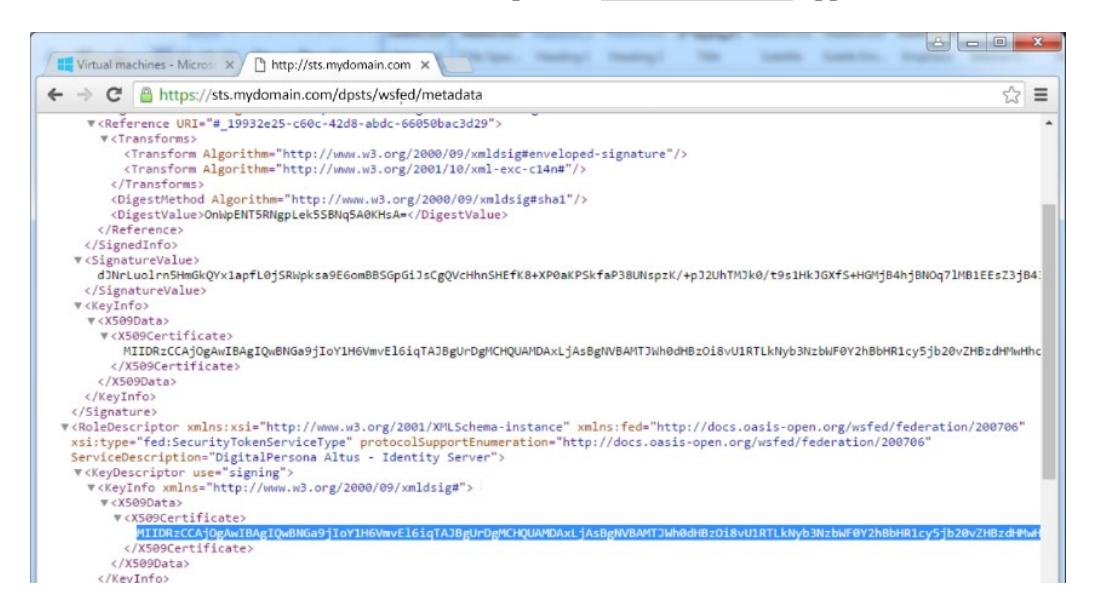
Also specify the signing certificate value, which you can find by navigating to your STS metadata page and copying the string representation of the signing certificate.
The STS Medata data URL is https://sts. <domainname> /dppassivests/wsfed/metadata
Set-MsolDomainAuthentication
- -DomainName <domainname>.com
- -Authentication Federated
- -ActiveLogOnUri
https://sts.mydomain.com/DPActiveSTS/ActiveSecurityTokenService.svc/mixed/username/
- -IssuerUri https://sts.<domainname>/dpsts
- -LogOffUri https://sts.<domainname>/dpsts/wsfed
- -MetadataExchangeUri
https://sts.<domainname>/DPActiveSTS/ActiveSecurityTokenService.svc/mex
- -PassiveLogOnUri https://sts.<domainname>/dpsts/wsfed
- -PreferredAuthenticationProtocol WSFED
- -SigningCertificate CertficateValue "
Example
Set-MsolDomainAuthentication -DomainName <domainname> -Authentication Federated - ActiveLogOnUri https://sts.
<domainname>/DPActiveSTS/ActiveSecurityTokenService.svc/mixed/username/ -IssuerUri https://sts.<domainname>/dpsts -LogOffUri https://sts.<domainname>/dpsts/wsfed - MetadataExchangeUri
https://sts.<domainname>/DPActiveSTS/ActiveSecurityTokenService.svc/mex -PassiveLogOnUri https://sts.<domainname>/dpsts/wsfed -PreferredAuthenticationProtocol WSFED - SigningCertificate
MIIDADCCAeigAwIBAgIQQCbMQ9s9YYRHa3UFMY/1CDANBgkqhkiG9w0BAQ0FADAYMR YwFAYDVQQDDA1zdHMucWFtZmEuY29tMB4XDTE3MDMwNjIyMjAzMVoXDTE4MDMw NjIyMjAzMVowGDEWMBQGA1UEAwwNc3RzLnFhbWZhLmNvbTCCASIwDQYJKoZIhvcNA QEBBQADggEPADCCAQoCggEBAOceGDySSTdtYAw26oGfWXB1sapJ0xi1OTnHIZiwtzgpgRu 9vwpTxRE/SI5NqE53T+txba+bS2tsy80mCnPFMUqnAZ70CFrqkFgaxDid1Sx4APXNFwCyUgKB Q8aGIPz79WVzwCEvnIofXbS6GC6YJm3tj0F7RBU3P0Q5MCdHe6FNn9XtKq9vHbA3Oq+jW+x doAn/kbBxbBBXOpiNuDs1dW932Rk3KP1wvz1Uz46UZ0w5tT6dPYclstaLdaikdhqNY35/Bz6bA9 xUFIju5HKv75n/5jlTaOcHfMybb7D4rSHUVaCk6a7FnCOAfycNQ5XqPeentcCYYxm+LLgGGo WbhscCAwEAAaNGMEQwEwYDVR0lBAwwCgYIKwYBBQUHAwEwHQYDVR0OBBYEFJyT uGnlHjsMWCDNQ4hKBRwq5QUlMA4GA1UdDwEB/wQEAwIFIDANBgkqhkiG9w0BAQ0FAA OCAQEA47qrxXZIIfyufs1aTEAQeMXVeGGnDUv22b5TpXl4aUsjP8D4fIguXQrzw3Zz7UcS+tvt +k0nkPKOtAINdc33LJUcThv11wkZwrB0Y5WZ/1tXW4qntYwpVsAIXeb/PEQhsx02NHgVopbXI Nh10RNzg5HxCLBqgIWL4WkMv+HDb/7lTwQdgPFmRS7LeeuDkrVmWqzWDaHlmlpnM2N7Z K7SnScVgppxtEsjyxFryimf9kyzeJrYggOvbJCGvf/IkFg35IS2F+mgqKEvsQO4+F1kIqOspZZgWB HNDdQv0iSRLn2EXp4Oi0NWdAd7J8Mp7KtBibID5To0vhRj+F8YARGZOQ==
To Turn off Federation
If at some point, it is necessary to turn off the federation and switch back to a Managed domain, you can run the following cmdlet with the option Managed.
Set-MsolDomainAuthentication -DomainName <domainname> -Authentication Managed
Troubleshooting 3
Identity Provider login page doesn't display
- 1. If the Identity Provider (STS) login page displays on the server hosting STS, but not externally, the bindings need to be verified on IIS to make sure they contain the correct certificate. The STS certificate needs to be selected.
- 2. Logging can be enabled on the DPActiveSTS website by including the following in its web.config file.
<sharedListeners>
<add initializeData="C:\dptrace\TracingAndLogging-server.svclog"
     type="System.Diagnostics.XmlWriterTraceListener" name="xml" />
- 3. For troubleshooting any application connectivity issues after federation, you can use the Remote Connectivity Analyzer at https://testconnectivity.microsoft.com/ .
- 4. You should clear out any previous tokens or sessions and start fresh after Federation. For example, sign out of any MS-Office applications and delete user sign-in information from Skype.
Uninstalling Web Management Components
</sharedListeners>
The DigitalPersona Web Management Components can be uninstalled using the Windows Control Panel.
During uninstallation, a dialog displays that allows you to remove any certificates that were created automatically by the DigitalPersona Configuration wizard.
If you choose to remove the certificates created by DigitalPersona
• When upgrading the Web Management Components, new certificates will have to be created (either automatically or manually) and you will need to update the federation setting to Azure.
If you choose to keep the certificates created by DigitalPersona
• When upgrading, the saved certificates will be used, and no changes will need to be made.