FCE FME 2000 Programming
Open the original PDF document
View PDFTownSteel 2000 Series RFID
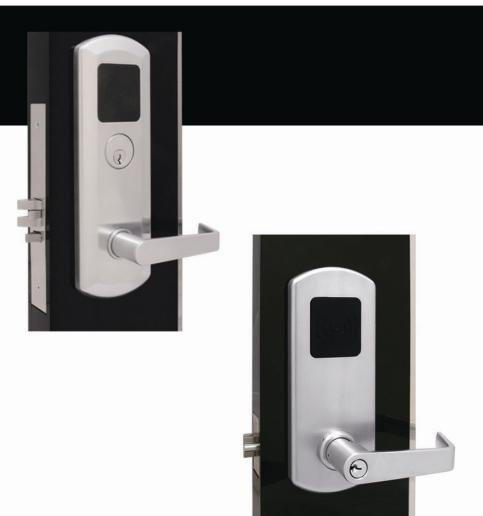
FCE 2010/2020/2030/2040 FME 2010/2020/2030/2040/2050/2060/2070/2080
Index
| Keycards········································02 |
|---|
| The following is a description of the type of Keycards and |
| function·······································03 |
| Programming and Initialization of the RFID Lock···········04 |
| Procedure for Initialization··························04 |
|
Programming-
Adding Keycards to the lock···············05 |
|
Deleting Keycards from the lock············06
Programming- |
|
Programming-
Deleting Keycards from the lock that are |
| lost············································07 |
|
Programming-
Deleting all Keycards from the lock except the |
|---|
| Programming, Clear and Register Keycards·············8 |
| Factory Reset·····································9 |
| Lost Programming and/or Clear Keycard·················10 |
| Lost Register Keycard·······························10 |
| Lost Programming, Clear and Register Keycards············11 |
| Low Battery warning·······························12 |
| Keycard Control···································13 |
| Swiping and holding the Keycards·····················13 |
| Troubleshooting··································14 |


The TownSteel RFID Lock is a standalone, battery operated, motorized lock with an encrypted reader, and applicable encrypted cards.
The programming of the lock and Keycards is done using the reader of the lock.
FCE model- RFID with a Grade 1 cylindrical lock body
FME model- RFID with a Grade 1 mortise lock body
Keycards:
- Keycards come with an imbedded RFID chip and antenna, there is no battery in the keycards. The keycards are encrypted and only these cards can be used and programmed to work with the TownSteel lock. Encryption is on sector 1 of the cards, other sectors can be used for other purposes independent of the lock. Keycards are labeled with their "type" and function- a Keycard can only be programmed for their labeled function.
- Keycards exchange data with the lock by "swiping" the Keycard within the effective reading distance (0 to ½") of the lock reader surface that is located on the front face of the lock. The Keycard needs to be authorized (programmed) before use with the lock. For identification and Keycard control all Keycards have a unique serial number that is printed on the Keycard surface.
- 250 keycards (combined total of User and Office Keycards) can be programmed into each lock.

The following is a description of the type of Keycards and function:
- Construction Keycard Used for opening the lock in the Factory Mode, the door will relock within 5 seconds after opening. The lock is shipped from the factory in Factory Mode, it is not programmed and any Factory Mode lock will work with any TownSteel Construction Keycard. It is recommended that the locks be programmed as soon as possible. The Construction Keycard will not work in a programmed lock.
- User Keycard Used to open the lock once it is programmed. Under normal conditions the lock will relock within 5 seconds after opening.
- Office Keycard Used to open and lock the lock once it is programmed. Under normal conditions the Office Keycard will open the lock and it will remain open until the Office Keycard is used again to lock the lock.
- Programming Keycard Used for programming User Keycards, Office Keycards, RCUs and importing information into the lock. Can only program 1 Programming Keycard per lock.
- Clear Keycard Used for deleting User Keycards, Office Keycards, RCUs and exporting information from the lock. Can only program 1 Clear Keycard per lock.
- Register Keycard Used as a backup in the event that the Programming and/or Clear Keycard(s) are lost. The Register Keycard can program a new Programming or Clear Keycard and makes the previous Programming or Clear Keycards inactive. Can only program

1 Register Keycard per lock.
The Programming, Clear and Register Keycards are critical to the overall control of the lock system and it is recommended that these cards be kept in a secure location and controlled. If possible the Register Keycard should be kept in a separate location.
Programming and Initialization of the RFID Lock:
Initialization: The lock needs to be initialized using the Programming, Clear and Register Keycards. Once initialized the lock will not respond to the Construction Keycard or other Programming/Clear/Register Keycards. Once initialized the lock is ready for programming. Initialization can only be done on locks in Factory Mode.
Procedure for Initialization:
Swipe the keys in the listed order. Valid entry- Blue LED followed by a short and long "beep". Invalid entry- Red LED followed by 3 short "beeps".
- 1. Programming Keycard (swipe)- Blue LED followed by a short and long "beep"
- 2. Clear Keycard (swipe)- Blue LED followed by a short and long "beep"
- 3. Register Keycard (swipe)- Blue LED followed by a short and long "beep"

IMPORTANT:
- All 3 Keycards must be used and accepted as valid to complete the Initialization. In all cases the Register Keycard must but used last.
- Once the unit is initialized it is ready for further programming.
Programming- Adding Keycards to the lock:
This is to add /program Keycards (up to 250 per lock) to the lock. Swiping the Programming Keycard will put the lock in Programming Mode. Programming Mode will continue for 8 seconds after the last valid card was swiped. When the Programming Keycard is swiped the Programming Mode is indicated by a long "beep" and a flashing blue LED (the LED will continue flashing until the lock is out of Programming Mode). During Programming Mode the Keycards can be added (programmed into the lock).
Swipe the keys in the listed order:
- 1. Programming Keycard (swipe)- Long "beep" and a continuous flashing blue LED
- 2. User Keycards (swipe)- Blue LED followed by a short and long "beep"- LED will continue flashing- can add as many User Keycards during this time as needed (remember- combined total of all the User and Office Keycards that can be added is 250).
- 3. Office Keycards (swipe)- Blue LED followed by a short and long "beep"- LED will continue flashing- can add as many Office Keycards during this time as needed (remember- combined total of all the User and Office that can be added is 250).

Lock will stop flashing 8 seconds after the last valid card is swiped. When the LED stops flashing it is out of programming mode. In order to put it back into programming mode again- swipe the Programming Keycard. The Keycards can be added in any sequence when the lock is in programming mode. You cannot stack Keycards- the lock will not recognize stacked Keycards- you must swipe Keycards 1 at a time.
Programming- Deleting Keycards from the lock:
This is to delete Keycards (that are in your possession) from the lock. Swiping the Clear Keycard will put the lock in Delete Mode. Delete Mode will continue for 8 seconds after the last valid card was swiped. When the Clear Keycard is swiped the Delete Mode is indicated by a long "beep" and a flashing red LED (the LED will continue flashing until the lock is out of Delete Mode). During Delete Mode the Keycards can be deleted (no longer valid).
Swipe the keys in the listed order:
- 1. Clear Keycard (swipe)- Long "beep" and a continuous flashing red LED
- 2. User Keycards (swipe)- Blue LED followed by a short and long "beep"- red LED will continue flashing- can delete as many User Keycards during this time as needed.
- 3. Office Keycards (swipe)- Blue LED followed by a short and long "beep"- red LED will continue flashing- can delete as many Office Keycards during this time as needed.

Lock will stop flashing 8 seconds after the last valid card is swiped. When the LED stops flashing it is out of Delete Mode. In order to put it back into Delete Mode again- swipe the Clear Keycard. The Keycards can be deleted in any sequence when the lock is in Delete Mode. You cannot stack Keycards- the lock will not recognize stacked Keycards- you must swipe Keycards 1 at a time.
Programming- Deleting Keycards from the lock that are lost:
This is to delete Keycards which are not in your possession, from the lock. When you do not have the Keycard that you want to delete you have the ability to delete all Keycards of a certain type from that specific lock. Swiping the Clear Keycard 2X will put the lock in this type of Delete Mode. Deleting a User or Office Keycard will delete all User and Office Keycards programmed for this specific lock, User and Office Keycards are considered the same type of Keycard and will be deleted regardless if an Office or if a User Keycard is used for this deleting operation. When the Clear Keycard is swiped there is a long "beep" and a flashing red LED- swipe the Clear Keycard again and there is a short "beep" and the red LED will flash faster. Swipe the Keycard type you are deleting and follow this with swiping the Clear Keycard. The red LED will stop flashing after the last Clear Keycard is swiped.
Swipe the keys in the listed order (Clearing/Deleting all Office and User Keycards):
- 1. Clear Keycard (swipe)- short "beep" and a continuous flashing red LED
- 2. Clear Keycard (swipe)- longer "beep" and the red LED will flash faster.
- 3. Office or User Keycard (swipe)- Blue LED followed by a long "beep"- red LED will continue flashing.

4. Clear Keycard (swipe)- Blue and red LED followed by a short and long "beep"- red LED will stop flashing.
After deleting the type of Keycard- the lost or misplaced keycard will no longer work on this lock. In order to re-program the lock to add the Keycards that were deleted follow the instruction Programming- Adding Keycards to the lock
Programming- Deleting all Keycards from the lock except the Programming,
Clear and Register Keycards:
This is to delete all Keycards from the lock. The lock does not delete the Programming, Clear or Register Keycards and the lock remains initialized.
Swipe the keys in the listed order (Clearing/Deleting all Keycards and RCUs from the lock)
- 1. Clear Keycard (swipe)- short "beep" and a continuous flashing red LED
- 2. Programming Keycard (swipe)- short "beep" and the red LED will continue to flash.
- 3. Programming Keycard (swipe)- Blue LED followed by a short and long "beep"- red and blue LED will flash for 2 seconds.
After deleting the Keycards (User, Office) the lock is still initialized and the Programming, Clear and Register Keycards still function. In order to re-program the lock to add the Keycards that were deleted follow the instruction Programming- Adding Keycards to the lock.

Factory Reset:
This will delete all Keycards and the lock is no longer initialized. The lock will be in Factory Mode and the Construction Keycard will open the lock.
Swipe the keys in the listed order (puts lock into the Factory Mode)
- 1. Clear Keycard (swipe)- short "beep" and a continuous flashing red LED
- 2. Clear Keycard (swipe)- short "beep" and a continuous flashing red LED
- 3. Programming Keycard (swipe)- short "beep" and the red LED will continue to flash.
- 4. Programming Keycard (swipe)- Blue LED followed by a short and long "beep"- red and blue LED will flash for 2 seconds.
In order to re-program the lock to add the Keycards that were deleted follow the instruction Programming and Initialization of the RFID Lock and Programming- Adding Keycards to the lock.

Lost Programming and/or Clear Keycard:
If a Programming or Clear Keycard is lost this will instruct you on how to make a new card and the lost cards will no longer be authorized. You must contact Technical Support (phone number and website is listed on all the Keycards) and obtain a new Programming or Clear Keycard to replace the lost Keycard. Once the new Keycard is received do the following:
Swipe the keys in the listed order (steps 3, 4, 5 can be done in any sequence):
- 1. Register Keycard (swipe)- Long "beep" and a continuous flashing blue LED
- 2. New Programming or Clear Keycard (swipe)- Blue LED and a long "beep"- blue LED will continue flashing.
- 3. Register Keycard (swipe)- Short and long "beep"- blue LED will stop flashing.
This will authorize the new Programming or Clear Keycard. No other Programming or Clear Keycard will now work with that lock. These are standalone locks and this must be done to each lock to authorize the new Keycard on each of those locks.
Lost Register Keycard:
If a Register Keycard is lost this will instruct you on how to obtain a new card and the lost card will no longer be authorized. You must contact Technical Support (phone number and website is listed on all the Keycards) and obtain a new Register Keycard to replace the lost Keycard. Once the new Keycard is received do the following:

Swipe the keys in the listed order (1st lock):
- 1. New Register Keycard (swipe)- Long "beep" and a continuous flashing blue LED
- 2. Programming or Clear Keycard (swipe)- Blue LED and a long "beep"- blue LED will continue flashing.
- 3. New Register Keycard (swipe)- Short and long "beep"- blue LED will stop flashing.
Swipe the keys in the listed order (subsequent locks):
- 1. New Register Keycard (swipe)- short and long "beep" and a continuous flashing blue LED
- 2. Programming or Clear Keycard (swipe)- Blue LED and a long "beep"- blue LED will continue flashing for 8 seconds.
This will authorize the new register Keycard. No other register Keycard will now work with that lock. These are standalone locks and this must be done to each lock to authorize the new Keycard on each of those locks (1st lock programming is different from the subsequent locks).
Lost Programming, Clear and Register Keycards:
If all 3 Keycards are lost please call Technical Support (phone number and website is listed on all the Keycards).

Low Battery warning:
The lock operates on 4 AA alkaline batteries only. Low battery warning will come on at approximately 4.8 volts. The only way to reset the lock and get out of low battery warning is to replace the batteries with new AA alkaline batteries. Important: Always replace all 4 batteries with new batteries.
The following warnings will occur at different intervals:
- 1. The 1st 50 times you open the door after the low battery threshold (~4.8 volts) is reached- Swipe an authorized Keycard- 3 "beeps" followed by 3 "beeps" (6 "beeps" total) and the lock unlocks
- 2. Using the lock 51-100 times after the low battery warning threshold is reached- Swipe an authorized Keycard- 3 "beeps" followed by 3 "beeps" followed by 3 "beeps" (9 "beeps" total) and the lock unlocks
- 3. After 100 times or under very low voltage conditions "3 beeps" 4 times (12 "beeps" total) and then only the Programming Keycard will unlock the lock.
Do not wait for the low battery warning- it is recommended under normal use that the batteries be changed every 12 months. If the low battery warning has started it is important to replace the batteries immediately to avoid any issues. Note: replacing or removing the batteries does not affect the lock memory.

Keycard Control:
Keycard control is important to maintain the integrity and security of the system. Each Keycard has a unique serial number printed on the face. Each Keycard is labeled with the type of Keycard (User, Office). Keycards and the serial numbers should be logged. Each lock should have a database showing what Keycards are authorized and the serial numbers of each Keycard. System and management Keycards- Programming, Clear, Register- should be controlled by the department or person in charge of security. It is recommended that these Keycards be placed in a secure location to prevent any unauthorized use. It is important to report any lost or stolen Keycards immediately and take the action necessary to reinstate new Keycards.
Swiping and holding the Keycards:
Swiping a RFID Keycard in this context means placing the Keycard flat on the reader in front of the lock. It is recommended that the Keycard is placed so that the Keycard essentially covers the reader. This will ensure proper transfer of data and reduce programming errors. The Keycard should be left on for about 1 second or until the confirmation ("beeps") is heard. In some cased the Keycard needs to be held in order to ensure all the data is transferred. After the data transfer is complete there is a second confirmation ("beeps").

Troubleshooting:
- If you have any issues please contact Technical Support (phone number and website is listed on all the Keycards).
- Some information and quick fixes:
- Look on YOUTUBE for videos in regard to programming and troubleshooting (keywords- Townsteel and RFID lock).
- In general- if you receive 3 "beeps" after swiping the Keycard it is not valid or the programming was incorrect.
- When having issues- stop and read the Programming Manual.
- When Initializing the lock- use the Programming, Clear and Register Keycards (in that order) and do not stop in the middle- complete this sequence.
- The Programming and Clear modes last for 8 seconds after the last valid card was swiped- let it timeout before attempting something different.
- Read the manual before programming, have all the Keycards organized and ready.

17901 Railroad Street, City of Industry, CA 91748
Toll Free: 877-858-0888 Tel: 626-965-8917
Fax: 626-965-8919
www.townsteel.com