Eplex 2000 Operations Manual
Open the original PDF document
View PDF
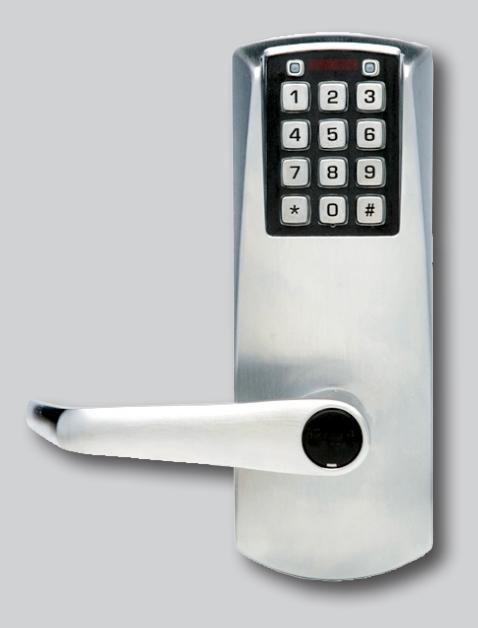

E-PLEX® 2000 Series PowerPlex 2000 Series
Operations Manual
TABLE OF CONTENTS
| Introduction | 4 |
|---|---|
| E2000 Operation | 4 |
| PowerPlex 2000 Operation | 4 |
| States of the Lock | 5 |
| Factory Mode | 5 |
| Access Mode | 5 |
| Pushbutton Programming Mode | 5 |
| Sequence of Operations for Start-Up Programming | 5 |
| Default Values of the E-Plex 2000 Programmable Parameters | 6 |
| Configuring the Lock | 6 |
|
General Procedure for Pushbutton Programming
|
6 |
| Reset Procedures | 7 |
| A. Program the Access Code Length 10 | |
| B. Modify the Master User Access Code | 11 |
| C. Program the Unlock Time | 11 |
|
D.
Program the Duration of the Passage Mode Period |
11 |
| E. Program the Lock for Tamper Time Parameters 12 | |
|
F.
Programming the Lock for Keypad Buzzer Volume 13 |
|
|
Users - General Information
13 |
|
| User Levels 14 | |
| User Codes 15 | |
| User Access Codes (PINs) - Examples 15 | |
| G. Add / Modify a User Access Code 17 | |
| H. Add / Modify a Manager Access Code 17 | |
| I. Add / Modify Service User Access Code 18 | |
| J. Delete User Access Codes 19 | |
| K. Delete Manager Access Codes 19 | |
| L. Delete Service User Access Codes 19 | |
|
M.
Delete All Access Codes Except Master and Manager |
20 |
| N. Activate User Access Codes | 20 |
| O. Activate Manager Access Code 21 | |
| P. Activate Service User Access Code 21 | |
| Q. Activate All User Access Codes 21 |
TABLE OF CONTENTS (continued)
| R. Activate / De-activate Passage Mode | 22 |
|---|---|
| S. De-activate User Access Codes | 22 |
| T. De-activate Manager Access Codes | 23 |
| U. De-activate Service User Access Code | 23 |
|
V.
De-activate all Access Codes except Master and Manager |
23 |
| W. Activate / De-activate Lockout Mode | 24 |
| X. Perform Manual Diagnostics 24 | |
| Battery Life and Replacement (E2000 Series Only) |
25 |
| Summary of Pushbutton Programming Commands | 25 |
| Visual Feedback Message Definitions | 28 |
| User List Table | 28 |
A publication of Kaba Access Control 2941 Indiana Avenue Winston-Salem, NC 27105
February 2013
No part of this book may be reproduced or transmitted in any form or by any means, electronic or mechanical, including photocopying, recording, or by any information storage and retrieval system, without prior written permission from the Publisher.
The information contained in this publication is accurate to the best of Kaba Access Control's knowledge.
Specifications are subject to change without notice.
INTRODUCTION
The E-Plex 2000 (E2000) and the PowerPlex 2000 are both easy to use PIN only lock series that do not require any software to operate.
E2000 Operation
The E2000 uses three (3) AA alkaline batteries. This means that anytime you can simply access the lock with your valid PIN and/or you can program the lock at its keypad since the lock power is always present for its electronic circuit to operate.
PowerPlex 2000 Operation
The PowerPlex 2000 Self Powered Lock does not contain any batteries and is an environmentally friendly "Green" lock. The lock electronics are always "asleep" but to activate the circuit to access and/or program the lock, you must power the lock by depressing any button on the locks keypad. This energizes the lock for you to enter the remainder of your PIN and open the lock; or start to program the lock with a command sequence. If you have not operated the lock for a few weeks, you will need to pump the handle 4 to 6 times to "recharge" the lock before using it. If the lock is used on a regular basis, pumping the lever is not neccessary.
During a multiple command sequence at the lock's keypad when you are trying to program many user PINs one after the other—say more than 5 or 6 users, you will notice that the lock will start flashing the Red light (LED) every second (typically after about 20 seconds), indicating that the stored lock power is beginning to fade. When you see this Red light flashing, you must pump the handle again once to recharge which will enable you to continue programming the lock.
Important: When you pump the handle, the lock will flash the Green light once accompanied by a high pitched beep indicating that it is "ready"—either for you to enter your valid access PIN, or for you to start programming. If you do not pump the handle, there will be no response from the lock and consequently there will be no access granted.
STATES OF THE LOCK
Factory Mode
The factory mode is one of three primary states of the E-Plex 2000 and the PowerPlex 2000. The main characteristics of this state are:
- The E2000/PowerPlex 2000 opens only when the 8-digit master combination (1-2-3-4-5-6-7-8) is keyed in.
- The visual indication for 'access granted' is green LED flashing once. A high-pitched tone is also generated while the green LED is on.
- The Master User must change the combination to be able to exit the factory mode, and switch to the access mode.
Access Mode
This mode refers to a lock that is operational for user access, and not in factory or Programming Mode.
Pushbutton Programming Mode
The lock enters the Pushbutton Programming Mode when the user enters the master combination or one of the manager combinations, preceded and followed by the character '#' (ex: #12345678#). Once the E-Plex 2000 is in the Pushbutton Programming Mode, the Master/Manager can enter one or more command sequences. Each command sequence ends with a '#' character that acts like an < enter > character. At the very end of all sequences of programming commands, enter one more # to remove the lock from the Pushbutton Programming Mode to return to normal access mode.
SEQUENCE OF OPERATIONS FOR START-UP PROGRAMMING
What is the recommended sequence of operations?
With the E-Plex 2000/PowerPlex 2000 in the factory mode.
- Program the Access Code Length (default length is four digits). The access code field length can only be changed when the lock is not activated (when still in the factory mode).
- Change factory Master to your own Master Code (always eight digits) to place lock in access mode.
Put lock in Pushbutton Programming Mode.
- Program the Unlock time.
- Program the Lock for the Duration of Passage Mode (if desired).
- Program the Lock for Tamper Time Settings.
- Program the Lock for Buzzer Volume.
- Add Access Codes as desired.
DEFAULT VALUES OF THE E-PLEX / POWERPLEX 2000 PROGRAMMABLE PARAMETERS
| Parameters | Factory Default Values |
|---|---|
| Lock state | Unprogrammed |
| Passage mode open time limit | 9 hours |
| Passage mode | De-Activated |
| Lockout mode | De-Activated |
| Unlock time | 2 seconds |
| Buzzer volume control | Low |
| Tamper shutdown time | 30 seconds |
| Tamper attempt count | 4 attempts |
| Access code length | 4 digits |
| Master combination | 12345678 (8 digits) |
| Access code | None |
| Code status | Activated |
CONFIGURING THE LOCK
General Procedure for Pushbutton Programming
- 1. The pages that follow provide step-by-step instructions for programming the E-Plex 2000/PowerPlex 2000 lock.
- 2. The general procedure for all programming functions is as follows:
-
a. Put the lock in Programming Mode by pressing # Master Code #
- b. Use the Summary of Commands Table in the appendix section of this guide to enter the three digit command sequence (Command Type + Function Code), followed by #.
- c. Enter the appropriate numbers as required.
-
d. Press # to end Programming Mode.
- e. Once the lock is in programming mode, multiple command sequences can be entered without having to repeat the #mastercode#. However, if there is no activity for 15 seconds at the keypad, the lock will automatically exit from programming mode.
For example
- If the Master or Manager enters his code of 87654321 , the door will open.
- If he enters #87654321# , the lock will enter into the Programming Mode and wait for the next part of the command.
- If he enters the # sign twice at the end of the code, for example #87654321## , the lock will go out of Programming Mode and return to its normal mode.
Note: The # pound sign acts like the Enter key on a keyboard in your communications with the lock. The # tells the lock that one part of the entry is finished. The # serves another purpose - to distinguish a programming type command from a simple Access Code to open the door. A Master or Manager User can use the same number to open the door or to put the lock in Programming Mode, the only difference being that he uses the # sign in front to signal that he is about to enter a programming command. For increased security, it is recommended that the master user code not be used for everyday access. This can be accomplished by creating an access user code for the master user.
Reset Procedures
There are three different "Reset" levels available in the E-Plex 2000.
Code 099# will reset the lock to the factory default settings except for the access code length (Master and Manager User codes are retained if already programmed)
Code 299# will delete all access and service user codes (Master and Manager users are retained)
Hard Reset will return the lock to factory mode including deleting all codes, putting the lock back to factory default values (4 digit access code length) and making the master code 1-2-3-4-5-6-7-8. A hard reset is performed as follows.
Hard reset sequence for the E-Plex E2000 Series:
A) User knows the Master code:
- 1. On the inside or back housing, remove the top right screw holding the lock to the door. Insert a long non-metallic blunt ended tool in the screw hole to press and hold the Reset-to-Factory-Default button..
- 2. You have up to 5 seconds to push '#' and release the reset button. If 5-second timeout is reached without pressing '#', the lock continues its normal operation. As soon as the '#' is pressed, the lock exits the current state. If timeout is reached or if any other key is pressed after
- the '#' was pressed, the lock exits the sequence and stays in access state. If '#' is pushed and reset button is released within 5-second period, the lock goes in Reset Sequence State and the lock displays the 'Reset Sequence In Progress' message by flashing Green and Red LED alternatively once every second.
- 3. In this state, users have a 20-second period to enter the Master Code to perform a hard reset. If a bad Master Code is keyed-in, the lock exits the Reset Sequence State and goes back in access state. If the correct Master Code is entered within 20 seconds, the lock performs a hard reset and goes back in unprogrammed state. When an incor rect Master Code is entered, the Tamper Count decrements. After 4 unsuccessful attempts to Reset the lock with a bad Master code, the lock goes in the Tamper Shutdown state for 30 seconds. It will resume normal operations after this delay. If no master code is entered during the 20 seconds delay, the lock will enter a 15 minute wait period as suming the Master Code is unknown.
B) User does not know the Master code:
- 1. On the inside or back housing, remove the top right screw holding the lock to the door. Insert a long non-metallic blunt ended tool in the screw hole to press and hold the Reset-to-Factory-Default button
- 2. You have up to 5 seconds to push '#' and release the key or reset but- ton. If 5-second time out is reached without pressing '#', the lock continues its normal operation. As soon as the '#' is pressed, the lock exits the current state. If timeout is reached or if any other key is pressed after the '#' was pressed, the lock exits the sequence and stays in access state. If '#' is pushed and reset button is release within 5-second period, the lock goes in Reset Sequence State and the lock displays the 'Reset Sequence In Progress' message by flashing Green and Red LED alternatively once every second.
- 3. In this state, users have a 20-second period to enter the Master Code to perform a hard reset. When the user does not know the master code, the user must not enter anything during that 20 seconds delay. The Reset sequence in progress message will be displayed on the LEDs.
- 4. When the 20 seconds delay will be exhausted, a 15 minutes wait period will begin. During that state, any operation on the lock will be ignored (green LED will not blink when pressing keys) and the Green and Red LED will blink once a minute.
- 5. After the 15 minutes delay has exhausted, the Reset sequence in prog ress message will be displayed on the LEDs again for 20 seconds. During this period, the user must enter the 1-2-3-4-5-6-7-8-# sequence and the lock will reset. If the user fails to do so, the sequence will abort and the lock will resume normal operation.
Hard reset sequence for PowerPlex 2000 Series:
A) User knows the Master Code:
- 1. On the inside or back housing, remove the top right screw holding the lock to the door.
- 2. Pump the handle until you get a green LED. Insert a long non-metallic blunt ended tool in the screw hole to press and hold the Reset-to- Factory-Default button.
- 3. You have up to 5 seconds to push '#' and release the reset button. If 5-second timeout is reached without pressing '#', the lock continues its normal operation. As soon as the '#' is pressed, the lock exits the current state. If timeout is reached or if any other key is pressed after the '#' was pressed, the lock exits the sequence and stays in access state. If '#' is pushed and reset button is released within 5-second period, the lock goes in Reset Sequence State and the lock displays the 'Reset Sequence In Progress' message by flashing Green and Red LED alternatively once every second.
- 4. In this state, users have a 20-second period to enter the Master Code plus '#' to perform a hard reset. If a bad Master Code is keyed-in, the lock exits the Reset Sequence State and back in access state. If the correct Master Code is entered within 20 seconds, the lock per forms a hard reset and goes back in unprogrammed state. When an incorrect Master Code is entered, the Tamper Count decrements. After 4 unsuccessful attempts to Reset the lock with a bad Master Code, the lock goes in the Tamper Shutdown state for 30 seconds. It will resume normal operations after this delay. If no Master Code is entered during the 20 seconds delay, the lock will enter a 15 minute wait period assuming the Master Code is unknown.
B) User does not know the Master Code:
- 1. On the inside or back housing, remove the top right screw holding the lock to the door.
- 2. Pump the handle until you get a green LED. Insert a long non-metallic blunt ended tool in the screw hole to press and hold the Reset-to- Factory-Default button.
- 3. You have up to 5 seconds to push '#' and release the reset button. If 5-second timeout is reached without pressing '#', the lock contin- ues its normal operation. As soon as the '#' is pressed, the lock exits the current state. If timeout is reached or if any other key is pressed after the '#' was pressed, the lock exits the sequence and stays in access state. If '#' is pushed and reset button is release within 5-sec ond period, the lock goes in Reset Sequence State and the lock dis- plays the 'Reset Sequence In Progress' message by flashing Green and Red LED alternatively once every second.
- 4. In this state, users have a 20-second period to enter the Master Code plus '#' to perform a hard reset. When the user does not know the Master Code, the user must not enter anything during that 20 sec onds delay.
- 5. When the 20 seconds delay will be exhausted, a 15 minutes wait pe riod will begin. During that state, any operation on the lock will be ignored. During this period, if key is pressed a high beep will sound but no green LED and will be followed by the 'Reset Sequence In Progress' message will be displayed by flashing Green and Red LED alternatively once. If handle is pumped, green LED and high beep will show normally and will be followed by the 'Reset Sequence In Prog- ress' message by flashing Green and Red LED alternatively once to show that the lock is in the reset sequence long wait.
- 6. After the 15 minutes delay has exhausted, the Reset sequence in prog ress message will be displayed on the LEDs again for 20 seconds. During this period, the user must enter the 1-2-3-4-5-6-7-8-# sequence and the lock will reset. If the user fails to do so, the sequence will abort and the lock will resume normal operation.
A. PROGRAM THE ACCESS CODE LENGTH
Setting the length of Access Codes must be the first lock programmable function you perform, because all your other access codes must have the same length. If a user enters a code of a different length, the lock will not accept it. Longer length Access Codes permit a greater number of code possibilities, and thus higher security. The master code must always be 8 digits
Required User Level: Master
A-1 To configure the programmable pushbutton lock, it must first be placed in Programming Mode.
Important: This is the only programmable function that can be done during the factory mode using the factory master code. Except for changing from the factory code to a new master code.
- A-2 Enter the E-Plex 2000 factory Master (Programming) Code ( #12345678# ). The lock responds with a flashing green light. If 1-2-3-4-5- 6-7-8 does not seem to work, please follow the steps to perform a hard reset by following the procedure in on page 7.
- A-3 Enter the code 009 #LL # , where LL represents the length (number of digits in a code). The range is from 04 to 08 digits. You can leave the factory default Access Code length (4 digits) if you wish.
- A-4 Example of Complete Entry: 009#05# .
- A-5 Key in another # to indicate the end of programming.
- A-6 From now on, all the Access Codes you create must be the length specified in this step, which is 5 digits.
B. MODIFY THE MASTER USER ACCESS CODE
Required User Level: Master
- B-1 To change the factory code or current Master Code, follow the next three steps:
- B-2 Put lock into Pushbutton Programming Mode.
- B-3 Use the command, 000, for Master, then the new Master Code number.
- B-4 You must use 8 digits between 00000000 and 99999999 as follows: 000#MMMMMMMM# , we'll use 000#87654321# as an example.
- B-5 Enter the Master Code again 87654321# for confirmation.
- B-6 Example of Complete Entry: 000#87654321#87654321# .
- B-7 Key in another # to indicate the end of programming.
- B-8 After that, you will always use your own Master Code. Please write the code down and keep in a safe place. The factory code is no longer valid.
C. PROGRAM THE UNLOCK TIME
Unlock time is the length of time the door will remain unlocked when a correct code is entered before automatically re-locking itself.
Required User Level: Master, Manager
- C-1 Put the lock into Pushbutton Programming Mode.
- C-2 To establish Unlock Time, enter the following code: 004#TT# , where TT is the time in seconds, ( TT =02 to 20 seconds, for example 10 seconds).
- C-3 Example of Complete Entry: 004#10# .
- C-4 Enter another # to indicate the end of programming.
- C-5 You have now programmed an Unlock Time of 10 seconds for the door.
D. PROGRAM THE DURATION OF THE PASSAGE MODE PERIOD
You might want to program locks for public areas, such as cafeterias, to have free access (Passage Mode) during certain periods of the day, and revert to required code access outside of these regular hours.
The length of time that the lock remains in Passage Mode is programmable on all models except PowerPlex 2000 versions.
The factory default length of time for Passage Mode is 9 hours - you may leave the default.
Once the lock has been put into Passage Mode, it will automatically relock after the designated duration.
- D-1 Put the lock into Pushbutton Programming Mode.
- D-2 Enter command code 005# .
- D-3 Then TT# , where TT= 01 to 24 hours.
- D-4 A TT entry of 00 means there is no time limit the door remains unlocked.
- D-5 Enter 005 #TT# ; for example, 005#06# for six hours.
- D-6 Example of Complete Entry: 005#06# .
- D-7 Enter another # to indicate the end of programming.
- D-8 In this example, the lock will remain unlocked for six hours, starting from the time you put it in Passage Mode.
- D-9 You have now configured the duration of the Passage Mode period for that lock. This does NOT initiate Passage Mode.
- D-10 The new length of time will take effect the next time you put a lock into Passage Mode by following the correct command sequence.
E. PROGRAM THE LOCK FOR TAMPER TIME PARAMETERS
You can set a Tamper Time Wrong Tries parameter referring to the number of times the wrong code can be entered before the lock goes into Tamper Shutdown Mode.
For example, if you program the lock to accept three wrong tries, the lock will tolerate three wrong entries, staying locked but providing visual feedback (see visual message chart in rear section). After that, it will go into a Tamper Shutdown Mode and remain locked until the end of the Tamper Shutdown Time period - the length of that period is configured in Steps 1a through 1 c below.
- E-1 Set the tamper time for the period of time during which the keypad will remain inaccessible after the specified number of wrong Access Codes are entered
- a. Put the lock into Pushbutton Programming Mode.
- b. Enter the code as follows 006#TT# ( TT is seconds 00 to 90 seconds).
- c. Example of Complete Entry: 006#30# . (for 30 seconds)
- E-2 Enter the code as follows: 007 #TT# ( TT is number of wrong entries 03 to 09 ), let's use 03 for example.
- a. Example of Complete Entry: 007#03# .
- b. Enter another # to indicate the end of programming.
-
c. The lock will stay locked after three wrong entries for the length of time you select in the steps below,
even if a valid code (including the Master or a Manager Code) is entered after the three wrong codes. Only the mechanical key override will open the lock during the lockout period.
- d. Enter another # to indicate the end of programming.
In this example, the lock will now remain locked out for 30 seconds after three wrong Access Codes have been entered. No codes, even valid ones, will work in the lock until that time period has elapsed. During this tamper shut down period, the lock will flash the red LED once every 10 seconds
F. PROGRAMMING THE LOCK FOR KEYPAD BUZZER VOLUME
You might want to adjust the volume of the Keypad Buzzer depending on where the lock is located - a noisy or quiet area.
Required User Level: Master, Manager
- F-1 Put the lock into Pushbutton Programming Mode.
- F-2 Enter the code 008#VV# (where VV is a scale of volume from 00 to 03; 00 = off; 01 = Low; 02 = Normal; 03 = High).
- F-3 Example of Complete Entry: 008#02# .
- F-4 Enter another # to indicate the end of programming.
- F-5 The lock will now sound the buzzer at the desired volume Normal, until you change it.
Users - General Information
- 1. Master and Manager Codes can do two different things:
- Open the door by entering the Access Code without # signs.
-
Put the lock into Pushbutton Programming Mode by entering
#
before and after their Access Code.
- 2. Each user (Manager User, Service User or Access User) occupies one of the available 100 locations in the user table.
- 3. By default, user 000 is the Master User.
- 4. Users have a 15-second period to enter the entire key sequence, and 5 seconds between pressing each pushbutton number. If they pause longer than 5 seconds between each pushbutton pressed, or exceed the 15-second period to enter the total sequence, the lock:
- aborts the current programming sequence
- automatically exits the programming state
- sends the user a 'Keypad Timeout' feedback message
Note: Correct errors during a command sequence. If an invalid entry occurs, recover from the mistake by entering the ( * ) key, which will clear all entries made from the beginning of the current command sequence, and will reset the 15-second time limit for entering the code. In this case, you still have 15 seconds from the first number entered to enter the whole code.
User Levels
Four different classifications of users can perform various operations at the lock.
Master User - The Master User is the top-level manager who performs the initial lock setup activities and can program all lock functions. There is a maximum of one Master User per lock.
Manager - A Manager can program all lock functions except:
- defining the Access User Code length
- modifying master user Access Code
- resetting to default value
- activating lockout mode
- adding / deleting / enabling / disabling a Manager User. The number of Managers is limited only by available user table space (99 maximum because one (000) is reserved for the Master Code).
Access User - An Access User has the ability to open the lock. The number of Access Users is limited only by available user table space (99 maximum because one (000) is reserved for the Master Code).
Service User - A user with an Access Code valid for a configurable period of time. This period of time starts on the first use of the code. Each Service User combination is automatically deleted after its period of time expires. The number of service users is limited only by available user table space (99 maximum because one (000) is reserved for the Master Code).
Note: The total number of codes enrolled into the lock at any given time cannot exceed 100, regardless of code classification.
USER CODES
Each time you add a user to give access to a door, you must program the door with an Access Code for them. This User Access Code can also be referred to as a PIN (Personal Identification Number). If you modify the Access Code for an existing user, the procedure is the same.
User Codes must not have the exact same numbers in the same position as the Master Code.
The Master Code 00004992 is used as an example in the table below.
User Access Codes (PINs) - Examples
| Master Code | User Code Length | Sample User Codes | |
|---|---|---|---|
| Acceptable | Unacceptable | ||
| 00004992 | 4 digits | 1000 | |
| 0005 | |||
| 1206 | 0000 | ||
| 0001 | |||
| 00004992 | 5 digits | 32000 | |
| 00006 | |||
| 00100 | 00004 | ||
| 00044 | |||
| 00004992 | 6 digits | 001041 | |
| 000046 | |||
| 400492 | 000049 | ||
| 000048 | |||
| 00004992 | 7 digits | 0005521 | |
| 2000499 | |||
| 9900872 | 0000499 | ||
| 1000892 | |||
| 00004992 | 8 digits | 80009765 | |
| 12006654 | |||
| 00004993 | 00004992 | ||
| 40004992 |
E-PLEX 2000 / PowerPlex 2000 LIMITED WARRANTY
Kaba Access Control warrants the E-Plex 2000 to be free from defects in material and workmanship under normal use and service for a period of three (3) years from initial installation date. Kaba Access Control will repair or replace, at our discretion, E-Plex 2000 Locks found by Kaba Access Control analysis to be defective during this period. Our only liability, whether in tort or in contract, under this warranty is to repair or replace products that are returned to Kaba Access Control within the three (3) year warranty period.
This warranty is in lieu of and not in addition to any other warranty or condition, express or implied, including without limitation merchantability, fitness for purpose or absence of latent defects.
ATTENTION: This warranty does not cover problems arising out of improper installation, neglect or misuse. All warranties implied or written will be null and void if the lock is not installed properly and / or if any supplied component part is substituted with a foreign part. If the lock is used with a wall bumper, the warranty is null and void. If a doorstop is required, we recommend the use of a floor secured stop.
The environment and conditions of use determine the life of finishes on Kaba Access Control products. Finishes on Kaba Access Control products are subject to change due to wear and environmental corrosion. Kaba Access Control cannot be held responsible for the deterioration of finishes.
Authorization to Return Goods
Returned merchandise will not be accepted without prior approval. Approvals and Returned Goods Authorization Numbers (RGA Numbers) are available through our Customer Service department in Winston-Salem, NC (800) 849-8324. The serial number of a lock is required to obtain this RGA Number . The issuance of an RGA does not imply that a credit or replacement will be issued.
The RGA number must be included on the address label when material is returned to the factory. All component parts including latches and strikes (even if not inoperative) must be included in the package with return. All merchandise must be returned prepaid and properly packaged to the address indicated.

BUSINESS REPLY MAIL
FIRST-CLASS MAIL WINSTON SALEM NC PERMIT NO. 1563
POSTAGE WILL BE PAID BY ADDRESSEE
KABA ADS AMERICAS 2941 INDIANA AVE WINSTON SALEM NC 27199-3770
E-Plex 2000 REGISTRATION CARD
o
Commercial Building
o
Industrial / Manufacturing
This lock will be used in what type of facility?
|
Ac
ce ss C on tr ol loc ks |
m
or e in fo rm at io n on K ab a |
o
Ch ec k he re if y ou w ou ld lik e |
on
b ox la be l) |
Se
ria l N um be r ( |
|
|---|---|---|---|---|---|
|
o
Ot he r |
o
Ma int en an ce |
o
Lo ck sm ith |
m
be r |
Lo
ck M od el Nu |
|
|
W
ho in st al led y ou r l oc k? |
e |
Da
te o f P ur ch as |
|||
| g |
y
uy |
P
ur ch as ed F ro m |
Na
m e of D ea ler |
||
|
th
is lo ck ? |
W
ha t w as ou r r ea so n fo r b in |
Em
ai l |
|||
|
o
o Ot An he ot r ( he ple r U as se e s pe cif y) |
o
o Ma Pr ev int io en us an U ce se |
o
o Ad Lo ck ve sm rti se ith m en t |
Fa
x |
Ph
on e |
|
|
L
oc ks ? |
Ac
ce ss C on tr ol Pu sh bu tt on |
Ho
w di d yo u lea rn a bo ut K ab a |
Co
un tr y |
ZI
P (P os ta l C od e) |
St
at e |
|
ey
les s l oc k |
Re
pla cin g an ot he r e lec tro nic k |
Ci
ty |
|||
|
sh
bu tto n Lo ck (e .g. L1 00 0) |
Co
nt ro l M ec ha nic al Pu |
o
ke ye d loc k |
Ad
dr es s |
||
|
Un
ica n/ Ka ba Il co /K ab a Ac ce ss |
o
R ep lac ing a S im ple x/ |
o
Re pla cin g a co nv en tio na l |
Co
m pa ny |
||
|
Th
is loc k i s: |
Po
sit io n |
||||
|
Co
m m on D oo r, Ex er cis e Ro om ) |
t
hi s lo ck ? (e .g. F ro nt D oo r, |
W
ha t a re a is be in g se cu re d wi th |
Na
m e |
||
|
o
Ot he r ( ple as e sp ec ify ) |
o
Ai rp or t |
co
m |
nl
in e at w w w .e -p le xl oc k. |
or
r eg ist er o |
|
|
o
Ho sp ita l /H ea lth ca re |
o
Sc ho ol /E du ca tio na l |
ce
ut ss t C hi on s re tr gi ol s , |
in
nd t r he et f ur ut n ur it e, to p K le ab as e a fil Ac l o |
tr
te at r s io er n ve ca y rd ou a |
|
|
o
Go ve rn m en t /M ilit ar y |
o
Co lle ge /U niv er sit y |
le
u s to b et |
nv
es tm en t a nd t o en ab |
pr
ot ec t y ou r i |
|
|
. I
n or de r t o |
r
pu rc ha si ng o ur p ro du ct |
Th
an k yo u fo |
G. ADD/MODIFY A USER ACCESS CODE
- When users no longer need access to the lock, delete the User Code. This permits you to use the number for a new user.
- If you only de-activate the old code, you cannot add a user with the same number. De-activate should only be used when the User is, for example, on vacation, and his number will be re-activated when he returns.
- A User ID location is a 3-digit number assigned by the Master or Manager. You should have the list of User ID locations with you when programming locks. You should always maintain an accurate and correct list of User ID locations and users assigned to those ID locations. See the supplied sample form for your convenience on page 31.
Required User Level: Master, Manager
- G-1 Put the lock into Pushbutton Programming Mode.
- G-2 Enter command 100# to add / modify a User Access Code.
- G-3 Enter the ID location followed by # NNN# , we use 023# for example (Range = 000 to 099). The chart on page 26 may be helpful.
- G-4 Enter UUUUUUUU# , representing a User Access Code of between 4 and 8 numbers, depending on the length of Access Code that you selected in Procedure 1 on page 7. For example, if your code length is 4 digits, the number could be 1024# .
- G-5 Enter the code 1024# again.
- G-6 Example of Complete Entry: 100#023#1024#1024# .
- G-7 Enter another # to indicate the end of programming.
- G-8 In this example, the User Access Code 1024 will now work in that door with all the access privileges assigned to that regular User.
H. ADD/MODIFY A MANAGER ACCESS CODE
Each time you add a Manager access to a door, you must program the door with a Manager Access Code. If you change the Access Code for an existing Manager, the procedure is the same.
Required User Level: Master
- H-1 Put the lock into Pushbutton Programming Mode.
- H-2 Enter command 101# to add / modify a Manager Access Code.
- H-3 Enter the User ID location (a three-digit number you have on a list that you should carry with you) followed by #, for example 024# .
- H-4 Enter UUUUUUUU# , representing a User Access Code of between 4 and 8 numbers, depending on the length of Access Code that you selected in Procedure 1 on page 7. For example, if your code length is 4 digits, it could be 1224# .
- H-5 Enter the code 1224# again.
- H-6 Example of Complete Entry: 101#024#1224#1224# .
- H-7 Enter another # to indicate the end of programming.
- H-8 The Manager Access Code 1224 will now work in that door with all the access privileges assigned to a Manager User.
- H-9 Manager Users can open the door by just entering the Access Code without the # signs, or put the lock into Pushbutton Programming Mode by entering # before and after their Access Code.
I. ADD/MODIFY SERVICE USER ACCESS CODE
A Service User is any person who needs access to the lock for a limited time period in order to perform a service, such as painting or repairs in the room or area. A Service User Access Code allows the service person to enter, exit and re-enter using that code for a certain number of hours.
- I-1 Put the lock into Pushbutton Programming Mode.
- I-2 Enter Command 102# to add/modify a Service User Access Code.
- I-3 Enter the Service User ID location (a three-digit number you have on a list that you should carry with you) followed by #, for example 025# .
- I-4 Enter UUUUUUUU# , representing a User Access Code of between 4 and 8 numbers depending on the length of Access Code that you selected in Procedure 1 on page 7. For example, if your code length is 4 digits, it could be 2240# .
- I-5 Enter the code 2240# again.
- I-6 Now enter the number of hours, programmable between 01 and 24, for example 06 . If you enter a Service Access Code of 00, you can only enter the door once. If the door shuts upon exiting, you will not be able to reenter. This type of access is called a "one-shot" code.
- I-7 Example of Complete Entry: 102#025#2240#2240#06# .
- I-8 Enter another # to indicate the end of programming.
- I-9 The Service User Access Code 2240 will now work in that door, with all the access privileges assigned to a Service User for a period of 6 hours from the time the Service User enters his Access Code.
J. DELETE USER ACCESS CODES
User Access Codes should be deleted if no longer needed. This frees the numbers to be assigned to another user. Codes that may be needed some time in the future should be de-activated rather than deleted.
Required User Level: Master, Manager
- J-1 Put the lock into Pushbutton Programming Mode.
- J-2 Enter Command 200# to delete a User Access Code.
- J-3 Enter the ID location NNN# , where NNN is the specific User ID location.
- J-4 Example of complete entry: 200 #023# .
- J-5 Enter another # to indicate the end of programming.
By deleting a User ID location, you have now also deleted a User Access Code, allowing you to assign that number to another user if you wish.
K. DELETE MANAGER ACCESS CODES
A Manager Code should be deleted if no longer needed, in order to free the code number to be assigned to another Manager User. Manager Codes that might be needed some time in the future should be deactivated rather than deleted.
Required User Level: Master
- K-1 Put the lock into Pushbutton Programming Mode.
- K-2 Enter Command 201# to delete a Manager Code.
- K-3 Enter the ID location NNN# , where NNN is the specific Manager ID location, 024 for example.
- K-4 Example of complete entry: 201#024# .
- K-5 Enter another # to indicate the end of programming.
You have now deleted a Manager ID location, and (indirectly) his Access Code, allowing you to assign that number to another Manager or Access User if you wish.
L. DELETE SERVICE USER ACCESS CODES
A Service User Access Code is automatically deleted at the end of its specified length of time. However, use this procedure if you want to delete the code earlier than the specified expiry time.
- L-1 Put the lock into Pushbutton Programming Mode.
- L-2 Enter Command 202# to delete Service User Access Code.
- L-3 Enter the ID location NNN # , where NNN is the specific Service User ID location, 025 for example
- L-4 Example of complete entry: 202#025# .
- L-5 Enter another # to indicate the end of programming.
- L-6 You have now deleted a Service User ID location, and (indirectly) his access code, allowing you to assign that number to another Service User if you wish.
M. DELETE ALL ACCESS CODES EXCEPT MASTER AND MANAGER
All codes may be deleted together if you are changing everything because of, for example, suspected theft of codes. Warning - be sure that you want to do this, because re-creating codes for all the personnel will be time-consuming at the pushbuttons.
Required User Level: Master, Manager
- M-1 Put the lock into Pushbutton Programming Mode.
- M-2 Enter Command 299# to delete all Access and Service User Codes.
- M-3 Enter another # to indicate the end of programming.
- M-4 You have now deleted all User Access Codes, allowing you to re-assign Access Codes from 0000{0000} to 9999{9999}, if not used by Master or Managers.
N. ACTIVATE USER ACCESS CODES
A User Code should be activated if it has been de-activated for a certain time period - during a user's vacation, for example, or if you created an Access Code but never assigned it to a user. User Codes that are inactive, but might be needed some time in the future, should be de-activated rather than deleted.
- N-1 Put the lock into Pushbutton Programming Mode.
- N-2 Enter Command 300# to activate a User Code.
- N-3 Enter the ID location NNN # , where NNN is the specific User ID location, 023 for example.
- N-4 Example of complete entry: 300 #023# .
- N-5 Enter another # to indicate the end of programming.
- N-6 You have now activated the User Access Code assigned to 023.
O. ACTIVATE MANAGER ACCESS CODE
A Manager Code should be activated if it has been de-activated for a certain time period - during a Manager's vacation, for example, or if you created a Manager's Code, but never assigned it to anyone.
Required User Level: Master
- O-1 Put the lock into Pushbutton Programming Mode.
- O-2 Enter Command 301# to activate a Manager Access Code.
- O-3 Enter the ID location NNN# , where NNN is the specific User ID location, 024 for example.
- O-4 Example of Complete Entry: 301#024# .
- O-5 Enter another # to indicate the end of programming.
- O-6 The Manager Access Code will now work in that door with all the access privileges assigned to a Manager User.
P. ACTIVATE SERVICE USER ACCESS CODE
A Service User Access Code should be activated if it has been de-activated for a certain time period - during a Service User's vacation, for example, or if you created an Access Code but never assigned it to a Service User.
Required User Level: Master, Manager
- P-1 Put the lock into Pushbutton Programming Mode.
- P-2 Enter Command 302# for Service User Functional Code.
- P-3 Enter the ID location NNN# , where NNN is the specific User ID location, 025 for example.
- P-4 Example of Complete Entry: 302#025# .
- P-5 Enter another # to indicate the end of programming.
- P-6 You have now activated a Service User Access Code.
Q. ACTIVATE ALL USER ACCESS CODES
You may need to activate all users if you have de-activated the whole group after a lockout, for example. This procedure will re-activate all regular and Service User Access Codes that are not active.
- Q-1 Put the lock into Pushbutton Programming Mode.
- Q-2 Enter Command 398# .
- Q-3 Example of Complete Entry: 398# .
- Q-4 Enter another # to indicate the end of programming.
- Q-5 You have now activated all regular User and Service User Access Codes.
R. ACTIVATE/DE-ACTIVATE PASSAGE MODE
You have already programmed a default duration for a door to remain in Passage Mode. When you enable Passage Mode, it becomes enabled for the duration you have set in Procedure 5 - Program the Duration of the Passage Mode period, on page 9.
The duration feature is not available on PowerPlex 2000 models.
If your length is 6 hours, and you enable Passage Mode at 1:00, it will automatically re-lock at 7:00. Even if the lock was taken in and out of Passage Mode multiple times during the six hour period, it will still re-lock after six hours (programmable) from the original starting period. This ensures that a lock will never remain in Passage Mode beyond the programmed time period.
Required User Level: Master, Manager
- R-1 Put the lock into Pushbutton Programming Mode.
- R-2 Enter Command 399# to activate / de-activate Passage Mode.
- R-3 Enter the code where 1 = activate Passage Mode and 0 = de-activate Passage Mode.
- R-4 Example of Complete Entry to activate Passage Mode 399#1# .
- R-5 Enter another # to indicate the end of programming.
- R-6 You have now activated Passage Mode on the door.
S. DE-ACTIVATE USER ACCESS CODES
A User Code should be de-activated during a User's vacation, for example, or if you created an Access Code but never assigned it to a User. User codes that are inactive, but might be needed some time in the future, should be de-activated rather than deleted.
- S-1 Put the lock into Pushbutton Programming Mode.
- S-2 Enter Command 400# to de-activate User Access Codes.
- S-3 Enter the code 400 #NNN # , where NNN is the specific User ID location, 023 for example.
- S-4 Example of complete entry: 400 #023# .
- S-5 Enter another # to indicate the end of programming.
- S-6 You have now de-activated the User Access Code.
T. DE-ACTIVATE MANAGER ACCESS CODES
A Manager Access Code should be de-activated for a certain time period - during a Manager's vacation, for example, or if you created an Access Code but never assigned it to a Manager. Manager Codes that might be needed some time in the future should be de-activated rather than deleted.
Required User Level: Master
- T-1 Put the lock into Pushbutton Programming Mode.
- T-2 Enter Command 401# to de-activate a Manager Access Code.
- T3 Enter the code 401#NNN# , where NNN is the specific Manager ID location, 024 for example.
- T-4 Example of complete entry: 401#024# .
- T-5 Enter another # to indicate the end of programming.
- T-6 You have now de-activated a Manager Access Code.
U. DE-ACTIVATE SERVICE USER ACCESS CODE
A Service User Access Code should be de-activated for a certain time period during a Service User's absence, for example, or if you created an Access Code but have not yet assigned it to a Service User. A Service User's time period continues to decrement if the User has only been de-activated, not deleted.
Required User Level: Master, Manager
- U-1 Put the lock into Pushbutton Programming Mode.
- U-2 Enter Command 402# to de-activate a Service User Access Code.
- U-3 Enter the code 402#NNN# , where NNN is the specific Manager ID location, 025 for example.
- U-4 Example of Complete Entry: 402#025# .
- U-5 Enter another # to indicate the end of programming.
- U-6 You have now de-activated a Service User Access Code.
V. DE-ACTIVATE ALL ACCESS CODES EXCEPT MASTER AND MANAGER
You may need to de-activate all users, for example, during a plant shutdown. This procedure will de-activate all regular User Access Codes that are active, excluding Master and Manager Codes.
- V-1 Put the lock into Pushbutton Programming Mode.
- V-2 Enter Command 498# to de-activate all Access and Service Codes.
- V-3 Example of Complete Entry: 498# .
- V-4 Enter another # to indicate the end of programming.
- V-5 You have now de-activated all regular User Access Codes.
W. ACTIVATE/DE-ACTIVATE LOCKOUT MODE
You may need to use Lockout Mode, for example, during a fire or fire drill when you do not want anyone to return to his or her office. This procedure will deactivate all regular User Access Codes that are active, including Manager Codes, but excluding the Master Code.
Required User Level: Master
- W-1 Put the lock into Pushbutton Programming Mode.
- W-2 Enter Command 499# for Lockout Users Mode (except Master).
- W-3 Enter 1# to activate Lockout Mode and 0# to disable it.
- W-4 Example of Complete Entry: 499#1# or 499#0# .
- W-5 Enter another # to indicate the end of programming.
- W-6 You have now activated or de-activated Lockout Mode.
X. PERFORM MANUAL DIAGNOSTICS
Use the Diagnostic Code to perform manual diagnostics of the lock, green LED, red LED, buzzer, and the twelve pushbuttons - 0 through 9, * and #.
Required User Level: Master
- X-1 Put the lock into Pushbutton Programming Mode.
- X-2 Enter Command 500# for Diagnostics.
- X-3 You will see a green LED and hear a high beep followed by a red LED and a low beep.
- X-4 Enter 123456789*0# , in that order exactly, to test each pushbutton. If every pushbutton is working correctly, you will see a green LED and hear a normal beep for each pushbutton that is pressed.
- X-5 Example of Complete Entry: 500#123456789*0# .
- X-6 Enter another # to indicate the end of programming.
- X-7 If you see a red LED at any time you are pressing a pushbutton, or at the end of the code, there could be a problem with the pushbuttons.
- X-8 Try the Diagnostic Code again, 500#123456789*0# , to be sure you entered all the numbers correctly and in the correct order.
- X-9 Enter another # to indicate the end of programming.
- X-10 If you still see the red LED, the lock has a problem. Call a service person to repair or replace the lock.
BATTERY LIFE AND REPLACEMENT
A variety of factors (shelf life, openings per day, environment, battery brand, lock settings, etc.) will determine how long your lock operates on a set of batteries. In average conditions, you can expect a minimum of 100,000 openings for E-Plex 2000 models with 3 "AA" Alkaline Batteries.
A Low Battery condition is identified by a flash of both red and green LEDs when a valid access code is entered and the lock will still give access. When the low battery condition is observed, the batteries should be replaced as soon as possible.
Summary of Pushbutton Programming Commands
| Name | Command | Description of Command | Authorization |
|---|---|---|---|
| Configure |
000 #
MMMMMMMM# MMMMMMMM# |
'Modify Master User Access Code (lock's
activation)' (Always 8 digits) |
Master |
|
004 #
TT# |
'Unlock time setup' (TT = 02 to
20 seconds) |
Master, Mgr | |
|
005 #
time limit) TT# 2000 Models |
'Passage Mode Timeout setup' (TT = 01 to
24 hours - duration time in hours; 00 = no Note: Not applicable to PowerPlex |
Master, Mgr | |
|
006 #
TT# |
'Tamper time setup' (TT = 00 to 90 sec) | Master, Mgr | |
|
007 #
TT# |
'Tamper wrong try setup' (TT = 03 to 09) | Master, Mgr | |
|
008 #
VV# |
'Buzzer volume control' (VV = 00 to 03;
00 = off; 01 = Low; 02 = Normal; 03 = High) |
Master, Mgr | |
|
009 #
LL# |
'Modify access length' (LL = 04 to 08
digits) |
Master | |
| 099 # |
'Reset to factory default values', except
access code length. (Master, manager and access user are retained if already pro grammed. Users are not reset.) |
Master | |
Summary of Pushbutton Programming Commands
| Name | Command | Description of Command | Authorization |
|---|---|---|---|
|
Add/Modify
Users |
100 #
NNN # UUUU {UUUU}# UUUU {UUUU}# |
'Add/Modify User Access Code' NNN =
specific User ID location (001 to 099) (Combination length can be 4 to 8 digits, depending on access length LL setting) |
Master, Mgr |
|
101 #
NNN # UUUU {UUUU}# UUUU {UUUU}# |
'Add/Modify Manager Access Code' NNN
= specific User ID location (001 to 099) (Combination length can be 4 to 8 digits, depending on access length LL setting) |
Master | |
|
102 #
NNN # UUUU {UUUU}# UUUU {UUUU}# HH# |
'Add/Modify Service User Access Code'
NNN = specific User ID location (001 to 099) (HH = 01 to 24 hours - duration time in hours; 00 = one-time entry; Combination length can be 4 to 8 digits, depending on access length LL setting) |
Master, Mgr | |
| Delete Users |
200 #
NNN# |
'Delete User Access Code' | Master, Mgr |
|
201 #
NNN# |
'Delete Manager Access Code' | Master | |
|
202 #
NNN# |
'Delete Service User Access Code' | Master, Mgr | |
| 299# |
'Delete all User Access Codes' (except
Master, and Manager User) |
Master, Mgr |
Summary of Pushbutton Programming Commands
| Name | Command | Description of Command | Authorization |
|---|---|---|---|
|
Activate
Users |
300 # | 'Activate User Access Code' | Master, Mgr |
| NNN# | NNN = specific User ID location (001 to 099) | ||
| 301 # | 'Activate Manager Access Code' | Master | |
| NNN# | NNN = specific User ID location (001 to 099) | ||
| 302 # | 'Activate Service User Access Code' | ||
| NNN# | NNN = specific User ID location (001 to 099) | Master, Mgr | |
| 398 # |
'Activate all User Codes' (except Master
and Manager) |
Master, Mgr | |
|
399 #
P# |
'Activate / De-Activate Passage Mode'
(P = 0 or 1; 0 = disable Passage Mode; 1 = enable Passage Mode) |
Master, Mgr | |
|
De-activate
Users |
400 # | 'De-Activate User Access Code' | Master, Mgr |
| NNN# | NNN = specific User ID location (001 to 099) | ||
| 401 # | 'De-Activate Manager Access Code' | ||
|
NNN#
NNN = specific User ID location (001 to 099) 402 # 'De-Activate Service User Access Code' NNN# NNN = specific User ID location (001 to 099) |
Master | ||
| Master, Mgr | |||
| 498 # |
'De-Activate all User Codes' (except Master
and Manager) |
Master, Mgr | |
| 499 # |
'Activate / De-Activate Lockout Mode'
(Master User doesn't affect by Lockout |
Master | |
| L# |
Mode) (L = 0 or 1; 0 = disable Lockout Mode;
1 = enable Lockout Mode) |
||
| Diagnostic | 500 # | ||
| 123456789*0# | 'Manual diagnostic' | Master, Mgr | |
Visual Feedback Message Definitions
| Condition | Parameters | |||
|---|---|---|---|---|
| Green LED | Red LED | Duration | Rate | |
|
Valid pushbutton
pressed |
ON | OFF | 1/10 sec | Once |
| Timeout expired | OFF | ON | 1 sec; A | Once |
|
Valid access
code keyed |
ON | OFF | 1 sec | Once |
| Access granted | ON | OFF | 1/10 sec | 1 sec |
|
Access granted
(battery low condition) |
ON | ON | 1/10 sec | 1 sec |
| Access denied | OFF | ON | 1 sec; A | Once; B |
| Valid programming entry | ON | OFF | 1 sec | Once |
|
Invalid programming entry
(including duplicate access code) |
OFF | ON | 1 sec; A | Once; B |
|
Tamper shutdown
beginning |
OFF | ON | 2 sec | Once |
| Tamper shutdown state | OFF | ON | 1 sec; C | 10 sec |
|
Tamper shutdown
ending |
ON | OFF | 2 sec; C | Once |
For PowerPlex 2000 only:
|
Lock is ready when a button
on keypad is depressed |
ON | OFF | 1/10 sec | Once |
|---|---|---|---|---|
|
Lock's stored power is
starting to fade |
OFF | ON | 1/10 sec | 1 sec |
A = 1/10 second; B = Twice; C = Can be observed only when a button on keypad is depressed.
E-Plex 2000 User List Table
| User # | Access Code | User Name | User Type |
|---|---|---|---|
| 001 | |||
| 002 | |||
| 003 | |||
| 004 | |||
| 005 | |||
| 006 | |||
| 007 | |||
| 008 | |||
| 009 | |||
| 010 | |||
| 011 | |||
| 012 | |||
| 013 | |||
| 014 | |||
| 015 | |||
| 016 | |||
| 017 | |||
| 099 |

Kaba ADS Americas 2941 Indiana Avenue Winston-Salem, NC 27105 USA Tel: (800) 849-8324 (336) 725-1331 Fax: (800) 346-9640 (336) 725-3269