Emtek Liscio Electronic Keypad Leverset with Bluetooth Programming – Programming Guide
Open the original PDF document
View PDF

User Manual

ELECTRONIC KEYPAD LEVERSET WITH BLUETOOTH PROGRAMMING
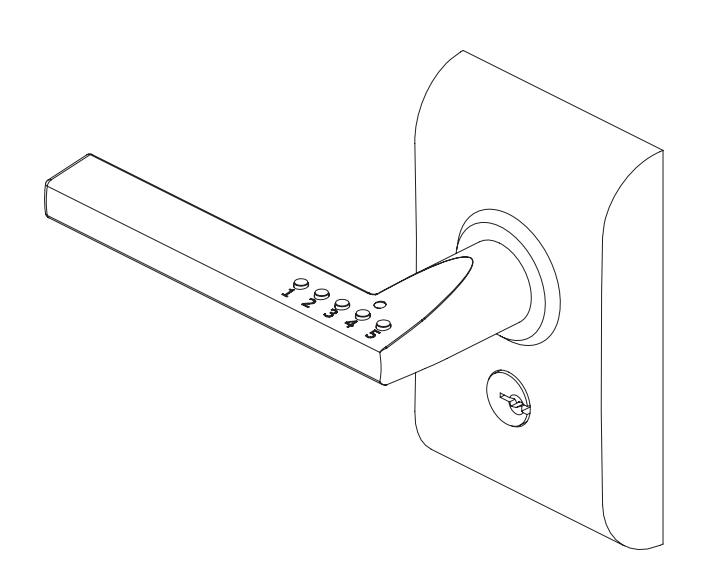
ELECTRONIC KEYPAD LEVERSET WITH BLUETOOTH PROGRAMMING
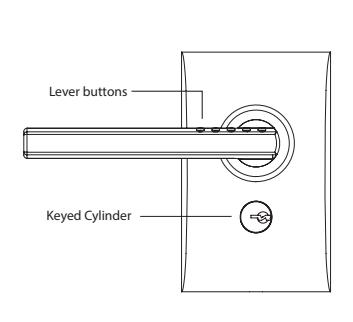
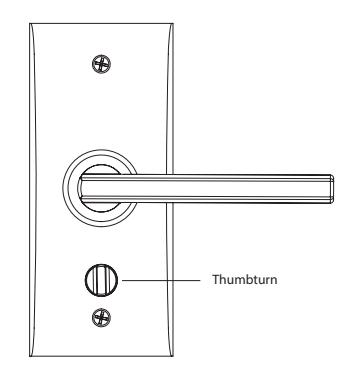
Using the Lock
Once installed on door with the battery connected - your lock is ready for use.
Factory Default Setting
User & Master Codes are labeled on the inside trim plate and page 7 of this user manual.
Entering User Codes
- Entering a correct, active user code (green LED x1 & beep x1) unlocks
- Entering an incorrect or inactive code (red LED x2 & beep x2) remains locked
- Three incorrect entries will result in lockout, signaled by 3 red LED flashes & 3 short beeps, lockout lasts for 30 seconds.
To Restart Code Entry
Press and hold # 1 button for three seconds (this works in entry or programming mode).
Key Access
Lock may also be unlocked and locked via keyed cylinder, each lock comes with two keys.
Passage & Privacy Mode
Use inside thumbturn.
| Setting | Setting Description | Thumbturn Position | LED Feedback |
|---|---|---|---|
|
Thumbturn
Enable ON |
Lock access is regulated.
A correct, active user code is required for access. (Privacy Mode) |
Green | |
|
Thumbturn
Enable OFF |
Lock access is NOT regulated
Always Unclocked. (Passage Mode) |
Amber |
Getting Started
Device App
App is free and available at App Store (Apple devices) or Play Store (Android devices).
-
A. From Apple devices (iPhone 4S, 5, 5S & 5C; iPad 3rd generation and later running iOS 6.1 and later)
- 1. Go to App Store, select Search, enter "Emtek", select "Emtek Liscio Bluetooth", select download icon, when ready select Open. If upon opening app you receive a screen that advises you that your device is "Unsupported" you will not be able to run app on this device.
-
B. From Android devices (OS 4.3 and later)
- 1. Go to Play Store, select Search icon, enter "Emtek", select "Emtek Liscio Bluetooth" app, select Install, select Accept, when ready select Open. If app does not appear then your device is running OS prior to 4.3.
- C. Once App is opened you will be on the Welcome screen
- 1. selecting Start you will move through the setup wizard, lock will need to be nearby for this
- 2. select Videos, Quick Reference, About or Show Phone Info as needed
- 3. If you call Emtek for customer service please have the information listed in the Show Phone Info available.
Programming Features
Once App is setup and you have logged into app you will be on the Home screen – from here you can:
-
A. Select Users you can add, edit and delete users
- 1. To add user select + New, enter Name and enter user code (factory set at 4 digits)
- 2. To edit user select user to edit, user information will be shown, select Edit, edit as needed, select Update
- 3. To delete user select user to edit, user information will be shown, select Edit, select X Delete
- 4. You must communicate changes to lock before they are recognized at the lock see Transfer below (B)
-
B. Select Transfer you can send data/setting changes to the lock, view lock activity or get data/settings from the lock
- 1. Sending data to Lock to communicate any user adds, edits or deletes along and any settings changes
- 2. Viewing lock activity lock activity on app is from last update, you will need to select Get new lock activity to view the latest activity
- 3. Getting data from Lock to communicate latest user and setting data from the lock to the app
-
C. Select Setting you can customize some of the lock and app features
- 1. From the settings screen you can edit the noted settings, scrolling down is Advanced Settings
- D. Select Logoff when you are done or when you want to program a different lock.
-
E. Battery Status when BT communications are successful, an "Operation Complete" screen gives you a battery status.
- 1. "Good" means battery has the power to operate lock and BT communications.
- 2. "Low" means battery still has power to operate lock and BT communications but should be replaced. Lock LED shows 4 amber flashes and 4 beeps.
- 3. "Blackout" means the battery can no longer operate lock and battery must be replaced. Lock LED shows 6 red flashes and 6 beeps
- 4. Replacement battery should be a high quality 9 volt alkaline battery. Battery is located behind the interior trim plate.
Troubleshooting
Verify that device meets minimum requirements
- A. Apple iPhone 4S, 5, 5S and 5C; iPad 3rd generation and later running iOS 6.1 or later
- B. Android running OS 4.3 or later
Re-pairing App Function
- A. Use this action when device to lock communications are not working, but were previously and several retries have failed.
-
B. How to:
- 1. App Navigate to Login screen, enter the app password, select the door name, move slider "Force Re-Pairing" to ON and then press Login button.
- 2. Lock Manually reset lock to factory defaults press #1 and #5 buttons simultaneously, enter master code, press the #1 and then the #4 buttons (not simultaneously) and reenter the master code. LED will blink green once that lock has been reset – OR – disconnect battery and when you reconnect battery hold down any button for 3 seconds, reset will be signaled by LED flashing 3 times and 3 beeps. Once reset the lock's activity log will be empty and the user and master codes will be back to factory defaults – see labels placed on page 7 of User Manual booklet and inside of the interior trim plate.
- 3. Follow app wizard through setup process.
- 4. Transfer user and master codes and settings on app to lock
Reset App and Lock
- A. Use this action when re-pairing app function does not restore Bluetooth communications. This will reset app and lock, deleting activity log and reset user and master codes back to factory defaults.
-
B. How to:
- 1. App Navigate to Settings screen, scroll down and select "Advanced Settings", select "Clear database", at Select desired action: select "Delete this application database", for Confirm delete move slider to ON, then select Commit Changes. You will be sent back to Welcome screen to start setup wizard from the beginning.
- 2. Device (Apple) Navigate to main Settings, select Bluetooth, select "i" icon for Emtek 1 under DEVICES, select Forget this Device, and confirm Forget Device. (Android) Navigate to main Settings, select Bluetooth, select Emtek 1 (icon on right side) and then select Unpair.
- 3. Lock Manually reset lock to factory defaults (see section 2 above)
- 4. Follow app wizard through setup process.
- 5. This will reset all information both app and lock.
If problem still persists – Remove App from Device, download again, reset lock
- A. Use this action when action 2 above does not correct Bluetooth communications.
-
B. How to:
-
1. Device (Apple) Press on Emtek icon until all icons shake and have x at corner of apps, select x on Emtek app, press Apple Home Button and apps will return to normal. Go to App Store and download app again and open to start again.
- (Android) Navigate to main Settings, select Apps, scroll to find the Emtek icon and press, then select Uninstall.
- 2. Device (Apple) Navigate to main Settings, select Bluetooth, select "i" icon for Emtek 1 under DEVICES, select Forget this Device, and confirm Forget Device. (Android) Navigate to main Settings, select Bluetooth, select Emtek 1 (icon on right side) and then select Unpair
- 3. Device Cycle power off then back on
- 4. Lock Manually reset lock to factory defaults. (see section 2 above)
- 5. Start Emtek app and follow wizard through setup process.
- 6. This will reset all information both app and lock.
-
1. Device (Apple) Press on Emtek icon until all icons shake and have x at corner of apps, select x on Emtek app, press Apple Home Button and apps will return to normal. Go to App Store and download app again and open to start again.
Manual Programming
The lock can be programmed manually using the keypad buttons 1 through 5. This feature is made available but programming using smart phone is highly recommended.
Manual Programming commands
-
A. To enter programming mode press the #1 and the #5 buttons simultaneously
- B. Enter the lock's 6 digit master code (the master code will be on sticker on page 7 of user manual and inside trim plate of lock)
- C. The features below now accessible by entering a combination of two buttons one after the other (not simultaneously)
| 1. To add a code | enter # 1 and then # 3 |
then enter new code and enter again to
confirm (factory setting is 4 digit mode) |
|||
|---|---|---|---|---|---|
| 2. To delete a code | enter # 4 and then # 3 |
then enter code to delete and enter again
to confirm |
|||
|
3. To change master
code |
enter # 3 and then # 3
again |
then enter new master code and enter again
to confirm |
|||
| 4. Deny Users ON | enter # 4 and then # 1 | ||||
| 5. Deny Users OFF | enter # 5 and then # 1 | (factory setting is OFF) | |||
|
Deny Users can disable or enable all user codes – when ON, no user codes will work,
only key operates lock |
|||||
| 6. Delete all codes |
enter # 5 and then # 5
again |
||||
| 7. Set 4 digit code length | enter # 5 and then # 2 | (factory setting is 4 digits) | |||
| 8. Set 6 digit code length | enter # 5 and then # 3 | ||||
| 9. Beeper ON |
enter # 1 and then # 1
again |
(factory setting is ON) | |||
| 10. Beeper OFF | enter # 1 and then # 2 | ||||
|
11. Extended timeout
OFF |
enter # 2 and then # 1 | (factory setting is OFF) | |||
|
12. Extended timeout
ON |
enter # 2 and then # 2
again |
||||
|
Extended timeout mode allows for a longer duration of unlock time upon
entry of a valid user code. |
|||||
| 13. Passage switch OFF | enter # 3 and then # 1 | ||||
| 14. Passage switch ON | enter # 3 and then # 2 | (factory setting is ON) | |||
|
Passage switch mode ON, choose between Passage (lock unsecured) and Privacy (always locked) and
OFF lock is always in Privacy (always locked). |
|||||
|
15. Restore factory
defaults |
enter # 1 and then # 4 | enter master code to confirm | |||
Feedback – LED and Beeper
| Condition | Color | Count | Duration | Comment |
|---|---|---|---|---|
| Power On | ||||
| Normal Power on | amber | 1 | long | |
| Factory default reset | amber | 3 | long | |
| Battery low | amber | 4 | long | |
| Battery blackout | red | 6 | long | |
| User Access | ||||
| Access granted - normal | green | 1 | long | |
| Access granted - battery low | amber | 4 | long | |
| Access denied - normal | red | 2 | long | |
| Access denied - Battery blackout | red | 6 | long | |
| Access denied - lockout | red | 3 | long | |
| ID input during timeout | red | 2 | long | |
| Passage Switch | ||||
| Lock secured | green | 1 | long | |
| Lock unsecured | amber | 1 | long | |
| Manual Programming | ||||
| Programming active | amber | 1 | continuous | Blinks to off on key press |
| Programming operation success | green | 1 | medium | |
| Programming operation failed | red | 2 | medium | |
| Programming cancelled | amber | 2 | medium | |
| Programming time out | amber | 2 | medium | After 20 seconds |
| Bluetooth Programming | ||||
| BT enable interval | amber | 1 | long | Delay for entering BT |
| Programming active | green | 1 | continuous | |
| Programming completed - normal | green | 1 | medium | |
| Programming completed - battery low | amber | 4 | long | |
| Programming completed - battery blackout | red | 6 | long | |
| Programming cancelled or time out | red | 2 | medium | |
| Programming failed | red | 2 | medium | After 60 seconds |
| Key Press | ||||
| User Access | amber | 1 | short | |
| Manual Programming | off | 1 | short | Blink against solid amber |
Place Sticker Here
7 IN8-LISCIO-USER 8/6/2014

ASSA ABLOY is the global leader in door opening solutions, dedicated to satisfying end-user needs for security, safety and convenience.
Copyright © 2014, Emtek Products, Inc. an ASSA ABLOY Group company. All rights reserved. Reproduction in whole or in part without the express written permission of Emtek Products, Inc. is prohibited.