Edwards Signaling Technical Bulletin 16001E R01 E-FSA Addressable Panels – Device Internal Fault Restoration Issue
Open the original PDF document
View PDF

TECH FACTS BULLETIN
TECHNICAL SUPPORT P/N 16001E
E-FSA Addressable Panels: Device Internal Fault Restoration Issue
Introduction
This bulletin informs you of mandatory actions that are necessary to address issues where specific detector, module, and pull station device internal faults may be cleared from the front panel and the common trouble relay restored before the source of the fault is resolved.
All E-FSA addressable panels that are currently running V2.2 or V2.3 firmware are impacted by this issue and must be updated immediately.
We require each customer to sign the Confirmation of Receipt that is included in the DocuSign email communication you received. If a representative from your company has not received a DocuSign email communication, please contact your district or regional sales manager, or contact Program Administration (See "Contacting support" on page 4) .
Please share the information contained in this bulletin with your Design, Installation, Service, and Purchasing personnel immediately.
Issue
After initial notification of a device internal fault event, it is possible that specific detector, module, and pull station device internal faults may be cleared from the front panel and the common trouble relay is restored before the source of the fault is removed. This may cause the responding personnel to incorrectly conclude that the fault has self-corrected. One reported example of a device internal fault that may show this issue is a Duct Detector trouble event due to the cover being open.
The initial notification of the device internal fault event is shown on the front panel display, LED, and buzzer activation. In addition, the common trouble relay is activated and configured external notifications are transmitted (e.g., the Dialer
calls a central station). The panel history logs a record of the event, and devices not in fault continue to operate normally.
After a variable amount of time (1 to 30 minutes), the system clears the device internal fault and the front panel display, LED, buzzer, and common trouble relay no longer indicates that the trouble event exists.
Systems that are equipped with an Integrated Dialer (e.g., SA-DACT) will transmit a momentary device internal fault and subsequent restoration of events every 25 to 30 minutes. The central station will thus be receiving an abnormally high level of communications as a result of the device internal fault events "bouncing" in and out of active state.
Affected products
This issue may affect all addressable E-FSA models with firmware versions 2.2 and 2.3. While all panels with these firmware versions are affected, we recommend upgrading those sites without an Integrated Dialer first, since no signals will be sent to notify anyone of the trouble condition, and then upgrading the others on the next service visit.
Identifying the panel firmware version:
- 1. Press the command menu button on the panel and select Report.
- 2. In the Reports menu, scroll down to System Configuration and press enter.
- 3. In the System Configuration menu, select All and press enter.
- 4. Select the LCD option and press enter.
- 5. Scroll down to display the panel version number.
Solution
We have corrected the issue in V2.31 of the panel firmware, and the correction can be implemented in the field by a firmware upgrade to panels.
To upgrade panels to V2.31, download and store the Firmware Upgrade Utility (FUU_Setup.zip) and Firmware version file into a unique folder from the following website (http://edwards-signals.com) . Unzip the FUU_Setup.zip and V2.31 firmware files and place in the same folder.
Note: Version 3.50 of the configuration utility (CU) must be used to read or write to the panel. This latest version of the CU can be downloaded from our website.
Important: You must back up the panel's database in the CU by performing a "Read from panel" in the CU before the panel firmware is updated. Make sure that the same database is restored to the panel from the CU by performing a "Write to panel" in the CU after the firmware update is completed.
Caution: Do not interrupt the panel's upgrade process until the Firmware Upgrade Utility indicates the upgrade has completed successfully.
Before using this utility to update your firmware, be sure that the panel's configuration utility (CU) is not communicating with the panel via RS-232 or TCP/IP. If the CU is connected and is downloading information to the panel, wait for the download to complete, and then end communications with the CU. Once you disconnect the CU, you can use the Firmware Upgrade Utility (FUU) to update the panel with new firmware.
An Ethernet (SA-ETH) or Serial (SA-232) card is required to perform the upgrade. The SA-232 card will only communicate with ports COM1 through COM8. Make sure that your computer COM port is set to one of these ports. Ensure the same COM port is selected in the FUU.
When using the serial communication method, be sure to set RS232 CU Enable in the panel to ON before and after initiating the download. If the system should time out before the download starts, you must reset this option to ON.
To load the firmware:
- 1. Using the Configuration Utility (CU), back up the panel's database by performing a Read from panel in the CU software.
- 2. After the database back up is complete, disconnect the CU from the panel.
-
3. If the FUU is not installed on your computer, double-click the FUU_Setup.exe to install the utility in the default folder.
- A shortcut icon will be placed on your desktop, which can be used to launch the utility.
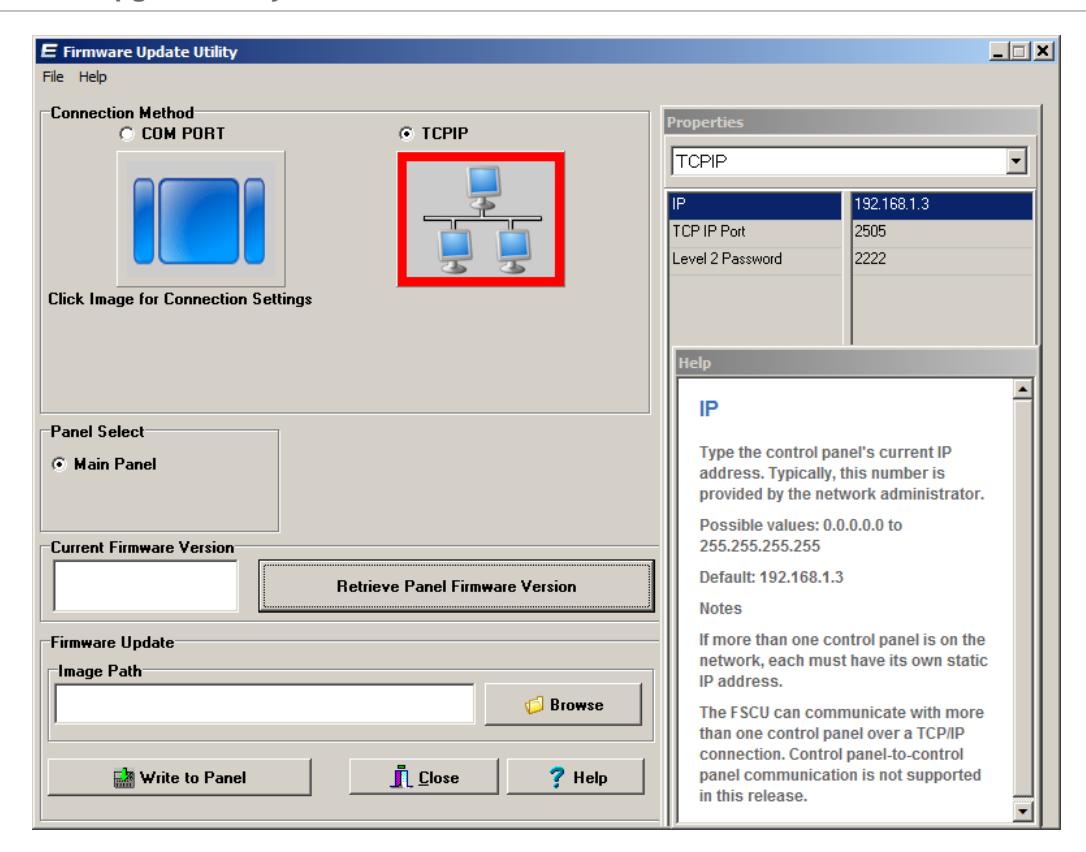
- 4. When the Firmware Upgrade Utility opens, click the browse button and navigate to the folder where V2.31 of firmware is stored, select and open it.
- 5. Using the FUU, check the current firmware version of the panel by clicking Retrieve Panel Firmware Version.
- 6. Follow the on-screen instructions to initiate the panel upgrade.
- 7. Click Write to Panel to upgrade the panel.
- 8. After the firmware upgrade is complete, disconnect the FUU and reconnect the CU to the panel.
- 9. Download the panel's database to the panel using the Write to panel option in the CU.
- 10.After the database is loaded, disconnect the CU from the panel. Restart the panel.
- 11.Connect the FUU to the panel, and then check the firmware version using Retrieve Panel Firmware Version in the FUU to ensure the new firmware is installed.
AFTER THE FIRMWARE HAS BEEN INSTALLED, IT IS IMPORTANT THAT SYSTEMS ARE TESTED IN ACCORDANCE WITH NFPA 72 OR THE APPLICABLE LOCAL LEGISLATION AND PRACTICE. UPON COMPLETION, PLEASE SEND EDWARDS A CONFIRMATION SO WE CAN TRACK THE DEPLOYMENT OF THIS UPDATE.
Firmware Upgrade Utility
All equipment shipped after June 6, 2016 includes v2.31 firmware and no action is required.
Contacting support
Tel +1 800 336 4206, Option 2 Fax +1 866 226 2126 signaling.techsupport@fs.utc.com http:www.edwardsfiresafety.com
Program Administrator Tel +1 800 655 4497 (Option 5)
Remediation Support: GPUTCFSRemediationProgram@fs.utc.com
© 2016 Walter Kidde Portable Equipment, Inc. All rights reserved.