Edwards Signaling AE Bulletin E-FSA RS232 Connection Troubleshooting
Open the original PDF document
View PDF

AEBN: 121709
Date: 12-17-2009
Subject: E-FSA Panel, RS232 Laptop Connection Trouble Shooting
The most common method for connecting a laptop to an E-FSA panel for programming is by using the SA-232 card installed in the panel, along with a download cable plugged into the serial port on the laptop (pc).
Many newer laptops sold today do not have a serial port, however. In such cases you will need a USB to serial port adaptor (not sold by Edwards). This device typically has a short cable with a USB connector on one end that plugs into your pc's USB port, and a DB9 connector on the other that will connect to the download cable. You also must be sure the adaptor you use works with your pc's operating system (Windows XP, Vista, 7, etc.); they are not all the same. Refer to the adaptor's installation sheet/specifications.
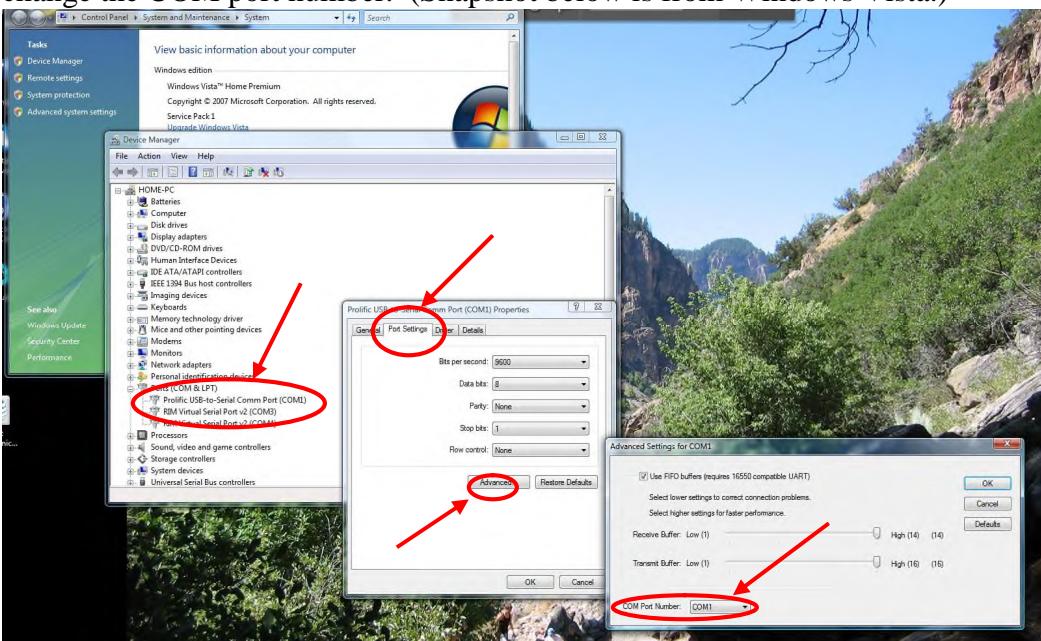
If using a USB to serial port adaptor, you'll need to know what COM port number was assigned to it after it's installed. To find out, go to your pc's Device Manager and find the USB device. In the example below it's called a Prolific USB-to-Serial Comm Port, assigned COM port 1. If it was assigned a COM port number higher than 8, you'll have to change it to an unused number between 1 and 8. To do this, while in the Device Manager section, double click on the USB COM port, click on Port Settings – Advanced, then on the Advanced Settings screen you'll see a COM Port Number box where you can change the COM port number. (Snapshot below is from Windows Vista.)

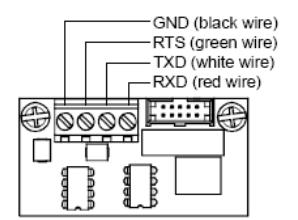
To connect your laptop to the SA-232 card, you'll need a download cable. You can use an Edwards cable, part number 260097, or you can make your own. If you decide to make your own, be sure the cable is made properly. There were some documentation errors in revision 2 of the Technical Reference manual and revision 1.04 of the SA-232 installation sheet. Below is a diagram with the proper connections.
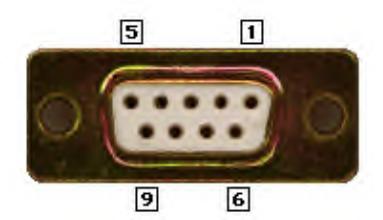
Pins are numbered looking at the female side of the DB9 connector facing you, as shown to the left.
Wire colors shown below are for the 260097 cable sold by Edwards. RTS (green) is not used.
| DB9 pin | which is | connects to terminal on SA-232 | |
|---|---|---|---|
| 2 | RX | TX | 3 |
| 3 | TX | RX | 4 |
| 5 | Common | GND | 1 |
Here are a few other things to check for if you are still having problems communicating…
- 1. Be sure the SA-232 port is enabled (turned On) at the panel (press the Menu key, go to Program – RS232 CU Enable – On – press Enter). This port will time out with no activity, so you may have to try re-enabling it even if you're sure you enabled it once already. There is no indication on the panel that the port is enabled, so it's not uncommon for this to time out without the operator knowing. Also be aware that each time you disconnect (stop communicating), the SA-232 port will turn off.
- 2. Double check the cable connections at the SA-232 card (make sure they are tight).
- 3. Try swapping the TXD (transmit) and RXD (receive) download cable wires on the SA-232 card. If you made your own cable, these could have accidentally been reversed.
- 4. Be sure the COM port setting on the Communications screen in the FSA-CU is set for the correct COM port used by your laptop. Most laptops with an RS232 serial port already installed will default to COM1, but yours may be different (if using a USB to serial adaptor, it probably will be different – see earlier in bulletin). The settings for your pc can be found in the Device Manager section. For Windows

XP, right click on My Computer, then click on Properties – Hardware – Device Manager.
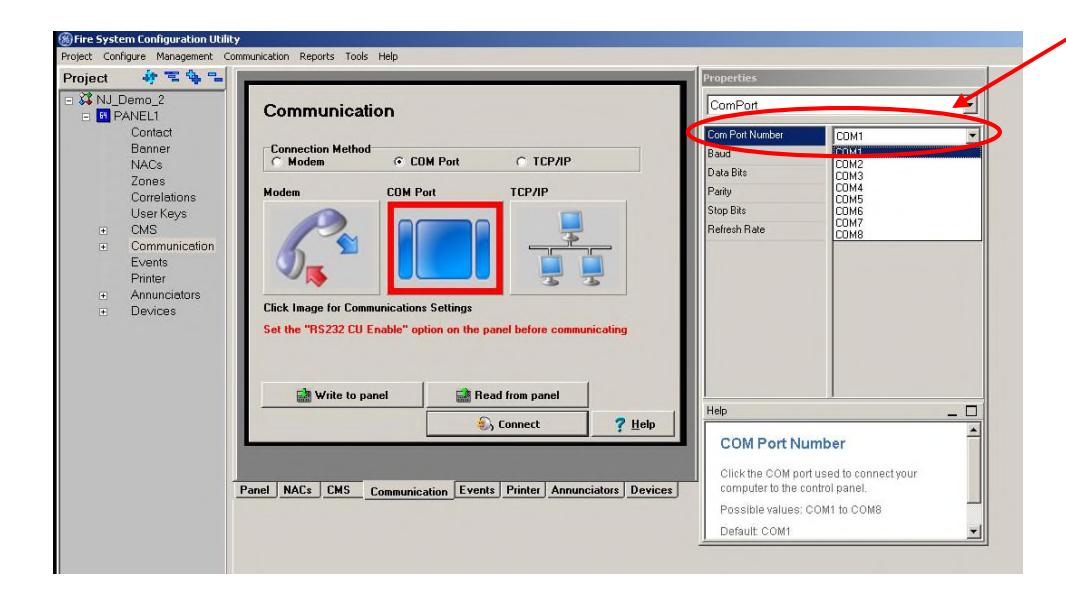
Communications screen in FSA-CU program.
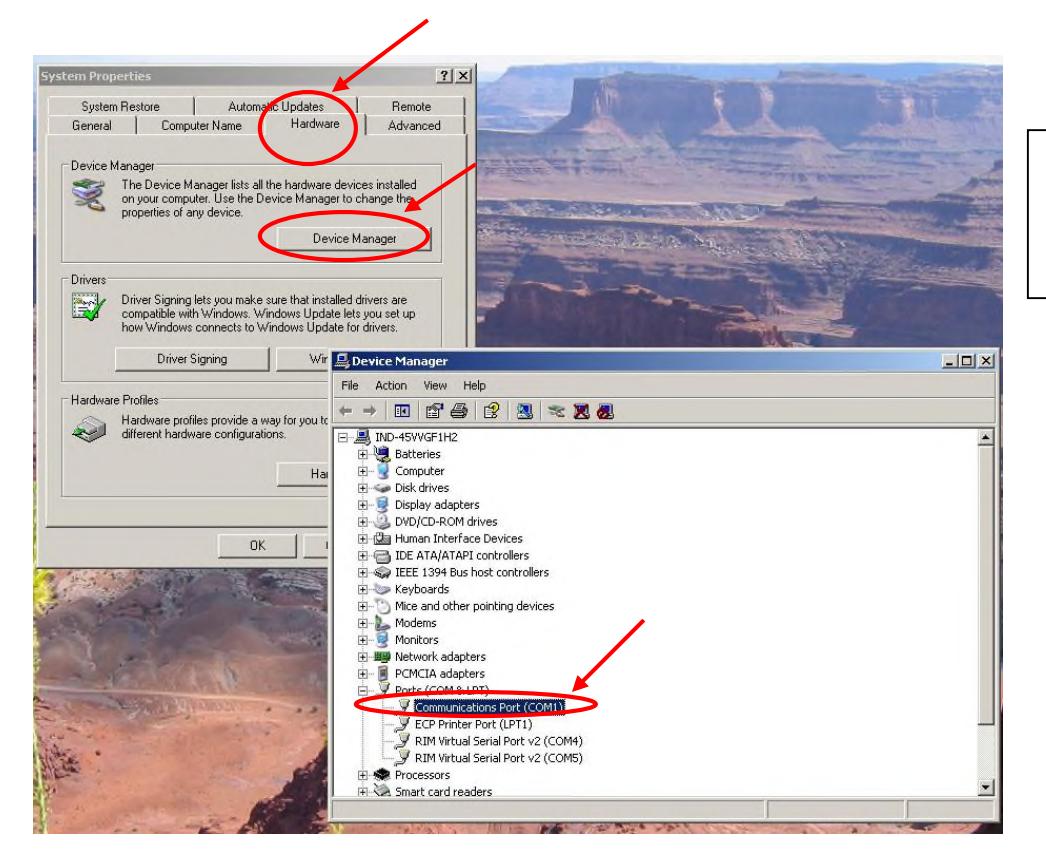
COM port settings in Device Manager of pc (snapshot is from Windows XP).
Edwards Signaling – 3 Farm Glen Blvd., Farmington, CT 06032 Phone: 800-336-4206 – Web: www.edwardssignaling.com - E-mail: signaling.techsupport@ge.com