Edwards Signaling AE Bulletin 100913 Laptop Connection Update
Open the original PDF document
View PDF


Bulletin #100913 October 9, 2013
E-FSA Panel to Laptop Connections
Introduction
.
There are three different option modules available for the E-FSA series of small analog panels. Each allows for communications between the panels and a laptop computer running the FSA-CU configuration utility program. You must have one of these three to be able to communicate to an E-FSA panel with a computer. The modules are not included with a panel and must be ordered separately.
1. The SA-232 provides an RS-232 interface to the panel. The SA-232 has a four position terminal block, and requires a download cable with a DB9 female connector. This DB9 connects directly to a DB9 male connector on a laptop. For those computers without a serial port, a USB to RS232 serial port adapter is required (purchased locally). The Edwards part number for the download cable is 260097, or you can make your own.
To build your own download cable, refer to the picture of DB9 connector to the right and pin designations below. Pins on DB9 are numbered looking at the female side facing you.
Proper Connection Female DB9 to SA-232
| DB9 pin | which is connects to terminal on SA-232 | ||
|---|---|---|---|
| 2 | RX | TX | 3 |
| 3 | TX | RX | 4 |
| 5 | Common | GND | 1 |
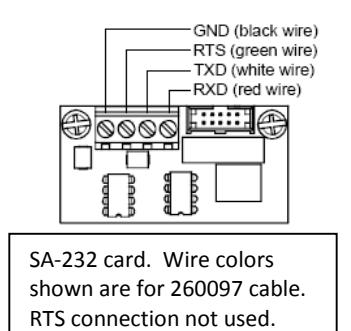
The SA-232 card is small pc board measuring approximately 2" wide x 1" high. In lieu of ordering one card for every panel, consider making up a "portable" download assembly for each technician. Connect the wire leads of the download
cable to the SA-232 terminal block, and use heat-shrink tubing or a small plastic case available from a local electronics store to protect the assembly, leaving the small ribbon cable accessible. Connect the ribbon cable to the main board to download to the panel, then take it with you when you're done. Be careful when unplugging the ribbon cable from the panel. The panel does not have to be powered down, but the physical connection is delicate.
Since most computers today do not come with a serial port, you will probably need a USB to RS232 Serial port adapter (not supplied by Edwards). Be sure the adaptor works with the particular laptop and operating system being used. Also pay particular attention the first time the adaptor is plugged into the laptop to make sure the drivers install properly.
You will need to know which COM port is configured when the adaptor is installed. To find out, open Device Manager and look for the USB-to-Serial Comm Port as shown below. This will be needed when you select the COM port to use in the FSA-CU Configuration Utility Communications tab.
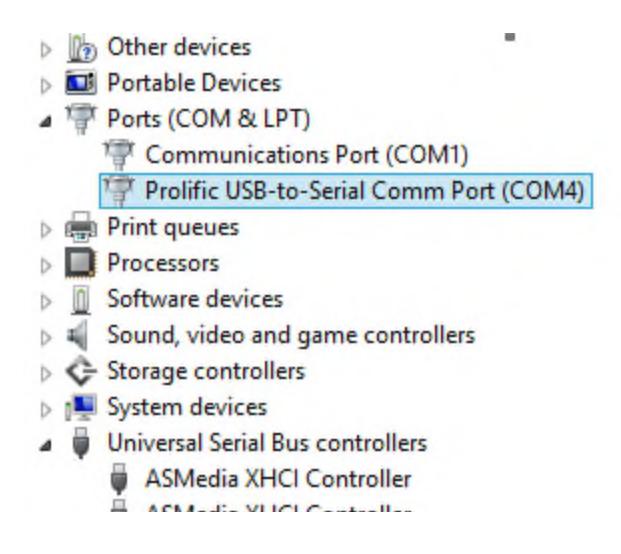
Be sure the COM port number assigned to the USB adaptor is between 1 and 8. If higher than 8, you will need to reassign it a new number. You can do this by right clicking on the port, then select Properties > Port Settings > Advanced > COM Port Number.
- 2. The SA-DACT dialer module can be used as a modem to provide communications to the control panel over a telephone line system. Phone line connections must be available for the SA-DACT and laptop computer.
- 3. The SA-ETH provides an Ethernet network connection. This connection can also be used as a direct connection from a laptop to the control panel. A standard network cable (crossover type not required) is all that's needed from your laptop
to the SA-ETH card. See below for computer network connection settings for both Windows XP and Windows 7 operating systems.
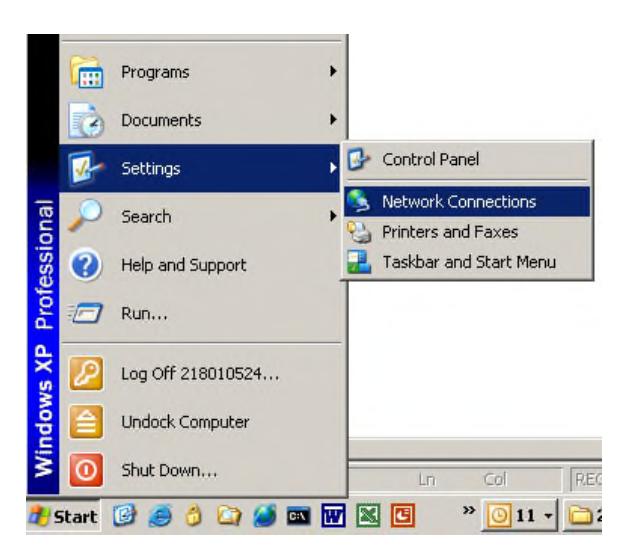
From your Windows XP Start menu, go to Settings, Network Connections.
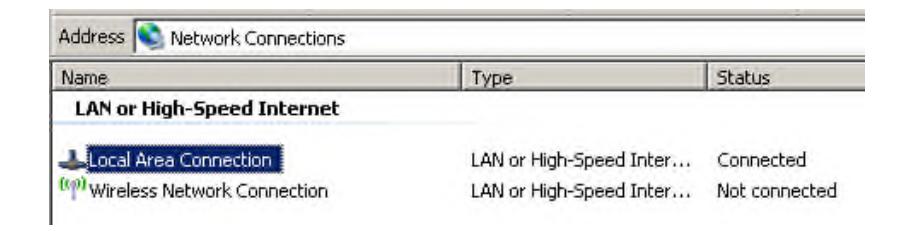
Double click on Local Area Connection.
Stay on the General tab, click Properties.
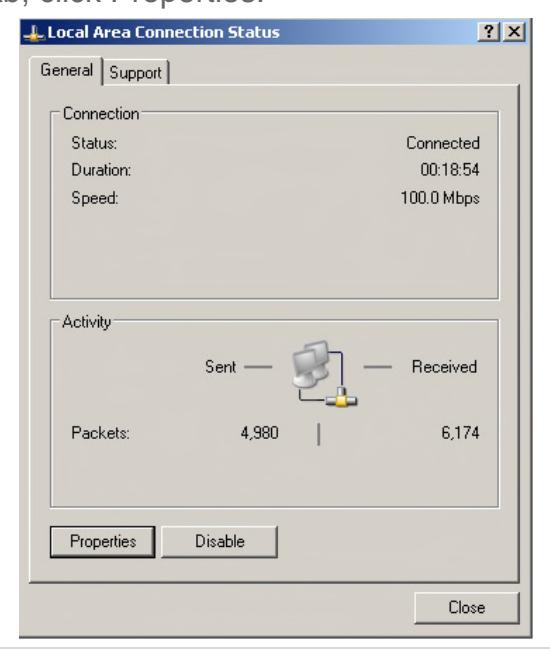
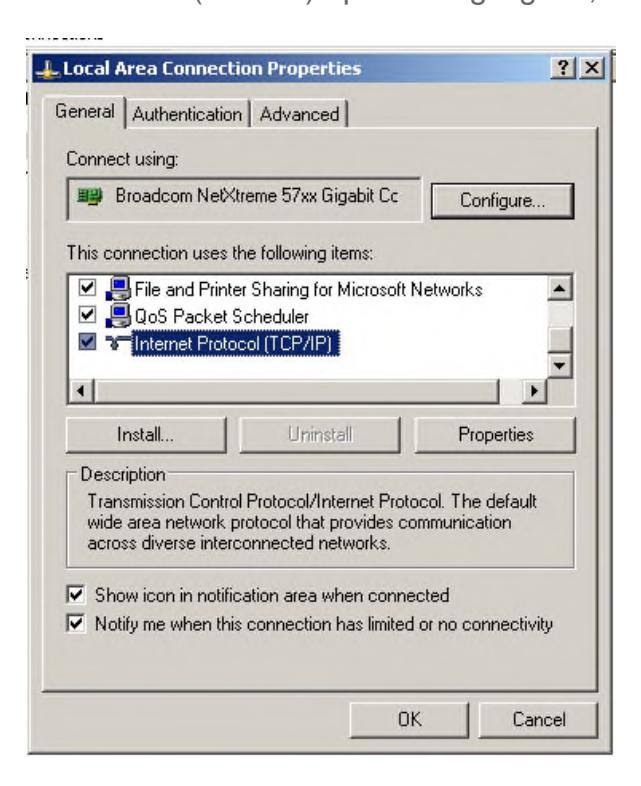
Scroll down to Internet Protocol (TCP/IP) option. Highlight it, and click on Properties.
Select the "Use the following IP address" option.
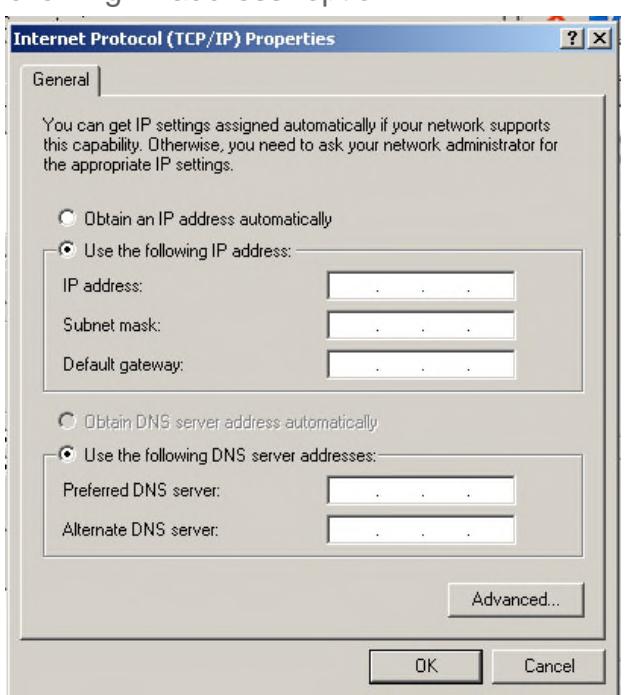
Note: If the pc already has an IP address listed in the field, copy it down so that the address can changed back to that setting once panel programming is complete.
The SA-ETH card defaults to IP address 192.168.1.3.
Enter an IP address that is different from that by one or two places (or different from whatever the panel's IP address is if it's been changed).
Then hit Tab, and Subnet mask will fill in as shown.
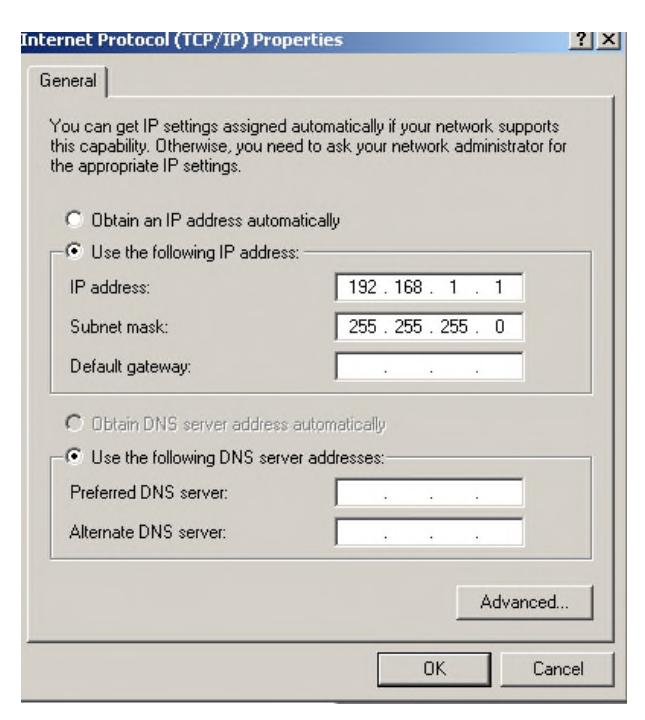
Hit OK. You can now connect a network cable between your laptop and SA-ETH card to communicate with the panel.
If your laptop has Windows 7 operating system, go to Control Panel from your Start menu.
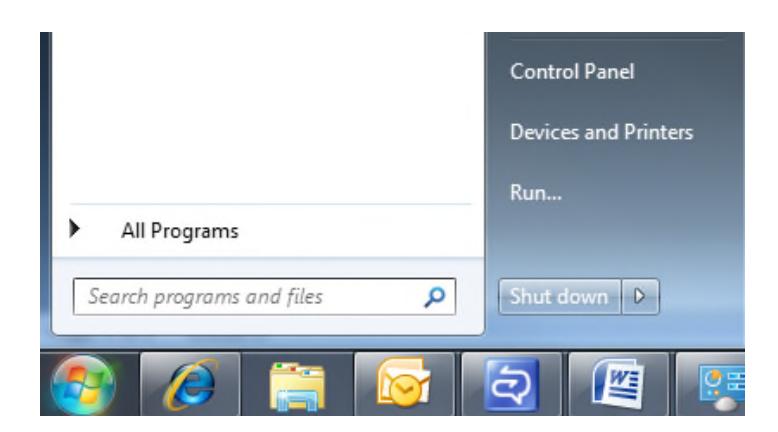
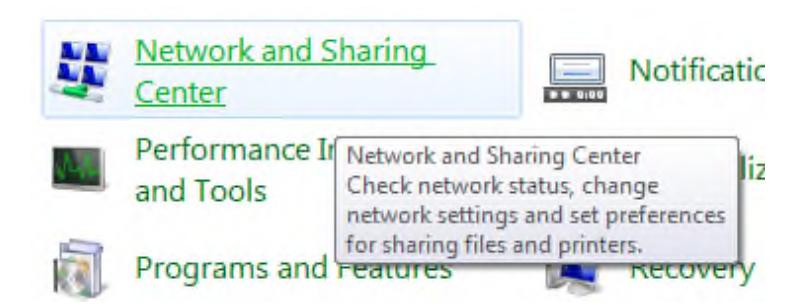
Click on the Network and Sharing Center icon.
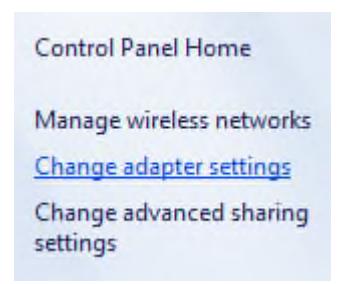
Select the Change adapter settings option on the upper left hand side of the screen.
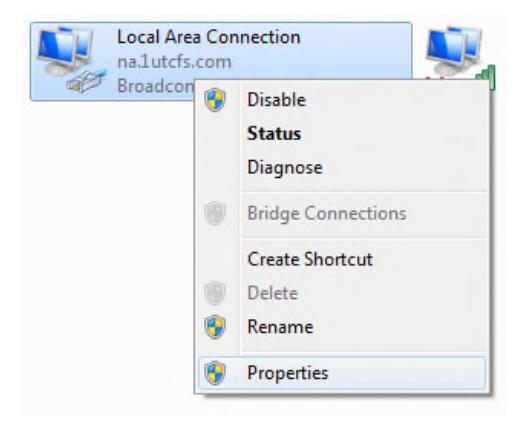
This will display the available network connections on your laptop. Highlight the Local Area Connection option, right click on it and select the Properties option.
Highlight the Internet Protocol Version 4 (TCP/IPv4) option and click on Properties.
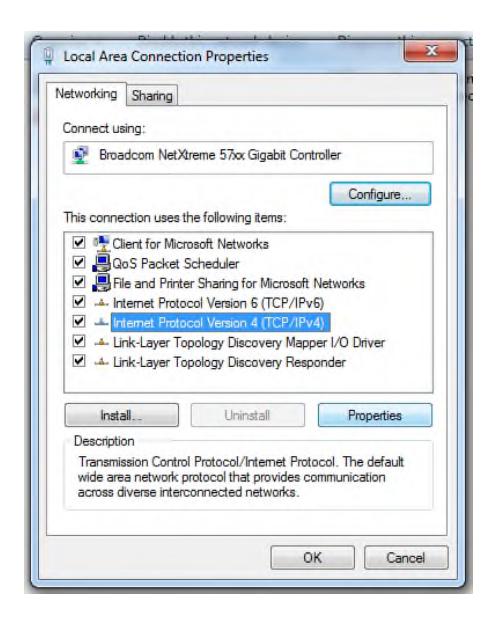
Then follow the same steps to set the IP address as described earlier for Windows XP.
For more laptop to panel connection troubleshooting tips, refer to AE Bulletin 121709. The latest version of the FSA-CU can be found at www.edwardssignaling.com.

3 Farm Glen Blvd., Suite 101 Farmington, CT 06032 T: (800) 336-4206 e-mail: signaling.techsupport@fs.utc.com www.edwardssignaling.com