E77-Software Guide
Open the original PDF document
View PDF

E70PS Series PC Managed Electronic Lockset
E7 Software Installation & Operations Manual
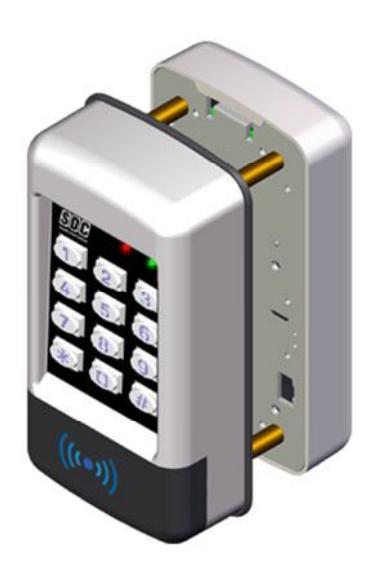
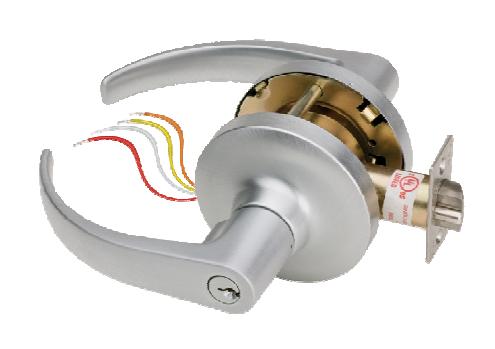
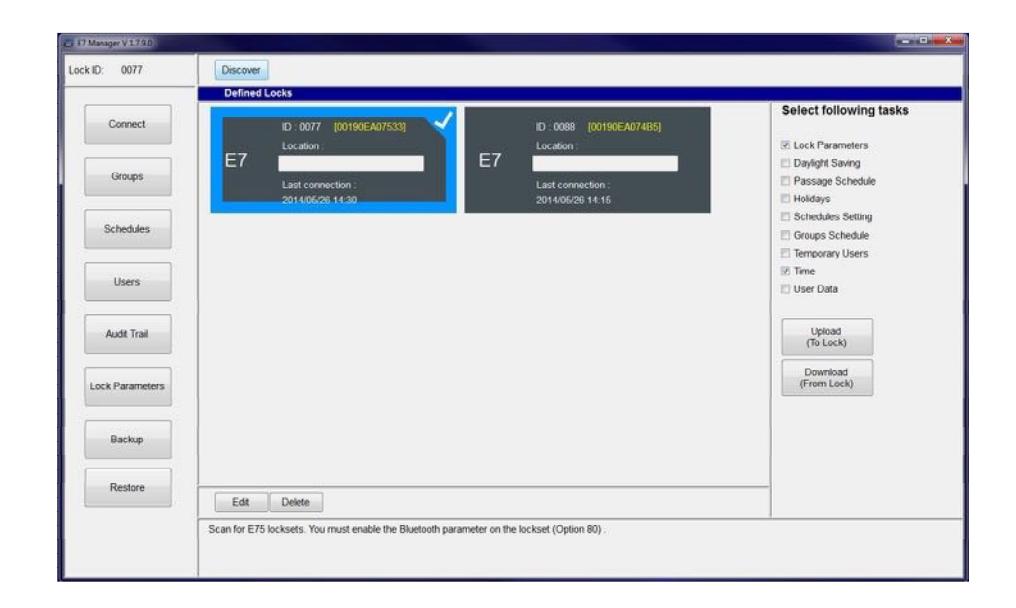
Table of Contents
| 1.0 Introduction |
|---|
|
1.1 PC Requirements
1 |
|
2.0 E7 Manager Software Installation
1-3 |
| 3.0 Before You Start |
|
4
3.1 LED Indicators |
|
4
3.2 Testing the Lock Operation |
|
4
3.3 Lock Initialization |
|
4
3.4 Entering/Exiting Programming Mode |
|
3.5 Enabling Bluetooth Communications Mode (Function 80)
5 |
|
5
3.6 Changing the Administrator PIN Code |
| 4.0 Getting Started |
|
4.1 E7 Manager Layout & Features
6 |
|
7
4.2 Discovering a New Lock |
|
8
4.3 Setting the Date & Time |
|
8-9
4.4 Quick Start User Programming |
| 5.0 E7 Manager Programming |
| 5.1 Schedules |
|
10
5.1.1 Group Schedules |
|
10
5.1.2 Passage Schedules |
|
11
5.1.3 Adding Holidays |
|
11
5.1.4 Daylight Savings Time |
|
5.2 Groups
11 |
| 5.3 Users |
|
12
5.3.1 Add/Edit User Access |
|
5.3.2 Copy Users from an Existing Lock
12 |
|
5.3.3 Export User Data to a File
12 |
|
5.3.4 Import User Data from a File
12 |
|
5.3.5 Temporary Users
13 5.4 Audit Trail |
|
13
5.4.1 Download Events from a Lock |
|
13
5.4.2 Export Events to a File |
|
5.5 Lock Parameters
14 |
| Entry Mode |
| Set Open/Unlock Time |
| Enable First Supervisor to Arrive |
| Delete Temporary Users When Expired |
| Enable Two User Codes Required |
| Set Keypad Lockout Attempts |
| Enable Audible Beep on Key Press |
| Enable Anti-Passback Mode |
| Enable Remote Input Mode |
| Enable Door Position Switch (DPS) Input |
| DPS Input Configuration |
|
Enable Auxiliary Relay (Forced Door, Door Prop, Keypad Lockout, Access Grant)
Enable Holdup Alarm |
| 5.6 Backup & Restore |
|
5.6.1 Create a Database Backup
15 |
|
15
5.6.2 Restore a Database from a File |
1.0 Introduction
The E70PS Series incorporates SDC's battery powered, motorized Grade 1 lock with the E7 Lock Management Software. The software allows administrators to easily manage multiple locks & users from a single database. Authorized Users, schedules and lock configurations are uploaded from a Bluetooth-enabled PC. Audit trail information may be downloaded and exported as a comma-delimited file.
1.1 PC Requirements
• Supported Operating Systems : Windows 7, Windows 8 (32-Bit and 64-Bit Systems)
• Processor : 2GHz or faster is recommended
• RAM : 2GB or more is recommended
• Hard Disk Space : 1GB or more is recommended
• Windows Administrative Rights
2.0 E7 Manager Software Installation
The E7 Manager Software is available for download on the SDC website at the following link:
http://sdcsecurity.com/E70-Standalone-Electronic-Locksets.htm
Click on the ' Software Download ' link.
After submitting the requested information, you will receive an email from 'SDC Security Door Controls', with a separate link where you can download the software.
Download and save the E7Installer_1_8_2.zip file.
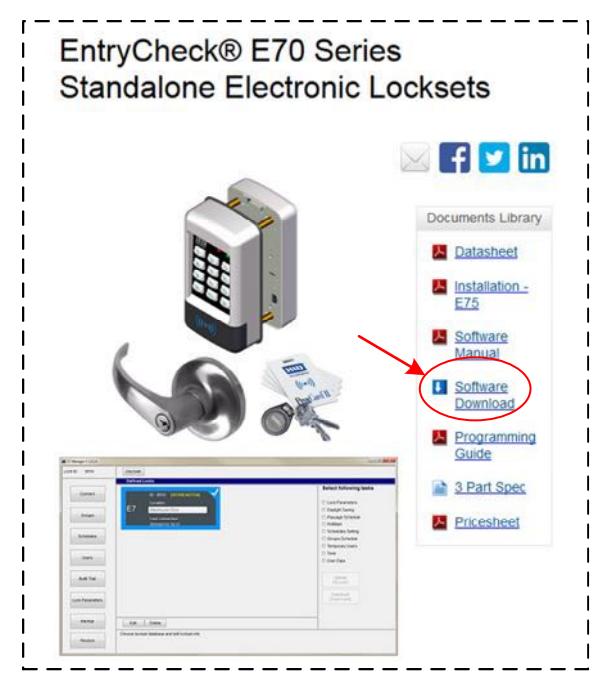
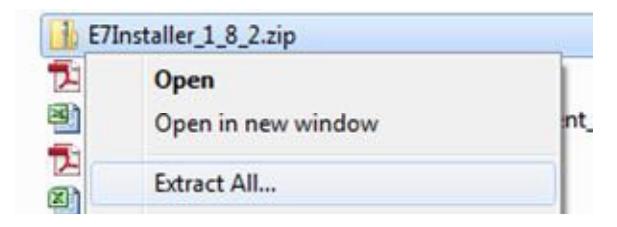
Locate the downloaded file on your PC. Extract the installation files by right-clicking on the E7Installer_1_8_2.zip file and selecting 'Extract all…'
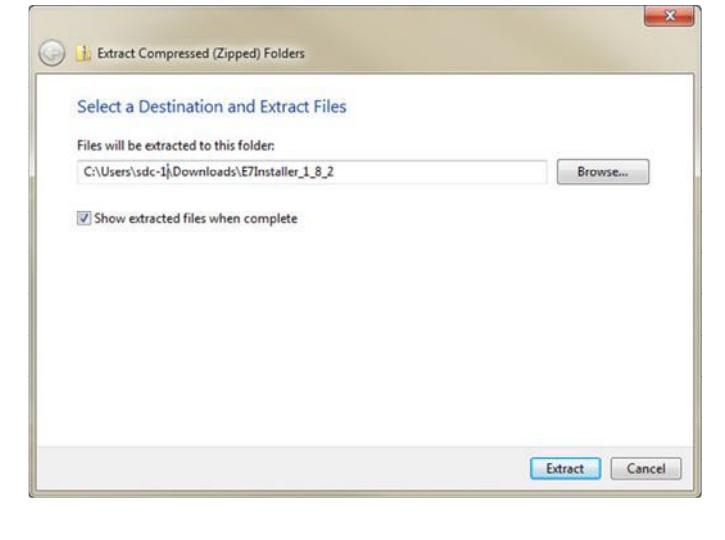
If desired, change the default destination where the files are to be extracted. If the default destination is used, a new folder named E7installer_1_8_2 will be created in the same location as the .zip file.
Verify that the box next to 'Show extracted files when complete' is checked.
Click 'Extract'
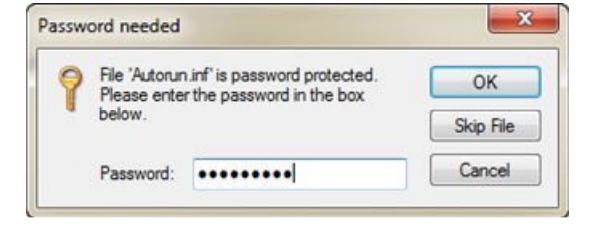
The compressed files are password protected. Enter the password provided to in the download confirmation e-mail.
Click OK
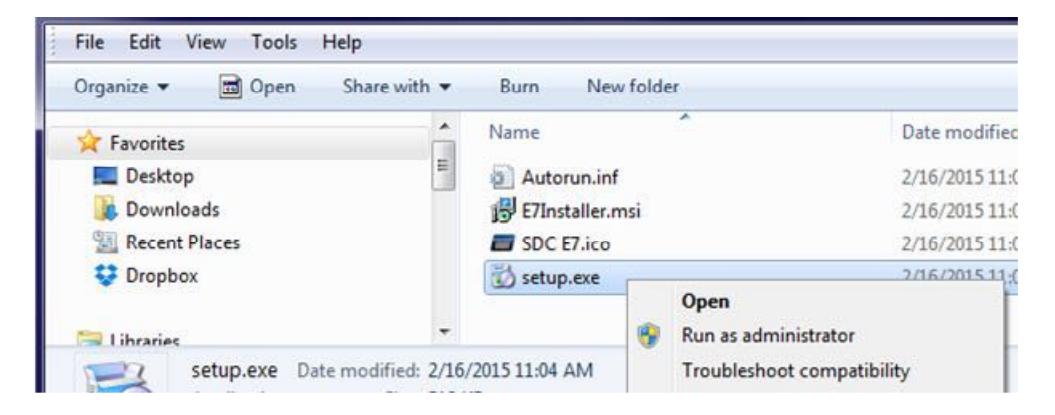
A window showing the new folder and extracted files will appear.
Right-click on 'setup.exe', and select 'Run as administrator'
The E7 Manager database utilizes Microsoft SQL Server Compact 3.5 SP2. This window will appear if it is not already installed on your PC.
You must accept the agreement to continue the installation.
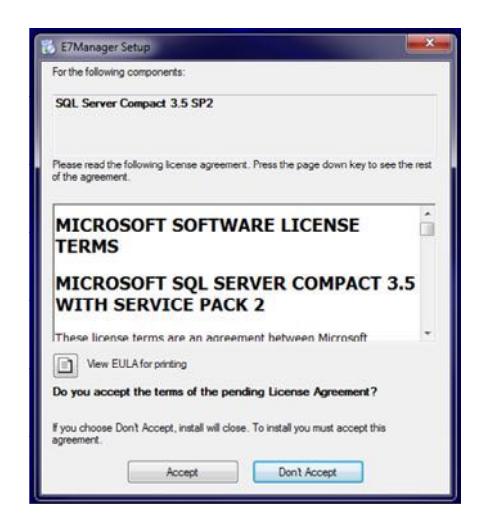
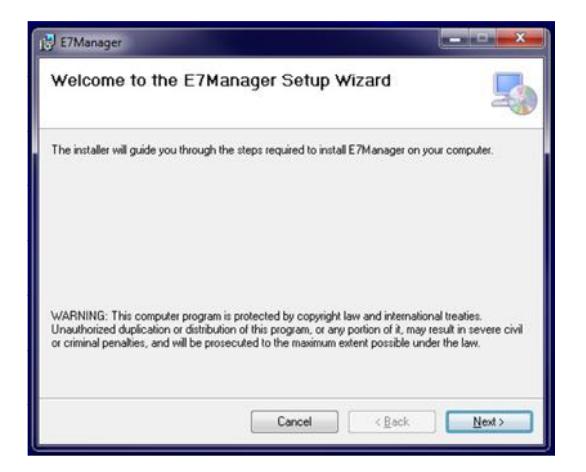
After accepting the agreement, Microsoft SQL Server Compact 3.5 SP2 will be installed on your PC.
After completing the SQL Server Compact 3.5 SP2 installation, the E7 Manager Setup Wizard window will appear.
Select "Next".
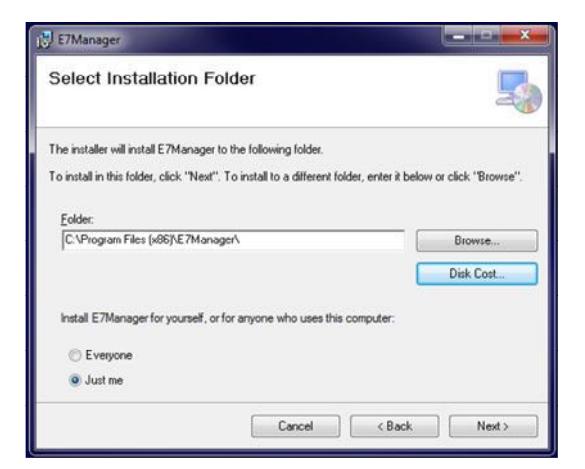
Select the Installation Folder. The default folder is recommended.
If multiple accounts log in the same computer, select whether the program will be available to one or all users.
Select "Next".
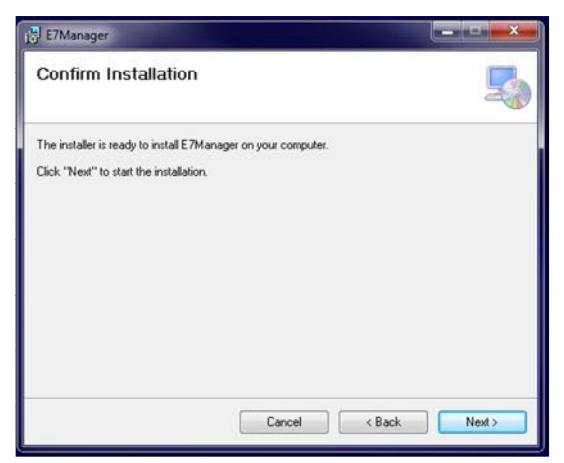
Select "Next" to confirm & start the installation.
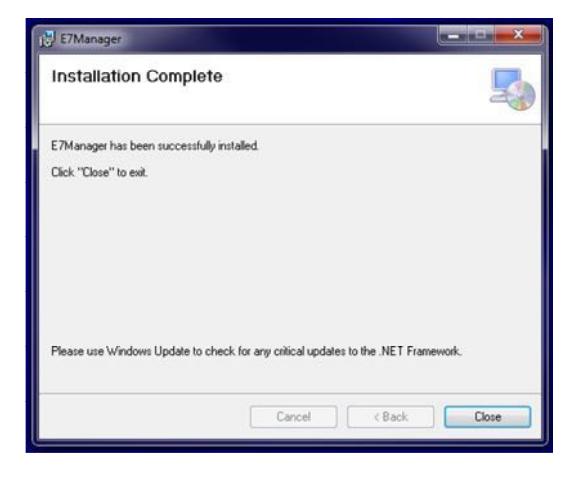
Select "Close" to complete the E7 Manager installation. Please use Windows Update to check for any critical updates to the .NET Framework.
3.0 Before You Start
3.1 LED & Audible Indicators
There are 2 LED indicators on the front face of the lock. The leftmost LED may illuminate RED, GREEN, or YELLOW. The right LED will only illuminate BLUE.
From Normal Operational (Standby) Mode,
Both LEDs OFF = Standby Mode, or Keypad Lockout
Momentary GREEN = After each key press, or Access Granted
Momentary RED = Error
From Programming Mode,
Flashing YELLOW = In Programming Mode
Flashing BLUE = Bluetooth Enabled
= While performing any Function, an intermediate step has been accepted GRN LED+Beep (Simultaneous)
Both LEDs OFF = While performing any Function, waiting for user input
GRN LED+Beep (x2) = Function Successfully Completed
GRN LED+Beep, RED LED+Beep, GRN LED+Beep = Entering Program Mode
YEL LED+Beep, Pause, GRN LED+Beep (x3) = Exiting Program Mode
Alternating RED/GRN LED, then 3 Beeps = On Lock Power Up
3.2 Testing the Lock Operation
To test lock operation before initialization, enter *741 . This temporary code will unlock the E75 verifying proper hardware installation. NOTE: The lock will unlock, but the Green LED will not light.
Once a lock initialization has been performed, this code is no longer valid until a factory reset is performed. A factory reset will erase all the users, lock settings, and return the E75 back into the uninitialized, factory default condition.
3.3 Lock Initialization
When the lock is first installed or after a factory reset has been performed, the E75 must be initialized with a 4-digit lock ID before you will be allowed to enter programming mode. This step is required before using the E7 Management Software.
To Initialize the Lock: Press #9*123456#4-digit Lock ID#
Example: Press #9* 123456# 0001#
The above example enters a Lock ID of '0001'. If multiple locks are used, it is mandatory that each lock have its own Unique Lock ID (0012, 0103, etc.).
3.4 Entering and Exiting Programming Mode
The E7 Management Software utilizes Bluetooth communications to transfer data to & from a lock. You must first put the lock into Programming Mode to enable Bluetooth. NOTE: While in Programming Mode, the leftmost LED will flash yellow (once/sec). Twenty seconds of inactivity will automatically exit you from programming mode and return you to operational (standby) mode.
To Enter Programming Mode: Press #9# User No# User PIN Code #
Example: Press #9# 01# 123456#
User 01 with default PIN Code 123456 is the Administrator and has full programming rights. It is recommended that this PIN Code be changed, as instructed in 3.6. NOTE : The User must be the Administrator or must be assigned to Group 2 to have full programming rights.
To Exit Programming Mode: Press **#
Example: Press **#
3.5 Enabling Bluetooth Communications Mode (Function 80)
You must enable Bluetooth Communications using the lock keypad before data can be transmitted to & from the lock.
NOTE : You must first be in Programming Mode to enable Bluetooth (Section 3.4). The lock will automatically exit Bluetooth Mode after 2 minutes of upload/download inactivity.
To Enable Bluetooth Mode: Press 80#
Bluetooth communication is now enabled. The rightmost LED will flash BLUE (once/sec).
To Disable Bluetooth Mode: Press *
Bluetooth communication is now disabled. The left LED will flash YEL to indicate the lock is in Programming Mode.
3.6 Changing the Administrator PIN Code
User 01 is the Administrator with full programming rights. The default PIN Code is '123456'. Changing the Administrator's PIN code must be done manually at the keypad.
NOTE: The Administrator's PIN code must be 6 digits in length.
To Change the Administrator PIN Code: Press 03# 01# New PIN Code# New Pin Code# Example: Press 03# 01# 987654# 987654#
You have just changed the Administrator Pin Code to '987654'.
4.0 Getting Started
4.1 E7 Manager Layout & Features


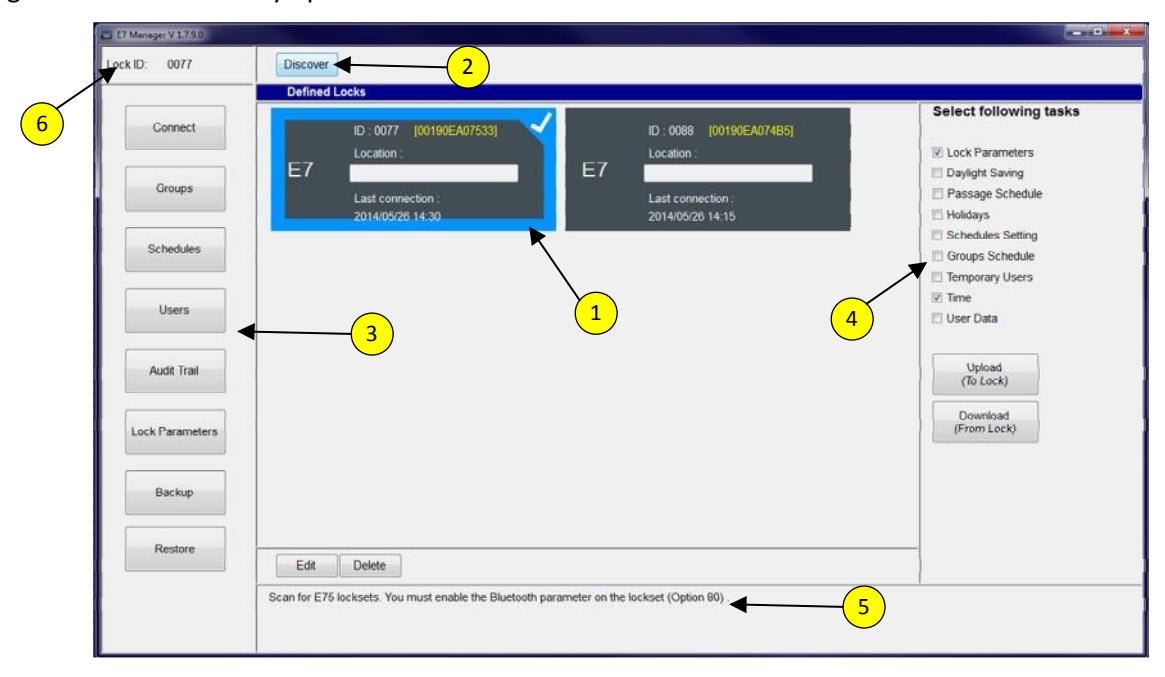
The program will automatically open to the 'Connect' screen:
-
1
Defined Locks Window
All locks that have been discovered by the software will appear here. The currenlty selected lock is checked & highlighted in Blue. Each lock is identified with a:
- Lock ID This is the ID set during lock initialization (Section 3.3)
- Hardware ID Bracketed, yellow text
- Location Blank by default.
- Last successful connection date & time
- 2 Discover Button Used to add new locks into the database (Section 4.2)
-
3
Menu Navigation Buttons
Used to navigate between the available software menus:
- Connect Main startup screen. Add or delete locks. Upload and Download multiple task items.
- Groups Create User Groups (up to 32). Assign Schedule(s) to User Groups.
- Schedules Create Group Access Schedules (up to 32), Passage Schedules, Holidays, & enable Daylight Savings Time.
- Users Add/Edit/Delete User PIN numbers and/or Card numbers (up to 3,000). Assign or change a Group # to a user.
- Audit Trail Download transactions from the lock (up to 10,000 events). Export audit trail to a file.
- Lock Parameters Refer to Table of Contents (Section 5.5) for a list of parameters
- Backup Create a copy of the database on a local directory
- Restore Restore a saved copy of the database from a local directory
- 4 Upload/Download Tasks Used to upload/download multiple database categories to/from the selected lock.
- 5 Message Box Placing the mouse pointer over a button will display help information in this box.
- 6 Lock ID The 4-digit Lock ID of the currently selected lock. Always verify that the desired lock is selected before editing any lock parameters.
4.2 Discovering a New Lock
To add a new lock, you must first put the lock into Programming Mode, and then enable Bluetooth Mode. Refer to Sections 3.4 & 3.5.
Navigate to the 'Connect' screen (default on startup)
While Bluetooth Mode is enabled, click on the button.
E7 Manager will attempt to discover anyBluetooth enabled device(s) within range.
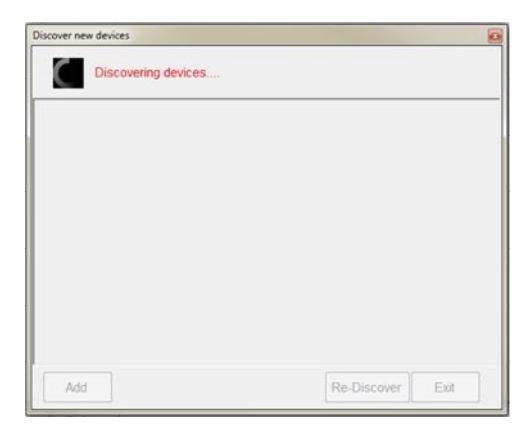
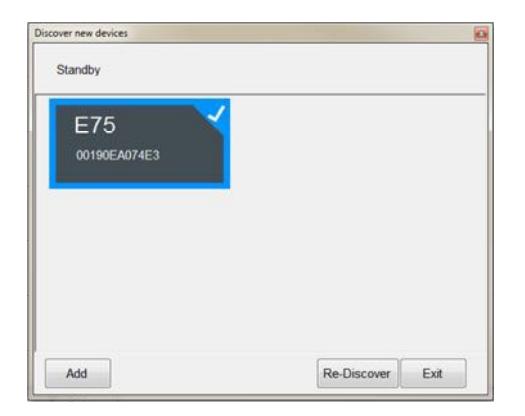
The discovered lock(s) will appear in the window. Select the desired lock(s) to be added to E7 Manager. Selected locks will have a blue highlighted border and checkmark.
If only one lock is discovered, it will automatically be selected.
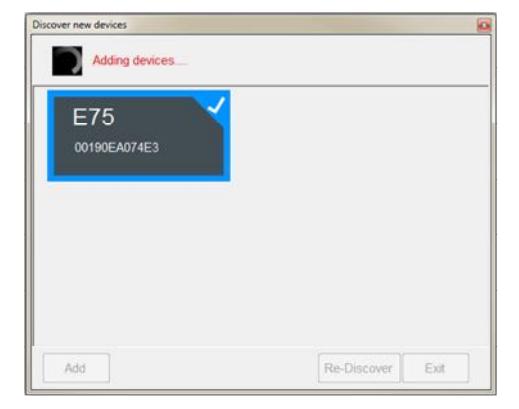
Click the 'Add' button.
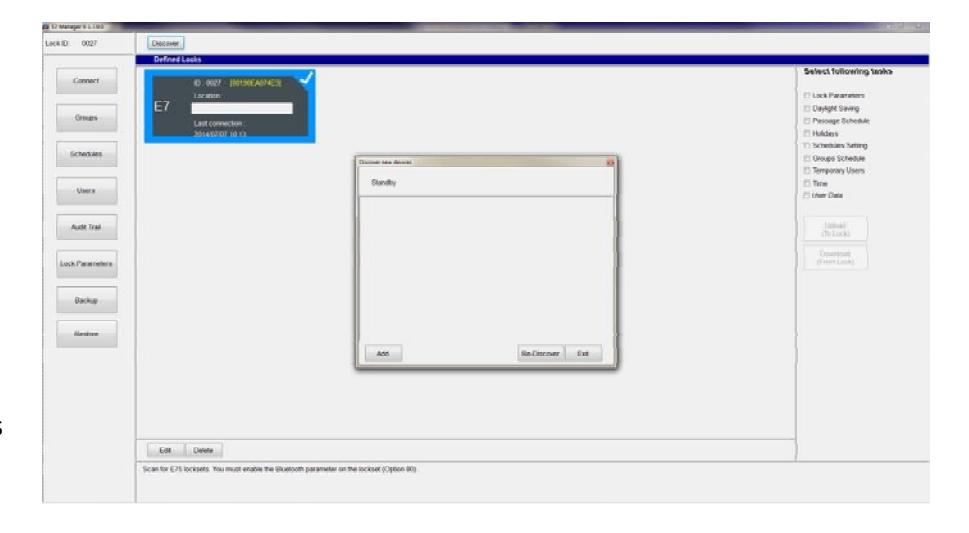
After a lock is successfully added, it will appear in the Defined Locks window.
Click 'Exit' to close the 'Discover new devices' window.
If desired, update the lock Location by selecting a lock and clicking 'Edit'.
Type the new location name in the blank field below 'Location:', and click 'Save'.
NOTE : Once a lock has been discovered and added to your Defined Locks, you may make all the necessary changes to the database without having Bluetooth enabled at the lock. Bluetooth only needs to be enabled when data is being uploaded or downloaded.
4.3 Setting the Date & Time
Setting the correct date and time is essential for proper operation of access schedules, and to maintain an accurate audit trail.
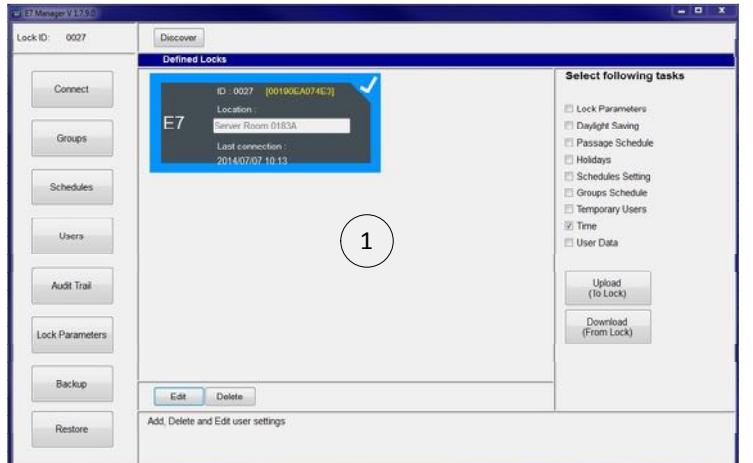
From the 'Connect' screen, check the box next to the 'Time' task on the right.
While Bluetooth Mode is enabled at the lock, click on the 'Upload (To Lock)' button.
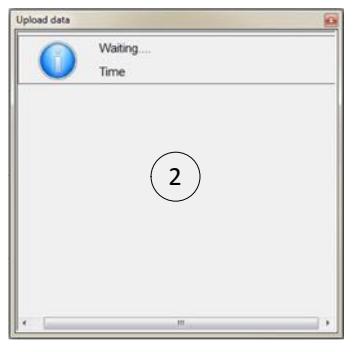
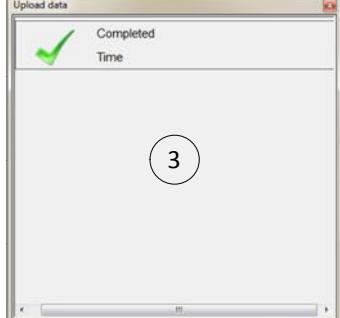
The Upload data message window will appear.
The 'Waiting...' message will change to 'Completed' when the time has been successfully uploaded.
Click on the to close the window.
4.4 Quick Start User Programming
Below are step-by-step procedures for two typical programming scenarios. It assumes that the lock has been initialized with a Lock ID and that the steps in Sections 4.2 & 4.3 have been completed.
Refer to Section 5 for additional programming options.
Typical Programming Example #1:
All users will be assigned to Group 06 (24/7 Access by default).
Keypad PIN OR Prox Card may be used to gain access.
Unlock Time = 3 seconds (default).
- Step 1 Navigate to the Users screen by clicking on the 'Users' button.
- Step 2 Verify that both the 'Valid' & 'Enabled' boxes are checked for each authorized user.
- Step 3 Verify that the Group field is set to '6'.
- Step 4 Enter a 4 to 6-digit PIN in the 'Password' field. If only Prox Cards are used, skip to Step 5.
- Step 5 Enter a valid card credential. This field consists of the 3-digit card facility code + 5-digit card number. Leading zeros are not required for the facility code. If only PIN numbers are used, skip to Step 6.
- Step 6 When all users have been entered, click the 'Save' button (lower right).
- Step 7 At the lock, enable Bluetooth Mode (Section 3.5).
- Step 8 Click 'Upload (to Lock)'. A window will appear while user data is being uploaded to the lock. The upload process may take up to 60 seconds.
- Step 9 At the lock, exit Bluetooth mode by pressing * (I) (I) , then exit programming mode by pressing * # (I) (II) (II) (III)
Test the new users by entering a valid PIN code followed by '#', OR by presenting a valid card to the reader.
Typical Programming Example #2:
Normal Users will be have access to the lock during normal business hours (M-F, 07:30 - 17:00).
System Managers will have 24/7 access, including Holidays.
Normal Users will not have programming rights.
System Managers will have full programming rights.
Keypad PIN OR Prox Card may be used to gain access.
Unlock Time = 3 seconds (default).
- Step 1 Navigate to the Schedules screen by clicking on the 'Schedules' button.
- Step 2 Create a System Manager schedule (choose Schedule #2, for example). Select all the Days of the Week. Set the Start Time to 0 : 0. Set the End Time to be 23:59. Check Override Holidays.
- Step 3 Create a Normal User schedule (choose Schedule #10, for example). Select Monday Friday. Set the Start Time to 07:30. Set the End Time to be 17: 0. Click Save (lower right).
- Step 4 Navigate to the Groups screen by clicking on the 'Groups' button.
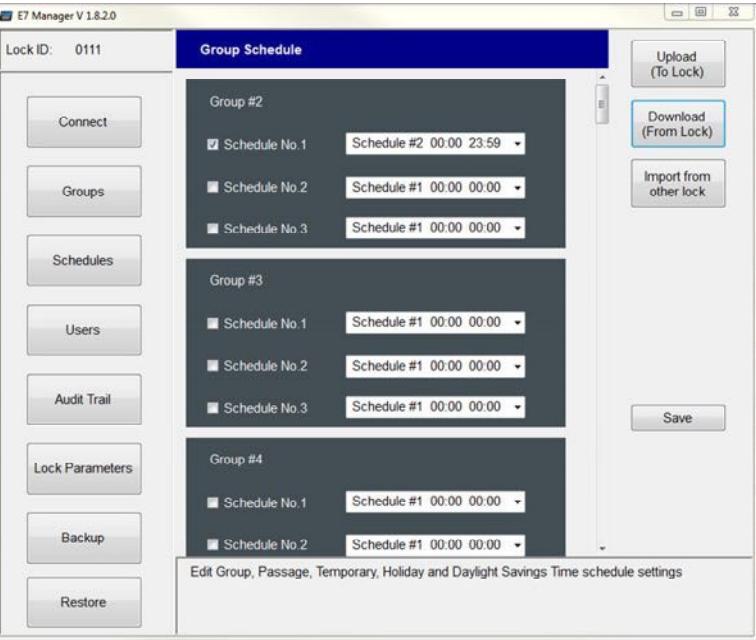
- Step 5 Create a System Manager group. Under Group #2, check 'Schedule No. 1'. Using the drop-down menu, select 'Schedule #2 00:00 23:59'.
- Step 6 Create a Normal User group. Under Group #10, check 'Schedule No. 1'. Using the drop-down menu, select 'Schedule #10 07:30 17:00'. Click Save.
- Step 7 Navigate to the Users screen by clicking on the 'Users' button.
- Step 8 Verify that both the 'Valid' & 'Enabled' boxes are checked for each authorized user.
- Step 9 Verify that the Group field is set to '2' for System Managers. Verify that the Group field is set to '10' for Normal Users.
- Step 10 Enter a 4 to 6-digit PIN in the 'Password' field. If only Prox Cards are used, skip to Step 11.
- Step 11 Enter a valid card credential. This field consists of the 3-digit card facility code + 5-digit card number. Leading zeros are not required for the facility code. If only PIN numbers are used, skip to Step 12.
- Step 12 When all users have been entered, click the 'Save' button.
- Step 13 Navigate to the Connect screen. Under Select following tasks , check Schedules Setting, Groups Schedule, and User Data.
- Step 14 At the lock, enable Bluetooth Mode (Section 3.5). From the Connect screen, click 'Upload (To Lock)'. A window will appear while data is being uploaded to the lock. The upload process may take up to 90 seconds.
- Step 15 At the lock, exit Bluetooth mode by pressing * • • • • • • • • •
Test the new users by entering a valid PIN code followed by '#', OR by presenting a valid card to the reader.
5.0 E7 Manager Programming
As a general rule, there are four basic steps to adding new users to the E7 Management Software:
- 1. Create user group schedules (Section 5.1.1)
- 2. Create user groups (Section 5.2)
- 3. Assign user groups to individual users (Section 5.3.1)
- 4. Upload changes to the lock
Sections 5.4, 5.5, & 5.6 cover advanced programming functions.
5.1 Schedules
5.1.1 Group Schedules
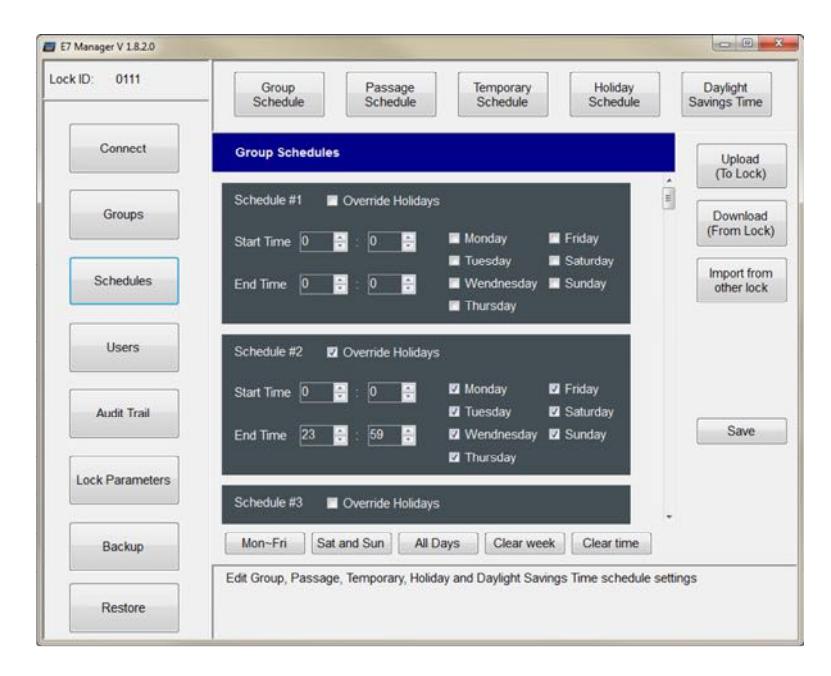
There are 32 possible group schedules. Choose a schedule to edit.
Set the Start Time & End Time in a 24HR format (For example, 16:30 = 4:30pm).
Check the Days when the schedule will be active.
Check 'Override Holidays' if required. Selecting this option will allow assigned users to have access on days designated as Holidays.
Click Save.
Enable Bluetooth communications at the lock and select 'Upload (To Lock)'
5.1.2 Passage Schedules
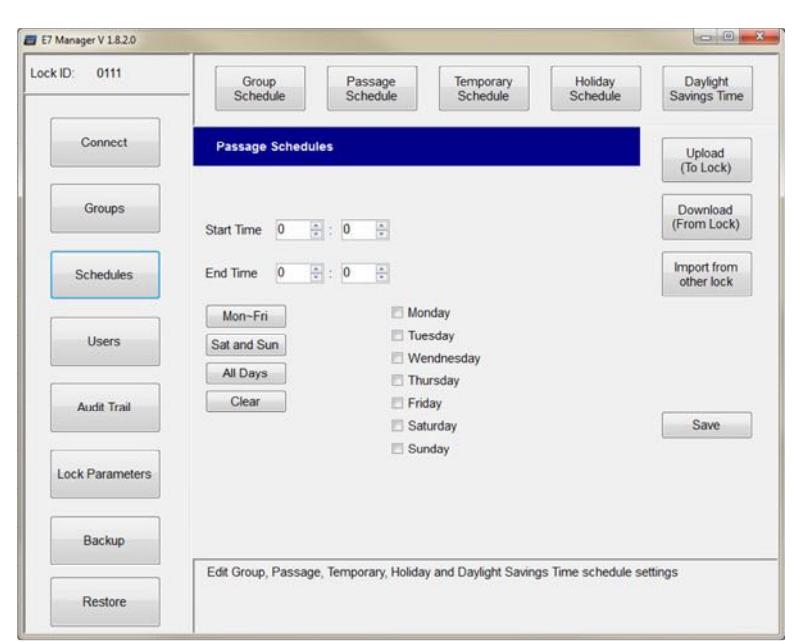
A passage schedule will unlock the lock for an extended period of time (e.g., during normal business hours.)
Notes:
- 1. Only one passage schedule time period is allowed per lock
- 2. Passage schedules will not be active on Holidays
Set the Start Time & End Time in a 24HR format (For example, 16:30 = 4:30pm).
Check the Days when the passage schedule will be active.
Click Save.
Enable Bluetooth communications at the lock and select 'Upload (To Lock)'
5.1.3 Adding Holidays
Up to 32 separate Holidays may be programmed.
NOTE: Users that are not assigned to a schedule that can 'Override Holidays' will be denied access on Holidays.
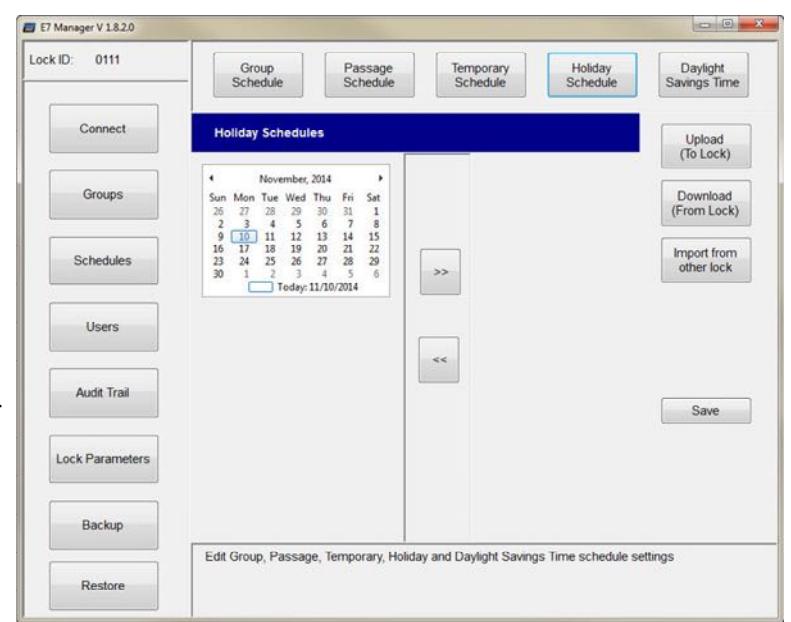
Using the calendar, click to highlight the day you desire to configure as a holiday.
Click on the '>>' button. The selected date will appear on the right as a holiday.
Add additional days as required, and click Save.
Enable Bluetooth communications at the lock and select 'Upload (To Lock)'
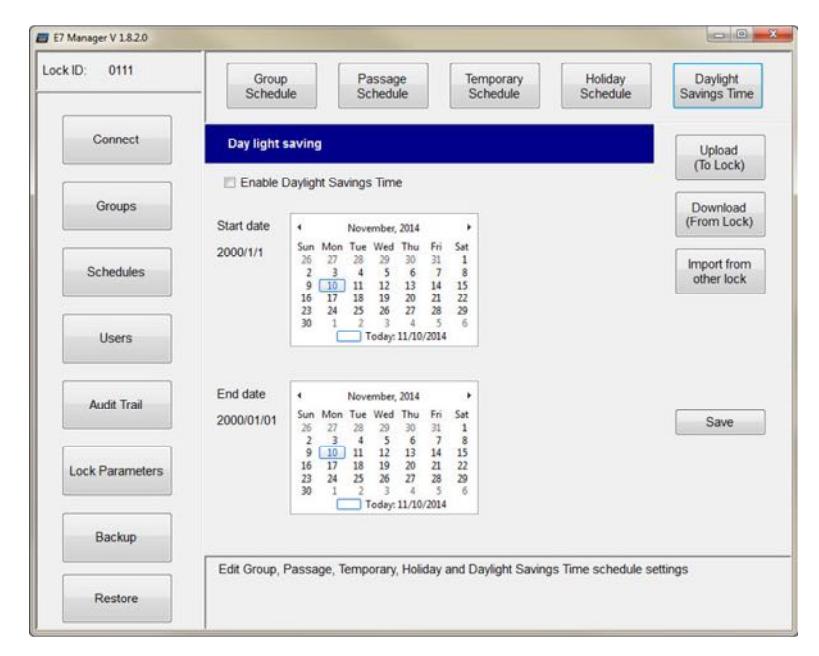
5.1.4 Daylight Savings Time
Using the calendars,
Set the DST Start Date & End Date. You will see the corresponding date change under the "Start date" & "End date" text.
Once the dates are set, check the 'Enable Daylight Savings Time' box.
Click Save. Enable Bluetooth communications at the lock and select 'Upload (To Lock)'
NOTE: The DST Start & End Dates need to be set annually.
5.2 Groups
There are 32 available Groups. Choose a Group to edit. NOTES:
- 1. User Group #1 is reserved for the Administrator.
- 2. User Groups #2-5 will have programming rights.
- 3. All other User Groups do not have programming rights.
Check the box next to the schedule you want to apply (Schedule No. 1, 2, and/or 3). You may apply up to 3 schedules per Group.
Using the drop-down menu, select the desired schedule. Schedules are defined in Section 5.1.1.
Click Save. Enable Bluetooth communications at the lock and select 'Upload (To Lock)'
5.3 Users
5.3.1 Add/Edit User Access
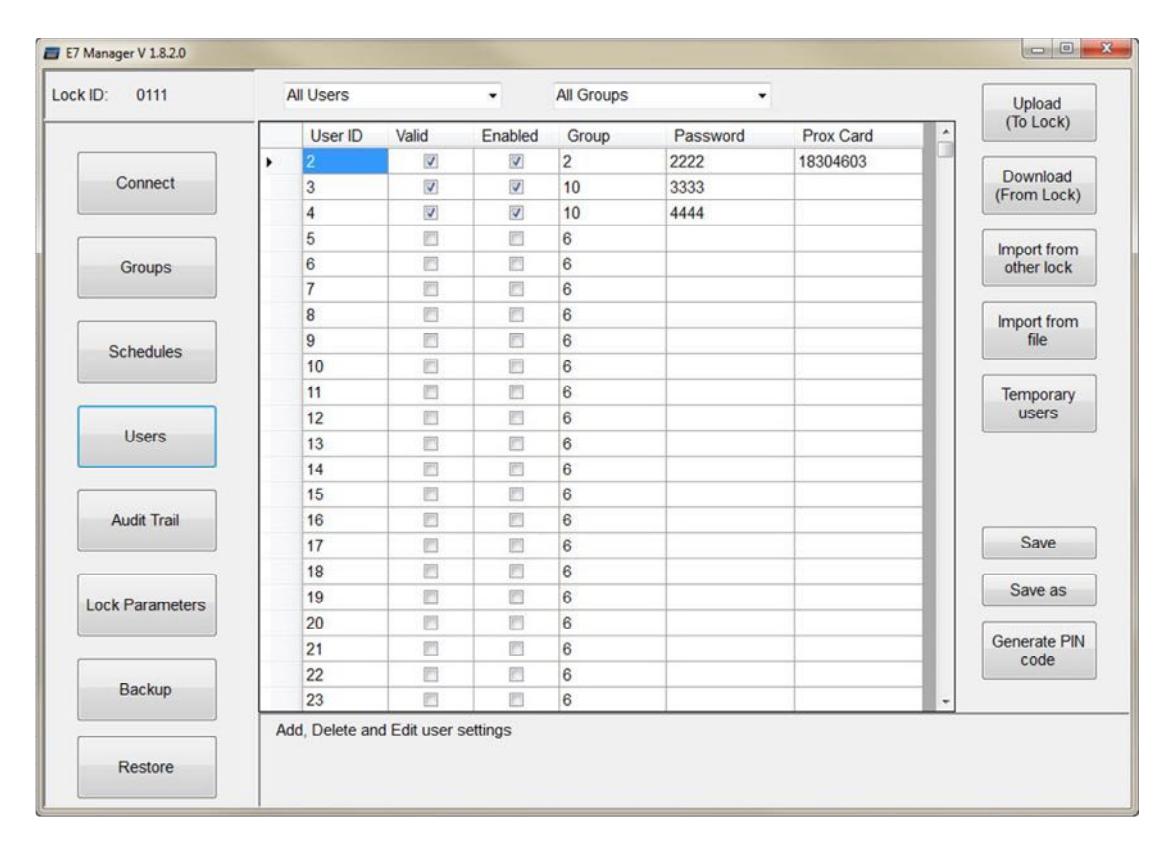
There are 3000 users available. User ID '1' is reserved for the Administrator. To add an access user,
- Check the 'Valid' box next to the user you want to add. Unchecking this box will delete user.
- Check the 'Enabled' box to enable the user. Unchecking this box will disable the user, but not delete them.
- Enter the Group # assigned to the User. Reference Section 5.2.
- Under 'Password', enter an access PIN #. The PIN must be 4 to 6 digits long. Skip this step if only prox cards are used.
- Under 'Prox Card', enter a valid card credential. This field consists of the 3-digit card facility code + 5-digit card number. Leading zeros are not required for the facility code.
- Click Save. Enable Bluetooth communications at the lock and select 'Upload (To Lock)'
5.3.2 Copy Users from an Existing Lock
You may copy User Data from a lock that is already existing in the database. To copy the user data,
- Click the 'Import from other lock' button. A separate window will appear listing all the existing locks.
- Select the lock whose User data you wish to copy by clicking the box.
- Click 'Import'. A message will appear confirming that the data has been successfully imported. Click Save.
5.3.3 Export User Data to a File
The User database may be exported as a *.csv file, viewable & editable in Microsoft Excel®. To export the user data,
- Click the 'Save as' button. A 'Save as' window will appear.
- Select a file location and name. Click Save.
5.3.4 Import User Data from a File
The User database may be imported from a previously exported *.csv file. NOTE: This will override any existing user data. To import the user data file,
- Click the 'Import from file' button.
- Select a .csv file to be imported. Click Open.
5.3.5 Temporary Users
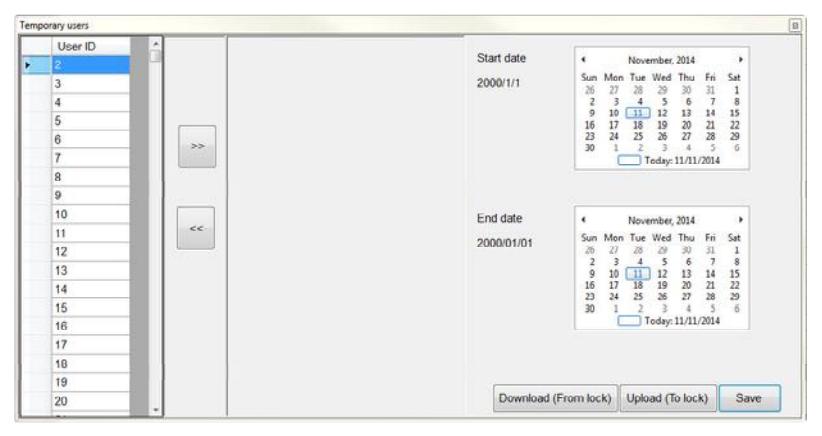
From the Users menu, click the 'Temporary users' button. The Temporary users window will appear.
Select a User ID from the left.
Click on the '>>' button. The user # will appear on the right.
Select the user by clicking anywhere within the dark gray box. The box will be highlighted with a blue border and checkmark.
Adjust the Start & End dates as required. Click Save.
Close the window. From the Users screen, follow the procedure outlined in Section 5.3.1.
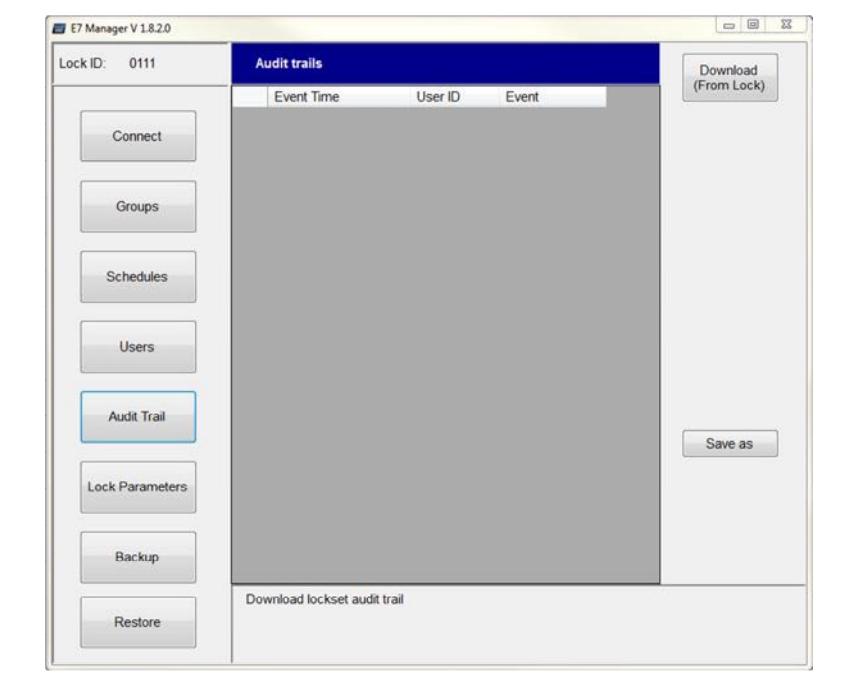
5.4 Audit Trail
5.4.1 Download Events from a Lock
The lock will retain the previous 10,000 normal access or alarm events.
Click on the 'Audit Trail' menu button.
Enable Bluetooth communications at the lock and select 'Download (From Lock)'.
NOTE: Navigating away from the Audit Trail screen will clear the Audit Trail information, and it will be need to be downloaded again.
5.4.2 Export Events to a File
Downloaded events may be exported as a *.csv file, viewable in Microsoft Excel®.
Click the 'Save as' button. A 'Save as' window will appear.
Select a file location and name. Click Save.
5.5 Lock Parameters
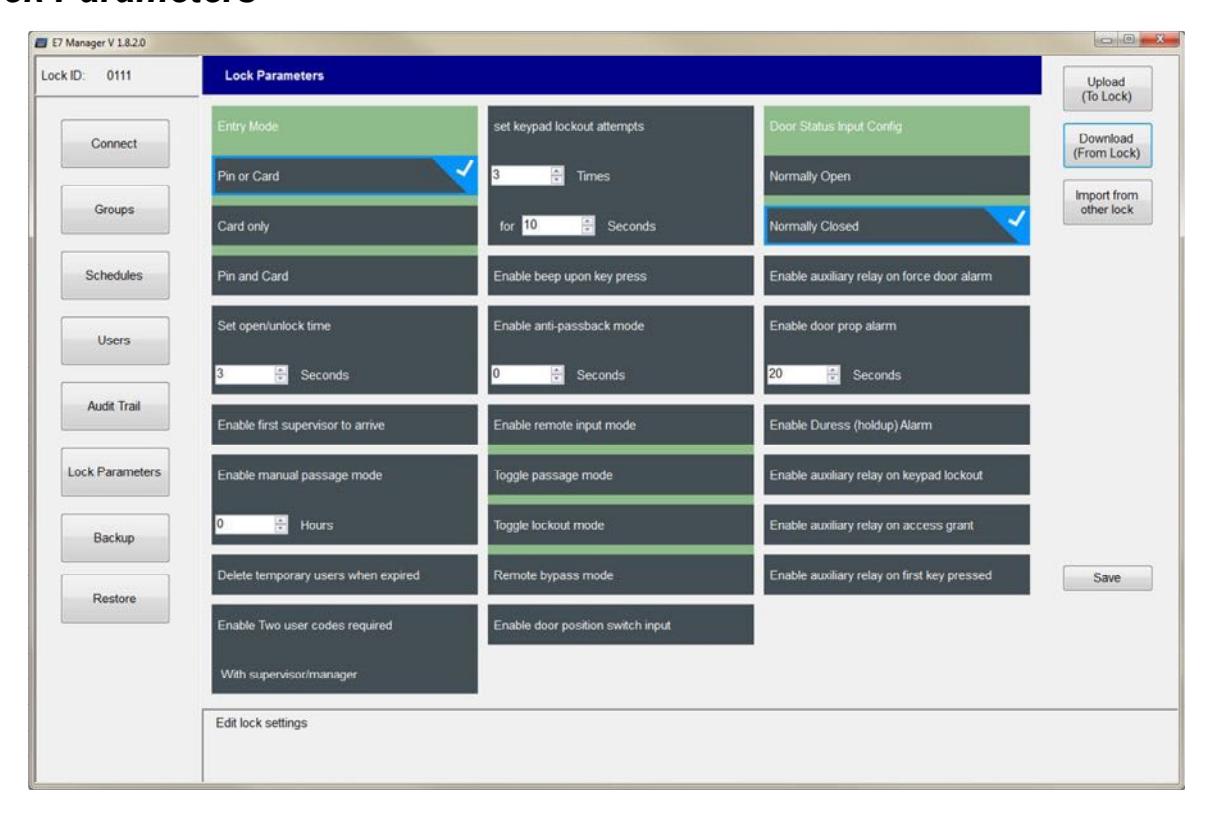
The Lock Parameters window allows the user to:
- Select 'Upload (To Lock)' to upload lock parameter changes to a lock, or
- Select 'Download (From Lock)' to view/edit an existing lock's parameters, or
- Select 'Import from other lock' to copy settings from another existing lock.
Enable Bluetooth communications at the lock, and Download the existing lock parameters.
Edit the Lock Parameters as required and Click Save. Enable Bluetooth communications at the lock and upload the changes to the lock.
| Parameter | Description | Default |
|---|---|---|
| Entry Mode | Selects the lock entry mode. Check 'Pin or Card', 'Card only', or 'Pin and Card' | Pin or Card |
| Set open/unlock time | Sets the normal unlock time. | 3 Sec |
| Enable first supervisor to arrive | Check to enable. Group and passage schedules are delayed until a user assigned to Groups 2-5 has accessed the lock | Disabled |
| Enable manual passage mode | This option is disabled | |
| Check to enable. Temporary users will be deleted after expiration when enabled. When disabled, temporary users | ||
| Delete temporary users when expired | are disabled, but not deleted. | Disabled |
| Check to enable. Two user codes are required to access the lock. Additionally, if 'With supervisor/manager' is | ||
| Enable Two user codes required | checked, one of the two user codes must belong to Groups 2-5. | Disabled |
| Sets the number of invalid keypad attempts before the keypad is locked out (1-9 attempts). Sets the keypad lockout | ||
| set keypad lockout attempts | time (10-255 seconds). | Disabled |
| Enable beep upon key press | Check to enable. An audible beep is heard after every key press. | Enabled |
| Enable anti-passback mode | Check to enable. Sets the time before a PIN or Card can be used again after a authorized access (0-100 secs) | Disabled |
| Check to enable the remote input on the lock. When a momentary short is detected across the input, the lock will be | ||
| Enable remote input mode | put into one of three modes: Toggle passage mode, toggle lockout mode, momentary bypass mode. | Disabled |
| Enable door position switch input | Check to enable. Enable to monitor forced door or door prop conditions. | Disabled |
| Door Status Input Config | When the DPS input is enabled, this sets the contact configuration (N/O or N/C) | N/C |
| Enable aux. relay on force door alarm | Check to enable the aux relay output on a forced door. Latches until a valid card or PIN is presented | Disabled |
| Check to enable the aux relay output on a door prop. Door prop alarm occurs if the door is held beyond the set time | ||
| Enable door prop alarm | (10-255 seconds). Latches until the door closes. | Disabled |
| Check to enable the aux relay output on a duress alarm. Pressing 99 * before a PIN will unlock the door & trigger the | ||
| Enable Duress (holdup) Alarm | holdup alarm. Relay activates for 2 seconds. | Disabled |
| Enable aux. relay on keypad lockout | Check to enable. | Disabled |
| Enable aux. relay on access grant | Check to enable. | Disabled |
| Enable aux. relay on first key pressed | Check to enable. | Disabled |
5.6 Backup & Restore
5.6.1 Create a Database Backup
NOTE: This will create a backup of ALL locks in the database. Only one backup is required for all locks. Click on the 'Backup' button to create a backup of the database.
Choose a file location and name to Save the *sdf file.
5.6.2 Restore a Database from a File
This function can be used to restore a database after a new software installation.
Click on the 'Restore' button to restore a database from an existing backup file. Locate and select a valid *.sdf file to Open.
Select the locks you wish to restore. Selecting a lock will highlight the lock with a blue border and checkmark. Click 'Restore from selected'.