CenTran 4.1.5 Getting Started Guide
Open the original PDF document
View PDFCenTran 4.1.5 Getting Started Guide KABA MAS
Kaba Mas Welcome
Kaba Mas, part of the world-wide Kaba group, is the world's leading manufacturer and supplier of high security, electronic safe locks. Its complete line of self powered, battery, and mechanical locks meets virtually every safe lock requirement. Kaba Mas is dedicated to satisfying end-user needs for security, safety, and convenience. We welcome you to the world of Kaba Mas security and the Cencon lock.
Manual Conventions
Trademarks
Table Of Contents
System Requirements
PC Hardware Installation
Before Installing the CenTran Software
Software Installation and Setup
Create ODBC Database Connection (Microsoft SQL)
Create ODBC Database Connection (Oracle)
Configuration File - appSettings Section
Configuration File - system.serviceModel / bindings Section
Configuration File - system.serviceModel / services Section
Configuration File - system.serviceModel / behaviors Section
Configuration File - system.diagnostics Section
Set Up Centran Server Certificates
Install / Start the CenTran Service
Configure the Centran Service using Centran Configuration Manager
Select ODBC Database Connection
Configure the Centran Service using Web Management Interface
Select ODBC Database Connection
Set Company Number Set File Settings Start Transaction Processing View Web Service Settings View Web RSS Feed Settings View Centran Agent Settings View Centran Event Log Stop Transaction Processing Stop / Uninstall the CenTran Service Appendix A - Beta Expiration
© 1996-2013 Kaba Mas LLC
Manual Conventions
This CenTran Getting Started Guide contains information on the installation and set up of the hardware and software required to manage locks. Some conventions that are followed are:
- The Smart Keys needed for a particular operation will be shown beside the flowcharts that describe the operation.
- Input to the PC will be shown in bold type.
- The screen samples may not look exactly as they do on your system depending on which version of the Windows operating system you are using.
- Highlighted items:
Note
Indicates a point to consider.
Helpful Hint
Indicates a technique or method that works well.
Caution
Indicates the need for care and caution to be observed during a procedure or process.
Warning
Indicates the possibility of loss of data or system integrity.
Before reading the CenTran Getting Started Guide, you should be familiar with basic Windows concepts and techniques. For detailed information, refer to your Windows documentation.
© 1996-2013 Kaba Mas LLC
Trademarks
The following items are trademarks or registered trademarks of Kaba Mas in the United States and/or other countries.
- Cencon System 2000
- Cencon
- PowerStar Technology
- Smart Key
Adobe and Adobe Reader are registered trademarks of Adobe Systems Incorporated in the United States and/or other countries.
iButton is a registered trademark of Dallas Semiconductor.
Microsoft, Windows, and Windows Server are registered trademarks or trademarks of Microsoft Corporation in the United States and/or other countries.
Notice: The information in this manual is subject to change without notice and does not represent a commitment on the part of the Kaba Mas. Kaba Mas shall not be liable for technical or editorial errors or omissions contained herein; nor for incidental or consequential damages resulting from the furnishing, performance or use of this material.
© 1996-2013 Kaba Mas LLC
The CenTran Version 4.1.5 Package
The CenTran 4.1.5 implementation package includes:
- The CenTran Version 4.1.5 Install source (DVD, USB drive, or download)
- CenTran 4.1.5 Getting Started Guide
- CenTran 4.1.5 XML Programming Manual Included on install source (DVD, USB drive, or download) in electronic format
- CenTran 2 Programming Guide Included for legacy CenTran use on install source (DVD, USB drive, or download) in electronic format
If you are missing any of the above items, contact Kaba Mas Customer Service at 1(800) 950-4744
CenTran 4.1.5 System Requirements
To use the CenTran program, the following minimum hardware and software requirements must be met:
IBM compatible PC that is capable of running Windows and has an available USB port for the Kaba Mas USB Key Box.
Note
The Cencon Key Box requires a fully compliant USB 2.0 connection. Some computers, especially laptops and notebooks, may not provide sufficient power for the Cencon Key Box. In these cases it may be necessary to use a powered USB hub to attach the Cencon Key Box. On laptops or notebooks with "power saving" features that turn off USB power, the computer's Operating System (OS) could disconnect from the Cencon Key Box. In this instance, after awakening the computer and CenTran 4 software, unplug and re-plug the USB cable between the computer and the Cencon Key Box.
- 4 GB RAM Minimum (8 GB RAM or higher is recommended.)
- If your install source is a DVD, a DVD Drive is needed. The install source can be a DVD, USB drive, or download.
- Hard Disk Drive with at least 50 megabytes disk space free
Important Note
If you are upgrading from a previous version of Cencon and CenTran, you should also allow ample disk space for database growth.
-
Windows 7 32/64-bit, Windows 2008 Server 64-bit or Windows 2008 R2 Server 64-bit.
- You must be logged into Windows with Admin authority
-
An installed Database Management System (DBMS) Microsoft SQL Server SQL 2008 R2 or 2012 (including the SQL Server Express, Standard, or Enterprise Editions) or Oracle 10g or higher.
- The DBMS installation does not have to be on the same computer as CenTran. You will need to have a valid ODBC connection to the DBMS for CenTran to use.
- The above computer requirements do not include the requirements for the DBMS. If the DBMS is being run on the same computer as CenTran, then the total requirements will be the requirements of CenTran plus those of the DBMS.
- The requirements of the DBMS installation will vary depending on the number of locks and users being used by Cencon and CenTran and the number of Cencon and CenTran installations connected to that DBMS.
Note
If you do not have an existing Microsoft SQL Server database, you can download a free copy of the latest Microsoft SQL Server Express Edition from the Microsoft web site at http://www.microsoft.com/express/sql/default.aspx You should also download and install the SQL Server Management Studio.
Be sure to read the related Microsoft information on system requirements and prerequisites for these components. Contact Kaba Mas Technical Support for additional information.
Note - The screens shown in the CenTran Software manuals were captured on a Windows 7 system. Your screens may look slightly different.
Important Note
CenTran 4.1.5 also requires an operational Cencon 4 system and associated database, either locally or on a network accessible computer. It is not compatible with previous versions of Cencon System 2000 software.
PC Hardware Installation
Note
The Cencon Key Box is not included with the CenTran 4.1.5 program package and must be purchased separately if not already installed on your PC system. See the Cencon 4.1.5 Getting Started Guide for Key Box installation instructions.
Important Note
Running the Cencon 4.1.5 software and the CenTran 4.1.5 software concurrently on a PC system is not recommended.
Before Installing the CenTran 4.1.5 Software
Warning
If you have not already contacted Kaba Mas Customer Service at 1(800) 950-4744 in preparation for your installation of CenTran 4.1.5, you must do so at this time to review minimum system requirements and database setup for your installation of CenTran 4.1.5, and to perform data validity checks on any current Cencon data.
Warning
During the CenTran 4.1.5 configuration process, you will be required to enter a unique four digit Company Number/ID. If you are a branch of a larger company, this ID must be identical to that used for all other Cencon and CenTran installations by your company. It is helpful to determine what the four-digit number is before you begin the installation process.
© 1996-2013 Kaba Mas LLC
CenTran 4.1.5 Getting Started Guide Software Installation and Setup
Complete the following steps to install the software:
- 1. Check the PC Date and Time Properties (date, time, time zone, DST adjustment setting) from the Control Panel to ensure accuracy. Adjust, if necessary, before proceeding.
- 2. Ensure that no other programs are running.
- 3. If you have a previous version of Cencon installed, you should ensure that data has been archived in accordance with the customer archive requirements and then backup the current Cencon database.
- 4. If your install source is a DVD, insert the Cencon 4.1.5 Install DVD in the appropriate drive. The install source can be a DVD, USB drive, or download. If you have autorun enabled on your system, the Cencon 4.1.5 Installation screen will be displayed. Otherwise, double click Autorun.exe from the CenTran 4.1.5 install source (DVD, USB drive, or download) root directory, and the CenTran 4.1.5 Installation screen will be displayed.
The CenTran Version 4.1.5 Software Installation dialog is loaded and the Main Menu is displayed:
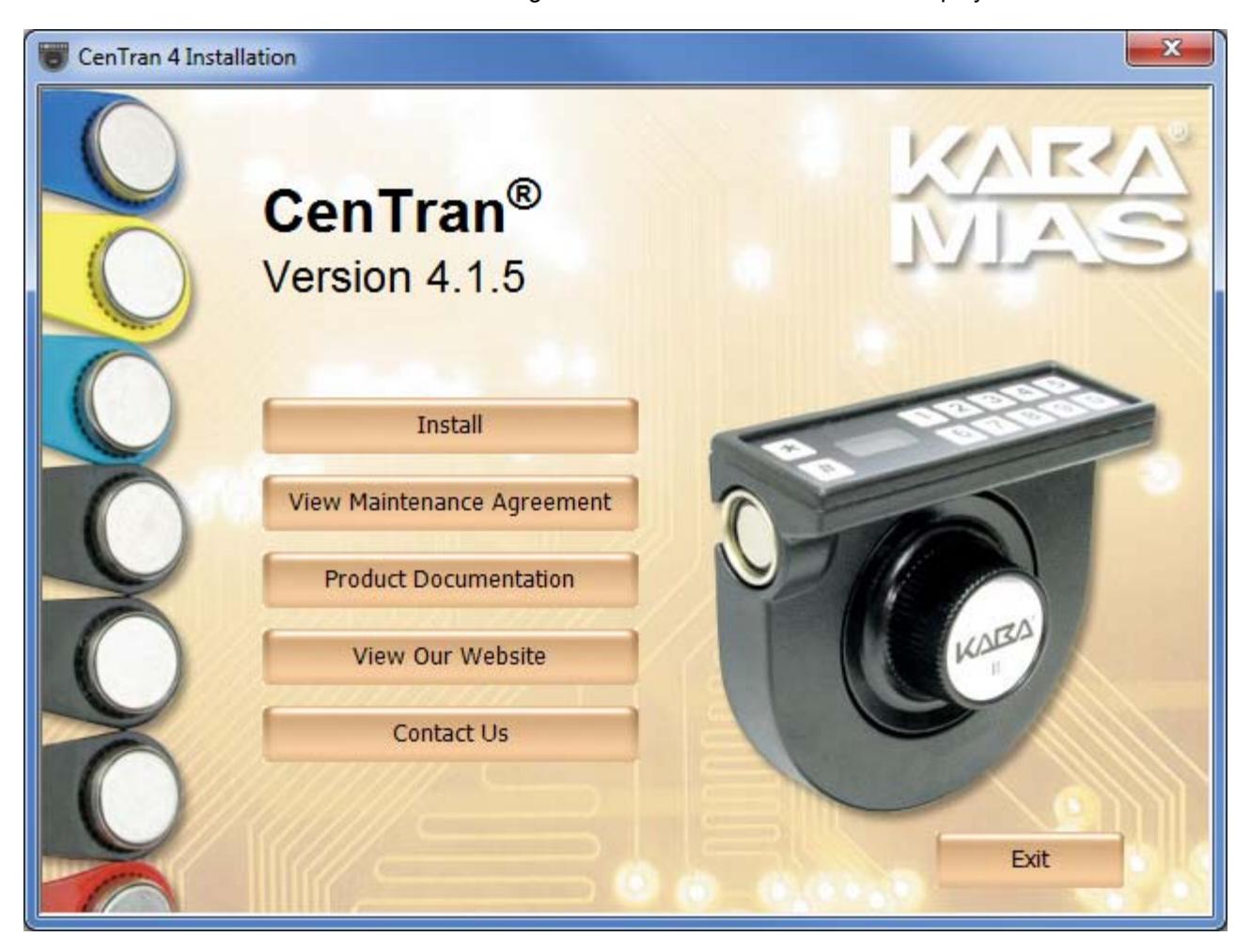
- 5. From the Main Menu, click on the Install button.
- 6. Depending on your operating system, either the 32 or 64-bit CenTran install page is displayed:
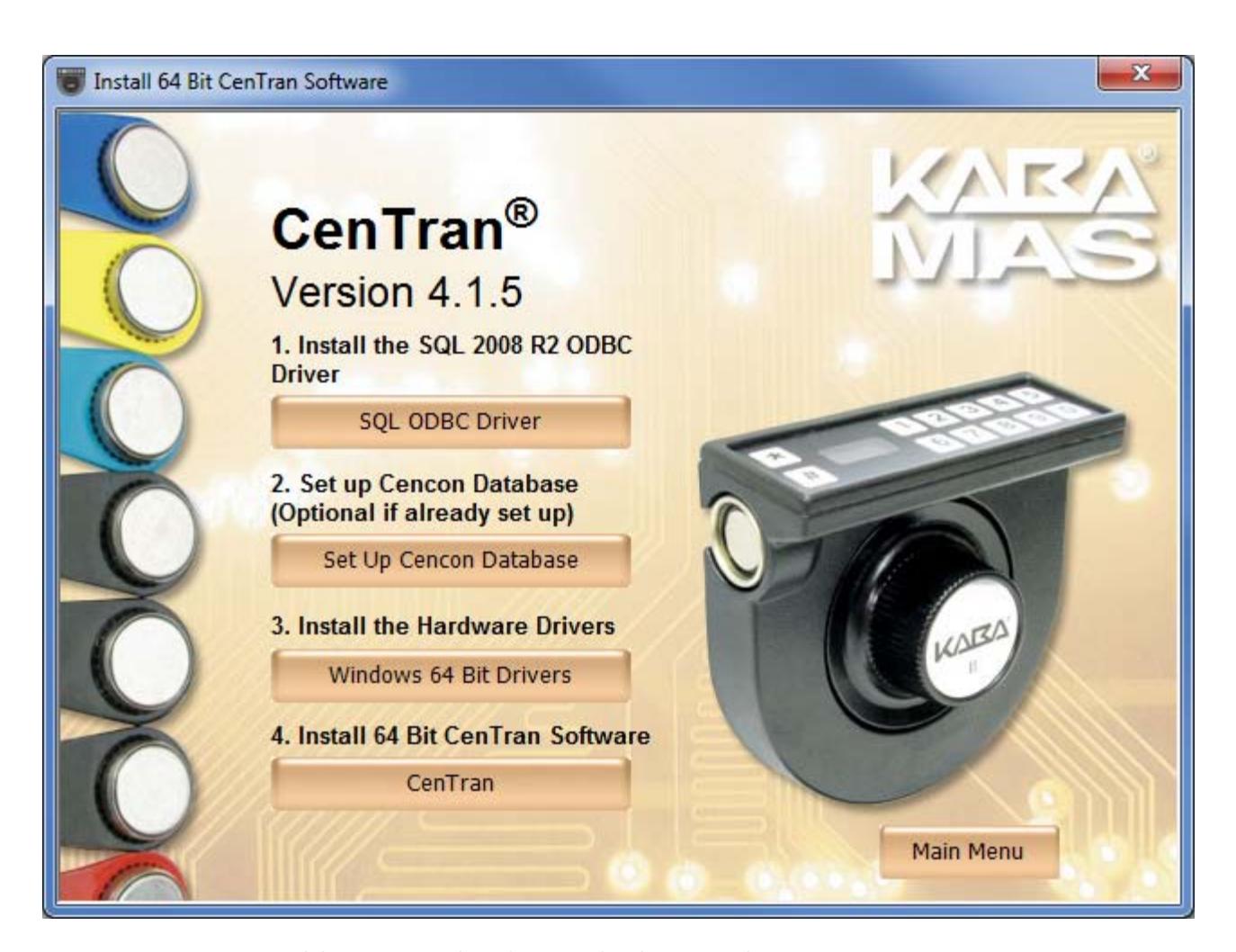
You will now need to install the SQL 2008 R2 ODBC Driver for CenTran. Click on the SQL ODBC Driver button.
7. You will now need to install the device drivers for the Cencon USB Key Box. Click on the Windows Drivers button.
Note
Centran 4.1.5 only supports the Cencon Key Box.
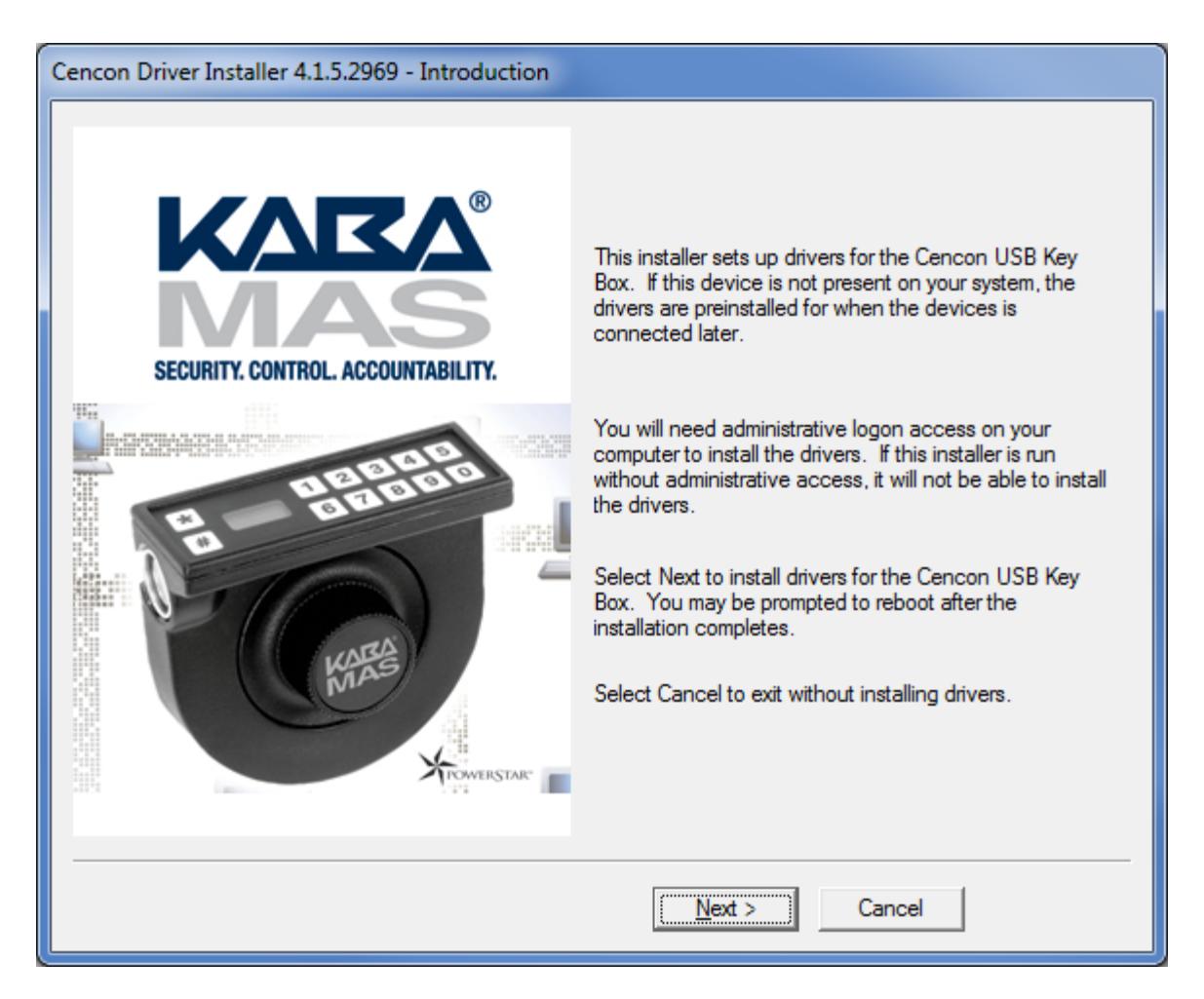
The introduction screen to the driver installer will be displayed. Follow the instructions displayed by the driver installer to set up the drivers for the Cencon USB Key Box.
Operating System Root Certificate Authority Certificates
If your operating system is very old, such as Server 2003, or is not up to date with the Microsoft operating system updates, you may have to install updated operating system Root Certificate Authority Certificates for the Cencon USB Keybox driver installation to run correctly. An install of these certificates is provided in the
TrustedRootCAUpdates directory on the install source (DVD, USB drive, or download).
8. Next, click on the CenTran button on the CenTran install page.
The "Welcome to the CenTran Setup Wizard" screen is displayed. The installer is a Windows program that will take you through the rest of the setup process:
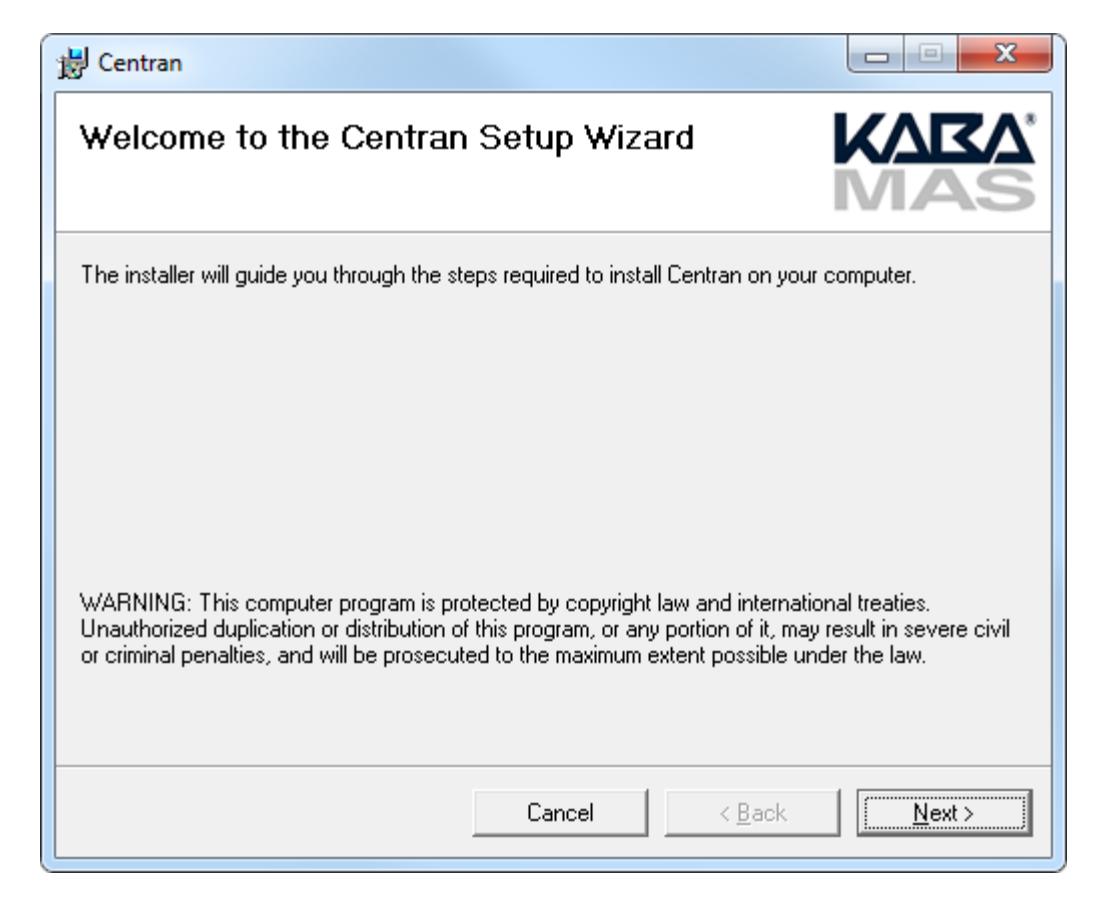
Click on Next> to continue with the installation.
9. The Software License Agreement acceptance screen is displayed.
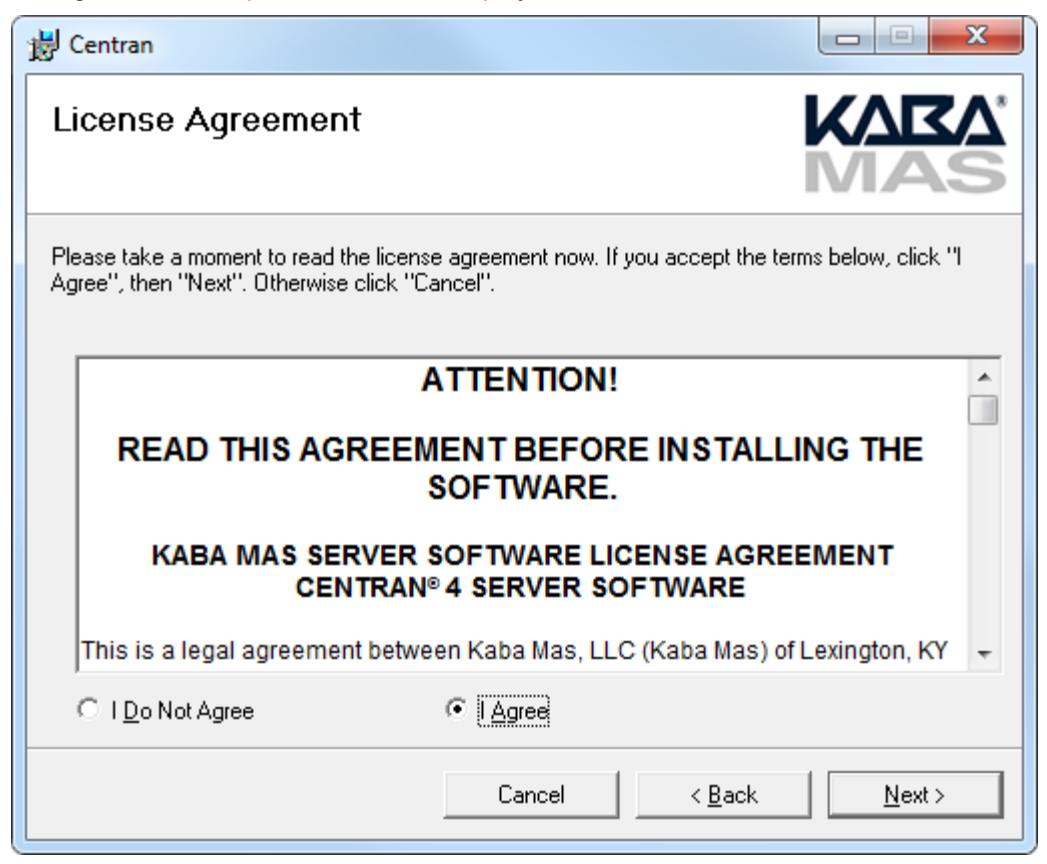
Read the Software License Agreement and then click the I Agree button followed by the Next> button.
10. The Destination Folder window is displayed to allow you to select the program folder to which the CenTran 4 program will be added.
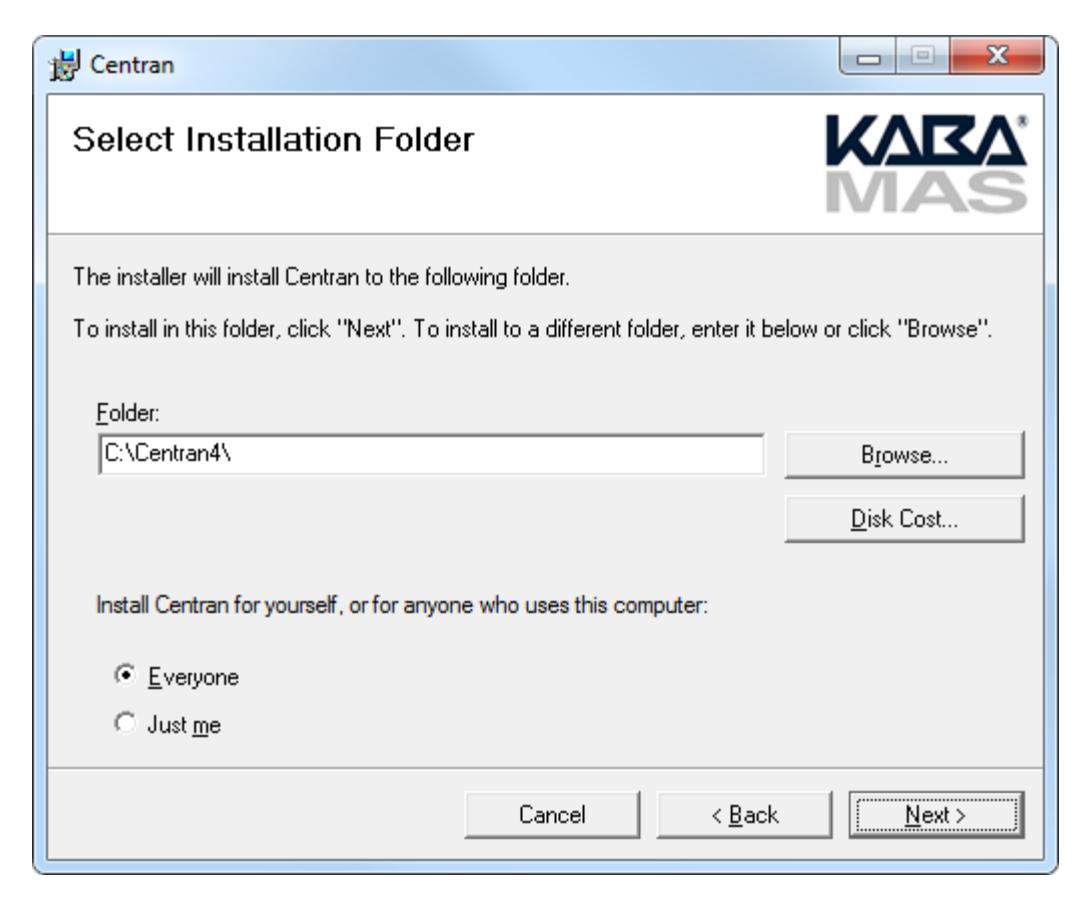
Note: The default installation directory is shown. If CenTran 4.1.5 is already installed on your system, it is recommended that you install CenTran 4.1.5 to a new directory. If you want the CenTran 4.1.5 software installed in another directory, click on the Browse button and select the new path.
Click on the Next> button to add the programs to the designated folder.
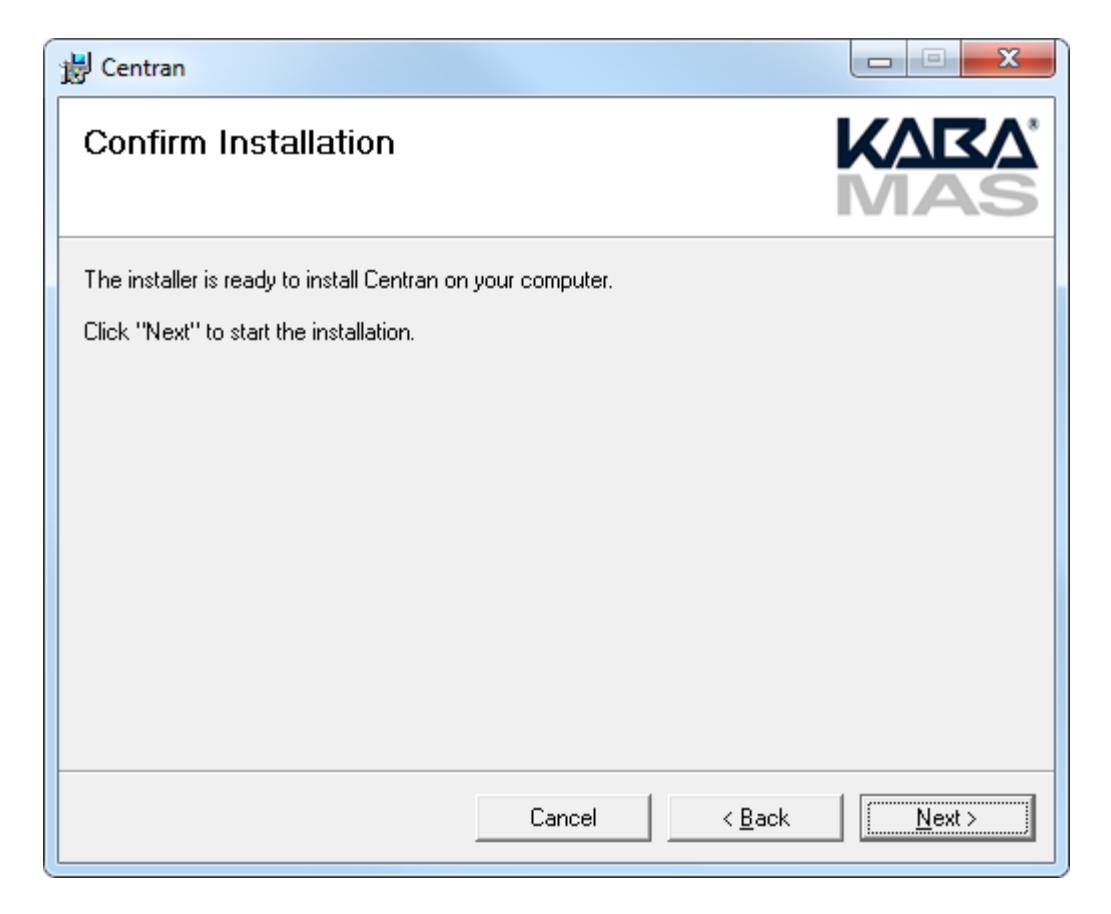
11. Confirm Installation - If there is anything you wish to change, click on the <Back button. Otherwise, click Next> to install the program with the designated settings.
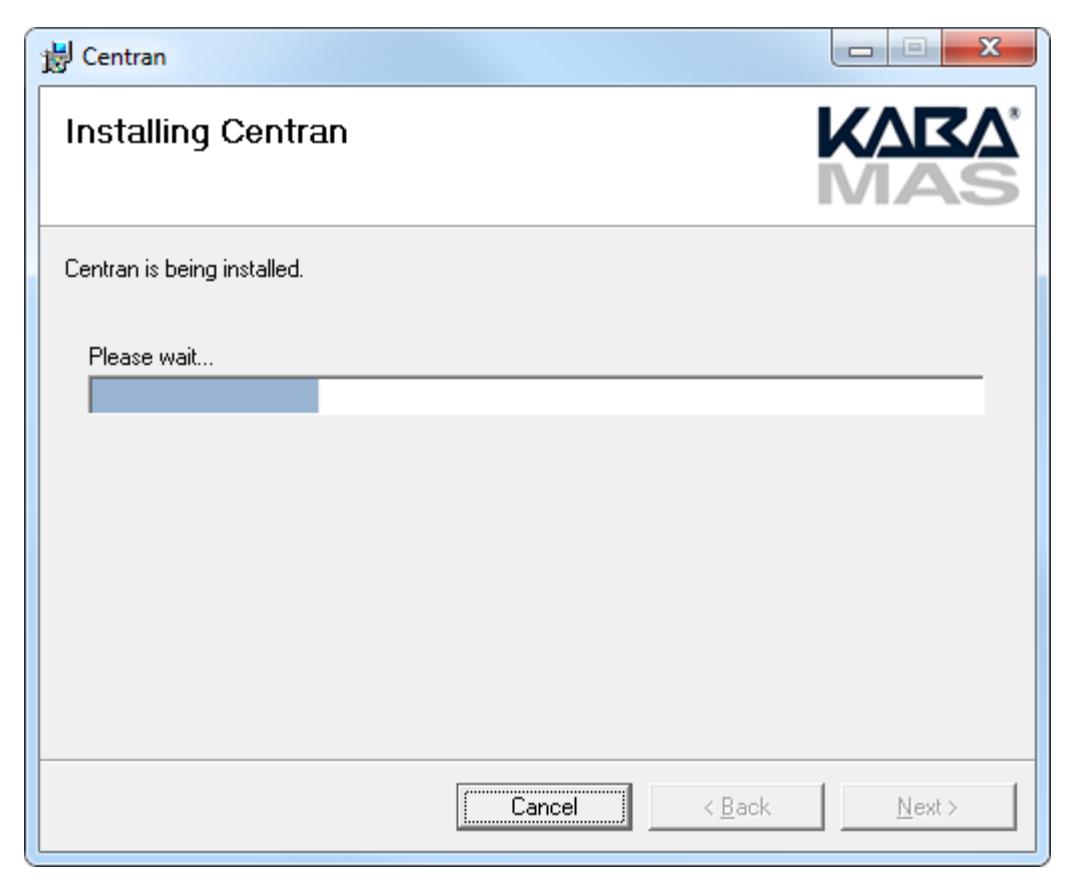
The Setup Status screen displays the status of the installation.
The installation Complete screen is then displayed indicating that the CenTran 4.1.5 service has been successfully installed.
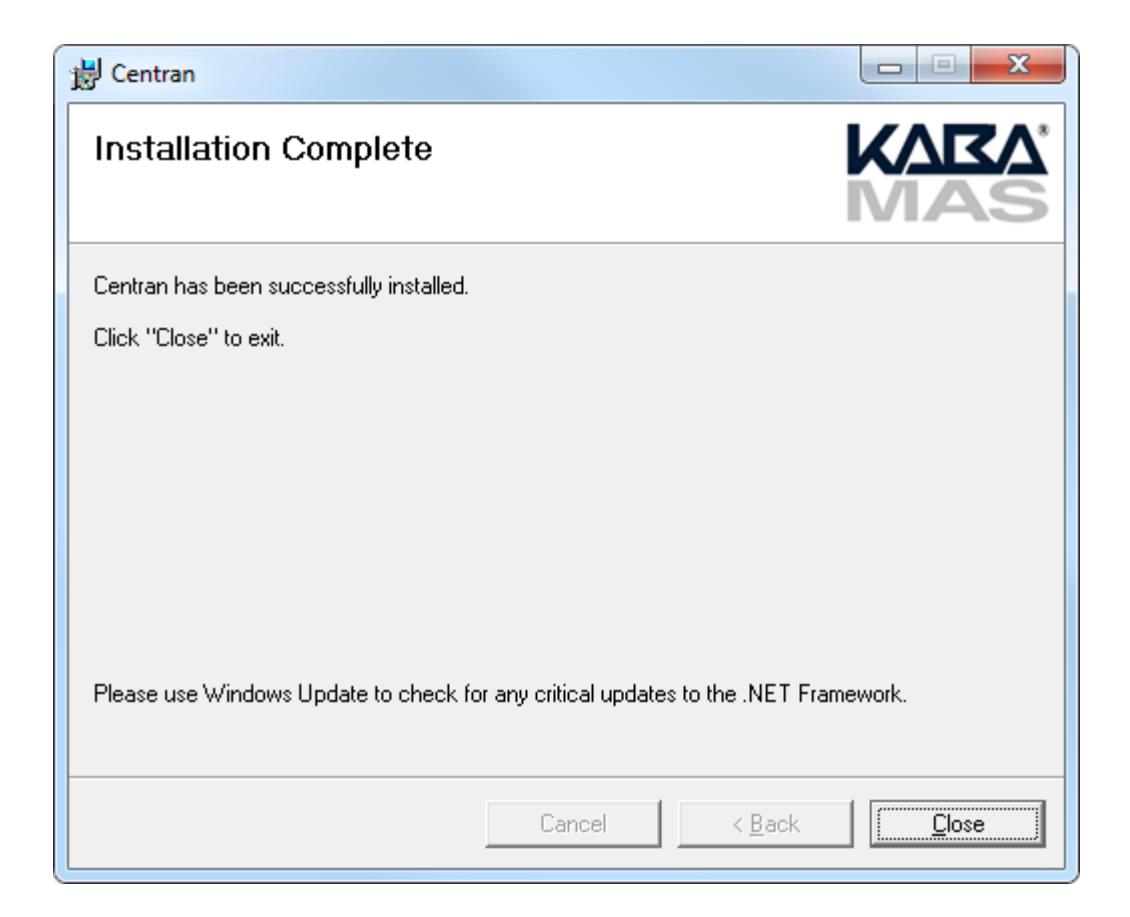
Click Close to complete the installation process.
© 1996-2013 Kaba Mas LLC
ODBC Connection Creation for SQL Server
ODBC ( Open Database Connectivity ) is a standard C interface for accessing database management systems (DBMS). The designers of ODBC aimed to make it independent of database systems and operating systems. An application can use ODBC to query data from a DBMS, regardless of the operating system or DBMS it uses.
ODBC accomplishes DBMS independence by using an ODBC driver as a translation layer between the application and the DBMS. The application uses ODBC functions through an ODBC driver manager with which it is linked, and the driver passes the query to the DBMS.
- 1. Go to control Panel/Administration Tools/Data Sources
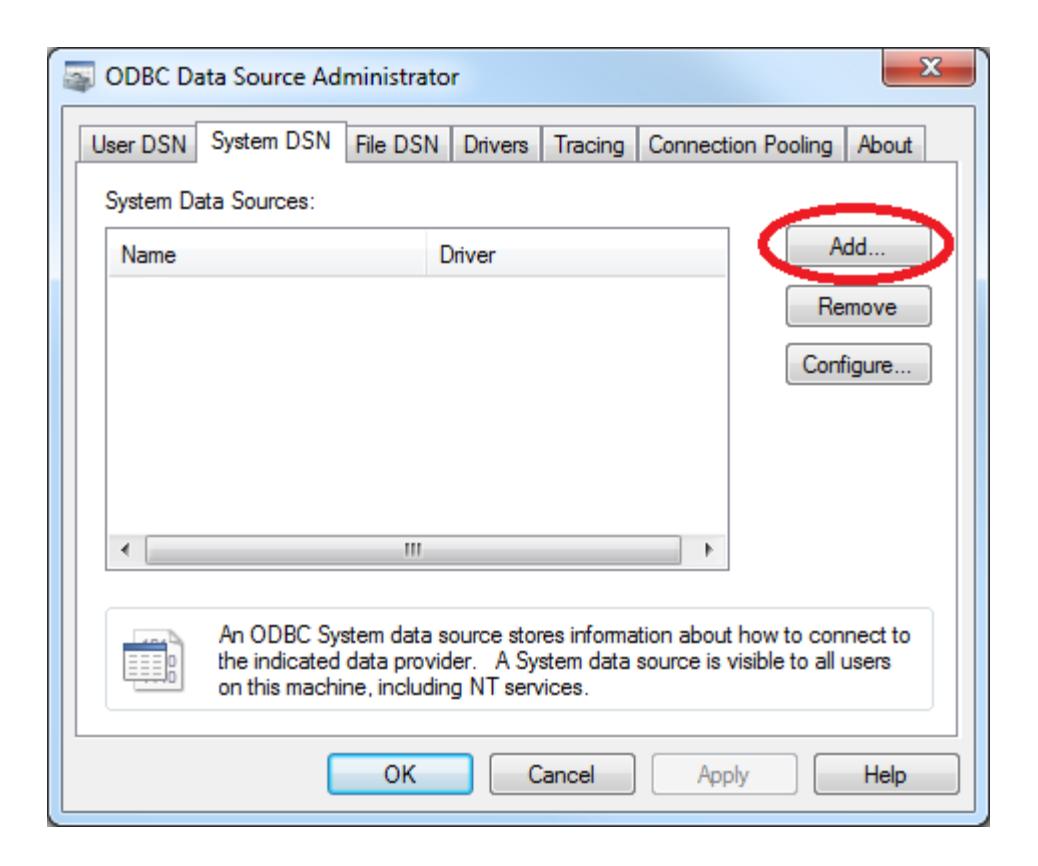
- 2. Select the System DSN tab and Click Add>
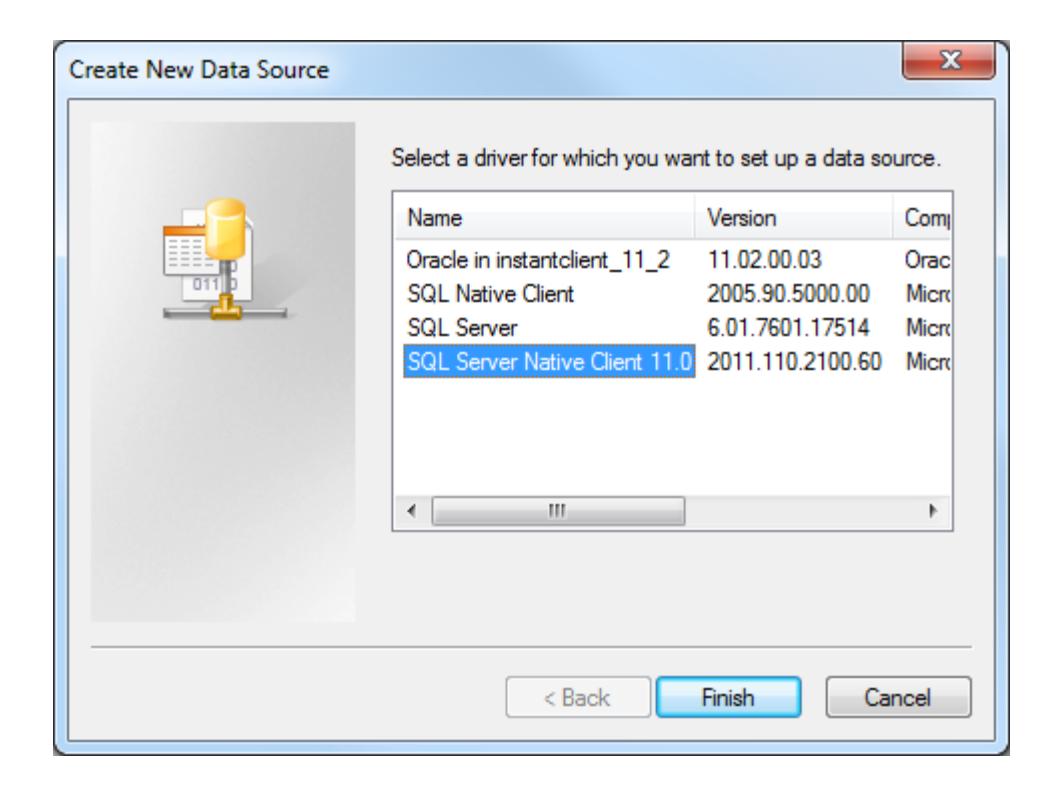
3. Select the driver and click Finish >
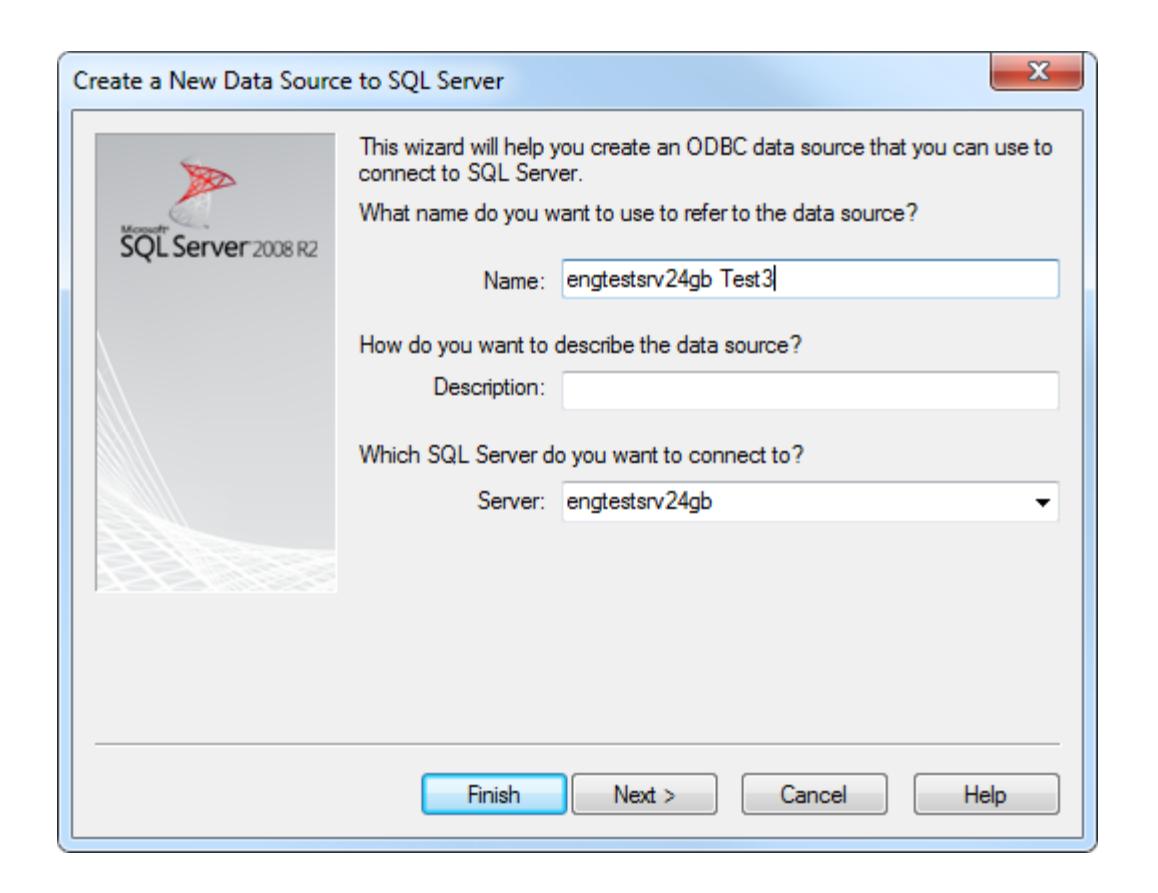
Type a name and type or use the drop down to select the server and instance
4. Click Next>
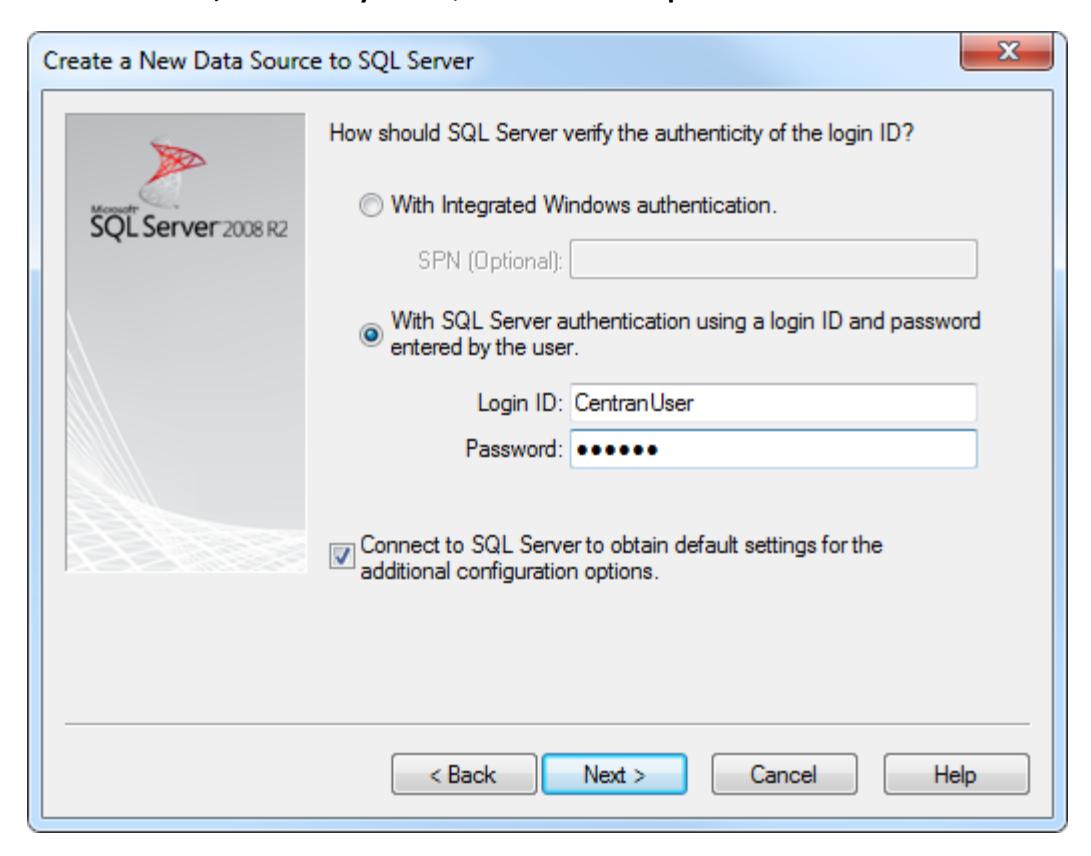
5. Select SQL Server Authentication, and enter your SQL user name and password. Click next >
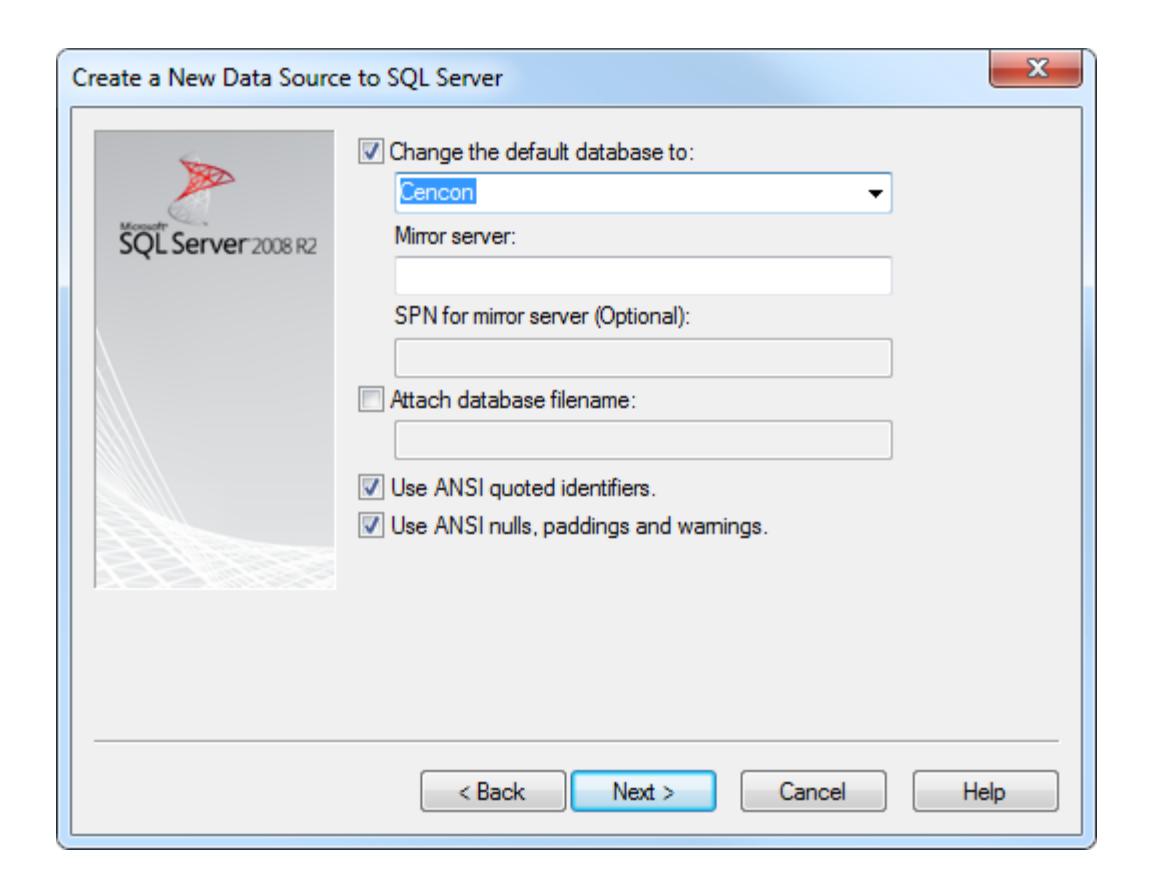
6. Make sure the database schema containing the Cencon database set set as default. Click Next>
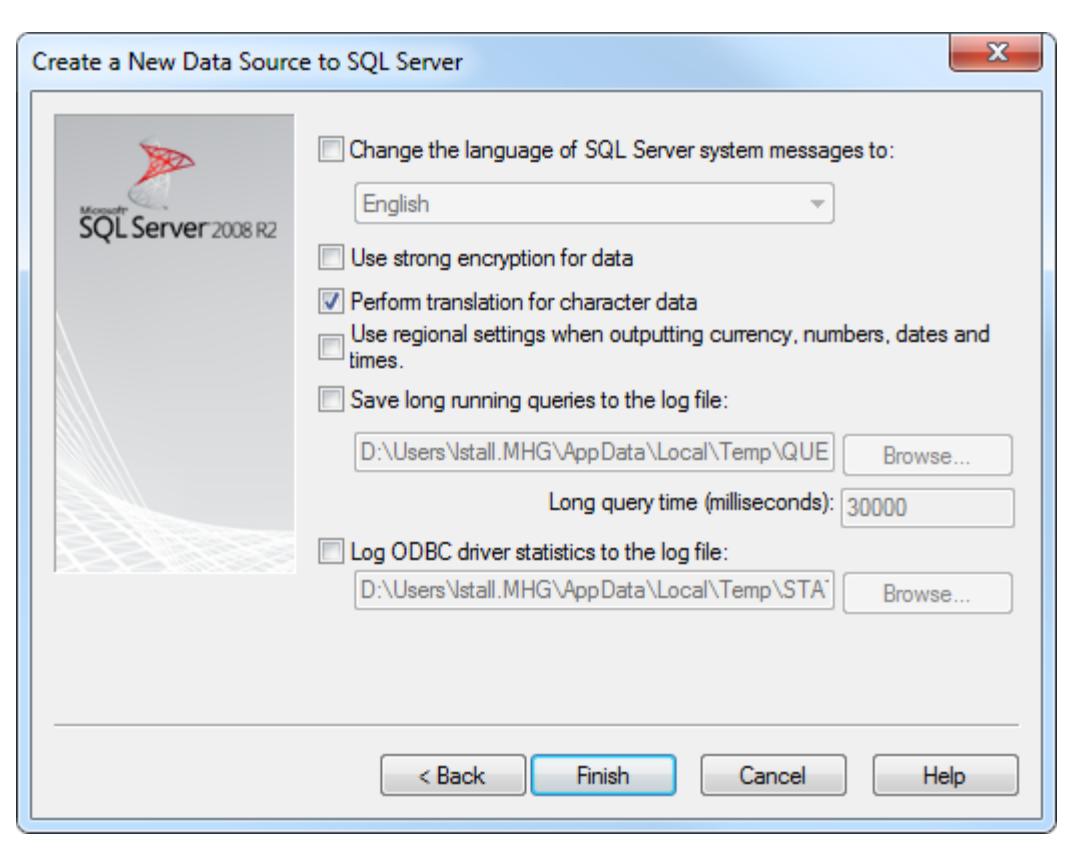
7. Click Finish >
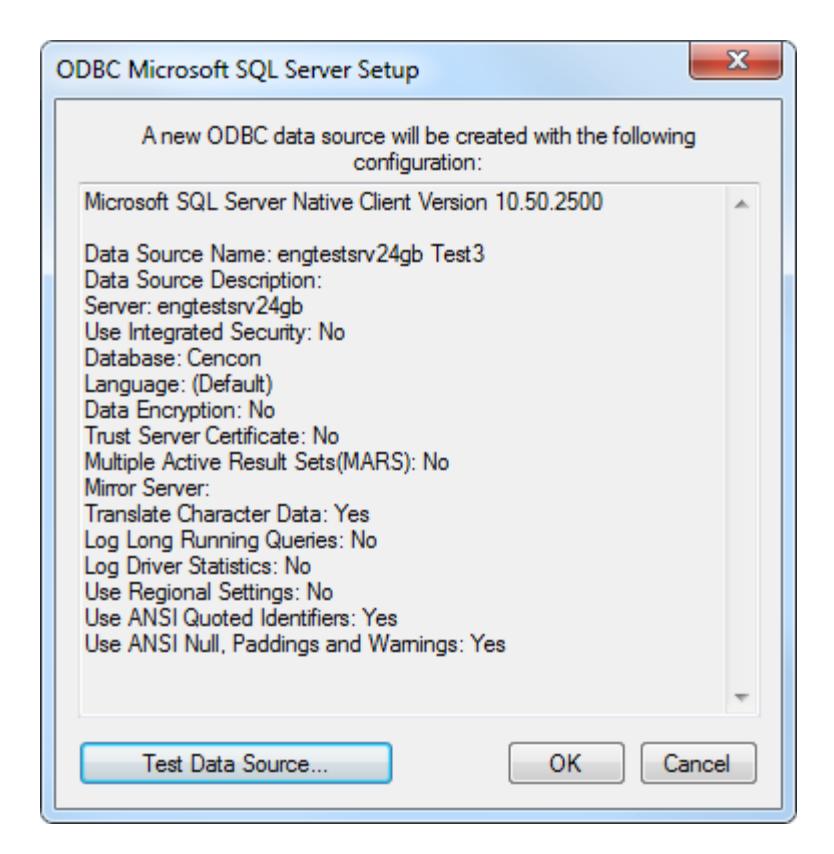
8. Click OK >
© 1996-2013 Kaba Mas LLC
ODBC Connection Creation For Oracle
ODBC ( Open Database Connectivity ) is a standard C interface for accessing database management systems (DBMS). The designers of ODBC aimed to make it independent of database systems and operating systems. An application can use ODBC to query data from a DBMS, regardless of the operating system or DBMS it uses.
ODBC accomplishes DBMS independence by using an ODBC driver as a translation layer between the application and the DBMS. The application uses ODBC functions through an ODBC driver manager with which it is linked, and the driver passes the query to the DBMS.
Important Note
Use current Oracle ODBC Drivers for 10g instant client or higher.
http://www.oracle.com/technetwork/database/features/instant-client/index-097480.html
Important Note
You can use your existing Oracle ODBC drivers if you already have them set up. You can also use the Oracle instant client drivers provided with the Centran install. The Oracle instant client driver files are automatically installed to the Centran install directory for your convenience. This is located under a directory labeled Oracle_instantclient_11_2_XXbit, where XX is either 32 or 64 bit depending on your install. You will still need to go through the Oracle instant client setup:
- 1. Add the path to the Oracle instant client directory to your computers PATH environment variable. Under the Start menu, right click on Computer and select Properties.
- 2. Select Advanced system settings from your computer properties dialog. Your computer System Properties dialog will be displayed.
- 3. Select the Environment Variables button. The Environment Variables dialog will be displayed.
- 4. Scroll through the System variables list at the bottom of the Environment Variables dialog, until you see the variable Path. Select Path from the list.
- 5. Click the Edit... button. The Edit System Varible dialog will be displayed.
- 6. Append the path for the Oracle instant client directory to the Variable value, separated by a ';'.
- 7. Click OK in the Edit System Variable dialog.
- 8. Click OK in the Environment Variables dialog.
- 9. Click OK in the System Properties dialog.
- 10. Open the Oracle instant client directory in a browser window.
- 11. Run the Oracle ODBC driver install named odbc_install.exe. The Oracle ODBC driver install is text based. You may see a brief command prompt window appear and disappear.
(If you run odbc_install.exe from a command prompt window, you will see a message displayed indicating if the install succeeded or not. Otherwise, the install is invisible.)
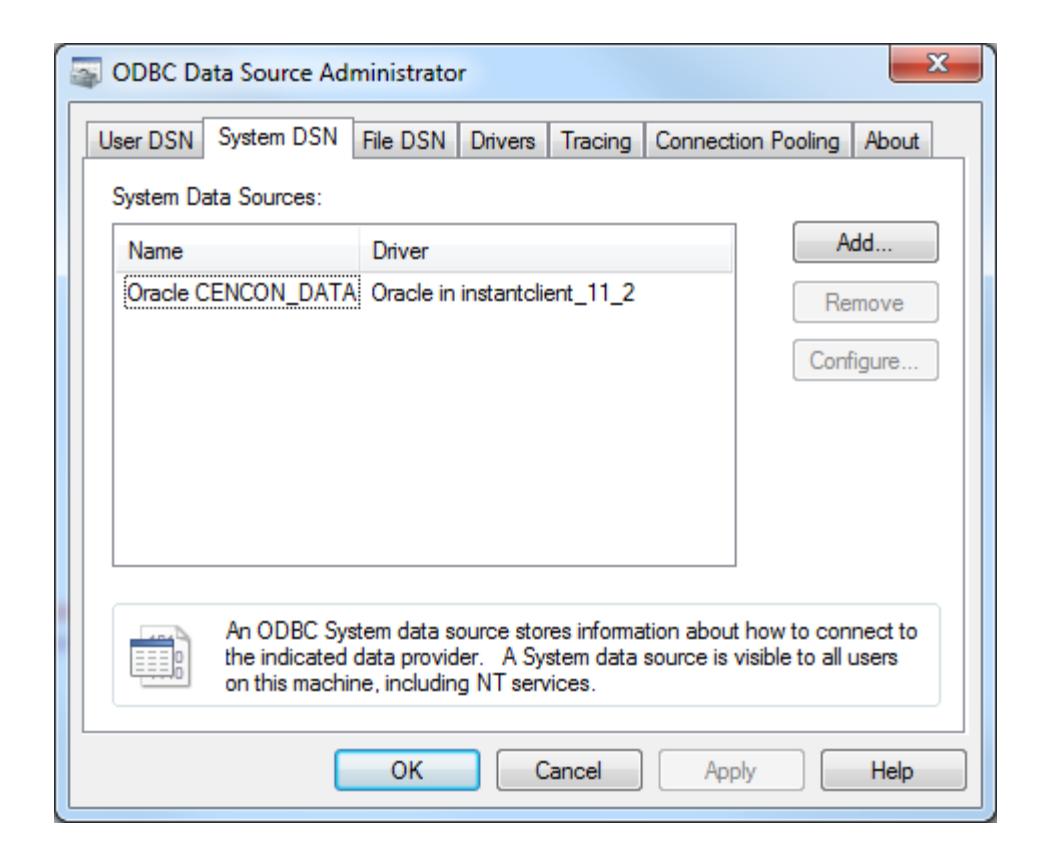
1. Go to Control Panel/Administration Tools/Data Sources (ODBC):
Note: You may have to right click on Data Sources (ODBC) and select Run as administrator.
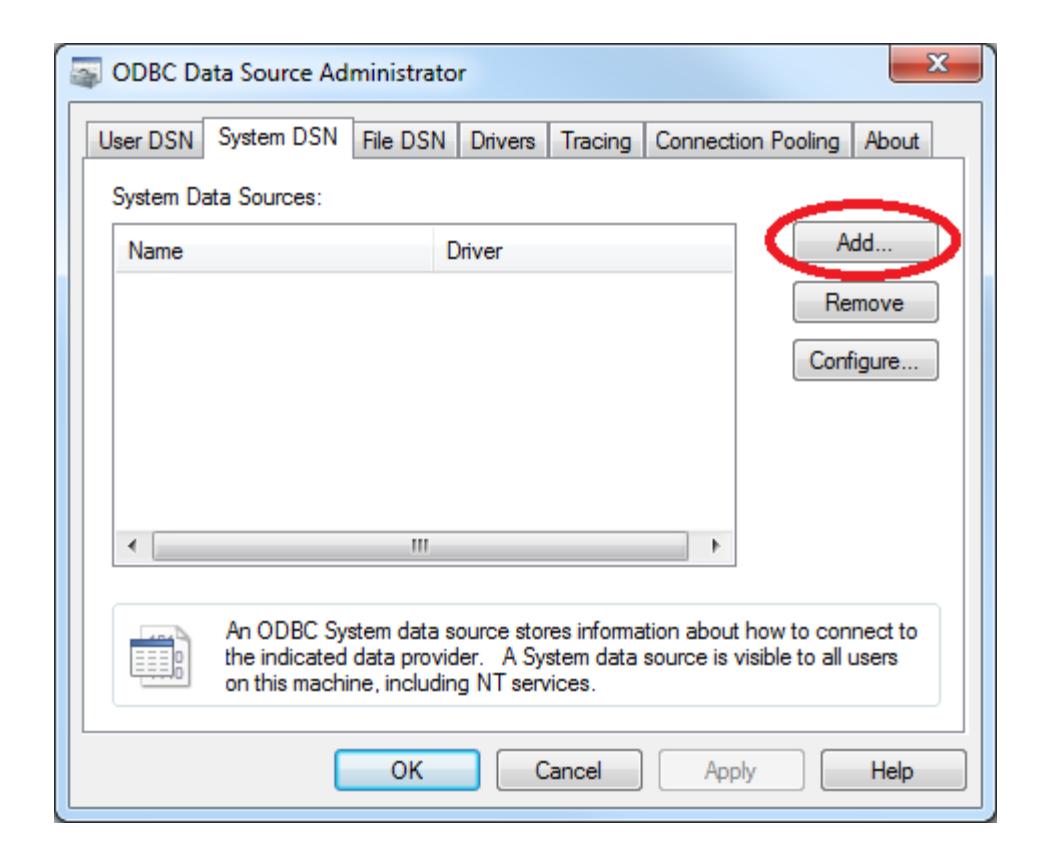
2. Select the System DSN tab and Click Add >
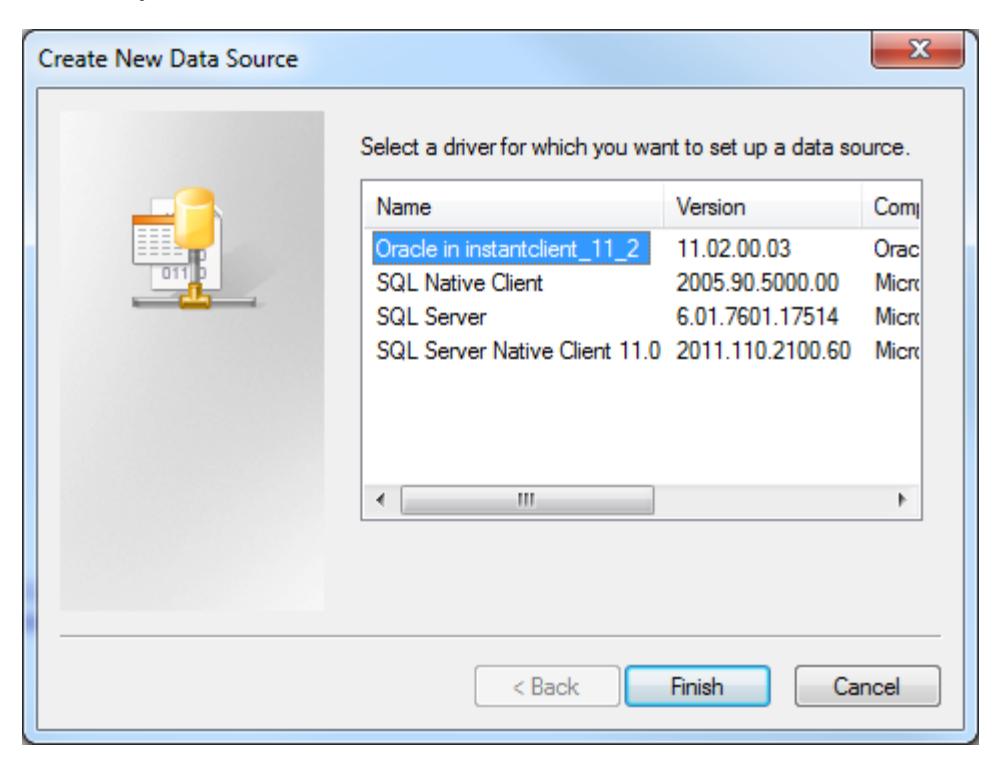
3. Select the Oracle ODBC driver you have installed and click Finish >
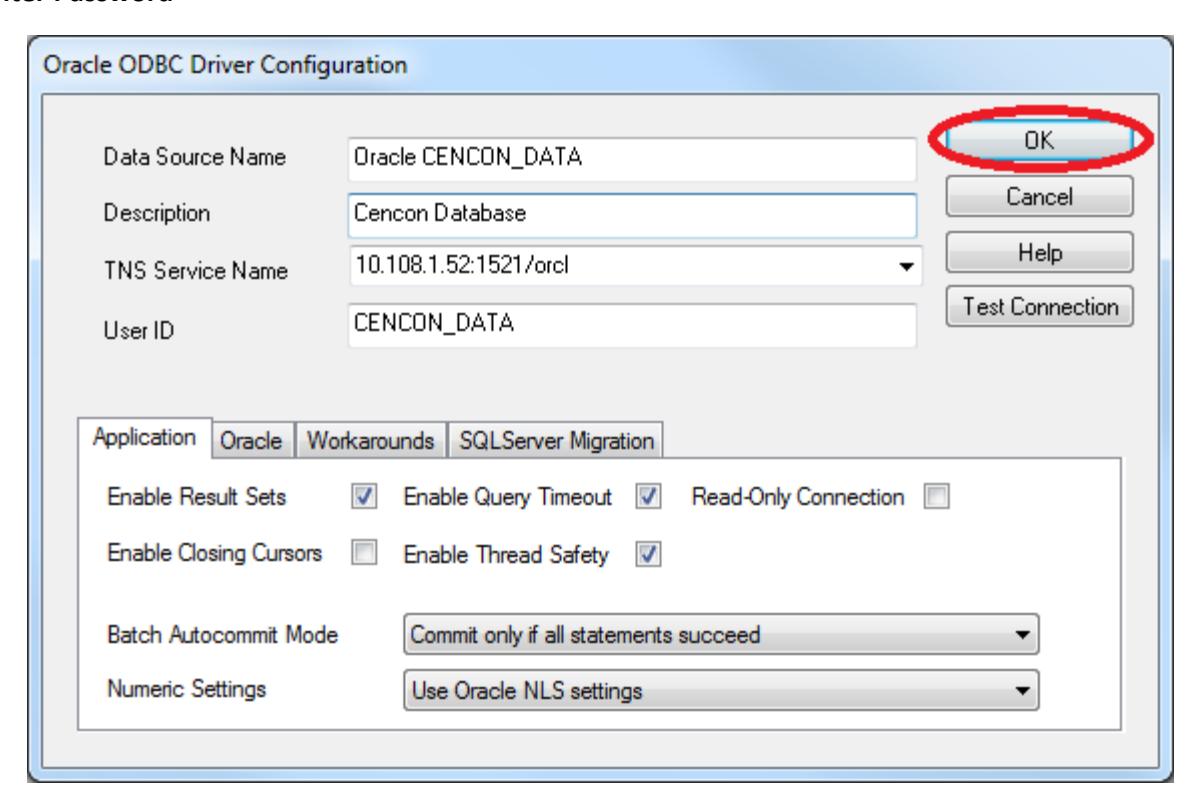
Type a name and type or use the drop down to select the server and instance.
Important Note
You will need to have created an Oracle database user to host the Cencon database. The Oracle database user you create will need to be configured with the minimum permissions as described under the Cencon Getting Started Guide Database User Permissions (Oracle) section.
4. Enter the desired Data Source Name
Enter the IP address of the server / the instance name
Enter User ID. User ID must be the user set up to host the Cencon database.
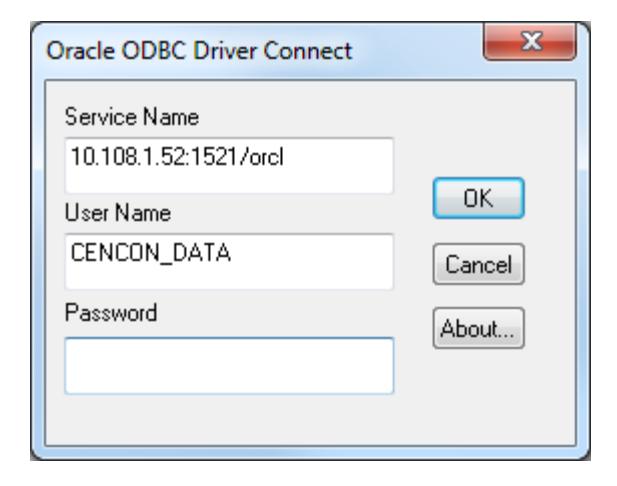
Click OK> Enter Password
© 1996-2013 Kaba Mas LLC
Document Number 2076.039 Rev. G 02/13 CenTran® 4.1.5 Getting Started Guide
Configure the CenTran Service
The CenTran service has some settings that are manually set in the Centran service configuration file. This file is named Centran.exe.config. Depending on your system settings, the file extension may be hidden.
You can edit the Centran.exe.config file by double clicking on it, and a default editor will be opened. You can also edit it with the Notepad application. The file is an XML formatted text file.
The Centran.exe.config file contains various configuration settings. If you change settings in the CenTran service configuration file, you will need to restart the CenTran service for the settings to take effect.
There are example Centran.exe.config files installed with Centran. These are contained in the Configuration Files directory installed within the application directory. There is one example file for using Windows authentication with the Centran web service and one example file for using user ID / password authentication with the Centran web service.
To use one of the example Centran.exe.config files, copy the file to the Centran application directory. Any changes to the Centran.exe.config file must be made before starting the Centran service. If you make changes to the Centran.exe.config file while the Centran service is already running, the changes will not be read until next time the Centran service is started.
appSettings Section
These settings are specific to the Centran service. Some of these settings are configured manually. A link to an overview of these settings is provided below.
system.serviceModel Section Group
These settings are related to the web service communications provided by CenTran. These entries are defined by the Microsoft Windows Communication Foundation. Detailed information about how these settings are used is beyond the scope of this manual. You can look up Microsoft Windows Communication Foundation documentation for more information. Additional documentation is available at: Windows Communication Foundation Configuration Schema
Links to overviews of these settings is provided below.
Configuration File Section Descriptions:
The following sections can be edited within the Centran configuration file:
- Configuration File appSettings Section
- Configuration File system.serviceModel / bindings Section
- Configuration File system.serviceModel / services Section
- Configuration File system.serviceModel / behaviors Section
- Configuration File system.diagnostics Section
© 1996-2013 Kaba Mas LLC
Configuration File - appSettings Section
The appSettings section contains settings used by the Centran service for it's internal operations, such as method of database access and security settings. The appSettings section has the following entries that you can adjust manually:
1. HTTP_Management_Directory:
This setting contains the directory to be used by the Centran service for files related to the web browser CenTran Management interface. This directory can be copied and translated as needed to customize CenTran for a different language. The default value is the CentranManagement directory in the CenTran service installation directory.
2. HTTP_Management_User_Name:
This is the name used to log onto the web browser CenTran Management interface. The default value is admin.
3. HTTP_Management_Password:
This is the password used to log onto the web browser CenTran Management interface. The default value is password.
4. HTTP_Management_URL:
This is the url endpoint used to host the web browser CenTran Management interface. The default value is https://+:443/CentranManagement/.
5. HTTP_Management_Certificate_Thumbprint:
This is the certificate thumbprint used to look up the certificate for encrypting the web browser CenTran Management interface. This value can be set to thumbprint of the certificate you want to use with the web browser Centran Management interface. You can also select a certificate and save its thumbprint to the Centran configuration file using the Centran Configuration Manager.
6. EventLogLimit:
This is the maximum number of log entries that CenTran is to keep in the CenTran event log. The default value is 5000000.
7. EventLogLimitGranularity:
This is the granularity used for checking if the current number of log entries needs to be reduced. The default value is 1000. This affects how often CenTran checks the size of the event log audit table it maintains internally. Decreasing this value causes CenTran to check more often. Increasing this value causes CenTran to check less often, but allows the event log to grow more between checks.
Any other entries appearing within this section are maintained internally by Centran, or set by use of the Centran web management interface.
© 1996-2013 Kaba Mas LLC
Configuration File - system.serviceModel / bindings Section
The bindings section is part of the system.serviceModel section group used to configure Windows Communication Foundation (WCF) settings. This section defines the various communications settings to be used by the web service endpoints provided by Centran. The following is a brief overview of this section.
webHttpBinding:
This subsection contains settings for REST model of web service communications. Each binding listed within this section defines how a web service endpoint does it's communications across HTTP or HTTPS, using standard HTTP GET and POST operations.
This type of web service communications is easily accessed from web browsers and web sites. It does not have the flexibility of operations that SOAP web service communications has.
The security section under each binding defines the type of encryption and user authentication to be used with the web service endpoint.
wsHttpBinding:
This subsection contains settings for SOAP web service communications. Each binding listed within this section defines how a web service endpoint does it's communications using SOAP (Simple Object Access Protocol).
This type of web service communications is not easily accessible from web browsers and web sites. However, it has a much greater degree of flexiblity and possible options than REST web service communications. An example of these options provided by SOAP is WS-ReliableMessaging, which allows support for handling network failures.
The security section under each binding defines the type of encryption and user authentication to be used with the web service endpoint.
There are many other types of web service communication bindings available. These two are given as defaults for use by Centran, but others could potentially be used.
© 1996-2013 Kaba Mas LLC
Configuration File - system.serviceModel / services Section
The services section is part of the system.serviceModel section group used to configure Windows Communication Foundation (WCF) settings. It is used to define the specific web service endpoints provided by Centran. The following is a brief overview of this section.
service:
Each service section defines the web service endpoints provided for a service from Centran. Within a service section is a set of endpoint entries. Each endpoint entry defines a web service URI and method of communications provided by Centran.
The service names can be one of the following:
Centran.CentranService
This is the main web service implemented by Centran. Any access to operations of this web service contract must have some form of user authentication, otherwise access will be refused (except for the Version and Hello operations). The default behavior used with this web service is centran_service_behavior already defined in the example Centran configuration files.
Centran.CentranFeedsService
This is the RSS feeds web service implemented by Centran. The operations provided by this web service contract are intended to support web RSS feeds to query alert information from Centran. Encryption and user authentication are not needed for this web service contract. Encryption is recommended, however. The default behavior used with this web service is centran_feeds_service_behavior already defined in the example Centran configuration files.
Centran.CentranAgentService
This is the web service for operations supporting the Centran Agent Service running on ATM console systems for remote access to Cencon locks. The operations provided by this web service contract are used to update status of locks in response to lock events detected by the Centran Agent Service. Encryption and user authentication are not needed for this web service contract. Encryption is recommended, however. The default behavior used with this web service is centran_agent_service_behavior already defined in the example Centran configuration files.
Each endpoint entry has the following items that it defines:
address
This is the address or URI that is provided by the web service. It can specifiy localhost to default to the current host server base address or can define a different address. This can also be used to define a different TCP port for the address.
binding
This is the type of binding used to define the communications used for the web service endpoint. The defaults for Centran are webHttpBinding or wsHttpBinding.
bindingConfiguration
This is the specific configuration of binding that is being used by the web service endpoint. This name must match one of the names defined from the matching binding section. This is used to define the encryption and user authentication used for the web service endpoint.
contract
This is the name of the web service contract implementation calls within Centran that is to be made accessable through the web service endpoint. The contracts that Centran provides can be one of the following:
Centran.ICentran
This is the main web service contract implemented by Centran. It defines access to the Centran.CentranService web service.
Centran.ICentranFeeds
This is the RSS feeds web service contract implemented by Centran. It defines access to the Centran.CentranFeedsService web service.
Centran.ICentranAgent
This is the web service contract for operations supporting the Centran Agent Service running on ATM console systems for remote access to Cencon locks. It defines access to the Centran.CentranAgentService web service.
behaviorConfiguration
This specifies what additional settings are to be used by the web service endpoint. These additional settings are defined by behavior entries under the behaviors / endpointBehaviors section. Default settings for endpoint behaviors are already defined in the example Centran configuration files.
© 1996-2013 Kaba Mas LLC
Configuration File - system.serviceModel / behaviors Section
The behaviors section is part of the system.serviceModel section group used to configure Windows Communication Foundation (WCF) settings. It is used to define additional settings for the web service endpoints provided by Centran.
The following is a brief overview of this section.
endpointBehaviors
This section defines endpoint behaviors used by the web service endpoints. This includes if help support is to be generated for a specific endpoint.
serviceBehaviors
This section defines the web service behaviors for each web service provided by Centran. This includes what certificate is used for encryption with a web service provided by Centran, under the serviceCredentials section. The serviceCredentials section has two entries:
serviceCertificate
This section defines what certificate is used by the web service for communications encryption. It is composed of the following entries:
findValue
This is the unique value used to find the certificate in the indicated certificate store. The way this value is used is determined by the x509FindType that is set. In the case of FindByThumbprint, this value will be composed of a unique hexadecimal thumbprint value associated with the desired certificate.
storeLocation
This specifies if the certificate is stored associated with the current user account or with a system account. For the Centran service to access the certificate, this must be set to LocalMachine to indicate a system account.
storeName
This specifies the store name that the certificate is in. For the Centran service, this must be My to indicate the certificate store for personal certificates.
x509FindType
This indicates how the certificate is to be uniquely identifies, based off of various values associated with the certificate. The recommended default is FindByThumbprint.
The Centran Configuration Manager has support for creating self signed certificates for use by the Centran service. You can also use a server certificate as provided by your network certificate authority server. Using a certificate as provided by your network certificate authority server is the preferrable way to set up your network security.
Whatever the source of your Centran server certificate, you can specify the certificate within the configuration file manually, or you can set it using the Centran Configuration Manager.
The Centran server certificate must have a name matching the way you are going to address the Centran web service. If it is by server name, then the certificate name must match the server name. If it is by IP address, then the certificate name must match the IP address.
userNameAuthentication
This section defines the internal method of support for user names and passwords implemented by Centran. The default settings for this entry should not be changed from what is provided with the example Centran configuration files.
© 1996-2013 Kaba Mas LLC
Configuration File - system.diagnostics Section
The system.diagnostics section is used to configure Windows Communication Foundation (WCF) diagnostic output for tracing operations. This is useful to troubleshoot issues with communications with the Centran web service.
The default entry in the example Centran configuration files for the system.diagnostics section has diagnostic output enabled. If you wish to disable diagnostic output for performance reasons, you can comment out this section and Windows Communiction Foundation (WCF) diagnostic output will be disabled.
Additional information is available in the Windows Communiction Foundation (WCF) diagnostic output set up from the Centran configuration file. The default settings from the Centran configuration file creates a diagnostic output file for Windows Communication Foundation (WCF) events, named WcfServiceTrace.svclog. This file will be created within the application directory the Centran service is installed to. This file can be viewed using the Microsoft Service Trace Viewer (SvcTraceViewer.exe). Double clicking on the file will automatically open the file under the Microsoft Service Trace Viewer.
The Microsoft Service Trace Viewer is available as a free download within the Windows Platform SDK.
© 1996-2013 Kaba Mas LLC
Set Up Centran Server Certificates
For a web service to make use of encryption or user authentication, it requires a server certificate to be configured for use by that web service. The operation and concepts behind certificates and the Transport Layer Security Protocol (TLS) are beyond the scope of this manual. The following is a link to describe some of these concepts:
SSL/TLS Strong Encryption: An Introduction
Ideally, your organization will have a server configured to be a certificate authority for managing the security of communications on your network. If you do not have support for managing certificates on your network, you can set up a self signed certificate and distribute it manually to the systems that are going to be accessing the Centran web service.
To assist with this process, the Centran Configuration Manager has support for creating certificates and configuring it in the Centran configuration file for you.
The Centran Configuration Manager has support for setting up a self signed certificate authority (CA) certificate. It can then use this certificate to create a signed server certificate for Centran. It can also set up information for this certificate in the Centran configuration file.
To set up Centran server certificates, select Centran Configuration Manager from the Centran entry under the Windows Start menu. Then select the Self Signed Certificates tab. You should see the following tab:
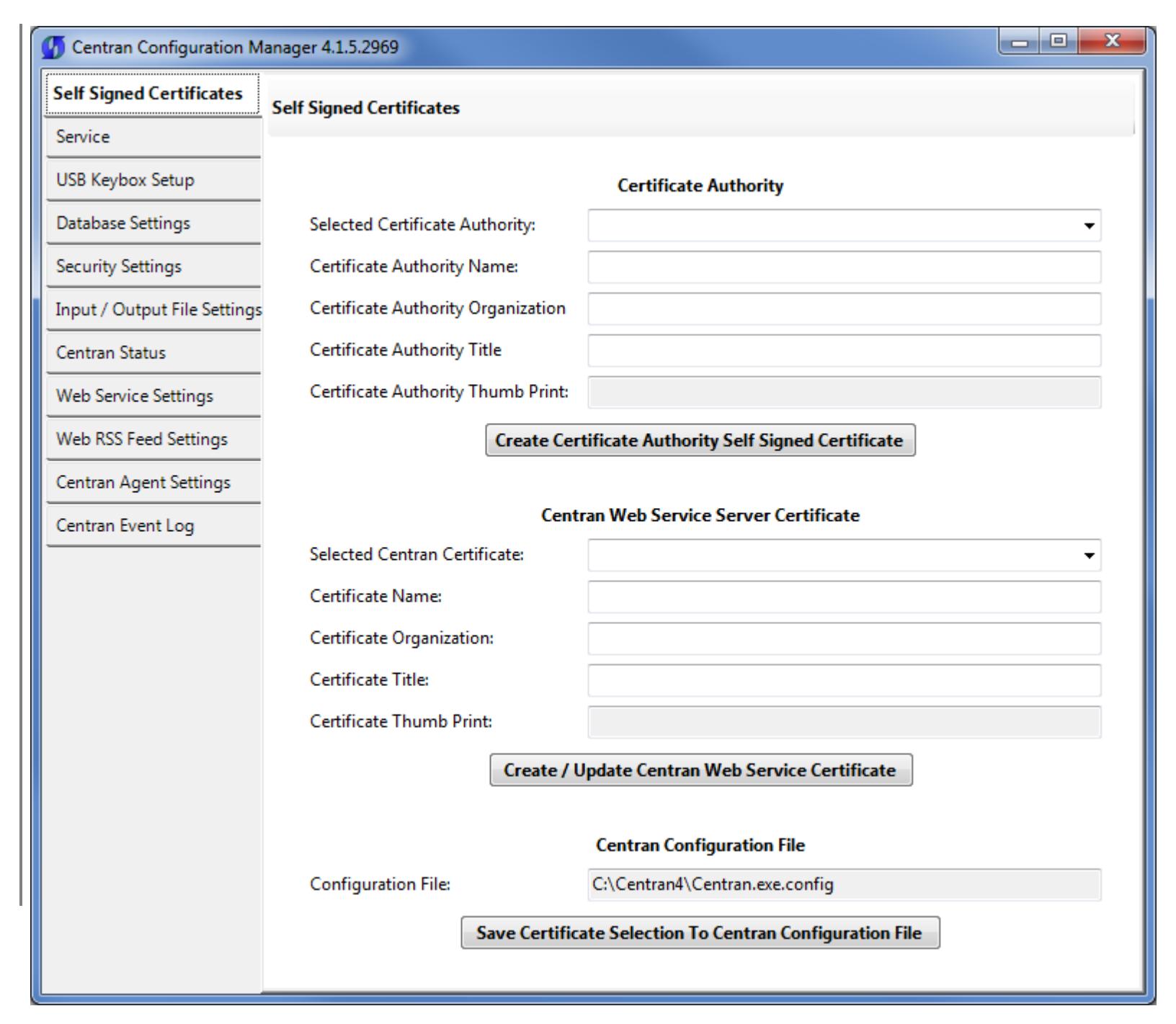
You can select an existing certificate authority certificate to sign with, or create a new one. You can select any certificate in the local machine root authority store that you have a private key for from the dropdown menu labeled Selected Certificate Authority To Sign With.
If you create a new certificate authority certificate, it will be placed in the local machine root authority store. Enter the name, organization, and title you want to use and select Create Certificate Authority Self Signed Certificate. This will create a new certificate authority certificate and place it in the local machine root authority store.
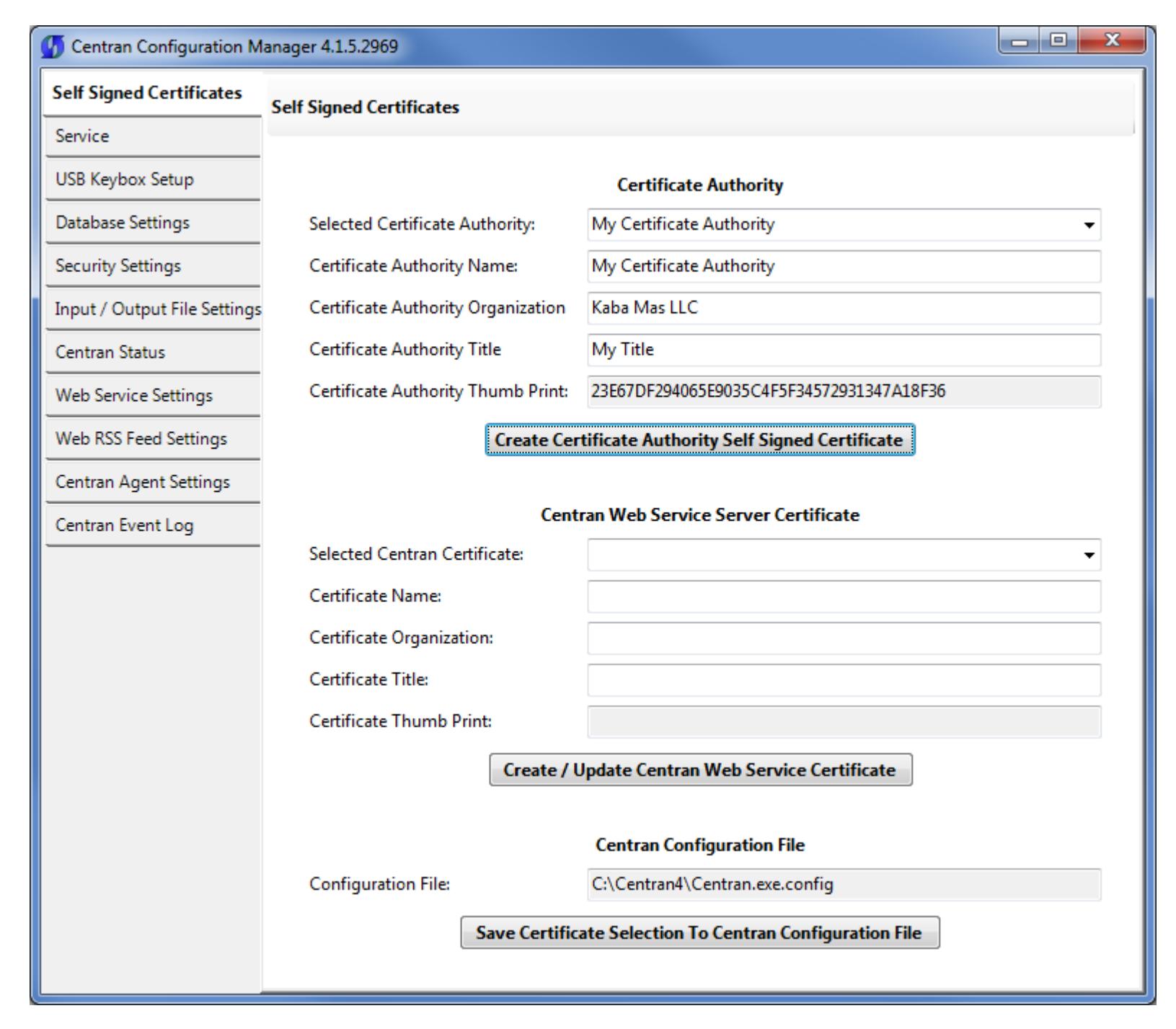
Next, you can use your selected certificate authority (CA) certificate to create a signed server certificate for use by Centran.
First enter the name you will use to access Centran in the Certificate Name field.
It is very important that this name matches how you are going to address Centran in a browser. If this is by server name, then the server name needs to be the name of the certificate. If it is by IP address, then the IP address needs to be the name of the certificate.
Enter in an organization name and title as desired, and select Create / Update Centran Web Service Cerficate. The certificate will be created, and selected in the dropdown menu labled Selected Centran Certificate.
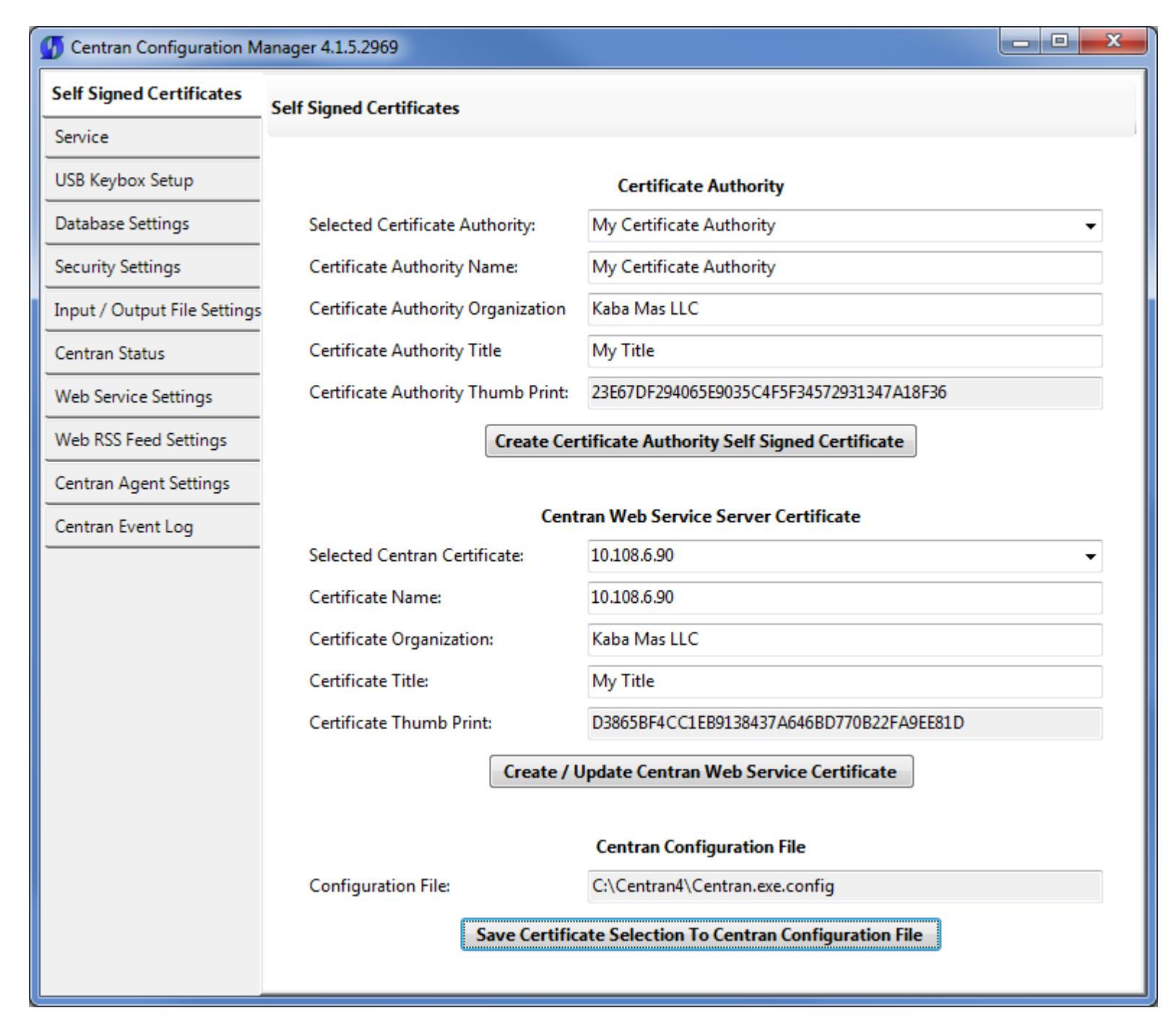
Lastly, you can have the Centran Configuration Manager set up the selected certificate in the Centran configuration file. Select the Save Certificate Selection To Centran Configuration File. This will update the Centran configuration file with information for your selected server certificate.
Any systems that you want to trust the Centran web service through browser access will need to have the selected certificate authority (CA) certificate (not including private key), imported over to them.
© 1996-2013 Kaba Mas LLC
Install / Start the CenTran Service
To install and start the CenTran service, select Centran Configuration Manager from the Centran entry under the Windows Start menu. Click on the Service tab. You should see the following tab page:
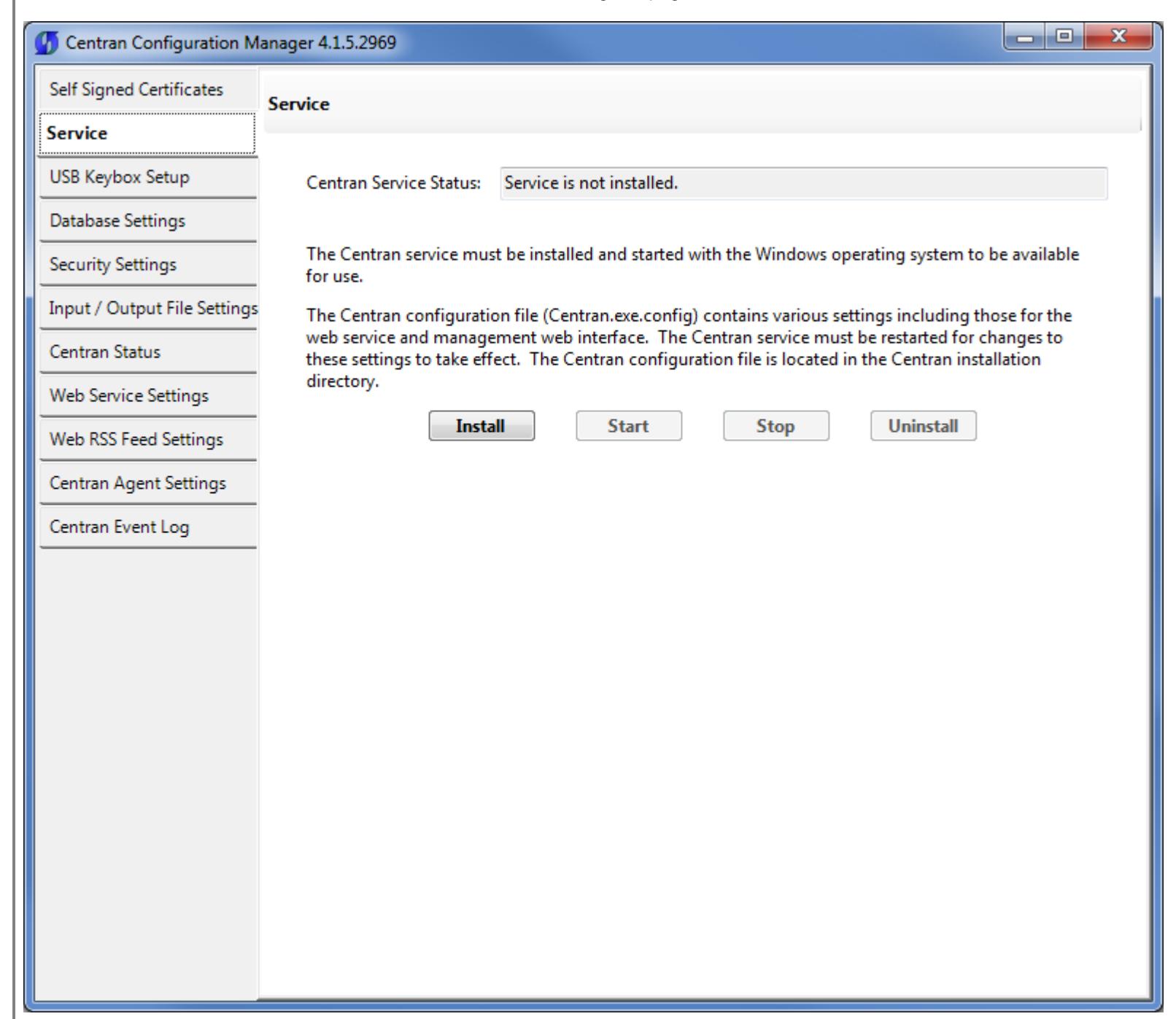
Select the Install button to install the CenTran service with the operating system.
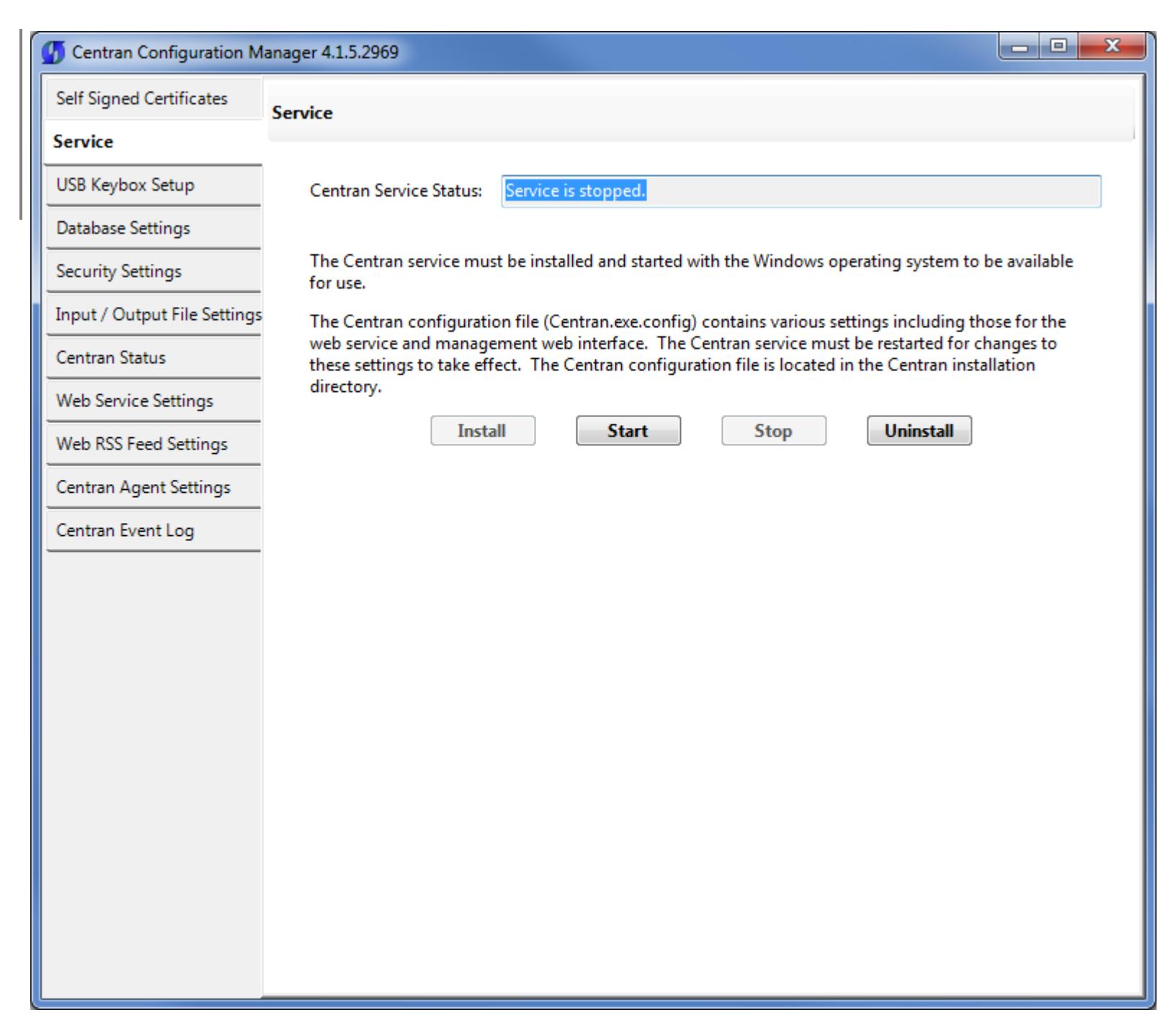
Make sure you have completed any changes to the CenTran service configuration file. Select the Start button to start the CenTran service with the operating system.
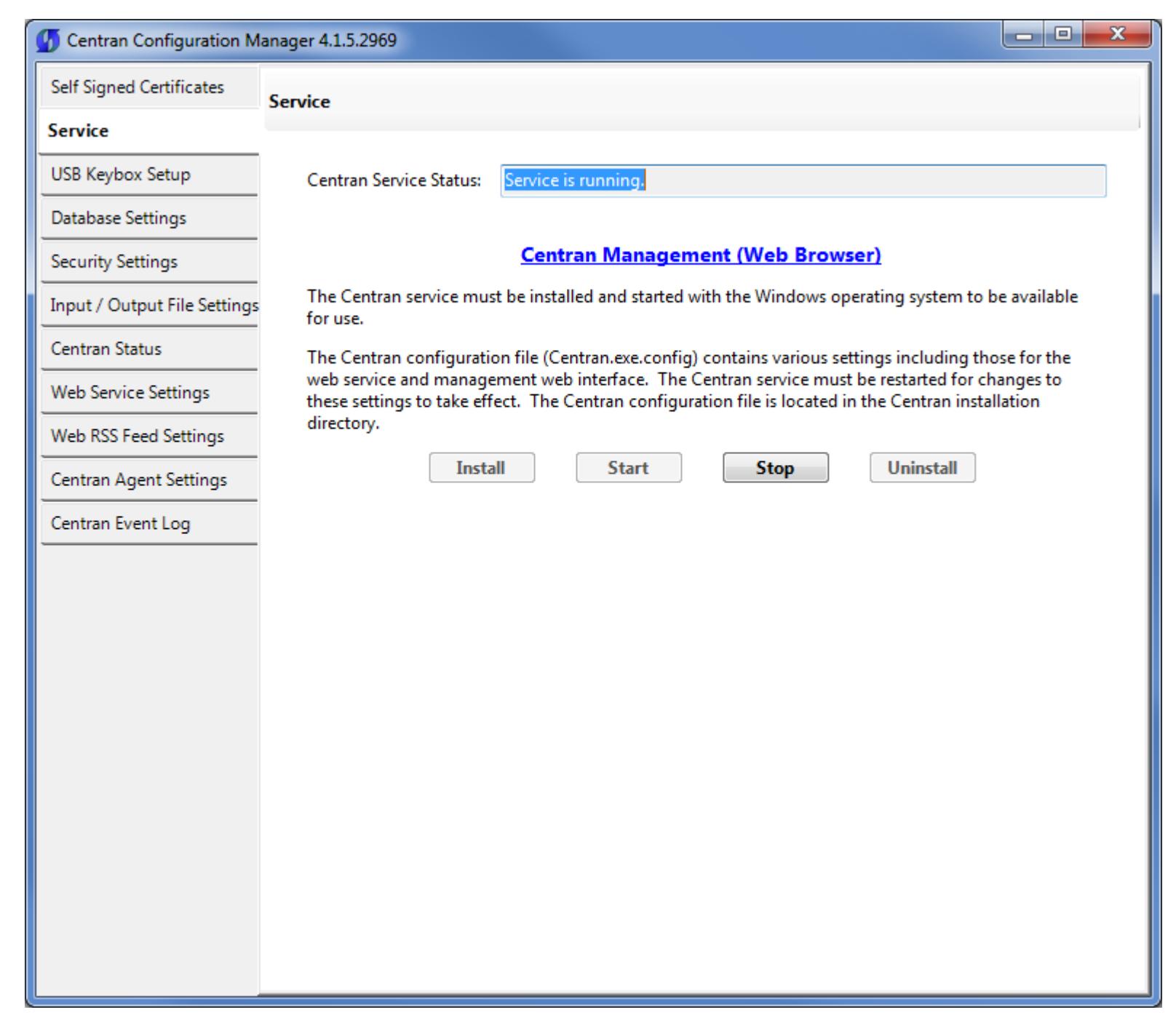
You will now have a link available to open the Centran Management interface in your default web browser. Your web browser must support HTML5 and CSS3. This includes the following browsers:
- 1. Internet Explorer 9 or higher
- 2. Firefox 10 or higher
- 3. Google Chrome 16 or higher
- 4. Apple Safari 5 or higher
If you are using Internet Explorer, you must have compatibility mode for intranet sites turned off under the Tools menu. Press Alt-T to open the tools menu in Internet Explorer to get to this setting.
You can now manage Centran settings either directly through the Centran Configuration Manager or through the web browser Centran Management interface. You will now need to set up the Centran settings using one of these two methods, and then you can start processing lock transactions using Centran.
© 1996-2013 Kaba Mas LLC
Configure the Centran Service using Centran Configuration Manager
The Centran Configuration Manager supports directly managing a running Centran service on the same computer. It does not support managing a Centran service running on a different computer. To manage a running Centran service, you must have already set up the appropriate Centran configuration file settings and certificates. You must have also installed and started the Centran service.
Managing the Centran service:
The following sections describe setting up and managing the Centran service using the Centran Configuration Manager:
- Setup Keybox
- Select ODBC Database Connection
- Set Company Number
- Set File Settings
- Start Transaction Processing
- View Web Service Settings
- View Web RSS Feed Settings
- View Centran Agent Settings
- View Centran Event Log
- Stop Transaction Processing
© 1996-2013 Kaba Mas LLC
CenTran 4.1.5 Getting Started Guide Setup Keybox
Click on the USB Keybox Setup tab on the Centran Configuration Manager:
You should see the following tab page displayed by the Centran Configuration Manager:
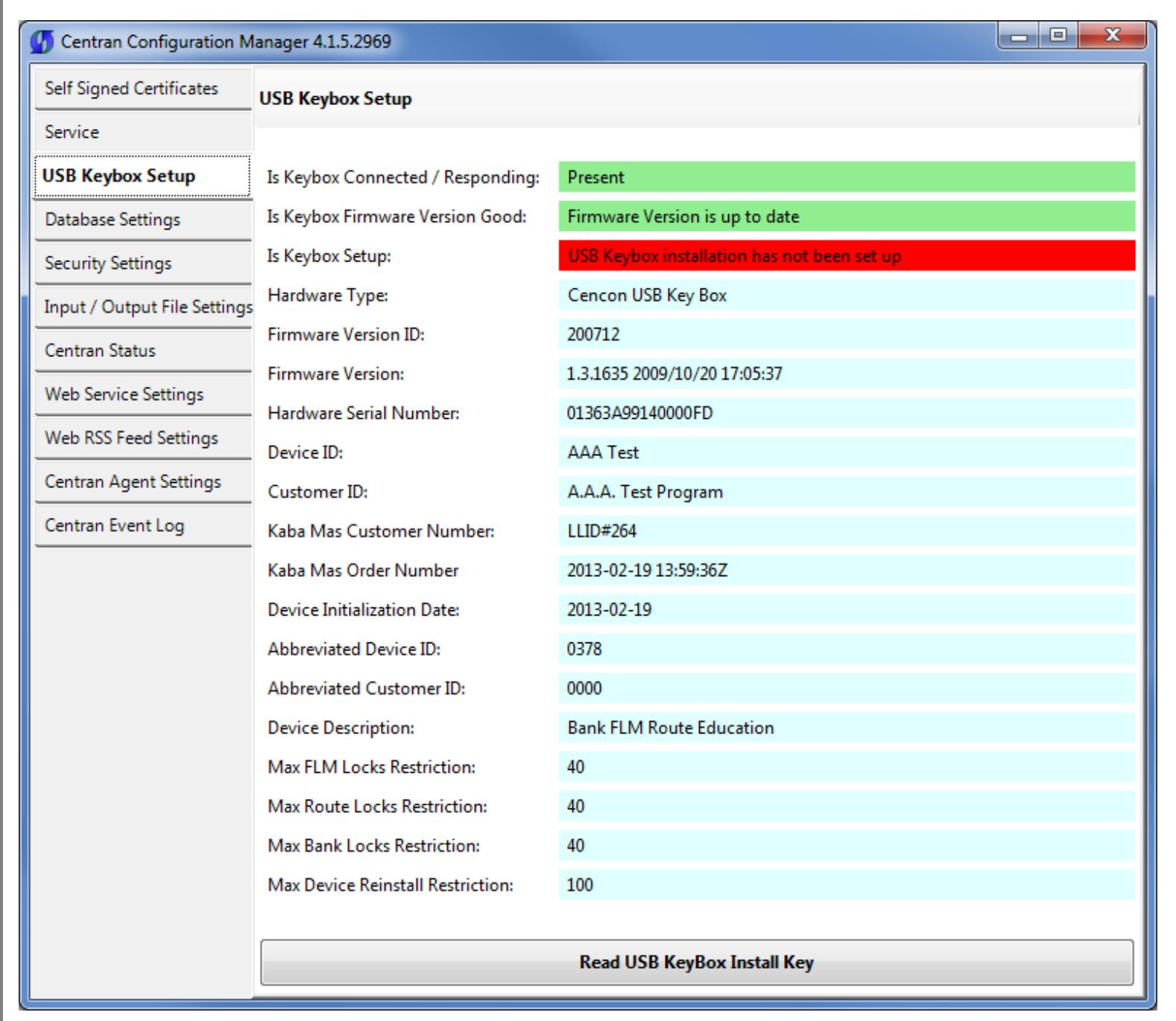
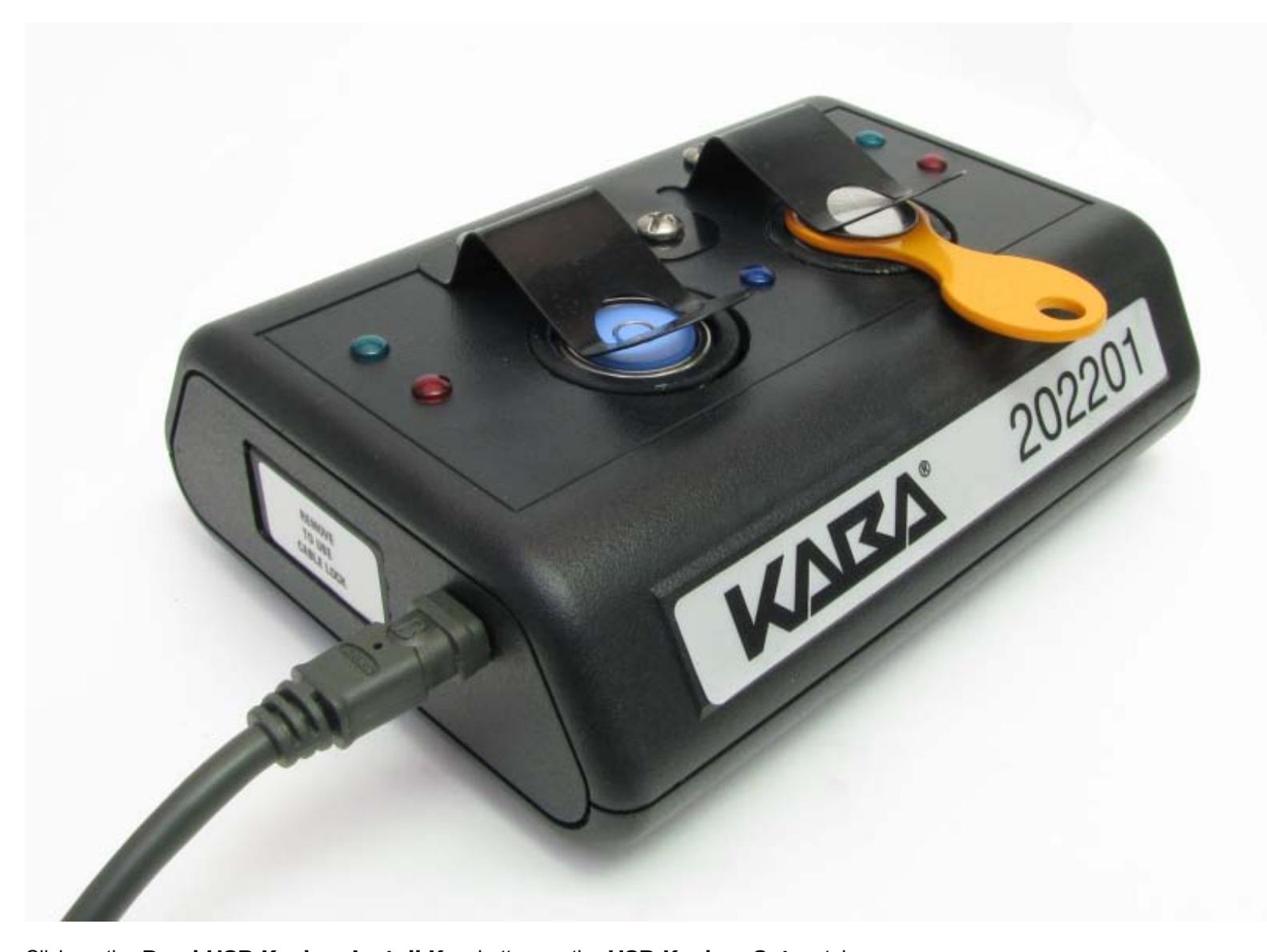
Place your Keybox install key in the first port of the keybox: (This will be the port farthest away from the USB connection.)
Click on the Read USB Keybox Install Key button on the USB Keybox Setup tab page.
You should see the following in the USB Keybox Setup tab page.
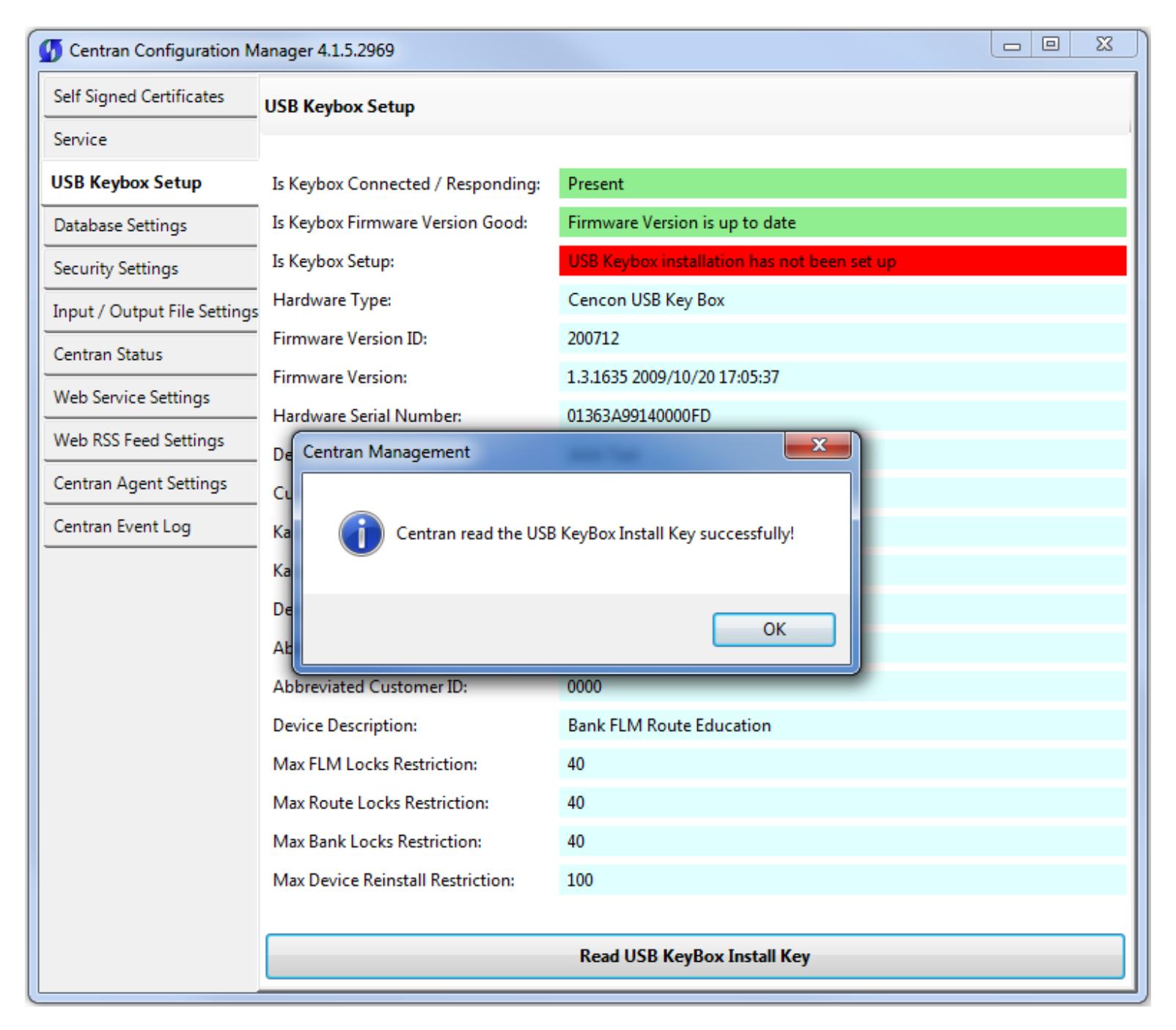
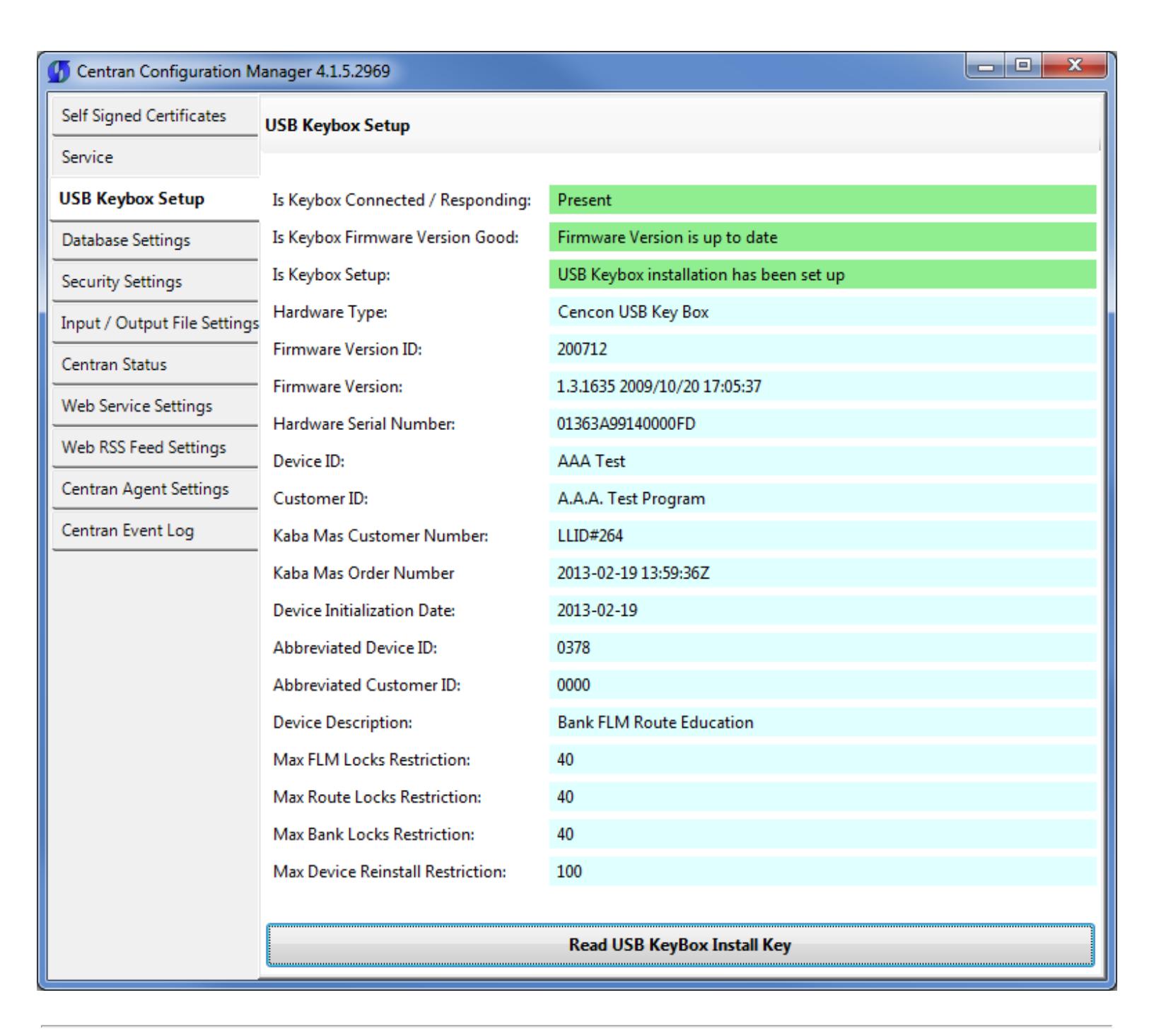
Click on the OK button on message box.
You should see the following in the USB Keybox Setup tab page.
© 1996-2013 Kaba Mas LLC
CenTran 4.1.5 Getting Started Guide Select ODBC Database Connection
Click on the Database Settings tab on the Centran Configuration Manager:
You should see the following tab page displayed by the Centran Configuration Manager:
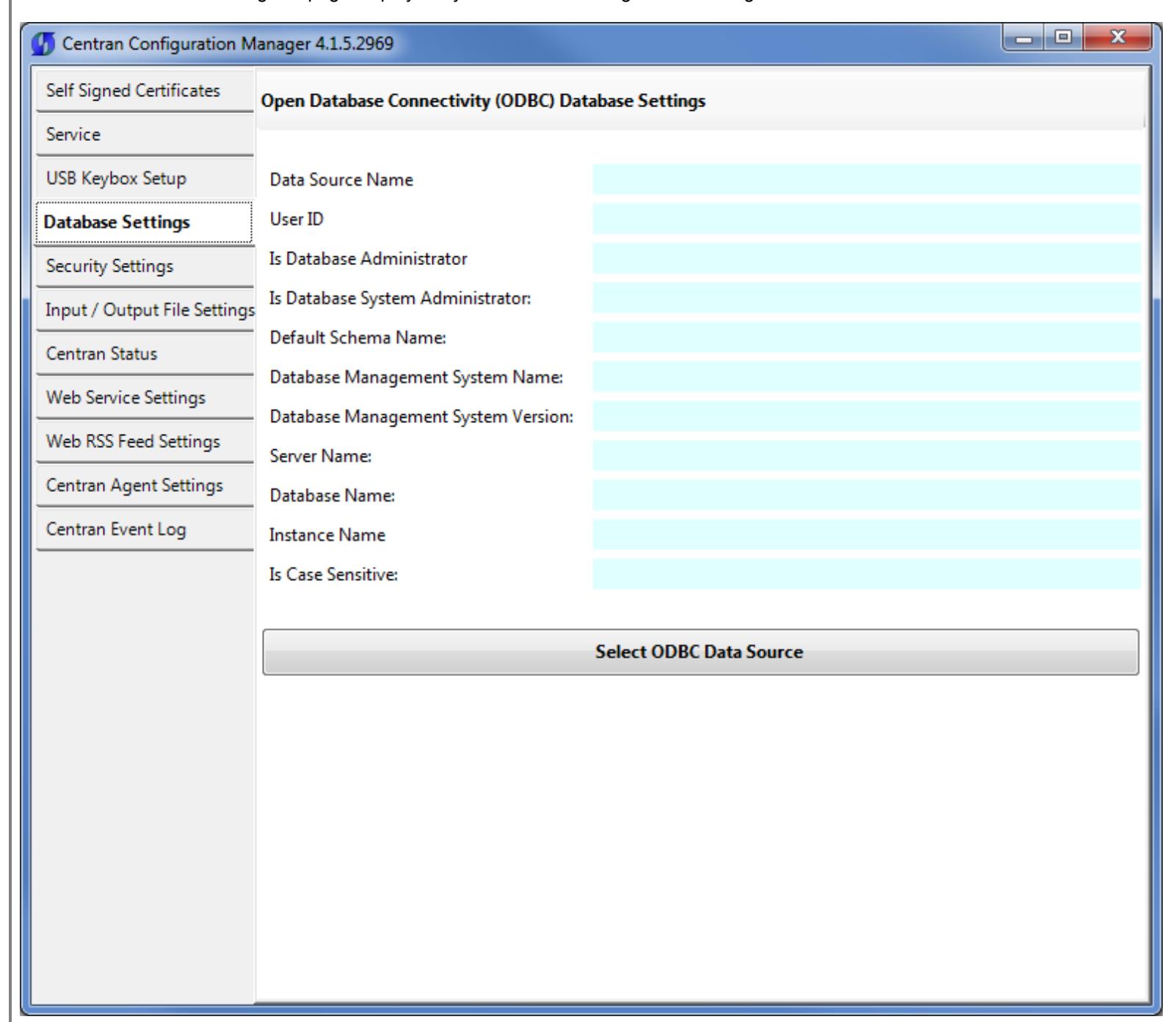
You will need to have set up an ODBC database connection specifying the database you want to use. The ODBC database connection will need to be configured to use SQL authentication. Click on the Select ODBC Data Source button. You should see the following dialog displayed:
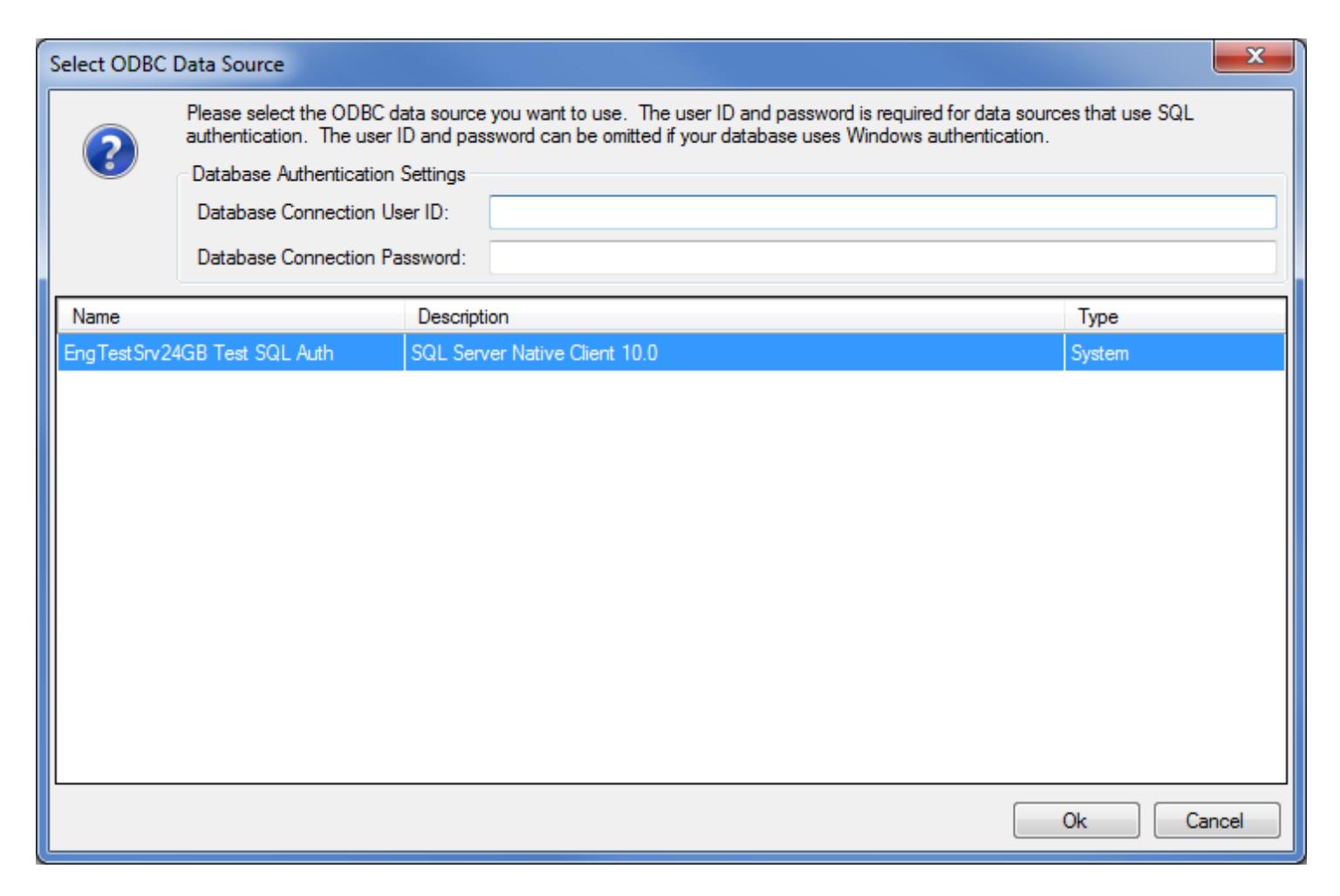
Select the ODBC database connection you want to use. For SQL authentication, you will also need to enter a user name and password for the CenTran service to use with the database connection.
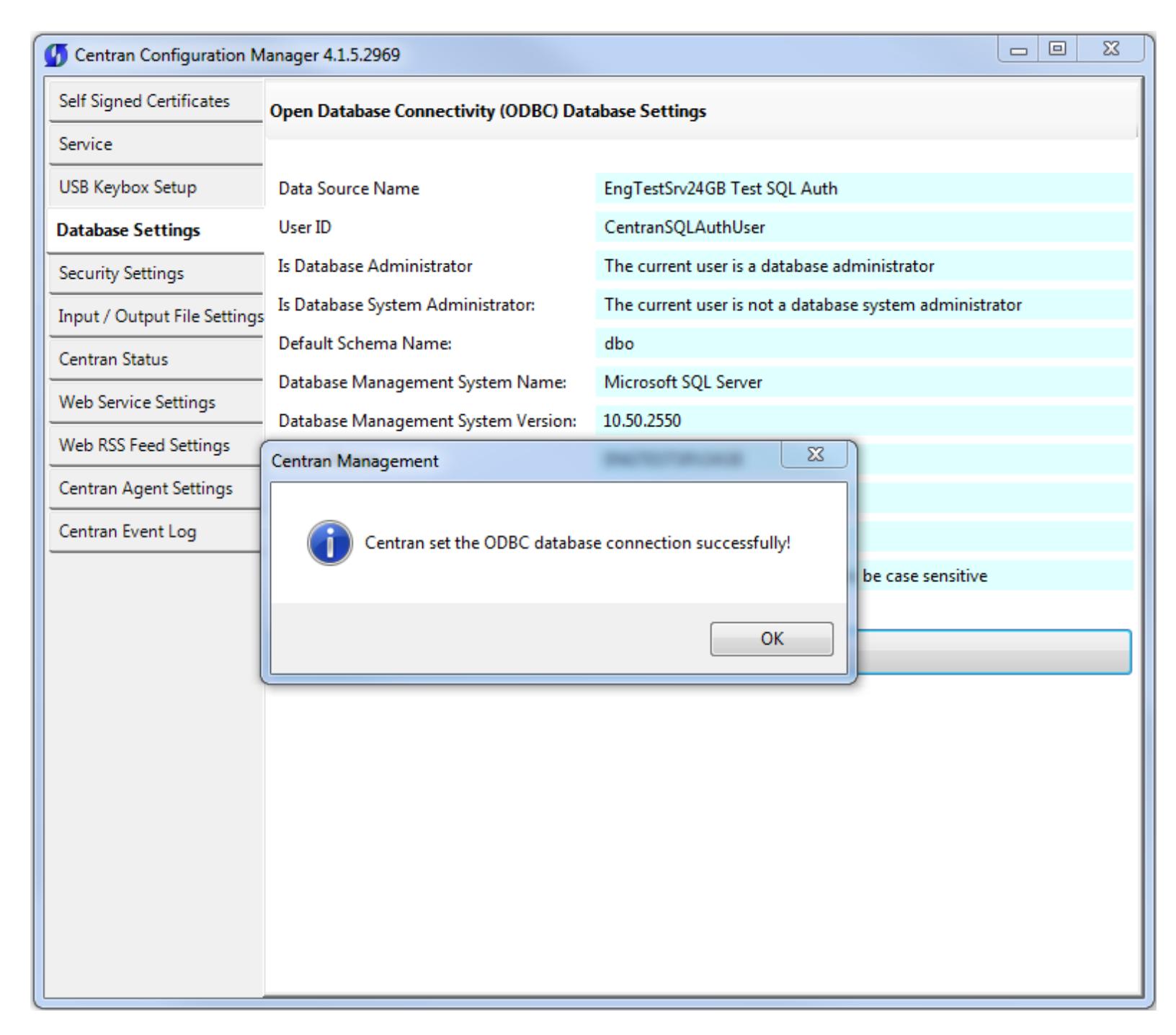
Click on the OK button on message box.
You should see something similar to the following tab page displayed by the Centran Configuration Manager, depending on your database configuration:
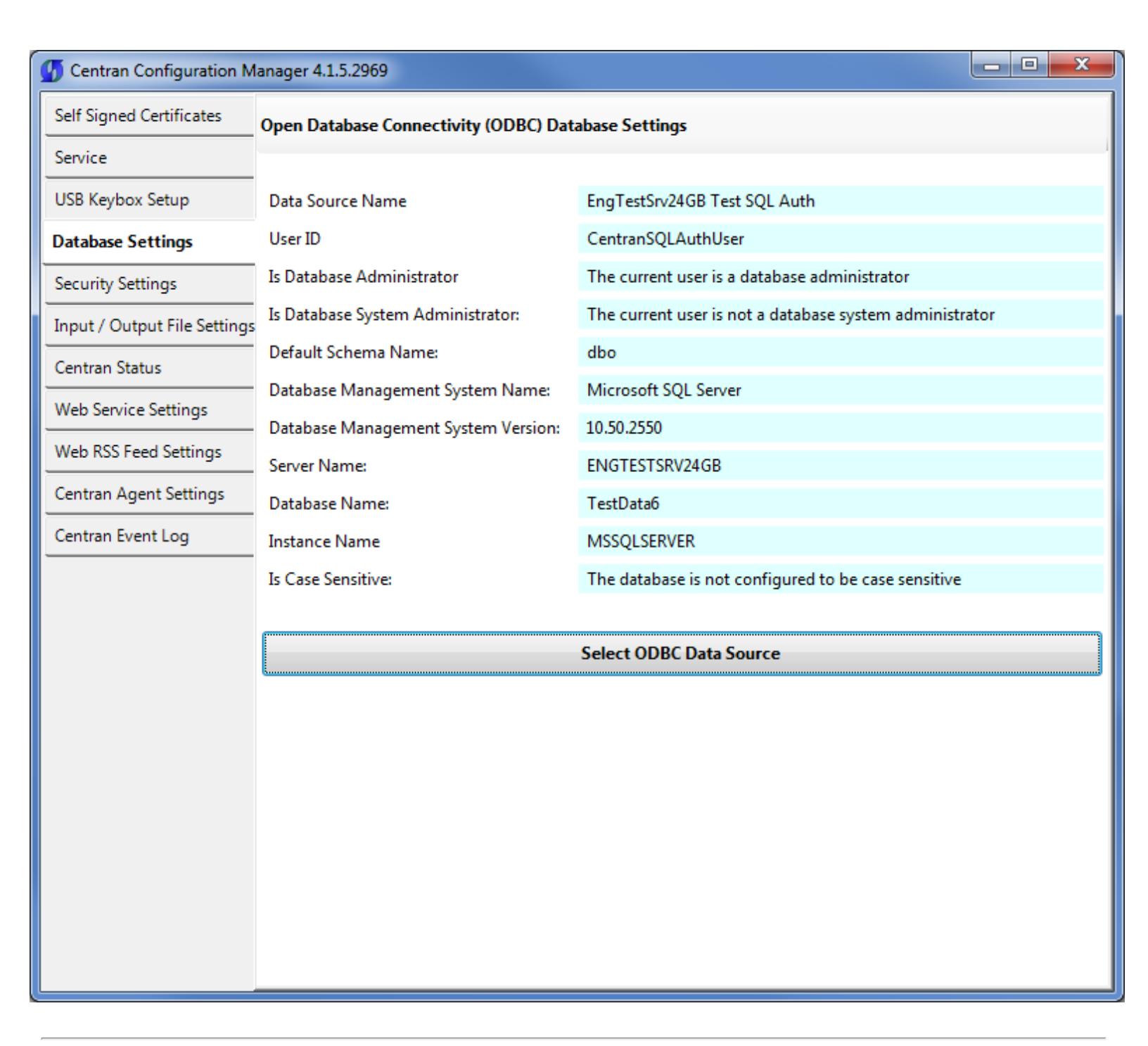
© 1996-2013 Kaba Mas LLC
Set Company Number
Click on the Security Settings tab on the Centran Configuration Manager:
You should see the following tab page displayed by the Centran Configuration Manager:
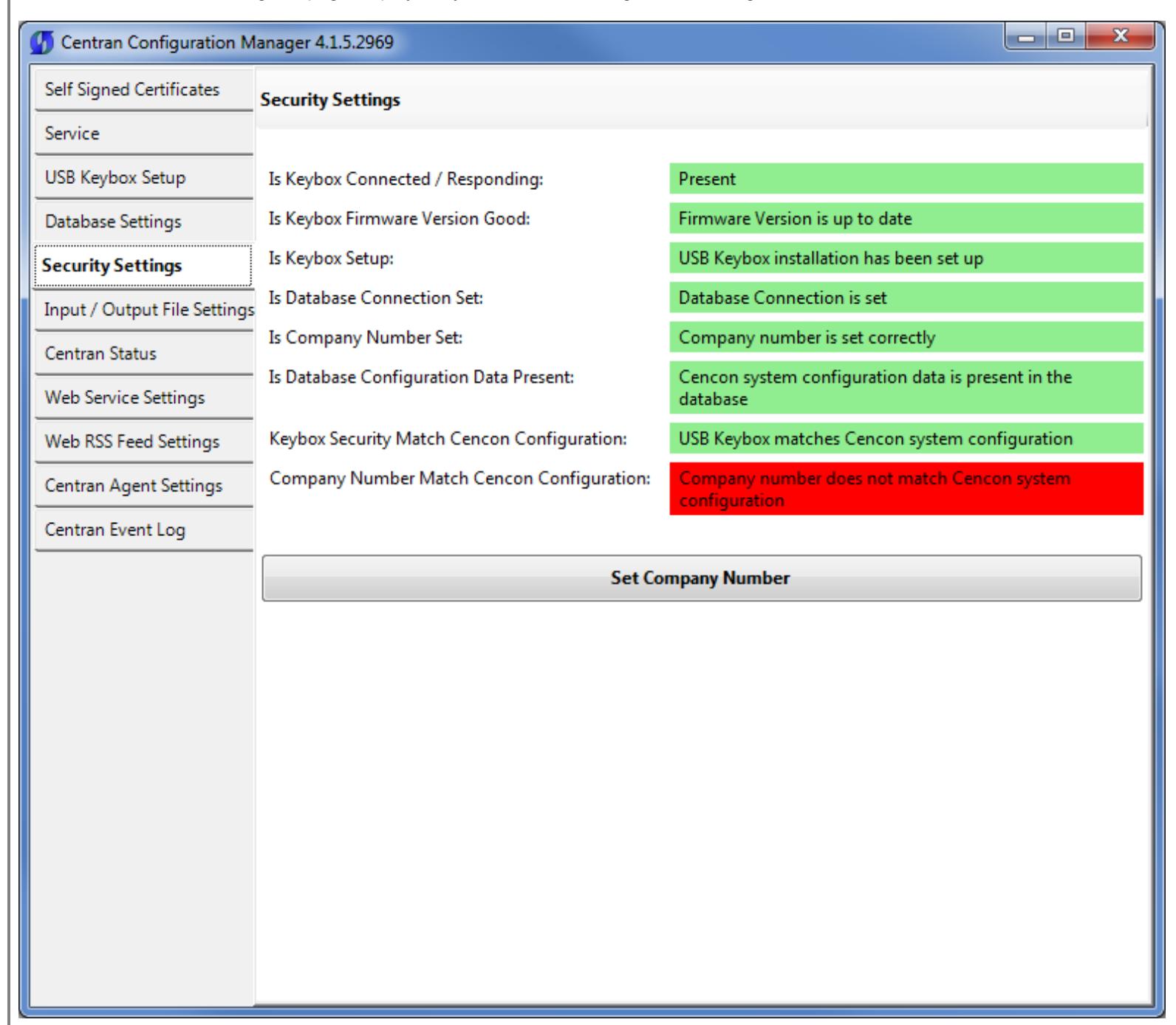
Click on the Set Company Number button. You should see the following dialog displayed:
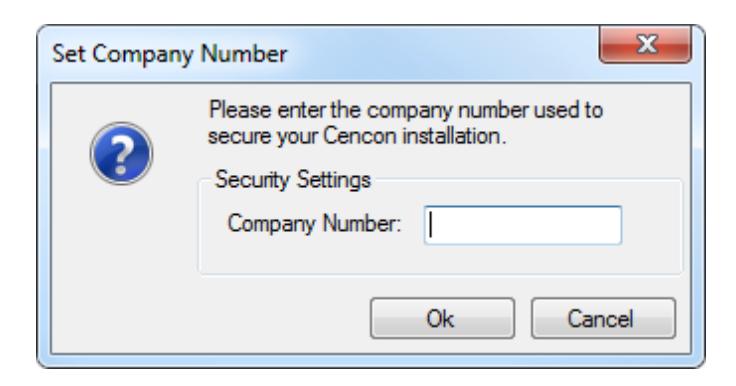
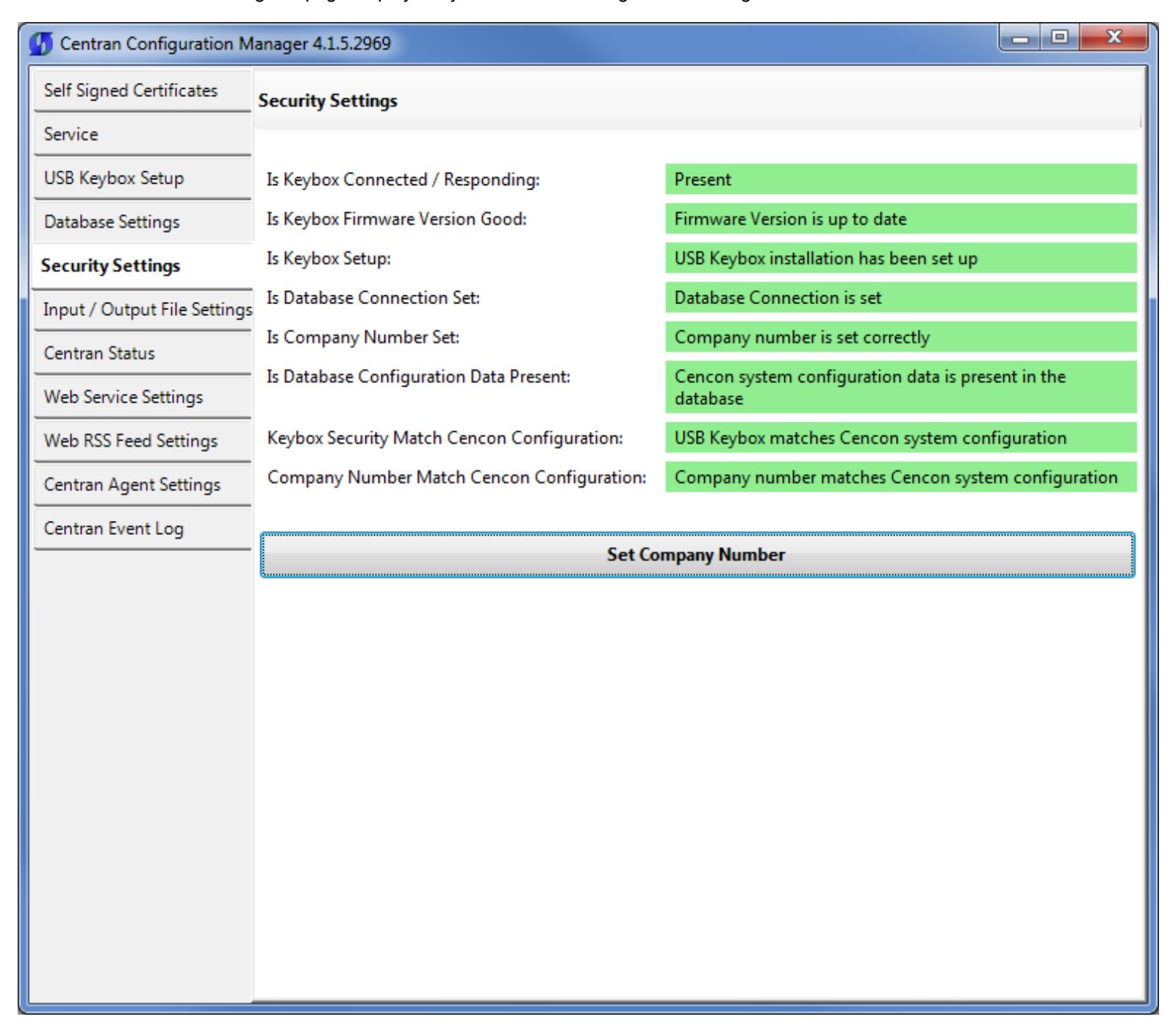
Enter the 4 digit company number you are using with Cencon. This is a sensitive piece of security information that is part your security with the Cencon system. You should record it and keep it in a secure place. The company number you enter for use by the CenTran service must match the one you are using with Cencon.
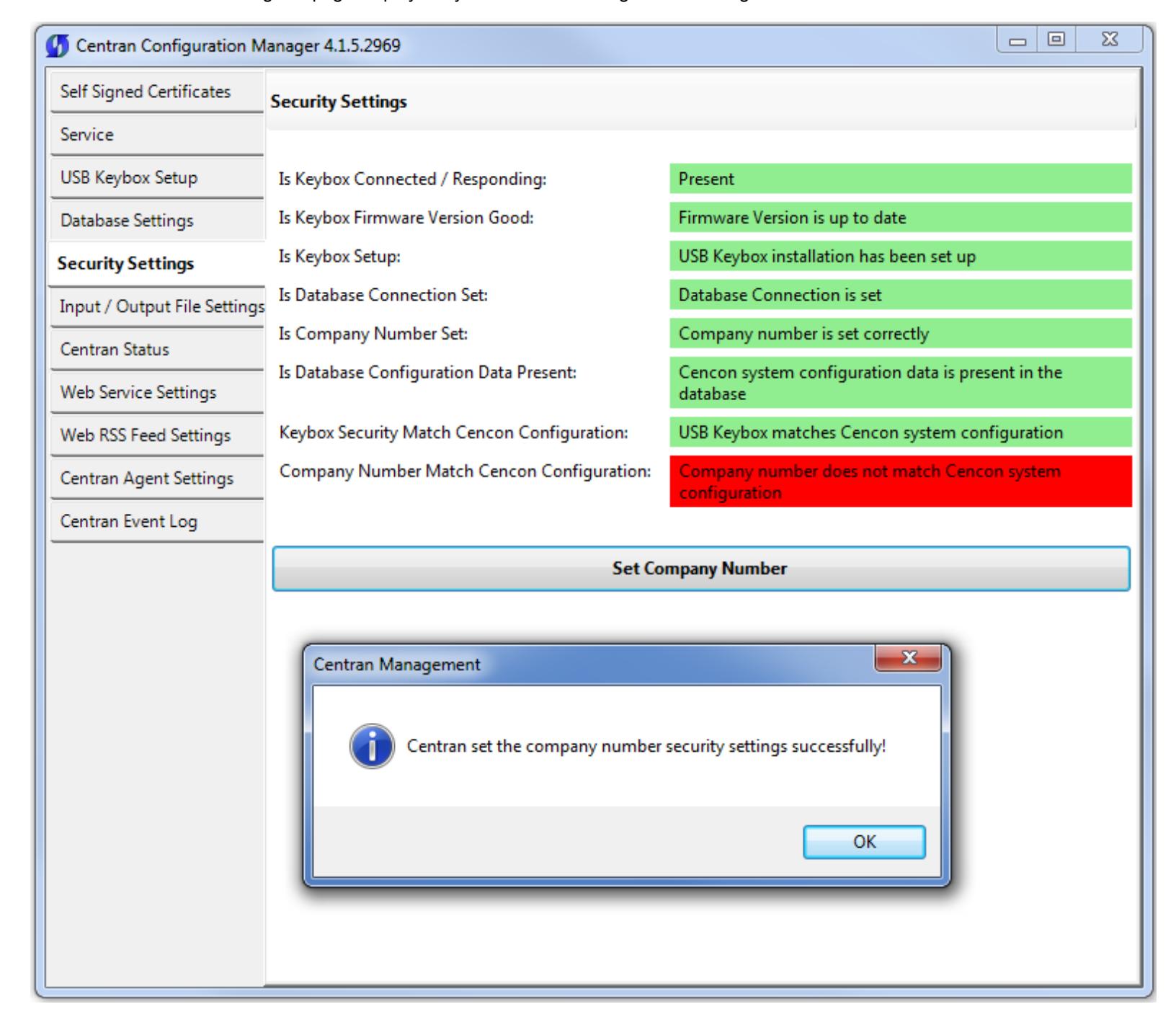
Click on the OK button on message box.
You should see the following tab page displayed by the Centran Configuration Manager:
© 1996-2013 Kaba Mas LLC
CenTran 4.1.5 Getting Started Guide Set File Settings
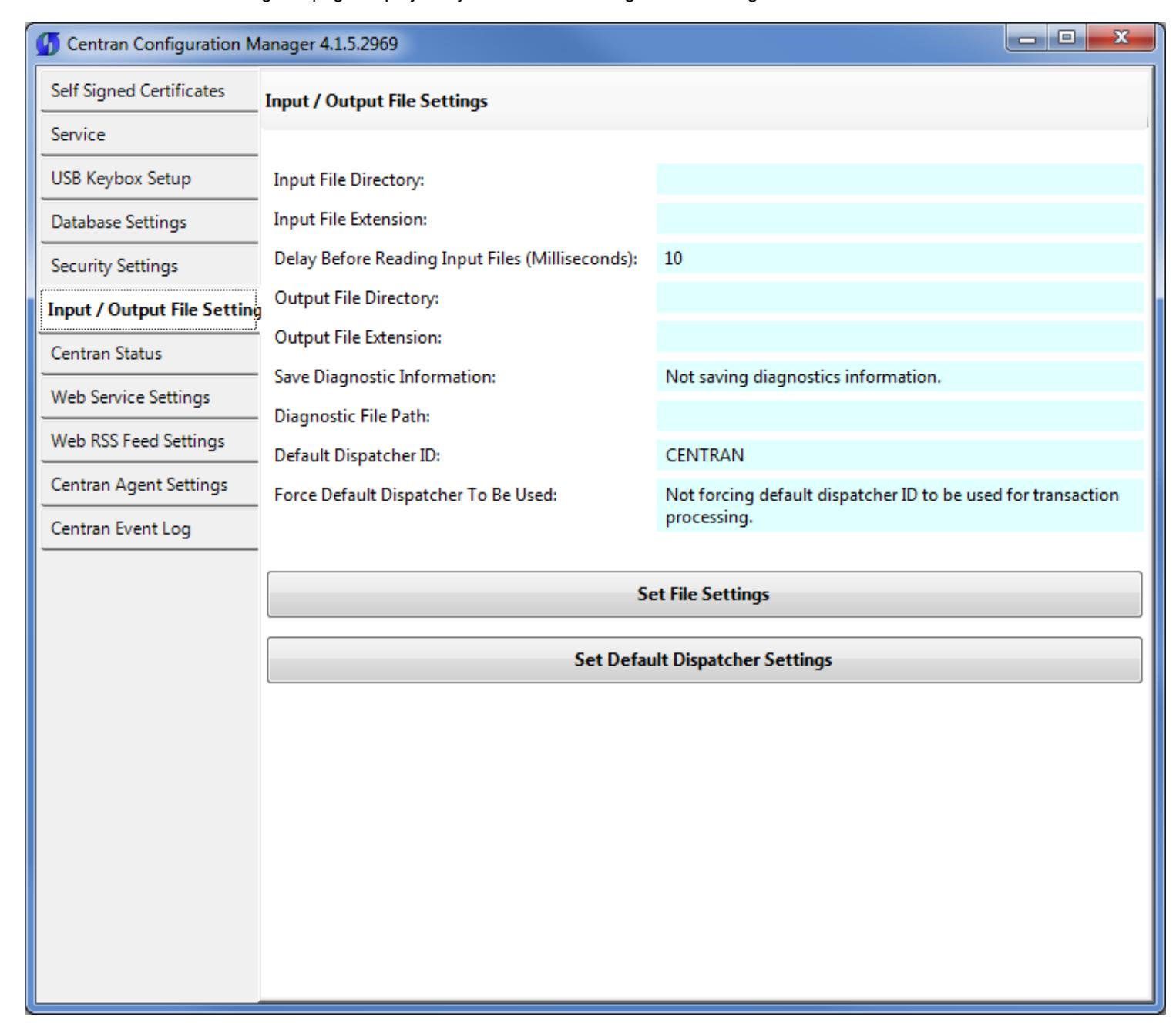
1. Click on the Input / Output File Settings tab on the Centran Configuration Manager:
-
2. You will need to setup an input directory and an output directory for Centran to receive file transactions and return the response.
- Input Directory The input directory is the directory where CenTran reads transactions being sent to it. It looks in this directory for files representing lock transactions to be processed. You will need to create an input directory that you want to use for CenTran to listen for incoming file transactions.
- Input File Extension The input file extension defined here is the file extension CenTran looks for when attempting to find transaction input files in the input directory that has been identified. If an input file extension is not set, then the CenTran service will attempt to read any file placed in the input directory.
- Input File Delay The delay before reading next input transaction file setting is intended to allow a delay after detecting a file and before reading it. It is possible for an error in reading the input file to occur if it has not been completely written to the input directory yet. This delay allows the write of the input file to complete before the CenTran service reads the file. This delay begins when a transaction file is detected in the input directory by CenTran.
- Output Directory The output directory is the directory where CenTran places the output files containing the results of processed transactions. This directory can be the same directory as the one used to contain input files. If the two directories are the same, then the files must have different extensions assigned. You will need to create an output directory that you want to use for CenTran to write output files to.
- Output File Extension The output file extension is the file extension placed by CenTran at the end of output file names. The file names will be the same as the input file names, except for the file extension. If an output file extension is set, then that extension will be placed at the end of output files produced by CenTran.
Note
Centran has been validated against the SuperSpeed RamDisk Plus software. This software allows you to use a ram disk as the file location used for transferring Centran transaction files. This improves performance and speed of transferring Centran transaction files, and eliminates hard drive wear from transferring Centran transaction files. This software is available at http://www.superspeed.com/desktop/ramdisk.php. SuperSpeed RamDisk is a Microsoft Certified software.
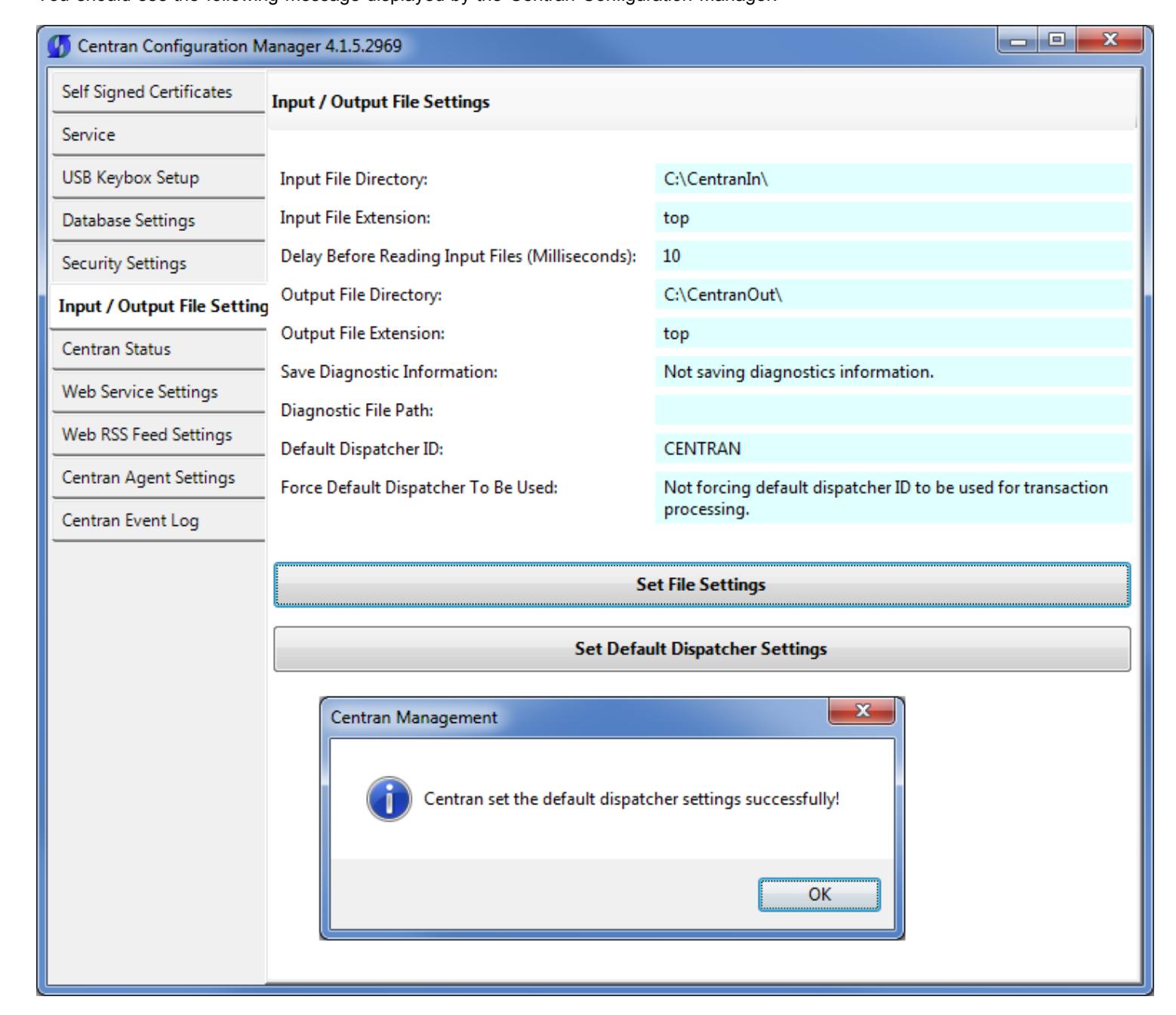
3. Click on the Set File Settings button. You should see the following dialog displayed:
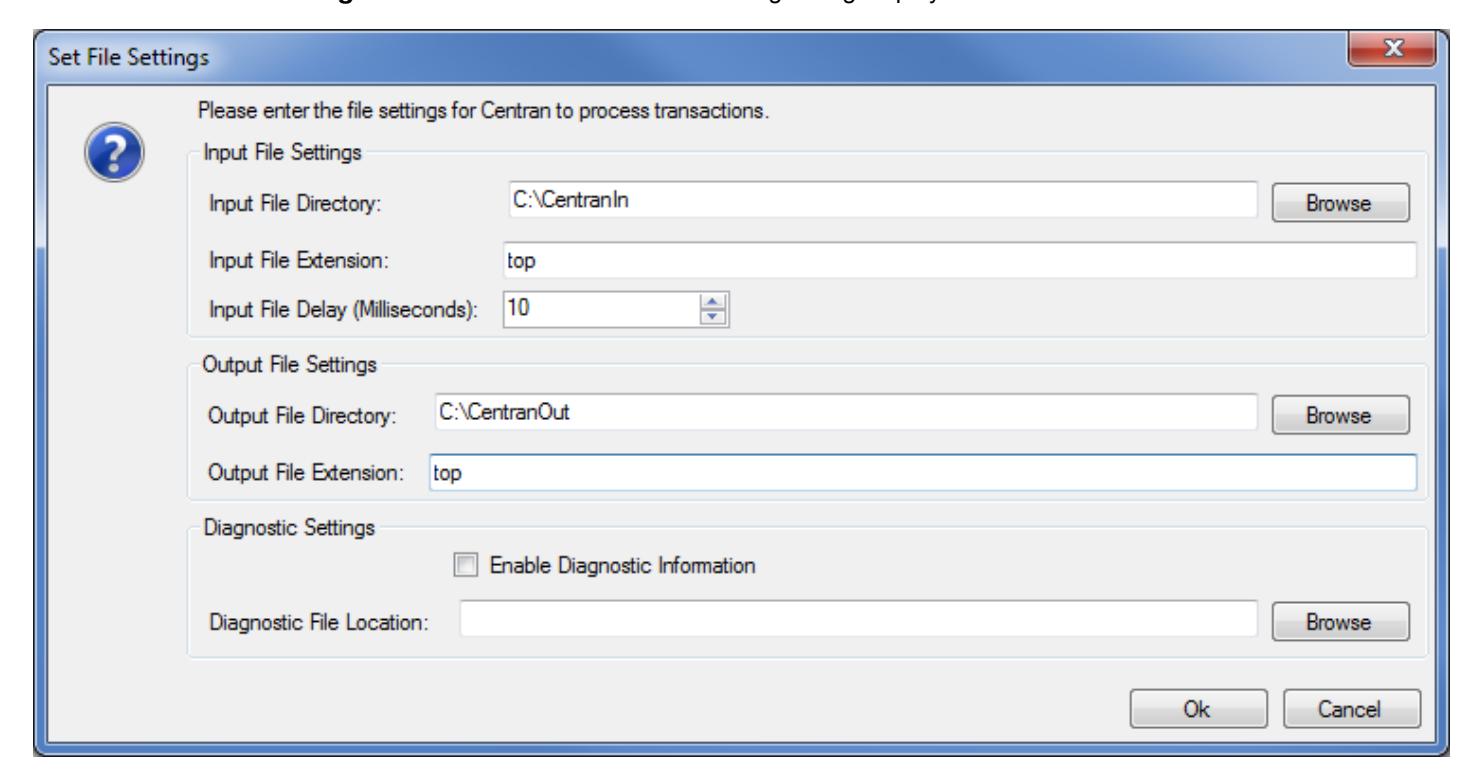
4. Enter the input and output directories and extensions for the CenTran service to process files. Optionally, you can enable CenTran to record diagnostic output to a file, but this slows down performance. Once you have entered the settings you want to use, click on the OK button.
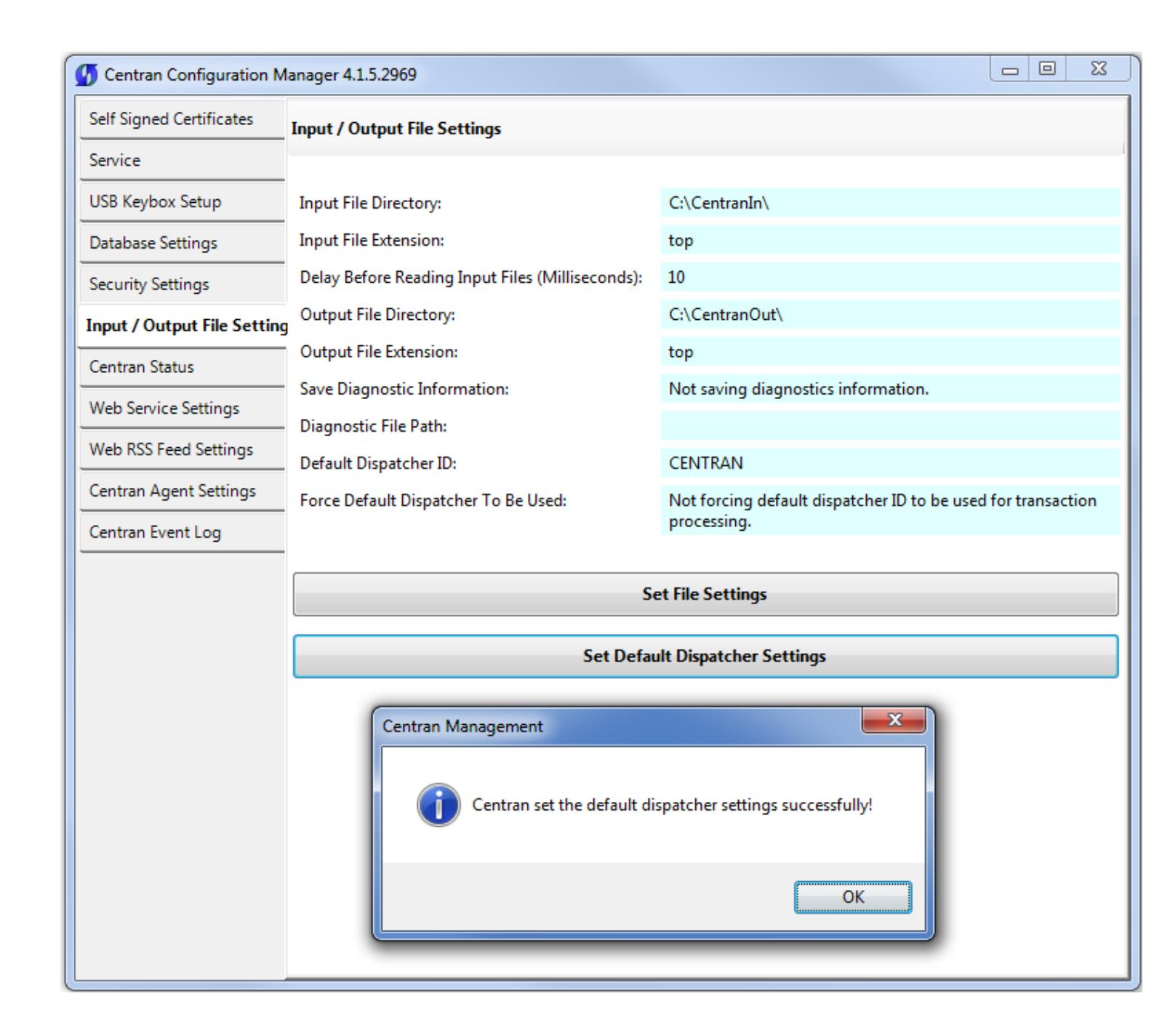
5. Click on the OK button on message box.
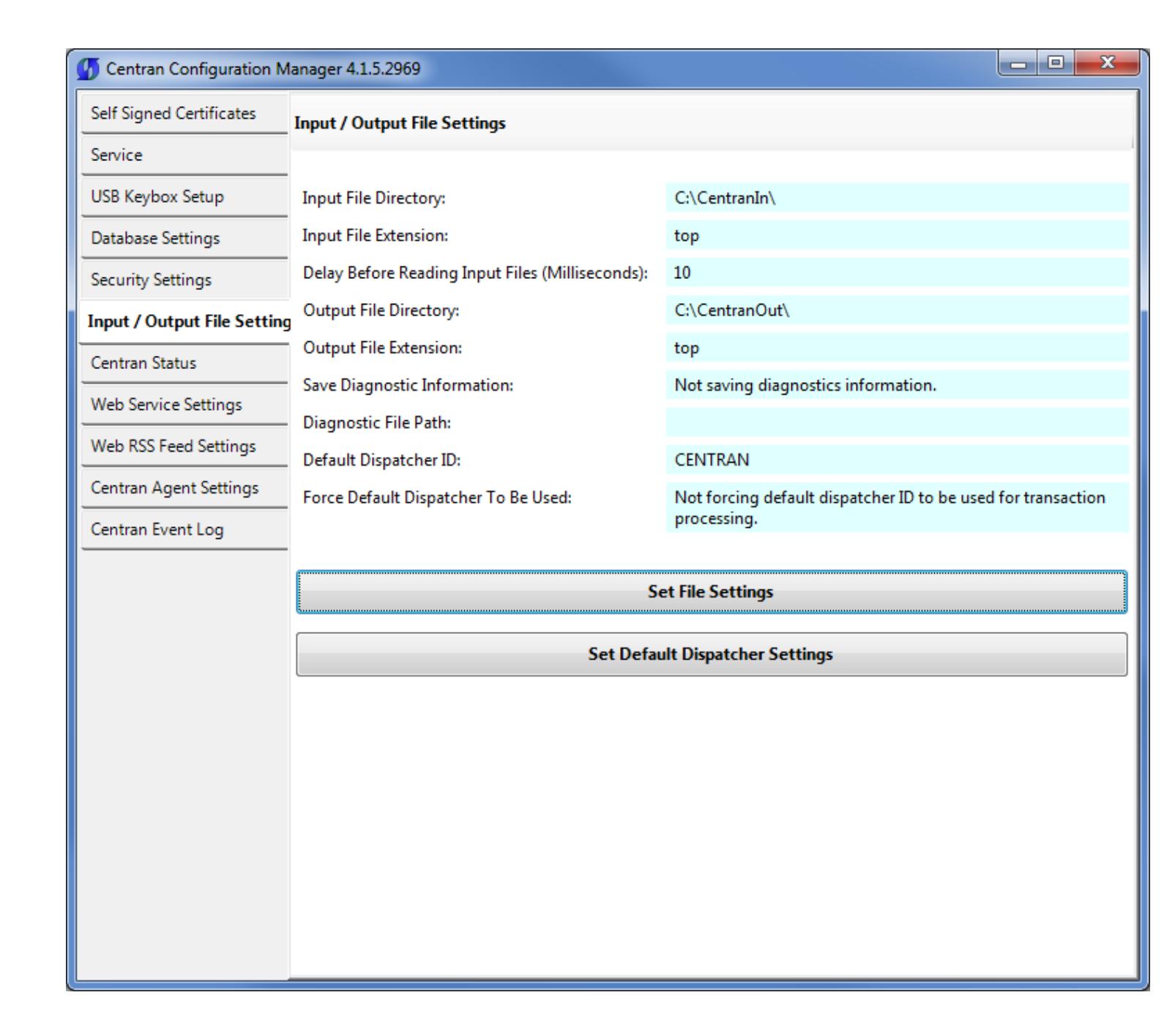
6. You will also need to set the default dispatcher ID to be used for the CenTran service when a dispatcher ID is not available for a transaction being processed. Optionally, you can force this dispatcher ID to be used instead of the dispather ID associated with a transaction. Click on the Set Default Dispatcher Settings button. You should see the following dialog displayed:
You should see the following dialog displayed:
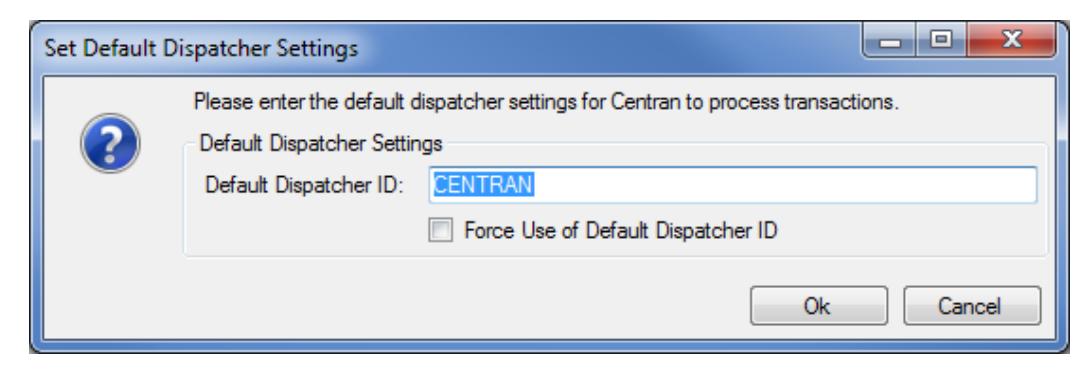
7. Enter the default dispatcher ID you want to use. This default dispatcher ID must have been already set up under Cencon, and be present in the database. The role that the default dispatcher is assigned to will effect what authorizations the default dispatcher has. Once you have entered the default dispather ID you want to use, click on the OK button.
You should see the following message displayed by the Centran Configuration Manager:
© 1996-2013 Kaba Mas LLC
CenTran 4.1.5 Getting Started Guide Start Transaction Processing
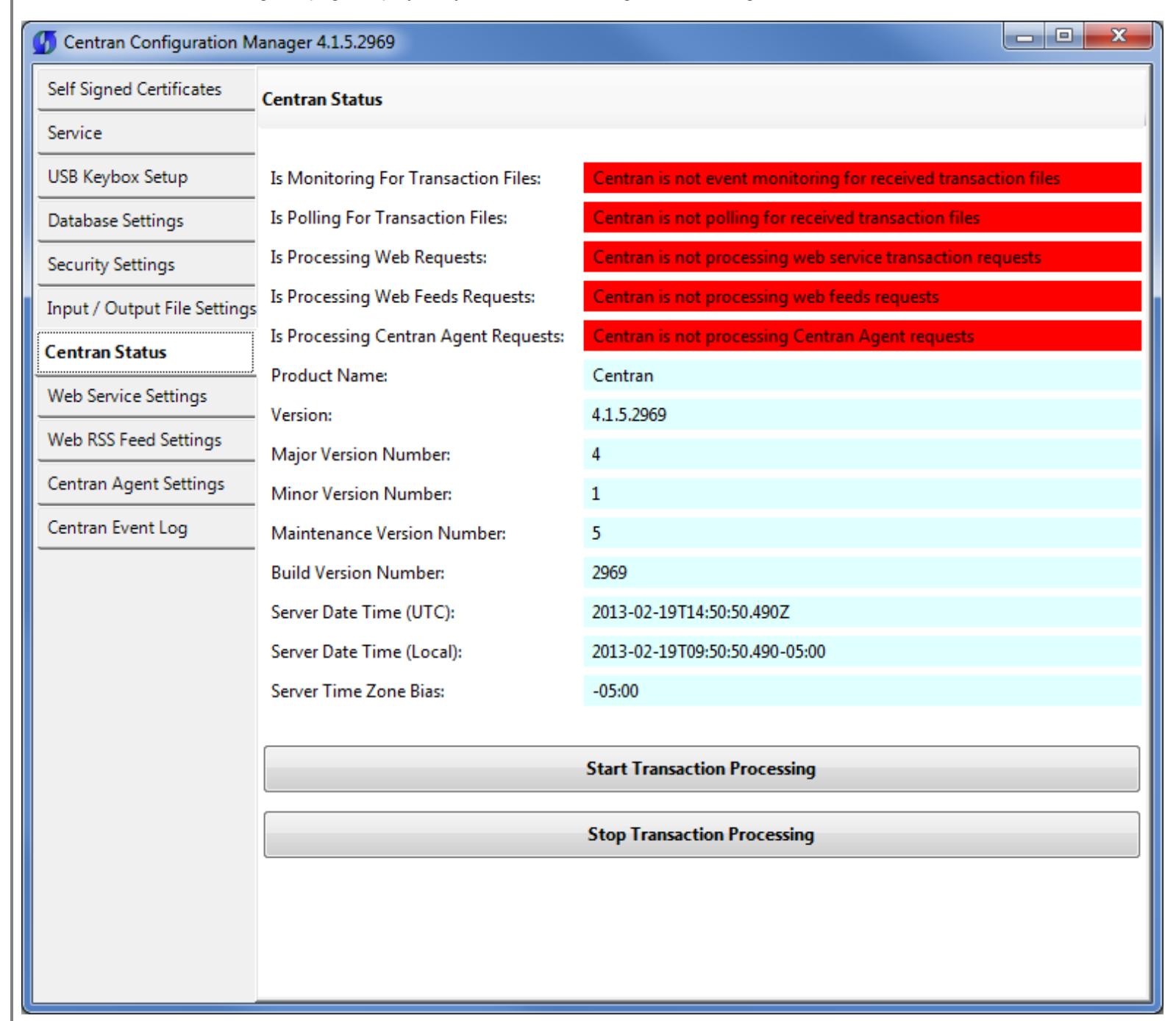
Click on the Centran Status tab on the Centran Configuration Manager:
You should see the following tab page displayed by the Centran Configuration Manager:
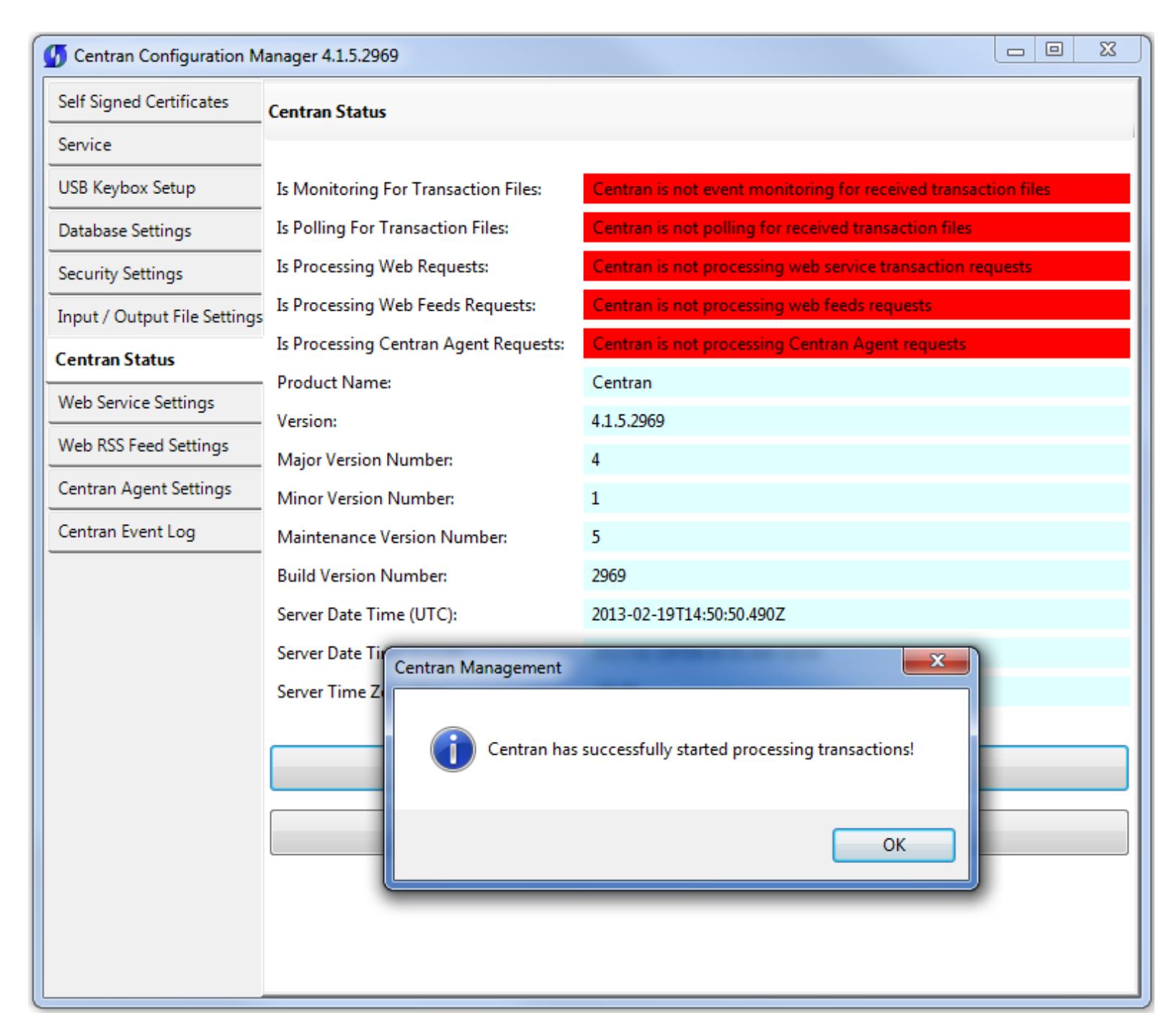
Click on the Start Transaction Processing button. You should see the following message dialog displayed:
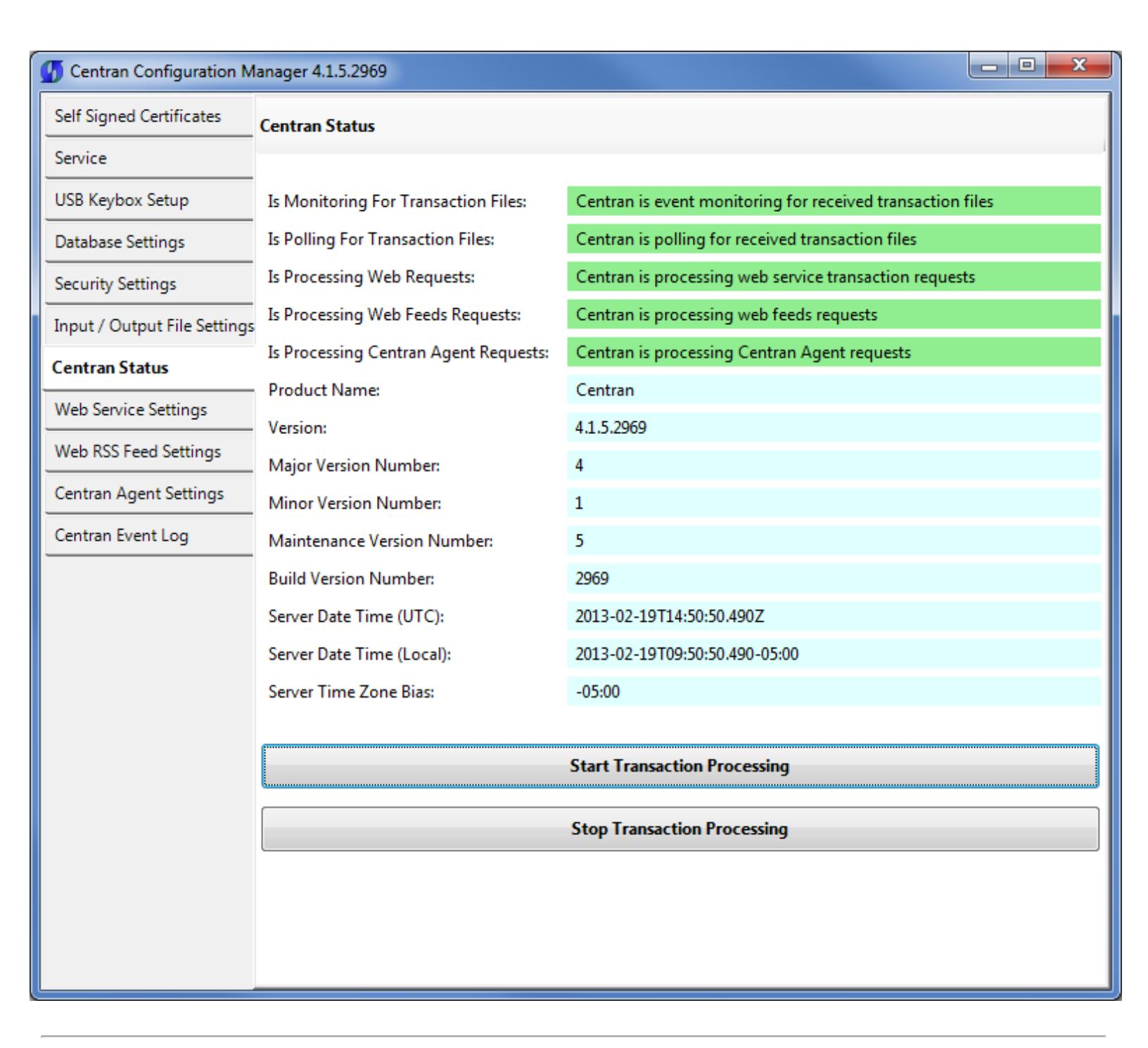
Click on the message dialog OK button.
© 1996-2013 Kaba Mas LLC
View Web Service Settings
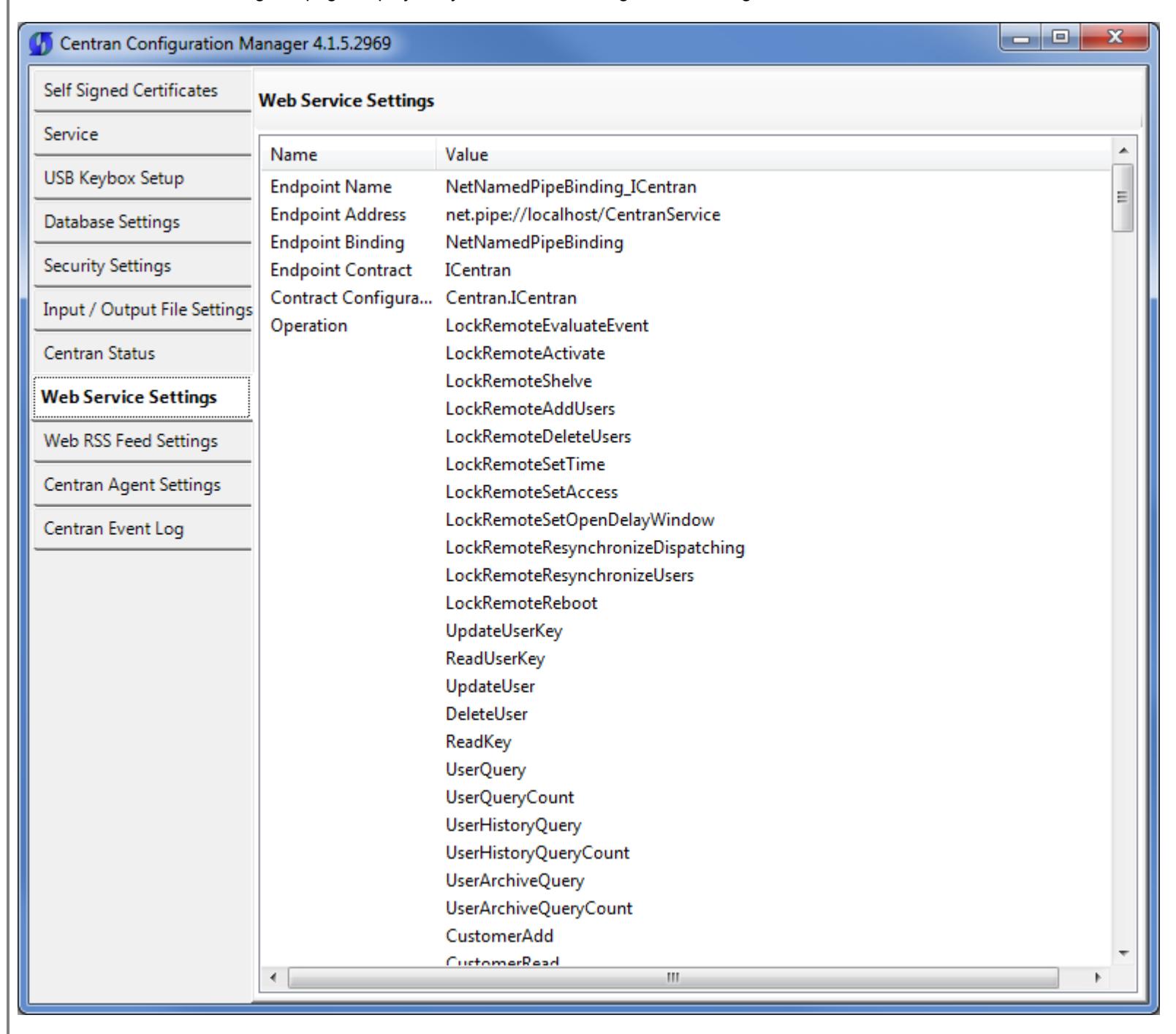
The web service settings are configured in the sytem.serviceModel section of the CenTran service configuration file. The resultant web service based on the settings can be viewed while the CenTran service is processing transactions.
Click on the Web Service Settings tab on the Centran Configuration Manager:
You should see the following tab page displayed by the Centran Configuration Manager:
© 1996-2013 Kaba Mas LLC
View Web RSS Feed Settings
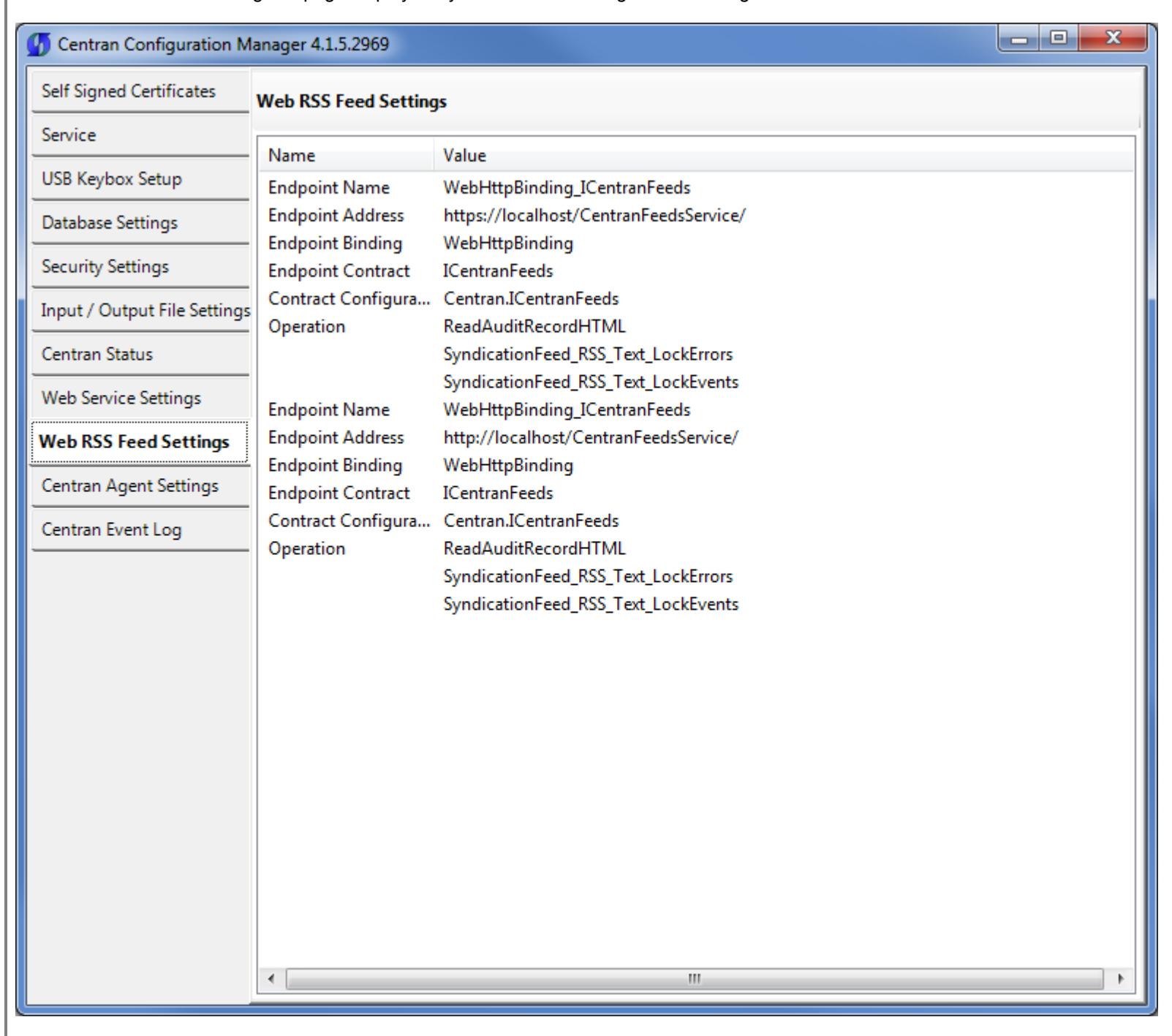
The web rss feed settings are configured in the sytem.serviceModel section of the CenTran service configuration file. The resultant web rss feeds based on the settings can be viewed while the CenTran service is processing transactions.
Click on the Web RSS Feed Settings tab on the Centran Configuration Manager:
You should see the following tab page displayed by the Centran Configuration Manager:
© 1996-2013 Kaba Mas LLC
View Centran Agent Settings
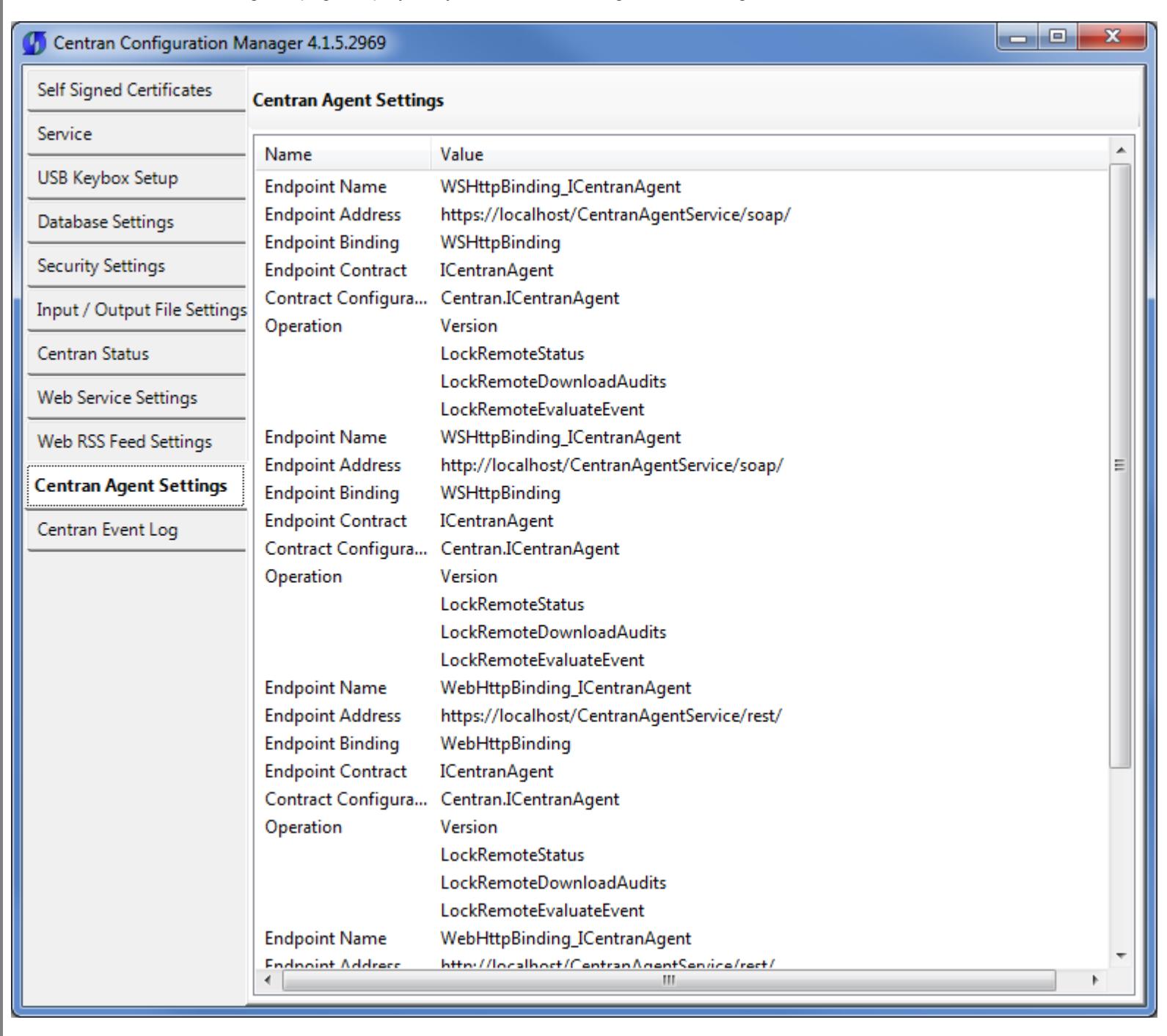
The Centran Agent settings are configured in the sytem.serviceModel section of the CenTran service configuration file. The resultant web service based on the settings can be viewed while the CenTran service is processing transactions.
Click on the Centran Agent Settings tab on the Centran Configuration Manager:
You should see the following tab page displayed by the Centran Configuration Manager:
© 1996-2013 Kaba Mas LLC
CenTran 4.1.5 Getting Started Guide View Event Log
Click on the Centran Event Log tab on the Centran Configuration Manager:
You should see the following tab page displayed by the Centran Configuration Manager:
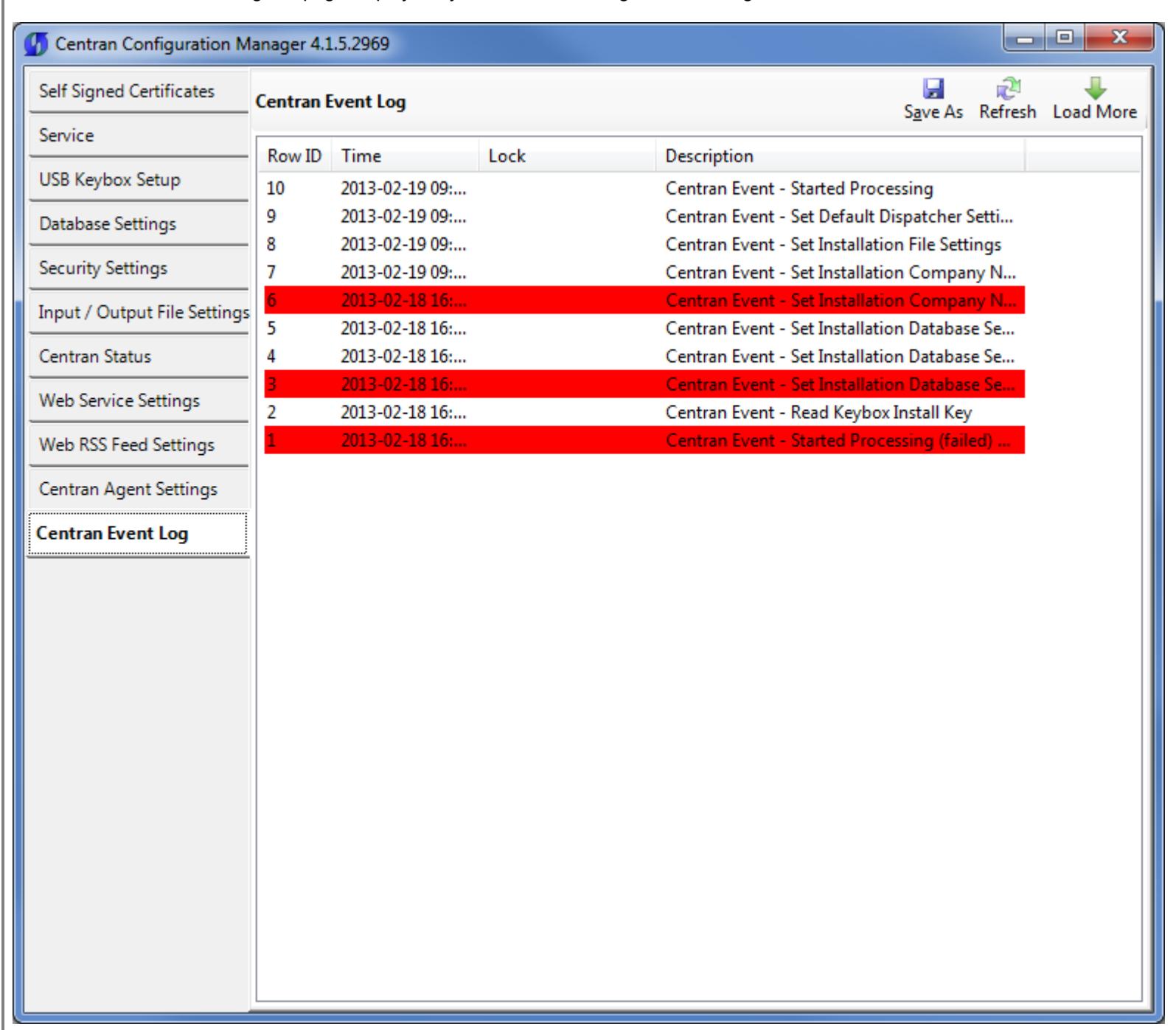
The CenTran Management interface loads event log audits 100 at a time. To load additional audits for viewing, click on the Load More button.
You can also save the Centran event log to an HTML file. Click on the Save As button to save the event log. This will display a save file dialog to allow you to choose the file to save to. The entire event log will be saved to the file.
The CenTran event log is limited in size based on the settings you made in the CenTran service configuration file. Once the event log reaches the limit you set, it will delete the oldest audits to remain within the limit when new audits are added. This occurrs based off of the granularity you set in the configuration file. The event log will be allowed to grow slightly larger than the set limit based off of the granularity size used to regulate how often the check is made.
Additional information is available in the CenTran event log registered with the operating system. Service start and stop events are recorded there. Additionally, if internal errors occur within CenTran, the description of the error is recorded there also. This can be accessed by opening the administrative tools section of the control panel for your computer. Under that is an item labled Event Viewer. Open the Event Viewer, and you will see a CenTran event log under the application and services event logs section.
Also, additional information is available in the Windows Communiction Foundation (WCF) diagnostic output set up from the Centran configuration file. The default settings from the Centran configuration file creates a diagnostic output file for Windows Communication Foundation (WCF) events, named WcfServiceTrace.svclog. This file will be created within the application directory the Centran service is installed to. This file can be viewed using the Microsoft Service Trace Viewer (SvcTraceViewer.exe). Double clicking on the file will automatically open the file under the Microsoft Service Trace Viewer.
The Microsoft Service Trace Viewer is available as a free download within the Windows Platform SDK.
© 1996-2013 Kaba Mas LLC
CenTran 4.1.5 Getting Started Guide Stop Transaction Processing
Click on the Centran Status tab on the Centran Configuration Manager:
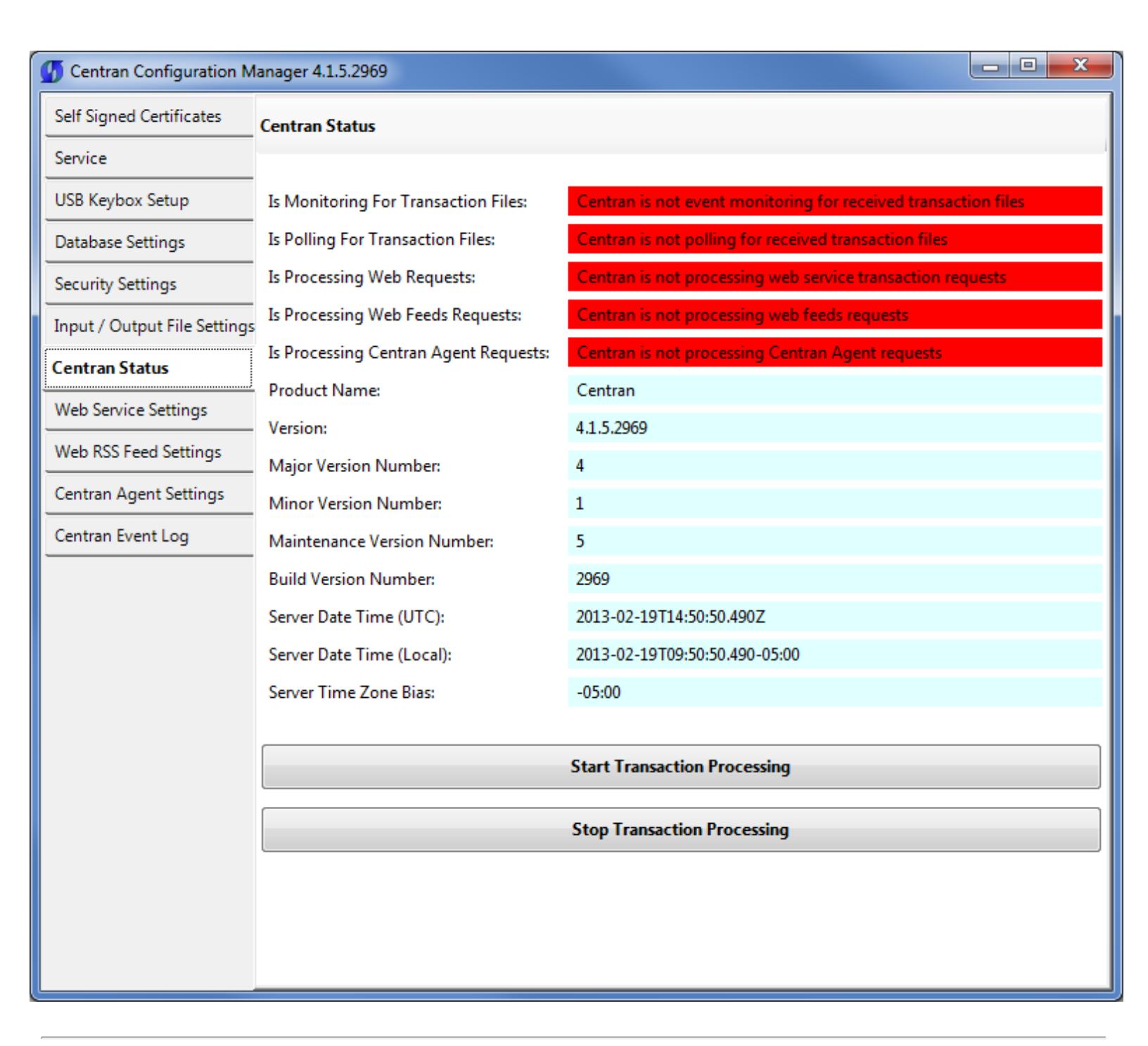
You should see the following tab page displayed by the Centran Configuration Manager:
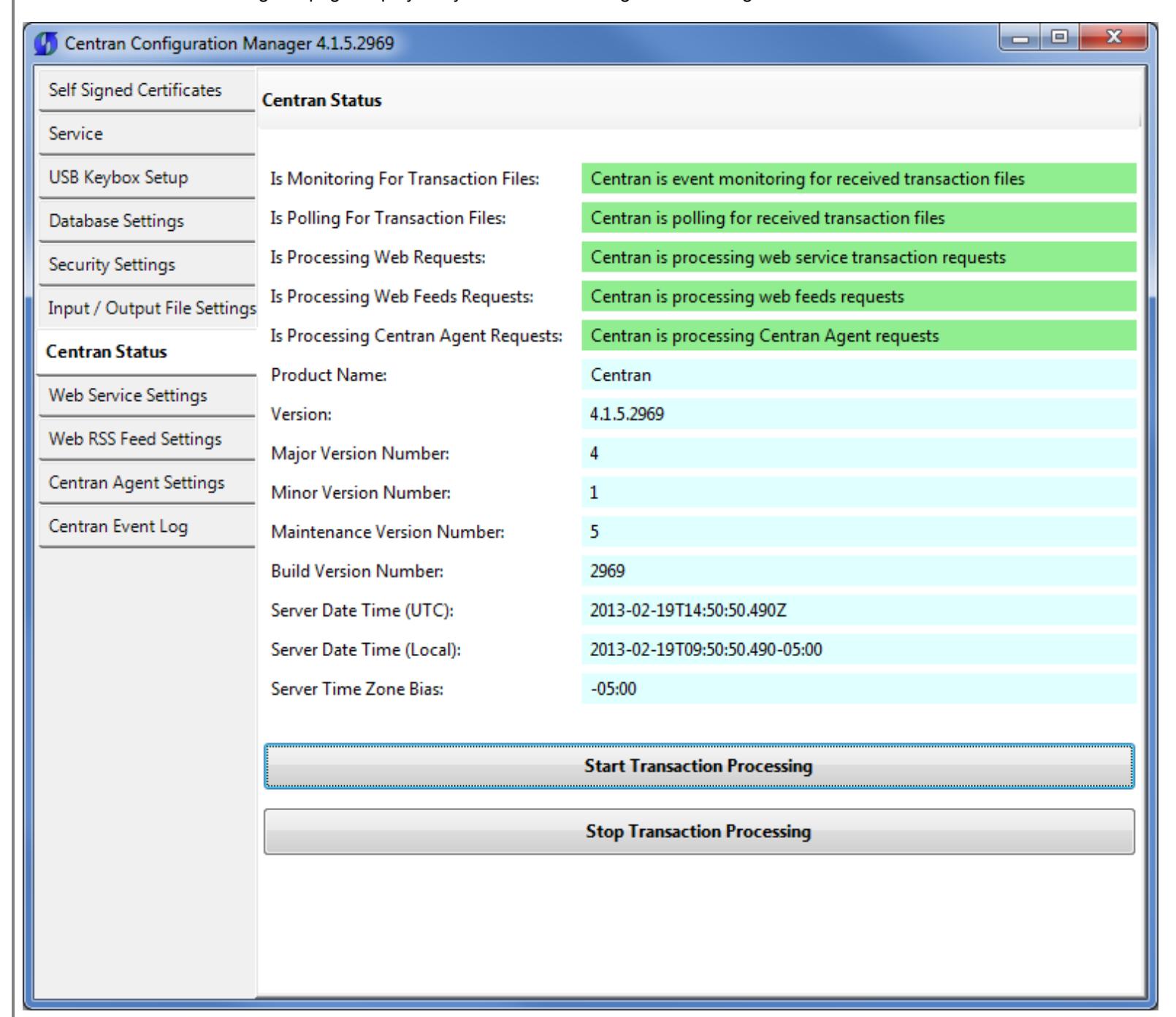
Click on the Stop Transaction Processing button. You should see the following message dialog displayed:
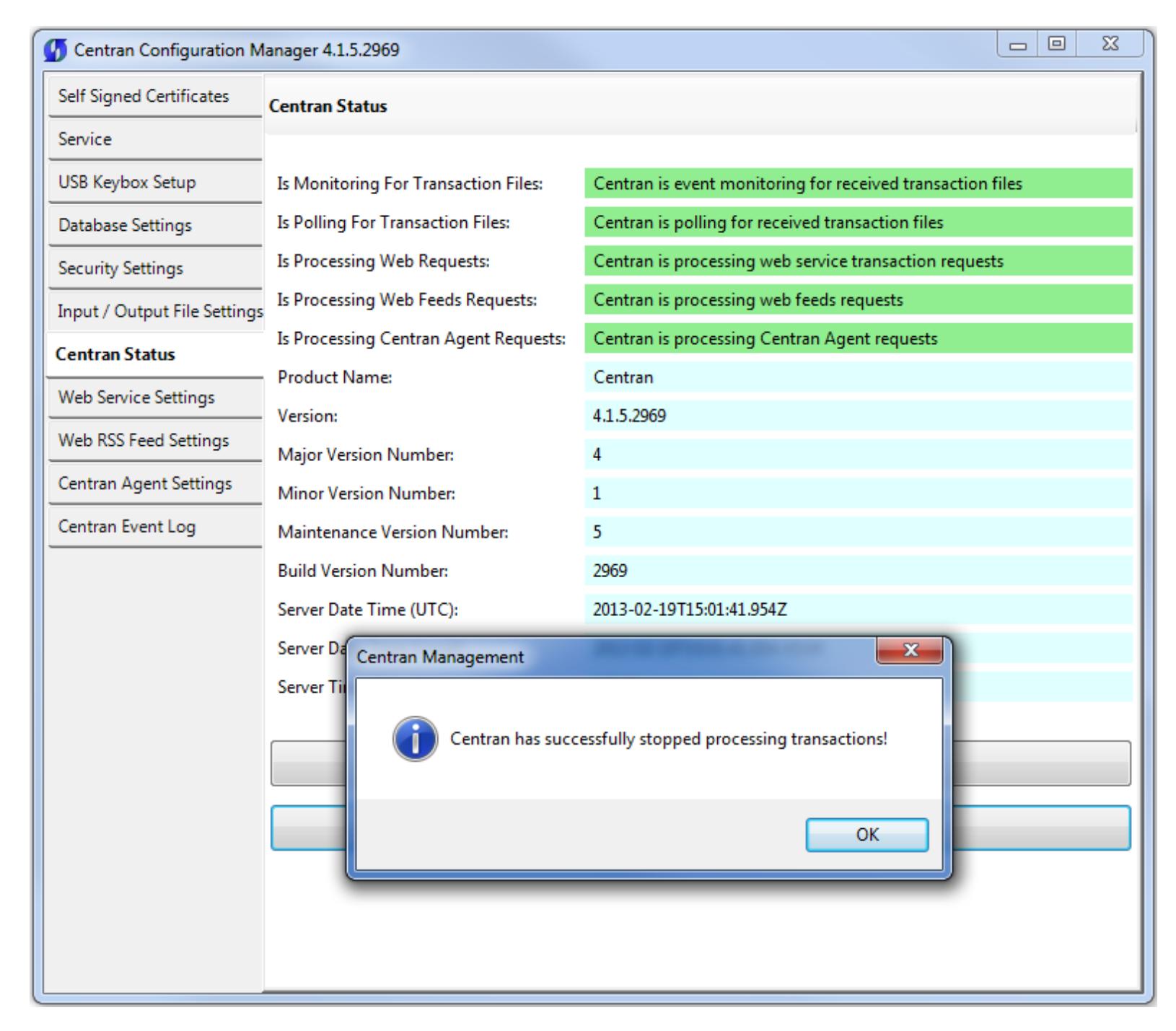
Click on the message dialog OK button.
© 1996-2013 Kaba Mas LLC
Configure the Centran Service using Web Management Interface
The web browser Centran Management interface supports remotely managing a running Centran service. To manage a running Centran service, you must have already set up the appropriate Centran configuration file settings and certificates. You must have also installed and started the Centran service.
Managing the Centran service:
The following sections describe setting up and managing the Centran service using the web browser Centran Management interface:
- Log on to CenTran Management
- Setup Keybox
- Select ODBC Database Connection
- Set Company Number
- Set File Settings
- Start Transaction Processing
- View Web Service Settings
- View Web RSS Feed Settings
- View Centran Agent Settings
- View Centran Event Log
- Stop Transaction Processing
© 1996-2013 Kaba Mas LLC
Log on to CenTran Management
Note: To access the CenTran Management interface in a web browser, the CenTran service must be installed and started.
Your web browser must support HTML5 and CSS3. This includes the following browsers:
- 1. Internet Explorer 9 or higher
- 2. Firefox 10 or higher
- 3. Google Chrome 16 or higher
- 4. Apple Safari 5 or higher
If you are using Internet Explorer, you must have compatibility mode for intranet sites turned off under the Tools menu. Press Alt-T to open the tools menu in Internet Explorer to get to this setting.
The URL of the Centran web management interface is of the form:
https://10.108.6.90/CentranManagement/
You will need to replace the 10.108.6.90 in the URL with the name you gave the Centran Web Service Certificate you created earlier.
Open the URL in your preferred web browser, and you should see the following:
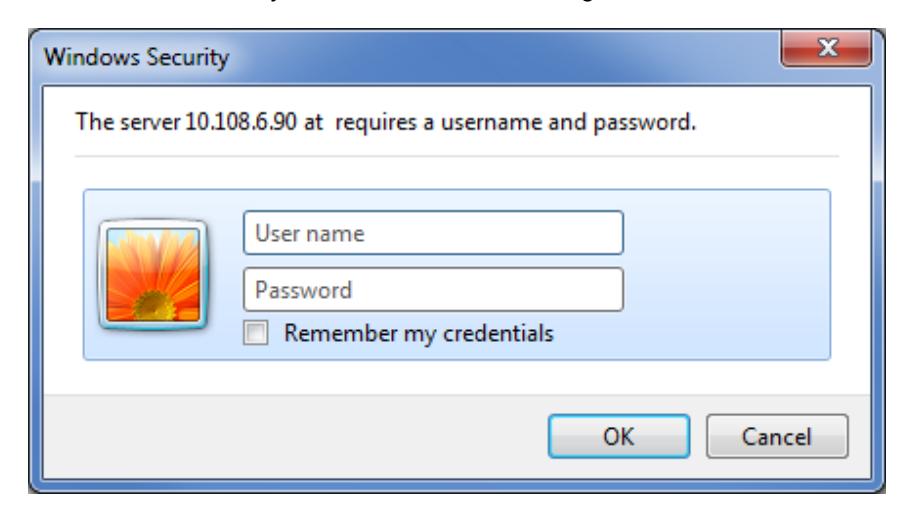
Enter the user name and password you set in the CenTran service configuration file, and select OK. The default user name is admin. The default password is password.
© 1996-2013 Kaba Mas LLC
CenTran 4.1.5 Getting Started Guide Setup Keybox
You will need to have already logged onto the Centran Management interface in your web browser. Click on the USB Keybox Setup tab on the left side:
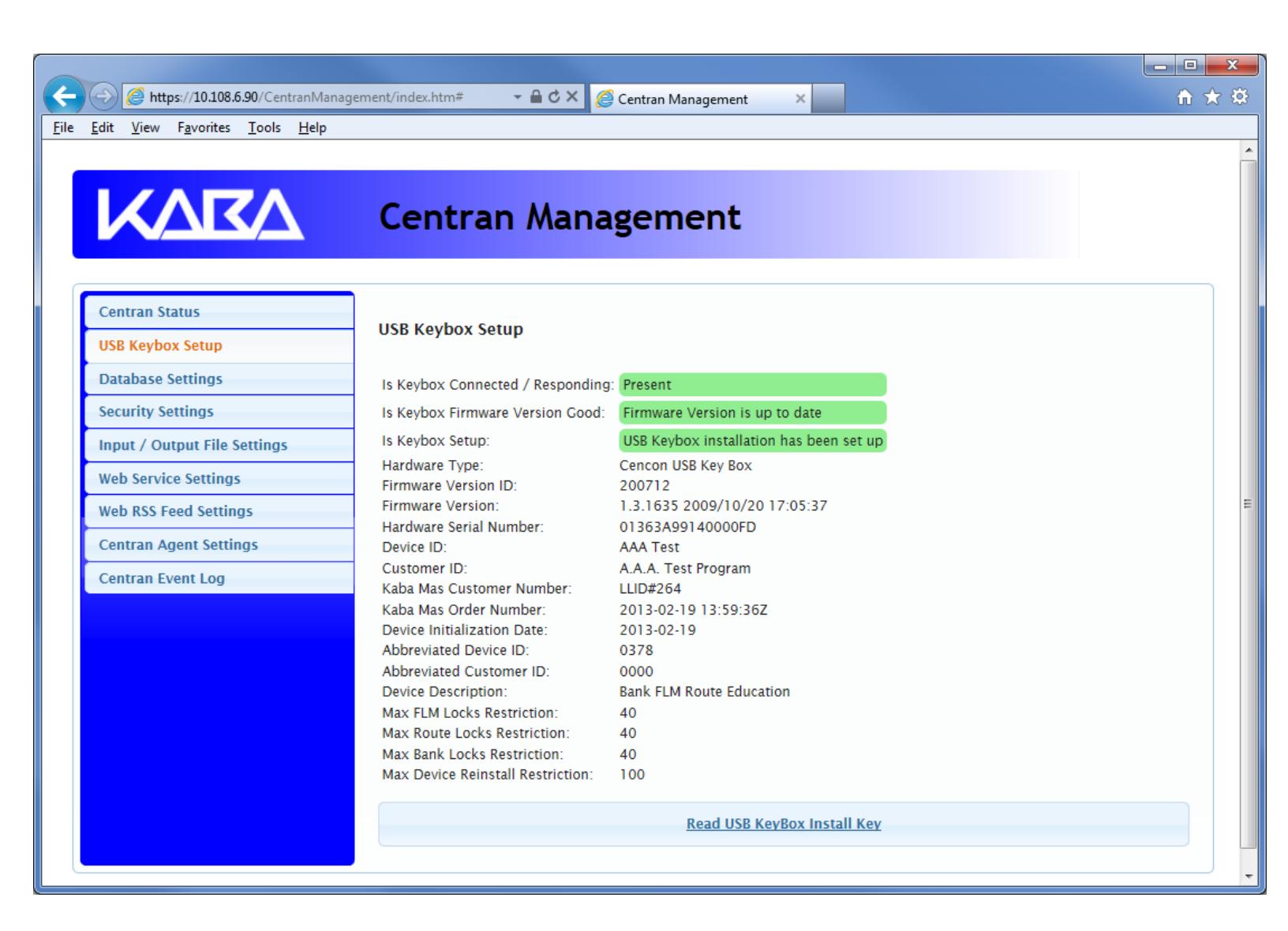
You should see the following in your web browser:
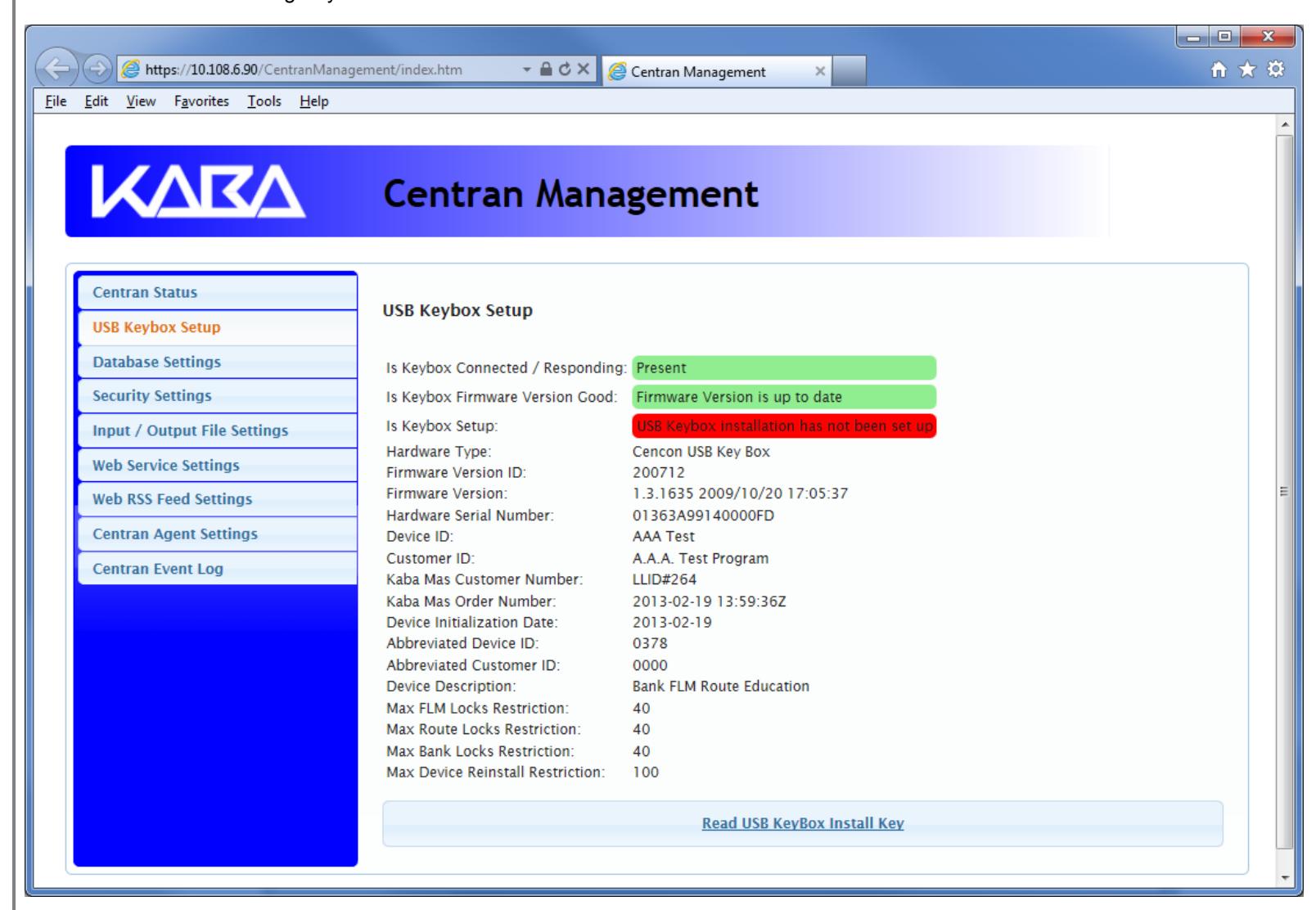
Place your Keybox install key in the first port of the keybox: (This will be the port farthest away from the USB connection.)
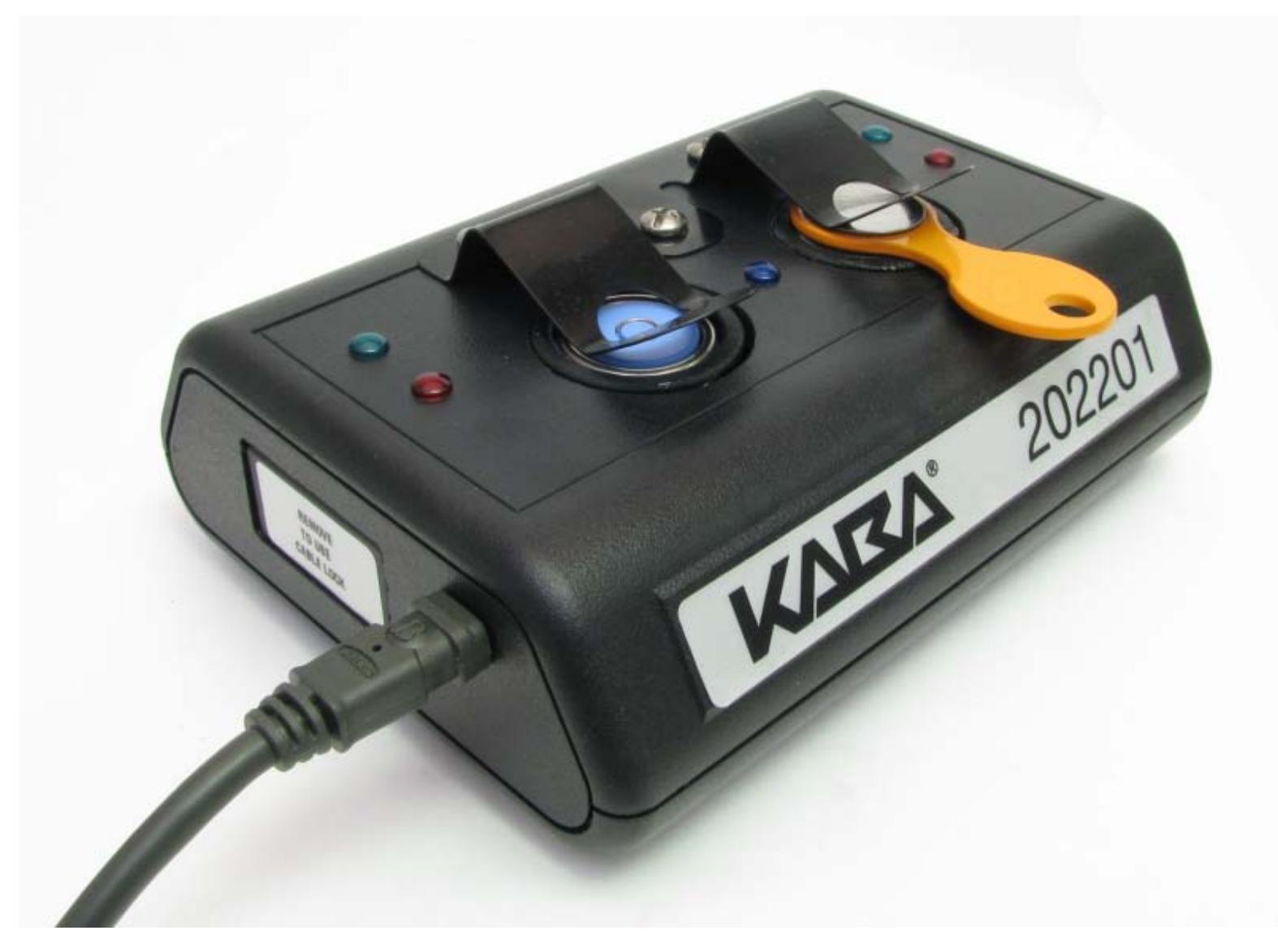
Click on the Read USB Keybox Install Key button on the USB Keybox Setup web page.
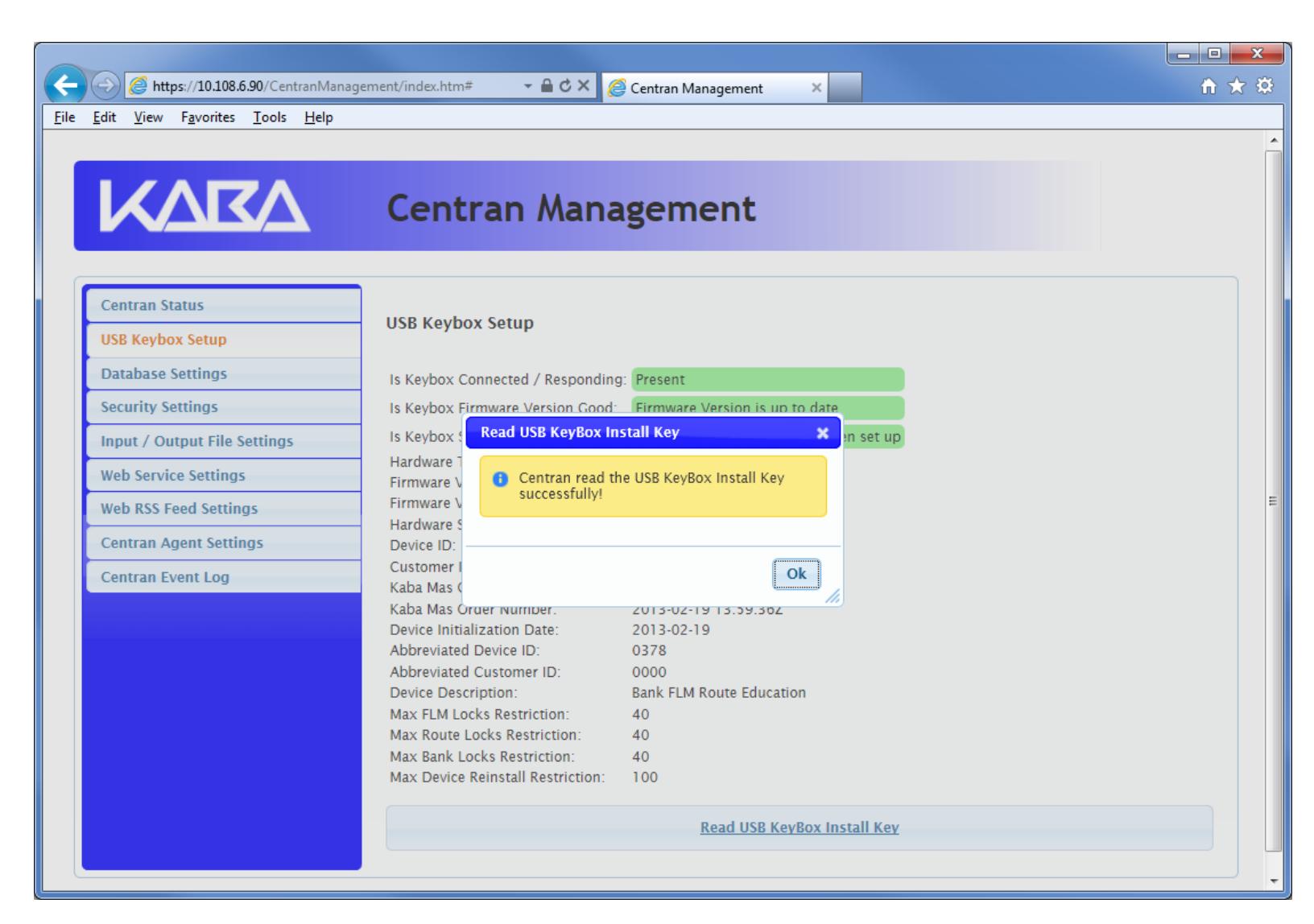
Click on the OK button on message box.
© 1996-2013 Kaba Mas LLC
Select ODBC Database Connection
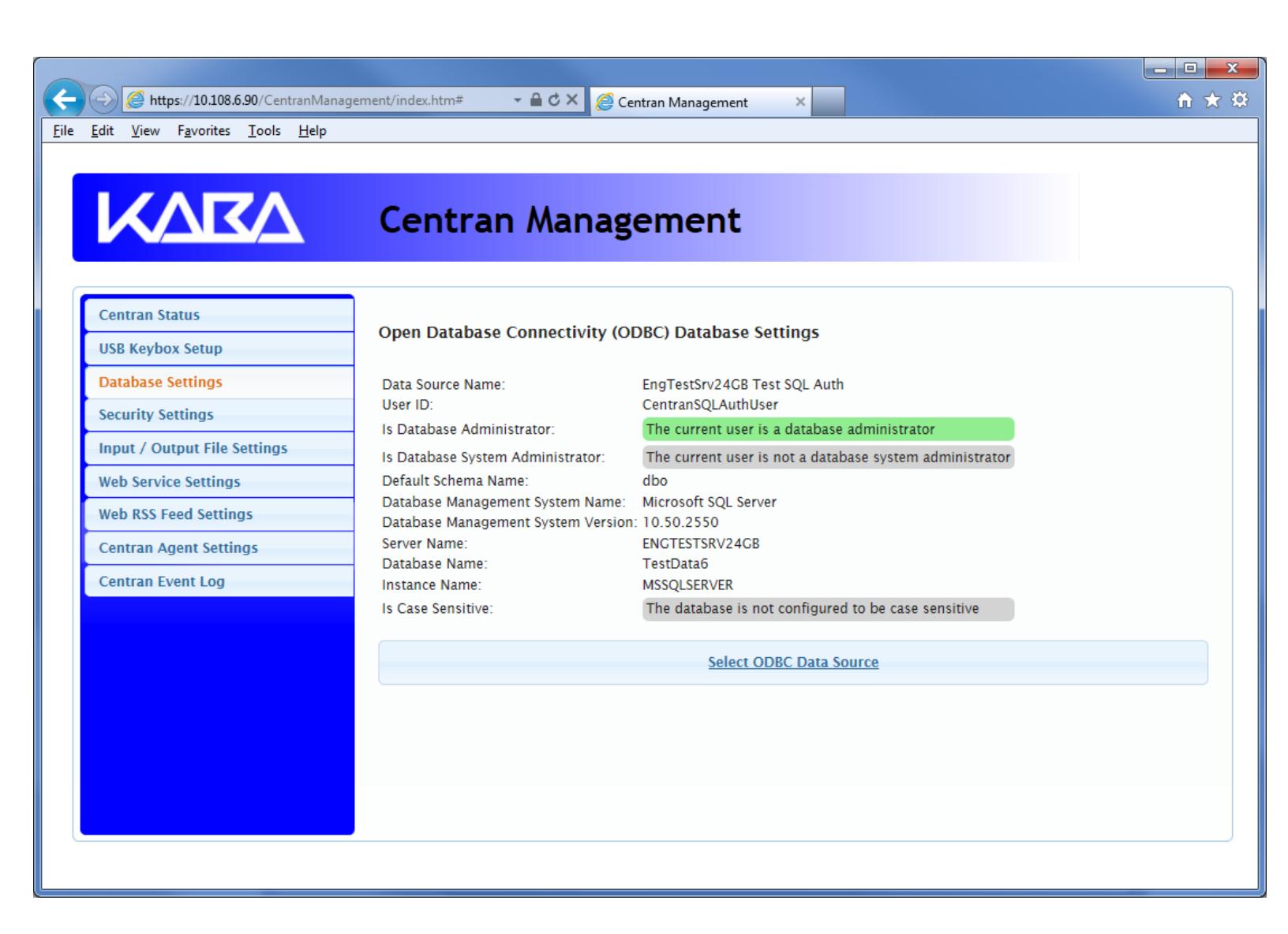
You will need to have already logged onto the Centran Management interface in your web browser. Click on the Database Settings tab on the left side:
You should see the following in your web browser:
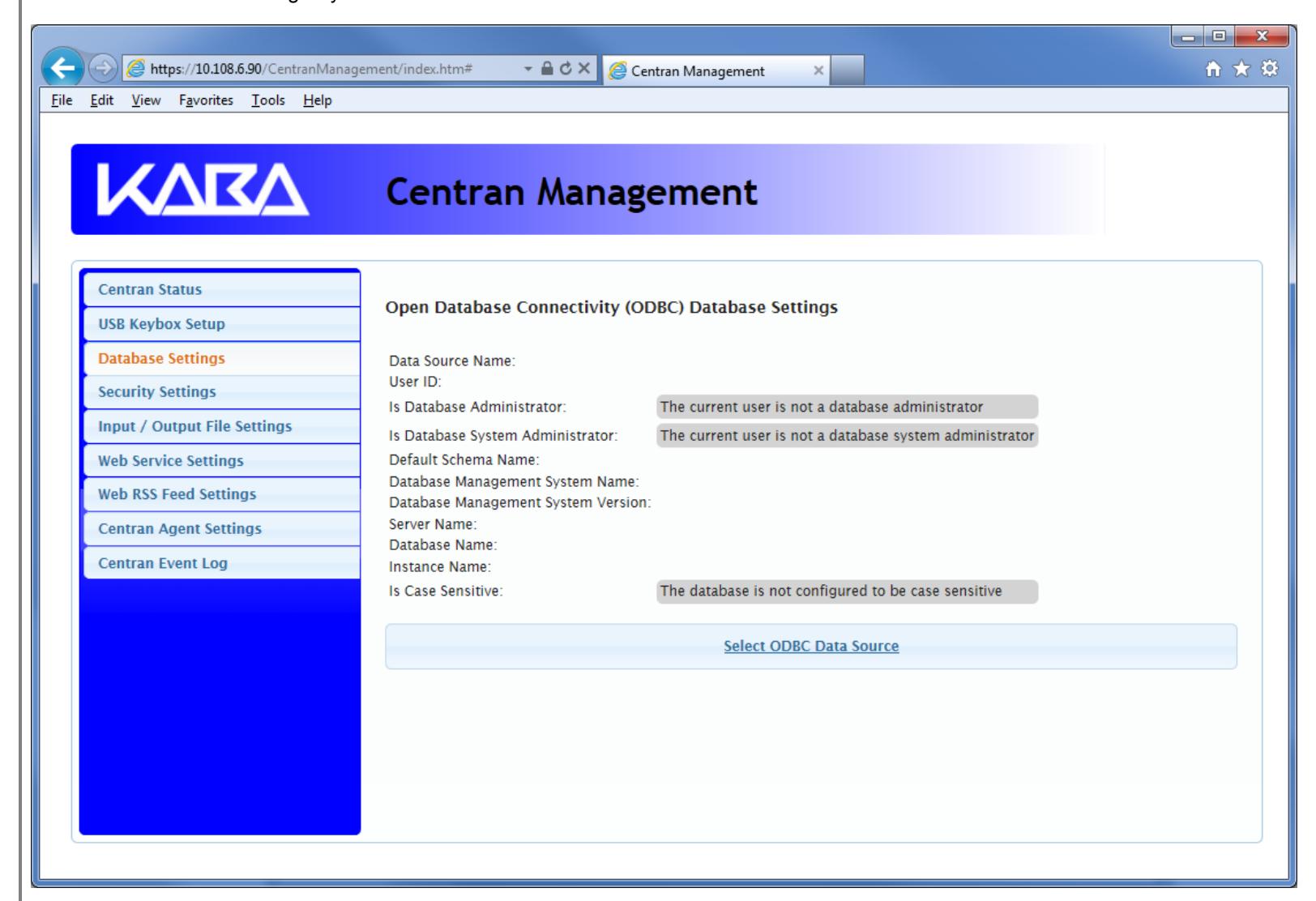
Click on the Select ODBC Data Source button. You should see the following dialog displayed:
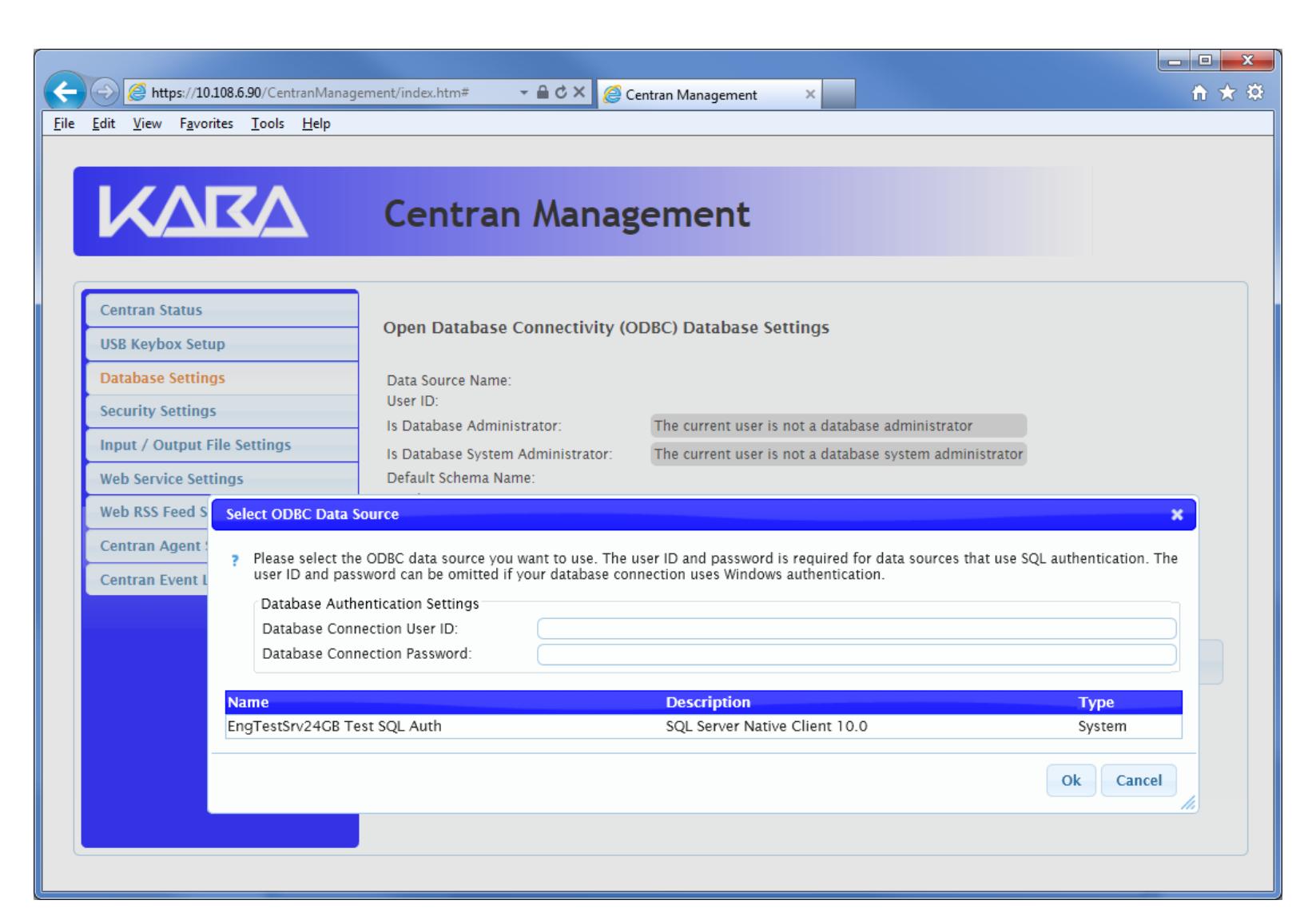
Select the ODBC database connection you want to use. If you are using SQL authentication, you will also need to enter a user name and password for the CenTran service to use with the database connection.
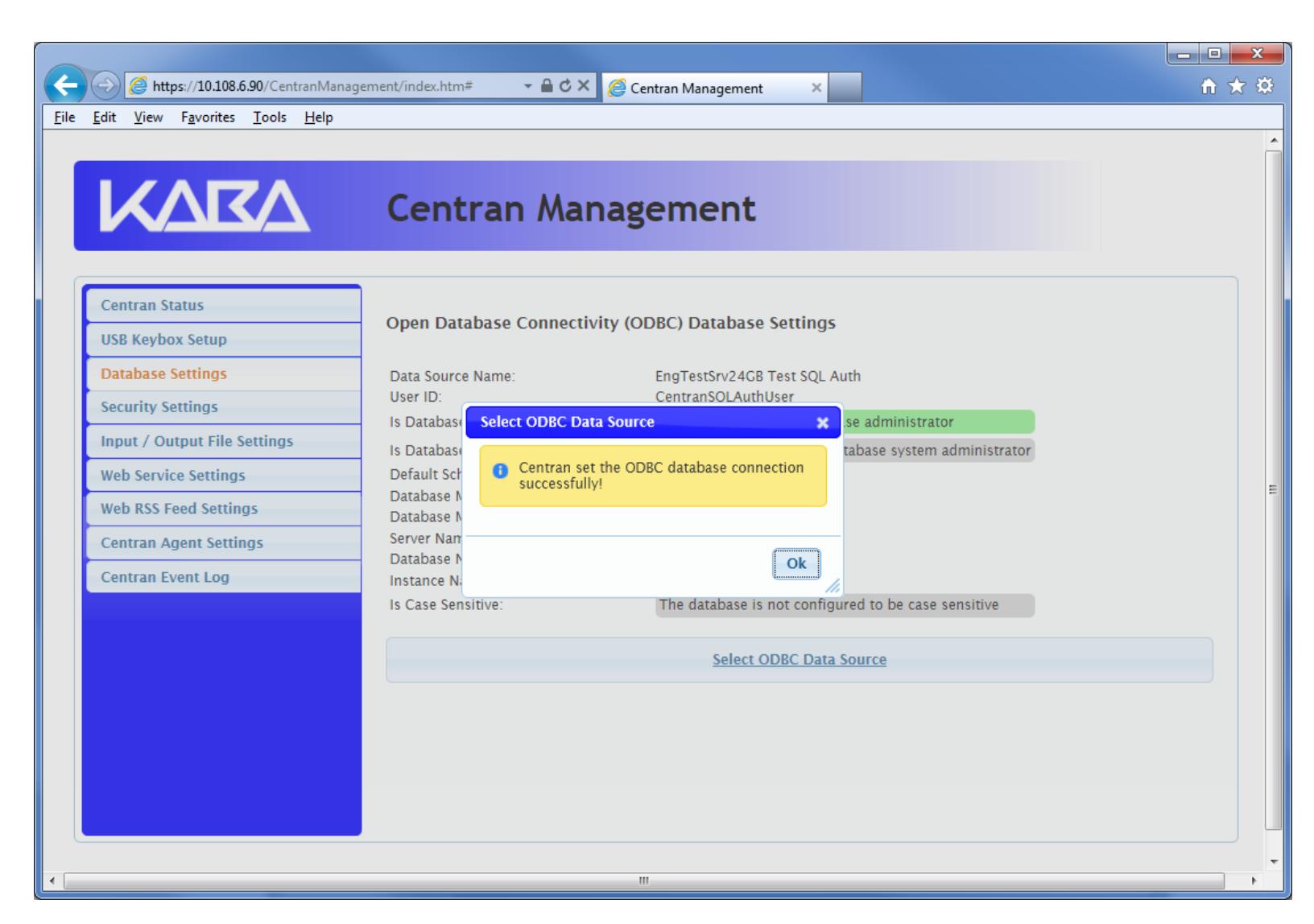
Click on the OK button on message box.
© 1996-2013 Kaba Mas LLC
Set Company Number
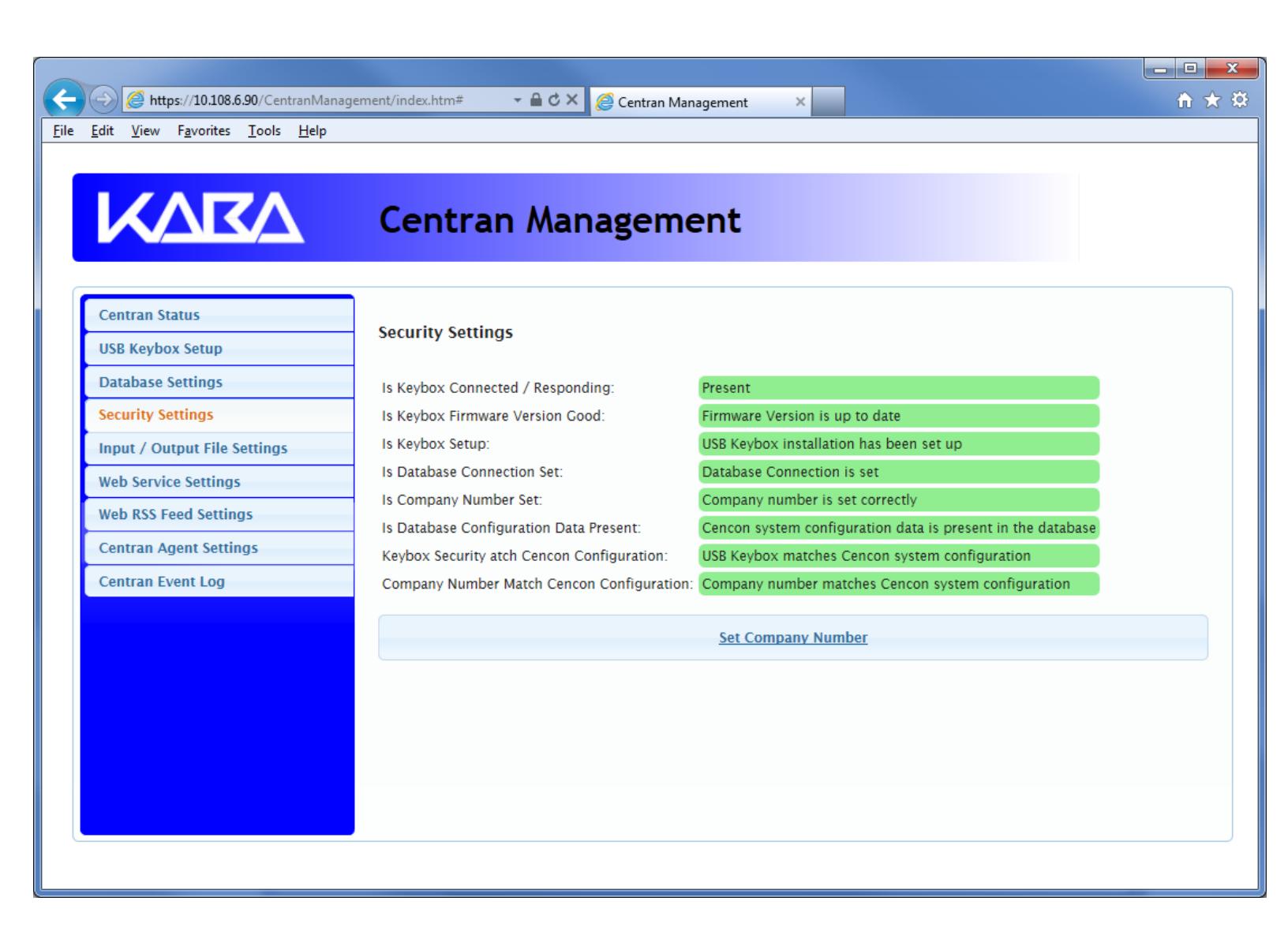
You will need to have already logged onto the Centran Management interface in your web browser. Click on the Security Settings tab on the left side:
You should see the following in your web browser:
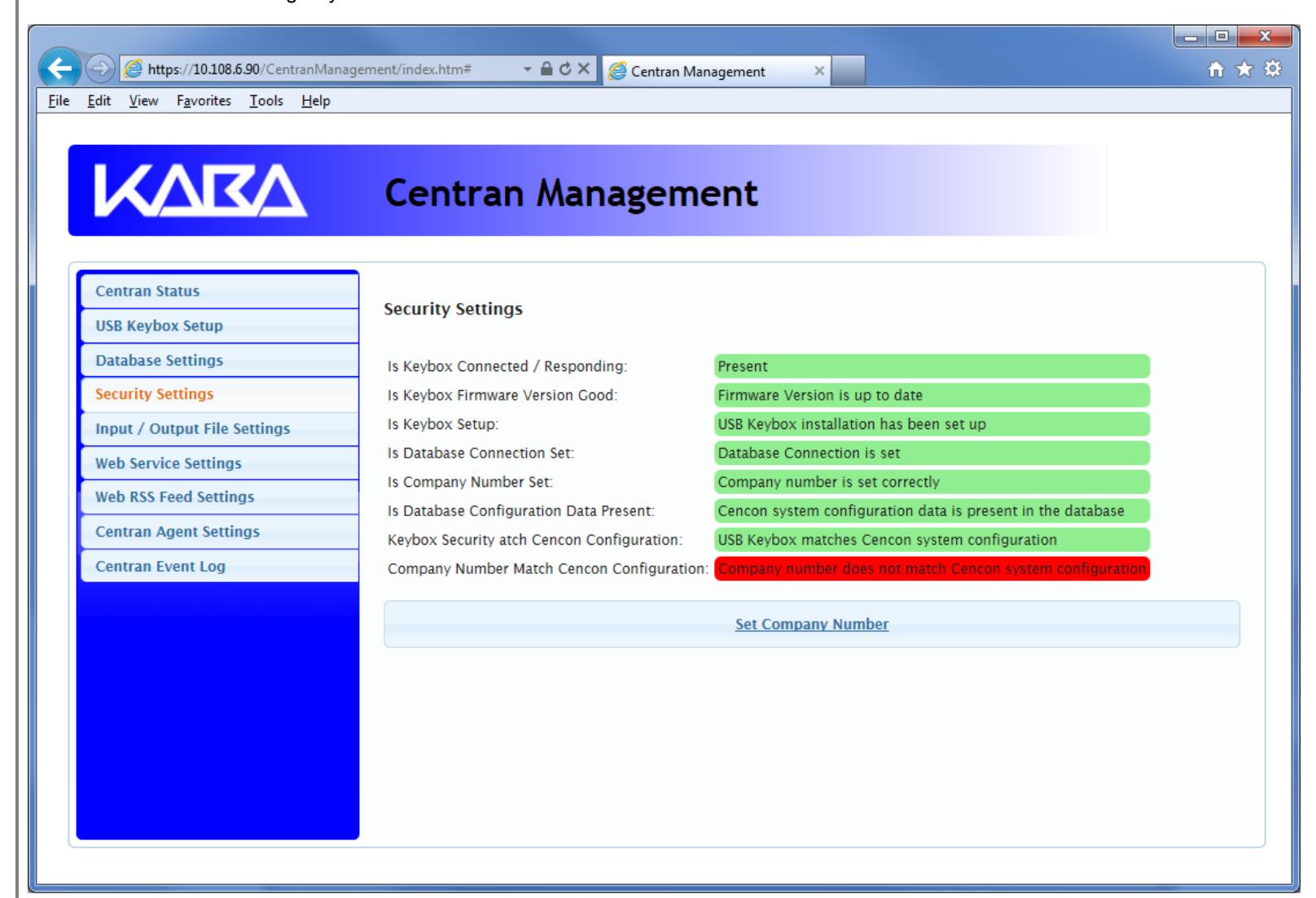
Click on the Set Company Number button. You should see the following dialog displayed:
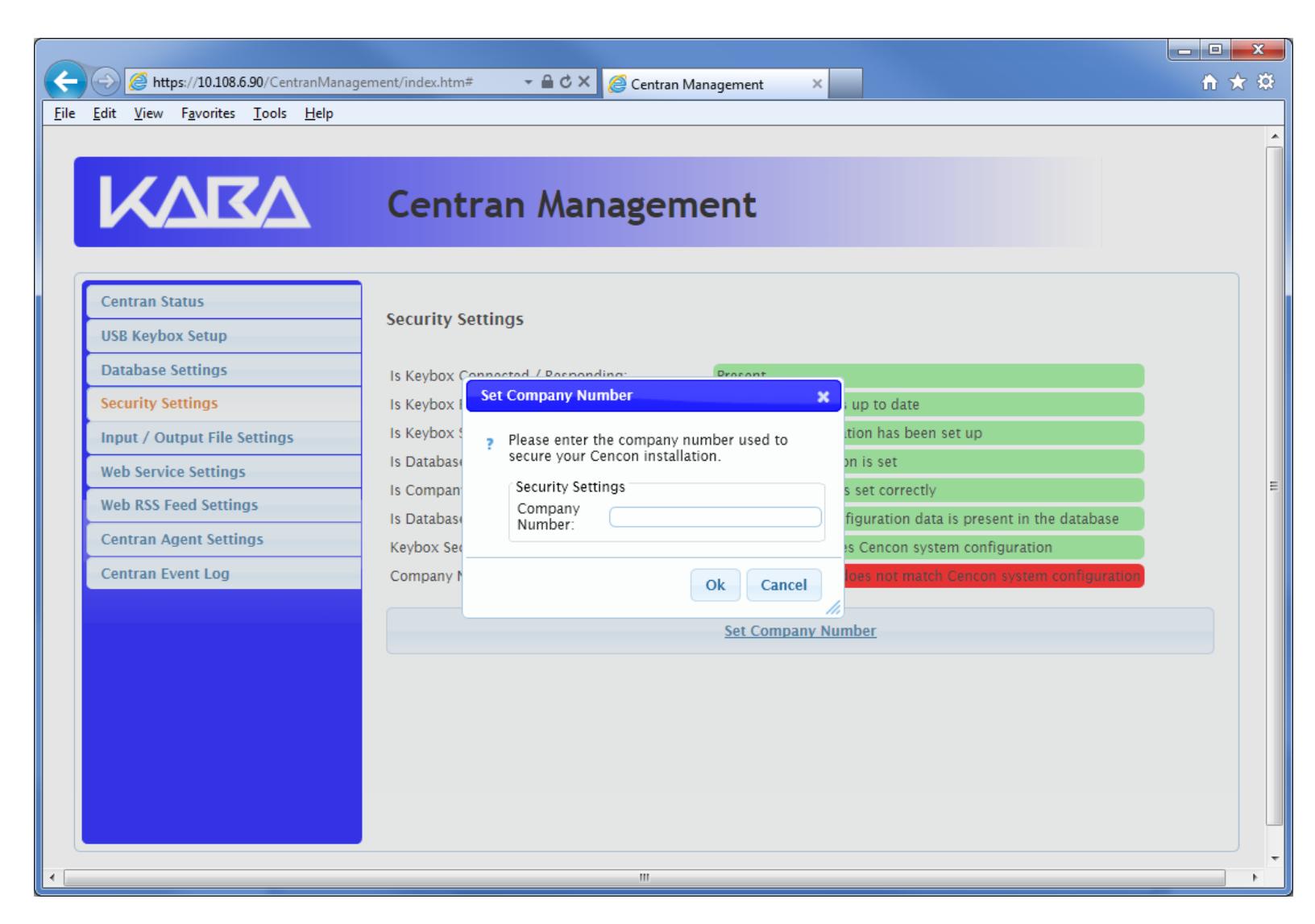
Enter the 4 digit company number you are using with Cencon. This is a sensitive piece of security information that is part your security with the Cencon system. You should record it and keep it in a secure place. The company number you enter for use by the CenTran service must match the one you are using with Cencon.
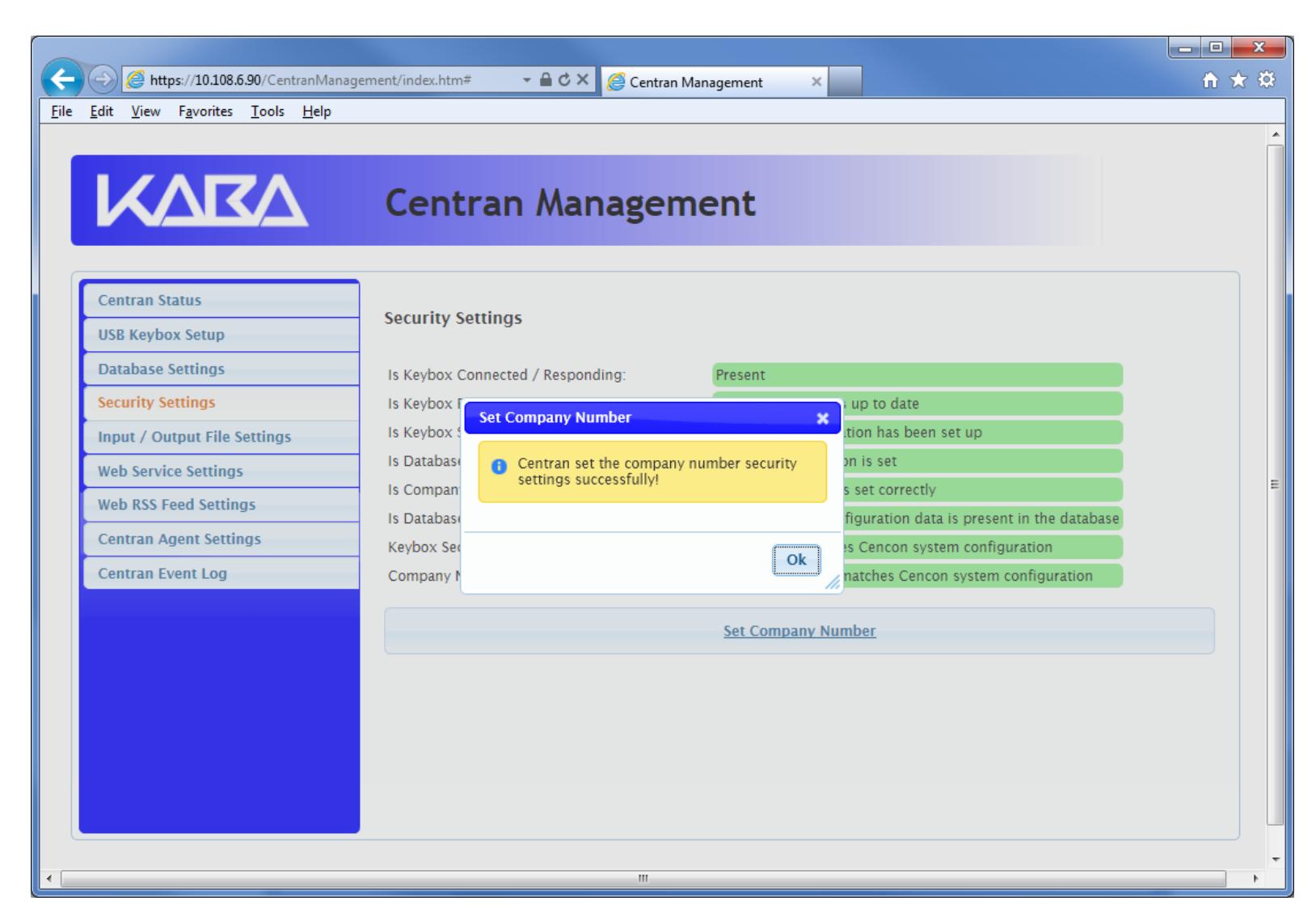
Click on the OK button on message box.
© 1996-2013 Kaba Mas LLC
Set File Settings
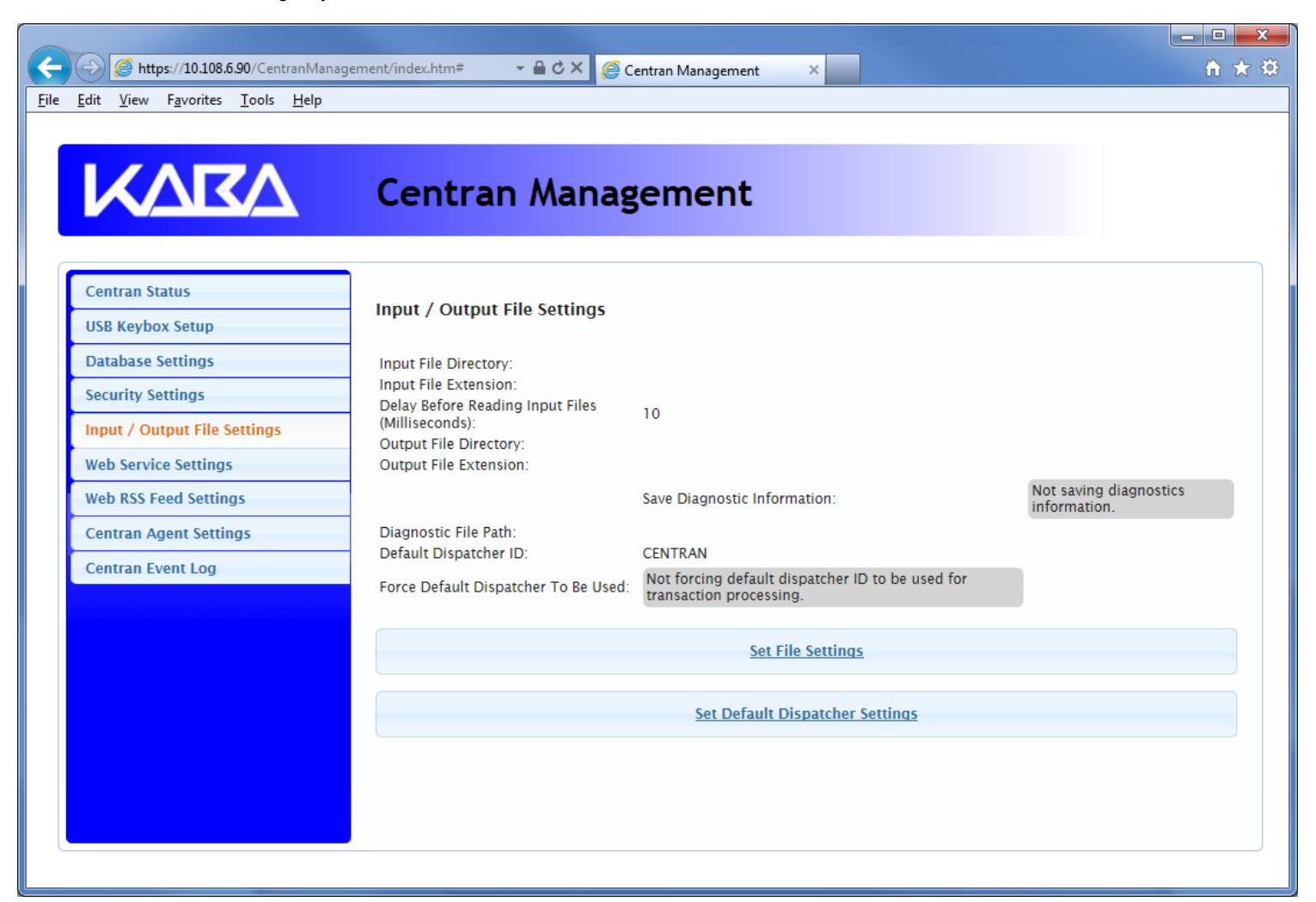
1. You will need to have already logged onto the Centran Management interface in your web browser. Click on the Input / Output File Settings tab on the left side:
-
2. You will need to setup an input directory and an output directory for Centran to receive file transactions and return the response.
- Input Directory The input directory is the directory where CenTran reads transactions being sent to it. It looks in this directory for files representing lock transactions to be processed. You will need to create an input directory that you want to use for CenTran to listen for incoming file transactions.
- Input File Extension The input file extension defined here is the file extension CenTran looks for when attempting to find transaction input files in the input directory that has been identified. If an input file extension is not set, then the CenTran service will attempt to read any file placed in the input directory.
- Input File Delay The delay before reading next input transaction file setting is intended to allow a delay after detecting a file and before reading it. It is possible for an error in reading the input file to occur if it has not been completely written to the input directory yet. This delay allows the write of the input file to complete before the CenTran service reads the file. This delay begins when a transaction file is detected in the input directory by CenTran.
- Output Directory The output directory is the directory where CenTran places the output files containing the results of processed transactions. This directory can be the same directory as the one used to contain input files. If the two directories are the same, then the files must have different extensions assigned. You will need to create an output directory that you want to
use for CenTran to write output files to.
Output File Extension - The output file extension is the file extension placed by CenTran at the end of output file names. The file names will be the same as the input file names, except for the file extension. If an output file extension is set, then that extension will be placed at the end of output files produced by CenTran.
Note
Centran has been validated against the SuperSpeed RamDisk Plus software. This software allows you to use a ram disk as the file location used for transferring Centran transaction files. This improves performance and speed of transferring Centran transaction files, and eliminates hard drive wear from transferring Centran transaction files. This software is available at http://www.superspeed.com/desktop/ramdisk.php. SuperSpeed RamDisk is a Microsoft Certified software.
3. Click on the Set File Settings button. You should see the following dialog displayed:
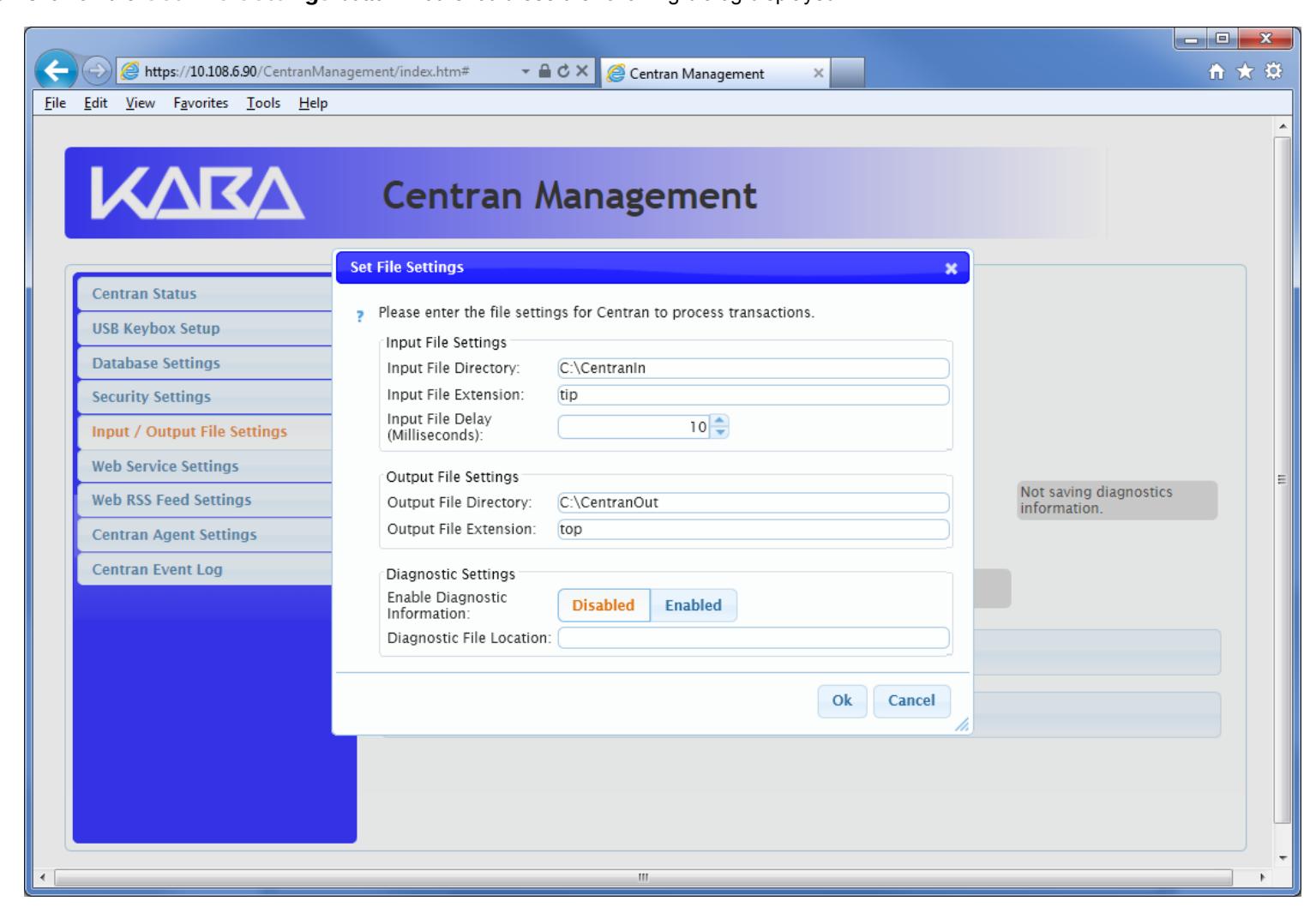
4. Enter the input and output directories and extensions for the CenTran service to process files. Optionally, you can enable CenTran to record diagnostic output to a file, but this slows down performance. Once you have entered the settings you want to use, click on the OK button.
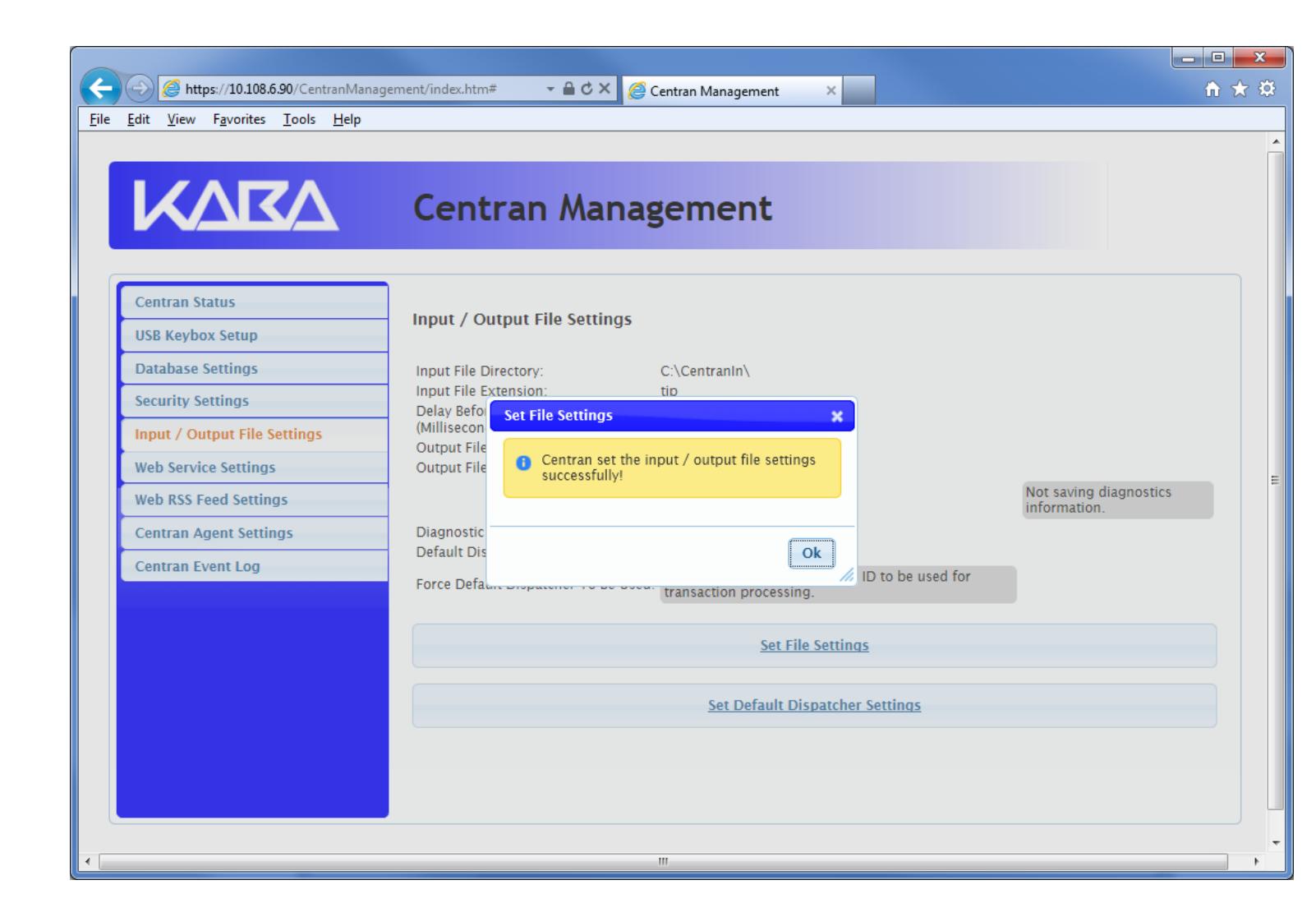
5. Click on the OK button on message box.
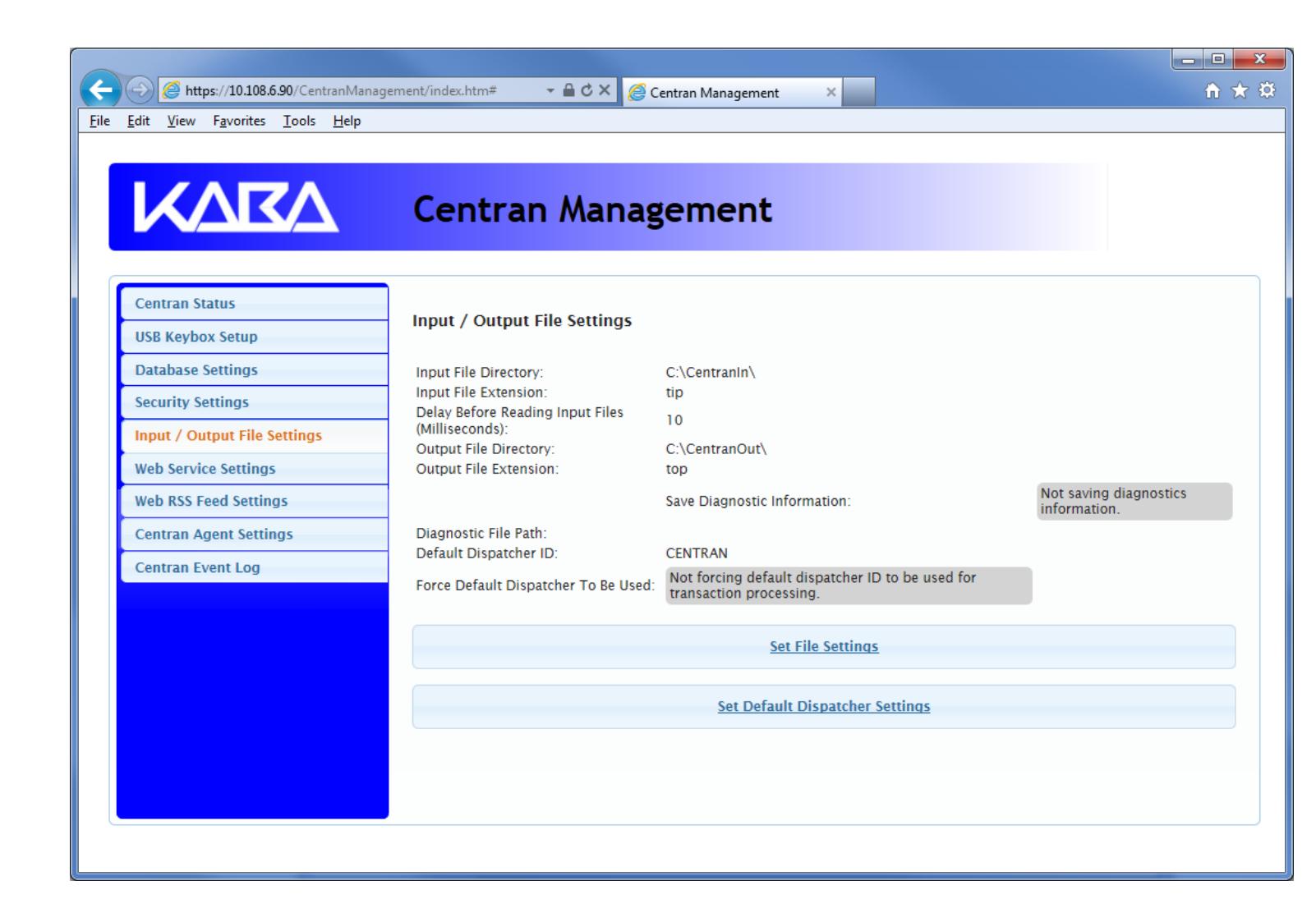
6. You will also need to set the default dispatcher ID to be used for the CenTran service when a dispatcher ID is not available for a transaction being processed. Optionally, you can force this dispatcher ID to be used instead of the dispather ID associated with a transaction.
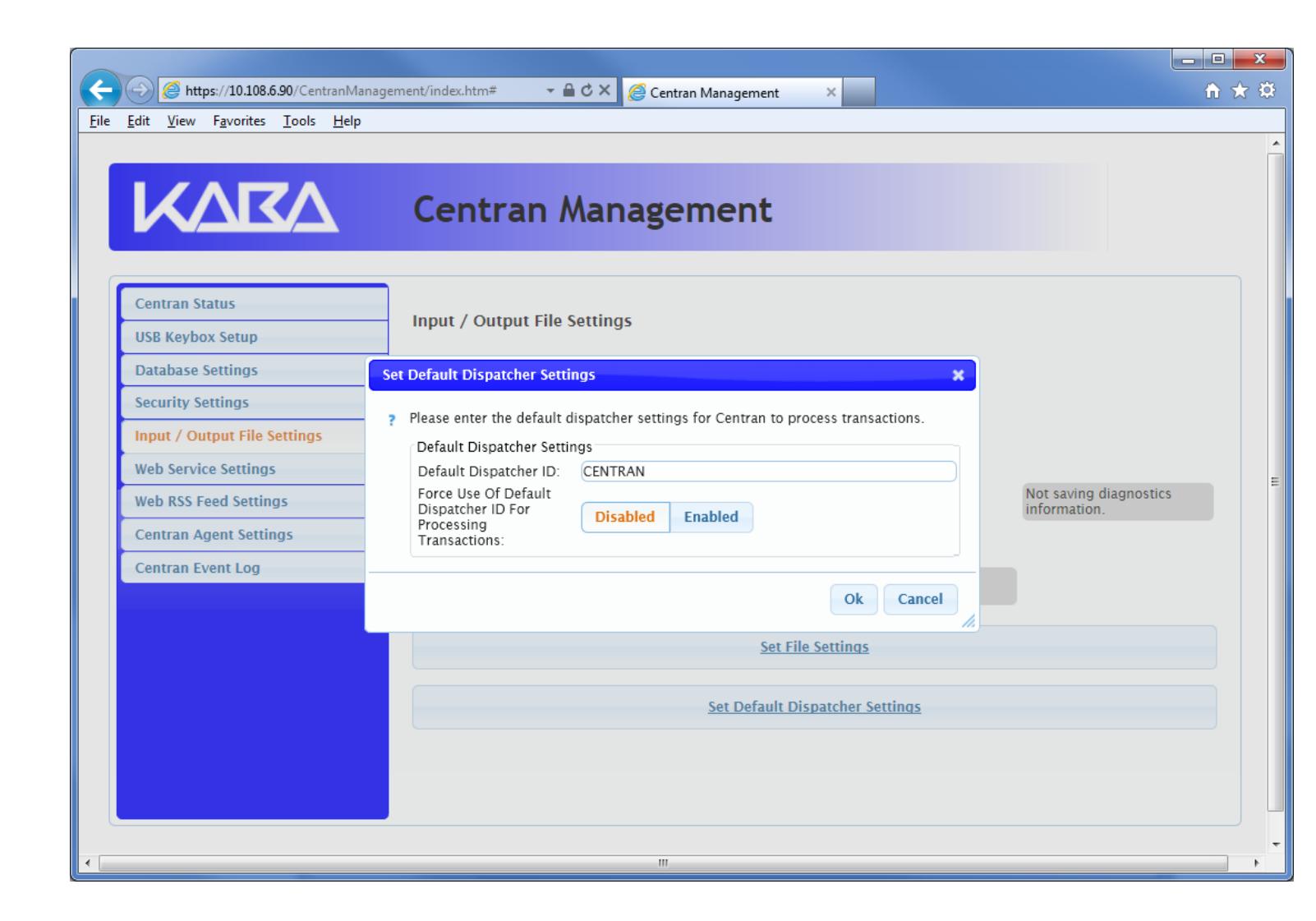
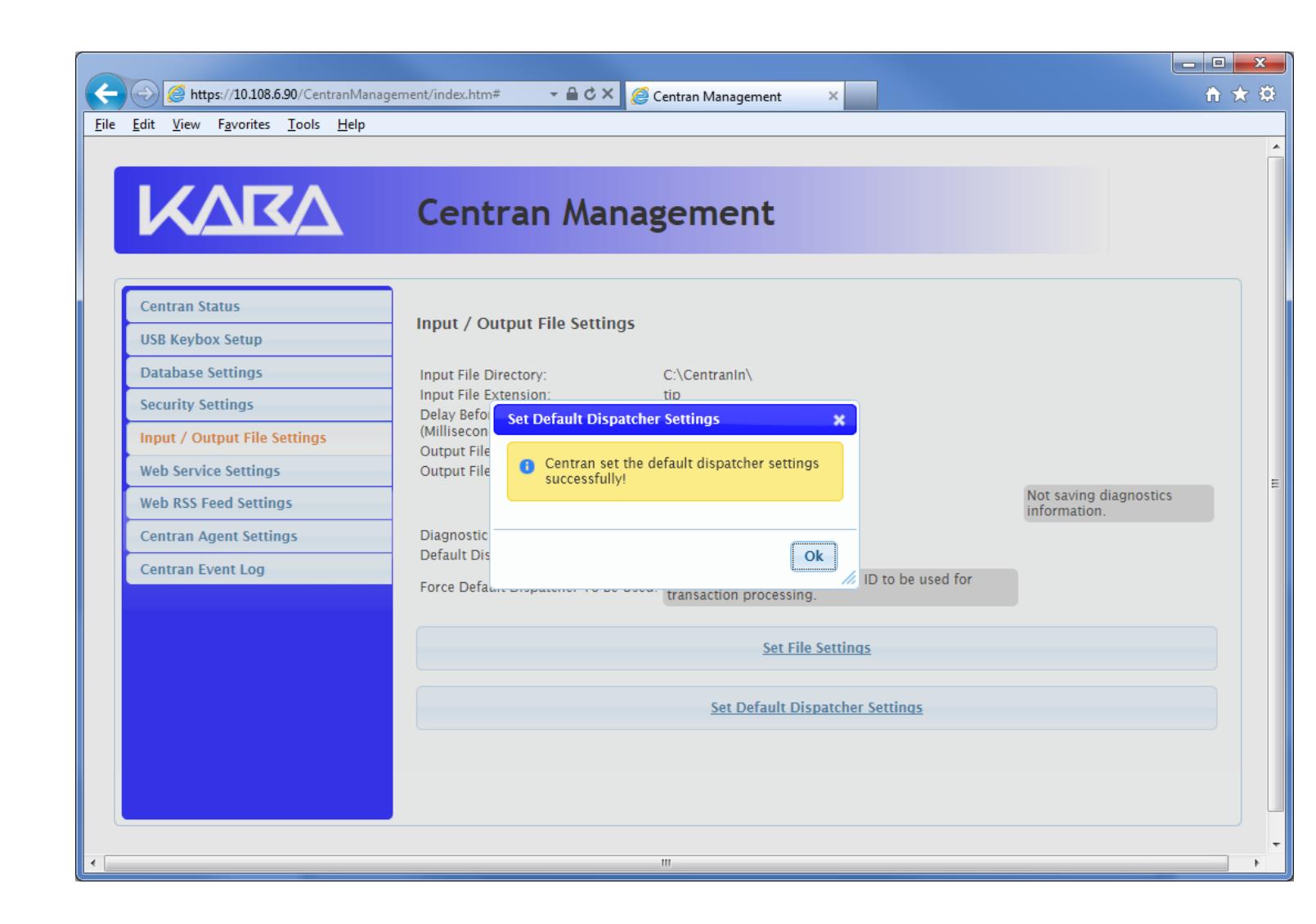
7. Enter the default dispatcher ID you want to use. This default dispatcher ID must have been already set up under Cencon, and be present in the database. The role that the default dispatcher is assigned to will effect what authorizations the default dispatcher has. Once you have entered the default dispather ID you want to use, click on the OK button.
© 1996-2013 Kaba Mas LLC
Start Transaction Processing
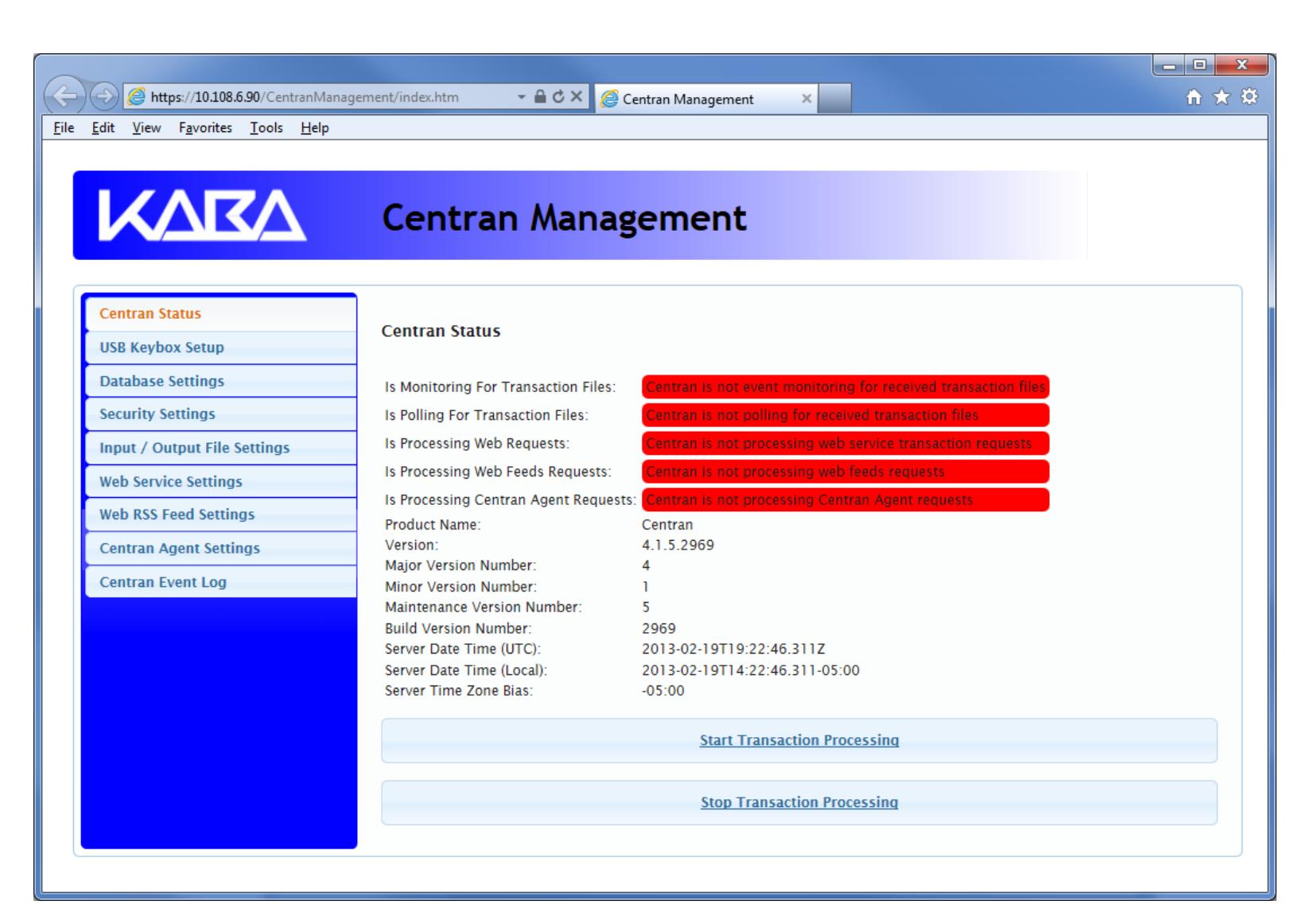
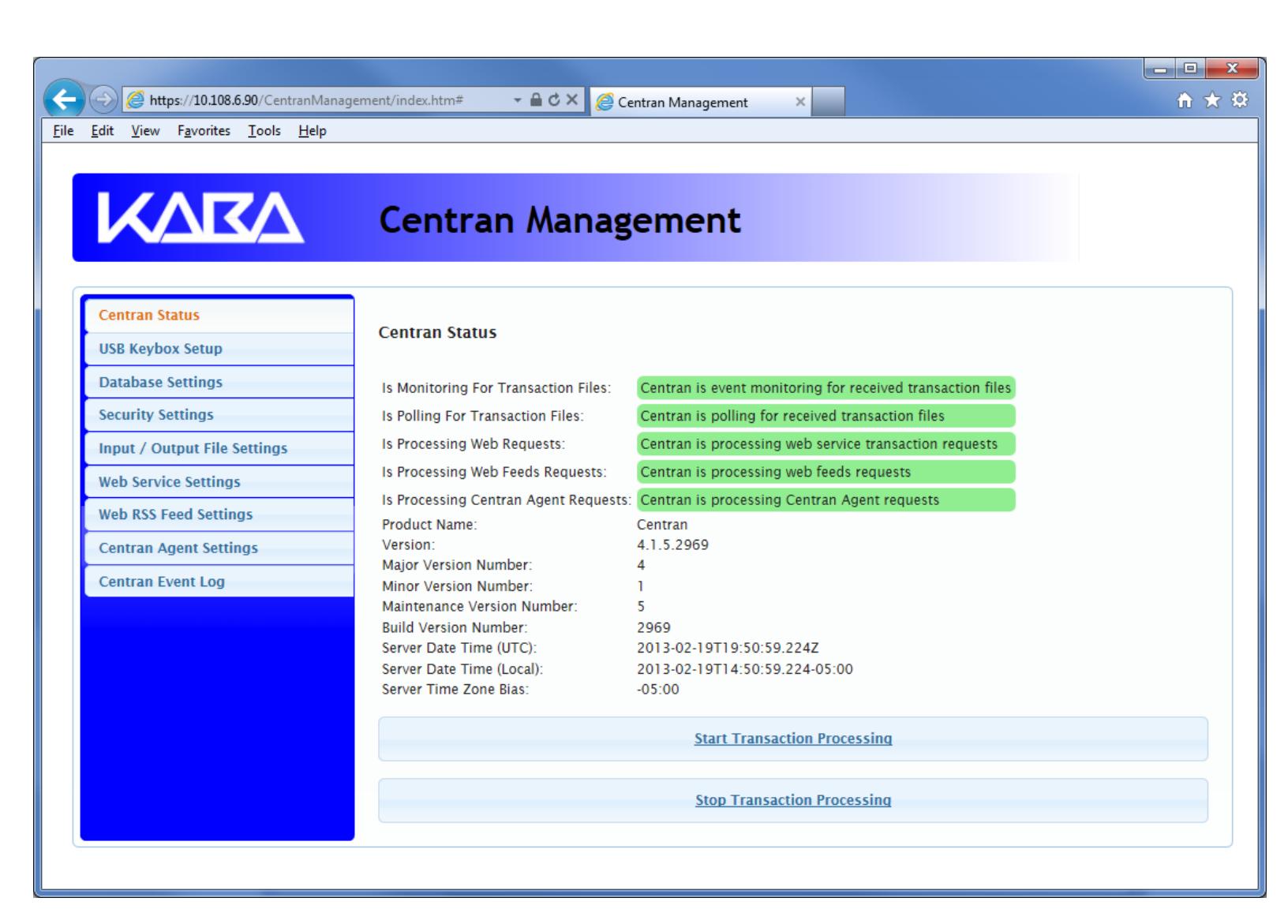
You will need to have already logged onto the Centran Management interface in your web browser. Click on the Centran Status tab on the left side:
You should see the following in your web browser:
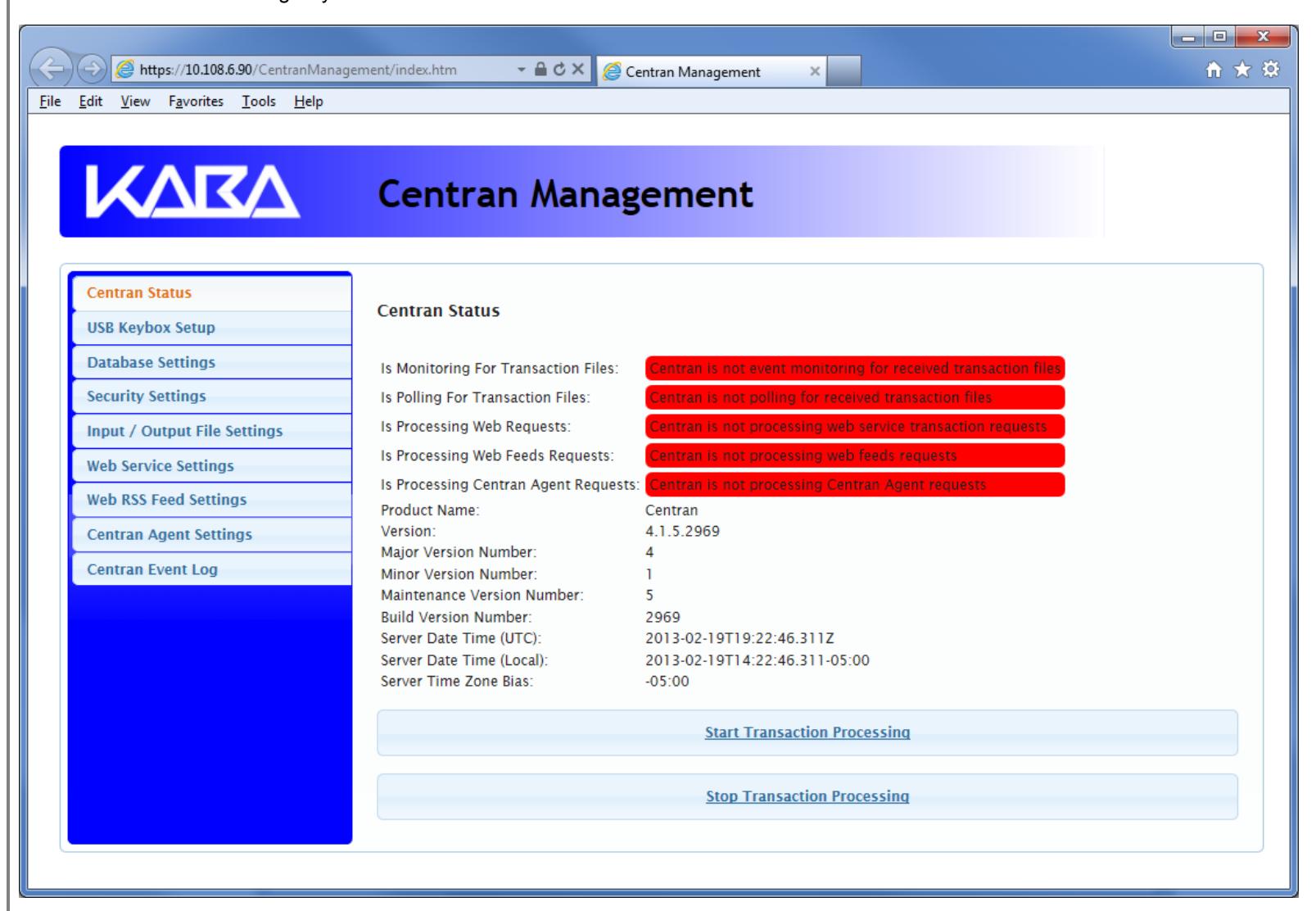
Click on the Start Transaction Processing button. You should see the following message dialog displayed:
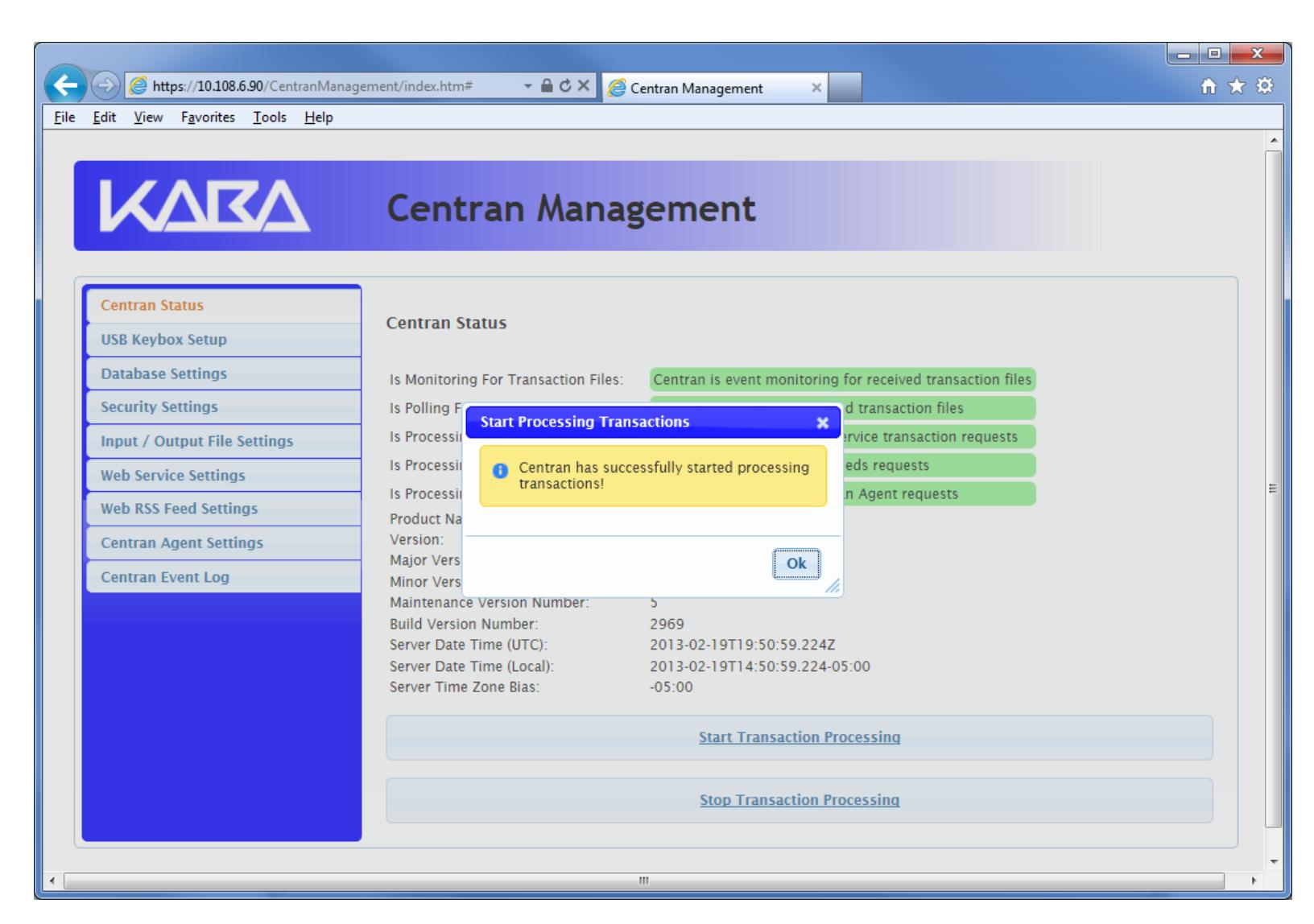
Click on the message dialog OK button.
© 1996-2013 Kaba Mas LLC
View Web Service Settings
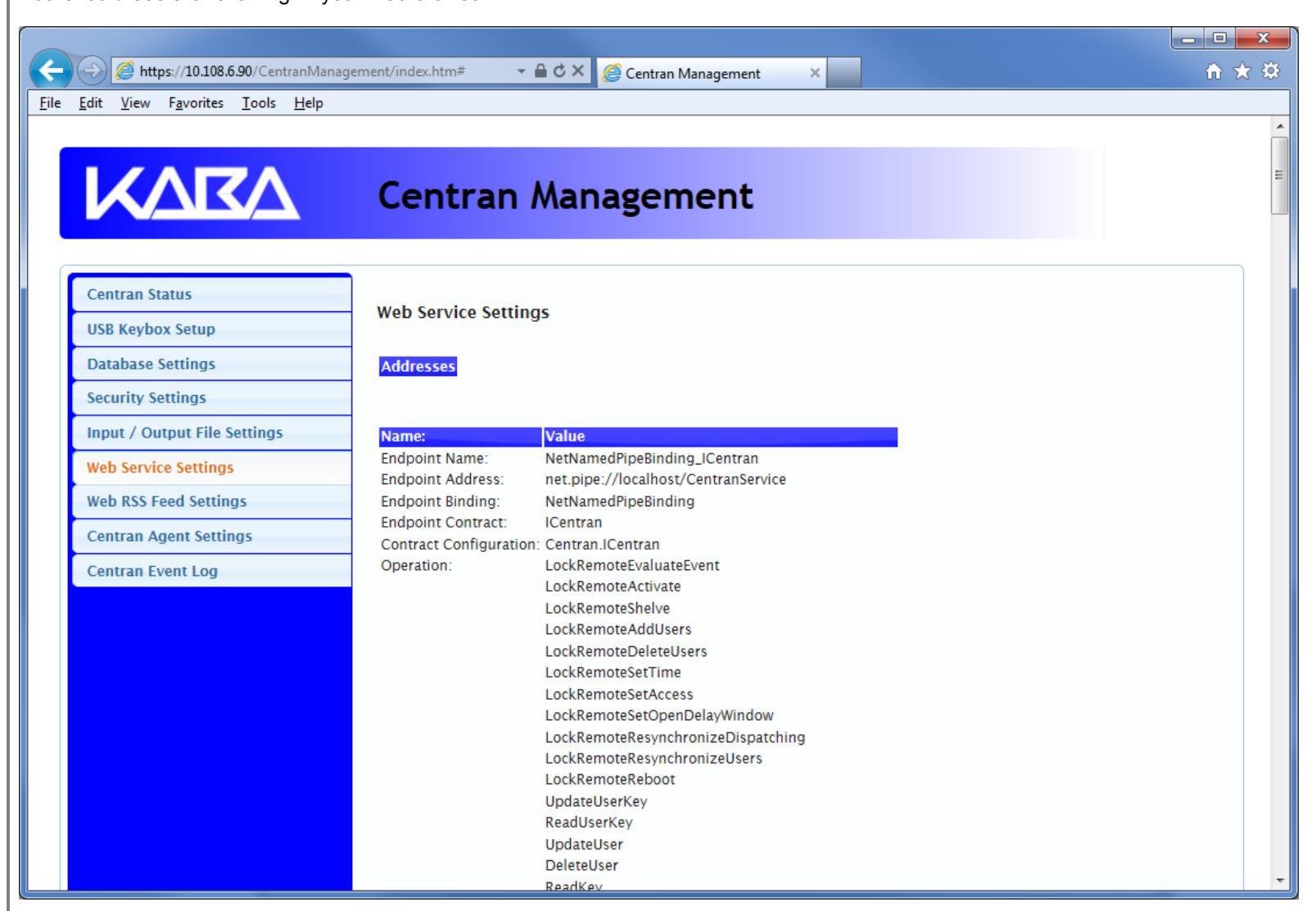
The web service settings are configured in the sytem.serviceModel section of the CenTran service configuration file. The resultant web service based on the settings can be viewed while the CenTran service is processing transactions.
You will need to have already logged onto the Centran Management interface in your web browser. Click on the Web Service Settings tab on the left side:
You should see the following in your web browser:
© 1996-2013 Kaba Mas LLC
View Web RSS Feed Settings
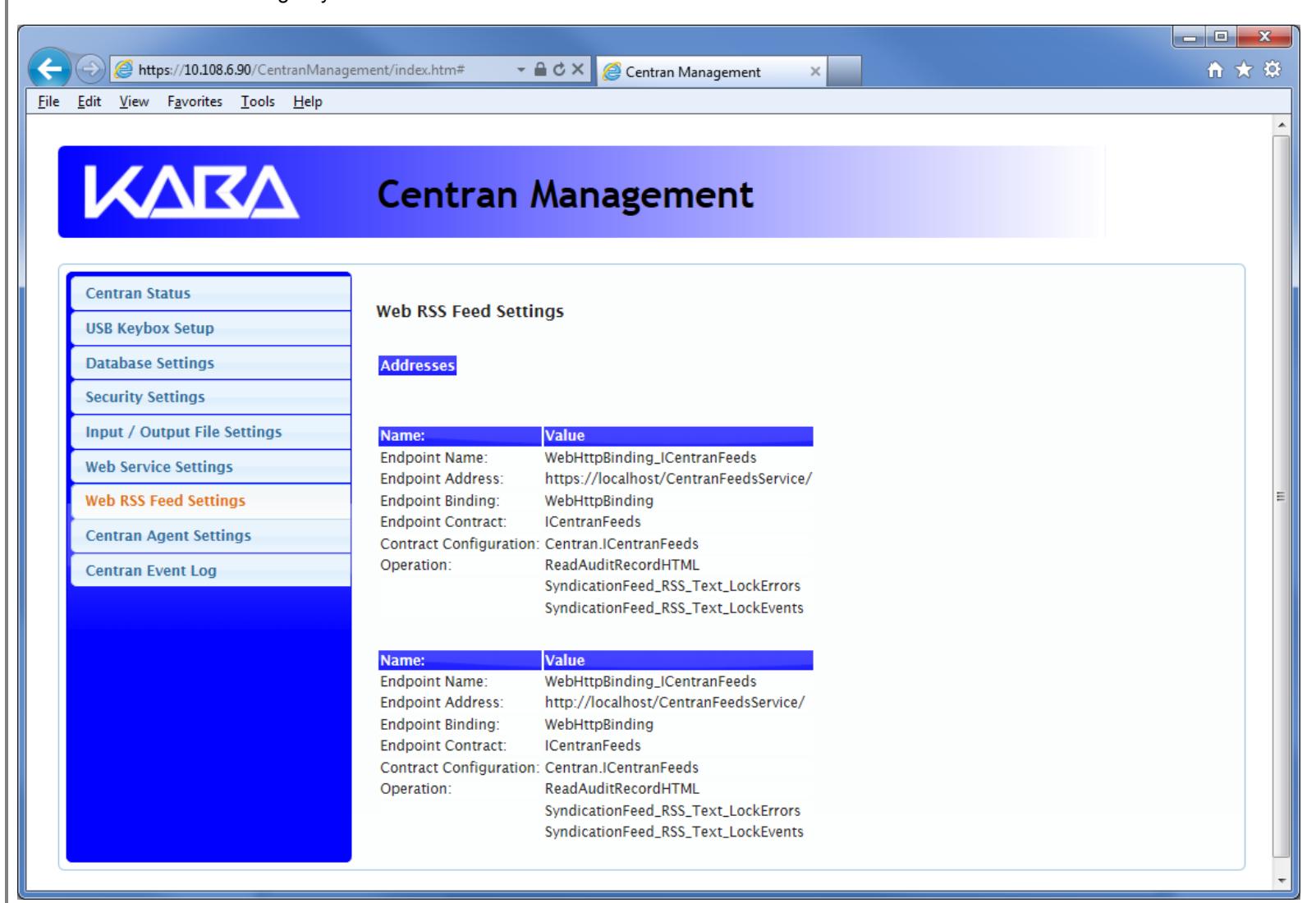
The web rss feed settings are configured in the sytem.serviceModel section of the CenTran service configuration file. The resultant web rss feeds based on the settings can be viewed while the CenTran service is processing transactions.
You will need to have already logged onto the Centran Management interface in your web browser. Click on the Web RSS Feed Settings tab on the left side:
You should see the following in your web browser:
© 1996-2013 Kaba Mas LLC
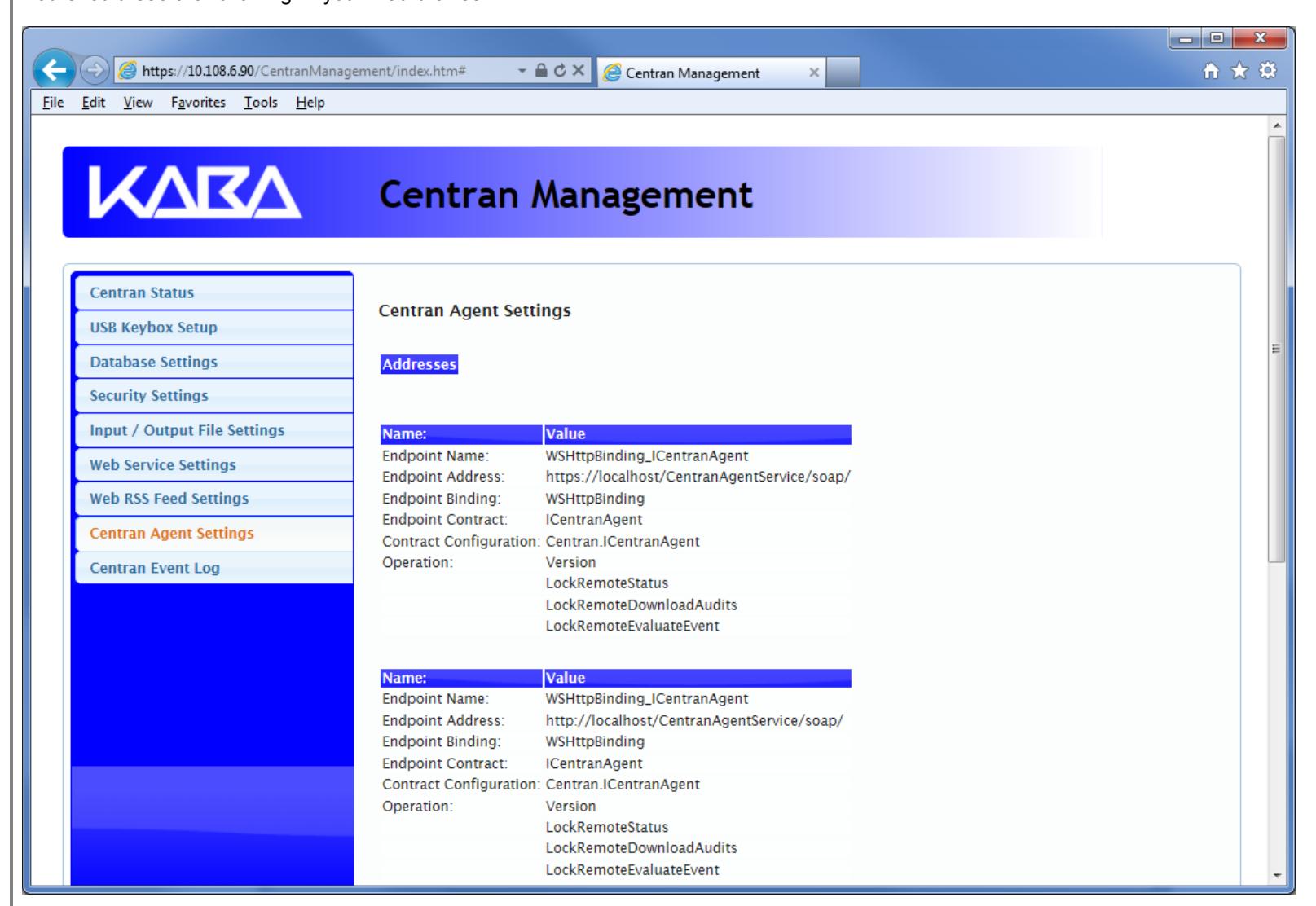
View Centran Agent Settings
The Centran Agent settings are configured in the sytem.serviceModel section of the CenTran service configuration file. The resultant web service based on the settings can be viewed while the CenTran service is processing transactions.
You will need to have already logged onto the Centran Management interface in your web browser. Click on the Centran Agent Settings tab on the left side:
You should see the following in your web browser:
© 1996-2013 Kaba Mas LLC
View Event Log
You will need to have already logged onto the Centran Management interface in your web browser. Click on the Centran Event Log tab on the left side:
You should see the following in your web browser:
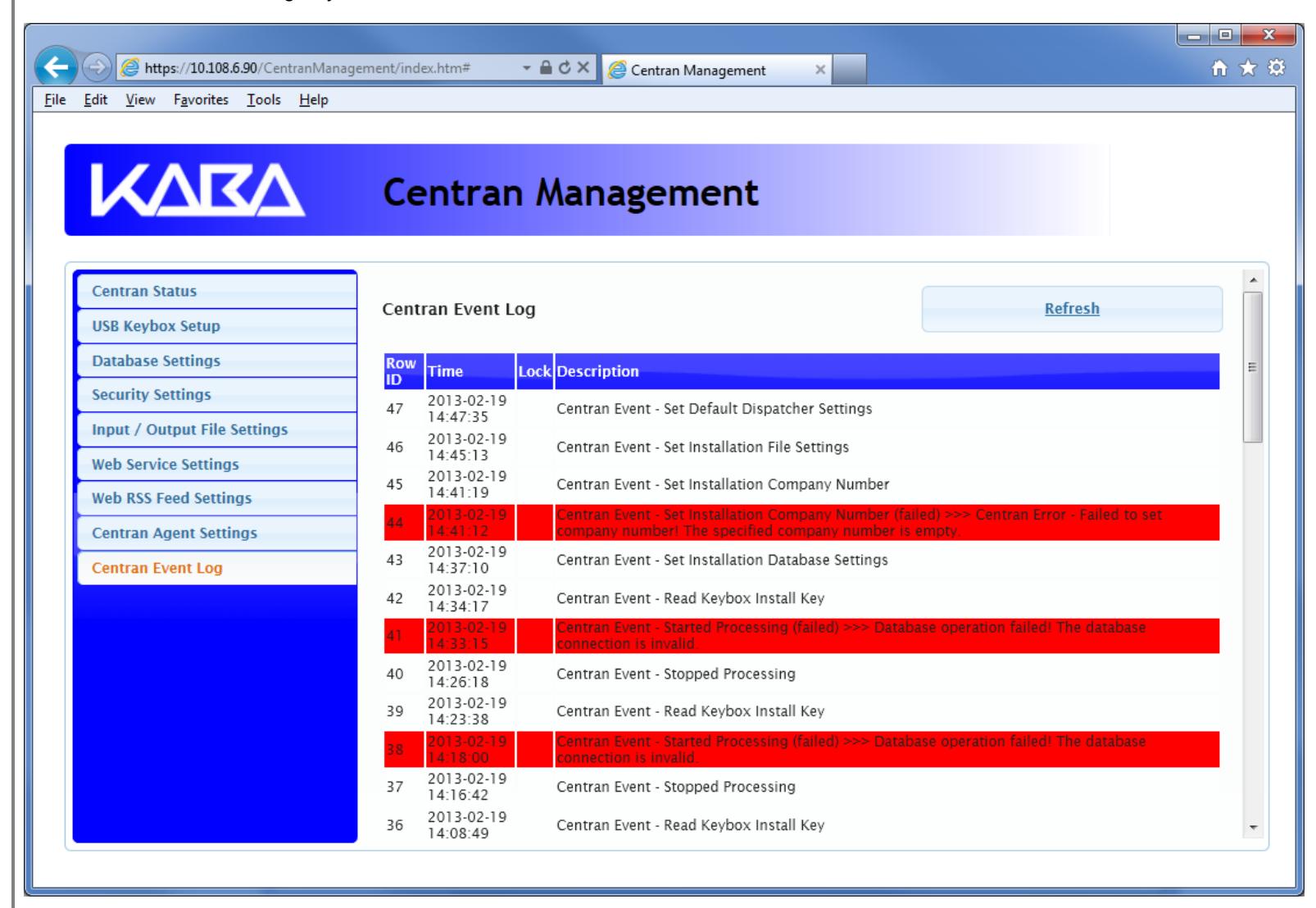
The CenTran Management interface loads event log audits 100 at a time. To load additional audits for viewing, scroll to the bottom of the current audits. Additional audits will be loaded automatically, and the scroll position will be moved up.
The CenTran event log is limited in size based on the settings you made in the CenTran service configuration file. Once the event log reaches the limit you set, it will delete the oldest audits to remain within the limit when new audits are added. This occurrs based off of the granularity you set in the configuration file. The event log will be allowed to grow slightly larger than the set limit based off of the granularity size used to regulate how often the check is made.
Additional information is available in the CenTran event log registered with the operating system. Service start and stop events are recorded there. Additionally, if internal errors occur within CenTran, the description of the error is recorded there also. This can be accessed by opening the administrative tools section of the control panel for your computer. Under that is an item labled Event Viewer. Open the Event Viewer, and you will see a CenTran event log under the application and services event logs section.
Also, additional information is available in the Windows Communiction Foundation (WCF) diagnostic output set up from the Centran configuration file. The default settings from the Centran configuration file creates a diagnostic output file for Windows Communication Foundation (WCF) events, named WcfServiceTrace.svclog. This file will be created within the application directory the Centran service is installed to. This file can be viewed using the Microsoft Service Trace Viewer (SvcTraceViewer.exe). Double clicking on the file will automatically open the file under the Microsoft Service Trace Viewer.
The Microsoft Service Trace Viewer is available as a free download within the Windows Platform SDK.
© 1996-2013 Kaba Mas LLC
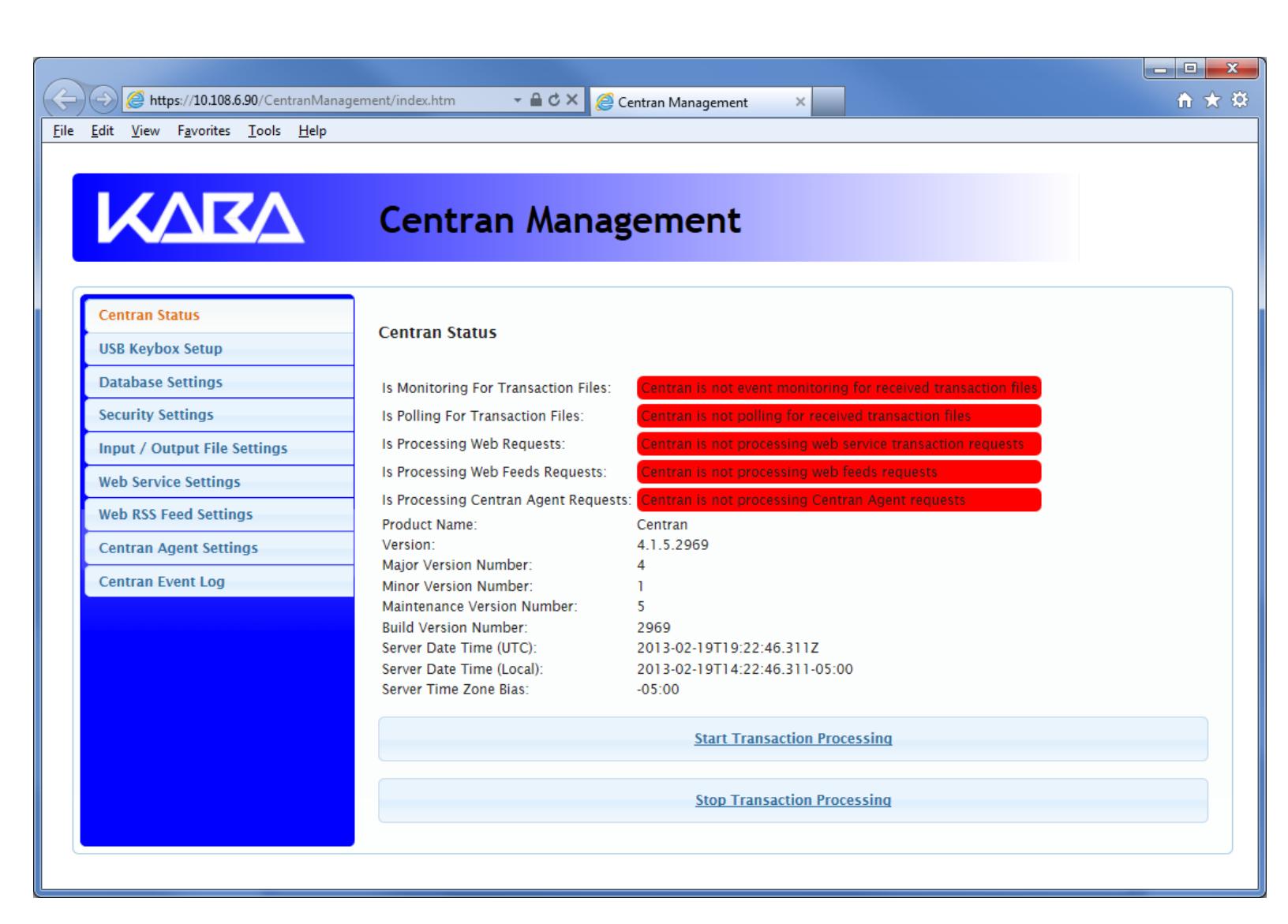
Stop Transaction Processing
You will need to have already logged onto the Centran Management interface in your web browser. Click on the Centran Status tab on the left side:
You should see the following in your web browser:
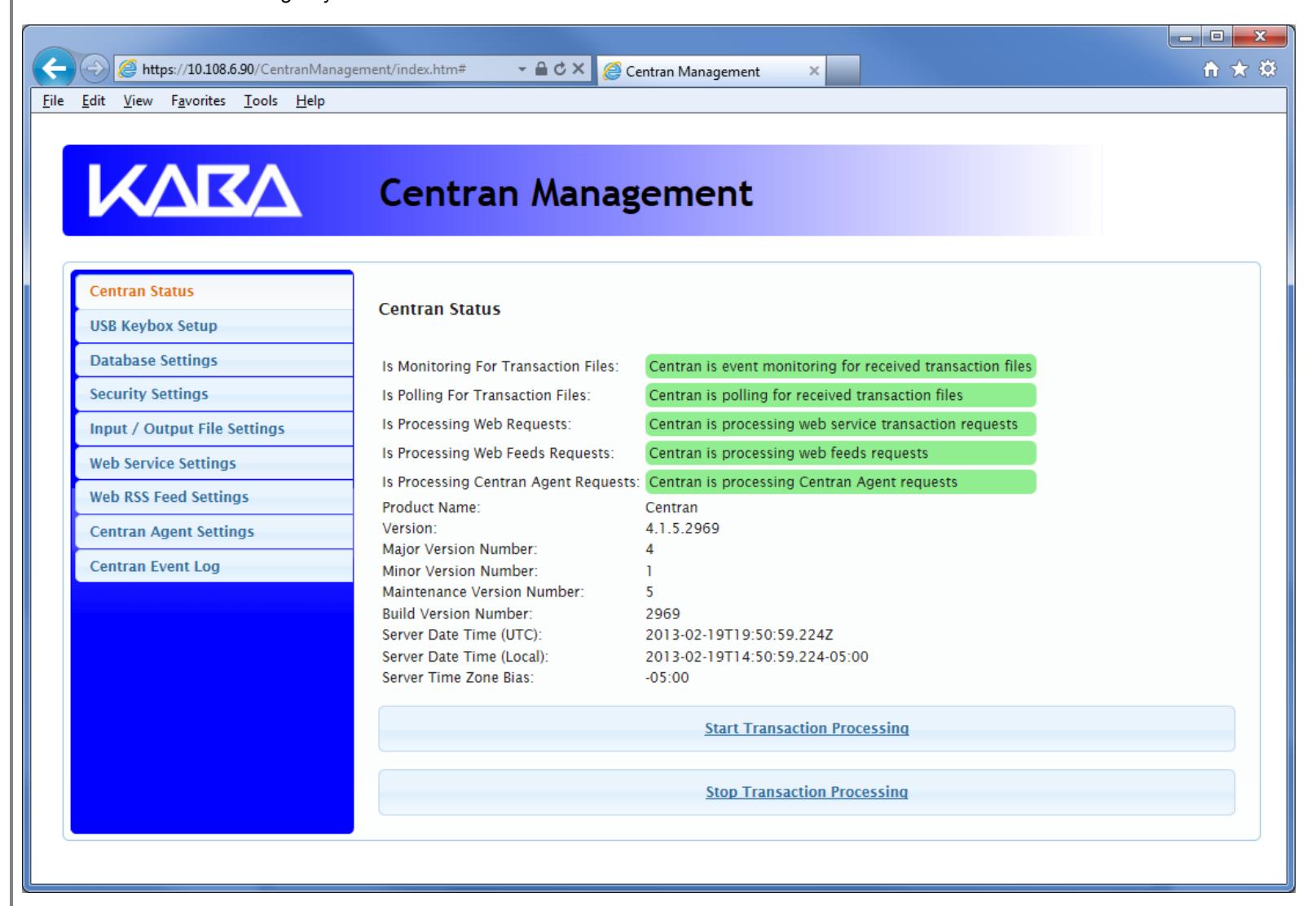
Click on the Stop Transaction Processing button. You should see the following message dialog displayed:
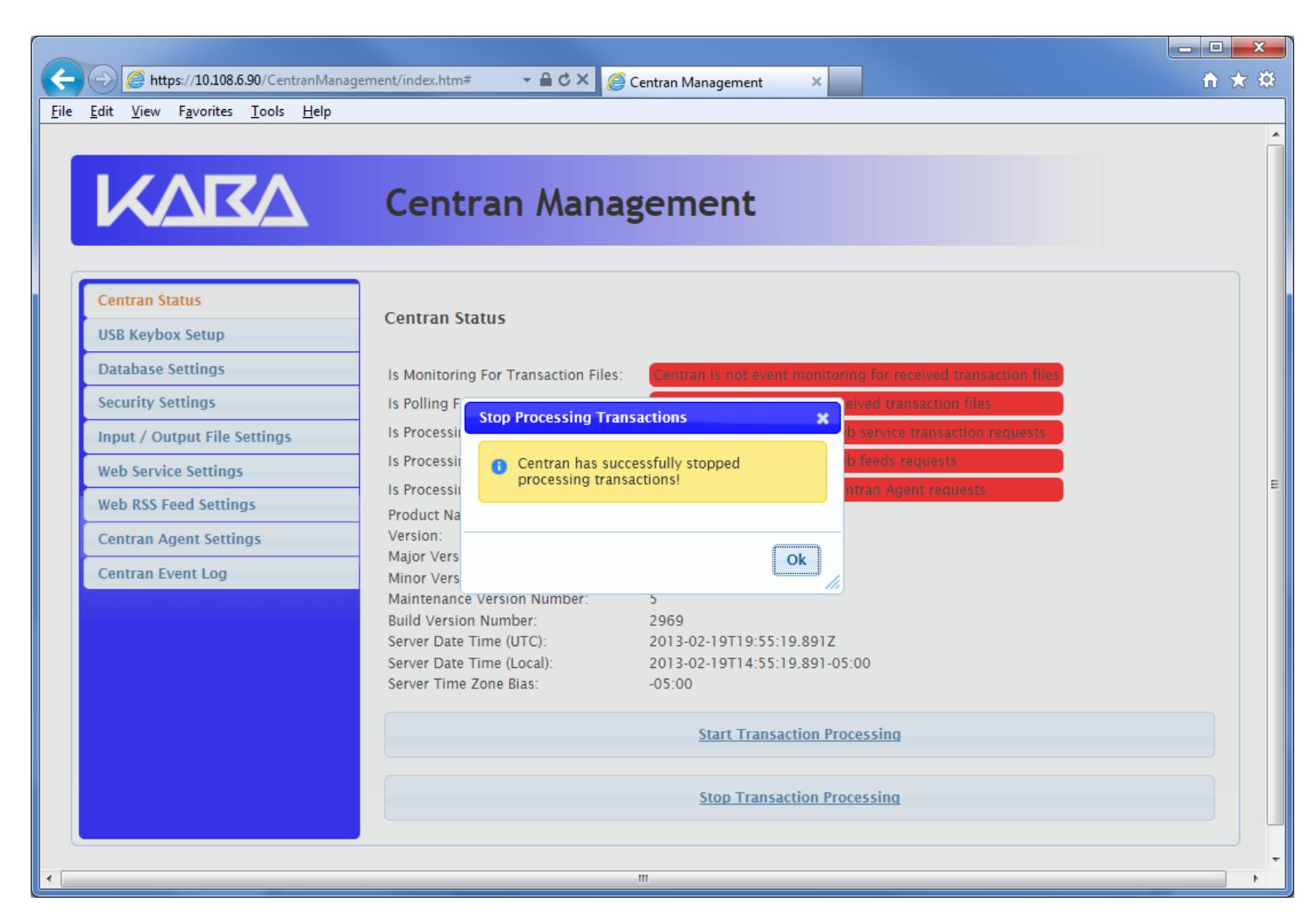
Click on the message dialog OK button.
© 1996-2013 Kaba Mas LLC
Stop / Uninstall the CenTran Service
To stop and uninstall the CenTran service, select Centran Configuration Manager from the Centran entry under the Windows Start menu. You should see the following application:
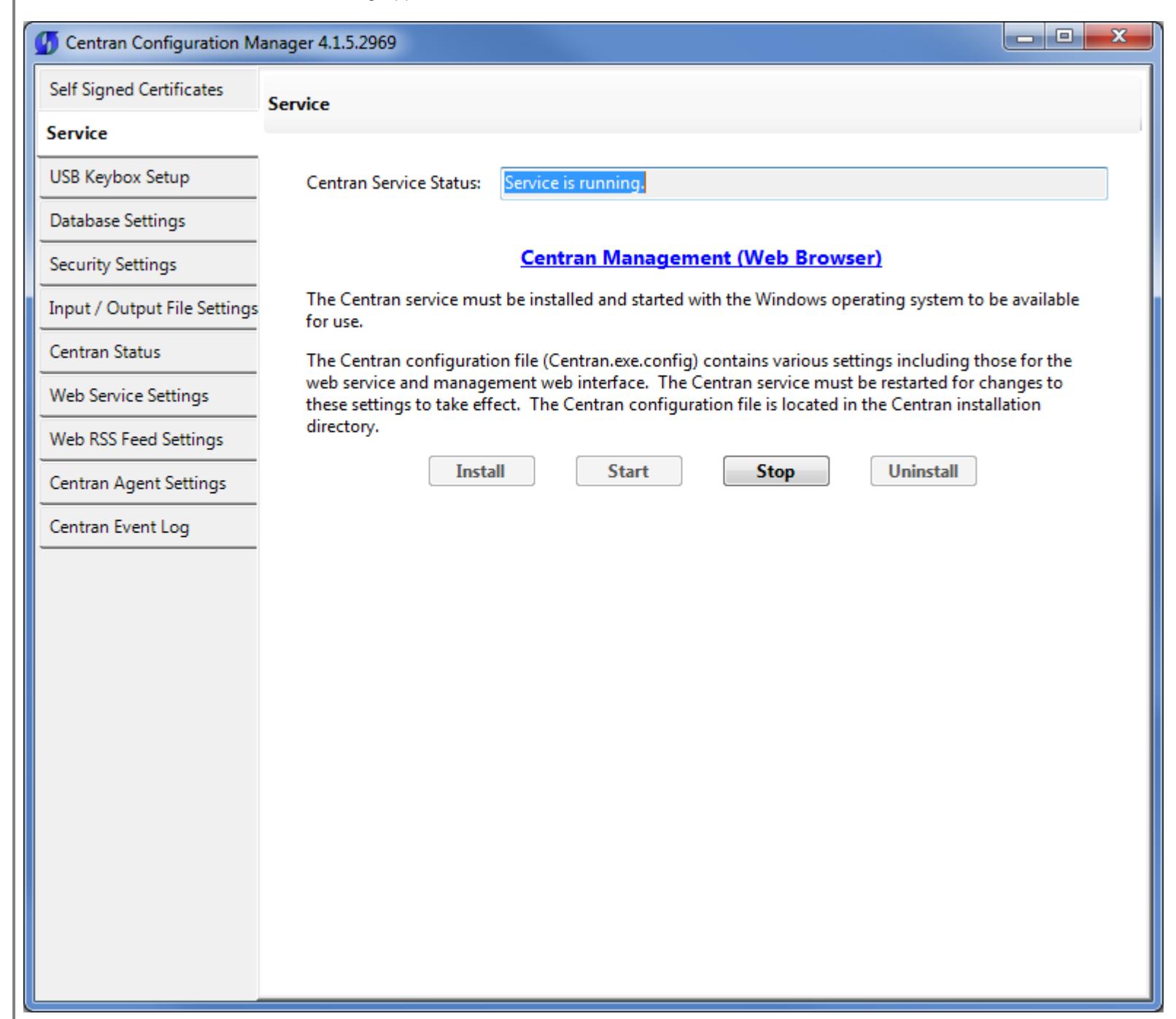
Select the Stop button to stop the CenTran service with the operating system.
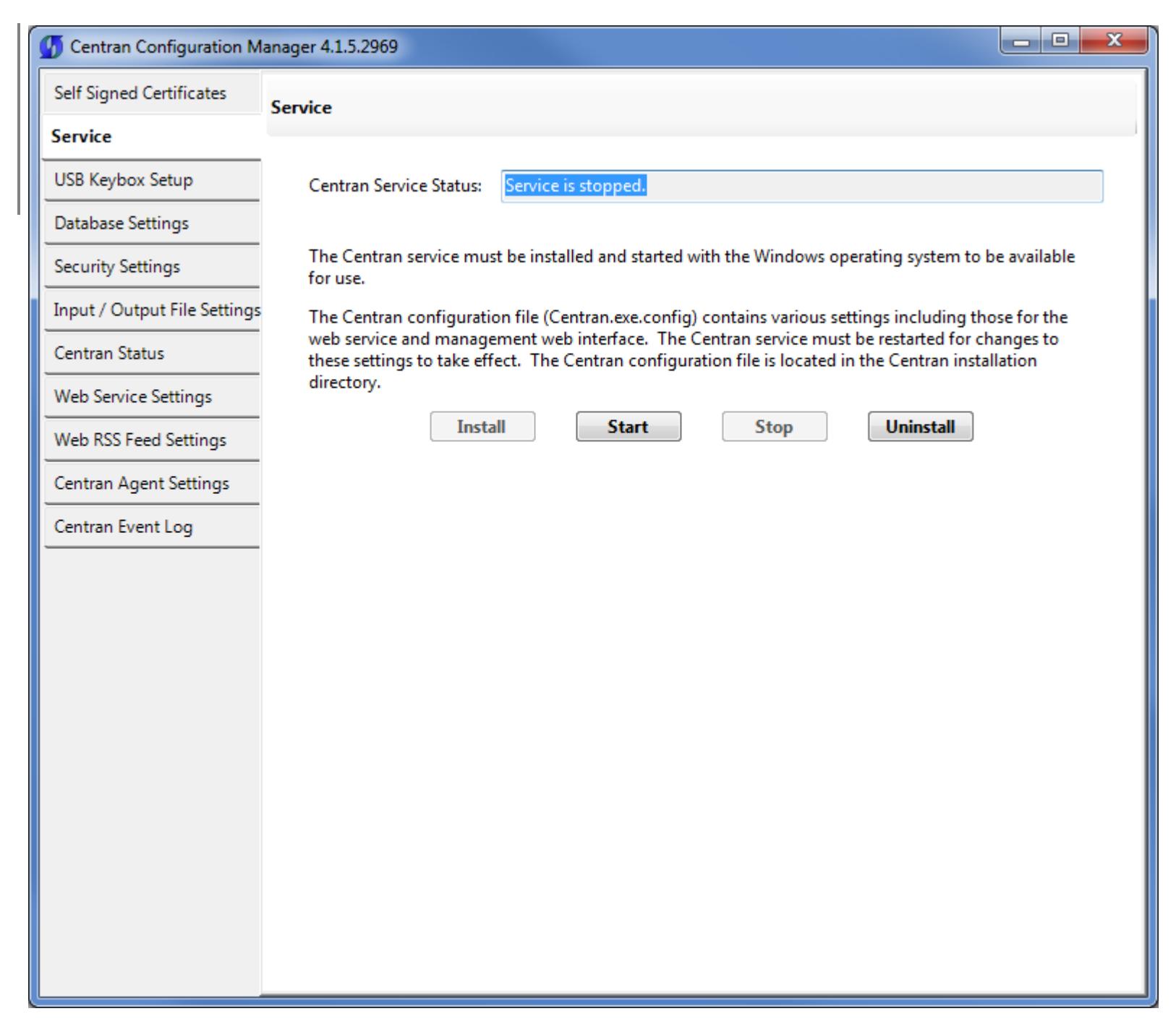
Select the Uninstall button to uninstall the CenTran service from the operating system.

© 1996-2013 Kaba Mas LLC
Appendix A - Beta Expiration
The beta versions of CenTran, the ATM Agents and the Keybox Agents will be assigned an initial expiration date of 180 days after the date of creation by Kaba Mas.
When CenTran or an agent is within 60 days of its expiration date entries will be posted to the database audit log documenting the situation. CenTran and the agents will continue to function.
When CenTran expires an entry will be posted to the database audit log identifying the event. An expired CenTran will not process transaction requests but will return an error condition to the transaction requestor. An entry will be posted to the database audit log documenting the transaction that failed due to an expired CenTran.
In a future Beta release the customer will be provided with the ability to reset the expiration date, and the date on which the warnings begin, for CenTran and the Agents with help from Kaba Mas Technical Support.
© 1996-2013 Kaba Mas LLC