CLS-XLS-Quick-Start-Guide
Open the original PDF document
View PDFXLS Quick Start Guide Site Administrator

1
DOWNLOAD THE PDQ SMART APP
Download and install PDQ Smart Application from App store or Google play
For iPhone or iPad
PDQ Smart
A: Go to the App Store on mobile device B: Search for "PDQ Smart"
C: Install "PDQ Smart" application
PDQ
App Icon
Scan to Download
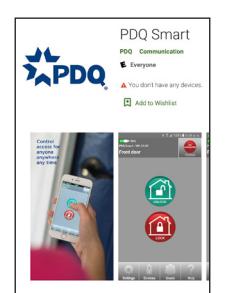
A: Go to the Play Store on mobile device
C: Install "PDQ Smart" application
For Android
B: Search for "PDQ Smart"
2
3PDQ
4.6****
What's New
REGISTER (COMMISSION) THE LOCKSET
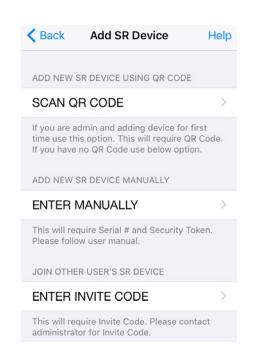

- 1: Click on "Scan QR Code" button. APP will open camera on phone.
- 2: SR Device info will be read successfully from label, using QR scan.
- 2a: Screen will appear with auto-filled SR Device information.
- 2b: Administrator must enter a desired name, for example, Main Office, Door #101A. etc.
2 OPTION 2 - ENTER MANUALLY
- 1: Click on "Enter Manually" button from "Add SR Device" screen.
- 2: Enter SR # and Security Token from label attached to SR Device manually in "Add SR Device" screen
- 3: Administrator must enter a desired name, for example, Main Office, Door #101A, etc.
3 CREATE NEW ACCOUNT
CREATE A NEW ACCOUNT IF YOU DO NOT HAVE AN EXISTING ACCOUNT
- 1: Click on "Create New Account" button.
- 2: Enter all necessary account information.
- 3: Click on "Register SR Device".
4
ADD ADDITIONAL LOCKSETS
OPEN THE PDQ SMART APP, CLICK ON DEVICES, MENU, ADD
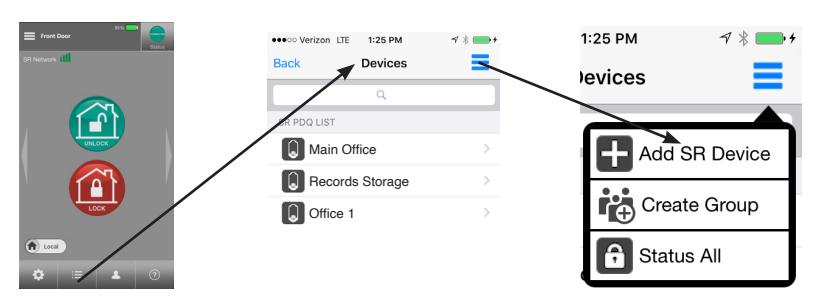

OPTION 1 - SCAN QR CODE
- 1: Click on "Scan QR Code" button. APP will open camera on phone.
- 2: SR Device info will be read successfully from label, using QR scan.
- 2a: Screen will appear with auto-filled SR Device information.
- 2b: Administrator must enter a desired name for this added lockset and click on "Add To Existing" button

OPTION 2 - ENTER MANUALLY
- 1: Click on "Enter Manually" button from "Add SR Device" screen.
- 2: Enter SR # and Security Token from label attached to SR Device manually in "Add SR Device" screen
- Administrator must enter a desired name for this added lockset and click on
XLS
Quick Start Guide User (Credential Holder) Management

5
INVITE A NEW USER (CREDENTIAL HOLDER)
INTERNET CONNECTIVITY IS NECESSARY TO ADD A NEW USER
- 1: Launch the PDQ Smart app and select Users -> Invite Access Device.
- 2: Administrator will be asked to enter Email ID and Password for the account, then name and SMS (TEXT MESSAGE) or EMAIL for the new user.
- 3: Click on "Enter Invite Code" button.
- 4: INVITE CODE will be generated and sent to the new user by SMS (TEXT MESSAGE) or by EMAIL.
6
NEW USER (CREDENTIAL HOLDER) ACCEPTING AN INVITE CODE
INTERNET CONNECTIVITY IS NECESSARY TO ADD A NEW USER - AFTER RECEIVING THE INVITE CODE VIA SMS (TEXT MESSAGE) OR BY EMAIL
- 1: Launch PDQ Smart app.
- 2: Add SR Device screen will appear.
- 3: Select "Enter Invite Code" button.
- 4: Accept invitation screen will appear.
- 5: Enter Invite Code that is received by SMS (TEXT MESSAGE) or BY EMAIL and press "Accept Invitation" button.
- 6: Phone is now ready to operate lock. Make sure Bluetooth on phone is turned on.
This device complies with part 15 of the FCC rules. Operation is subject to following two conditions. (1) This device may not cause harmful interference. (2) This device must accept any interference received, including interference that may cause undesired operation.
Contact us at smartsupport@pdqlocks.com or
pdqSMART Tech Support at 866.874.3662
Headquarters: 2230 Embassy Drive, Lancaster, PA 17603
p : 800.441.9692
e: smartsupport@pdqlocks.com www.pdqsmartnetworked.com
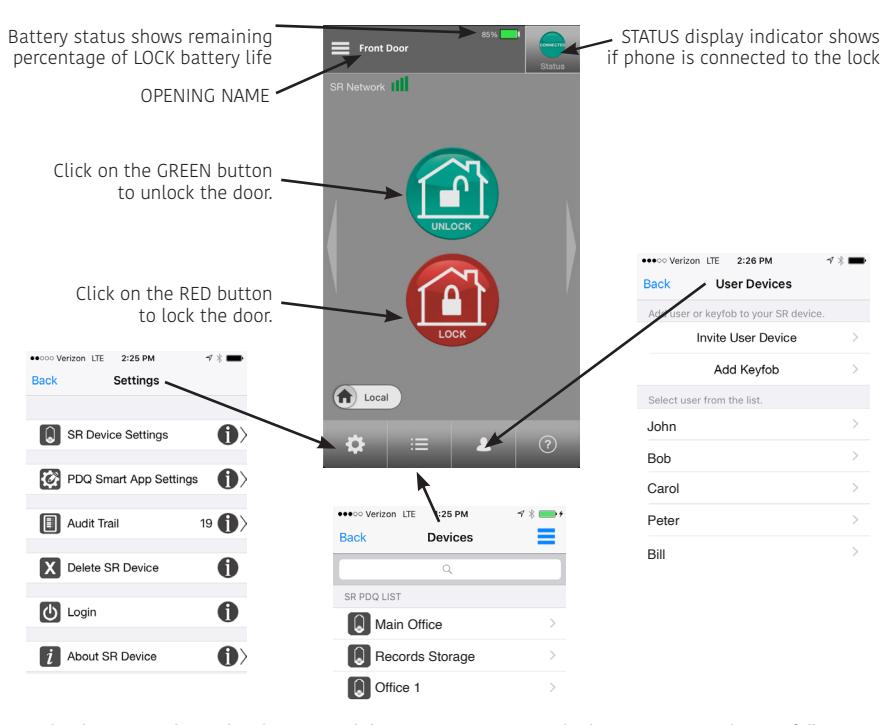
APP DISPLAY
Note: To view multiple openings, swipe app from left to right or right to left.
This device complies with Industry Canada license-exempt RSS standard(s). Operation is subject to following two conditions. (1) This device may not cause interference, and (2) This device must accept any interference received, including interference that may cause undesired operation of the device.
8
To manage your locks using the PDQ SMART Secure Portal, go to: https://portal.pdqlocks.com