BEST Keypad Lock EZ Series Programming Guide
Open the original PDF document
View PDFEZ Series
Keypad EZ Lock Programming Guide
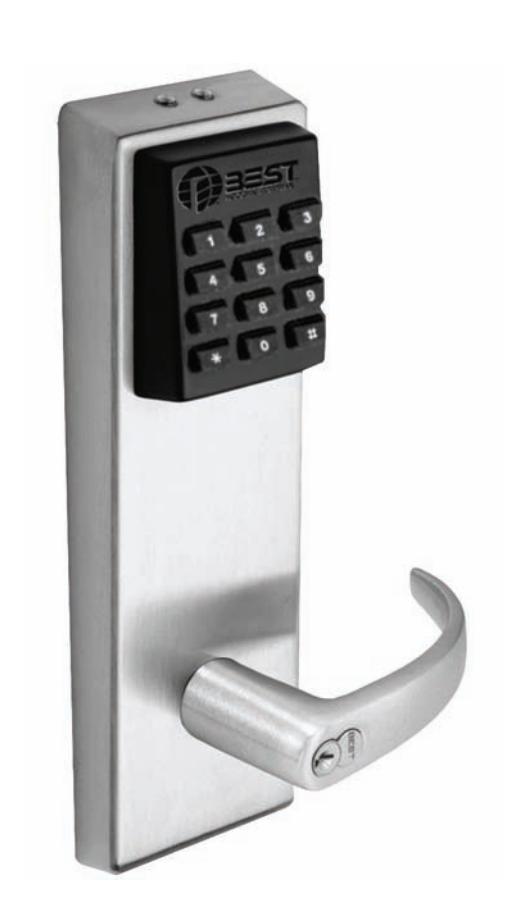

Copyright © 2003–2009 by Stanley Security Solutions, Inc. All rights reserved. Printed in the United States of America.
Information in this document is subject to change without notice and does not represent a commitment on the part of Stanley Security Solutions Inc. The software described in this document is furnished under a license agreement or nondisclosure agreement.
This publication is intended to be an accurate description and set of instructions pertaining to its subject matter. However, as with any publication of this complexity, errors or omissions are possible. Please call your BEST® distributor or Stanley Security Solutions, Inc, at (317) 849-2250 if you see any errors or have any questions. No part of this manual and/or database may be reproduced or transmitted in any form or by any means, electronic or mechanical, including photocopying, recording, or information storage and retrieval systems, for any purpose, without the express written permission of Stanley Security Solutions, Inc.
This document is distributed as is, without warranty of any kind, either express or implied, respecting the contents of this book, including but not limited to implied warranties for the publication's quality, performance, merchantability, or fitness for any particular purpose. Neither Stanley Security Solutions, Inc, nor its dealers or distributors shall be liable to the user or any other person or entity with respect to any liability, loss, or damage caused or alleged to be caused directly or indirectly by this publication.
The Best Access Systems logo is a registered trademark of Stanley Security Soluctions, Inc.
Written and designed by Stanley Security Solutions, Inc, Indianapolis, Indiana.
T80911 Rev C 1880977 ER7991-12 Nov 2009
Information to the User
Note: This equipment has been tested and found to comply with limits for a Class A digital device, pursuant to part 15 of the FCC Rules. These limits are designed to provide reasonable protection against harmful interference when the equipment is operated in a commercial environment. This equipment generates, uses, and can radiate radio frequency energy and, if not installed and used in accordance with this instruction manual, may cause harmful interference to radio communications. Operation of this equipment in a residential area is likely to cause harmful interference in which case the user will be required to correct the interference at his own expense.
CONTENTS
INTRODUCTION TO KEYPAD EZ 1–1
QUICK SETUP GUIDE 2–1
COMPLETE SETUP GUIDE 3–1
Lock setup and management 3–2
Task 1: Begin a programming session 3–2
Task 2 Optional: Set PIN length 3–2
Task 3 Change the Administration PIN 3–3
Task 4 Optional: Set Supervisor PINs 3–3
Task 5 Optional: Set the unlock duration 3–4
Task 6 Add User PINs 3–4
Task 7 Optional: Set user privileges 3–5
Task 8 End the programming session 3–7
Task 9 Record, secure, and distribute PINs 3–7
User maintenance 3–8
MAINTENANCE 4–1
LOCK & USER FORMS 5–1
1 INTRODUCTION TO KEYPAD EZ
This manual is written primarily for the Administrator and Supervisors who will program Keypad EZ Locks.
GETTING ACCESS
Using the Keypad EZ Lock is easy, as its name implies. But a few additional features that are part of the Keypad EZ Lock are important to note. So this section will explain:
- basic access
- passage mode access
- remote access
Getting basic access
Getting access to a Keypad EZ Lock is simple. You should be able to enter your PIN (Personal Identification Number) that your Administrator or Supervisor gave you, at any time, 24 hours a day, 7 days a week.
Note: If you do not yet have a PIN, see your Administrator or Supervisor. If you are or will be an Administrator or Supervisor, see page 2–1 for the quick setup guide to start setting up Keypad EZ locks right away.
However, there are four situations where you may not be able to gain access:
- When the mortise deadbolt is thrown. This is true unless you have deadbolt override access. For more information see, page 3–6.
- When a group of PINs has been temporarily disabled. Occasions when this may happen include holidays and emergencies.
- When you or someone has tried unsuccessfully to get access three times in succession. When this happens, the lock temporarily shuts out ALL, even perfectly valid, access attempts.
- When the lock's batteries are very low. For more information, see page 4-1.
See your Administrator or Supervisor if your PIN does not work, or if there is any delay or unusual tones while the lock grants access.
To unlock a Keypad EZ Lock:
Step Do this ...
Example . . .
1 On the keypad, enter your Personal Identification Number (PIN), and then press the # key.<sup>a</sup>
Note: The green light blinks and the lock 'chirps' with every valid key press.
- Turn the knob or lever handle and open the door.
- a. See page 4-6 if you prefer to use the *key in place of the #key.
Passage mode access
Passage mode is a feature that lets you temporarily put the lock into an unlocked state. Then later, you or someone else with passage mode privilege, can return the lock to its normal locked state.
All Supervisor users and the Administrator automatically have this privilege, but all other users do not. If a user is to have this privilege, a Supervisor or the Administrator must add this privilege to a user's PIN by performing a special programming task. For more information on giving users passage mode privilege, see page 3–6.
To start passage mode in a Keypad EZ Lock:
Step Do this ...
Example . . .
1 On the keypad, enter your Personal Identification 1234 # Number (PIN), and then press the # key.
Note: The green light blinks and the lock 'chirps' with every valid key press.
9 Before the lock relocks, enter * then #.
Note: You can also enter your PIN a second time instead.
Turn the knob or lever handle and open the door. The door remains unlocked.
To end passage mode in a Keypad EZ Lock:
Step Do this . . . Example . . .
1 On the keypad, enter your Personal Identification Number (PIN), and then press the # key. 1234 #
Note: The green light blinks and the lock 'chirps' with every valid key press.
- 2 Immediately enter * then #.
- 3 The lock relocks.
Remote unlock access
The Keypad EZ remote unlock feature offers a convenient way to unlock a door for visitors, contractors, and others who either do not have a PIN or may have forgotten their PIN.
Example of common uses include:
- receptionist entries
- guard stations
- receiving and shipping docks
For more information on installing the remote unlock feature, see Installation Instructions for Keypad EZ Remote Unlock (T80922).
SUPPORT SERVICES
When you have a question or problem with any component of the Keypad EZ lock, your first resource for help are the B.A.S.I.S. G & B.A.S.I.S. V Service Manuals . If you can't find a satisfactory answer, contact your local BEST representative.
Telephone technical support
Before you call for technical support, try to be in the location where the problem exists and prepare to provide the following information:
- What you were doing when you encountered the problem and exactly what happened
- What you have done so far to correct the problem.
BEST Representatives provide telephone technical support for all Keypad EZ products. You may locate the representative nearest you by calling (317) 392- 5209 Monday through Friday, between 8:00 a.m. and 5:00 p.m. eastern standard time; or visit us on the web at www.bestaccess.com.
OVERVIEW
Your Keypad EZ Lock looks simple enough, but actually it's masquerading as a one-door sophisticated access control system. So before you start programming, first stop and think about the system design decisions that you'll need to make. Use the following to help you think through some important decisions and then record your decisions by using the forms that start on page 5–2.
First, think about the people in your enterprise
- Who can you trust with a PIN that can access the lock 24 hours a day, 7 days a week?
- Who can you trust to keep the door unlocked for an indefinite period of time? For more information see page 3–5.
- Who will be named the Administrator of the Keypad EZ locks?
- Will you allow others beside the Administrator to program users? Keypad EZ allows up to five Supervisor Users, one Supervisor for each group. For more information see page 3–3.
- Are there any people who might need more than three seconds to open the door? These people may include the elderly and people with physical disabilities. For more information see page 3–4.
-
Is it an advantage for you to group your people into two or more groups? Advantages include:
- ▲ the ability to delegate the management of (adding, deleting) of PINs
- ▲ the ability to disable whole groups of users at one time
- ▲ the ability to quickly delete whole groups of users at one time.
If you have a small business, you may not need to program any Supervisors at all, but if you have a larger firm, or if you have several Keypad EZ locks, you may want to at least program one or two Supervisors.
Second, think about the Keypad EZ lock or locks
- Are they mortise deadbolt locks? If so, who will you allow to override the deadbolt when it's thrown?
- How many digits do you want to use for the PIN (Personal Identification Number): 3, 4, 5, or 6? The lesser the number of digits, the easier the PIN is to remember, but the less secure it is too. The opposite is true for the longer PINs: they're easier to forget but are more secure. The Keypad EZ lock is factory preset to accept 4-digit PINs (for example, 1234 ).
- Do you need to let someone remotely unlock the door, such as a receptionist or security guard? If so, you'll want to take advantage of the remote unlock feature. For more information see page 1–3.
Third, think about the PINs that will be your 'keys' to the Keypad EZ locks.
It's important to think of these PINs as you would a key. Like keys they are important security devices that need to be kept safe from compromise.
- How will you create your PINs? Will you use a random number generator or will you simply use your own creativity?
- How will you record and keep track of the PINs? This guide includes a Lock and User Record form for your use (see page 5–3), but you may want to use an electronic spreadsheet program and keep them secure electronically.
- How will you pass out the PINs to people? This usually requires writing the PIN down for the user, but you can handwrite them, or you can create a form, or even an agreement that the user can sign that could specify any fees to charge if the PIN is forgotten or compromised. For more information see page 3–7.
- What will you do when someone forgets his PIN? You or a Supervisor could simply check your records and remind him verbally. But you may want to reprint his PIN and charge him a small fee. It's up to you to decide how strict or lenient you want to be, but whatever you decide, a clear policy is usually always better than an unclear one or no policy at all.
- What if you find that a user has shared her PIN with someone else? You may want to go as far as to terminate or remove the privileges of that individual and immediately delete the PIN. In the least you will want to change the PIN. Or you may want to charge a fee for such a violation.
SAMPLE APPLICATIONS
The following are two example applications to help you understand how Keypad EZ locks can be used in real-life applications. The first application is a small restaurant. Use this scenario if you have a small number of locks and users.
Use the second scenario — a local department store — as a starting point, if you have at least three locks and at least two Supervisors.
Jim's restaurant
Jim, the owner of Jim's Restaurant — a small roadside diner — has five full-time and two part-time employees. Although he is the owner, he decides to ask Greg, his General Manager, to be the Administrator of the Keypad EZ locks. The Keypad EZ lock is installed on the storage room door. See Figure 1.1 on page 1–6.
Jim also decides that only full-time employees need a PIN because his part-time employees are never there unless a full-time employee is.
He also decides that, since there are only five employees who will need access, that only one group is necessary. Group 1 is therefore the group that is used. All users need to be programmed as part of group 1.
Jim also decides that only the Line Assistant — Frank Copland — will have Passage Mode privilege. This is the only employee who he wants to authorize to keep the storage door unlocked. See Figure 1.2 on page 1–6.
Here's a sample of the completed Lock Group and User Record that Greg signs.
|
Group and doors
Name of business or division Jim's Restaurant Group number & descriptiona 1 — All Supervisor Nameb none none Supervisor PIN a. Use group 1, 2, 3, 4, or 5, if used; group 1 is the default. b. For locks with only one group, a Supervisor is optional. Doors accessible by users in this group For more doors copy this form. Remote unlock Unlock installation? Lock chassis type duration check one check one Door description (in secs) yes no cyl Storage 3 ✔ ✔ |
KEYPAD EZ LOCK
GROUP Copy this page for additional groups in your system. Keep group records separate. |
AND USER RECORD | ||||
|---|---|---|---|---|---|---|
| mortise / exit | ||||||
Figure 1.1 Page 1 of Jim's Restaurant's form
| Record up to 25 users that you want to give access to this group. | ||||||
|---|---|---|---|---|---|---|
| For more than 25 users copy this form. | ||||||
| User | Name | Privilegesa | Date | |||
| No | Last | First | PIN | D-bolt | Passg | deleted |
| 1 Copland | Frank | 7396 | ✔ | |||
| 2 Haydn | John | 1433 | ||||
| 3 Baker | Anna | 6692 | ||||
| 4 Beech | Fred | 1349 | ||||
| 5 Herin | Andrew | 2299 | ||||
| 6 |
Figure 1.2 Page 2 of Jim's Restaurant's form
Department store
Dave, the General Manager of Henderson's Dept Store #12, has received three Keypad EZ locks. He has requested them for the following doors:
- Administration office
- Stock room
- Rear door
Of the 18 employees that will need access to these doors, Dave has decided to divide them along departmental lines and designate the Supervisor for each department as the Keypad EZ Group Supervisor. Dave also decides to be the Administrator. His groups look like this:
Groups
| Sales | Administration | Stock |
|---|---|---|
| Bob Smith, Supervisor | Sue Jones, Supervisor | Gale Seares, Supervisor |
| David Parson | Angela Bourke | Don Coyle |
| Frank Helme | Melissa Church | Chen Hsieh |
| Mary Wittenstein | Jim Flanders | Kevin Laseau |
| Karl Brown | Brandi Hancock | Stacey O'Hara |
| Ann Fulton | Sarah Russell |
Kate Stevens
Then using the Groups and Doors table as shown on page 5–2, he organizes his three groups and decides which of the three locks that the groups will have access to. His groupings look like this:
Doors by group
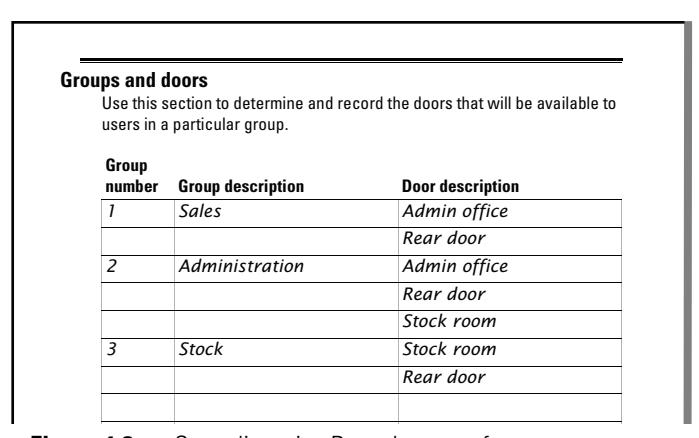
Figure 1.3 Group list using Doors by group form
Dave further decides that only the Supervisors and a few others will have deadbolt override and passage mode privileges. But since Supervisors have these privileges by default, he does not need to do anything extra with them.
Once these decisions have been made, Dave completes three forms, one for each group. Here are the three forms:
| Group and doors | |||||
|---|---|---|---|---|---|
| Name of business or division | Henderson's Dept Store #12 | ||||
| Group number & descriptiona | 1 — Sales | ||||
| Supervisor Nameb | Bob Smith | ||||
| Supervisor PIN | 1243 | ||||
|
a. Use group 1, 2, 3, 4, or 5, if used; group 1 is the default.
b. For locks with only one group, a Supervisor is optional. |
|||||
| Doors accessible by users in this group | |||||
| For more doors copy this form. |
Unlock
duration |
installation?
check one |
Remote unlock | check one | Lock chassis type |
| Door description | (in secs) | yes | no | cyl | mortise / exit |
| Admin office | 3 | ✔ | ✔ | ||
Figure 1.4 Sales dept group 1 door list
| User |
For more than 25 users copy this form.
Name |
Privilegesa | Date | |||
|---|---|---|---|---|---|---|
| No | Last | First | PIN | D-bolt | Passg | deleted |
| 1 Parson | David | 7723 | ✔ | ✔ | ||
| 2 Helme | Frank | 1369 | ||||
| 3 Wittenstein | Mary | 9732 | ||||
| 4 Brown | Karl | 5655 | ||||
| 5 Fulton | Ann | 1372 | ||||
| 6 Stevens | Kat e | 4419 |
Figure 1.5 Sales dept group 1 user list
KEYPAD EZ LOCK GROUP AND USER RECORD Copy this page for additional groups in your system. Keep group records separate. Group and doors Doors accessible by users in this group For more doors copy this form. Name of business or division Group number & descriptiona a. Use group 1, 2, 3, 4, or 5, if used; group 1 is the default. 2 —Administration Supervisor Nameb b. For locks with only one group, a Supervisor is optional. Sue Jones Supervisor PIN 9872 Door description Unlock duration (in secs) Remote unlock installation? check one yes no Lock chassis type check one cyl mortise / exit Admin office 3 Rear door 3 Henderson's Dept Store #12 ✔ ✔ ✔ ✔
Figure 1.6 Administration dept group 2 door list
| Record up to 25 users that you want to give access to this group. | ||||||
|---|---|---|---|---|---|---|
| For more than 25 users copy this form. | ||||||
| User | Name | Privilegesa | Date | |||
| No | Last | First | PIN | D-bolt | Passg | deleted |
| 1 Bourke | Angela | 5332 | ||||
| 2 Church | Melissa | 9655 | ✔ | ✔ | ||
| 3 Flanders | Jim | 2663 | ||||
| 4 Hancock | Brandi | 3298 | ||||
| 5 Russell | Sarah | 6611 |
Figure 1.7 Administration dept group 2 user list
|
KEYPAD EZ LOCK
GROUP Copy this page for additional groups in your system. |
AND USER RECORD | ||||
|---|---|---|---|---|---|
|
Keep group records separate.
Group and doors |
|||||
| Name of business or division | Henderson's Dept Store #12 | ||||
| Group number & descriptiona | 3 — Stock | ||||
| Supervisor Nameb | Gale Seares | ||||
| Supervisor PIN | 3221 | ||||
|
a. Use group 1, 2, 3, 4, or 5, if used; group 1 is the default.
b. For locks with only one group, a Supervisor is optional. |
|||||
|
Doors accessible by users in this group
For more doors copy this form. |
|||||
|
Unlock
duration |
installation?
check one |
Remote unlock | check one | Lock chassis type | |
| Door description | (in secs) | yes | no | cyl | mortise / exit |
|
Admin office
Rear door |
3
3 |
✔ | ✔ | ✔ | ✔ |
Figure 1.8 Stock dept group 3 door list
| Record up to 25 users that you want to give access to this group. | ||||||
|---|---|---|---|---|---|---|
| For more than 25 users copy this form. | ||||||
|
User
No |
Name
Last |
First | PIN |
Privilegesa
D-bolt |
Passg |
Date
deleted |
| 1 Coyle | Don | 7227 | ✔ | ✔ | ||
| 2 Hsieh | Chen | 8193 | ✔ | ✔ | ||
| 3 Laseau | Kevin | 5632 | ||||
| 4 O'Hara | Stacey | 9972 | ||||
| 5 | ||||||
| 6 | ||||||
| 7 |
Figure 1.9 Stock dept group 3 user list
Dave also completes the Administrator/Supervisor Pin Record as shown on page 5–2, and uses this to program the three Supervisors into all three locks. Then, once the Supervisors are programmed into the locks, he gives the forms to the Supervisors, one form for each. Then each Supervisor programs the users into their group's locks.
2 QUICK SETUP GUIDE
This section will get you up and running fast. By using the lock default values, you can quickly program yourself as the Administrator and add up to 50 users. The default values are:
| Feature | Default value |
|---|---|
| PIN length | 4 digits |
| Unlock duration | 3 seconds |
| Deadbolt override | no — applies only on mortise |
| access | |
| Passage mode | no |
| access | |
| Group number | 1 |
Using default values
Defaults are factory preset values. For example, the default value for the unlock duration is three seconds. This means that, without changing the unlock duration default value, when someone enters a valid PIN, the lock will unlock and then, after three seconds, automatically relock. This gives a person three seconds to open the door.
All of the default values were carefully chosen to work in most Keypad EZ installations. In most cases, you shouldn't have to change the default settings. But make sure that you think about your users and their convenience and security before using the default values. See page 1–4 for system overview and design decisions that need to be made.
PIN length The Personal Identification Number (PIN) length can be set to 3, 4, 5, or 6 digits. Keep in mind that the shorter number PINs, although more easily remembered, are usually less secure. Conversely, the longer number PINs are more secure, but are more easily forgotten. To change the default PIN length see page 3–2.
Deadbolt override access This feature lets users unlock the door with a PIN, even when the deadbolt is thrown. This feature only applies for locks with deadbolts. If a lock does not have a deadbolt, this feature is not used. By default, the user is programmed without deadbolt override access, but to allow this access, see page 3–5.
Passage mode access This feature lets users temporarily put the lock into an unlocked state (like a passage set). Then later the same user — or any user with passage mode access — can return the lock to its normal locked state. By default, the user is programmed without passage mode access, but to allow this access, after programming users, see page 3–5.
Unlock duration This feature lets you adjust the time that the lock momentarily unlocks during access. By default, the lock will unlock and then, after three seconds, will relock. If some of your users need more time to get through the door, you may want to increase the duration. The unlock duration can be set anywhere between 1 and 60 seconds. To change the unlock duration, see page 3–4.
Group number This feature lets you set up as many as five groups of users, each with a Supervisor. User groups add another layer of security and allow the Administrator to share the responsibilities of administrating the adding, changing, deleting, disabling and enabling of PINs. Usually this feature is only needed when at least two area or shift supervisors need to be held accountable for their users' access. By default, the user is programmed as belonging to group one.
Setting up a lock using factory-default values
Tip Temporarily record the codes as you enter them so that you can permanently record them later using the Lock Group and User Record form on page 5–3.
| Step | To | You enter | Example |
|---|---|---|---|
| 1 |
Begin programming
mode |
9998#a
00# |
|
| 2 |
Change Administra
tor PIN |
20#
[any 4 numbers]# [same 4 numbers]# |
20# 3197# 3197# |
| 3 | Add PINs |
10#
[any 4 numbers]# # Note: Repeat this |
10# 4994# # |
|
sequence, changing the
four numbers each time, up to 50 times. |
|||
| 4 |
End programming
mode |
99# | |
| 5 | and then secure both logs. |
Use the Lock Group and User Record on page 5–3
that you added. Record the Administration code in a separate place, |
to record the PINs |
a. See page 4–6 if you prefer to use the * key in place of the # key.
Lights and Sound Key
|
Grn
Red |
Grn
Red |
Grn
Red |
Grn
Red |
Grn
Red |
|---|---|---|---|---|
| Motor runs | One tone | |||
|
Programming
mode in pro cess |
Command entry
accepted |
Data accepted |
Programming
mode ended |
Data entry
failed. Start over. |
3 COMPLETE SETUP GUIDE
Use this section if you want to do any or all of the following:
- set PIN length
- set group Supervisor PINs
- set the unlock duration
- set privileges: passage mode & deadbolt override
- delete PINs
- delete groups of PINs
- disable or enable groups of PINs
This section takes you step by step and lets you take full advantage of all the Keypad EZ features and functions.
The tasks are ordered so that, if you were to need different PIN length, groups, a different unlock duration, or need to program privileges for some or all users, you could go through task by task. Optional tasks are marked.
LOCK SETUP AND MANAGEMENT
Use these tasks to set up and manage your Keypad EZ locks. Follow the sequence and skip those tasks that do not apply to you.
TASK 1: BEGIN A PROGRAMMING SESSION
Use this task to be able to do any other task on the following pages.
Step You enter . . . 1 00# 9998# a
a. See page 4–6 if you prefer to use the * key in place of the # key.
TASK 2OPTIONAL: SET PIN LENGTH
Only follow these steps if you want to change from the factory-preset four-digit PINs, to three-, five-, or six-digit PINs.
| Step | You enter | Example | |
|---|---|---|---|
| 1 | 30# | ||
| 2 |
3# for three-digit PINs, OR
5# for five-digit PINs, OR 6# for six-digit PINs |
3# |
This task will reset the Administration PIN to the factory-preset code. See the table below:
| New PIN length | New Administration PIN |
|---|---|
| 3 digits | 998 |
| 5 digits | 99998 |
| 6 digits | 999998 |
Performing this task will also remove any other programming that you may have done, such as any user PINs, Supervisor PINs, or unlock duration.
You may continue with this programming session, even though your original Administration PIN had a different amount of PIN digits. In other words, this programming will not take effect until the programming session ends.
TASK 3CHANGE THE ADMINISTRATION PIN
You need to perform this task if:
you have not changed the factory-preset Administration PIN yet, or you changed the PIN length from its default four digits to three, five, or six digits, or
you changed the PIN length back to its original four-digit length, or you reset the lock using the reset programming command.
To change the Administration PIN:
| Step | You enter | Example |
|---|---|---|
| 1 |
20#
[any 3, 4, 5, or 6 numbers]# [same 3, 4, 5, or 6 numbers]# |
20# 3197# 3197# |
TASK 4OPTIONAL: SET SUPERVISOR PINS
If you are the Administrator, there are two reasons you may want to divide users into groups:
to be able to delegate most programming tasks to one or more people, to be able (for example, in an emergency), to disable or delete whole groups of users at a time, without deleting or disabling other users.
You need to perform this task if either of these are true:
you have decided to give more than one group of users access to a lock you have decided to assign a Supervisor to the users even though they are all part of one group.
To set a Supervisor PIN:
| Step | For group | You enter | Example |
|---|---|---|---|
| 1 | 1 | 21# | |
| 2 | 22# | ||
| 3 | 23# | ||
| 4 | 24# | ||
| 5 | 25# | ||
| 2 |
[New PIN]#
[repeat new PIN]# |
4070# 4070# |
Note 1: If you are a Supervisor and are performing this task, to change your PIN, you will only be able to do it for the group to which you are associated.
Note 2: Also, if you are a Supervisor and are changing your PIN, you may need to inform the Administrator with the new PIN. Please see the Administrator for any policy that may exist.
TASK 5OPTIONAL: SET THE UNLOCK DURATION
You may want to perform this task if a user may need more than three seconds to open the door. Situations may include:
those with physical disabilities, the elderly, or the weak
where the door opens to an area where dollies, carts, or supplies are carried in and out,
any situation where extra time is regularly needed to open the door.
To set the unlock duration longer or shorter than three seconds:
| Step | You enter | Example |
|---|---|---|
| 1 | 32# | |
| 2 | [number of seconds, 1–60]# | 5# [five seconds] |
TASK 6ADD USER PINS
Before adding user PINs it's important to complete the form or forms from page 5–3 so that they can assist you during programming. This will let you avoid the interruption of having to record a user's name and PIN after you enter it. It will also reduce or eliminate errors in entering or recording.
Users must be assigned to a group even if you have chosen not to have more than one group. In that case, all users should be assigned to group 1.
To add a user PIN:
| Step | You enter | Example | |
|---|---|---|---|
| 1 | 10# | ||
| 2 | [PIN number]# | 2233# | |
| 3 | [group number]# | 2# | |
| Note: |
If you are assigning users
to group 1, you can omit the number and simply enter the # key. This will enter the default value of group 1. |
||
| 4 | Repeat steps 1–3 for each PIN. |
TASK 7OPTIONAL: SET USER PRIVILEGES
There are two user privileges:
Deadbolt override — feature that lets users unlock the door with a PIN, even when the deadbolt is thrown. This feature only applies for Keypad EZ mortise locks with deadbolts.
Passage mode — feature that lets users temporarily put the lock into an unlocked state (like a passage set). Then later the same user — or any user with passage mode access — can return the lock to its normal locked state. All Keypad EZ Locks have this feature.
You may want to perform this task for a user if:
the user needs to be able to unlock the door even when the deadbolt is thrown.
the user can be trusted to unlock a door for an indefinite period.
Sample applications where passage mode would make sense:
conference rooms storage rooms/closets canteens
on any door that needs to remain closed but unlocked.
Tip: Proper use of this feature may allow you to avoid giving out PINs unnecessarily. For example, if you have only one Keypad EZ lock on a storage room door, the simplest solution may be to give two of your ten employees a PIN
and give both users passage mode privilege, enabling them to keep the door unlocked during the day. Either of them could then relock it at the end of the day.
Note: By default, when a user PIN is programmed the PIN does not have either passage mode or deadbolt override privileges. These privileges must be given using a separate programming step.
Use the table below to determine the privilege code that corresponds to the privileges that you want to give to a user. By default all users initially have privilege code 0, no privileges.
User privilege code quick reference
Privilege code Passage mode Deadbolt override 0 no no 1 yes no 2 no yes
To assign or remove privileges: 3 yes yes
| Step | You enter | Example |
|---|---|---|
| 1 | 12# | |
| 2 | [User's PIN number]# | 2233# |
| 3 |
1# for passage mode only, OR
2# for deadbolt override only, OR 3# for both, OR 0# for no privileges |
|
| 4 |
Repeat steps 1–3 for each PIN that you want to assign
or remove privileges. |
TASK 8 END THE PROGRAMMING SESSION
After all programming functions have been completed for a particular Keypad EZ lock, use the task to end the programming session.
| Step | You enter |
|---|---|
| 1 | 99# |
To program other Keypad EZ locks, return to page 3-2 and repeat the series of tasks
TASK 9 RECORD, SECURE, AND DISTRIBUTE PINS
Once all Keypad EZ locks have been programmed you need to ensure that all PINs are properly recorded and secured. If you have not already done so, use the forms that begin on page 5-3 to record all User, Supervisor and Administration PINs.
After safely recording all User, Supervisor, and Administration PINs, you need to inform the users of their new PINs and let them know what locks they have access to and what privileges they may have. If they have passage mode access, you need to instruct them on how to start and end passage mode.
Here's a sample of what a user PIN notice might need to include:
|
office
oor |
|
|---|---|
| oor | |
| doon | |
| door | |
| To unlock a Keypad Lock: | To start passage | |
| , then press #. | 1 Enter your PIN, then press #. |
| or lever handle. | 2 Within 3 seconds, press * then # The lock stays unlocked. |
| re | To end passage mode access: |
| Repeat the steps above. The lock relocks. | |
| ride access | |
| d Lock: I, then press #. or lever handle. ve\ne access ns → ride access | |
Figure 3.1 Sample user PIN notice
USER MAINTENANCE
Deleting a PIN To delete a PIN, perform the following task in all locks where the user has access:
To delete a user's PIN:
| Step | You enter | Example |
|---|---|---|
| 1 | 11# | |
| 2 | [PIN to be deleted]# | 2233# |
| 3 |
Repeat steps 1–2 for each PIN that you
want to delete. |
Deleting a group of PINs
To delete a whole group of PINs at one time, perform the following task in all locks where the group of users have access.
Note: If you're trying to reset the lock to its original factory presets (which also deletes all users), see page 4–4 instead.
To delete a group of PINs
| Step | You enter | Example |
|---|---|---|
| 1 | 00# | |
| 2 | [Administrator or Supervisor PIN]# | 3197# |
| 3 | 13# | |
| 4 | Administrator only: [Group number]# | 1# [Group 1] |
| 5 |
Administrator only: Repeat steps 3–4 for each group to
be deleted. |
|
| 6 | 99# |
Note: Supervisors only have rights to delete the group that they are associated with.
Disabling and enabling groups of PINs
There are times when you may want to temporarily disable, and then later reenable a group of users' PINs. Example occasions when this may be necessary:
strikes
holidays
severe weather
national emergencies
To disable or re-enable a group:
| Step | You enter | Example |
|---|---|---|
| 1 | 00# | |
| 2 | [Administrator or Supervisor PIN]# | 3197# |
| 3 |
To disable: 15# OR
To re-enable: 14# |
|
| 4 |
Administrator only:
[Group number to be disabled or re-enabled]# |
1# |
| 5 |
Administrator only:
Repeat steps 3–4 for each group to be disabled. |
|
| 6 | 99# |
Note: Supervisors only have rights to disable or re-enable the group that they are associated with.
4 MAINTENANCE
For complete service and maintenance information for the Keypad EZ Lock, consult the B.A.S.I.S. G or B.A.S.I.S. V Service Manuals or the Technical Publications Library on CD-ROM. These publications have complete parts lists and maintenance instructions.
BATTERY MAINTENANCE
Battery life Genuine factory battery packs are designed for maximum service life. Depending on the type of chassis you have, the average life of a battery pack is as follows:
| Estimated number of cycles | |||
|---|---|---|---|
| Chassis type |
Standard (4-cell)
battery pack |
Extended (8-cell)
battery pack |
|
| cylindrical | 65,000a | 130,000b | |
| mortise | 130,000c | 240,000d | |
| exit hardware | 130,000 | 240,000 | |
- a. Typical life is 2–5 years.
- b. Typical life is 4–5 years.
- c. Typical life is 3–5 years.
- d. Typical life is 4–5 years.
Replacing batteries
The Keypad EZ Lock has a warning system to let you know when the battery pack or batteries are getting low. At the first sign of warning, although you have some time to replace the batteries before they fail, you need to replace the battery pack or batteries as soon as possible. To order replacement battery packs (for EXZ units only), see your factory representative or authorized dealer.
Replacement part number:
B60726 — standard, four-cell battery pack
There are three battery levels. Depending on the level that the lock happens to be in, the lock access varies. The battery levels are:
normal — battery level is good. warning — battery level is low alarm— battery level is very low.
Use the following table to determine a Keypad EZ Lock's level when a valid PIN is entered:
| Battery Level | LEDs | Sounder | Access |
|---|---|---|---|
| normal |
Green
flashes |
granted | |
| warning |
Green
flashes |
3 long tones |
granted after
delay |
| alarm |
Red & green
flashes |
3 short tones | denieda |
a. But Supervisor users and the Administrator are granted access during the alarm battery level, until the battery is replaced.
To replace batteries for 9KZ and 40HZ locks:
1. Use a T20 Torx bit or Phillips Type 2 to remove the inside cover screws from the top cover
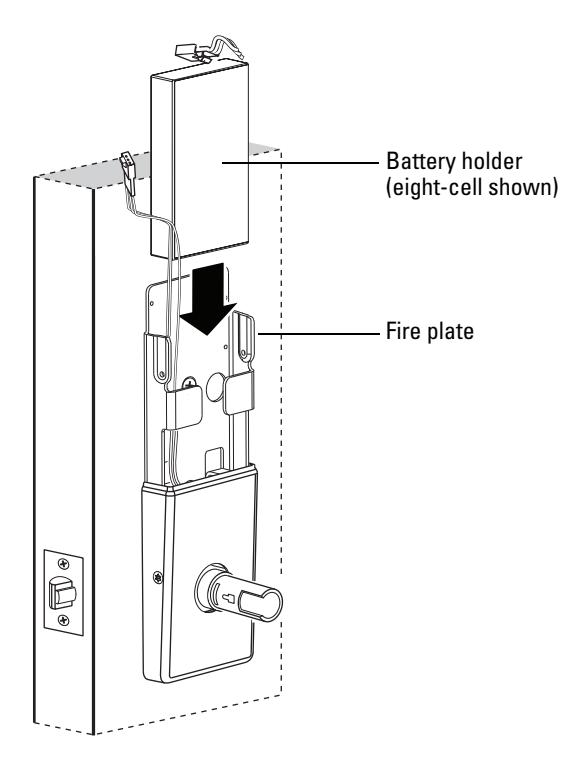
Figure 4.1 Replacing the batteries
- 2. Slide the top cover up and remove it from the fire plate
- 3. Disconnect the battery holder from the connector and remove it from the fire plate. See Figure 4.1.
- 4. Remove the battery holder screw and slide the battery holder lid off.
- 5. Replace the batteries with AA Duracell or Energizer AA Alkaline batteries only.
- 6. Slide the battery holder lid back on and replace the battery holder screw.
- 7. Position the battery wires against the fire plate side wall and slide the battery holder back into the fire plate.
Caution: When routing the battery wires, make sure the wires are not routed across any sharp edges or over any surface that could damage their sleeving or wire insulation.
- 8. Connect the battery holder to the connector.
- 9. Slide the top cover over the guide notches and replace the inside cover screws.
Caution: When connecting the battery pack, make sure that there are no loose wire connections where the wires are inserted into the connectors and that the connectors are firmly mated.
Resetting a lock to factory preset condition
You may at some point need to reset or restore a lock to its original factory default or preset condition. This will erase all programming that you have done.
You may need to do this if:
a lock needs to be moved to a new location you have lost PIN control or lock and user records.
Caution: This programming task will delete ALL PINs in all groups and cannot be undone. To delete only a group of users, see page 3–8.
This task will also reset the # key as the enter key if the # key was substituted for the * key.
To reset a lock to factory preset condition:
| Step | You enter | Example | |
|---|---|---|---|
| 1 | 00# | ||
| 2 | [Administrator PIN]# | 3197# | |
| 3 | 33# | ||
| 4 | 33# | ||
| 5 | 99# |
If the Administration PIN has been lost it will be necessary to depress the programming mode override button to get into programming mode.
Resetting the Administration PIN to the factory default
To reset the Administration PIN to the factory default code (9998#) you will need to remove the lock's outer escutcheon in order to access the programming mode override button (small gray button on the circuit board).
Caution: This programming task will delete ALL PINs in all groups and cannot be undone. All programming will be reset to the factory default.
To reset the Administration PIN to the factory default:
Step You enter . . . Example . . .
- 1 Carefully peel back the gasket that covers the circuit board. With the battery connected, press and release the small gray button on the bottom of the circuit board (programming mode override button). The red LED should glow and remain on.
- 2 33#
- 3 33# (to confirm)
- 4 99#
- 5 9998#
(This should confirm the reset. If the reset was successful the lock should now unlock and then relock after three seconds.)
6 Replace the gasket and reassemble the lock.
Reversing the function of the # and * keys
Although the factory default for completing a programming command is to use the # key, the * key may be substituted if you prefer this. Some Administrators may prefer or expect to use the * key to activate a command since this key was used in the BEST V Series product.
To substitute the * key for the # key:
| Step | You enter | Example |
|---|---|---|
| 1 | 00# | |
| 2 | [Administrator PIN]# | 3197# |
| 3 | 36# | |
| 4 | 99# |
After following these steps you must use the * key wherever you see the # key. Alternately, you must use the # key wherever you see the * key.
To substitute the # key for the * key, that is, to reset the # key to its default function:
| Step | You enter | Example | |
|---|---|---|---|
| 1 | 00* | ||
| 2 | [Administrator PIN]* | 3197* | |
| 3 | 36* | ||
| 4 | 99* |
LOCK & USER FORMS
Programming commands reference
| For | |||
|---|---|---|---|
| Supervisor | instructions, | ||
| Command | Description | can program | see page |
| 00 | |||
| 10 | |||
| 11 | Delete PIN | 3–8 | |
| 12 | Set privileges | 3–5 | |
| 13 | Delete group | 3–8 | |
| 14 | Enable group | 3–9 | |
| 15 | Disable group | 3–9 | |
| 20 | Set Administrator PIN | 3–3 | |
| 21 | Set Supervisor PIN Group 1 | 3–3 | |
| 22 | Set Supervisor PIN Group 2 | 3–3 | |
| 23 | Set Supervisor PIN Group 3 | 3–3 | |
| 24 | Set Supervisor PIN Group 4 | 3–3 | |
| 25 | Set Supervisor PIN Group 5 | 3–3 | |
| 30 | Set PIN length | 3–2 | |
| 32 | Set unlock duration | 3–4 | |
| 33 | Reset all | 4–4 | |
| 36 | Switch # and * keys | 4–6 | |
| 99 | End programming session | 3–7 |
Groups and doors
Use this section to determine and record the doors that will be available to users in a particular group. See page 3–3 for more information on the use of Supervisors and user groups.
|
Group
number |
Group description | Door description | |||
|---|---|---|---|---|---|
Administrator/ Supervisor PIN Record
This section is for use by the Administrator only! Separate and store in a secure, separate location.
| Group | Name | PIN |
|---|---|---|
| 1 | ||
| 2 | ||
| 3 | ||
| 4 | ||
| 5 | ||
| All (Admin) |
KEYPAD EZ LOCK GROUP AND USER RECORD
Copy this page for additional groups in your system. Keep group records separate.
Name of business or division Group number & description a Supervisor Name b Supervisor PIN
- a. Use group 1, 2, 3, 4, or 5, if used; group 1 is the default.
- b. For locks with only one group, a Supervisor is optional.
Doors accessible by users in this group
For more doors copy this form.
|
Unlock
duration |
Remote
unlock |
installation?
check one |
Lock chassis type
check one |
|||
|---|---|---|---|---|---|---|
| Door description | (in secs) | yes | no | cyl | mortise / exit | |
Quick setup guide
| Step | To | You enter | Example | |
|---|---|---|---|---|
| 1 | Begin programming | 00# 9998#a | ||
| 2 |
Change
Administrator PIN |
20#, [any 4 numbers] #,
[same 4 numbers] # |
20# 3197#
3197# |
|
| 3 | Add PINs | 10#, [any 4 numbers] # [group number] #b | 10# 4994# 1# | |
| 4 | End programming | 99# | ||
| 5 | Use the table to the right to record the PINs that you add. Record the Administration PIN and | |||
keep it separate. Secure all records.
a. The code 9998 is the factory preset Administrator PIN. This PIN does not have long-term security; change it as soon as possible!
Lights and Sound Key
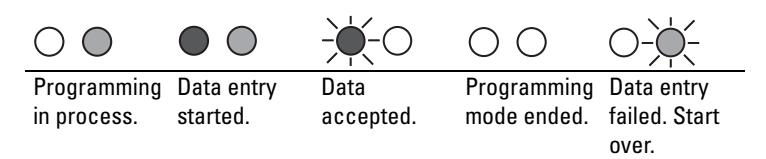
b. Repeat this sequence as necessary, changing the four numbers each time, up to 50 times.
Users
Record 25 users that you want to give access to this group. For more than 25 users copy this form.
|
User
No |
Name
Last |
First | PIN |
Privilegesa
D-bolt |
Passg |
Date
deleted |
|---|---|---|---|---|---|---|
| 1 | ||||||
| 2 | ||||||
| 3 | ||||||
| 4 | ||||||
| 5 | ||||||
| 6 | ||||||
| 7 | ||||||
| 8 | ||||||
| 9 | ||||||
| 10 | ||||||
| 11 | ||||||
| 12 | ||||||
| 13 | ||||||
| 14 | ||||||
| 15 | ||||||
| 16 | ||||||
| 17 | ||||||
| 18 | ||||||
| 19 | ||||||
| 20 | ||||||
| 21 | ||||||
| 22 | ||||||
| 23 | ||||||
| 24 | ||||||
| 25 |
a. See page 3–5 for instructions on programming deadbolt override and passage mode privileges.
| page of for group |
|---|