Arrow Revolution V3 Touchscreen Tubular Lever Lock Installation and Programming Instructions
Open the original PDF document
View PDF

Arrow Revolution™ Touchscreen Lever Installation and Programming Instructions
NOTE TO INSTALLER
FAILURE TO FOLLOW THESE INSTRUCTIONS COULD RESULT IN DAMAGE TO THE PRODUCT AND VOID THE FACTORY WARRANTY
For Technical Assistance contact Arrow Lock and Door Hardware at 1-800-221-6529 www.arrowlock.com
TABLE OF CONTENTS
|
Warnings
2 |
|
|---|---|
|
Introduction
3 |
|
| Installation | |
| Components and Tools4 | |
| Install Lock | 5-13 |
| Programming | |
| Programming Features-Menus-Keys-Definitions |
14-15 |
| Operation | 16-19 |
| Miscellaneous Information | |
| Hardware Troubleshooting20 | |
|
Programming Troubleshooting
21 |
|
| Replace/Install Cylinder22 | |
| Sample PIN Code Management Sheet23 |
WARNINGS
Warning: Changes or modifications to this device not expressly approved by Arrow Lock & Door Hardware could void the user's authority to operate the equipment.
IMPORTANT: The accuracy of the door preparation is critical for the proper functioning and security of this product. Misalignment can cause performance degradation and a lessening of security.
Finish Care: This lockset is designed to provide the highest standard of product quality and performance. Care should be taken to ensure a long-lasting finish. When cleaning is required use a soft, damp cloth. Using lacquer thinner, caustic soaps, abrasive cleaners or polishes could damage the coating and result in tarnishing.
FCC:
FCC ID: U4A-YRHCPZW0 (Z-Wave); U4A-YRHCPZB0 (Zigbee)
This equipment has been tested and found to comply with the limits for a Class B digital device, pursuant to Part 15 of the FCC Rules. These limits are designed to provide reasonable protection against harmful interference in a residential installation. This equipment generates, uses, and can radiate radio frequency energy and, if not installed and used in accordance with the instructions, may cause harmful interference to radio communications. However, there is no guarantee that interference will not occur in a particular installation. If this equipment does cause harmful Interference to radio or television reception, which can be determined by turning the equipment off and on, the user is encouraged to try to correct the interference by one or more of the following measures:
- Reorient or relocate the receiving antenna.
- Increase the separation between the equipment and receiver.
- Connect the equipment into an outlet on a circuit different from that to which the receiver is connected.
- Consult the dealer or an experienced radio/TV technician for help.
Industry Canada:
Canadian ID: 6982A-YRHCPZW0 (Z-Wave); 6982A-YRHCPZB0 (Zigbee)
This Class B digital apparatus meets all requirements of the Canadian Interference Causing Equipment Regulations. Operation is subject to the following two conditions: (1) this device may not cause harmful interference, and (2) this device must accept any interference received, including interference that may cause undesired operation.
Cet appareillage numérique de la classe B répond à toutes les exigences de l'interférence canadienne causant des règlements d'équipement. L'opération est sujette aux deux conditions suivantes: (1) ce dispositif peut ne pas causer l'interférence nocive, et (2) ce dispositif doit accepter n'importe quelle interférence reçue, y compris l'interférence qui peut causer l'opération peu désirée.
For the U4A-YRHCPZB0 and 6982A-YRHCPZB0, the following statement applies:
"This equipment complies with FCC/IC radiation exposure limits set forth for an uncontrolled environment. This equipment should be installed and operated with minimum distance 20cm between the radiator and your body. This transmitter must not be co-located or operating in conjunction with any other antenna or transmitter."
Section 7.1.2 of RSS-GEN Under Industry Canada regulations, this radio transmitter may only operate using an antenna of a type and maximum (or lesser) gain approved for the transmitter by Industry Canada. To reduce potential radio interference to other users, the antenna type and its gain should be so chosen that the equivalent isotropically radiated power (e.i.r.p.) is not more than that necessary for successful communication.
En vertu des règlements d'Industrie Canada, cet émetteur radio ne peut fonctionner avec une antenne d'un type et un maximum (ou moins) approuvés pour gagner de l'émetteur par Industrie Canada. Pour réduire le risque d'interférence aux autres utilisateurs, le type d'antenne et son gain doivent être choisies de façon que la puissance isotrope rayonnée équivalente (PIRE) ne dépasse pas ce qui est nécessaire pour une communication réussie.
Section 7.1.3 of RSS-GEN This Device complies with Industry Canada License-exempt RSS standard(s). Operation is subject to the following two conditions: 1) this device may not cause interference, and 2) this device must accept any interference, including interference that may cause undesired operation of the device.
Cet appareil est conforme avec Industrie Canada RSS standard exemptes de licence(s). Son fonctionnement est soumis aux deux conditions suivantes: 1) ce dispositif ne peut causer des interférences, et 2) cet appareil doit accepter toute interférence, y compris les interférences qui peuvent causer un mauvais fonctionnement du dispositif.
INTRODUCTION
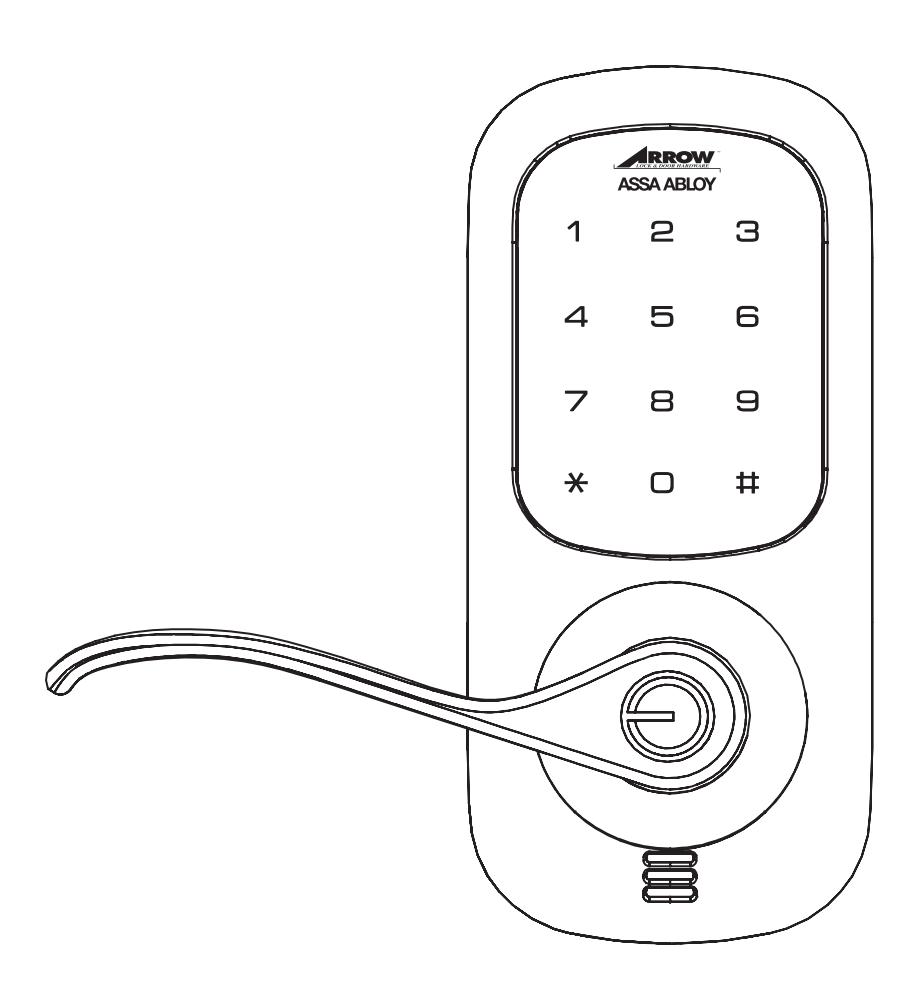
The Arrow® Revolution™ Stand-alone Touchscreen Lever Lock combines a robust lockset with a contemporary electronic aesthetic.
Users benefit from an interactive touchscreen that makes day-to-day access effortless, as well as offering voice-guided programming for simple updates to user information in the event of staffing changes or security breaches. Arrow® Revolution™ is engineered for quick and easy installation and fits in place of a standard deadbolt lock door prep (ANSI/BHMA A156.115).
INSTALLATION
COMPONENTS AND TOOLS
Included in the box. . .
- Installation Instructions
- Template
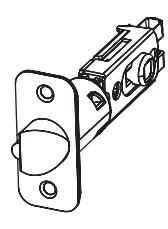
- Latch
- Strike
- Interior Mounting Plate (with gasket)
- Interior Escutcheon
- Exterior Escutcheon
- (2) Screw Packs (see below)
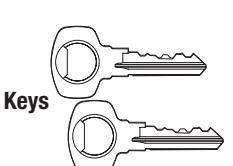
- Keys
- Cylinder
- Battery Cover
- Hex key
- 4 AA Alkaline Batteries
Parts Illustrations
Exterior Escutcheon
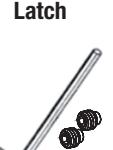
Hex key (2) Hex Set Screws (Pack 1)
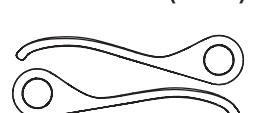
Exterior & Interior Lever Handles
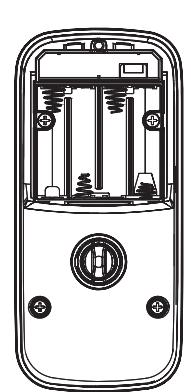
Interior Escutcheon
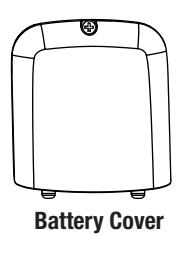
4 AA Alkaline Batteries
Strike

(2) Interior Mounting Plate Screws (Pack 1)


Cylinder
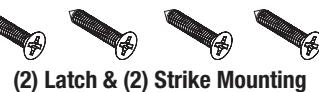
Screws (Pack 2)

(4) Interior Escutcheon Mounting Screws (Pack 1)
Tools Needed
Interior Mounting Plate with Gasket (back of Interior Escutcheon)
Door Prep
- 2-1/8" (54mm) hole saw
- 1" (26mm) boring bit
- 7/64" (2.5mm) drill bit
- Chisel & hammer
Lock Installation
- #2 Phillips screw driver
- Hex key (3mm) provided
INSTALL LOCK
Preparation
Before installing the lock on the door:
NOTE : Make sure door has been prepped according to specifications in template included with lock.
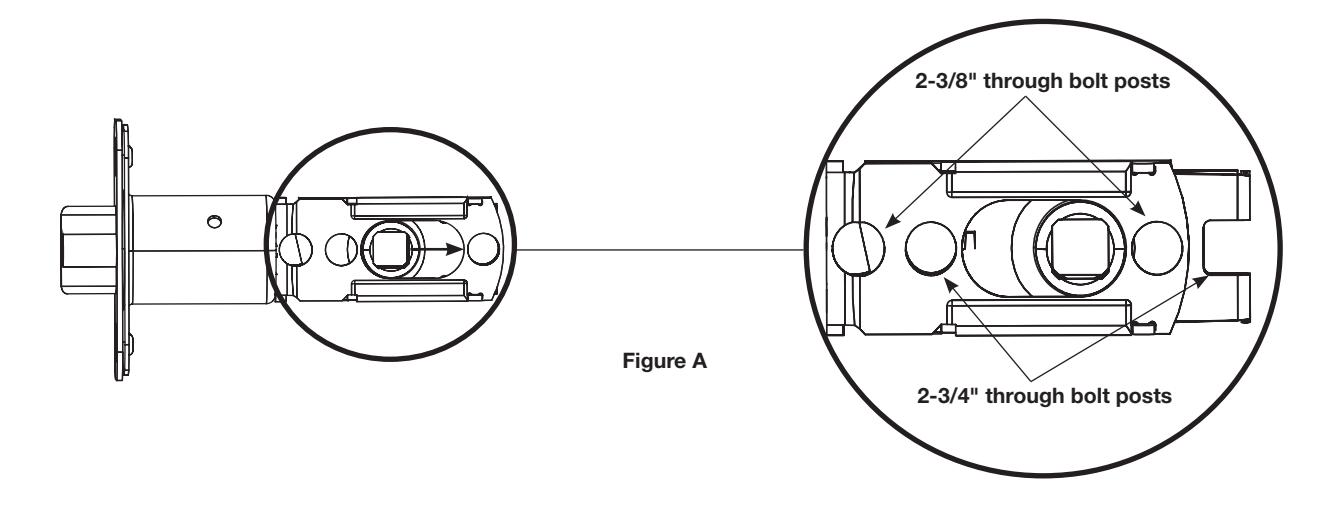
A. Remove the latch (Fig. A) and strike from the packaging.
Both latch face and strike have adhesive-backed covers to prevent marring and should be removed upon installation.
NOTE : Latch ships with backset in 2-3/8" position (Fig. A).
Backset is the measurement from door edge to center of 2-1/8" diameter hole (see template supplied with lock).
If required, pull to extend to 2-3/4" backset position.
NOTE : Different holes are used for (2) through bolt posts depending on backset (Fig. A).
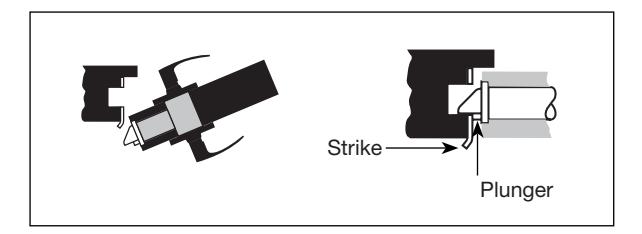
NOTE : The latch can be installed in only one of two ways - with the bevel (slope) of the latch facing out or facing in while standing outside of the door.
If the door opens in , the bevel will face the exterior (regular); if the doors opens out , the bevel will face the interior (reverse).
IMPORTANT: Latch bevel must match door bevel and plunger of deadlocking latch must stop on strike when door is closed.
Install Latch
1. Install latch in door, securing with two (2) M4 x 25.4mm screws supplied (Fig. 1).
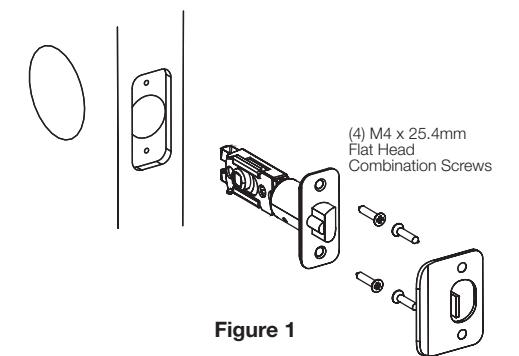
2. Install strike on the door frame, using two (2) M4 x 25.4mm screws supplied, making sure to allow for the latch to be centered in the strike.
Install Exterior Escutcheon
NOTE : The "tops" of both the square drive tube (which houses the tailpiece) and the hub (in the shank) are marked (Figures 2 & 3) to indicate their orientation for proper installation.
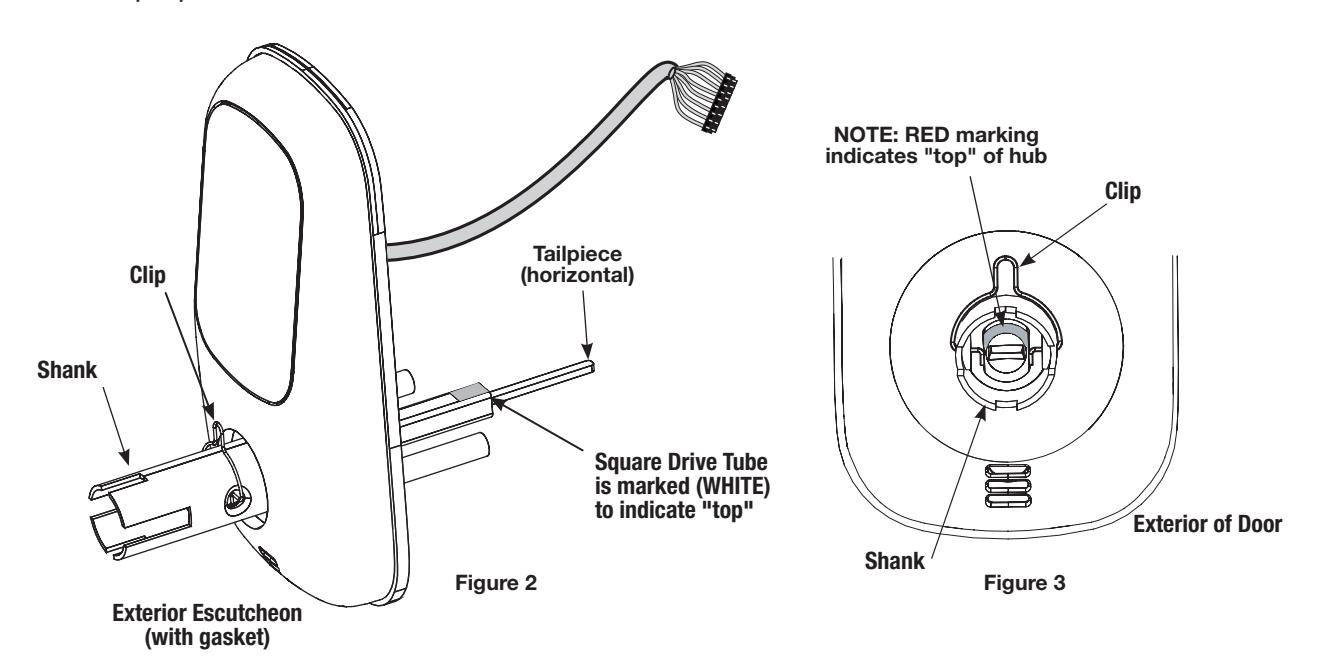

Do not remove clip from Exterior Escutcheon shank until correct handing has been determined and Exterior Lever Handle is to be installed.
(See pages 10-11)
3. From outside of door, position the exterior escutcheon by first routing the wire harness through 2-1/8" diameter hole and under the latch (Fig. 4 & 5), then inserting the through posts * and tailpiece/square drive tube into the latch (Fig. 5).
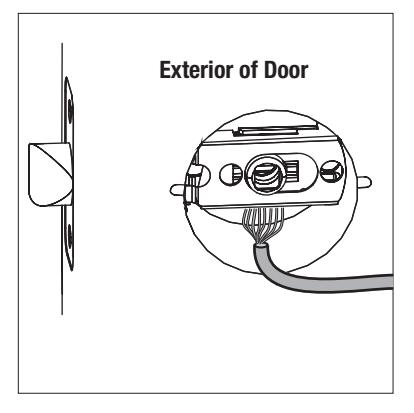

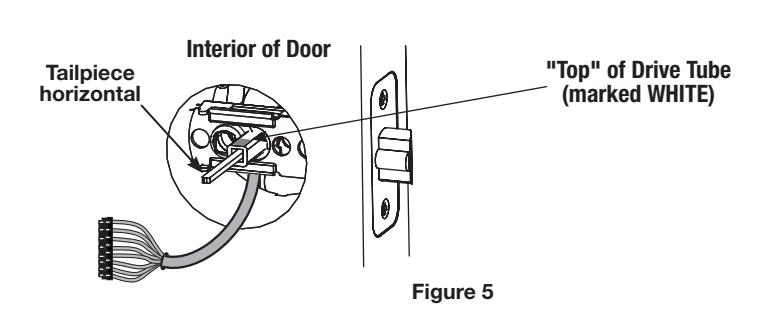

NOTE: Wire harness goes under latch (Fig. 4 & 5).
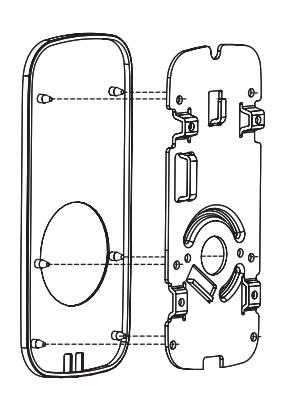
4. Remove the interior mounting plate (with gasket) from the back (door side) of the interior escutcheon (Fig. 6).
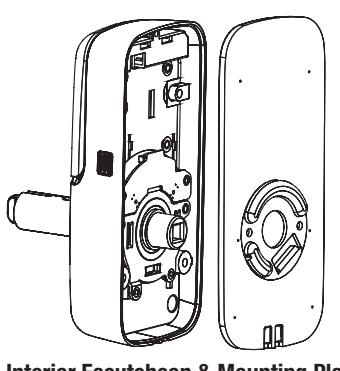
Interior Escutcheon & Mounting Plate (with gasket)
A. Ensure that gasket on interior mounting plate is properly fitted (Fig. 7).
Figure 7 Figure 6
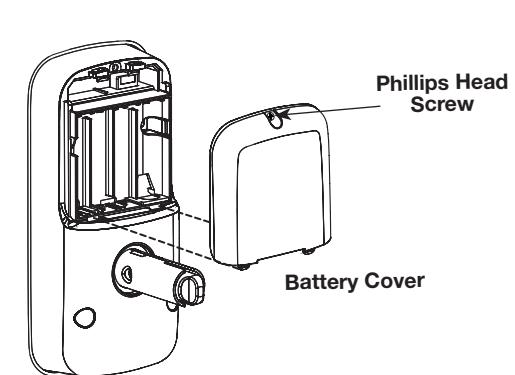
5. Remove the battery cover from the back of the interior escutcheon (Fig. 8) by loosening the captive Phillips head screw, then lifting the cover up and out. Note tabs at bottom of cover.
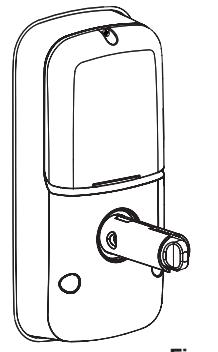
Figure 8
* Posts are inserted in holes according to backset adjustment. (Refer to Fig. A under "Lock Preparation")
Install Exterior Escutcheon and Interior Mounting Plate
6. Holding the exterior escutcheon flush to the door, position the interior mounting plate by first routing the wire harness through the mounting plate's 1/2" rectangular hole below center hole (Fig. 9).
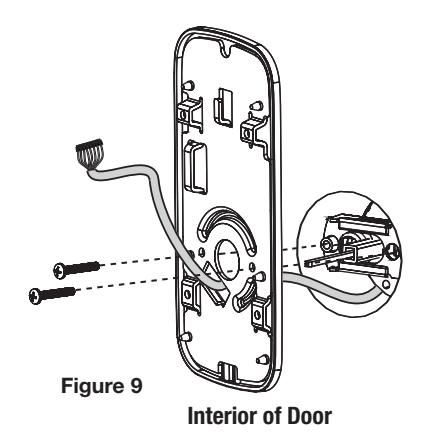
7. Secure both assemblies by inserting (2) M4 x 25.4mm pan head machine screws through the mounting plate and into the slightly extended through posts of the exterior escutcheon (Fig. 10).
Ensure that exterior escutcheon is vertically aligned.
Tighten securely with a #2 Phillips screwdriver.
Do not over-tighten.
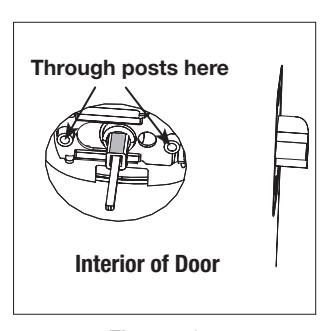
Figure 10
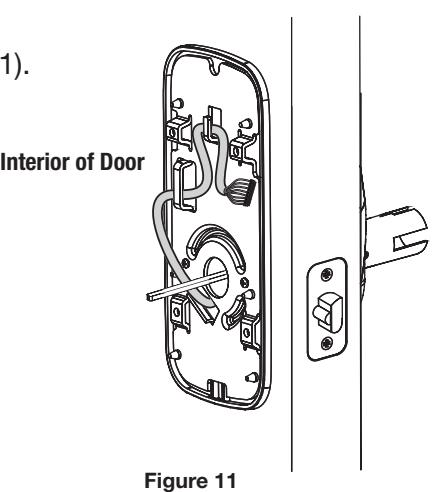
8. Finish routing the wire harness and connector through the left upper slot, then behind center rib (Fig. 11).
Install Interior Escutcheon
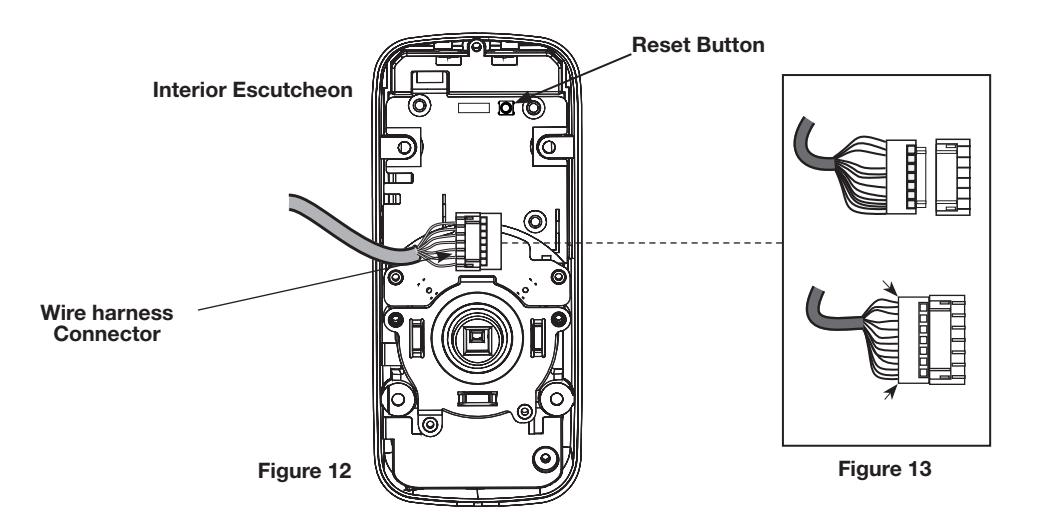
9. Attach wire harness to the interior escutcheon printed circuit board (PCB) by lining up notches on top of connector to slots on PCB connector (Fig. 12 & 13).
Press connector in firmly using thumbs until completely seated (properly seated position indicated by arrows on PCB as in Fig. 13).
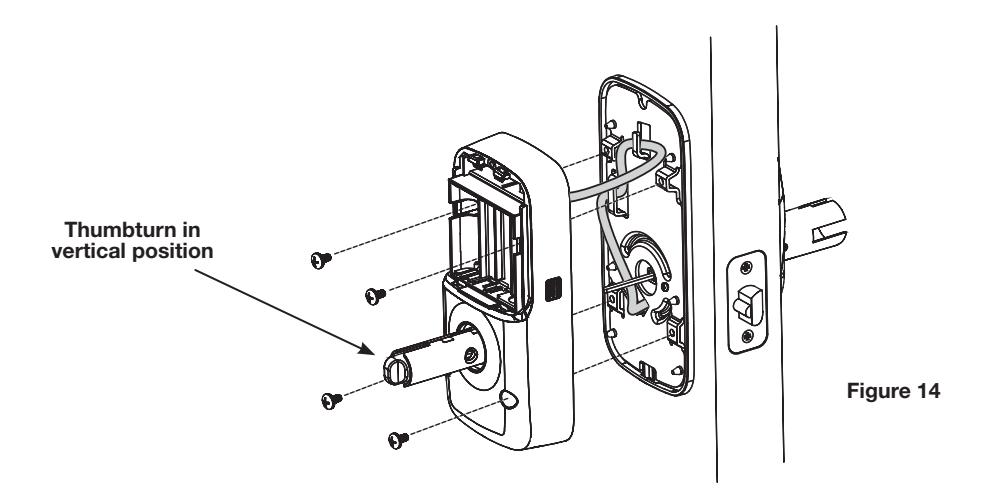
10. Install and secure interior escutcheon to interior mounting plate using (4) M4 x 8mm pan head machine screws through the interior escutcheon into the mounting plate (see Fig. 14).
Thumbturn must be in vertical position .
NOTE : Ensure wire harness does not obstruct path of the mounting screws.
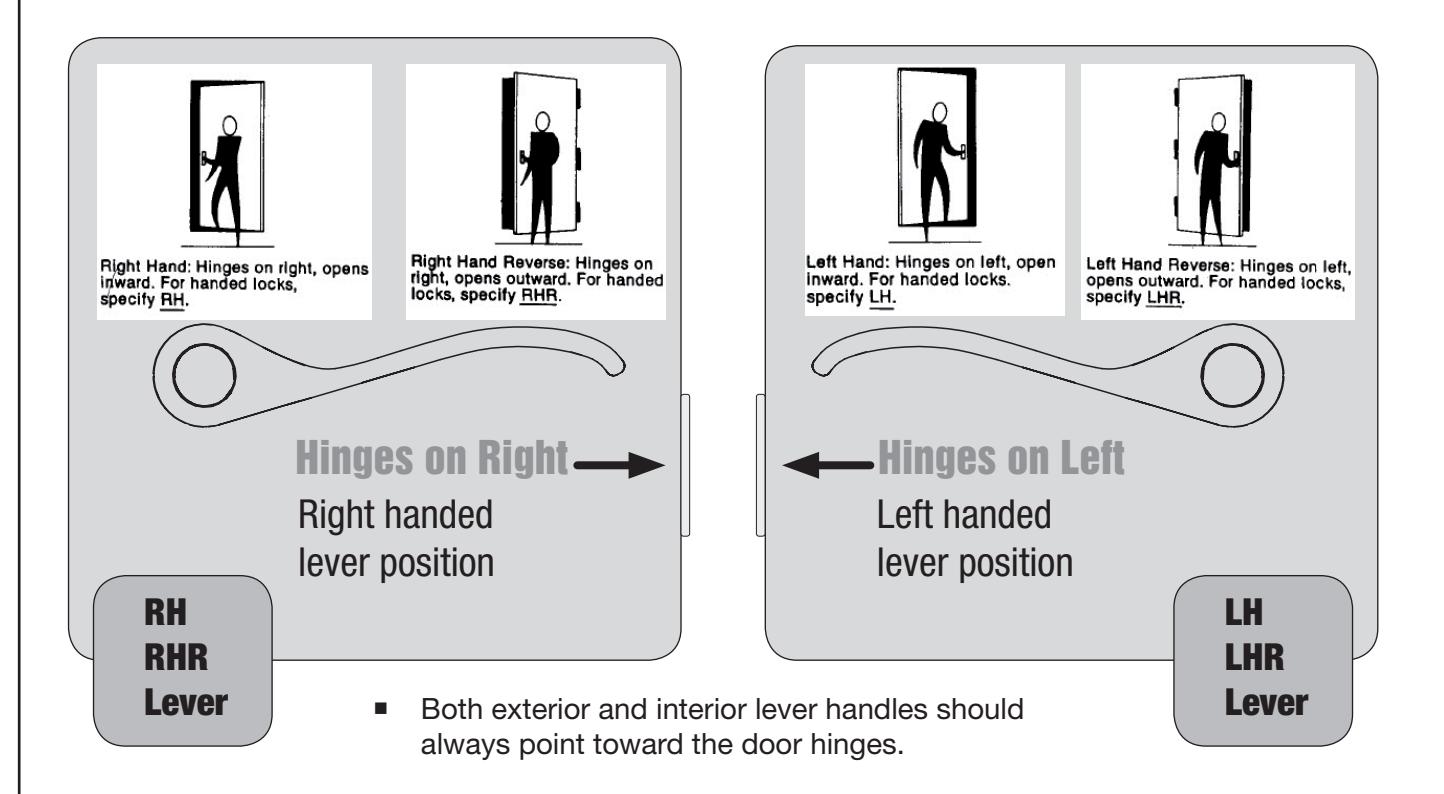
Determine Lever Handing
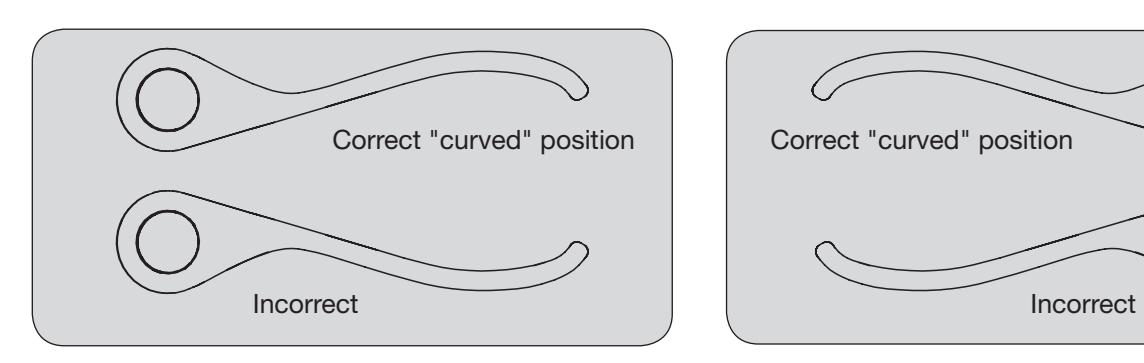
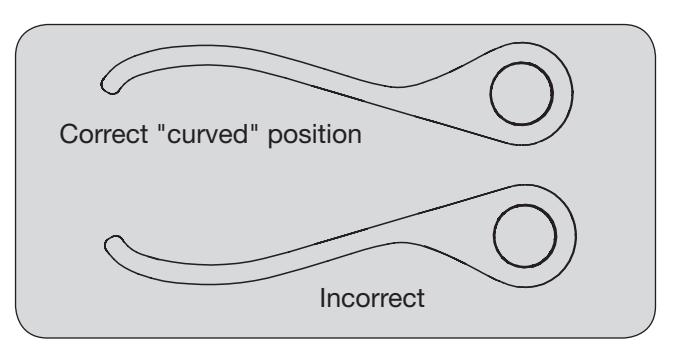
Determine Lever Position
Before proceeding with the next step, ensure correct lever handing for proper installation.
Important Note: Follow the detailed instructions for cylinder installation starting with step 13 on page 11 of the installation and programming manual. Next, perform the operation tests defined in step 20 on page 13 of the installation and programming manual.
Failure to install and test the cylinder for proper function may result in improper lock operation.
Install the Exterior Lever
-
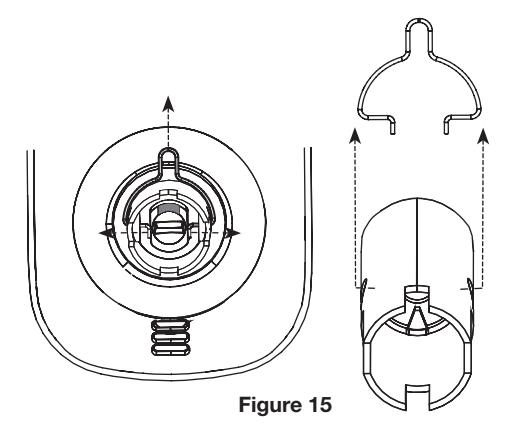
11. Remove clip from shank.
- A. Once correct handing is determined , remove the clip that has held the hub in its correct position by spreading clip ends to extract clip from shank as shown in Fig. 15.

Do not rotate cam from its original position. ("Top" is marked RED)
-
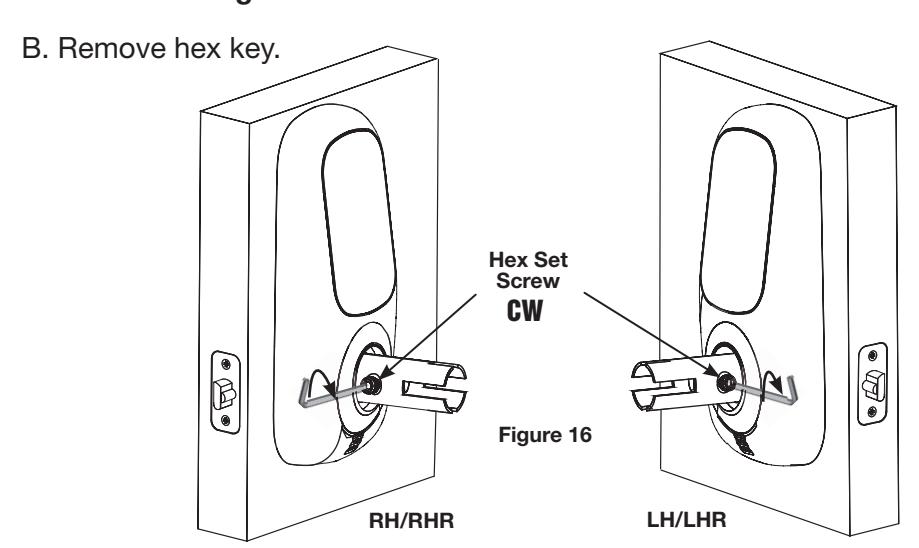
12. Install hex set screw.
- A. Place set screw in hole on side of shank toward latch (Fig. 16); turn set screw Clockwise to allow for placement of lever handle over shank.
Do not overtighten.
NOTE: For correct lever handing, the hex set screw for the exterior lever shank must be installed as shown (Fig. 16).
13. Install cylinder in exterior lever.
(If necessary, remove key from cylinder)
- A. Install cylinder in exterior lever handle as shown in Fig. 17.
- Figure 17 Tailpiece
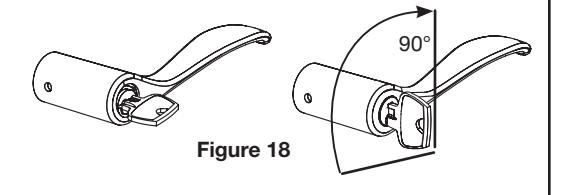
B. Insert key in cylinder.
While supporting cylinder tailpiece (with finger) rotate key 90° clockwise (CW) to vertical position regardless of lever handing.
See Figure 18.
11
NOTE : Hex set screw should be inserted enough for lever handle to slide over shank, clearing set screw.
C. Ensure that cylinder key remains in previously set vertical position (Fig. 19).
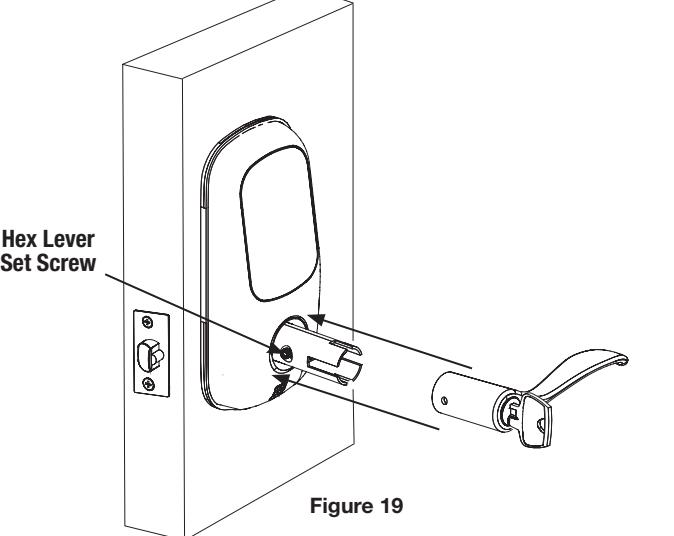
14. Place exterior lever handle over shank until hole on handle aligns with set screw in shank.
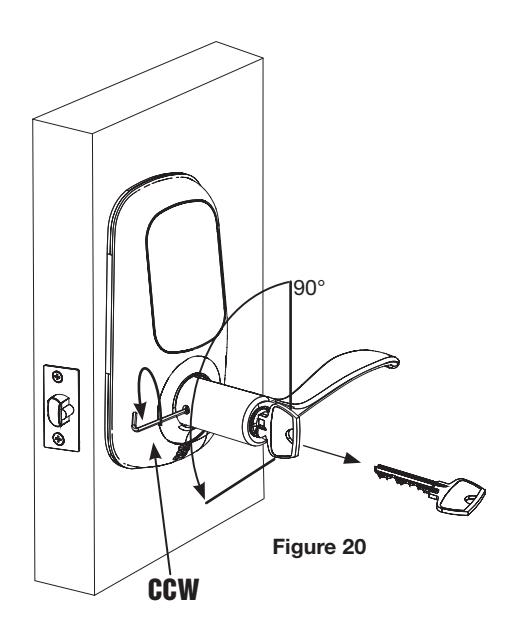
15. Secure lever handle by inserting hex key and rotating set screw CCW (Fig. 20).
This will retract the set screw back into the lever handle to secure it.
Do not overtighten.
- A. Remove hex key.
- 16. Turn key 90° CCW to horizontal position regardless of lever handing .
Pull to remove key (Fig. 20) and test operation of lever, ensuring that latch moves smoothly.
17. Rotate thumbturn counter-clockwise to horizontal position (Fig. 21).
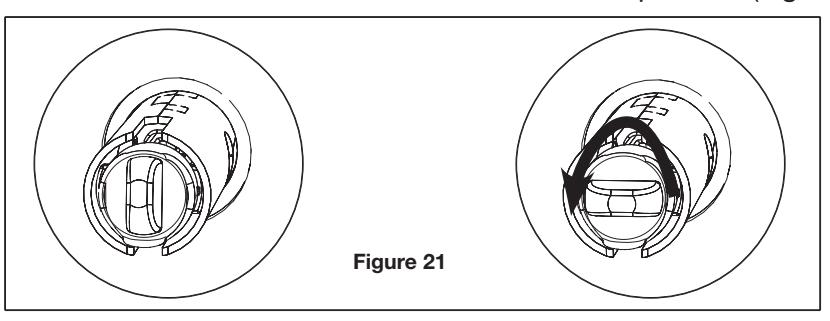
IMPORTANT: Test the lock's mechanical operation. Lift up and push down on lever handle to retract the latch, ensuring that latch moves smoothly.
If operation is not smooth for these procedures, review the previous steps to ensure proper installation, while maintaining proper alignment of escutcheons.
Install the Interior Lever
18. Install hex set screw.
NOTE : Thumbturn should still be in horizontal position.
A. Place set screw in hole on side of shank toward latch (Fig. 22); turn set screw CW to allow for placement of lever handle over shank.
Do not overtighten.
NOTE : Hex set screw should be inserted enough for lever handle to slide over shank, clearing set screw.
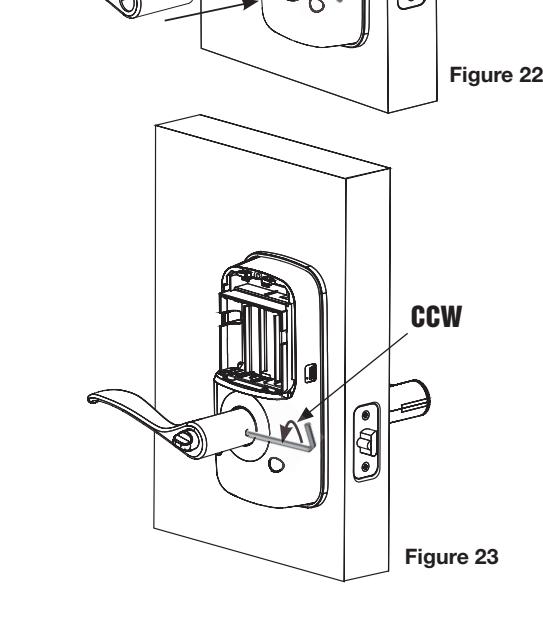
- 19. Place interior lever handle over shank until hole on handle aligns with set screw in shank.
- 20. Secure lever handle by inserting hex key and rotating set screw CCW (Fig. 23).
This will retract the set screw back into the lever handle to secure it in place.
Do not overtighten.
A. Remove hex key.
CW
IMPORTANT: Before installing the batteries, test the lock's mechanical operation. Place the thumbturn in the horizontal position. Lift up and push down on interior lever handle to retract the latch;
Next place thumbturn in the vertical position. Lifting or pushing down on either lever handle should not retract the latch.
Finally, insert key in cylinder and rotate clockwise until thumbturn moves to vertical (unlocked) position.
If operation is not smooth for any of these procedures, review the previous steps to ensure proper installation, while maintaining proper alignment of escutcheons.
Install Batteries
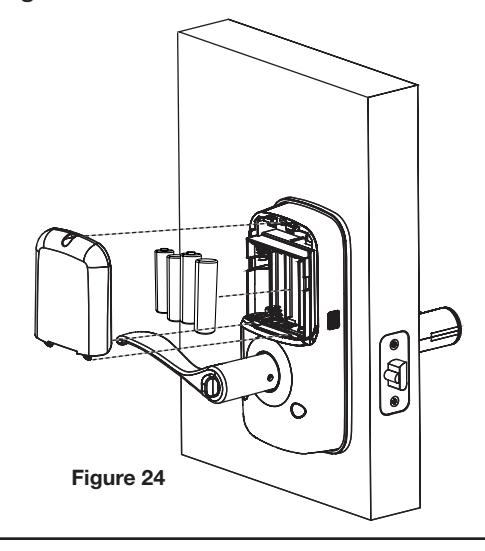
- 21. Insert four (4) AA alkaline batteries; the lock will flash, beep several times and respond with voice prompt:
- " Welcome to the Arrow Revolution ".
- 22. Install battery cover and tighten Phillips head screw.
13
PROGRAMMING
| Programming Features-Menus-Keys-Definitions | 14- | -1 | 5 |
|---|---|---|---|
| Operation | 16- | -19 | 9 |
PROGRAMMING FEATURES - MENUS - KEYS - DEFINITIONS
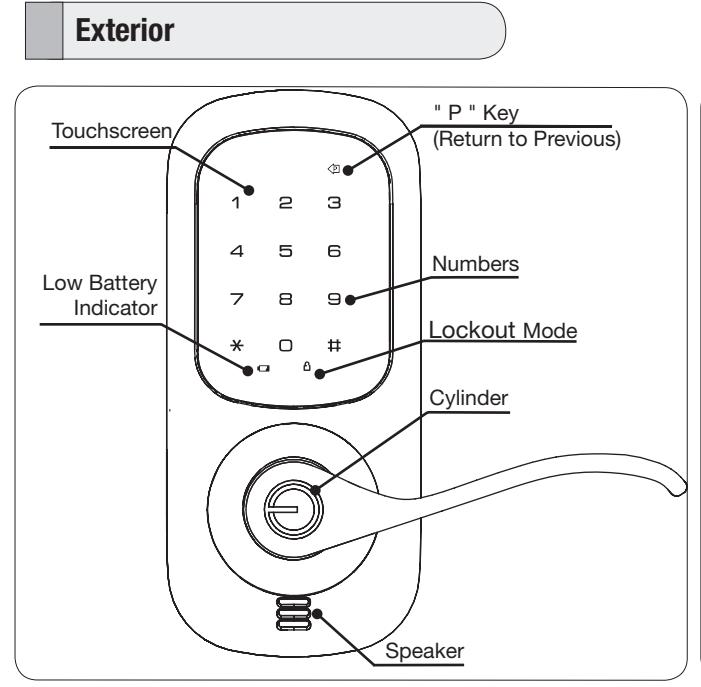
Interior
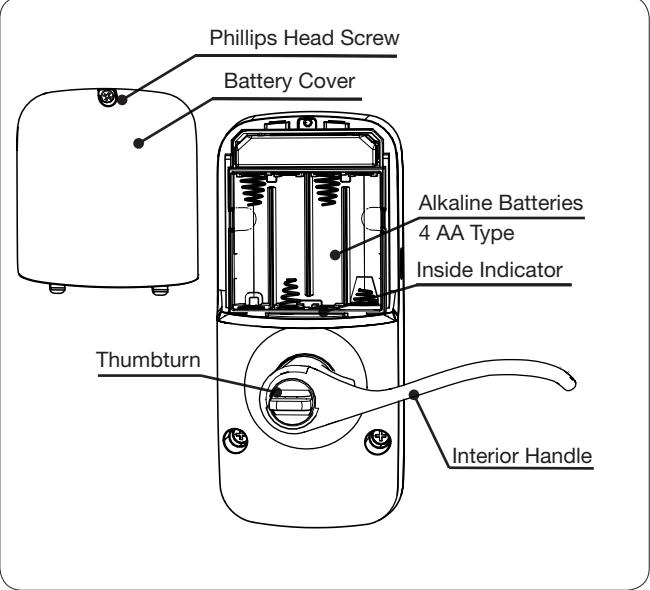
*A unique Master PIN Code must be entered prior to any further programming of the lock. (See section on page 16 "Register Master PIN Code Before Programming")
| Menu and Ico | ons | ||
|---|---|---|---|
| Touch the screen with palm of hand or fingers to begin and end actions. |
Repeat operation using settings indicated.
Enter Value 1 -10 (times or seconds). |
||
| 1 ~ 0 | Click the indicated number. | M PIN | Enter Master PIN code* (4-8 digits in length) |
| * | Press the Star key on the touchscreen to Enter or Accept entry. | UPIN | Enter User PIN. Can be 4-8 digits in length. |
| # | Press the Pound key on the touchscreen to enter Menu mode. | UN |
User Serial Number (01 - 25);
RF Controlled (01-250). |
| Press this key to return to the previous step or menu setting. |
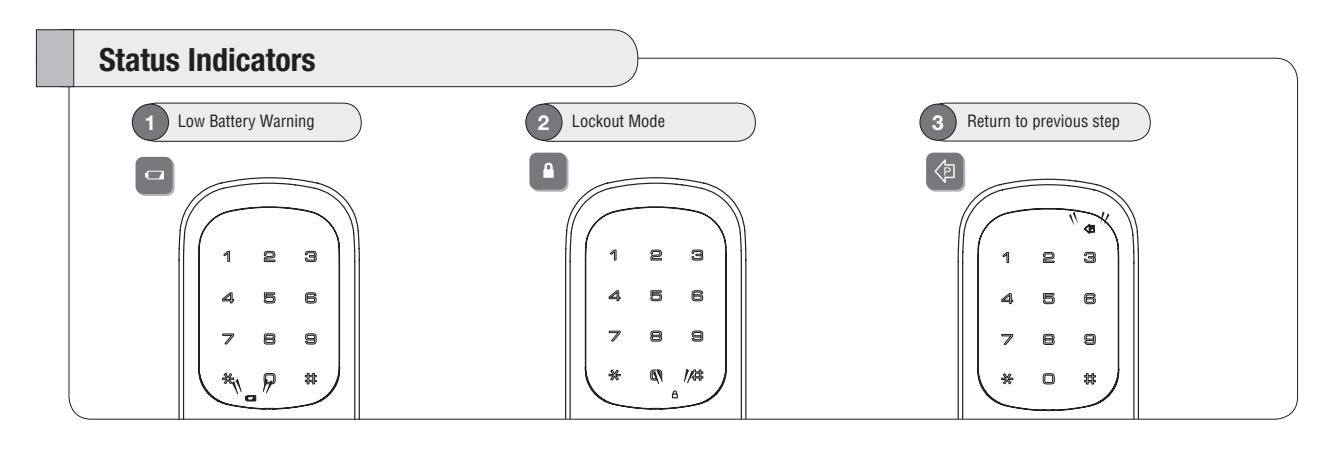
Definitions
All Code Lockout Mode : This feature is enabled by the Master PIN code. When enabled, it restricts all user PIN code access (except the Master PIN code). When the unit is in Lockout Mode, the red locked padlock (see above) will appear on the screen when attempting to enter a PIN code.
Automatic Re-lock Time : After successful code entry and the unit unlocks, it will automatically re-lock after thirty (30) seconds.
Inside Indicator Light : Located on the interior escutcheon, it shows active status (Locked) of lock and can be enabled or disabled in the Advanced Lock Settings (Main Menu selection #3).
Language Setting Mode: Choosing English (1), Spanish (2) or French (3) becomes the (default) setting for the lock's voice prompts.
Low Battery : When battery power is low, the Low Battery Warning Indicator flashes RED. If battery power is completely lost, use the cylinder key override.
Master PIN Code : The Master PIN code is used for programming and for feature settings and must be registered prior to programming the lock. The Master PIN code will also operate the lock.
One Touch Locking: When the latch is retracted, activating the keypad will extend the latch; (during Automatic Re-lock duration or when Automatic Re-lock is disabled). When One-Touch Re-lock is not in use ( disabled ), any valid PIN code will re-lock the lock.
Previous: While in Menu Mode, p ressing this icon (#3 above) cancels the current operation and returns the user to the previous step.
Shutdown Time : The unit will shutdown (flashing RED) for a default of sixty (60) seconds and not allow operation after the wrong code entry limit (5 attempts) has been met.
Tamper Alert: Audible alarm sounds if attempting to forcibly remove outside lock from door.
User PIN Code : The User code operates the lock. Maximum number of user codes is 25. Note that when deleting User PIN code(s), screen will display User Number (not PIN code) being deleted.
Volume Setting Mode : The volume setting for PIN code verification is set to Low (2) by default; otherwise it can be set to High (1) or Silent (3) for quiet areas .
Wrong Code Entry Limit : After 5 unsuccessful attempts at entering a valid PIN code the unit will shut down and not allow operation.
OPERATION
Lock Activation
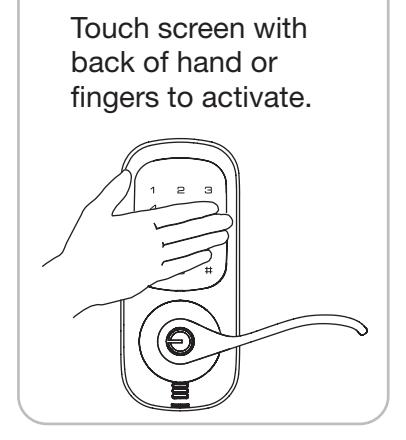
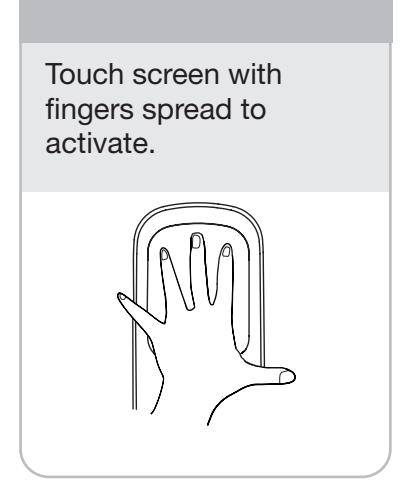
The touchscreen can be activated in several ways:
Register Master PIN Code Before Programming*
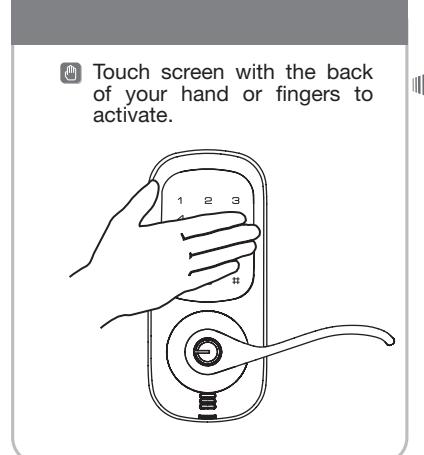
- 1. Touch the screen with the back of your hand or fingers to activate .
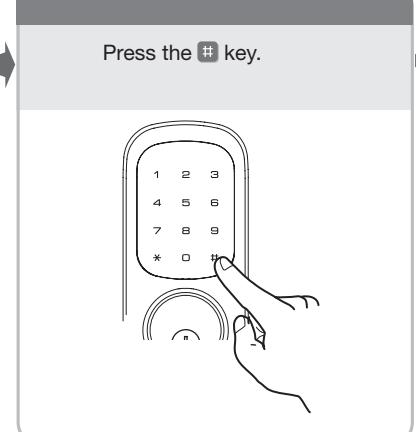
- 2. Press the key. Lock Response: "Register Master Code; press the key to continue."
- 3. Press the key. Lock Response: "Enter a 4 to 8 digit PIN code followed by the pound key."
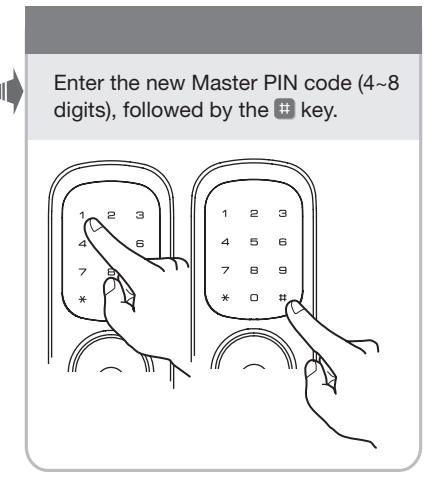
- 4. Enter new 4-8 digit Master PIN code followed by the key.
Lock visually confirms PIN code selection, announces "Registered".
*This initial step must be performed upon installation or after resetting the lock to factory default. Programming and subsequent use of the lock is not possible until this step has been successfully completed.
Protect your privacy; always shield your PIN code entry.
To reset the lock to factory default, see the following:
Reset Lock to Factory Default
The following procedure returns the lock to its factory defaults by deleting all user codes (including the Master PIN code*) and returning all programming features to their original factory default settings (see table below).
- 1. Remove the batteries and then remove the interior escutcheon to access the reset button.
- 2. The reset button (see image at right) is located above the PCB cable connector.
- 3. Hold down the reset button for a minimum of 3 seconds and then reinstall the batteries; once the batteries are properly installed, release the reset button.
All features, (see below) should now be returned to factory default.
* Upon reset (and initialization) of the lock, Master PIN Code Registration is the only option available and must be performed prior to any other programming of the lock.
See "Operation" section in this manual for programming instructions.
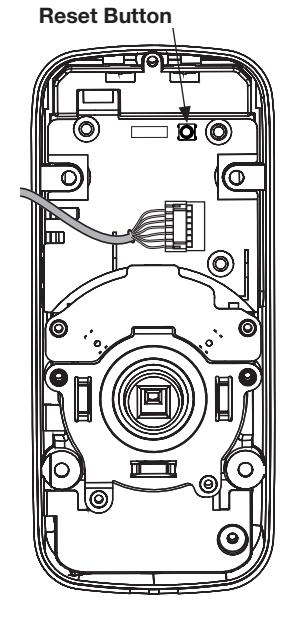
Interior Escutcheon
Factory Default Settings
| Settings | Factory Default |
|---|---|
| Master PIN Code | Registration required |
| Automatic Re-lock | Disabled |
| Inside Indicator Light | Disabled (Off) |
| One Touch Locking | Enabled |
| Volume Setting | Enabled (Low) |
| Automatic Re-lock Time | 30 Seconds |
| Wrong Code Entry Limit | 5 Times |
| Shutdown Time | 60 Seconds |
See this section for programming instructions.
PIN code structure
Maximum number of user PIN codes is 25.
Set Up User PIN Codes
User PIN Codes can only be programmed through the Master PIN Code*.
- 1. Touch the screen with the back of your hand or fingers to activate .
- 2. Enter the 4-8 digit Master PIN code followed by the key. Lock Response: " Menu mode, enter number, press the key to continue ."
- 3. Enter followed by the key.
- 4. Enter followed by the key.
- 5. Enter the User Number to be registered (1-25) followed by the key.
- 6. Enter a 4-8 digit PIN code for the User number followed by the key. The screen will visually confirm the PIN code just entered.
- 7. To continue adding users press the key.
- 8. Press the key to complete the process and conclude the programming session.
Note: When registering User codes, the code must be entered within 5 seconds or time expires. Lock Response: " Time expired ", no codes are registered and the process must be re-started.
Open Door with User PIN Code
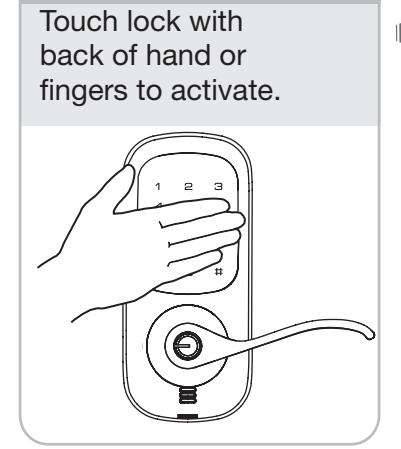
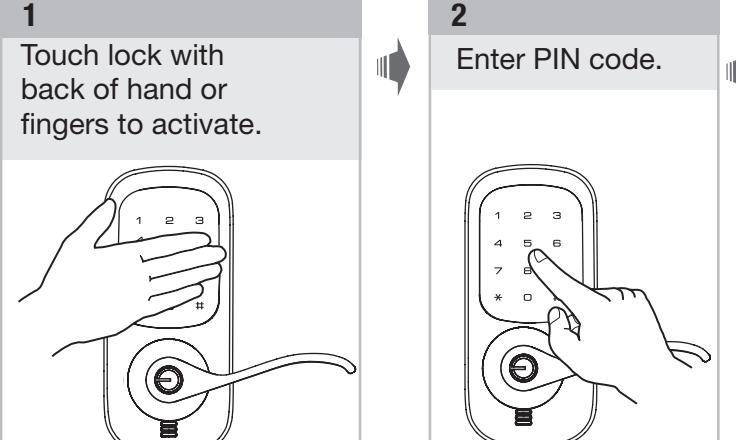
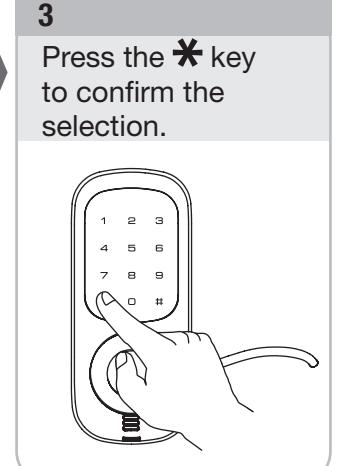
* Master PIN code must be registered before User PIN codes can be added.
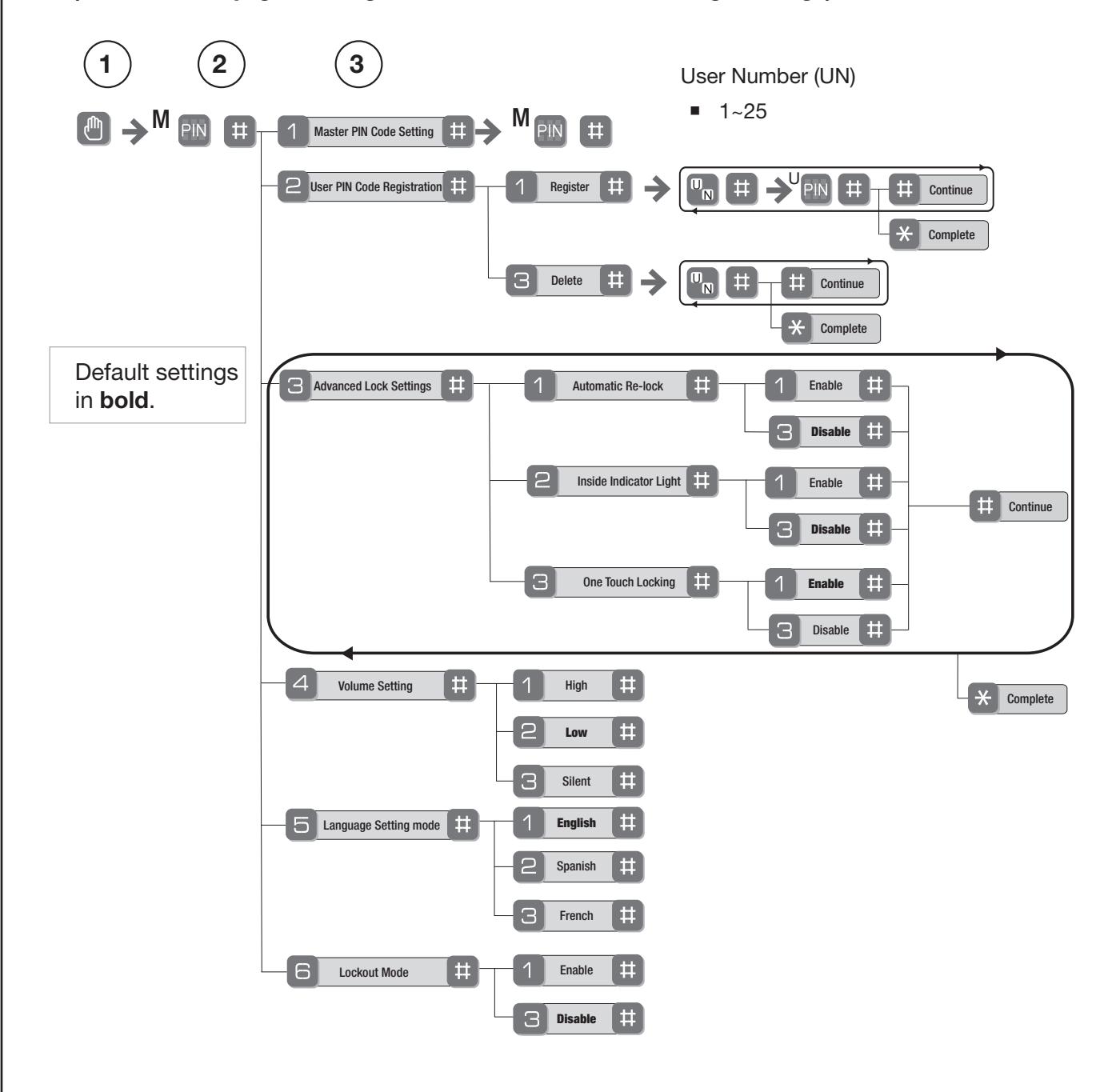
Feature Programming Through Menu Mode Using Master PIN code*
- 1. Touch the screen with the back of your hand or fingers to activate .
- 2. Enter the 4-8 digit Master PIN code* followed by the key. Lock Response: " Menu mode, enter number, press the key to continue ."
- 3. Enter digit corresponding to the function to be performed followed by the key. Follow the voice commands.
- *A unique Master PIN Code must be entered (registered) prior to any further programming of the lock. (See section on page 16 "Register Master PIN Code Before Programming")
MISCELLANEOUS
| Hardware Troubleshooting20 | |
|---|---|
|
Programming Troubleshooting
21 |
|
| Replace/Install Cylinder22 | |
| Sample PIN Code Management Sheet23 |
TROUBLESHOOTING
Hardware Troubleshooting
Cycle the lock in both the locked and the unlocked positions. If problems are found:
| Symptom | Suggested Action | ||
|---|---|---|---|
| Door is binding | a. Check that door and frame are properly aligned and door is free swinging. | ||
| b. Check hinges: They should not be loose or have excessive wear on knuckles. | |||
| Latch will not deadlock |
a. Check for sufficient clearance of the latch within the strike-side jamb. Correct this by
increasing the depth of the pocket for the latch. |
||
| b. Check for misalignment of latch and/or strike which may be preventing latch from | |||
| properly entering the strike. With the door open, extend and retract the latch; if it is | |||
| smooth, check the strike alignment. | |||
| Latch does not extend or retract smoothly | a. Latch and strike are misaligned, see above. | ||
| b. Check the backset of door relative to adjustments already made to latch. | |||
| c. Verify proper door preparation and re-bore holes that are too small or misaligned. | |||
| d. Verify keypad wire harness is routed under the latch (see Fig. A). | |||
| e. Verify latch is installed with correct side up (Fig. A). | |||
|
Interior of Door
Figure A |
|||
Programming Troubleshooting
| Symptom | Suggested Action | ||
|---|---|---|---|
|
Lock does not respond – door is open and
accessible. |
The touchscreen will become active when pressed with the back of hand or fingers in at least 3 areas
simultaneously. |
||
| Use a larger area of the hand or fingers and verify contact with at least 3 areas. | |||
| If touchscreen numbers are visible, check to see if they respond when pressed. | |||
| Check batteries are installed and oriented correctly in the battery case. | |||
| Check batteries are in good condition; replace batteries if discharged. | |||
| Check to see if touchscreen wire harness is fully connected and ensure it is not pinched. | |||
| Lock does not respond – door is locked and | Batteries may be completely discharged. | ||
| inaccessible. | Use mechanical key to gain entry and replace batteries. | ||
|
The unit is on for a while, and then shows
no reaction. Lights dim. |
The batteries do not have enough power. Replace the batteries. | ||
| Unit chimes to indicate code acceptance, | Check the door gaps for any foreign objects between door and frame. | ||
| but the door will not open. | Check that the wire harness is firmly connected to the PCB. | ||
| Unit operates to allow access, but will not | Check to see if Automatic Re-lock Mode is enabled. | ||
| automatically re-lock. |
Disable Automatic Re-lock Mode to lock the door (automatically)If low battery indicator is lit, replace
batteries. |
||
| PIN codes will not register. | PIN codes must consist of 4 to 8 digits to register. | ||
| The same PIN code cannot be used for multiple users. | |||
| Registration/management of PIN codes is set by the authority of Master PIN Code. | |||
| The Master PIN code must be registered prior to adding any users. | |||
| Contact the Master PIN Code user. | |||
|
User codes must be entered within 5 seconds (while the touchscreen is active) or the process will have to
be restarted. |
|||
|
The star
(*) or pound (#) can not be used as part of the PIN code. |
|||
| Upon entering a PIN code and pressing the | Lockout Mode is enabled. | ||
|
star (*) key, the unit displays an "invalid
code" error or the lock times out without |
Only the Master PIN Code can enable Lockout Mode. | ||
| responding. | Contact the Master PIN Code user. | ||
| Upon entering a PIN code and pressing the | Check to see if lock is set at Lockout Mode. | ||
|
(*) key, the red padlock icon appears and
there are different tones. |
Setting/managing Lockout Mode is done through Master PIN Code only. Contact the
Master PIN Code user. |
||
|
The unit operates, but it makes
no sound. |
Check to see if Silent Mode is enabled (see Programming Feature #4). | ||
| The unit responds "Low Battery". |
This is the voice alarm alerting that it is time to replace the batteries. Replace all four (4) batteries with
new AA Alkaline batteries. |
||
|
Upon entering a PIN code and pressing
the star (*) key, the unit responds "Wrong number of digits." |
The digits entered were incorrect or incomplete. Re-enter the correct code. | ||
Replace/Install Cylinder
-
1. Remove cylinder:
- A. Repeat previous steps for removing the exterior lever handle.
- B. Remove cylinder.
-
2. Install new cylinder:
- A. Insert cylinder in exterior lever.
- B. Insert key in cylinder; rotate the key 90° clockwise.
- C. Push handle in allowing holes for set screw to align.
-
D. Insert set screw and
tighten by turning set screw counter-clockwise.
-
E. Verify that new cylinder fits and rotates freely.
- F. Test operation of the new cylinder/key.
-
E. Verify that new cylinder fits and rotates freely.
PIN CODE MANAGEMENT SAMPLE SHEET
| PIN Code Management (- Up to 25 Users) | |||||||
|---|---|---|---|---|---|---|---|
|
Location:
Door Number: |
User | User Name | User # | PIN Code | |||
| User Type | User Name | User # | PIN Code | ||||
| Master | User 13 | ||||||
| User 01 | User 14 | ||||||
| User 02 | User 15 | ||||||
| User 03 | User 16 | ||||||
| User 04 | User 17 | ||||||
| User 05 | User 18 | ||||||
| User 06 | User 19 | ||||||
| User 07 | User 20 | ||||||
| User 08 | User 21 | ||||||
| User 09 | User 22 | ||||||
| User 10 | User 23 | ||||||
| User 11 | User 24 | ||||||
| User 12 | User 25 | ||||||
| ONLINE LITERATURE AND TEMPLATES |
| For the latest information on Arrow products visit our website |
| www.arrowlock.com |
| Arrow Lock and Door Hardware |
| 3625 Allegheny Drive Salem, VA 24153 • Phone: 800-839-3157 • customer-service@assaabloyrss.com |
| Arrow® is a registered trademark of Arrow Lock and Door Hardware, an ASSA ABLOY Group company. |
|
Revolution™ is a trademark of Arrow Lock and Door Hardware, an ASSA ABLOY Group company. Other products or brand
names may be trademarks or registered trademarks of their respective owners and are mentioned for reference purposes only. |
| These materials are protected under U.S. copyright laws. All contents current at time of publication. |
| Arrow Lock and Door Hardware, an ASSA ABLOY Group company, reserves the right to change availability of any item in this |
| catalog, its design, construction, and/or its materials. |
|
Copyright 2012, Arrow Lock and Door Hardware, an ASSA ABLOY Group company. All rights reserved.
Reproduction in whole or in part without the express written permission of Arrow Lock and Door Hardware is prohibited. |