Alarm Lock USB Serial COM Port Reassignment Guide for Windows 98
Open the original PDF document
View PDF

USB SERIAL COM PORT REASSIGNMENT GUIDE
Amityville, New York 11701 For Sales and Repairs 1-800-ALA-LOCK For Technical Service 1-800-645-9440 Publicly traded on NASDAQ Symbol: NSSC © ALARM LOCK 2006 WI1581 11/06
OVERVIEW
When using a USB adapter and DL-Windows, it is possible that DL-Windows may not find the adapter due to the USB adapter being assigned a COM Port greater then COM4. To change this number, please use the following instructions.
Note: Although the images that follow were obtained from a Windows 98 installation, the procedure is nearly identical with Windows 2000, Windows ME and Windows XP installations.
CONFIGURE THE USB PORT
Click Start > Settings > Control Panel to open the Windows Control Panel .
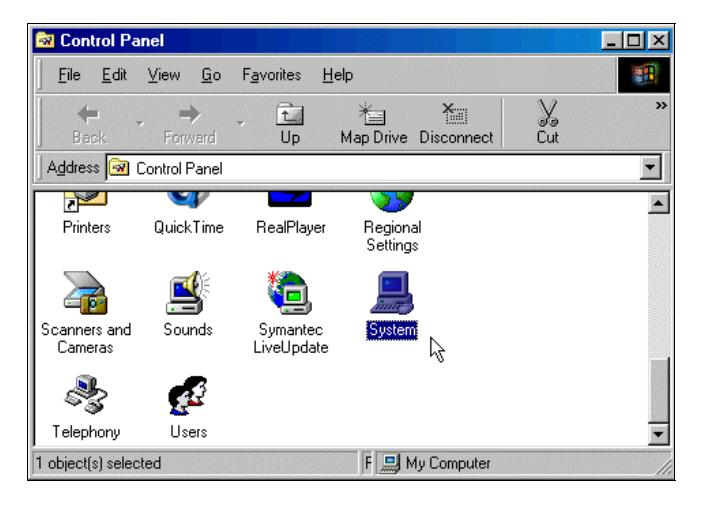
Double-click the System icon and the System Properties dialog opens:
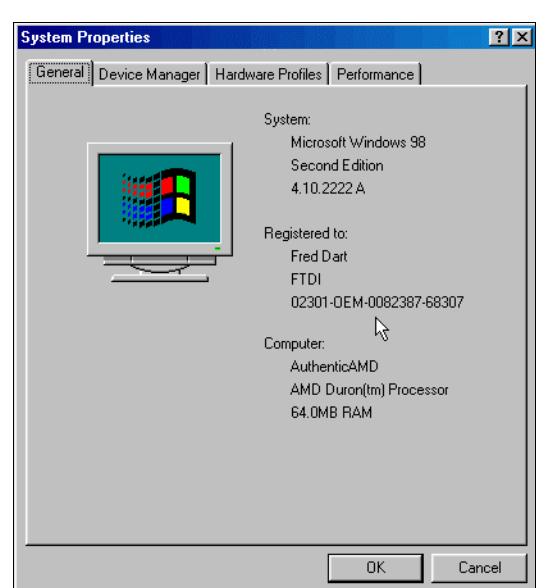
In the System Properties dialog, click to open the Device Manager , and select the " View devices by type " option.
In the Ports (COM & LPT) entry, click the "+" symbol to display the devices in this category.
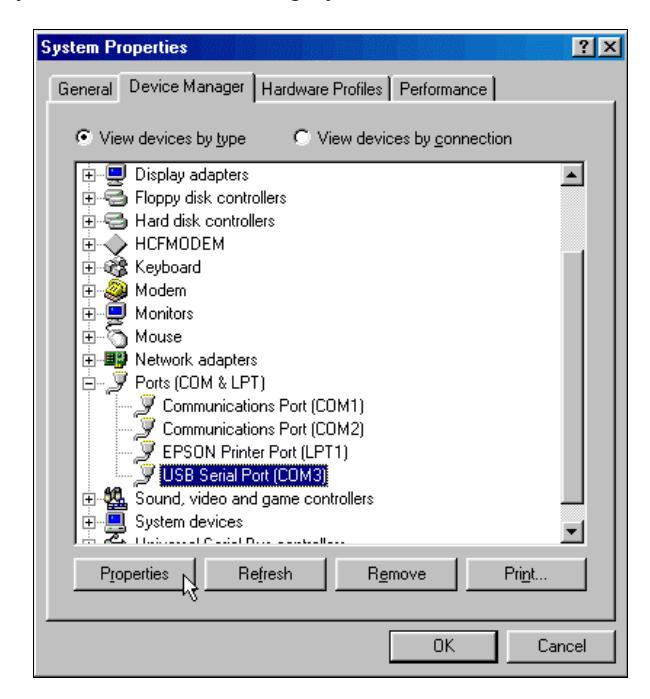
As shown above, click to select the entry " USB Serial Port " (this entry is followed by a COM Port number), then click on the Properties button to view the device properties.
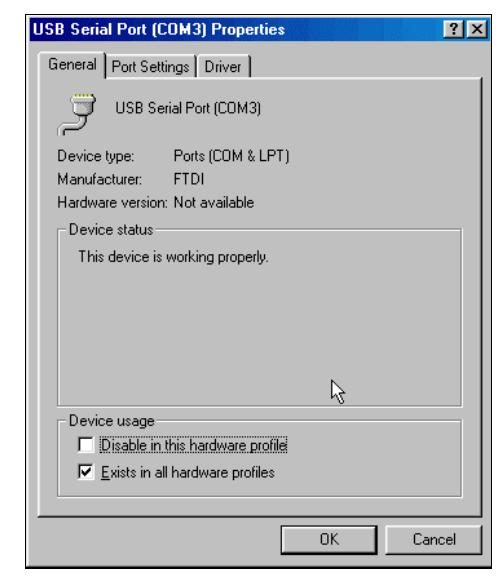
In the USB Serial Port (COM3) Properties dialog (shown above), note the USB Serial Port is set to COM3 .
The General tab (shown above) displays a variety of details including the status of the device selected (the Device status area confirms that the device is--or is not--
working properly with regard to the Windows operating system).
Note: The COM number may vary depending on which devices have been installed prior to plugging in the USB device.
For more device details, click the Port Settings tab:
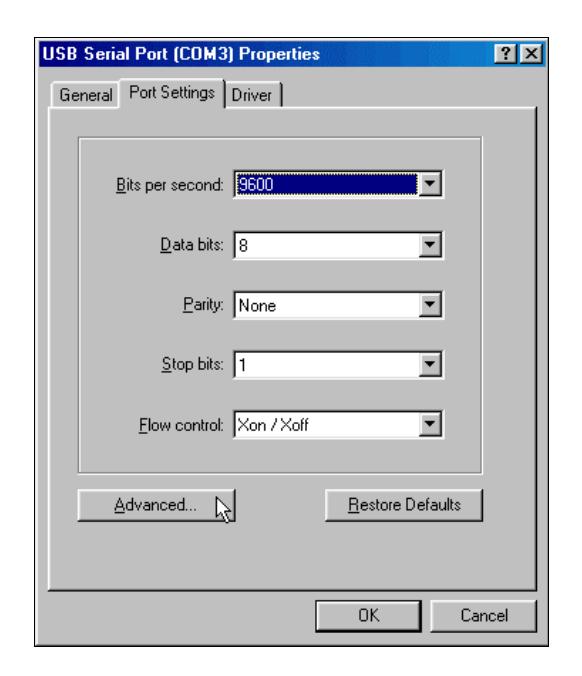
The Port Settings tab (shown above) displays the USB Serial Port default settings.
Note: Nearly all Windows operating systems will automatically select the COM port settings required by the device, therefore the default values can usually be left as-is.
The most frequent requirement is to change the COM Port
number. To do this, click the " Advanced... " button.
In the Advanced Port Settings dialog (shown below), the COM Port Number pull-down menu allows the COM Port number to be changed.
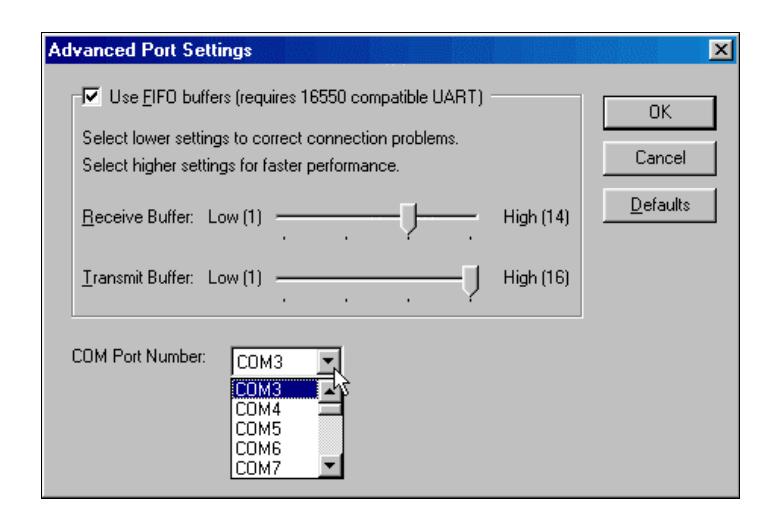
Important: Before changing the COM Port number, verify that the new COM Port number does not conflict with any other hardware or USB COM port present in the system by checking the existing devices listed in the Device Manager dialog (shown previously).
Note: The Transmit Buffer and Receive Buffer sliding pointers are used for hardware COM ports only and will not alter the performance of USB COM Ports.