Alarm Lock How to upgrade DL-Windows 5.2.3 to DL-Windows 5.4.2
Open the original PDF document
View PDF
345 Bayview Avenue, Amityville, New York, U.S.A. 11701 For Sales and Repairs 1-800-ALA-LOCK • For Technical Service 1-800-645-9440
Fax: 631-789-3383 • info@alarmlock.com Note: Technical Service is for security professionals only
ALARM LOCK Tech Support


Date: Thursday, September 01, 2016
Subject: Upgrading DL-Windows V5.2.3 to DL-Windows V5.3.3
Models: DL-Windows V5.2.3, DL-Windows V5.3.3
Upgrade DL-Windows V5.2.3 to the new DL-Windows V5.3.3 (Beta) as follows:
- 1. Uninstall DL-Windows V5.2.3 using the "Uninstall Program" screen (also named "Programs and Features") in your Windows Control Panel.
- 2. Select DL-Windows 5.2.3 and click Uninstall .
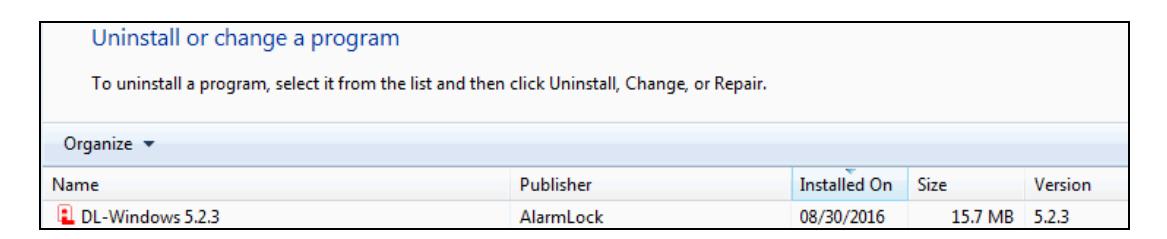
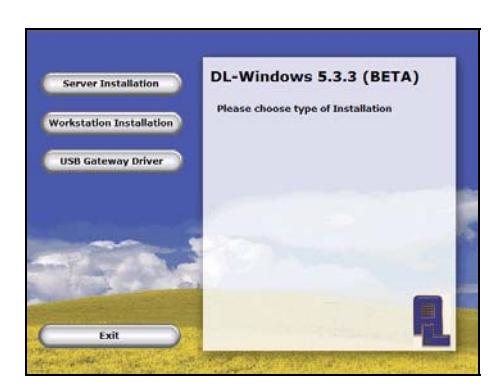
3. Run the DL-Windows V5.3.3 (Beta) setup program either from an installation CD or from a file downloaded from the Napco Technical Library (http://tech.napcosecurity.com/).

4. When the setup program starts, click " Workstation Installation ".
345 Bayview Avenue, Amityville, New York, U.S.A. 11701 For Sales and Repairs 1-800-ALA-LOCK • For Technical Service 1-800-645-9440
Fax: 631-789-3383 • info@alarmlock.com Note: Technical Service is for security professionals only
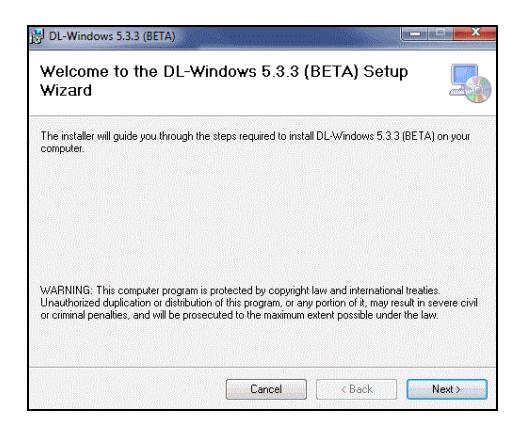
5. When the DL-Windows 5.3.3 (BETA) Setup Wizard starts, click Next .
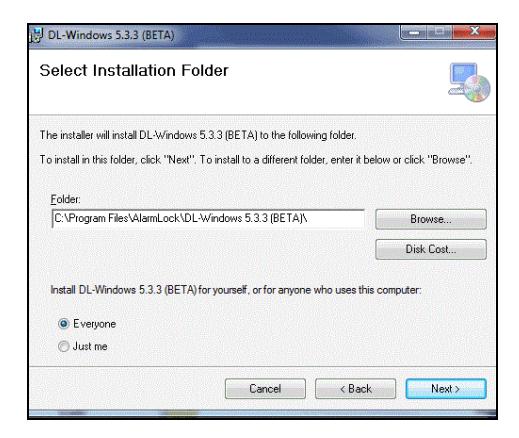
6. In the Select Installation Folder screen, keep the default installation folder path; select the " Everyone " radio button and click Next .
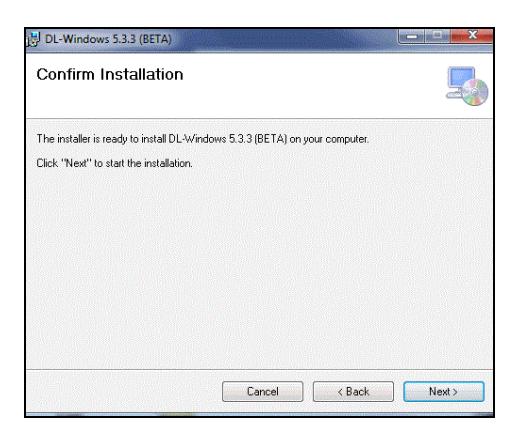
7. In the Confirm Installation screen, click Next .
345 Bayview Avenue, Amityville, New York, U.S.A. 11701 For Sales and Repairs 1-800-ALA-LOCK • For Technical Service 1-800-645-9440
Fax: 631-789-3383 • info@alarmlock.com
Note: Technical Service is for security professionals only
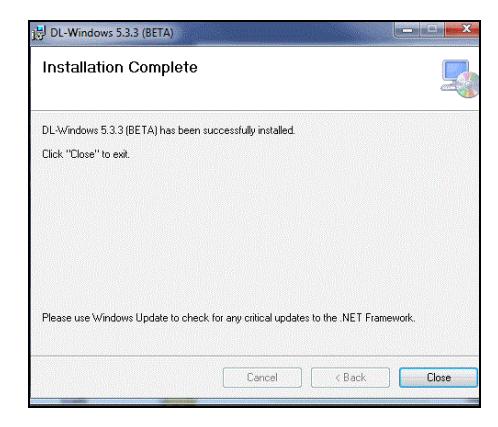
8. When the installation process ends, the Installation Complete screen appears; click Close .
9. Click Start > All Programs > DL-Windows 5 > Database Configuration to launch the DL-Windows 5 Database Configuration tool. Confirm the Database Server Name .
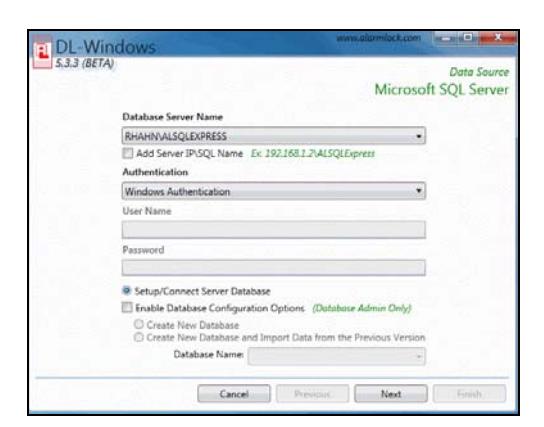
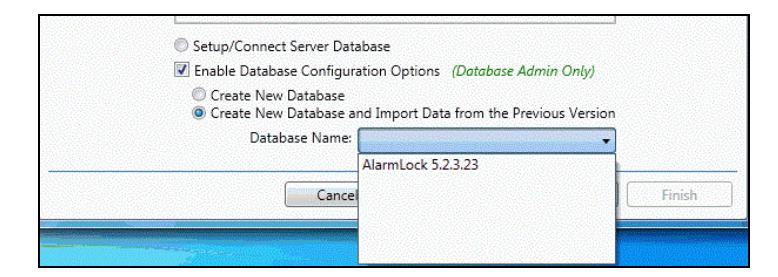
Select the following options.
- a. Check the Enable Database Configuration Options checkbox.
- b. Select the Create New Database and Import Data from the Previous Version radio button.
- c. In the Database Name pulldown select " AlarmLock 5.2.3.23 ".
345 Bayview Avenue, Amityville, New York, U.S.A. 11701 For Sales and Repairs 1-800-ALA-LOCK • For Technical Service 1-800-645-9440
Fax: 631-789-3383 • info@alarmlock.com
Note: Technical Service is for security professionals only
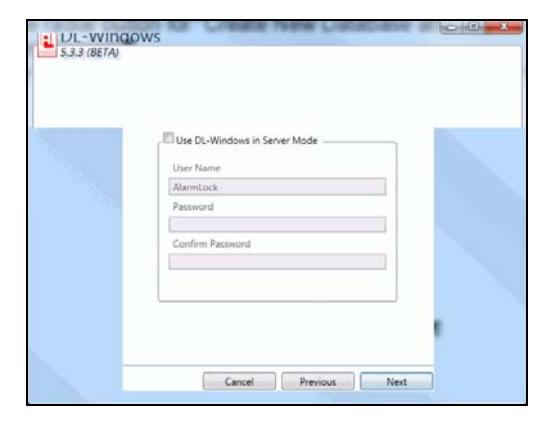
10. In the next screen that appears, do not check the Use DL-Windows in Server Mode checkbox (thus maintaining the same setting used with the previous DL-Windows V5.2.3 installation). Click Next .
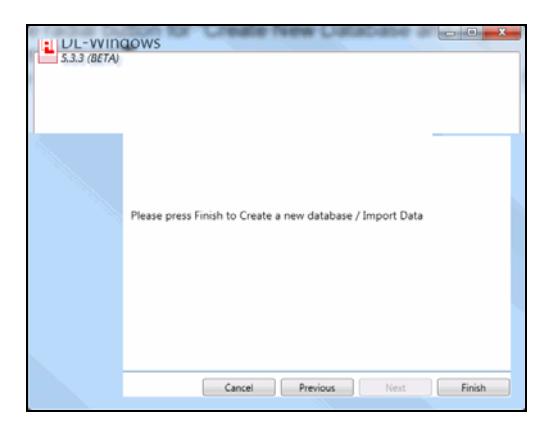
11. To complete the upgrade process, click Finish . The screen will close automatically.
12. When you launch DL-Windows 5.3.3 (Beta), all prior user account data will appear.