Alarm Lock How to migrate data between computers when installing DL-Windows software onto a different computer
Open the original PDF document
View PDFDL Windows software
How to migrate data between computers when installing the software onto a different computer
- First create a backup of the data on the original computer
- Choose where you would like to back the files up to. You can use the original folder or a thumb drive.
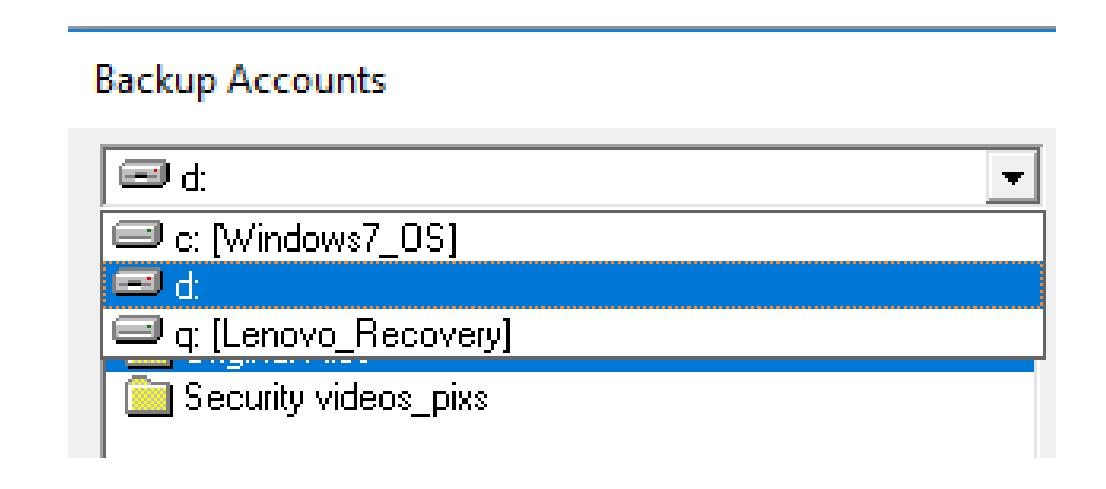
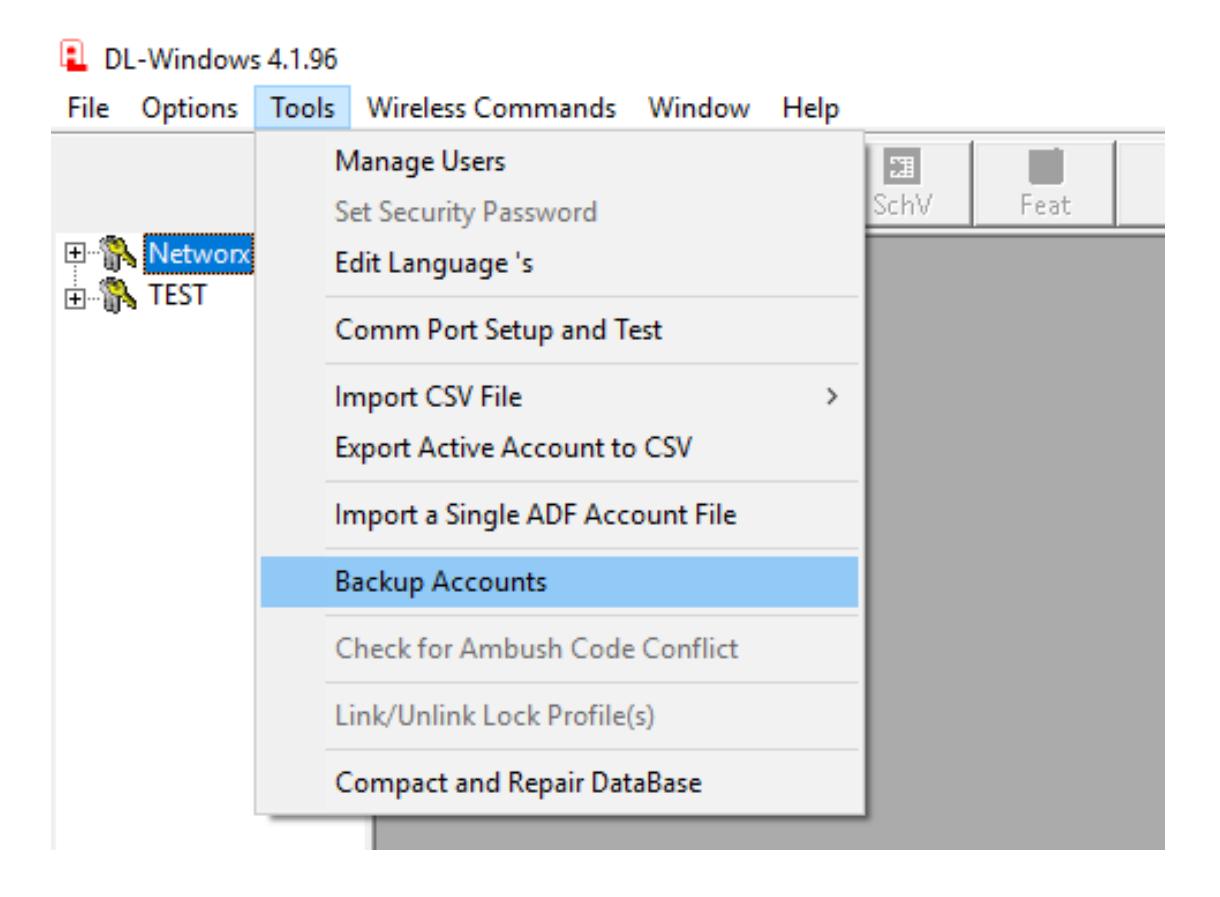
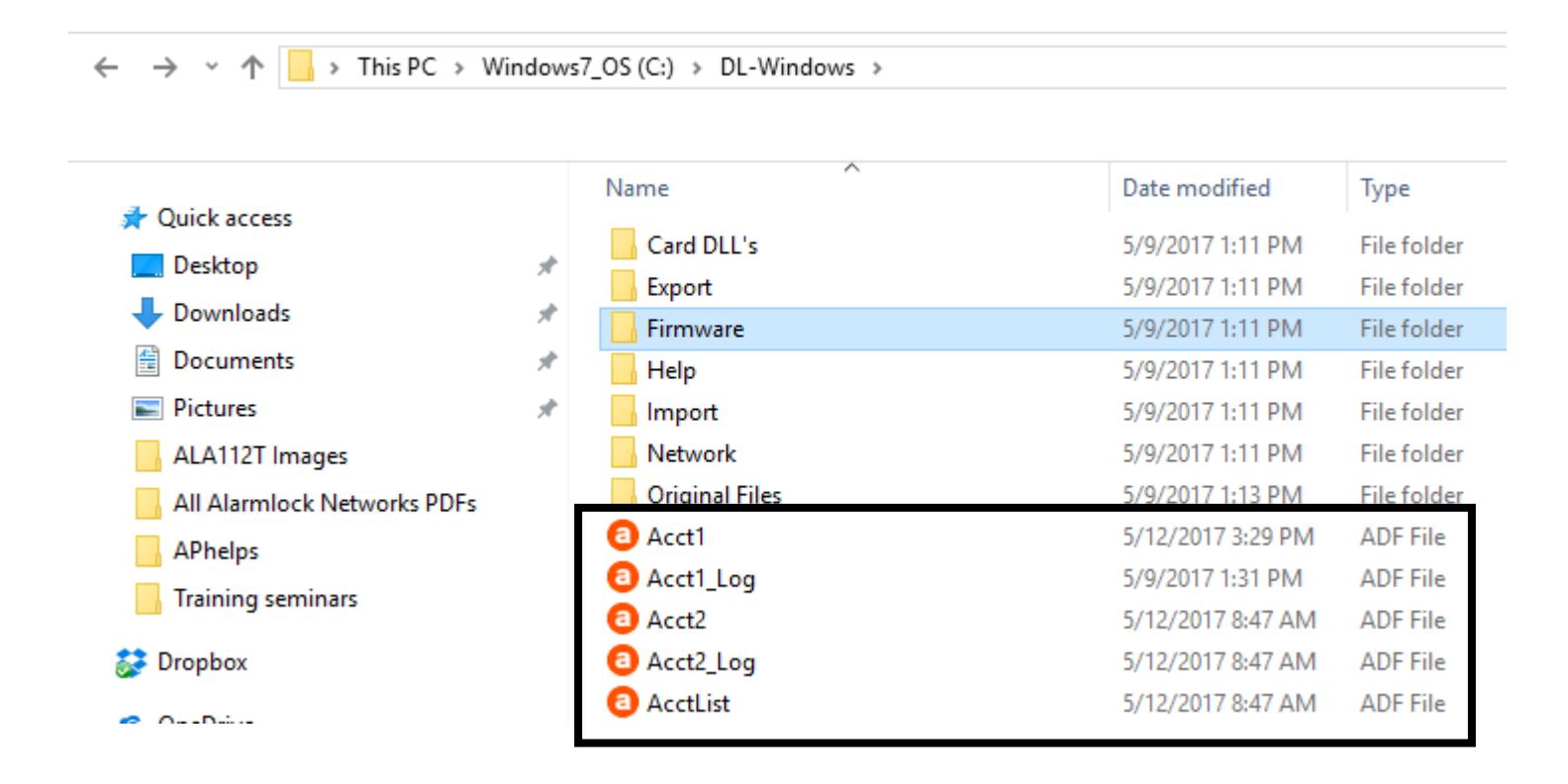
- If you backed up to the C drive, locate the .adf files.
- Copy those files to a device to move them to the new computer.
- If you copied to a thumb drive, you are ready to import to the new computer.
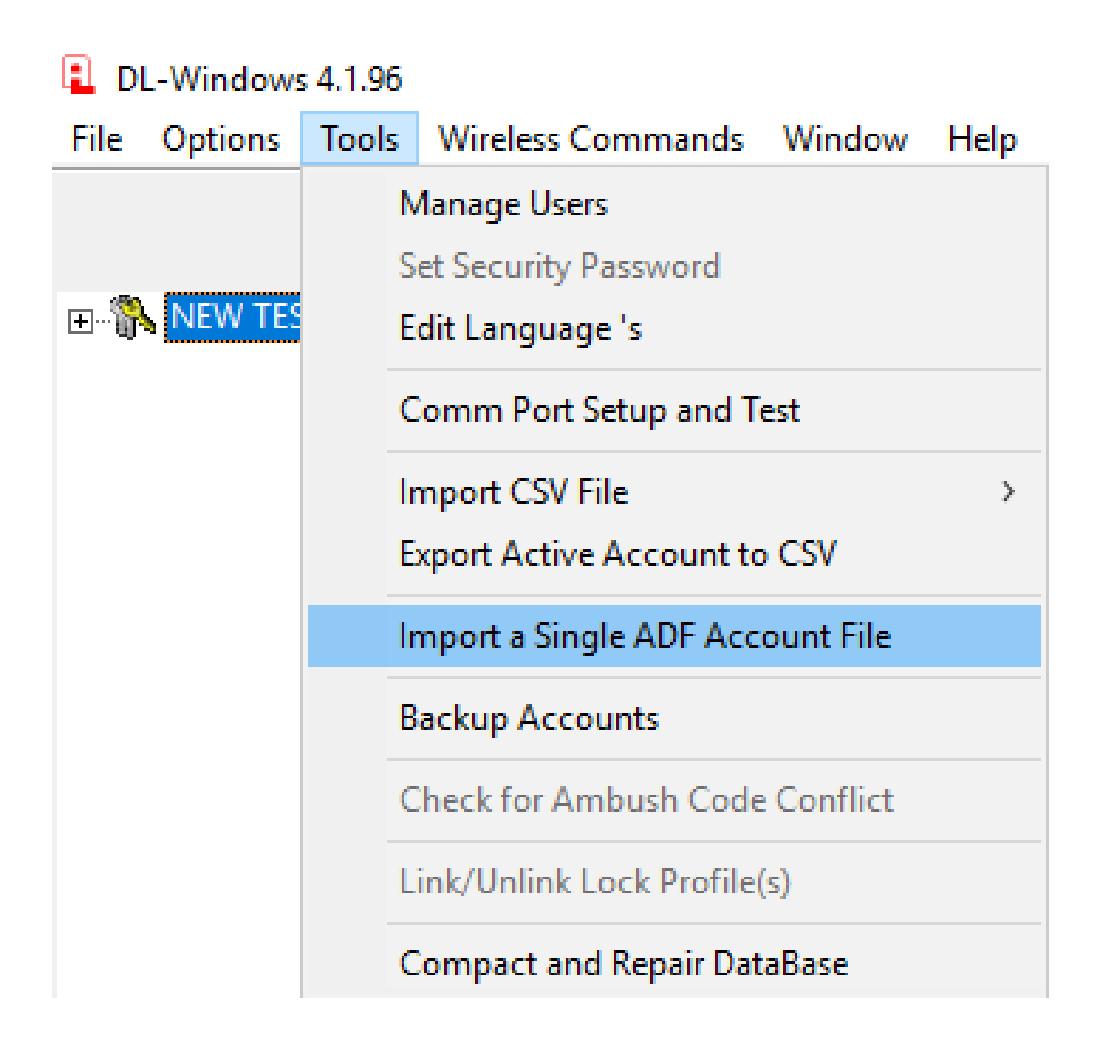
• After the same version of DL Windows is installed on the new computer, click on TOOLS and Import a single ADF file.
- Locate the files on the device that you copied them to.
- Click on Acct1 and then click on open to import the files.
- If there are multiple accounts, each one will need to be imported separately.
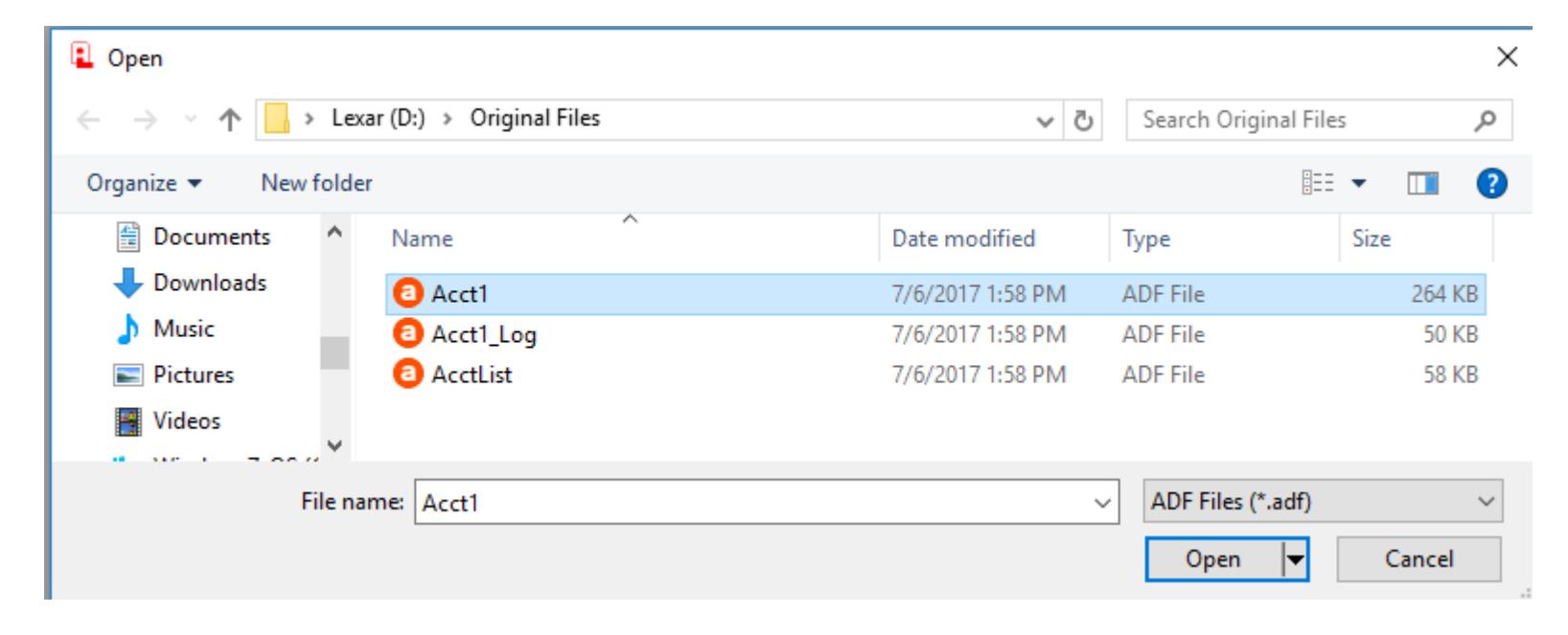
• Name each account when importing.
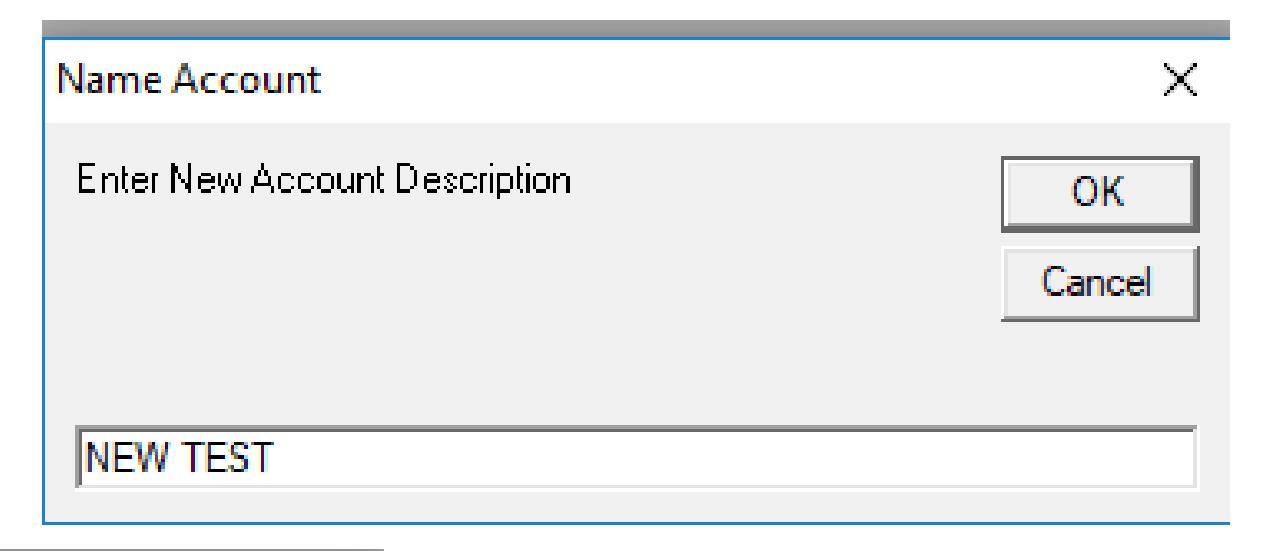
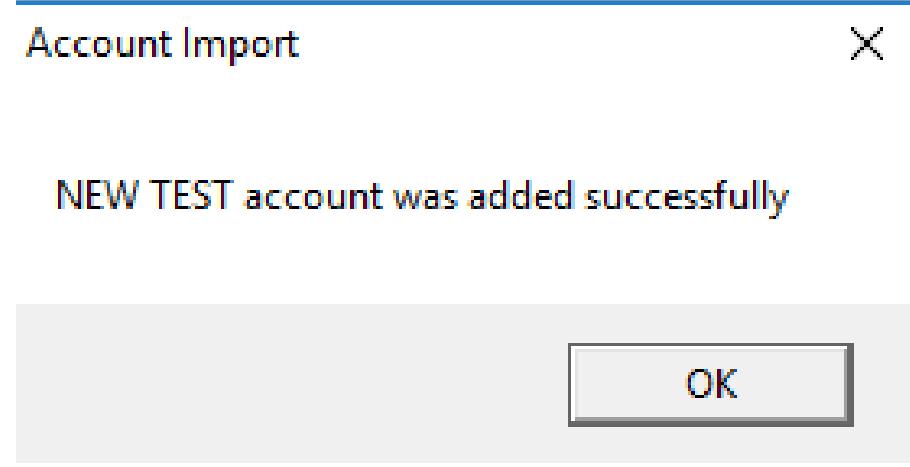
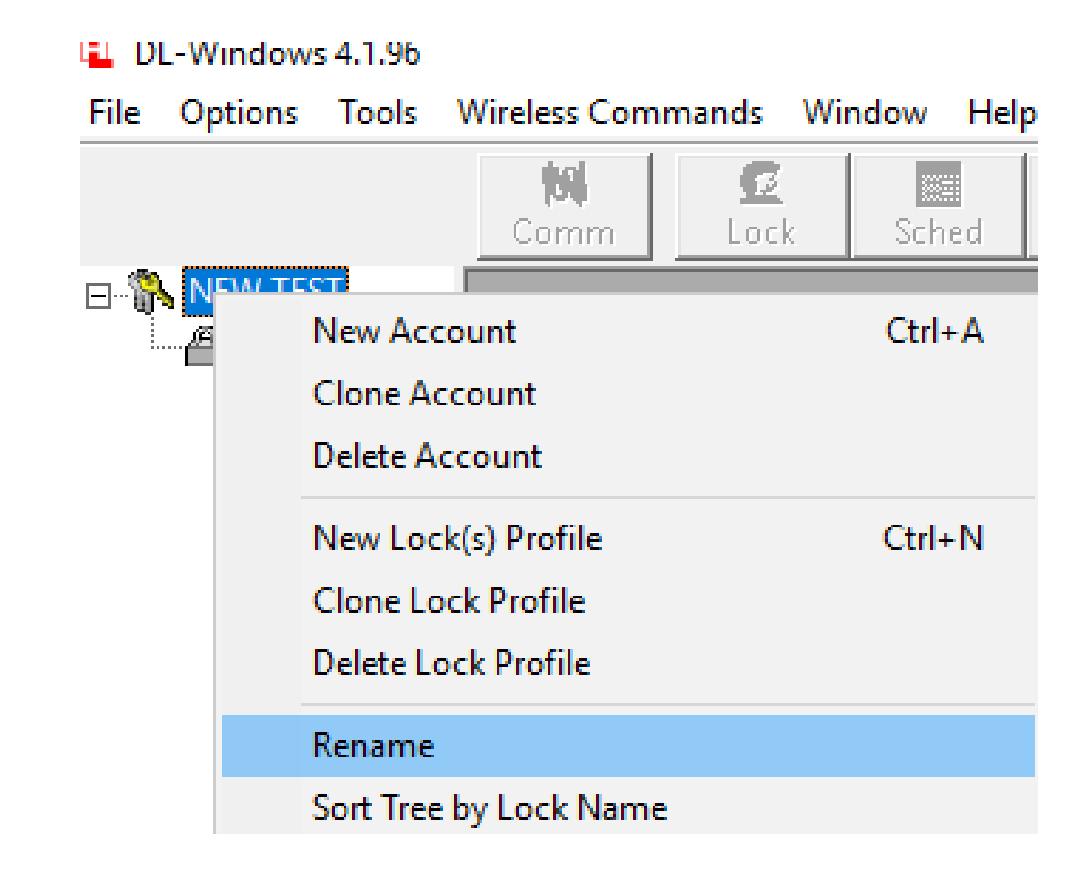
- You may need to rename the account once it is imported.
- Right click on the account name and click on Rename.
- All lock profiles, user, etc will now be in the new computer
Version 5.1.1 and newer
- Create a backup of the software on the original computer
- Click on TOOLS and then Backup Database
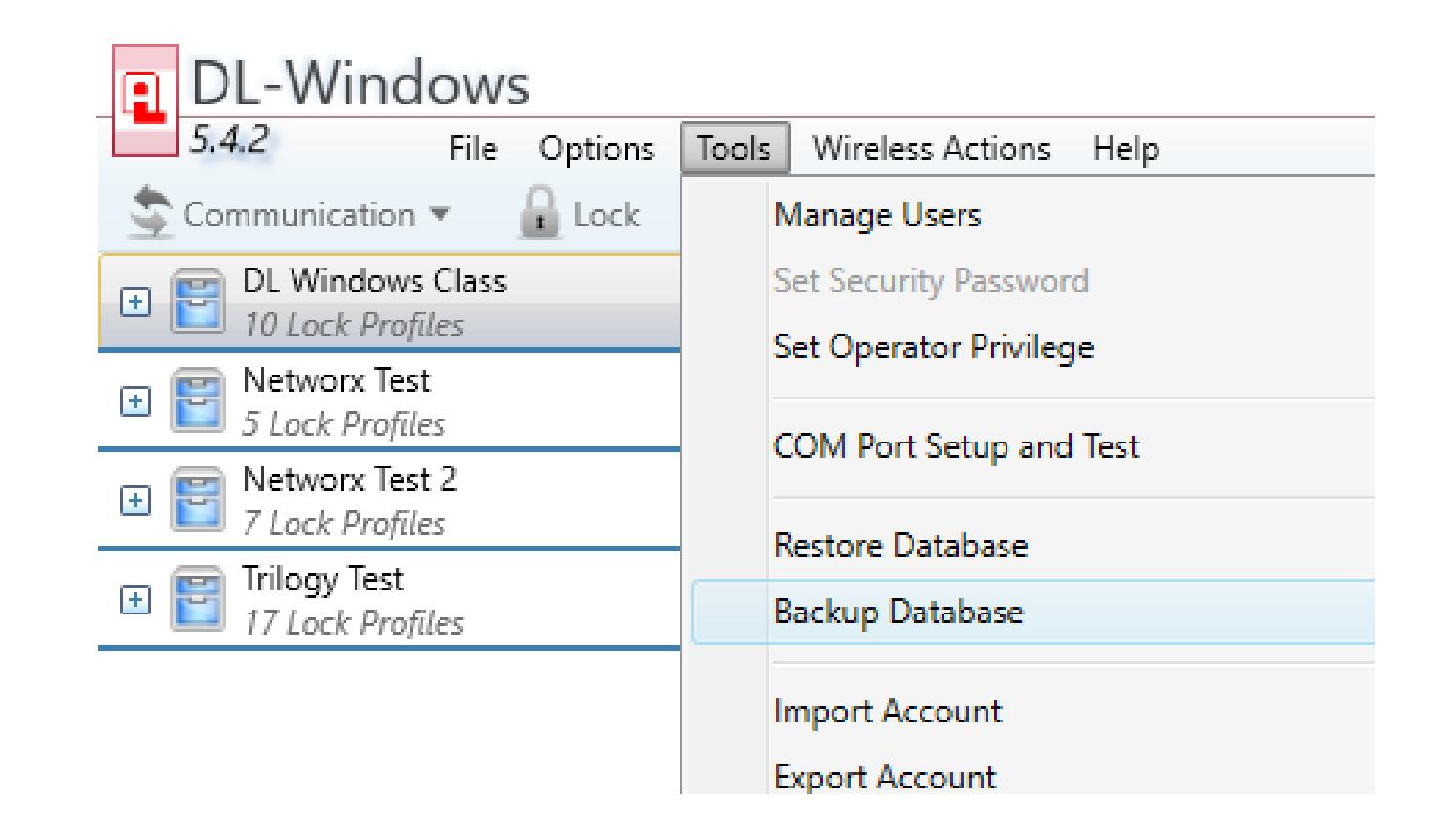
• Make note of the location of the backup file
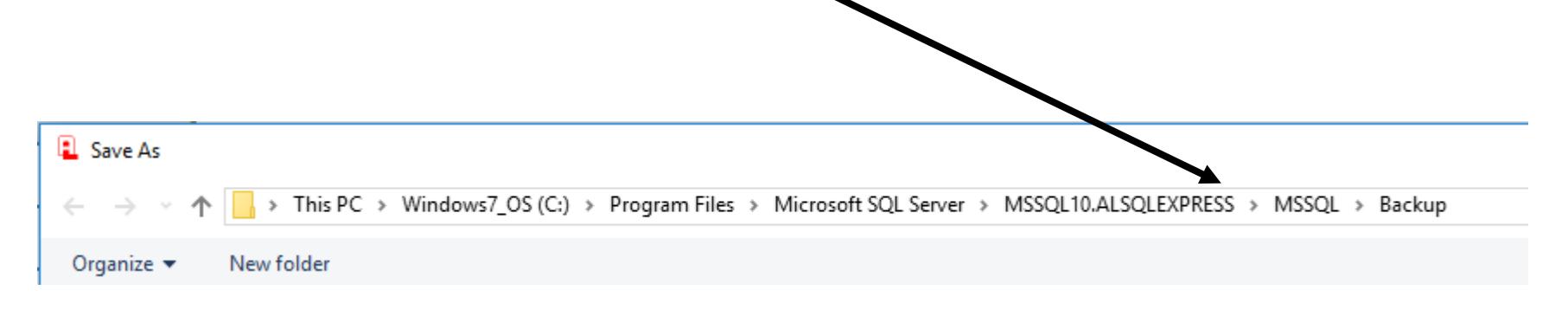
• Click Save
- Copy backup file to a device to move to the new computer
- Install the same version of DL Windows
- Now copy the backup to the same folder as the old computer
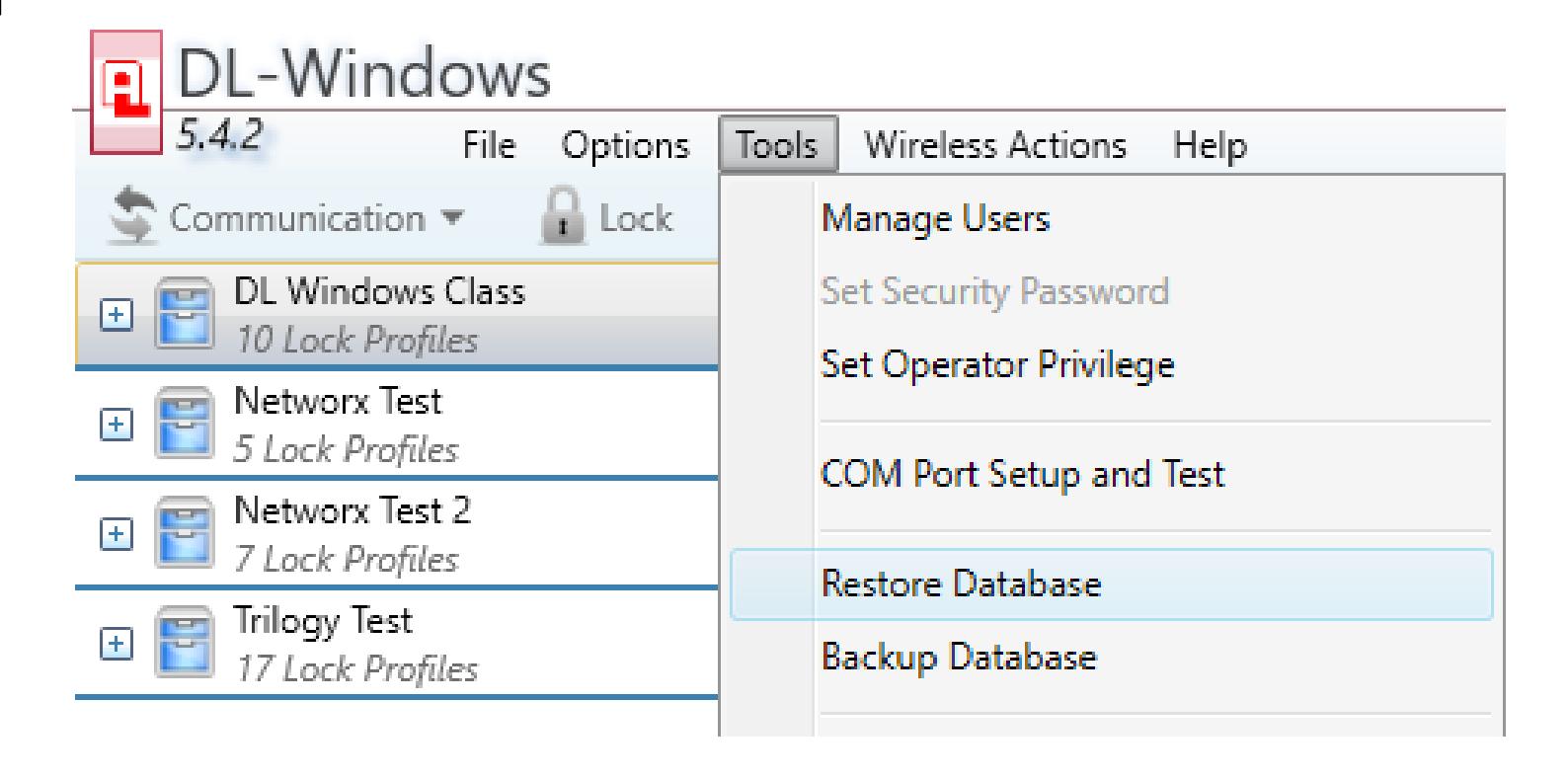
• Click on TOOLS and then Restore Database
• Click on the backup file that you placed in the folder then click OPEN.
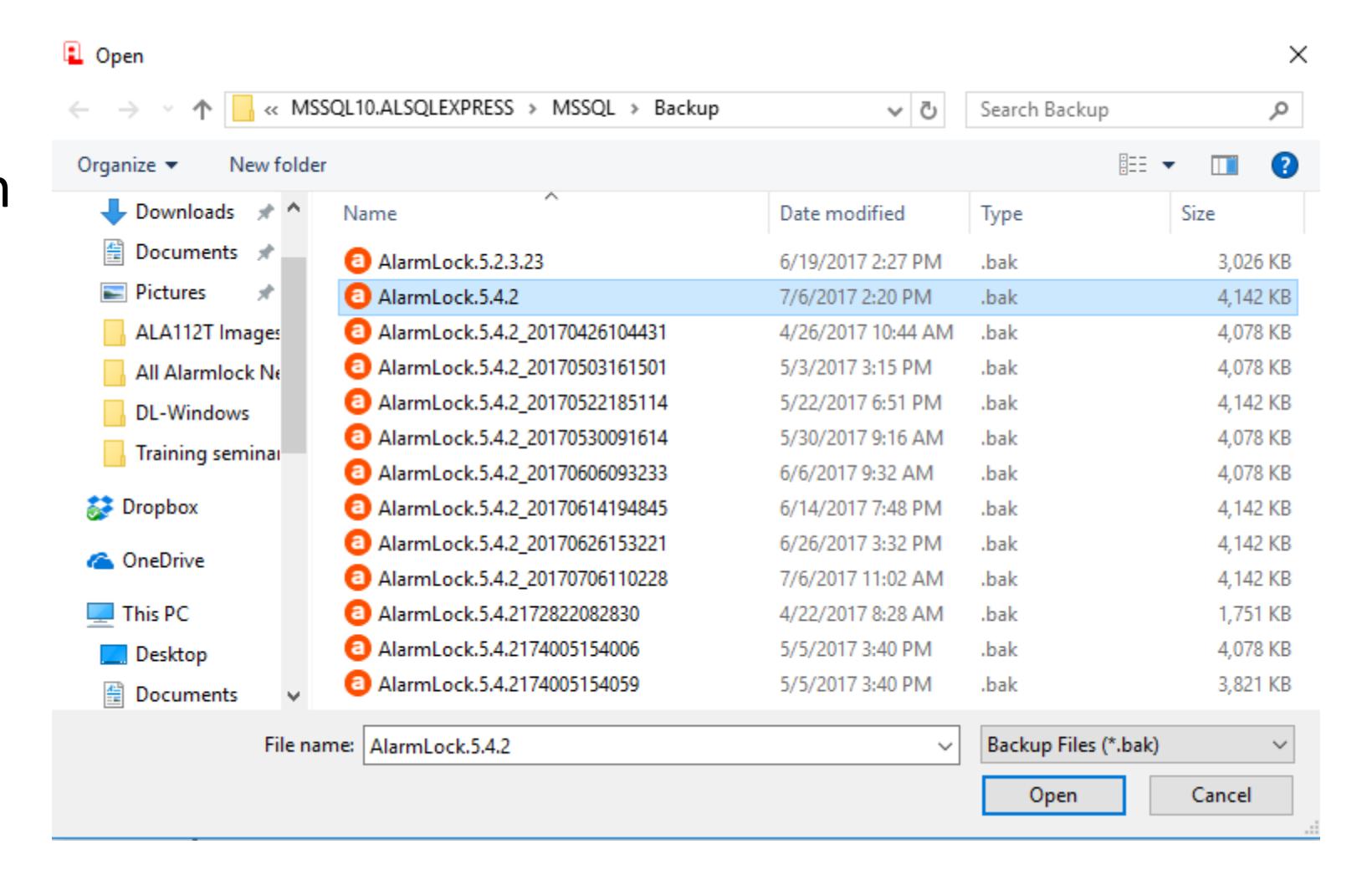
• Your accounts have been added into the new computer.
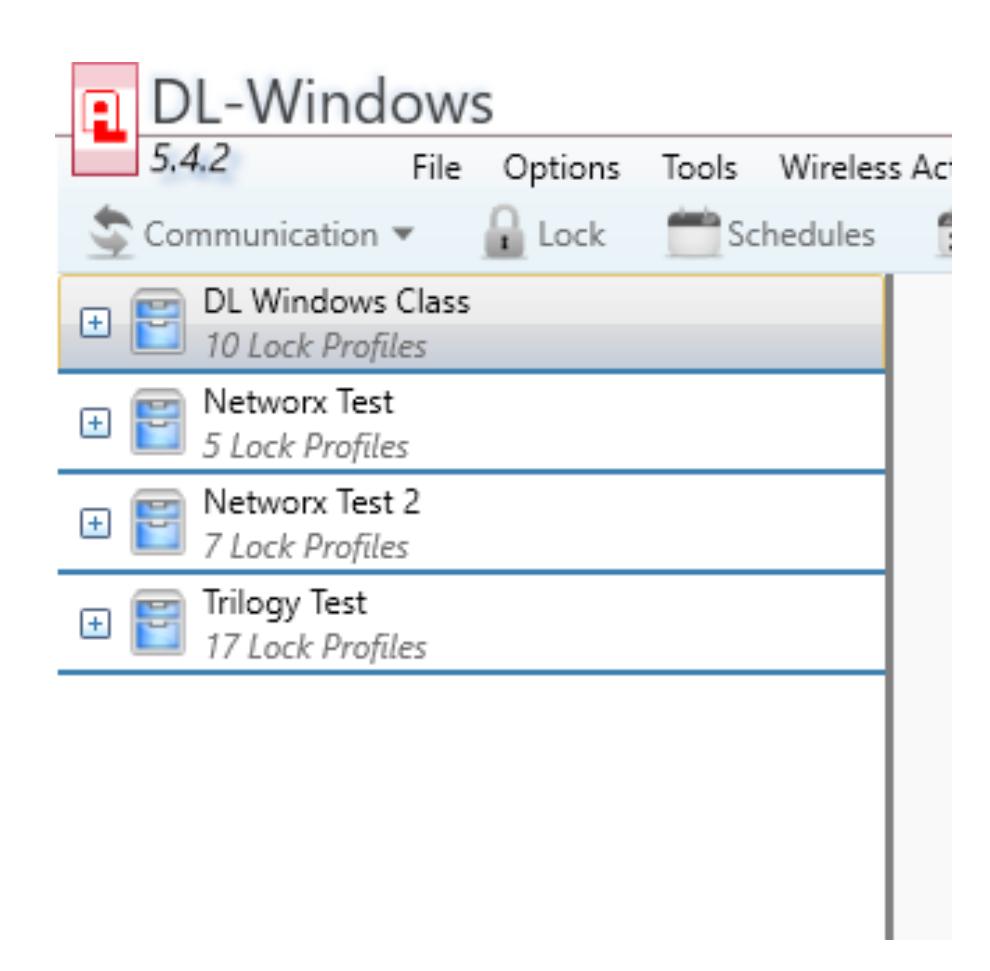
DL Windows software migration
Andy Phelps, CRL
Alarm Lock National Training Manager aphelps@alarmlock.com