Alarm Lock How to Add Additional Users to the Alarm Lock SQL Database
Open the original PDF document
View PDF

NAPCO SECURITY GROUP, INC.
333 Bayview Avenue, Amityville, New York, U.S.A. 11701 800-645-9445 (631) 842-9400 FAX (631) 842-9137
Note: Technical Service is for alarm professionals only
Alarm Lock SQA Engineering
TECHNICAL ADVISORY

Date: Monday, December 15, 2014
Subject: Adding Additional Users to the Alarm Lock SQL Database
Models: DL-Windows V5 and greater, Microsoft® SQL Server® 2008 Express
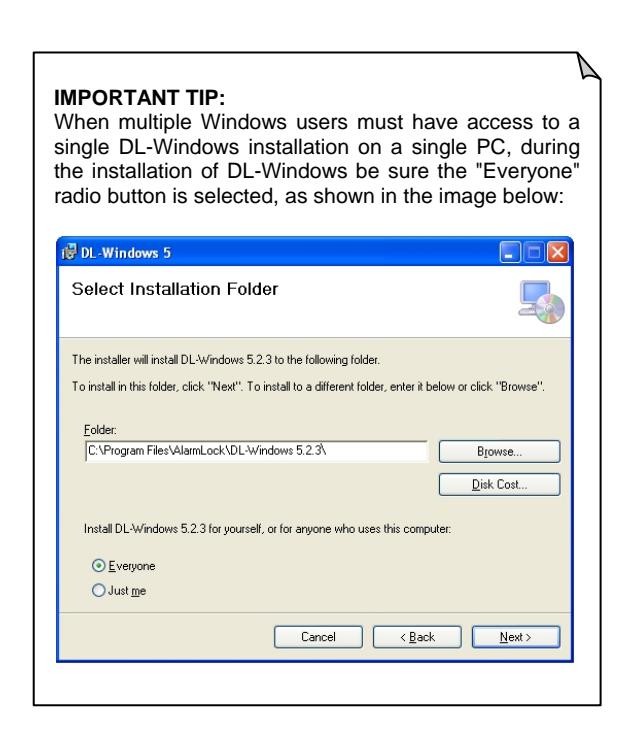
When using the supplied Alarm Lock instance of Microsoft® SQL Server® 2008 Express during the DL-Windows installation, the Windows user that is logged in at the time of installation is, by default, set as the only SQL user for that database. In cases where Workstations are NOT used and multiple Windows users require access to the same DL-Windows database residing on one PC, follow the procedure below. For more information about installing Servers and Workstations, refer to OI382.
Note: If an existing instance of SQL (i.e. SQL 2008 R2) is being used, additional users must be added only through the SQL Management Studio software.
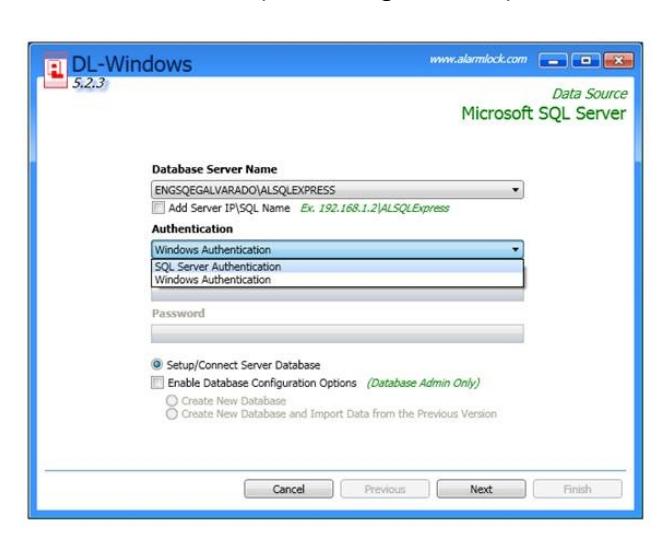
1. Open the Database Configuration utility and change the Authentication to SQL Authentication (see image below):

NAPCO SECURITY GROUP, INC.
333 Bayview Avenue, Amityville, New York, U.S.A. 11701 800-645-9445 (631) 842-9400 FAX (631) 842-9137
Note: Technical Service is for alarm professionals only
2. In the User Name field, type "sa", and in the Password field, type "alarmlock@2012" (quotation marks omitted).
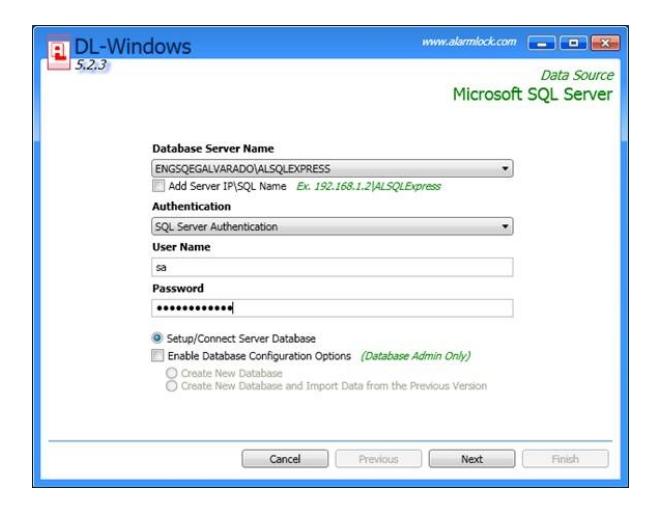
In addition, ensure the Setup/Connect Server Database radio button is selected. Click Next to continue.
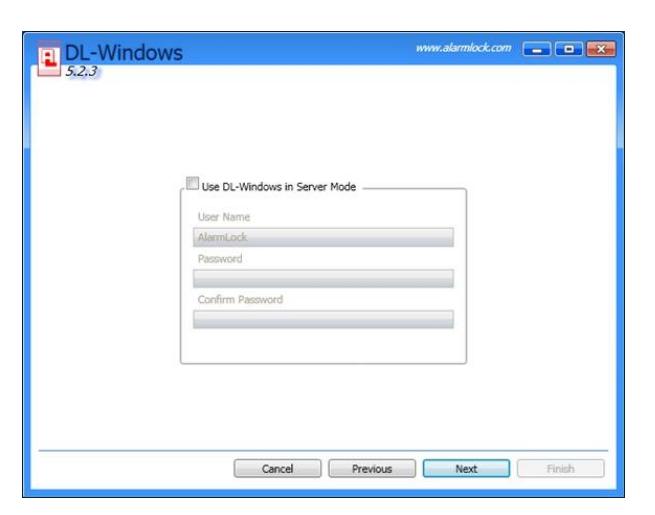
3. In the screen that appears, shown below left, as "Server Mode" is not required, click Next to continue to the next screen without making any changes.
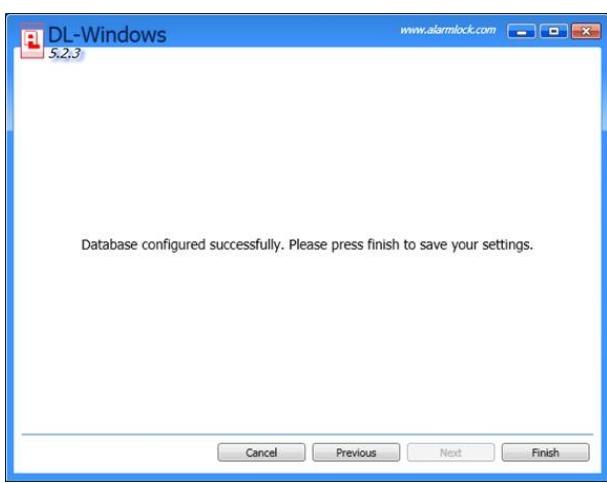
4. When the message " Database configured successfully " appears, click Finish to complete the configuration process.