Alarm Lock DL-Windows will not communicate with the lock or the AL-DTM Data Transfer Module
Open the original PDF document
View PDF
ALARM LOCK
345 Bayview Avenue, Amityville, New York, U.S.A. 11701 For Sales and Repairs 1-800-ALA-LOCK • For Technical Service 1-800-645-9440 Fax: 631-789-3383 • info@alarmlock.com
Note: Technical Service is for security professionals only
ALARM LOCK Tech Support
TECH NOTE

Date: Friday, February 15, 2019
Subject: Software will not communicate with the lock or the AL-DTM Data Transfer Module .
Models: Any software-programmable locks
If the DL-Windows software will not communicate with your lock or your AL-DTM Data Transfer Module, this may be due to:
A faulty cable that connects between your PC and your lock / AL-DTM
An issue with a COM port
For systems that have been working correctly for an extended time, a solution may be a simple COM port test and/or a reset of the active COM port. For new installations of the DL-Windows software, the solution may require installing (or re-installing) the necessary USB drivers.
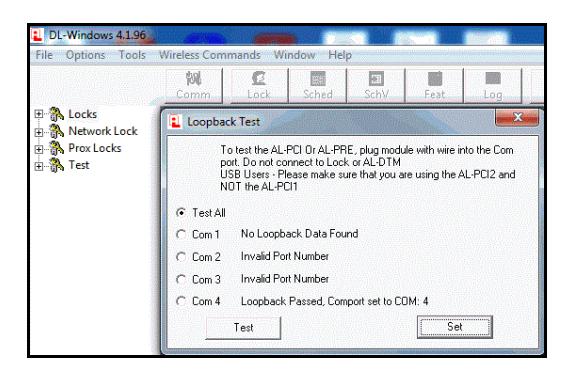
Perform a COM Port Test: DL-Windows V4.1.96
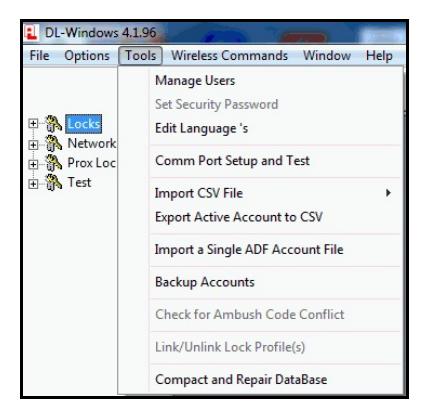
1. Click Tools > Comm Port Setup and Test .
ALARM LOCK
345 Bayview Avenue, Amityville, New York, U.S.A. 11701 For Sales and Repairs 1-800-ALA-LOCK • For Technical Service 1-800-645-9440 Fax: 631-789-3383 • info@alarmlock.com
Note: Technical Service is for security professionals only
2. Set the radio button to " Test All " (default selection) and click Test .
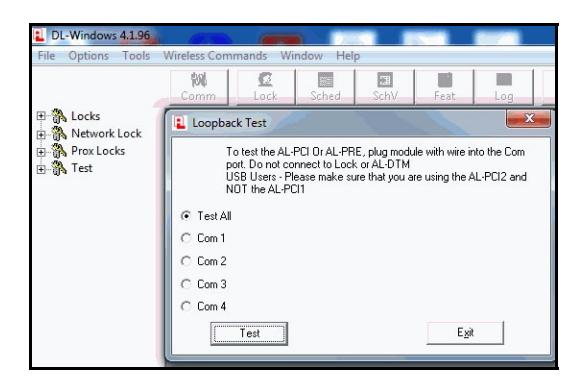
3. In the Loopback Test results screen, one of the four COM ports should appear with the message " Loopback Passed, Comport set to COM: # " (example shown below). Click to select the COM port radio button that passed the test, then click Set .
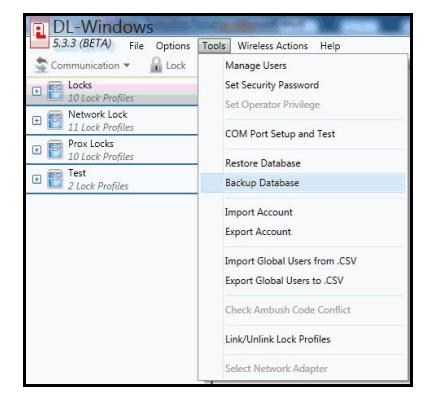
Perform a COM Port Test: DL-Windows V5.x.x
1. Click Tools > COM Port Setup and Test .
ALARM LOCK
345 Bayview Avenue, Amityville, New York, U.S.A. 11701 For Sales and Repairs 1-800-ALA-LOCK • For Technical Service 1-800-645-9440 Fax: 631-789-3383 • info@alarmlock.com
Note: Technical Service is for security professionals only
2. Set the radio button to " Test All " (default selection) and click Test .
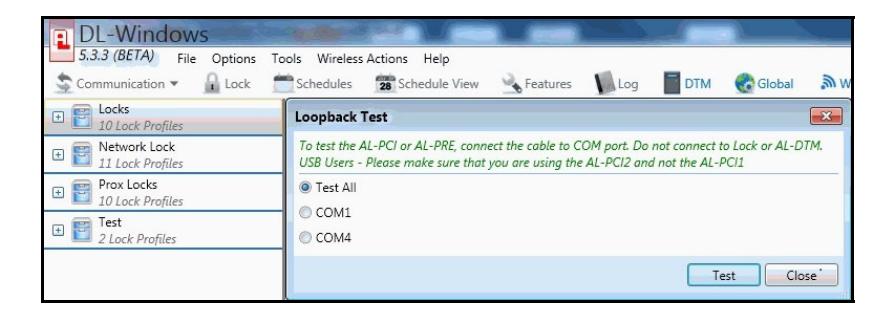
3. In the Loopback Test results screen, one of the four COM ports should appear with the message " Loopback test passed. COM Port set to COM# " (example shown below). Click to select the COM port radio button that passed the test, then click Set .
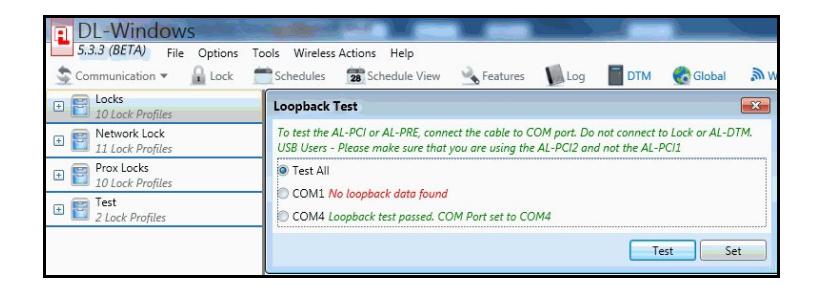
If the COM port is not detected, open the Control Panel > Device Manager to determine if the cable is being detected and if the correct USB drivers are installed.