Alarm Lock DL-Windows Version 3.0 Installation Instructions
Open the original PDF document
View PDF

DL-Windows Version 3.0
SOFTWARE INSTALLATION INSTRUCTIONS
Amityville, New York 11701 For Sales and Repairs 1-800-ALA-LOCK For Technical Service 1-800-645-9440 © ALARM LOCK 2002
WI 1056B 8/02
IMPORTANT: YOU MUST RUN THIS UTILITY PRIOR TO RUNNING DL-WINDOWS VERSION 3.0
• If you are a new user of DL-Windows or will be creating new Accounts only, proceed with the typical installation as outlined in the DL-Windows User's Guide OI279.
The first time DL-Windows 3.0 is run, you must use the following Import utility to update your database files before accessing your Accounts.
1 . Click Start , Programs , DL-Windows , Import Utility .
The following popup appears:
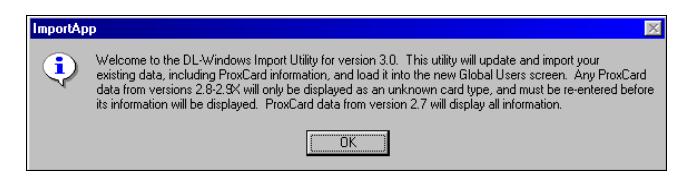
2 . Press OK and the following DL-Windows Upgrade Utility screen appears:
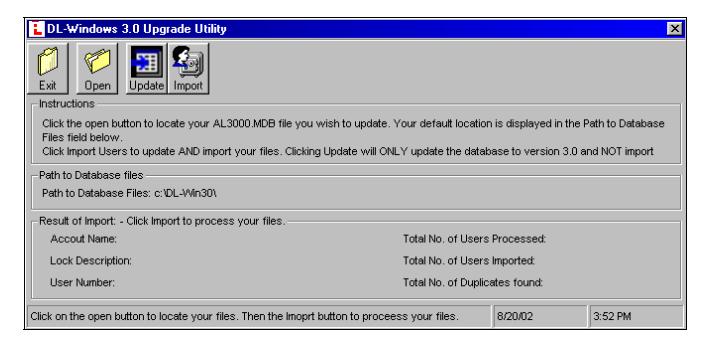
Note: This Update Database utility was formerly located in the DataBase Maintenance screen, in DL-Windows.
3 . In the Path to Database Files area, the path indicated is the default path as defined by the DL-Windows Options screen. Your database files should be located here.
If this default path is NOT correct , press Open to locate the database files you wish to update. If path is correct, go to the next step.

If you are still having trouble finding your database files, see the " Find Utility " section on the back of this page for help.
4 . In the Locate dialog (below), select to highlight the AL3000.mdb file and press Open .
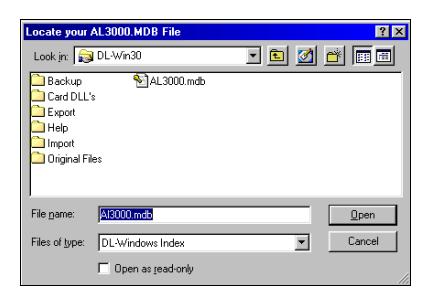
Note: The path selected will appear in the Path to Database files area of the DL-Windows Upgrade Utility screen.
5 . Press Import to update the database files AND import Users into the Global Users screen..

Note: Clicking Update will update the database to version 3.0 ONLY and will not import Users.
When the updating of the database files completes successfully, the following popup appears (below).
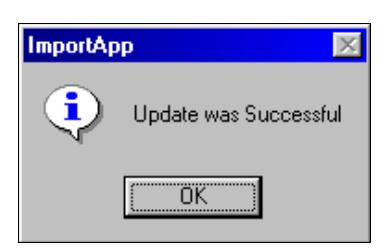
6 . Press OK to close the popup, and press Exit to close the utility screen.
Find Command
If you are not sure where your DL-Windows Account files currently reside, the Windows Find command can be used to establish their current location.
- ! Click Start , Find , and select Files or Folders…
- ! In the Named field, type: *.mdb
- ! The Look in field should indicate the hard drive where they most likely reside (default = C:)
- ! Click Find Now (see Figure 1a, at right)
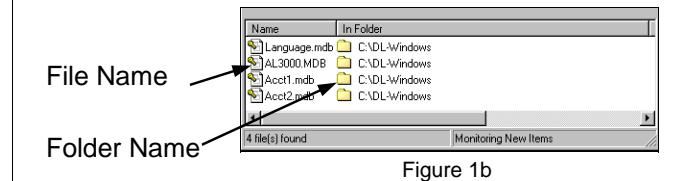
The file name "AL3000.mdb" will now be listed along with the name of the folder (directory) in which they reside (see Figure 1b, at right).
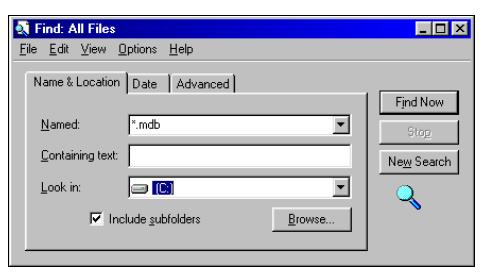
Figure 1a