Alarm Lock DL-Windows V5.0.0 Software (Initial Release)
Open the original PDF document
View PDF
DL-WINDOWS ™ V5.0.0 INITIAL RELEASE CHANGES / NEW FEATURES
Amityville, New York 11701 For Sales and Repairs 1-800-ALA-LOCK For Technical Service 1-800-645-9440 (Note: Technical Service is for security professionals only) Publicly traded on NASDAQ Symbol: NSSC
© ALARM LOCK 2012 WI2019 9/12
The Alarm Lock team is pleased to announce the initial release of DL-Windows V5.0.0! Completely backward compatible, this release has an all-new look and contains various improvements from V4.1.96, as well as:
- an improved network-friendly database structure for your accounts
- support for 7000-Series iCLASS locks
- simplified Scheduling
- wireless scheduled downloading
Be aware that when the DL-Windows V5.0.0 installation disc is placed into your disc drive and the setup.exe file autostarts, you must choose to install the software as either a " Server Installation " or as a " Workstation Installation ". Note: If the . exe file does not autostart, then double-click the setup.exe file located in the Setup folder in the installation disc top directory.
- For existing DL-Windows V4.1.96 installations with all accounts currently upgraded to the V4.1.96 database, and you wish to install DL-Windows V5.0.0 just like previous versions (where DL-Windows and your database of accounts are installed on a single local PC or laptop) select " Server Installation " and proceed to the section " Upgrade / Import Utility " below.
- To install DL-Windows on a network server , please read through the section " INSTALLATION TYPES " describing both the Server Installation and Workstation Installation as both types will be used.
- For new users unfamiliar with using DL-Windows software , stop here and review the DL-Windows User Guide (OI237). For information about the wireless Networx system and how it works within the previous version of DL-Windows (4.1.96), see User Guide OI352, or the Networx Quick Start guide OI362 (all are available at www.alarmlock.com).
DL-Windows V4.1.96 and V5.0.0 can be installed and run on the same PC at the same time. Both installations will not interfere with each other; they can run at the same time or individually without conflicts.
System Requirements
For optimal performance, the following minimum requirements are recommended :
- Supported operating systems: Windows XP Service Pack 3, Windows 7, 32-Bit and 64-Bit Systems
- Processor: 1 GHz or faster minimum (2 GHz or faster is recommended)
- RAM: 1GB or more is recommended
- Hard Disk Space: 1GB or more is recommended
Be Patient: DL-Windows V5.0.0 requires both Microsoft ® SQL Server ® 2008 Express and Microsoft ® .NET Framework 4 (included on the installation disc); these compo-
nents may require an extended period of time to install, depending on the operating speed of your computer.
INSTALLATION TYPES
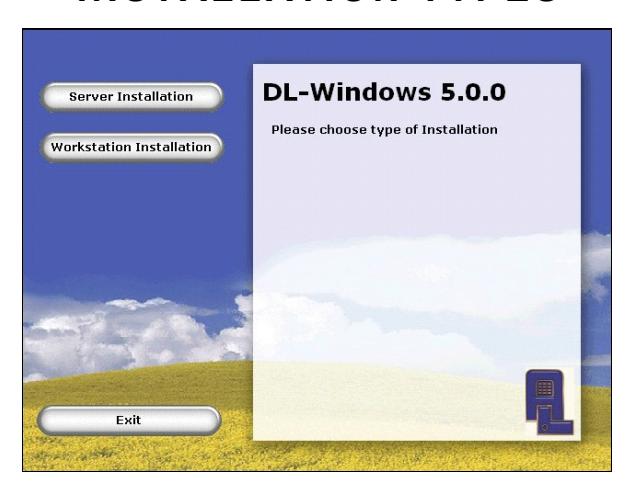
An installation type must be selected (either a " Server Installation " or a " Workstation Installation "). This selection depends on how you wish to access your DL-Windows accounts residing in the database, either via a single local installation or through a network. Each type is described below:
- Server Installation : (Recommended) Use this type for both stand-alone and network installations. Selecting " Server " installs DL-Windows 5.0.0 just like previous versions, where DL-Windows and its database of accounts are both installed on a single local PC or laptop. Also select " Server Installation " if you wish to install DL-Windows and its database on a network server, allowing multiple DL-Windows instances to access this single database of accounts. " Server Installation " installs both Microsoft ® SQL Server ® 2008 Express and DL-Windows. Note: After the installation finishes, DL-Windows must be set to " Server Mode " using the Database Configuration utility to allow Workstation access (see section " Configuring as a Server " on the next page).
- Workstation Installation : As described above in "Server Installation", DL-Windows V5.0.0 and its database of accounts can be installed on a server, allowing multiple instances of DL-Windows access to this single database. For each instance of DL-Windows wishing to access this database on that server, select " Workstation Installation "; DL-Windows will be installed on their local PC or laptop and must then be configured to allow access to that server (see section Configuring as a Workstation ). " Workstation Installation " only installs DLW; also use this type if an instance of SQL Server ® already exists on the PC.
DATABASE CONFIGURATION
Configuring as a Server
After the " Server Installation " completes: Click Start , Programs , DL-Windows 5 , Database Configuration .
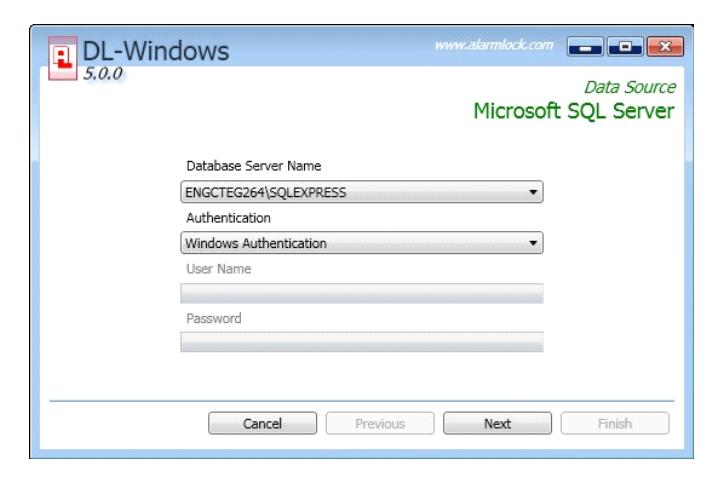
- 1. In the Database Configuration screen, PC's and servers on the network found to contain instances of SQL Server are listed in the Database Server Name pulldown field. In most cases, your PCs instance of SQL Server will be displayed by default.
- 2. In the Authentication field, there are two options: Windows Authentication or SQL Authentication ; in most cases Windows Authentication will be used (utilizing your Windows login credentials, thus the User Name and Password fields are not selectable), however if an instance of SQL Server already exists, you may need to contact your IT professional for the SQL Authentication user name and password. Click Next to continue.
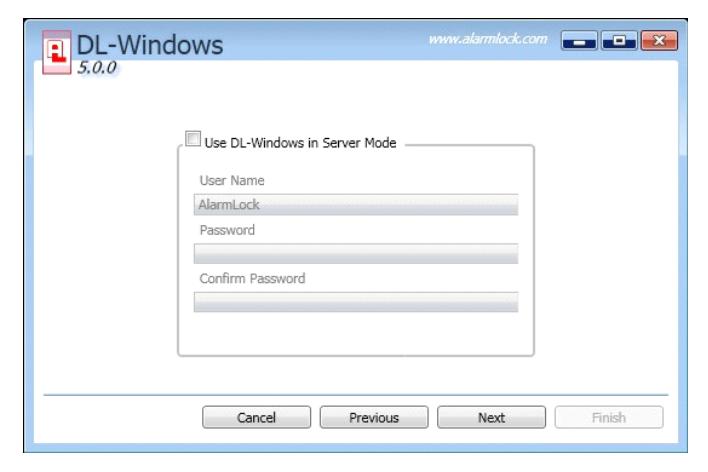
- 3. Check the " Use DL-Windows in Server Mode " checkbox; a popup appears indicating that the credentials entered here will be required for each workstation (as described in section " Configuring as a Workstation " below). The User Name is " AlarmLock " by default; enter and confirm your password, then click Next .
4. Click Finish to configure your new database.
Proceed to next section " Configuring as a Workstation " to setup each Workstation that will use the above Server's database.
Configuring as a Workstation
After the " Workstation Installation " completes: Click Start , Programs , DL-Windows 5 , Database Configuration .
- 1.In the Database Configuration screen, select the instance of SQL Server listed in the Database Server Name pull-down field to which you want to connect.
- 2.Type the required credentials used in step 3 of the " Configuring as a Server " section above. Remember, the default User Name is " AlarmLock ". Click Next to continue.
Note: If you opted to install DL-Windows as a Workstation due to an existing instance of SQL Server , credentials may need to be acquired from your IT professional.
3.Click Finish to complete the Workstation configuration procedure. This Workstation will now utilize the database of the server selected in step 1.
UPGRADE / IMPORT UTILITY
DL-Windows 5.0.0 requires all of your DL-Windows accounts to be upgraded using a new Upgrade / Import Utility . This Utility updates the accounts in your older DL-Windows V4.1.96 database to version 5.0.0.
For database versions prior to V4.1.96 , use the DL-Windows Import Utility included within V4.1.96 first (called the DL-Windows Import Utility V4.1.83 ), before using the DL-Windows 5.0.0 Upgrade/Import Utility.
To open the Upgrade / Import Utility , click Start , Programs , DL-Windows , Database Configuration , File , Upgrade , and the following dialog opens:
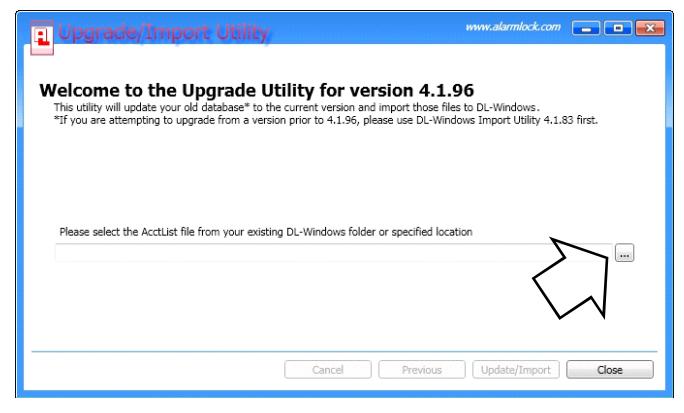
Open the dialog, then click the [ … ] button (see arrow in above image) and browse for and select the following file:
• C:\DL-Windows\AcctList.adf (or specified location)
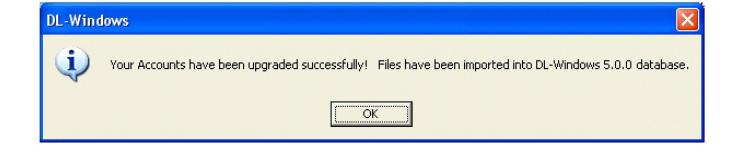
Once the "AcctList.adf" file is selected, click Update/ Import . When finished, an informational popup appears (shown below); click OK to close the popup, and the Update/Import utility automatically closes. Your accounts have now been converted and imported into the DL-Windows 5.0.0 database.
CHANGES & NEW FEATURES
Improved Account List
New icons for the account, lock profile and lock types:

Blue File Cabinet = Account.

Padlock with pencil = Lock profile

Lock Type = The "Lock Type" (model) is now displayed below the lock profile name, with icons indicative of Networx ("Wireless" icon) and non-Networx ("DTM" icon) types. For Networx locks, the lock's Linked / Not Linked status is also displayed.
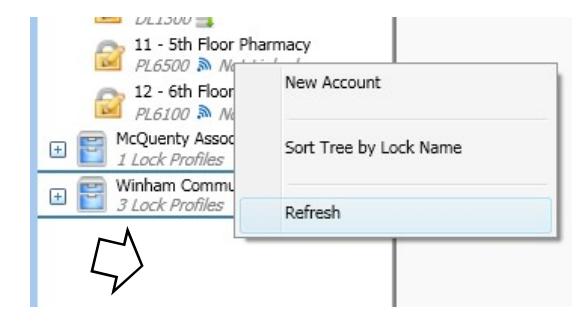
Refresh (Right-click Option)
If you have two or more users accessing the same DL-Windows database at the same time, be aware that database changes may not be reflected immediately on screen. Therefore, a right-click Refresh option manually reloads the screen to reflect changes (right-click the "white area" below your accounts; see arrow in the image below).
Future software versions will have an icon (at the bottom right) to warn that "database changes were detected", and a recommendation to download these changes to the locks place them into operation.
Lock Screen
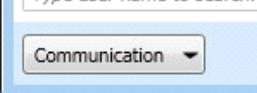
The Send/Receive button has been changed to the Communication button.
Schedules Screen
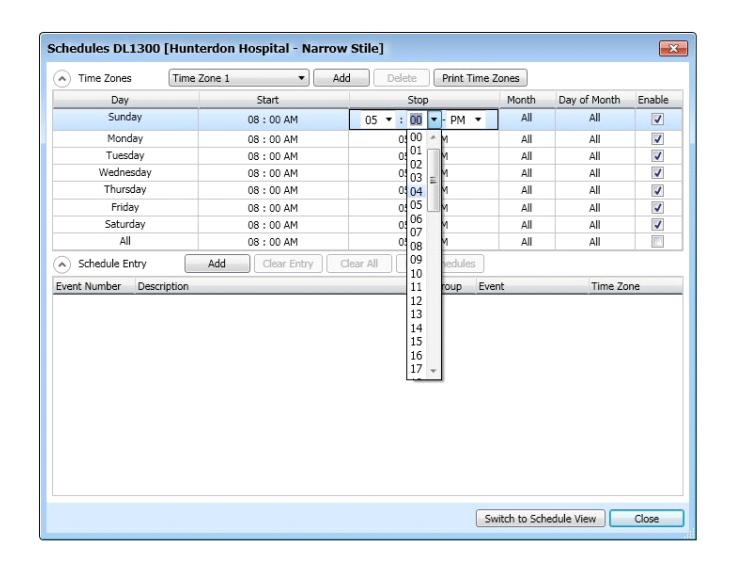
The Schedules screen has been simplified. For example, to set the Start and Stop times for a Time Zone, simply click within the hour or minute to open a series of pull-down menus.
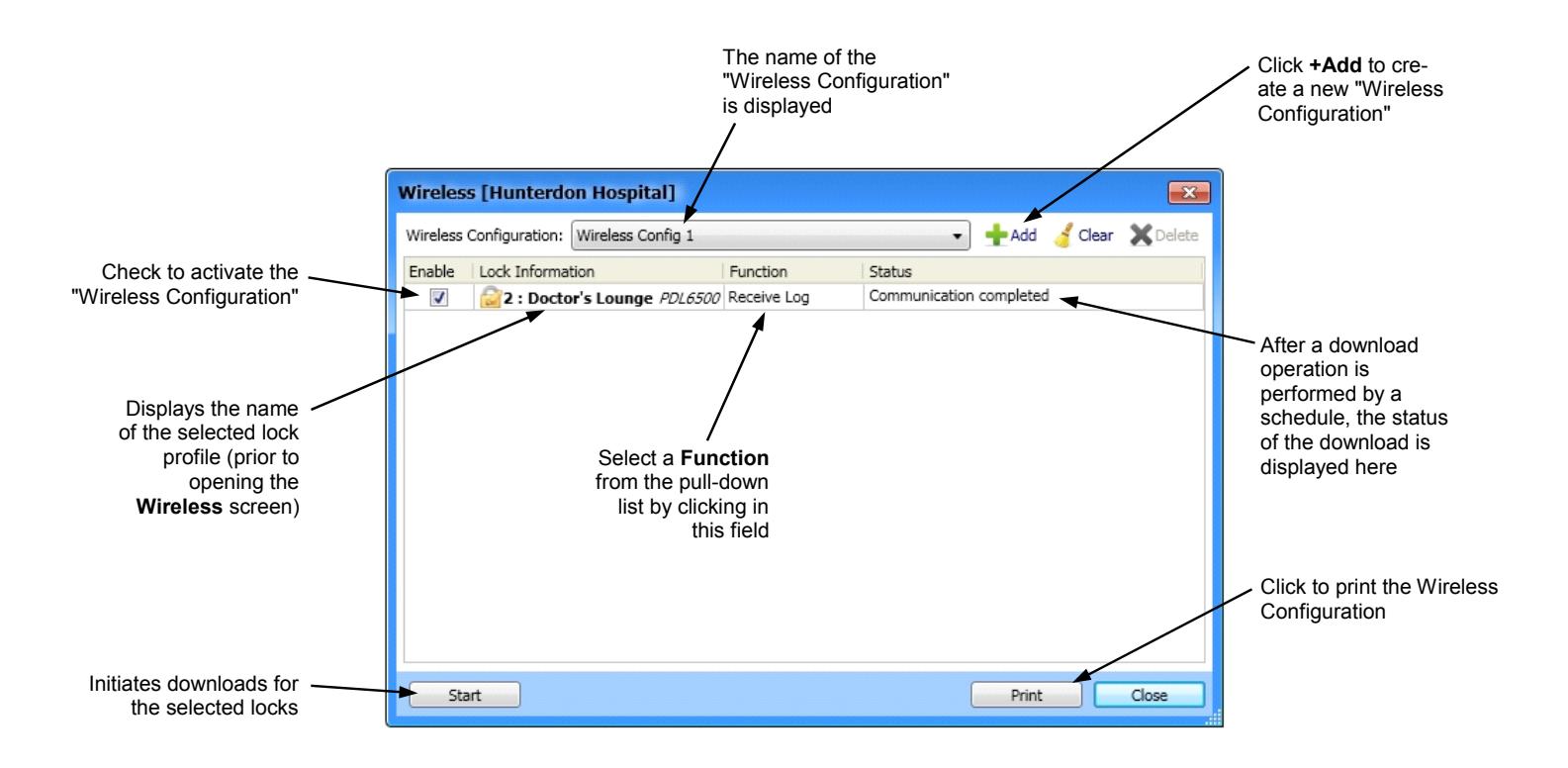
Wireless Screen
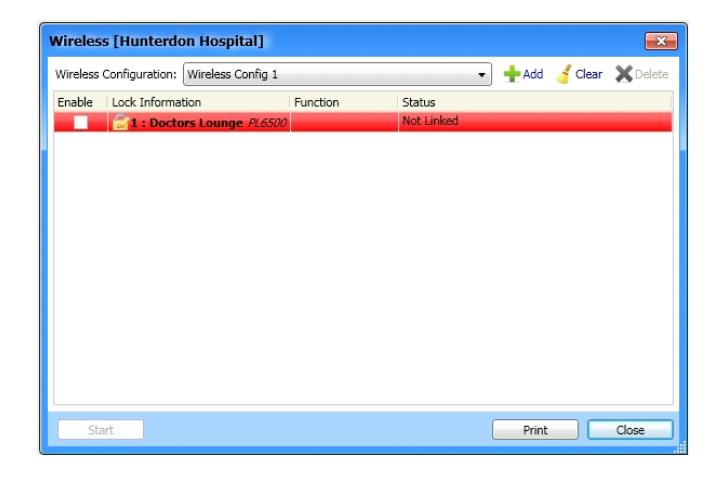
Changes include the following:
- Will display lock profile in red color if not linked.
- The Download Selected Locks button (at the bottom of the screen) is changed to " Start ".
- Added a Print button to allow the printing of the wireless configuration; a " Print Preview " has also been added (to display on screen the way it will appear on paper). Note: The Print Preview function exists for all printing options within DL-Windows V5.0.0.
Global Users Screen
Changes include the following:
- Prox users are now marked with a yellow "card" icon, and Emergency Users are marked with a "siren" icon.
- The Locks Listed by Lock ID "grid" (top right) has been renamed the Locks grid, and now also displays the name of the Lock Profile (only the first 8 characters).
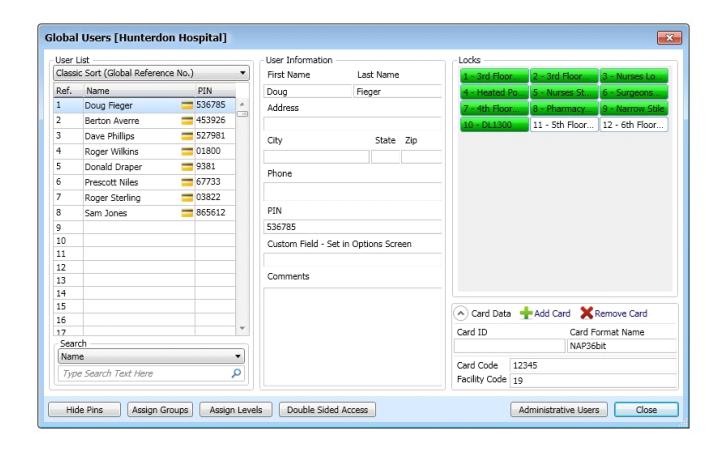
- Many of the buttons have been moved to the lower part of the screen.
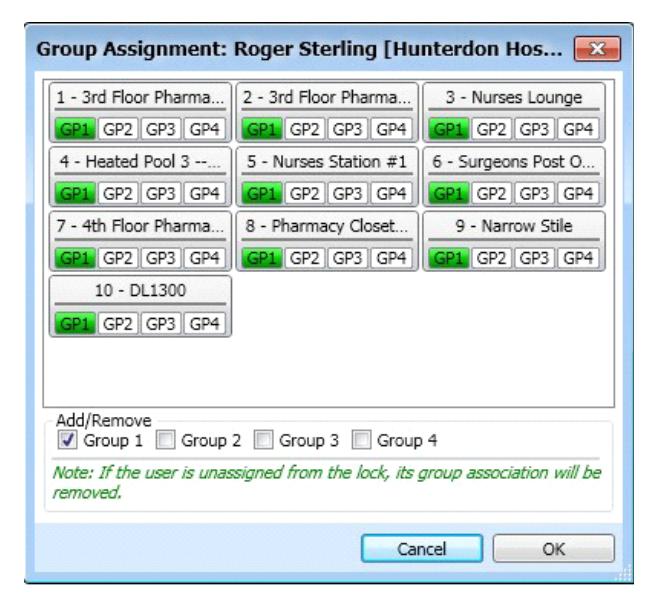
- Click the Assign Groups button, and the new Group Assignment dialog opens (shown below):
In the previous version of DL-Windows, selecting multiple users to add to a Group required clicking the Add Selected Users to These Groups button.
With the new screen, for example, to add a single user OR multiple users to Group 1, simply click the GP1 button. The checkbox at the bottom of the screen can be used to add to (or remove from) all Groups. The same enhancement has been included within the Assign Levels and Double Sided Access buttons.
• In the Add Cards ( Prox Card Enrolling dialog), checking the Sequential Add check box would, in the
previous version of DL-Windows, add 100 cards maximum:
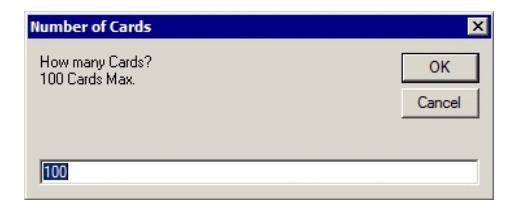
Now the default number is set in the Options screen that allows you to define the maximum number of cards.
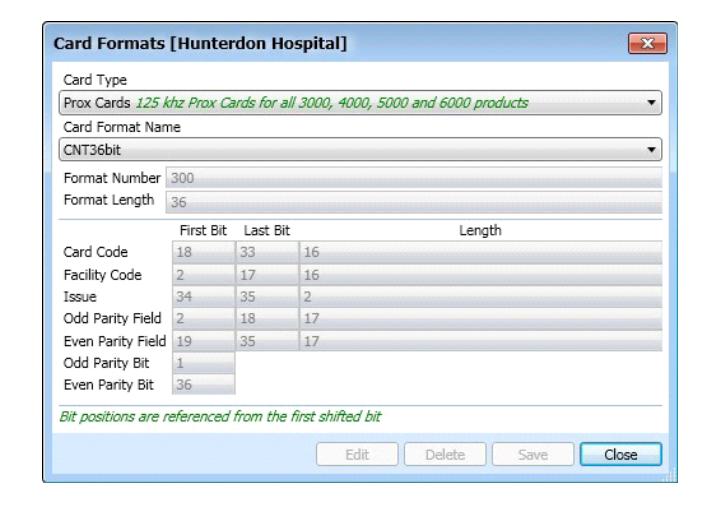
• A new " Format " button opens the Card Formats dialog, displaying the raw card format data, including "Issue", "Parity Bit", etc. If " User Defined " is selected, you can click Edit button from the Format screen to allow manual changes to the raw card format data, if needed.
iCLASS SUPPORT
DL-Windows 5.0.0 now supports iCLASS proximity read-only smart cards that operate with 13.56MHz readers installed in our 7000-Series door locks (our standard locks have 125KHz readers). The Card Enrolling dialog, shown below, includes several changes:
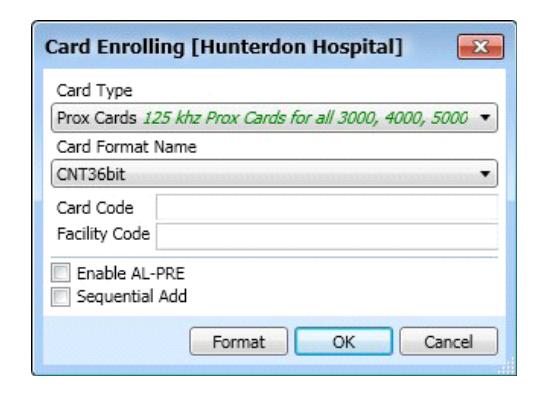
• To enroll iCLASS cards, select Smart Card from the Card Type dialog, enter Card Code , Facility Code
(enter in either decimal, binary or hex) and Issue (depends on card format). The new Copy button repopulates the various fields with previously-defined data, avoiding unnecessary re-typing.
- FIPS and CSN cards will be supported in a future release.
- A proximity enroller for iCLASS cards will be available shortly.
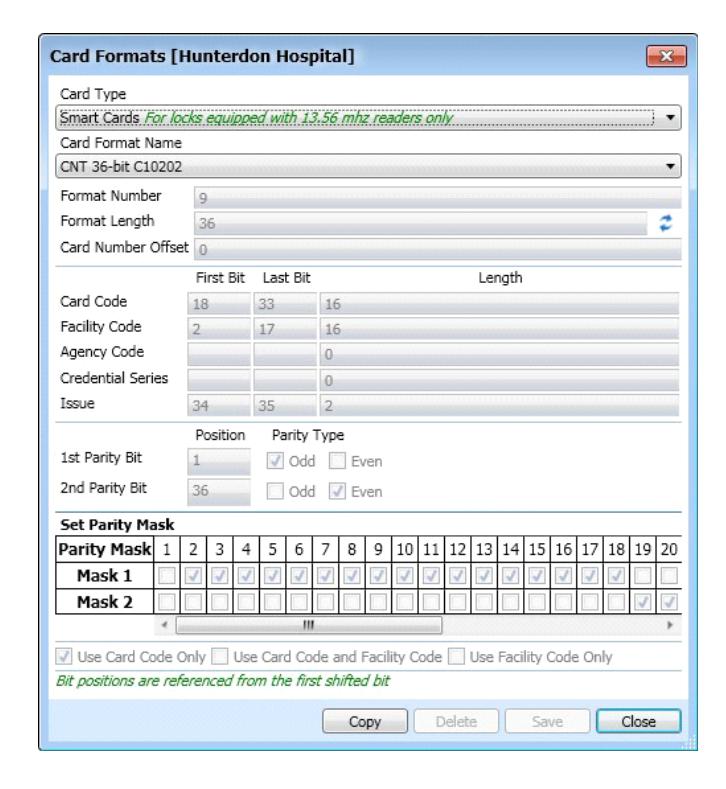
The Card Formats screen for iCLASS cards is shown below:
HID Global has written an iCLASS Card Ordering Guide available at www.hidglobal.com to help you through the many standard and custom options available, and the several choices that must be made before an order can be placed.
The above screen is used to enter the characteristics of the iCLASS data format definitions. Before using the above Card Formats screen, it is assumed that you have an advanced level of knowledge regarding the data structure of iCLASS branded smart cards, and have been issued an iCLASS format data definition statement from HID Global.
After custom information has been added to the above Card Formats screen, you can save your work by clicking the Save button, and typing a unique Card Format Name that will help you locate and reuse the card data formats in the future.
Gateway Config Screen
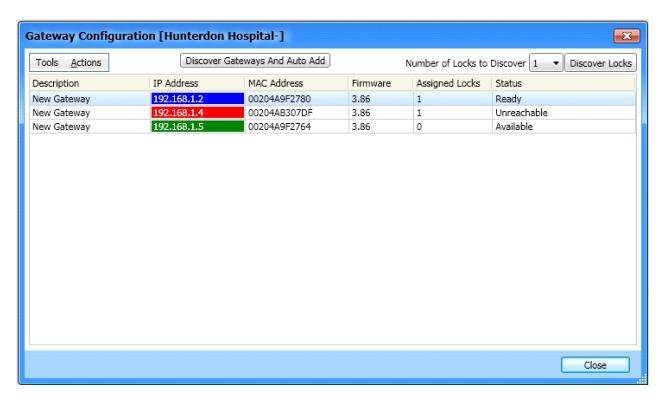
The new Status column indicates the real-time status of the gateway. The IP Address column uses 3 colors to indicate status:
- Blue = "Ready" (discovered and assigned)
- Red = "Unreachable" (communication failure)
- Green = "Available" (newly found and must be added)
The screen below displays the lock discovery process (after clicking the Discover Locks button):
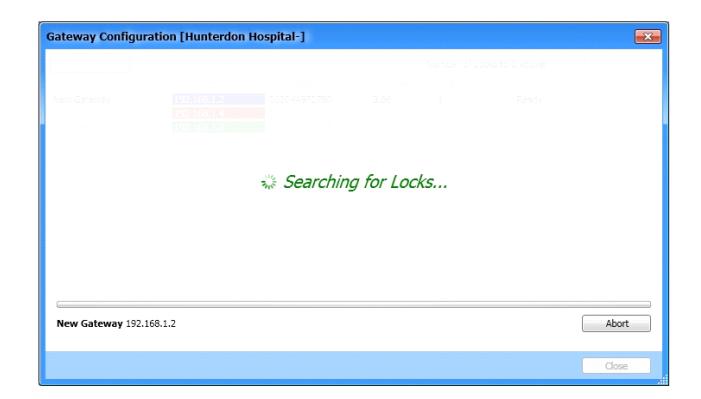
Notice the new Abort button (shown above) that stops the discovery process to list only those locks discovered up until the time the Abort button was clicked.
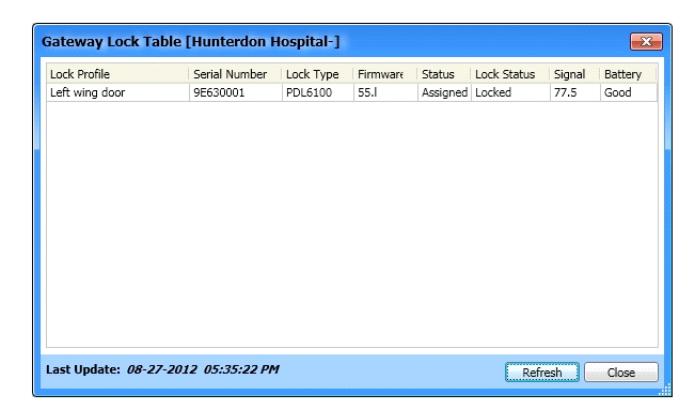
• Gateway Lock table (above): Added Refresh button (click to request the Gateway to pull the real-time status of all locks). Also includes a " Last updated " field at the bottom of the screen.
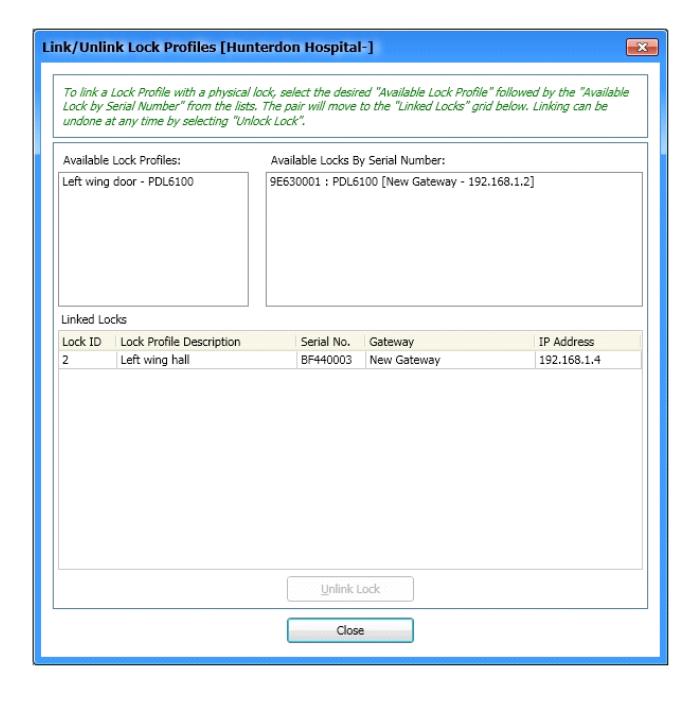
- Link / Unlink Lock Profiles screen (shown below): When a profile in the Available Lock Profiles field is selected, only those physical locks matching the model selected will be displayed in the Available Locks By Serial Number field. Therefore, if at first you do not see your lock listed, click on its lock model in the Available Lock Profiles field and it will likely appear in the Available Locks By Serial Number field.
- Once the profile is selected (at left), click the lock (at right) only once to link.
COM Port Setup
Like always you must set up your COM ports when you wish to communicate with your non-Networx locks. Previously limited to COM ports 1-4, now any COM port can be used and will be detected when the AL-PCI2 cable is connected (for example COM 17 shown in the dialog below).
Click Tools , COM Port Setup and Test , and the following Loopback Test dialog appears:
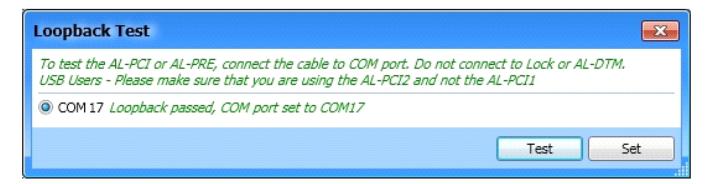
Click Test to send an outgoing test signal back to the receiving side to verify the connection. When the test passes, click Set to lock in the COM port number.
WIRELESS SCHEDULES
Allows automatic downloading of a Networx lock at a programmed time. A profile can be sent, a log received, or both. For example, a hospital wishes to pull a log of events every night at 9 PM.
1.Click the Wireless button to open the Wireless screen (shown below). When opened, an empty "Wireless Configuration" (named " Wireless Config 1 ") is ready to be enabled and to have a "Function" assigned. Check the Enable checkbox, then click the empty field under the Function column to open the pull-down list (click to select and assign a Function).
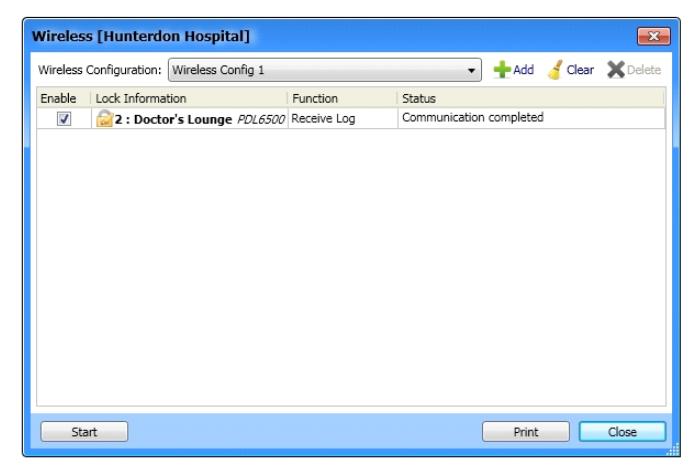
Additional Wireless Configurations can be added with the " +Add " button. Click the Clear button to erase the selected options, and Delete to remove the Configuration.
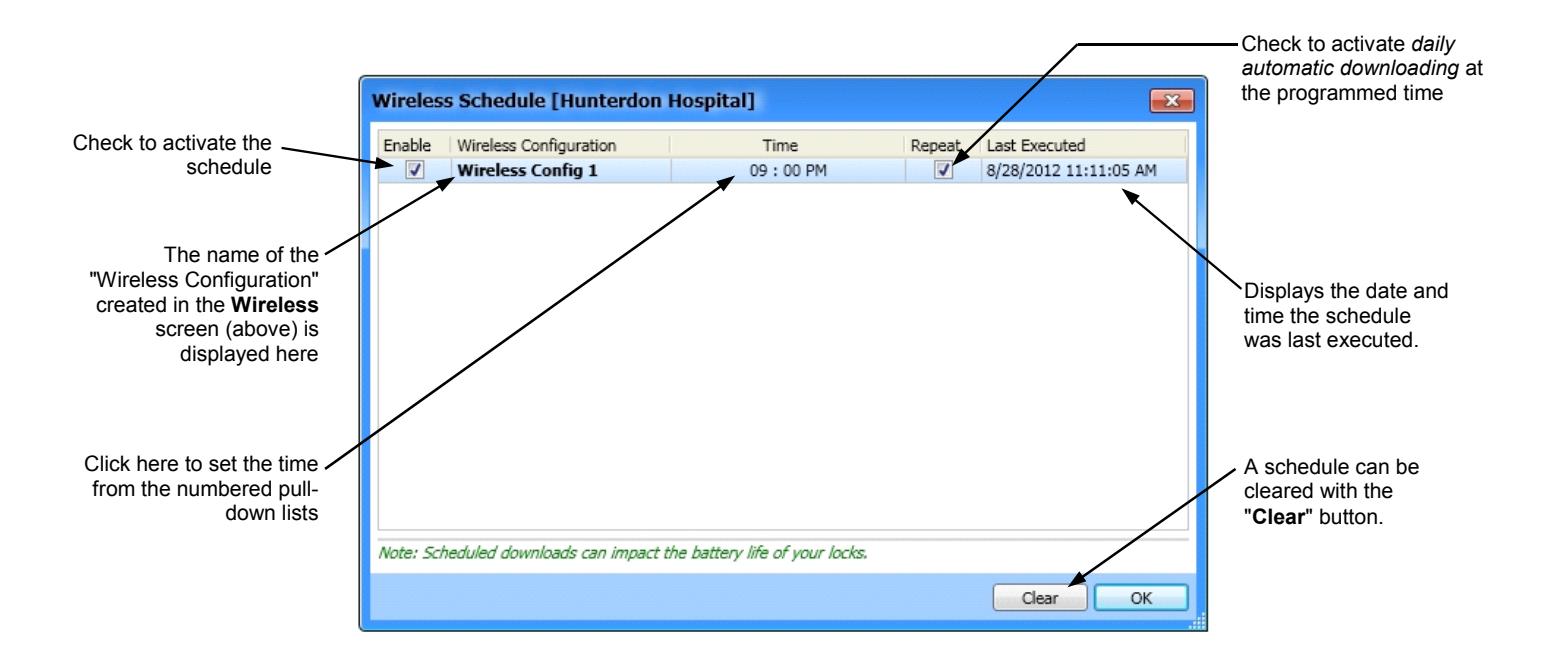
2. Schedule a time for the "Wireless Configuration" to be executed: Click Tools , Wireless Schedule to open the Wireless Schedule screen (shown below).
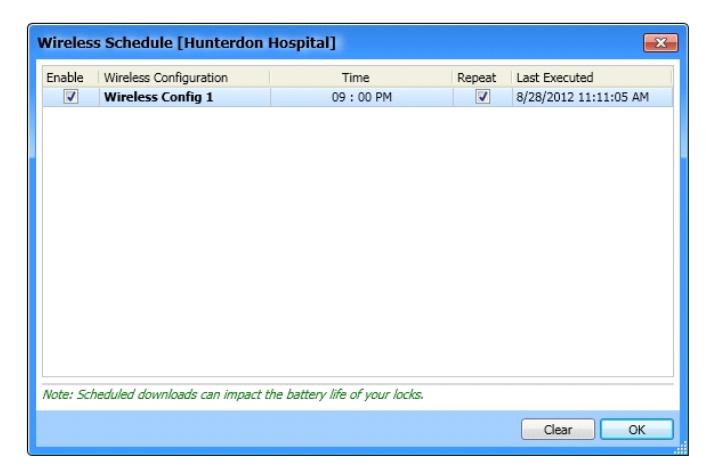
Check the Enable checkbox to activate the "Wireless Configuration" created in the previous step. In the Time column, click to open the numbered pull-down lists to set the scheduled time. The Repeat checkbox allows daily automatic downloading at the programmed time. Note: Programming daily automatic downloads will noticeably impact battery life, due to waking up the locks every day (notice the warning in the above Wireless Schedule screen).
CREATING WIRELESS SCHEDULES
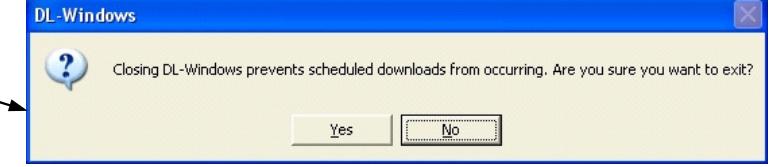
Warning: If you have a schedule programmed, and DL-Windows is closed, the schedule will not occur. A warning popup appears if you try to exit DL-Windows with a schedule programmed:
345 Bayview Avenue Amityville, New York 11701 For Sales and Repairs 1-800-ALA-LOCK For Technical Service 1-800-645-9440 Publicly traded on NASDAQ Symbol: NSSC
© ALARM LOCK 2012