Alarm Lock DL-Windows V4.1.x Quick Start Guide
Open the original PDF document
View PDF
DL-WINDOWS ™ V4.1.x QUICK START GUIDE 345 Bayview Avenue
Publicly traded on NASDAQ Symbol: NSSC © ALARM LOCK 2012 WI1152B 3/12
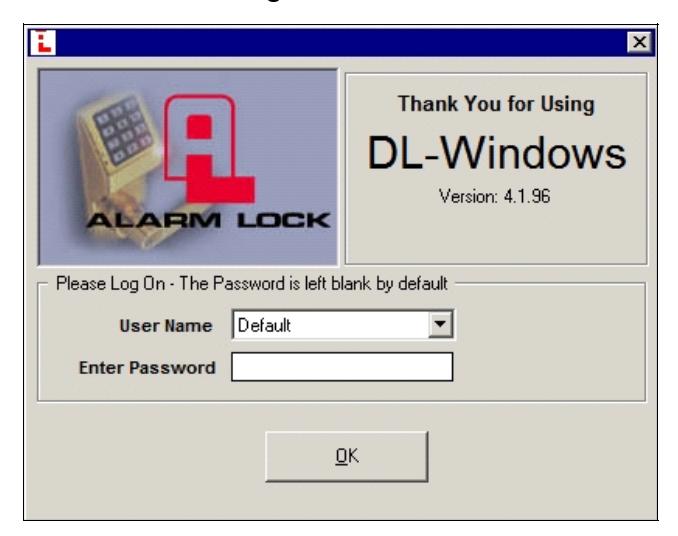
1. To open DL Windows , click the DL Windows icon on the desktop. The Log On screen appears (below). The User Name is " Default "; a password is not required, therefore click OK to begin.
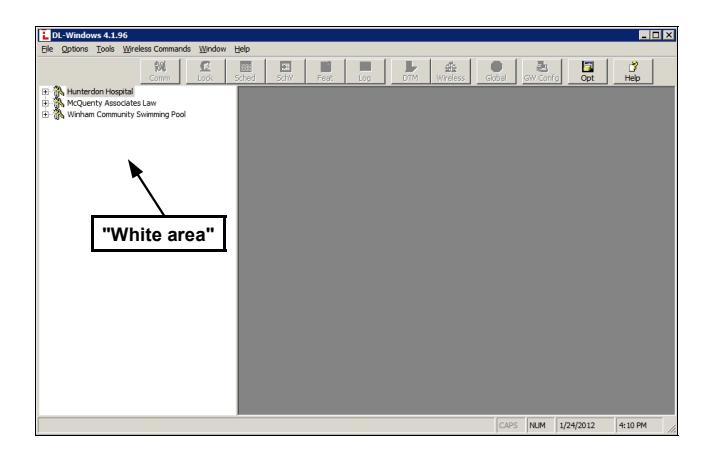
Existing accounts appear in the "white area" on the left side of the screen.
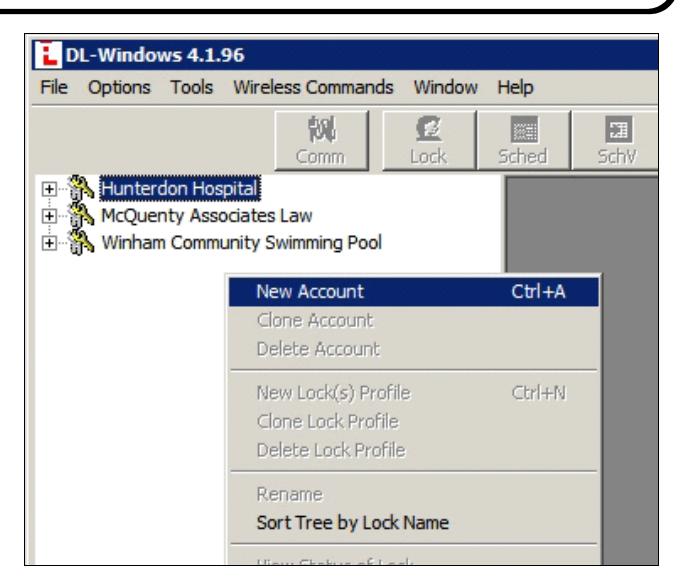
2. To create a new Account , right-click in the white area. From the pop-up window, click New Account .
3. In the New Account dialog, type a description in the Enter New Account Description field, and click OK .
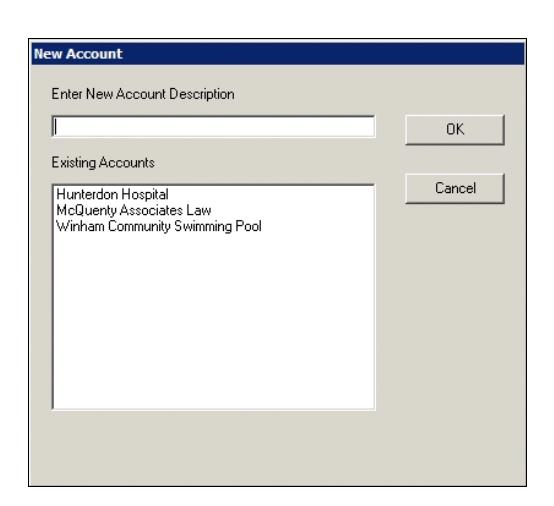
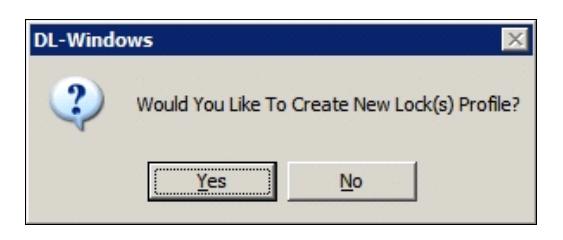
4. Create Locks. Click Yes when asked to create new lock profiles.
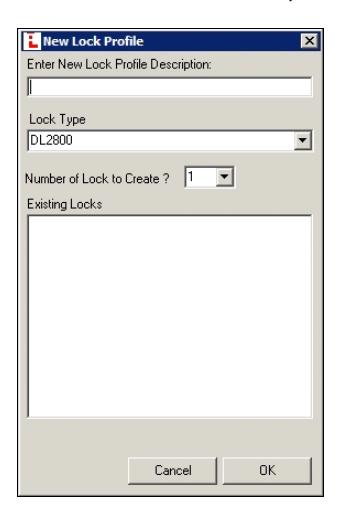
In the New Lock Profile dialog (shown below), type a new lock profile description, choose your Lock Type (using the Alarm Lock model numbers) and the number of locks you want to create. When finished, click OK .
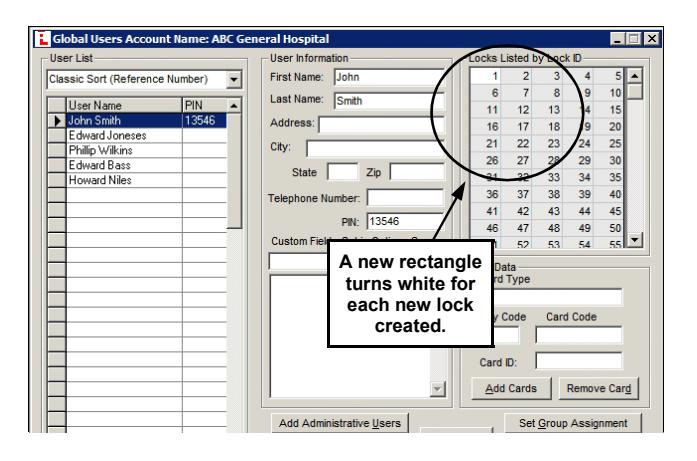
Please note that for each lock created, each rectangle will turn white (no longer grayed-out) in the Global Users Screen "Locks Listed by Lock ID" chart (located at the upper right). Up to 2000 locks may be created within each Account, and a maximum of 100 Accounts are allowed within each DL Windows Software installation.
5. To open your newly created Account or an existing Account, click the Account name in the Account list (on the left side of the screen). The Global button illuminates.
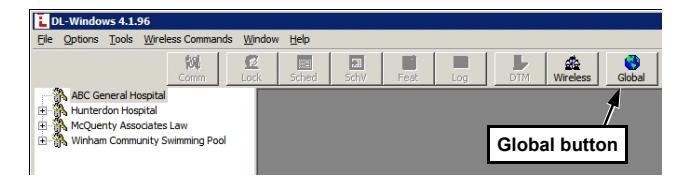
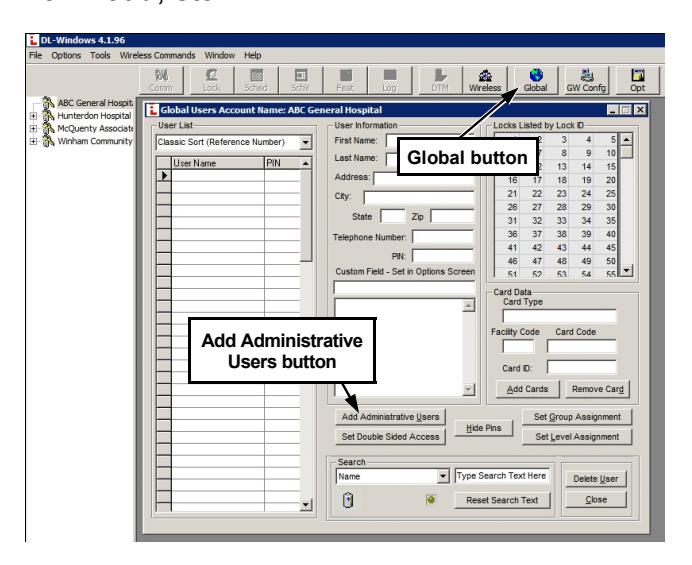
6. Click the Global button to open the Global Users Screen , and click the Add Administrative Users button to set the User Codes for the Master , Installers , Managers , DTM , PC Download , etc.
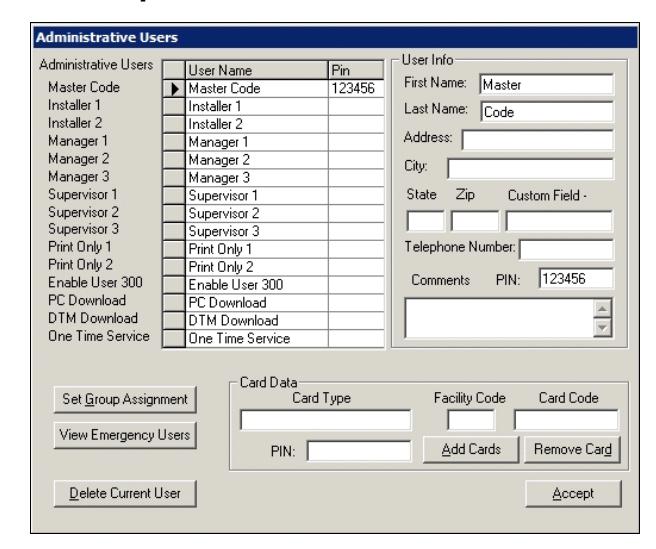
7. Determine your pin and/or Prox codes for the Administrative users. When finished, click the Accept button.
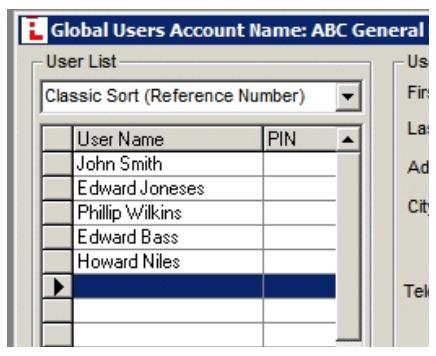
8. Add "Basic Users" to the Global Users Screen (add all names first, then go back and add pin codes and/or proximity cards).
-
9. Add Pin codes
one at a time by either:
- highlighting individual names and typing each code individually (see image below), or
- highlight and right-click a name, then have the software create a 4 to 6-digit random code from the pop-up window (see next step).
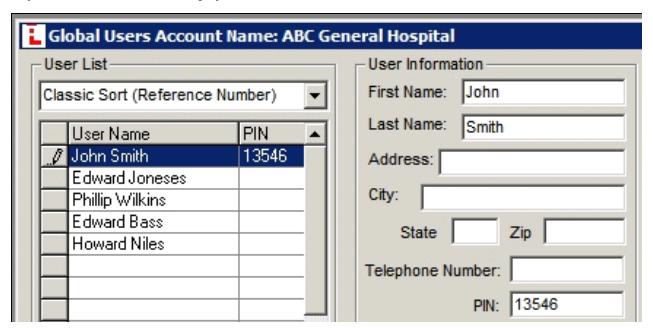
The software can "auto-generate" 4 to 6-digit random codes for multiple users at one time:
- Click to highlight the first User Name;
- Press and hold the keyboard Shift key;
- Click to highlight the last User Name;
- Right-click the highlighted area;
- Click Generate Selected New Codes .
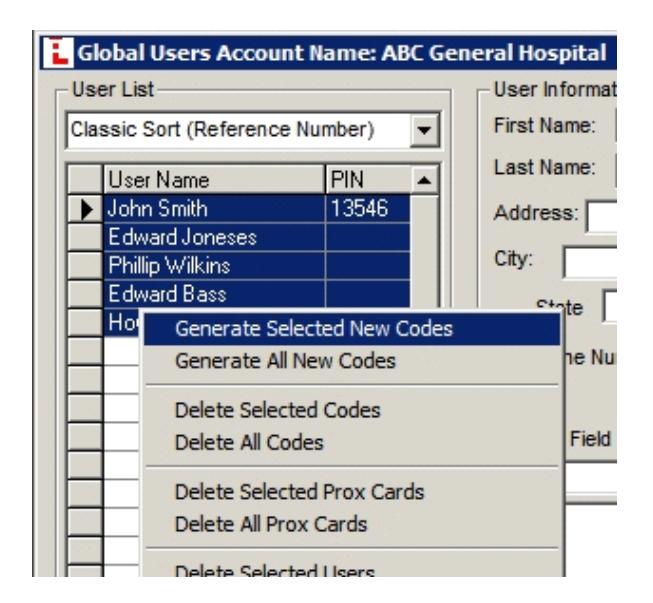
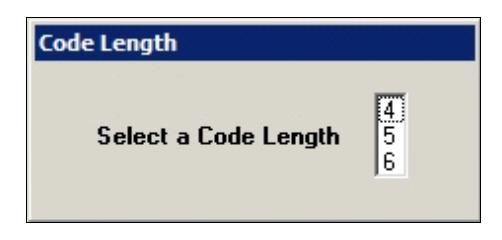
Click Yes to the confirmation popup, and select the number of digits in the Code Length popup (click a number).
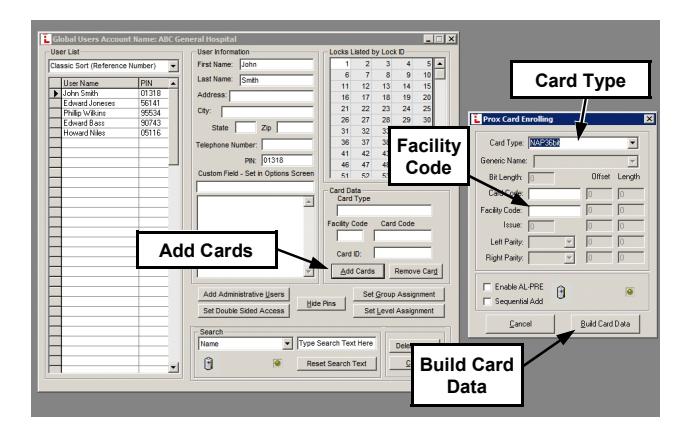
10. Add proximity cards to users. Select a user, click the Add Cards button and choose the correct Card Type and type the Card Code and Facility Code . When using HID Prox cards from Alarm Lock, choose "Nap 36bit" as the Card Type , "19" for the Facility Code , and simply type the Card Code which is the number printed on the card itself. When finished, click the Build Card Data button. The selected User Name is highlighted when Card Data is successfully added.
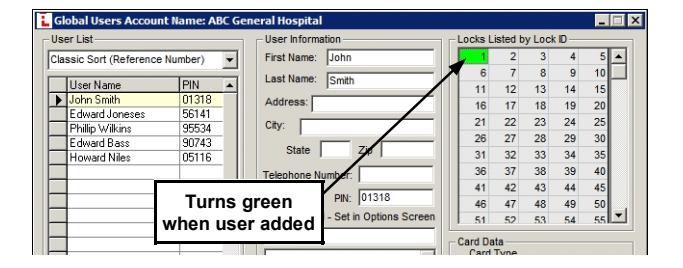
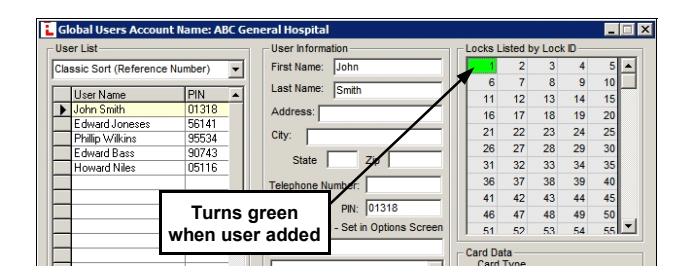
11. Add Users to Locks. In the Global Users Screen , simply highlight a User Name in the User List, then double-click the desired lock(s) in the "Locks Listed by Lock ID" chart (located at the upper right). When the Lock ID rectangle turns green, the highlighted user (the user's associated PIN) is added to the lock profile.
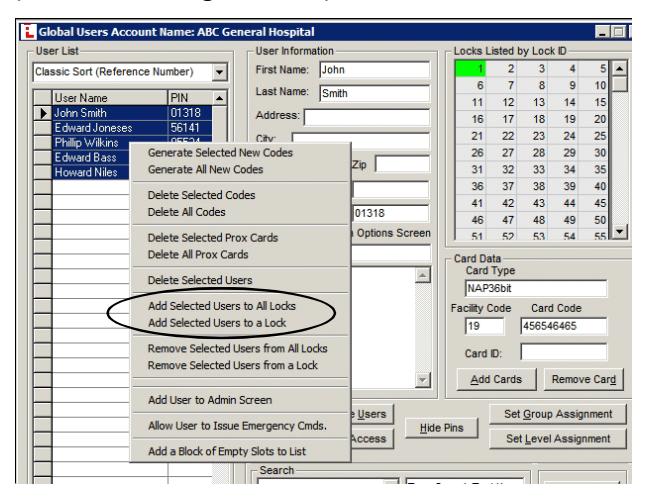
You may also add multiple users to a specific lock –or– to ALL locks in your Account:
- Click to highlight the first User Name;
- Press and hold the Shift key;
- Click to highlight the last User Name;
- Right-click the highlighted area;
- Click Add Selected Users to All Locks
–or– Add Selected Users to a Lock (circled in image below).
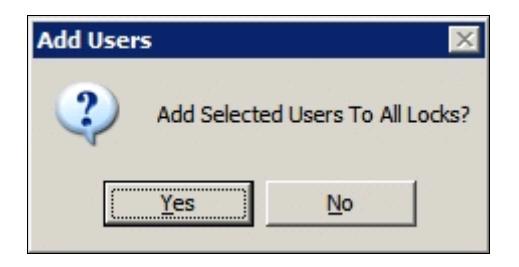
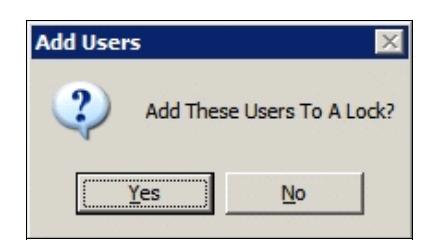
Click Yes in the confirmation popup:
Again, when the Lock ID rectangle turns green, the user is added to the lock.
To add specific users to a specific lock, click the individual User Name while pressing and holding the Ctrl keyboard key; this will highlight only those individual users you wish to be added.
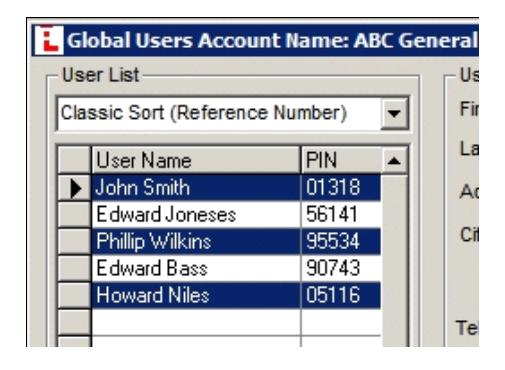
Right-click one of the highlighted areas. Click Add Selected Users to a Lock .
Click Yes in the Add Users pop-up...
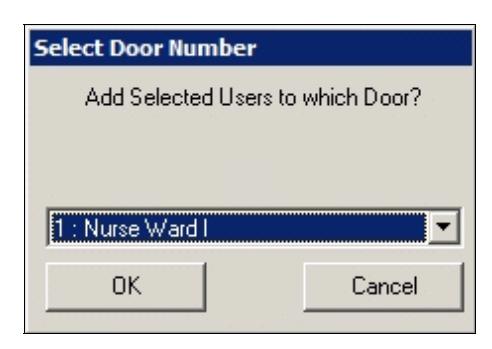
...then select the specific lock in the Select Door Number pop-up.
As shown in the image below, specific users have been added to a specific lock. A green Lock ID rectangle indicates the user is added to the lock.
12. Send program to locks using your laptop:
- In the "white area" on the left side of the screen, double-click the lock you wish to program; The Lock Data screen for the selected lock opens.
- Click the Send/Receive button;
- Click Send to Lock ; in the Send to Lock dialog, check All , then click Start ;
- If your laptop is connected to the lock with an AL-PCI cable, enter the PC Download code you previously used in the Admin Screen. If the locks are wireless Networx system locks and your laptop is connected to the network, the programming will proceed wirelessly.
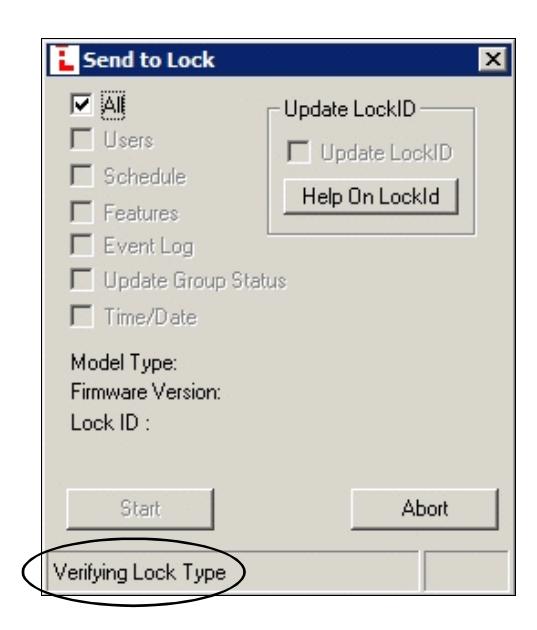
While transmitting, look for the words "Verifying Lock Type" and then rolling numbers at the bottom of the Send to Lock screen. When finished, the message reads Transmission Complete .
Comm Button
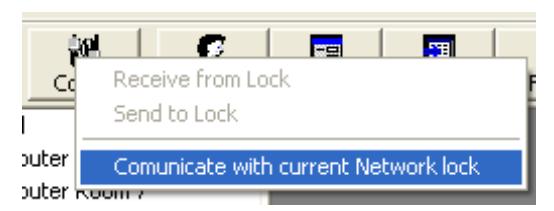
You can also initiate communications by clicking the Comm button on the DL-Windows main screen. When using the Gateway to communicate, click Communicate with current Network lock .
The DL-Windows Network Lock Comm Screen opens.
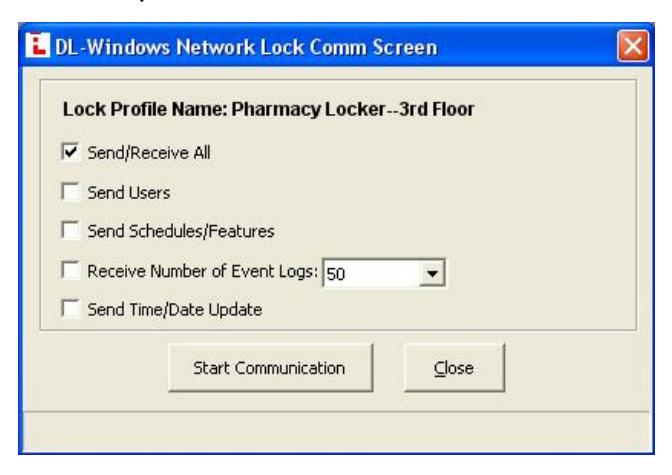
This screen includes the name of the lock Pro-
file in the Lock Name field, and lists the specific elements of the lock Profile to be transmitted. Note that checking the individual elements will take less time to transmit than compared with checking " Send/Receive All ".
For new installations, check " All " and click the Start Communication button. The status bar at the bottom of the window will indicate the communication progress. When communication is complete, a popup will appear. Click OK to close the popup, then click Close to close the DL-Windows Network Lock Comm Screen .
Using your DTM-III to program the lock:
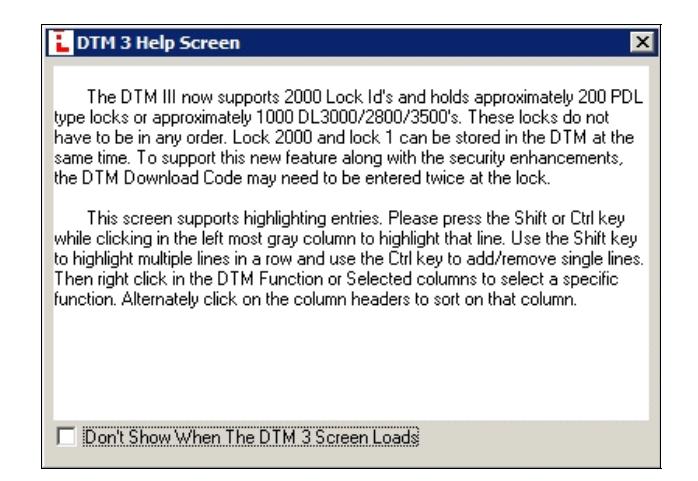
• Double-click the DTM button to open the DTM 3 Support screen. A DTM 3 Help Screen appears, detailing the support parameters of the AL-DTM-III data transfer module.
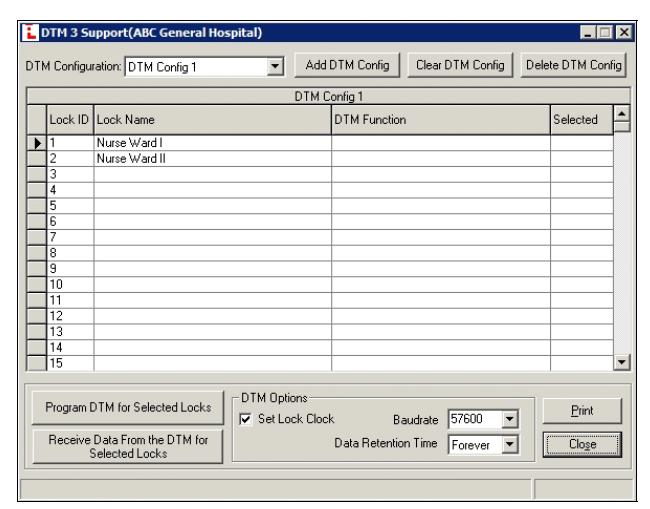
• Under the DTM Function column, click the
- row for the lock you wish to program and a pull-down list appears. Select Send Program to Lock .
- Under the Selected column, double-click the row(s) for the lock(s) you wish to program. The check mark () appears for each lock selected (the DTM-III can program up to 2000 lock ID's at one time).
- Click the Program DTM for Selected Locks button to start the transmission. As before, rolling numbers at the bottom of the screen indicate the software and DTM-III are transmitting the data.
This page intentionally left blank
345 Bayview Avenue Amityville, New York 11701 For Sales and Repairs 1-800-ALA-LOCK For Technical Service 1-800-645-9440 Publicly traded on NASDAQ Symbol: NSSC
© ALARM LOCK 2012